
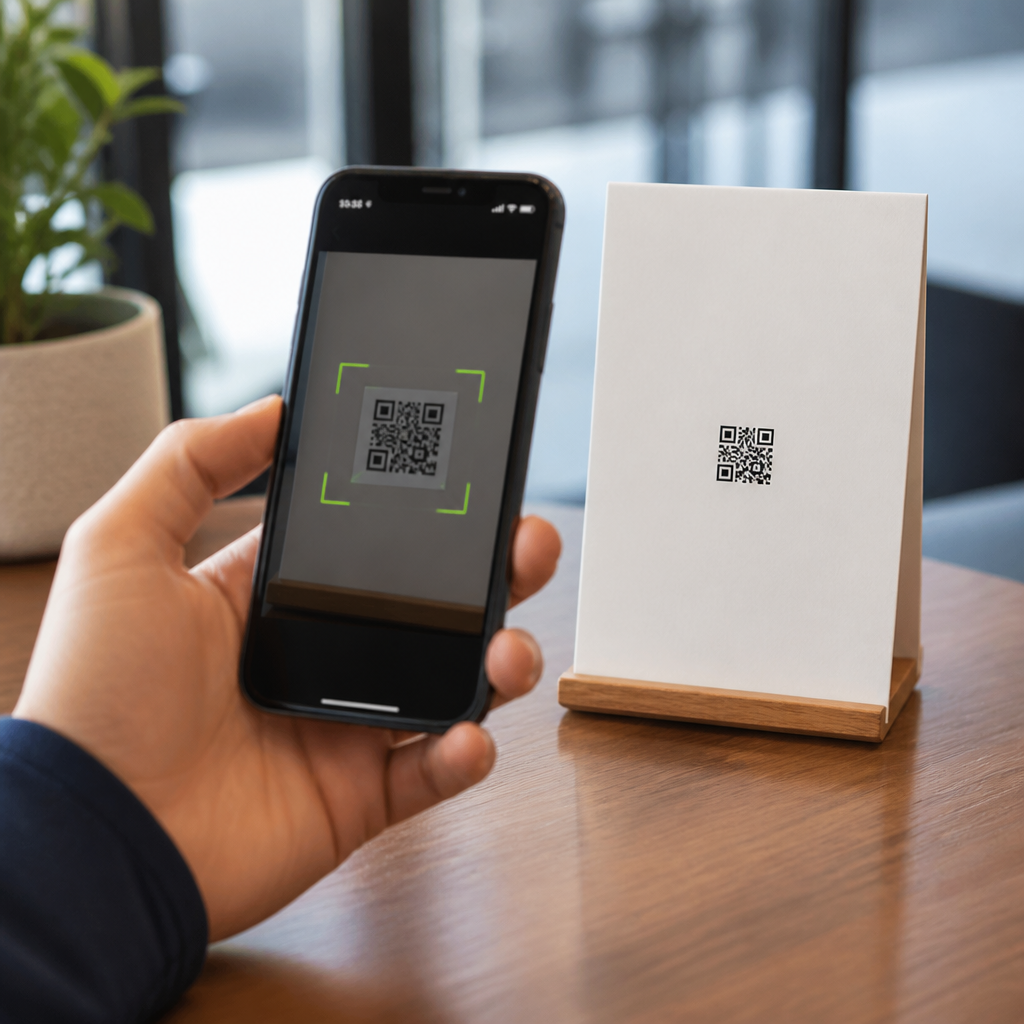
QR codes fail for predictable reasons, and size is one of the most common. When people ask why a QR code is too small to scan, they usually mean the camera can see it but cannot decode it quickly, consistently, or at all. In practical terms, a code is too small when the phone’s camera cannot resolve the individual modules, the tiny square cells that store data, from the distance and lighting conditions where people actually use it. I have tested QR codes on retail packaging, restaurant tables, posters, trade show banners, and direct mail, and undersized symbols are the failure I see most often.
Troubleshooting QR code scans starts with understanding what affects readability. Physical size matters, but so do scan distance, print quality, contrast, reflective surfaces, error correction, camera autofocus, motion blur, and the amount of data encoded. A simple URL can fit into a smaller symbol than a long vCard or payment string because denser data creates smaller modules at the same overall size. The quiet zone, the blank margin around the code, is also essential. If surrounding graphics crowd that margin, a code that looks large enough can still fail in the real world.
This matters because QR performance directly affects conversion, customer support volume, and trust. If a user has to move closer, tilt the phone, or try multiple apps, the moment is lost. On a product label, that means missed registrations or manual lookup. On signage, it means fewer campaign visits. On payments, it causes checkout friction. This article is the hub for troubleshooting QR code scans, with a specific focus on size, while also connecting the related causes that make small codes fail more often. If you need one rule before the details, use the standard 10:1 guideline: for every ten units of scanning distance, provide at least one unit of QR code width.
What “too small to scan” really means
A QR code is too small to scan when the camera sensor cannot capture enough sharp, high-contrast detail for decoding software to distinguish each module and finder pattern. Most smartphones can read well-printed codes surprisingly fast, but only when the module size remains clear after distance, glare, motion, and compression are considered. In field testing, I have seen a 12 mm code scan perfectly on a bright, matte product carton at arm’s length, while a 20 mm code failed on glossy curved plastic because reflections and distortion erased edge definition.
The most useful way to think about size is not absolute width alone but module size. A QR code with more encoded characters has more modules. If you keep the printed dimensions fixed and increase the data payload, each module gets smaller. That means a dense code may fail where a simpler code of the same physical width succeeds. This is why dynamic short URLs often outperform long static URLs in print: they reduce symbol complexity and preserve larger modules. When troubleshooting QR code scans, always ask how much data is inside the symbol, not just how many millimeters wide it is.
The quiet zone is part of the size equation. ISO/IEC 18004 specifies a clear margin around the code, commonly treated as four modules wide on all sides. Designers often violate this by placing text, borders, or background textures too close. The scanner then struggles to isolate the code from its surroundings. If your QR code seems large enough but still scans inconsistently, measure the quiet zone before blaming the phone.
How to calculate the right QR code size
The most practical sizing rule is the 10:1 ratio. If users scan from 50 cm away, make the code at least 5 cm wide. If they scan from 2 meters away on a poster or storefront, aim for at least 20 cm. This guideline is not arbitrary; it reflects the need for sufficient angular resolution at the camera. It also assumes decent lighting, good focus, and moderate data density. When any of those worsen, increase size beyond the minimum.
Real deployments show why context matters. A QR code on business cards is usually scanned from 15 to 25 cm, so widths around 20 to 25 mm can work if the encoded URL is short and printing is crisp. A code on shelf wobblers or tabletop signs is often scanned from 40 to 80 cm, where 40 to 80 mm is safer. Event posters viewed from a queue line may need 100 to 150 mm or more. Vehicle graphics require much larger dimensions because scan distance is far greater and users rarely hold the camera steady.
| Use case | Typical scan distance | Recommended minimum width | Notes |
|---|---|---|---|
| Business card | 15–25 cm | 20–25 mm | Use a short URL and high contrast |
| Product packaging | 20–40 cm | 25–40 mm | Avoid curved or glossy placement |
| Table tent or menu | 30–70 cm | 35–70 mm | Allow for dim restaurant lighting |
| Poster | 1–2 m | 100–200 mm | Increase size for busy environments |
| Storefront window | 1–3 m | 120–300 mm | Glare can require even larger symbols |
These values are conservative, which is appropriate. Minimums that work in a lab often disappoint in the field. A reliable QR code is designed for real conditions, not ideal ones.
Why small QR codes fail even when the design looks correct
Small codes fail because several weaknesses compound each other. The first is print fidelity. Ink spread on porous stock, toner softness on office printers, or low-resolution thermal labels can blur module edges. At small sizes, slight bleed destroys decodability. The second is surface behavior. Gloss lamination, metallic substrates, and curved bottles introduce reflections and warping. The third is camera limitation. Budget phones, older devices, and social-app camera scanners often perform worse than flagship native camera apps, especially in low light.
Error correction helps, but it is not a cure for undersizing. QR codes support levels L, M, Q, and H, allowing the code to survive some damage or obstruction. However, raising error correction increases symbol density when the overall size stays fixed. That can make a too-small code even harder to read. In practice, I use higher error correction when logos or rough handling justify it, but I compensate with a larger print size and a shorter payload.
Color choices also matter. The safest combination remains black modules on a white matte background. Brand colors can work if contrast is strong, but low-contrast combinations such as dark blue on black, light gray on white, or translucent overlays routinely underperform. In troubleshooting QR code scans, I often find that teams changed three variables at once: made the code smaller, applied brand styling, and added a logo. Any one might pass. Together they create marginal performance.
A step-by-step troubleshooting process for QR code scans
Start by testing the code’s destination and encoding. Confirm the URL resolves quickly, uses HTTPS, and is not blocked by captive portals or app redirects. Then inspect the source file. Vector formats such as SVG, EPS, or print-ready PDF preserve edge sharpness better than screenshots copied into layouts. If the code came from a raster image, verify that scaling did not introduce blur. Next, measure physical width and quiet zone. If the code is below the distance-based minimum, resize before changing anything else.
After size, evaluate contrast and surface. Print one version on matte white stock and compare it with the production material. This isolates whether substrate is the problem. Then test with multiple devices: current iPhone, recent Samsung Galaxy, and one mid-range Android. Use native camera apps first because they reflect how most people scan. Check performance in bright light, shade, and low indoor light. If users must hunt for focus or move unusually close, the code is still too small or too dense.
Finally, simplify the symbol. Replace long URLs with a branded short domain or dynamic QR platform link. Remove decorative frames crowding the quiet zone. Increase print size by at least 25 percent rather than nudging it by a few millimeters. Small iterative changes often leave the code marginal. Decisive changes produce dependable scans.
Best practices for preventing scan issues across channels
Design for the environment, not just the artwork. On packaging, keep codes off seams, corners, and shrink-wrap folds. On menus, avoid placement near table edges where shadows and spills interfere. On windows, account for exterior glare and interior reflections. For outdoor posters, assume motion, poor angles, and limited patience. Larger codes with short destinations consistently win. Where analytics matter, dynamic QR platforms such as Bitly, QR Code Generator Pro, Flowcode, or Beaconstac can shorten links and support destination updates without reprinting.
Create a repeatable QA checklist. Verify minimum size against expected distance, quiet zone compliance, contrast ratio, file format, substrate, and cross-device testing. Keep a sample library of successful dimensions by use case so teams stop reinventing decisions. In production environments, that library becomes more valuable than generic advice because it reflects your printers, materials, and audience devices. I recommend documenting failures too. Knowing that a 25 mm code failed on glossy PET labels while a 35 mm version passed is operational knowledge your team can reuse immediately.
Accessibility should shape decisions as well. Some users have shaky hands, older phones, or limited time. Oversizing the QR code is not wasteful; it removes friction for the broadest audience. Reliability is the goal.
The reason your QR code is too small to scan is usually simple: the camera cannot clearly resolve the modules under real-world conditions. Size is the leading variable, but it interacts with data density, quiet zone, print quality, contrast, surface finish, and device capability. The strongest rule remains the 10:1 distance-to-width guideline, supported by short URLs, clean margins, matte materials, and realistic testing on multiple phones.
For troubleshooting QR code scans, start with the physical basics before chasing obscure explanations. Measure the code, inspect the quiet zone, shorten the payload, and test on the actual printed material in the actual location where people will scan it. Most failed deployments improve quickly once the code is enlarged and simplified. If you are building a broader mobile QR code scanning strategy, use this article as your hub: treat size as the first checkpoint, then standardize your testing process so every future code scans on the first try. Review your current QR placements today and resize any code that depends on perfect conditions.
Frequently Asked Questions
What makes a QR code “too small to scan” in real-world use?
A QR code is too small to scan when a phone camera can technically see the symbol but cannot clearly distinguish the individual modules, the tiny square cells that encode the data. That distinction matters because successful scanning is not just about visibility. It is about whether the camera can resolve enough detail, with enough contrast, from the distance and angle where someone is actually trying to use it. A code that looks sharp on a design mockup can still fail once it is printed on packaging, placed on a table tent, mounted on a window, or viewed under uneven indoor lighting.
In practice, size problems usually show up as slow scans, inconsistent scans, or complete failure on some devices. Older phones, lower-quality cameras, cracked lenses, dim restaurant lighting, glossy labels, and awkward viewing angles all make small QR codes harder to decode. The more data the code contains, the denser the pattern becomes, which means each module gets smaller at the same printed size. That is why two QR codes printed at the same dimensions may perform very differently. A simple URL may scan fine, while a dense code with tracking parameters or other extra data may not. So when people say a QR code is too small, they often mean it is too small for the amount of data, the print conditions, and the expected scanning distance.
How big should a QR code be to scan reliably?
There is no single universal size that works in every situation, but there are dependable guidelines. A common rule of thumb is that the scanning distance should be roughly ten times the printed width of the QR code. For example, if people will scan from about 10 inches away, the code should be around 1 inch wide. If they will scan from 20 inches away, the code should be closer to 2 inches wide. This is a useful starting point because it connects size to actual user behavior rather than treating all placements the same.
For most close-range uses such as product packaging, business cards, countertop displays, or restaurant tables, a QR code around 1 x 1 inch is often the minimum practical size, and going larger usually improves reliability. If the code contains a lot of data, uses a high error correction level, or will be printed on textured, curved, or reflective material, it should generally be larger than the bare minimum. Posters, signs, and window graphics need even more space because users often scan from farther away and at less controlled angles. The safest approach is not to rely on minimum recommendations alone. Print test samples at the actual final size, place them in their real environment, and try scanning them with multiple phones from realistic distances. That kind of testing reveals whether your chosen size is truly reliable or just barely acceptable.
Why do some small QR codes scan on one phone but not another?
Not all smartphone cameras and scanning apps perform the same way. Differences in camera resolution, autofocus speed, low-light performance, image stabilization, and software decoding quality can all affect whether a small QR code scans quickly. A newer phone may lock onto a dense code almost instantly, while an older device struggles to focus sharply enough to separate the modules. Even two modern phones can behave differently if one has stronger image processing or a better built-in scanner.
Environmental conditions amplify those differences. In bright, even lighting, a small code may scan adequately on several devices. In dim light, with glare from lamination or curved packaging, only the better cameras may succeed. That is why testing on one person’s phone is not enough. If a QR code only works on high-end devices under ideal conditions, it is still undersized from a practical usability standpoint. The goal is not for the code to scan eventually on the best phone in the room. The goal is for it to scan quickly and consistently for a wide range of users, including people with average devices in less-than-perfect settings. Reliable QR design always assumes variation in hardware, software, and user behavior.
Can the amount of data inside a QR code make it effectively too small?
Yes. The more data you encode, the more complex and dense the QR code becomes. A dense code packs more modules into the same physical area, which means each individual module is smaller and harder for the camera to resolve. That is one of the most overlooked reasons a QR code ends up being “too small” even when its printed dimensions seem reasonable. A short, clean URL can often scan at a modest size, while a long URL full of tracking parameters, redirects, or appended campaign data may create a much busier symbol that requires a larger print size to remain dependable.
This is why simplifying the destination often improves scan performance. Using a short URL or dynamic QR code platform can reduce visual density and make the code more forgiving in real-world conditions. Error correction settings can also affect density. Higher error correction can be useful when a code might be partially damaged or obscured, but it increases complexity and may require a larger size to maintain readability. If your code has to remain physically small, reducing unnecessary data is often the best fix. In many cases, improving the structure of the encoded content is just as important as increasing the printed dimensions.
What else besides size can make a QR code hard to scan?
Size is a major factor, but it is not the only one. Poor contrast is a common problem. QR codes scan best when dark modules sit on a light background, ideally with strong contrast between the two. Reversing the colors, using decorative patterns, or placing the code over a busy image can interfere with recognition. Print quality also matters. If edges are fuzzy, ink spreads, labels wrinkle, or materials reflect too much light, the modules become harder to distinguish. Quiet zone issues are another frequent cause of failure. A QR code needs clear empty space around the symbol so scanners can identify its boundaries. If text, logos, borders, or design elements crowd the edges, decoding becomes less reliable.
Placement matters as well. A code printed across a curve, near a fold, on a shiny bottle, behind glass, or in a poorly lit corner may fail even if the nominal size is acceptable. User experience should guide every decision. Ask how people will encounter the code: from what distance, under what lighting, with how much time, and on what kind of surface. The strongest QR implementations combine adequate size, short encoded content, high contrast, proper quiet zones, and realistic testing on multiple devices. If you fix size but ignore these other variables, you may still end up with a code that frustrates users and underperforms in the field.





