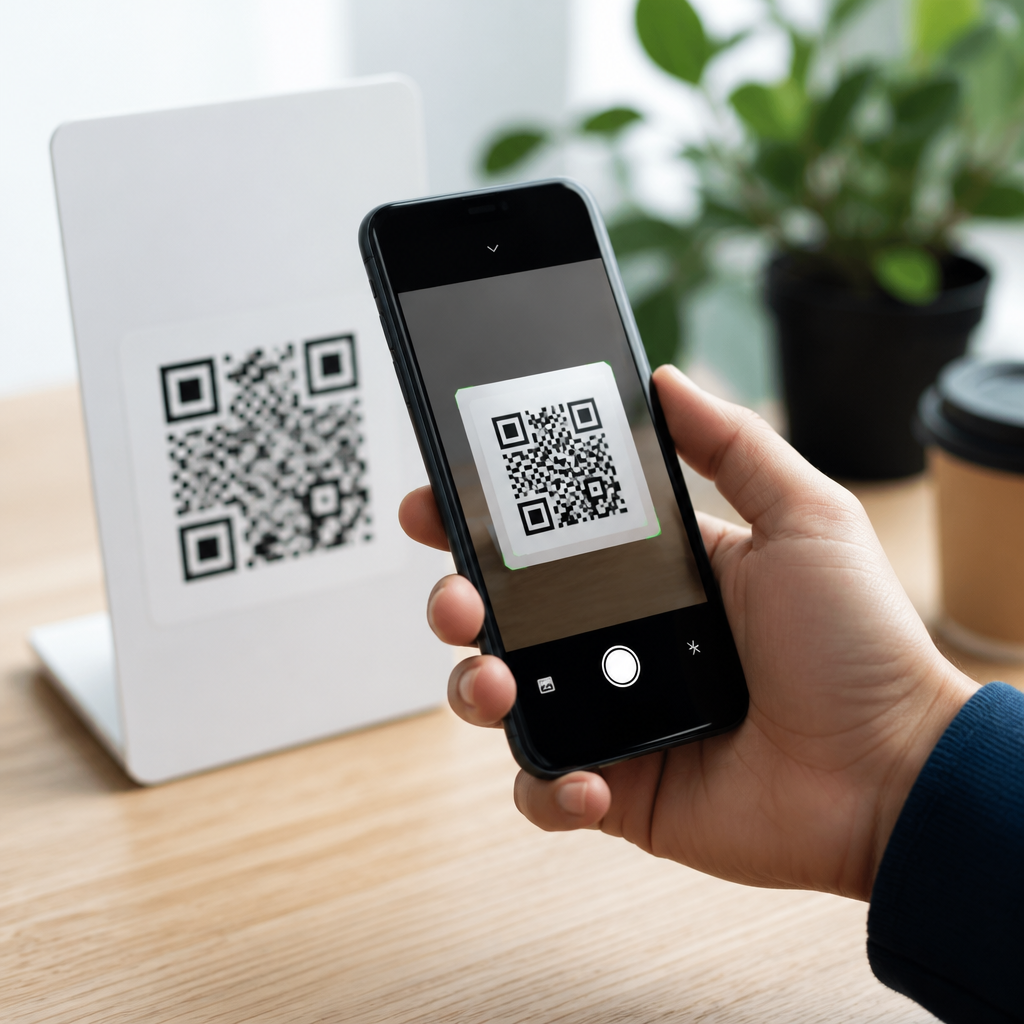
Scanning a QR code on a tablet is usually simple, but the exact method depends on the device, camera app, operating system version, and the type of code being scanned. On iPad and Android tablets, most modern models can read QR codes directly through the built-in camera, while older devices may require Google Lens, a manufacturer tool, or a dedicated scanner app. If you are managing tablets at home, in retail, in schools, or in field operations, knowing the reliable scanning methods saves time and reduces user error.
A QR code, short for Quick Response code, is a two-dimensional barcode that stores data such as website URLs, Wi-Fi credentials, contact cards, app download links, payment requests, and product identifiers. Unlike a traditional barcode, a QR code can be scanned from multiple angles and hold far more information. Tablets matter in this workflow because they are widely used for shared kiosks, classroom check-ins, restaurant menus, warehouse inventory, and customer onboarding. I have set up QR scanning on both iPads and Android tablets for teams that needed a consistent process, and the recurring issue is not the code itself; it is knowing which scanning path works fastest on each device.
This article serves as a hub for mobile QR code scanning on tablets by explaining the default camera method, alternative tools, troubleshooting steps, privacy considerations, and common real-world uses. If you want the shortest answer first, here it is: open the tablet camera, point it steadily at the QR code, wait for the banner or pop-up, then tap the prompt. If nothing appears, enable QR code detection in settings, try Google Lens, increase lighting, or use a trusted scanner app. Those are the core actions that solve most scanning problems.
How to scan QR codes on iPad
On an iPad running a current version of iPadOS, the built-in Camera app is the primary tool for scanning QR codes. Open Camera, select the rear camera if needed, and hold the iPad so the QR code appears fully inside the frame. You do not need to press the shutter. When the code is recognized, a notification banner or highlighted link appears near the top or center of the screen. Tap it to open the website, join the Wi-Fi network, add a contact, or complete the linked action.
If the iPad does not detect the code, check whether code scanning is enabled. Go to Settings, then Camera, and confirm that the option for scanning QR codes is turned on. On many managed devices in schools or businesses, camera settings may be restricted through mobile device management, which can silently block scanning. In those cases, the fix is administrative, not user-based. Control Center may also include a Code Scanner shortcut, which opens a lightweight scanner interface and can be faster for repeated use at a front desk or event station.
iPad scanning works best with adequate lighting, a clean camera lens, and a code displayed at a reasonable size. I have found that glossy printed menus and badly cracked phone screens cause more failed scans than software issues do. If the QR code is on the same iPad screen, you cannot scan it with the camera directly. Instead, save the image and use a compatible app that can read codes from photos, or open the image on another device and scan from there.
How to scan QR codes on Android tablets
Android tablets vary more than iPads because manufacturers customize both hardware and camera software. On many Samsung Galaxy Tab, Lenovo Tab, and Pixel Tablet devices, the built-in Camera app scans QR codes automatically. Open Camera, point it at the code, and wait for a link preview or action prompt. If nothing happens, look inside camera settings for options labeled Scan QR codes, Intelligent features, Scene optimizer, or Google Lens suggestions. The exact wording differs by brand and Android version.
Google Lens is the most dependable fallback on Android. You can access it from the Google app, the Chrome app, Google Photos, or sometimes directly inside the Camera app. Lens is especially useful when the tablet camera struggles with small or stylized codes, because it combines image recognition with code detection. In practice, this means a warehouse tablet with a mediocre camera can still scan shipping or product QR labels reliably if Lens is available and updated.
For Android tablets without native support, install a reputable QR scanner from the Play Store, but be selective. Choose apps with clear privacy policies, current updates, and minimal permissions. A scanner app does not need access to contacts, call logs, or unrelated files just to open a web link. In enterprise deployments, I normally prefer the native camera or Lens first, because fewer apps mean lower support overhead, fewer permission concerns, and less training for shared-device users.
Best scanning methods and when to use each one
The best method depends on what you are scanning, how often you scan, and whether the tablet is personal or shared. For a quick one-time scan, the built-in camera is usually the fastest and safest option. For scanning codes embedded in saved screenshots, Google Photos with Lens or a dedicated image-based scanner is better. For repeated operational scanning, such as asset tracking, ticket validation, or patient intake, a managed app workflow may provide clearer prompts, logging, and tighter controls.
| Method | Best for | Advantages | Limits |
|---|---|---|---|
| Built-in Camera | Everyday scans | Fast, preinstalled, low friction | May need settings enabled |
| Code Scanner shortcut | Frequent iPad use | Direct access, simple interface | iPad only |
| Google Lens | Android fallback and photo-based scans | Strong recognition, works in images | Requires Google services |
| Dedicated scanner app | Specialized workflows | Extra features, history, export options | Privacy and permission risks |
In field testing, the built-in camera resolves most consumer use cases, but Lens outperforms generic camera apps when codes are partially distorted, printed small, or mixed into busy packaging. Dedicated apps become useful only when you need features like scan history, batch processing, or integration with inventory systems. For most readers searching how to scan QR codes on tablets, the correct recommendation is to start with the default camera, then move to Lens or a trusted app only if needed.
Troubleshooting tablet QR code scanning problems
If a tablet will not scan a QR code, the cause is usually one of five things: camera permissions are blocked, QR detection is disabled, lighting is poor, the code is damaged, or the linked content is malformed. Start by testing with a known good QR code, such as one generated by a reliable tool like QR Code Generator, Bitly, or a router’s printed Wi-Fi label. If that scans, the issue is probably the original code, not the tablet.
Distance matters. Hold the tablet far enough away for the entire code to fit inside the frame, then move closer until the image sharpens. Many users place the camera too close and never achieve focus. Clean the lens with a microfiber cloth, increase screen brightness if scanning from another device, and avoid extreme glare on laminated prints. If you are scanning from a web page, zooming in can help, but over-zooming may blur the edges that scanners need to detect alignment patterns.
Software issues also matter. Update iPadOS or Android, update the camera or Google app where relevant, and restart the tablet if detection suddenly stops working after an app crash. On managed business tablets, confirm that network filters are not blocking the destination URL after the scan. I have seen users think scanning failed when the real problem was that the linked site was blocked by a firewall, captive portal, or browser restriction policy.
Safety, privacy, and real-world tablet use cases
QR codes are convenient, but they can also point to phishing sites, fraudulent payment pages, or malicious downloads. Before tapping a scanned link, read the preview carefully. Look for misspelled domains, unusual URL shorteners, or prompts asking for passwords immediately. On shared tablets in stores, clinics, or schools, train users to verify the destination before proceeding. A QR code is not inherently trustworthy just because it printed cleanly on paper.
For secure operations, use tablets with current security patches, browser protection enabled, and clear user permissions. In controlled environments, organizations often publish internal QR standards: approved domains, branded landing pages, and expiration rules for event or login codes. This reduces spoofing risk and support requests. Payment QR codes deserve extra caution because they can redirect funds instantly; always confirm the payee name and amount before approval.
Tablets are especially effective for QR workflows because the larger screen helps users review destinations, forms, and onboarding steps after the scan. In classrooms, students scan assignment links or attendance codes. In hospitality, guests scan menu or ordering codes on an iPad stand. In logistics, Android tablets mounted on carts scan shelf labels, packing slips, and return authorizations. In healthcare intake, patients scan forms from waiting-room tablets, reducing clipboards and manual data entry. These are not edge cases; they are now standard operating patterns across many sectors.
To scan QR codes on tablets reliably, start with the simplest method: the built-in camera on iPad or Android. If that does not work, enable QR detection, try Google Lens, improve lighting, and test with a known working code. Use dedicated scanner apps only when you need specialized features or image-based scanning beyond what the camera provides. The practical goal is consistency: one clear method that users can repeat without confusion.
The key takeaway is that tablet QR scanning is less about technical complexity and more about choosing the right tool for the device and environment. iPads are generally uniform and easy to configure, while Android tablets offer more variation but also strong flexibility through Lens and vendor camera features. Good results depend on updated software, a readable code, sensible security habits, and a simple support process for when scans fail.
If you are building a broader mobile QR workflow, use this page as your starting point and standardize your scanning method first. Then document your preferred apps, settings, and safety checks so every user gets the same result on every tablet.
Frequently Asked Questions
How do you scan a QR code on an iPad?
On most modern iPads, scanning a QR code is built into the Camera app. Open the Camera, point it at the QR code, and hold the tablet steady so the code appears clearly on screen. In many cases, the iPad will recognize the code within a second or two and display a notification banner near the top of the screen. Tap that banner to open the linked website, app page, contact card, Wi-Fi prompt, or other content. This works best when the QR code is well lit, not blurry, and fully visible within the camera frame.
If your iPad does not respond to the code right away, first make sure QR scanning is enabled. Go to Settings, then Camera, and confirm that the option to scan QR codes is turned on if available on your iPadOS version. Also check whether the rear camera lens is clean and whether the code is large enough to be read easily. For business, education, or shared-device use, this built-in method is usually the fastest because it requires no extra apps and keeps the workflow simple for staff, students, or customers.
How do you scan a QR code on an Android tablet?
On Android tablets, the exact method can vary by brand, Android version, and camera software. Many newer Android tablets can scan QR codes directly through the default Camera app. Open the camera, point it at the code, and wait for a prompt, link, or preview to appear on screen. If the tablet supports native QR recognition, you can tap that prompt to continue. Samsung, Lenovo, and other major manufacturers often include this feature, but the name and behavior may differ slightly depending on the device.
If the standard Camera app does not recognize the QR code, try Google Lens. On many Android tablets, Google Lens is available inside the Camera app, through the Google app, or as a standalone feature. Once opened, Lens can scan QR codes and identify links, text, locations, and product information. This is especially useful in retail, logistics, and field work where tablets may need to interact with labels, signs, or inventory systems. If neither the camera nor Lens works, a reputable QR scanner app may be necessary, particularly on older tablets that lack current software support.
Why is a tablet not scanning a QR code even though the camera works?
A tablet may have a functioning camera but still fail to scan a QR code for several practical reasons. The most common issues are poor lighting, glare on the screen or printed material, a damaged or low-quality QR code, or the camera being too close or too far away. QR recognition also depends on focus, contrast, and software support. If the code is tiny, partially cut off, curved on packaging, or displayed on a dim screen, the tablet may struggle to detect it even though the camera itself is working normally.
Software limitations are another common cause. Older iPads and Android tablets may not support native QR scanning in their default Camera app, or the setting may be disabled. In managed environments such as schools or enterprise deployments, device restrictions may also block camera access, browser redirects, or app installations needed to complete the scan. To troubleshoot, clean the lens, increase brightness, improve lighting, move the tablet slowly until the code comes into focus, and test with a known good QR code. If needed, switch to Google Lens or a dedicated scanner app for more reliable detection.
Do older iPads or Android tablets need a separate QR scanner app?
Yes, some older tablets do need a separate app, especially if the built-in camera software does not support QR recognition. On older iPads, the Camera app may open normally but never produce a scan notification. On older Android tablets, the camera might only capture photos without analyzing codes. In those cases, Google Lens is usually the first tool to try on Android because it is widely supported and often more capable than a basic scanner app. If Lens is unavailable, a dedicated QR code reader from a trusted developer may be the most practical solution.
That said, downloading a scanner app should be a fallback rather than the first step. Built-in tools are usually faster, more secure, and easier to support across multiple users or devices. If you manage tablets in a school, retail store, warehouse, or field team, minimizing extra apps reduces setup time and maintenance. Before installing anything, check the device’s operating system version, update it if possible, and test the default camera and Google Lens first. If you do choose an app, select one with solid reviews, limited permissions, and no unnecessary features that could confuse users or introduce privacy concerns.
What types of QR codes can tablets scan, and what happens after scanning?
Tablets can scan several types of QR codes, and the result depends on what information the code contains. The most common QR codes open websites, but they can also trigger actions such as connecting to Wi-Fi, saving contact information, opening map locations, launching app download pages, composing emails, displaying plain text, or starting a payment or login process. In work environments, QR codes are often used for equipment tracking, digital menus, check-in forms, training resources, product lookups, and internal documentation.
After the scan, the tablet typically shows a notification, preview, or action button. Tapping that prompt tells the device what to do next. For example, a web URL opens in the browser, a Wi-Fi code offers to join a network, and a vCard may open in the contacts app. Because QR codes can lead users to external websites or actions, it is smart to confirm the destination before tapping, especially on shared tablets used by students, employees, or customers. In managed tablet deployments, using clearly labeled, trusted QR codes and testing them across devices helps ensure a smoother and safer experience.