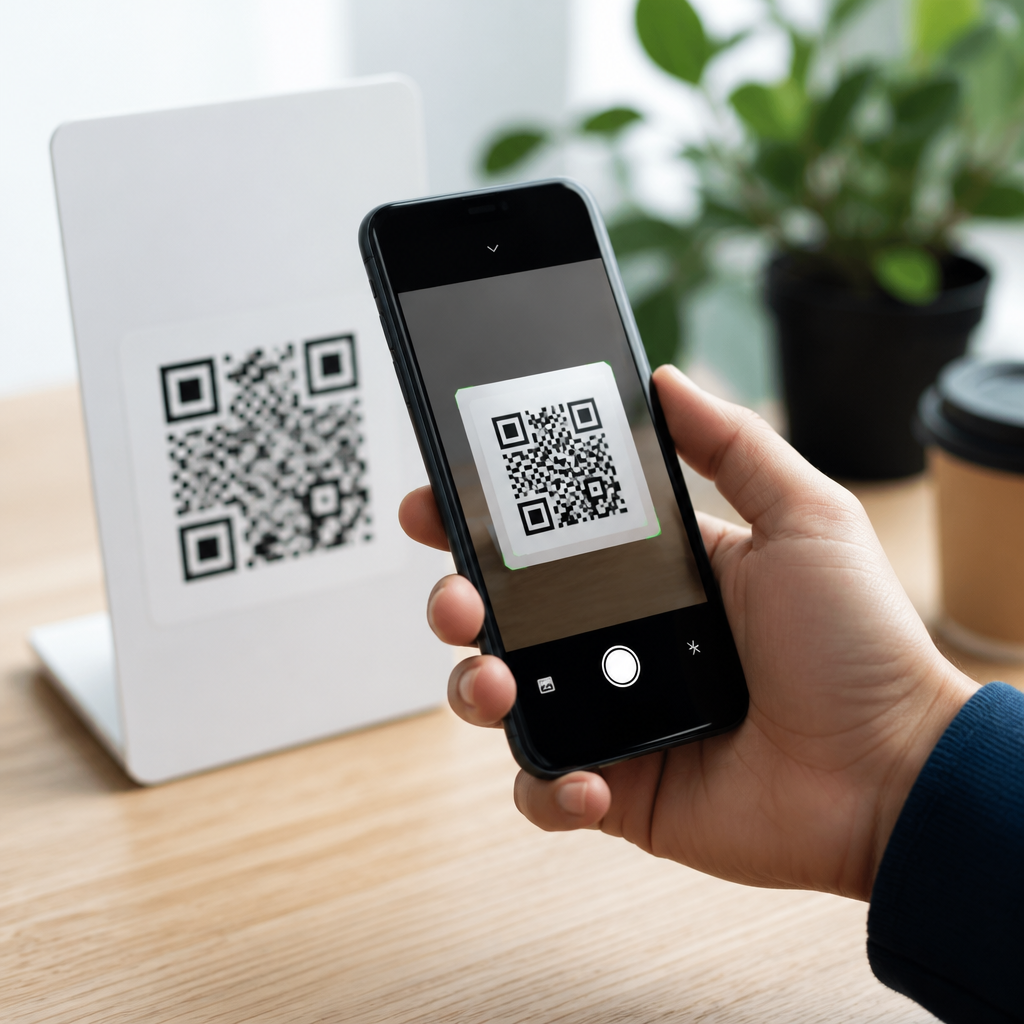
QR codes have become a routine bridge between the physical world and digital content, but many people still hesitate when a square pattern appears on a menu, package, poster, or payment terminal. Knowing how to scan QR codes using your phone camera matters because the process is now built into most smartphones, it is usually faster than typing a web address, and it supports everything from restaurant ordering to Wi-Fi setup and mobile payments. A QR code, short for Quick Response code, is a two-dimensional barcode that stores information such as a URL, contact card, app link, coupon, map location, or authentication token. Modern iPhone and Android devices can read these codes directly through the camera app or through built-in tools like Google Lens, eliminating the need for a separate scanner in many cases.
In practice, scanning QR codes on mobile devices is simple, but the exact behavior depends on your phone model, software version, camera permissions, and the type of code being scanned. I have helped teams document QR workflows for retail stores, events, and support desks, and the same questions come up repeatedly: where to point the camera, what to tap, why nothing happens, and whether a code is safe. This guide answers those questions directly. It explains how to scan QR codes on iPhone and Android, how to use your camera app and alternative tools, what kinds of results to expect, how to fix common problems, and how to avoid malicious links. If you want one reliable reference for using your phone camera to scan QR codes confidently, this article is the starting point.
How QR code scanning works on mobile devices
When you scan a QR code with your phone camera, the camera does not simply take a picture and leave you to interpret it. The software analyzes the pattern of black and white squares, identifies alignment markers, decodes the embedded data, and then presents an action prompt. On a web link, that prompt may say Open in Safari or Open in Chrome. On a Wi-Fi QR code, it may offer to join a network automatically. On a digital business card in vCard format, it may suggest creating a new contact. This is why scanning feels nearly instant on current devices: the decoding process is handled natively by the operating system or by tools integrated into the camera stack.
QR codes can contain several kinds of data, and understanding that helps explain why your phone responds differently from one code to the next. A restaurant menu code often resolves to a standard HTTPS link. A boarding pass may open within an airline app. A payment code might launch a wallet app or banking tool. Some codes contain plain text, which means the camera can read the content but may not offer a single obvious action. Error correction is another reason QR codes are useful in the real world. The format supports recovery even when a code is partially obscured or printed on curved packaging, which is why you can often scan a slightly damaged label successfully.
How to scan QR codes on iPhone
On iPhone, the fastest method is the native Camera app. Open Camera, point it steadily at the QR code, and keep the code inside the frame. You do not need to press the shutter button. After a moment, a notification banner or highlighted link appears near the top or bottom of the screen, depending on your iOS version. Tap that prompt to open the destination. Apple has supported QR recognition in the Camera app since iOS 11, so any reasonably current iPhone can do this without installing a separate app. If nothing appears, check Settings, then Camera, and confirm that Scan QR Codes is enabled.
There are also two useful alternatives on iPhone. First, Code Scanner can be added to Control Center for faster access; it opens a dedicated scanner that immediately reads codes and launches results. Second, the Photos app can detect QR codes inside saved images or screenshots. Open the image, press and hold on the QR code or tap the Live Text style recognition prompt if available, and iOS may expose the link or related action. This is particularly helpful when someone sends you a QR code in a message or email and you cannot scan it with the same camera that is displaying it.
How to scan QR codes on Android phones
Android scanning varies slightly by manufacturer, but the standard methods are straightforward. On many phones, especially Google Pixel devices, open the Camera app, point it at the code, and wait for the on-screen prompt. Pixels often rely on Google Lens integration, so you may see a small Lens icon or a pop-up card with the decoded result. Samsung Galaxy phones also support QR reading in the camera app on current software, and some versions include a dedicated Scan QR Code quick setting. The process is still the same: frame the code clearly, hold the phone still, then tap the detected link.
If the camera does not respond, open Google Lens directly from the Google app, Google Photos, or the camera interface if your device includes it. Lens is one of the most reliable QR tools on Android because it reads both live camera input and stored images. On older Android devices, third-party scanner apps may still be necessary, but they should be chosen carefully. In support work, I recommend starting with first-party tools before adding another app, because many legacy scanner apps ask for unnecessary permissions, display aggressive ads, or route users through extra tracking pages. Native scanning is usually faster and safer.
Best ways to scan different types of QR codes
Not every QR code is used the same way, so it helps to know what result to expect before tapping. The table below shows common QR code types, what your phone usually does, and the best next step for the user.
| QR code type | Typical phone response | Best next step |
|---|---|---|
| Website URL | Shows link preview or browser prompt | Confirm the domain before opening |
| Wi-Fi network | Offers to join network automatically | Verify the network name matches the location |
| Contact card | Prompts to add a contact | Review phone number and email before saving |
| Payment code | Launches wallet or banking app | Check payee name and amount carefully |
| App download | Opens App Store or Google Play | Confirm developer name and app legitimacy |
| Plain text or code | Displays content without a strong action | Read fully before copying or using it |
In stores and restaurants, URL and payment codes are the most common. In offices and homes, Wi-Fi QR codes save time because they can encode the network name, password, and encryption type using a standard text string. At conferences, contact cards and event check-in codes are frequent. The key habit is to pause long enough to verify what your phone detected. A legitimate QR code should produce a result that fits the setting. If a museum placard opens a crypto wallet prompt or a café menu sends you to an unrelated shortened link, treat that as suspicious and stop.
How to scan a QR code from a photo, screenshot, or another screen
One of the most common obstacles is trying to scan a QR code that already exists on your phone. Because the camera cannot easily scan the screen it is currently displaying, you need image-based recognition instead. On iPhone, save the image to Photos, open it, and tap or press on the code until the action menu appears. On Android, open the image in Google Photos and tap the Lens button. Lens will analyze the picture and turn the QR content into a clickable result. This method works well for screenshots from websites, emailed tickets, social media posts, and saved payment codes.
If the QR code is on another device, such as a laptop, tablet, or TV, increase brightness on that screen and reduce glare where possible. Hold your phone a few inches away at first, then move slowly closer or farther until the code comes into focus. Many failed scans happen because users stand too close, especially with large codes displayed on monitors. If the code is printed, flatten the page if you can and avoid casting a shadow over it. Good framing matters more than zoom. Digital zoom often softens edges and makes decoding less reliable, so move the phone physically instead.
Common QR scanning problems and how to fix them
When a QR code will not scan, the cause is usually one of a handful of issues. Poor lighting is the first. Add light or change your angle so the code has clear contrast. Blur is another major factor; hold the phone steady for a second before expecting a prompt. Dirty lenses are more common than people think, especially on phones carried in pockets or bags all day. Wipe the lens with a clean microfiber cloth and try again. Software settings matter too. If camera permissions are disabled, or if Scan QR Codes is turned off on iPhone, detection may fail entirely.
There are also content-related reasons a scan may not work. Some QR codes are printed too small, compressed with poor image quality, or damaged beyond the limits of error correction. Others point to expired pages, removed files, or apps no longer available in the store. In enterprise environments, I have also seen mobile device management policies block certain actions after scanning, such as opening unknown links or joining outside Wi-Fi networks. If you suspect the code itself is bad, test it with another phone. If multiple devices fail, the problem is probably the code, not your camera.
QR code safety and privacy best practices
QR codes are convenient, but they should be treated with the same caution as email links. The risk is not the symbol itself; the risk is where it sends you. Before opening a scanned result, read the previewed domain carefully. Watch for misspellings, extra characters, or unfamiliar shorteners. On payment codes, verify the recipient and amount before confirming. Avoid scanning random stickers placed over public signs, because criminals sometimes replace legitimate codes with fraudulent ones. This has been documented in parking meters, restaurant tables, and retail checkout areas, where users are pushed to fake payment pages.
Privacy matters as well. A simple menu QR code may collect analytics such as device type, location, and referral source, while a login or authentication QR code can carry sensitive session data. Keep your phone updated, use the official browser and wallet apps on your device, and avoid granting unnecessary permissions after a scan. If a website opened by a QR code immediately asks for passwords, card details, or downloads, slow down and verify the source through another channel. The main benefit of scanning QR codes with your phone camera is speed, but the safest users combine speed with verification. Practice the basic steps, learn your phone’s built-in tools, and use QR codes confidently wherever mobile access saves time.
Frequently Asked Questions
1. How do I scan a QR code using my phone camera?
On most modern smartphones, scanning a QR code is built directly into the default camera app. To begin, open your phone’s camera and point it steadily at the QR code so the full square pattern is visible on the screen. You usually do not need to press the shutter button. After a moment, your phone should recognize the code automatically and display a notification, banner, or pop-up link. Tap that prompt to open the website, menu, payment page, app download, contact card, or other content connected to the code.
If nothing appears right away, make sure the QR code is well lit, not blurry, and centered in the frame. Hold the phone a little farther back if the camera is too close to focus. On iPhones, QR scanning works in the Camera app by default on current versions of iOS. On many Android phones, the Camera app also supports built-in scanning, although the exact behavior can vary slightly by manufacturer. Some devices may show a Google Lens icon or a “Scan QR code” option within the camera settings. In everyday use, the process is designed to be quick: open the camera, aim, wait for recognition, and tap the result.
2. Why won’t my phone scan a QR code with the camera?
There are several common reasons a phone may not recognize a QR code immediately. The most frequent issue is camera positioning or focus. If the code is too small on screen, partially cut off, bent around a curved surface, reflective, damaged, or in poor lighting, the camera may struggle to read it. Try moving the phone slowly closer and farther away until the image becomes sharp. Cleaning the camera lens can also help, especially if fingerprints or dust are affecting clarity.
Another possibility is that QR scanning is not enabled or not supported in the camera app you are using. Some phones require you to turn on code scanning in camera settings, while others rely on a visual search tool such as Google Lens. If your camera app does not react to the code, check for a QR scanning option in settings or try opening Lens directly. Software version matters too. An older operating system or outdated camera app may not support the feature as smoothly as newer versions.
It is also worth considering the QR code itself. A code may be printed poorly, obscured, expired, or linked to inactive content. If possible, test another QR code to see whether the issue is with your phone or with that specific code. If your phone can scan one code but not another, the problem is likely the print quality or destination of the original code rather than your device.
3. Do I need a separate QR code scanner app on my phone?
In most cases, no. Most current iPhones and Android phones can scan QR codes through the built-in camera app or through a native tool such as Google Lens. That means many people do not need to download a separate QR code reader at all. Using the built-in scanner is often the easiest and safest choice because it reduces clutter, works quickly, and avoids unnecessary third-party permissions.
That said, there are situations where a separate app may still be useful. For example, some older phones do not support built-in QR scanning, or users may want extra features such as scan history, batch scanning, code creation, or advanced security previews. If you choose to install a QR scanner app, be selective. Only download well-reviewed apps from trusted app stores, and pay attention to the permissions requested. A basic scanner should not need access to unrelated personal data.
For most everyday tasks, such as opening a restaurant menu, joining Wi-Fi, viewing a product page, or starting a payment flow, your phone’s default tools are usually enough. Before downloading anything, it is smart to test the camera app first, then try any built-in scanning or visual search features already available on your device.
4. Is it safe to scan QR codes with my phone camera?
Scanning QR codes is generally safe, but it should be treated with the same caution you would use when clicking any unknown link. A QR code is simply a fast way to deliver information, often a website address, but it can still lead to a malicious page if the source is untrustworthy. For that reason, it is best to scan codes from reputable businesses, official packaging, secure payment terminals, event materials, or other sources you recognize.
Before tapping the result, look closely at the preview your phone shows. Many phones display the destination domain or a short description before opening it. Check that the web address matches the brand, venue, or service you expect. Be especially cautious if a code appears tampered with, such as a sticker placed over another code, or if it is posted in a suspicious location. Avoid entering passwords, payment details, or personal information on a page that looks poorly designed, misspelled, or inconsistent with the company it claims to represent.
Good security habits make QR scanning much safer. Keep your phone updated, use a modern browser, and rely on built-in tools rather than random scanner apps when possible. If a scanned code starts an app download, requests sensitive permissions, or redirects multiple times, pause and verify the source. QR codes are convenient and widely used, but basic awareness is still important whenever they connect you to digital content.
5. What kinds of things can a QR code do when I scan it?
A QR code can trigger many different actions, which is one reason it has become so common. The most familiar use is opening a webpage without having to type a long URL. That is why QR codes appear on restaurant tables, posters, brochures, retail packaging, tickets, and advertisements. However, they can also launch payment pages, begin contactless check-in, open app store listings, add contact information to your phone, connect to Wi-Fi, show maps, compose a text message, or display product and support details.
In practical terms, QR codes act as a bridge between offline objects and online actions. A menu code may take you directly to ordering options. A code on a router can help a guest join a Wi-Fi network without manually entering a password. A code at a payment terminal may open a mobile wallet or banking app. A shipping box might link to setup instructions, while an event badge could contain registration or verification information. Because the code stores information in a compact square pattern, your phone can interpret it much faster than you could manually enter the same details.
This flexibility is exactly why learning how to scan QR codes using your phone camera matters today. The process is simple, but the results can vary widely depending on the code’s purpose. Once you understand that a QR code can lead to websites, services, contact data, wireless settings, and secure transactions, it becomes much easier to use them confidently in everyday life.