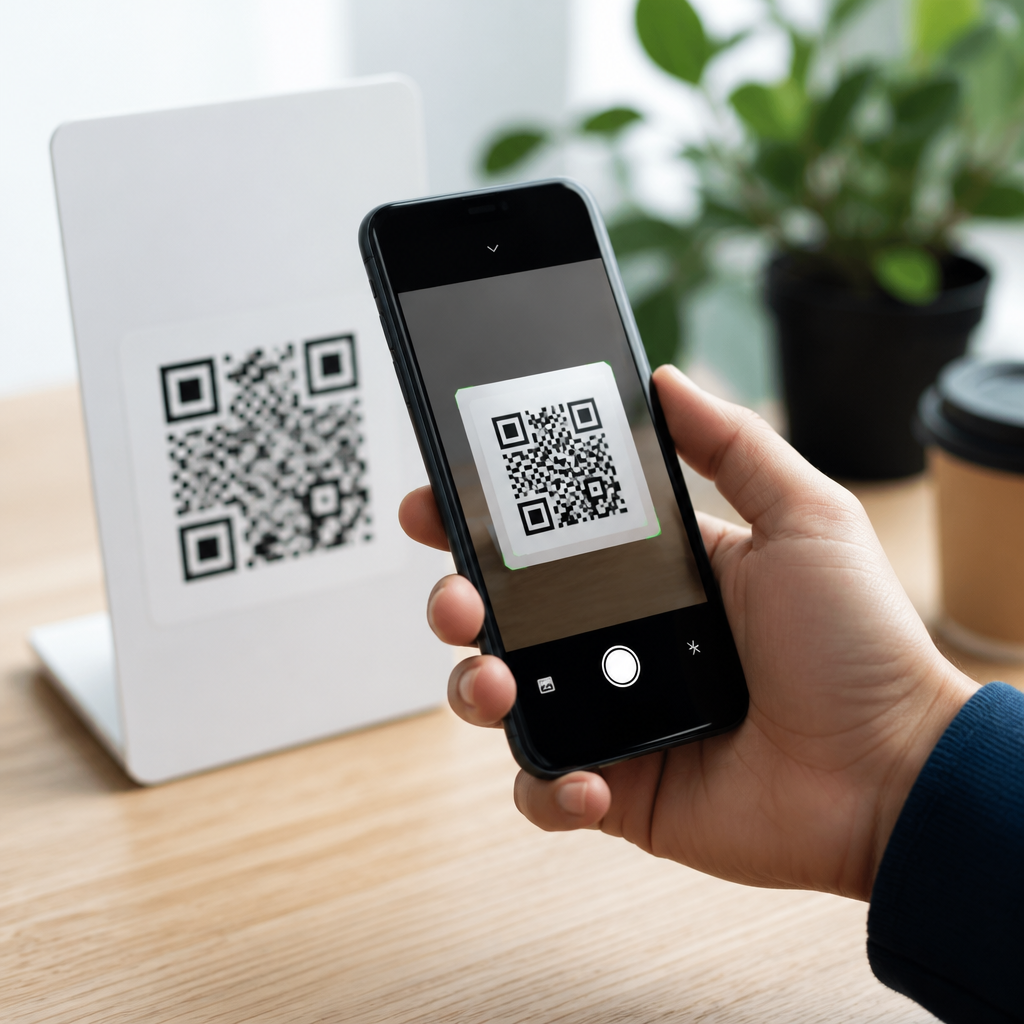
Scanning QR codes on an iPhone is simple once you know where Apple places the tools, and understanding the full process matters because QR codes now power everything from restaurant menus and event tickets to Wi-Fi access, app downloads, and secure payments. A QR code, short for Quick Response code, is a two-dimensional barcode that stores more information than a traditional barcode and can trigger actions such as opening a website, joining a wireless network, adding contact details, or launching a payment screen. On modern iPhones, QR code scanning is built directly into iOS, so most users do not need a separate app. That built-in support is the fastest and safest option because it reduces reliance on third-party scanners that may inject ads, track behavior, or mishandle links.
I have helped teams document mobile onboarding flows and troubleshoot camera-based sign-in systems, and the same issue appears repeatedly: people assume scanning should work instantly, then get stuck when the camera does not recognize the code, notifications are disabled, or the code is poorly printed. A strong guide needs to cover not just the basic tap sequence, but also the conditions that make QR code scanning work reliably. It also helps to place iPhone scanning in the wider context of mobile devices, because many users switch between iPhone and Android and expect similar behavior. This article serves as a hub for how to scan QR codes on mobile devices, with a specific focus on iPhone, while also explaining the settings, troubleshooting steps, safety checks, and use cases that matter in everyday situations.
If you want the short answer, here it is: open the Camera app on your iPhone, point it at the QR code, wait for the notification banner to appear, then tap the banner to open the link or action. If that does not work, enable code scanning in Settings, improve lighting, hold the phone steady, or use the Code Scanner control in Control Center. Those are the core steps, but there is more nuance behind them. Different iPhone models, iOS versions, app permissions, and code types can all affect the result. Knowing the full picture saves time and helps you scan codes accurately and safely.
How to scan a QR code on iPhone with the Camera app
The default Camera app is the primary way to scan a QR code on iPhone. Apple added native QR recognition years ago, and on current iPhones it works from the rear camera without special setup in most cases. Start by unlocking your iPhone and opening Camera from the Home Screen, Lock Screen, or Control Center. Point the rear camera at the QR code so the entire square is visible on screen. You do not need to press the shutter button. After a moment, iOS detects the pattern and displays a notification banner near the top or bottom of the screen, depending on the version of iOS and device behavior. Tap that banner to open Safari, join a network, add a contact card, or complete the linked action.
The process sounds obvious, but execution matters. Keep the phone about six to twelve inches from the code at first, then adjust slowly if recognition fails. Make sure the code is flat, fully visible, and not cut off by glare or shadow. In testing printed packaging, glossy labels often reflected overhead lighting strongly enough to block recognition until the phone angle changed slightly. If the code sits on a computer screen, increase the screen brightness and zoom in if possible. If it appears on paper, smooth any folds. Camera-based scanning depends on contrast, focus, and framing more than users expect, and small physical changes often solve the problem faster than changing settings.
For most people, this is the best method because it is built in, quick to reach, and supported across common QR use cases. If you frequently scan restaurant menus, parking passes, transit tickets, or product setup cards, using the Camera app keeps the workflow consistent. It also reduces confusion when an iPhone prompts you with a native banner rather than an in-app ad or an unfamiliar browser redirect from a third-party scanner.
How to use the Code Scanner in Control Center
If you scan codes often, the dedicated Code Scanner tool is even faster than launching the full Camera app. This feature opens a streamlined scanner that immediately looks for QR codes and takes you to the result after detection. To add it, open Settings, tap Control Center, and include Code Scanner in your controls if it is not already present. Then swipe down from the top-right corner of the screen on Face ID models, or swipe up from the bottom on older Touch ID models, and tap the Code Scanner icon. Point the camera at the QR code and follow the prompt.
The benefit of Code Scanner is speed and focus. Unlike the regular Camera app, it is designed specifically for scanning and opening results. In deployment guides I have written for retail and field-service staff, this method reduced missteps because users were not distracted by photo mode controls or uncertain whether they needed to take a picture. It is especially useful for repetitive tasks such as scanning inventory labels, check-in links, digital forms, or authentication codes posted at kiosks.
Another practical advantage is that Code Scanner can continue working smoothly in environments where users move quickly between apps. For example, if you are scanning a venue QR code and then returning to Wallet or Mail, the tighter workflow feels more direct. That said, both methods rely on the same core camera hardware and iOS recognition engine, so if a code is unreadable because of blur, damage, or poor contrast, switching from Camera to Code Scanner will not magically fix the underlying issue.
Essential settings, device support, and alternatives
Most iPhones running modern versions of iOS support QR scanning natively, but checking a few settings prevents common failures. In Settings, go to Camera and confirm that Scan QR Codes is enabled. If that toggle is off, the Camera app will not detect codes automatically. Also verify that Camera access is not restricted through Screen Time or device management profiles, which can happen on shared corporate devices. Internet access may also be required after scanning if the QR code opens a website, cloud form, app page, or dynamic destination that redirects based on location or campaign rules.
It also helps to know where else QR support appears on iPhone. The Photos app can sometimes recognize QR codes inside saved images or screenshots, letting you long-press or tap detected content. Live Text and visual lookup features can assist, depending on iOS version and image quality. This is useful when someone sends you a QR code by text, email, or chat and you cannot physically point your camera at your own screen. In that case, save the image and check whether iOS offers a tappable link. Some users also display the image on another device, such as an iPad or laptop, then scan it with the iPhone camera.
| Method | Best use case | How to access it | Main limitation |
|---|---|---|---|
| Camera app | Everyday scanning for links, menus, tickets, and setup pages | Open Camera and point at the code | Can be slower if users expect an obvious scanner interface |
| Code Scanner | Frequent scanning and faster workflows | Open from Control Center | Still depends on the same camera quality and code clarity |
| Photos recognition | Scanning a QR code from a saved image or screenshot | Open the image in Photos and tap detected content | Recognition varies by iOS version and image quality |
As a broader mobile QR code scanning guide, it is worth noting that Android devices usually offer similar native tools through the camera app, Google Lens, or manufacturer camera software. The exact labels differ, but the mobile scanning principles are the same: frame the code clearly, wait for the prompt, and verify the destination before proceeding. That cross-device consistency matters for households and workplaces that use mixed hardware.
Troubleshooting when your iPhone will not scan a QR code
When an iPhone will not scan a QR code, the cause is usually environmental rather than technical. Start with the basics: clean the camera lens, increase ambient light, and hold the phone steady for one to two seconds. If the camera is too close, it may fail to focus; if it is too far, the code may not fill enough of the frame. Damaged codes are another common problem. Torn labels, low-resolution printouts, extreme stylization, and low contrast colors can all interfere with recognition. I have seen branded codes with decorative logos become effectively unreadable on older phones because the design sacrificed quiet zones and contrast for aesthetics.
Next, check software conditions. Confirm that Scan QR Codes is enabled in Settings and that the iPhone is updated to a current iOS release. Restart the device if camera behavior seems inconsistent. If the QR code opens a website but nothing loads, test your internet connection. For codes on digital displays, raise the brightness of the source screen and reduce any moiré effect by changing distance slightly. For codes behind glass, adjust angle to avoid reflections. If the code launches a deep link into an app, make sure that app is installed and updated; otherwise iOS may fall back to the App Store or Safari.
Security matters during troubleshooting too. If a code finally scans, do not tap blindly. Preview the notification and look for suspicious domains, misspellings, or strange URL shorteners. QR phishing, often called quishing, works by hiding destination text inside a scannable image. In enterprise environments, Microsoft and security awareness vendors regularly warn users not to trust unsolicited QR codes in email attachments, lobby posters, or fake parking payment stickers. A legitimate QR code can still lead to a malicious page, so recognition success and link safety are separate questions.
Common QR code uses on mobile devices and best practices
Understanding what happens after a scan helps users decide whether a result looks normal. QR codes on mobile devices commonly open websites, app clips, payment pages, boarding passes, event check-in forms, digital restaurant menus, video tutorials, two-factor setup links, and Wi-Fi credentials. A Wi-Fi QR code, for example, can prompt an iPhone to join a network without manually entering the SSID and password. A contact QR code may offer to create a new entry in Contacts. A payment code may open a banking app, wallet flow, or merchant page. These outcomes are standard, and seeing a clear iOS prompt before proceeding is a good sign.
Best practice is to scan only from trusted sources, especially when the code requests login details, payment information, or an app installation. On public posters or tabletop signs, inspect for tampering such as stickers placed over the original code. Businesses should print codes with strong contrast, adequate quiet zone margins, and a tested destination URL. Consumers should avoid granting unnecessary permissions after a scan and should close any page that immediately asks for sensitive data without clear branding or context. In support documentation, I advise organizations to pair QR codes with a visible plain-text URL so users have an alternate path if scanning fails or if they want to verify the destination manually.
Scanning QR codes on iPhone is ultimately straightforward: use the Camera app or Code Scanner, frame the code clearly, tap the banner, and verify the destination before acting. The details covered here make that simple process dependable across real-world situations, from home Wi-Fi setup to event check-in and secure mobile workflows. If you manage, publish, or rely on QR codes regularly, review your iPhone settings, test multiple scanning methods, and apply the safety checks outlined above so every scan is faster, smoother, and more trustworthy.
Frequently Asked Questions
1. How do I scan a QR code with my iPhone camera?
On most modern iPhones, the easiest way to scan a QR code is with the built-in Camera app. Open Camera, point your iPhone at the QR code, and make sure the code is clearly visible on the screen. You do not usually need to press the shutter button. After a moment, your iPhone should recognize the code automatically and display a notification banner near the top of the screen or a highlighted link inside the camera view. Tap that notification to open the website, join the Wi-Fi network, view a menu, download an app, add contact information, or complete whatever action the QR code is designed to trigger.
If scanning does not work right away, improve the lighting, hold the phone steady, and move slightly closer or farther away until the code comes into focus. It also helps to keep the QR code centered and avoid glare on glossy surfaces. In Settings, make sure camera-based code recognition is enabled by going to Settings > Camera and checking that Scan QR Codes is turned on. Once that setting is enabled, the iPhone handles QR scanning quickly and automatically, which is why many users never need a separate QR code scanner app.
2. Where is the QR code scanner on an iPhone if the Camera app is not working?
Apple includes more than one way to scan QR codes, so if the Camera app is not recognizing a code, you can use the built-in Code Scanner tool. One of the fastest methods is through Control Center. Open Settings > Control Center, add Code Scanner if it is not already included, then swipe down from the top-right corner of the screen on Face ID models, or swipe up from the bottom on older Home button models, and tap the Code Scanner icon. This opens a dedicated scanner that is designed specifically for reading QR codes and often works well when users want a more direct option than the regular camera.
You can also find it by swiping down on the Home Screen and searching for “Code Scanner” in Spotlight. This tool is especially useful if you want to scan quickly without dealing with photo or video modes in the Camera app. In some cases, restarting the iPhone, updating iOS, or cleaning the camera lens can fix recognition issues. If your iPhone still struggles, the problem is often not the phone itself but poor lighting, a damaged code, weak focus, or a QR code that is too small or partially blocked.
3. Why won’t my iPhone scan a QR code?
If your iPhone will not scan a QR code, the most common causes are camera settings, poor image quality, distance, lighting, or the code itself. First, confirm that Scan QR Codes is enabled in Settings > Camera. Then make sure the QR code is fully visible, not cropped, and not bent around a curved surface in a way that makes the pattern hard to read. Your iPhone needs a reasonably sharp view of the code, so if you are too close, too far away, or moving the phone too quickly, detection may fail.
Environmental issues also matter. Low light can prevent proper focus, while reflections on a laminated menu, phone screen, or product packaging can interfere with detection. Try changing angles, increasing brightness, or moving to a better-lit spot. If the QR code is shown on another screen, turn that screen’s brightness up. If the code is printed, check whether it is blurry, damaged, or missing part of the square pattern. You should also keep your iPhone updated, because iOS updates can improve system-level features like camera behavior and recognition tools. In rare cases, a QR code may simply be invalid or linked to outdated content, so even if it scans, the destination may not load correctly.
4. Can I scan a QR code from a picture or screenshot on my iPhone?
Yes, in many cases you can scan a QR code from an image already saved on your iPhone. If you have a screenshot, a photo, or an image someone sent you, open it in the Photos app and look for QR detection features such as a tappable link, Live Text-style recognition, or an information prompt depending on your iOS version. On newer versions of iOS, Apple can often recognize text and visual elements directly inside images, including QR codes, making it possible to open the embedded link without using the camera on a physical code.
If the built-in recognition does not appear automatically, you can try pressing and holding on the QR code area in the image, or opening the picture in a way that allows visual detection to process. Another practical option is to display the image on a second device and scan it with your iPhone camera. This is helpful if the QR code was emailed to you, saved from a website, or included in an event ticket. Just remember to treat image-based QR codes carefully, especially if they came from unknown sources, because QR codes can direct you to websites, payment pages, or downloads that should always be verified before you interact with them.
5. Is it safe to scan QR codes on an iPhone?
Scanning QR codes on an iPhone is generally safe, especially because iOS usually shows you a prompt before opening the linked destination. That said, safety depends less on the scanning process itself and more on what the QR code leads to. A QR code can open a website, begin a payment request, download an app, connect to Wi-Fi, or create a contact entry, so it is smart to pause and verify the action before tapping through. If the notification shows a suspicious domain name, a misspelled brand, or an unfamiliar link, do not open it.
Good QR code safety habits are simple and effective. Scan codes only from trusted sources, avoid codes that appear to be stickers placed over original signs, and be cautious with codes in public spaces that could have been tampered with. Do not enter passwords, payment details, or personal information on a site unless you are sure it is legitimate. For added protection, keep iOS up to date, use Safari’s security warnings, and rely on Apple’s built-in prompts rather than third-party scanner apps you do not trust. When used carefully, QR codes are a fast and convenient tool, and the iPhone gives you enough visibility to make informed decisions before opening anything important.