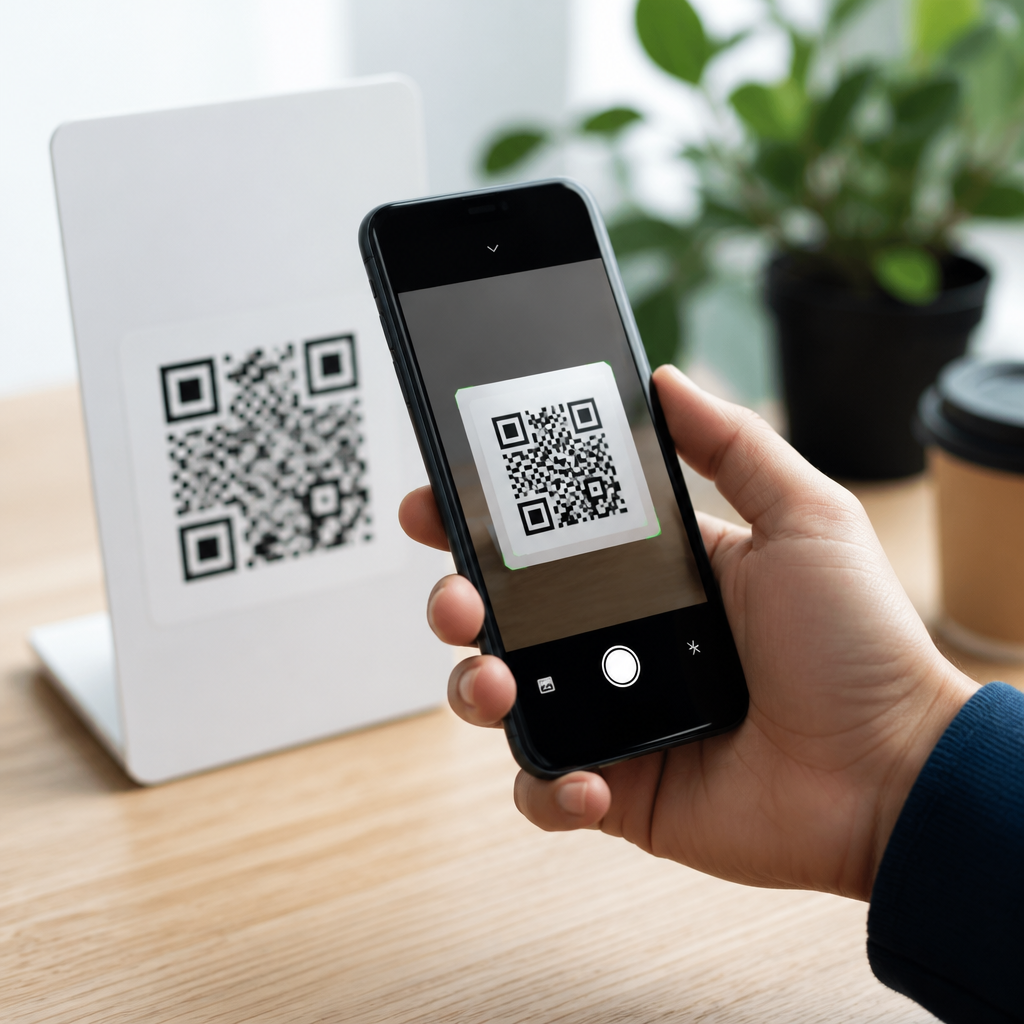
Scanning QR codes on Android devices is now a built-in task on most phones, but the exact method still depends on your camera app, Android version, and device brand. A QR code, short for Quick Response code, is a square matrix barcode that stores information such as website URLs, Wi-Fi credentials, app links, contact cards, payment requests, and event details. Because restaurants, retailers, transit systems, and two-factor authentication apps use them daily, knowing how to scan QR codes on mobile devices quickly and safely has become a basic smartphone skill.
In practice, Android users run into three common questions: does the phone scan QR codes directly from the camera, what should you do if it does not, and how can you scan a QR code saved in a screenshot or photo? I have had to solve all three across Samsung Galaxy phones, Google Pixel devices, Motorola handsets, and older Android models used in workplace fleets. The good news is that modern Android phones usually support QR scanning without downloading a separate app. The less obvious part is that the feature may appear under different names, including Camera scan suggestions, Google Lens, Bixby Vision, or QR code scanner.
This matters for convenience, but also for security. QR codes can open legitimate sites in a second, yet they can also redirect users to phishing pages, fake login screens, or malicious downloads. A good scanning process is not just about pointing the camera; it includes checking the preview link before tapping and recognizing when a code requests a payment, password, or app install. This guide explains how to scan QR codes on Android devices using built-in tools, brand-specific options, saved images, and troubleshooting steps, so you can handle nearly any QR scanning situation with confidence.
Use the Android camera app first
For most people, the fastest answer to how to scan QR codes on Android devices is simple: open the default Camera app and point it at the code. On current Pixel phones, the camera usually recognizes the code automatically and displays a small banner or link. On many Samsung Galaxy devices running One UI, the camera does the same when Scene optimizer or QR detection is enabled. Motorola, OnePlus, Xiaomi, and other major brands often include similar native detection. Hold the phone steady, keep the code fully visible inside the frame, and make sure the lighting is even rather than harshly reflective.
If the code is recognized, Android will typically show a pop-up action such as Open link, Connect to Wi-Fi, Add contact, or View event. Tap only after checking that the destination matches what you expect. For example, a restaurant menu code should lead to the restaurant’s domain, not a random shortened link. In retail stores, product QR codes may open brand pages, promotions, or warranty registration forms. In offices, visitor management systems often generate temporary access links. The scanning experience is intentionally quick, but the safest habit is to pause long enough to verify the destination.
Some users fail on the first attempt because they stand too close. A QR code needs enough space around it for the camera to focus on the full square pattern. Back up slightly, clean the camera lens, and avoid tilting the phone at sharp angles. On damaged printed codes, increasing brightness helps. If the code is on another phone screen, reduce glare and set that screen brightness higher. These small adjustments solve many scanning problems without any settings changes.
Turn on Google Lens or built-in QR detection
If your camera does not react, the next step is to enable the scanning feature already on the device. Google Lens is the most widely available tool in the Android ecosystem. It can identify QR codes through the Camera app, the Google app, or Google Photos. On Pixel phones, Lens integration is especially seamless. On other Android devices, you may need to tap a Lens icon inside the camera or open the standalone Google app and choose Lens from the search bar. Once active, point the camera at the QR code and Lens will surface the embedded action.
Samsung users should also check the camera settings. On recent Galaxy models, opening Camera, tapping Settings, and confirming that Scan QR codes is switched on usually resolves the issue. Some older Samsung devices also offered QR recognition through Bixby Vision in the camera interface or the Quick Settings panel. Xiaomi and Huawei devices have similar scanner shortcuts, though naming varies by software version. Android fragmentation is real, so the principle matters more than the label: look for a scanner built into the camera, visual search, or quick tools menu.
When I audit support workflows for mobile teams, I usually recommend testing three paths on every Android device model in use: default camera scan, Google Lens, and scan from saved photo. That approach covers nearly all employee and customer scenarios. It also avoids the privacy risks that come with random third-party scanner apps, many of which ask for unnecessary permissions or inject ads. Unless the phone is unusually old, a native option is almost always the best starting point.
Scan QR codes from images, screenshots, and photos
Not every QR code is printed on a poster or displayed on a second screen. People often need to scan a QR code sent in messaging apps, saved in email, embedded in a PDF, or captured in a screenshot. In those cases, you cannot point the camera at the code because the image is already on your phone. The practical solution on Android is Google Photos or a manufacturer gallery app with Lens integration.
Open the image in Google Photos, then tap the Lens icon. Lens analyzes the picture, detects the QR code, and presents the relevant action. This works well for Wi-Fi setup codes sent by a colleague, event tickets received by email, or setup screens stored for later use. Samsung Gallery also supports similar detection on many devices, and some file managers preview QR content directly. If you use a work profile managed through Android Enterprise, gallery access or sharing permissions may affect what actions are available, so corporate restrictions are worth checking.
| Scenario | Best Android method | What to expect |
|---|---|---|
| Printed code on a sign or package | Default Camera app | Instant banner with link or action |
| Code on another phone or monitor | Camera app with brighter target screen | May need reduced glare and steadier focus |
| Code in a screenshot or saved photo | Google Photos with Lens | Detects code from the image itself |
| Camera does not recognize codes | Enable Lens or camera QR setting | Built-in scanning usually starts working |
| Older Android device | Google app Lens or trusted scanner | Manual fallback when camera lacks native support |
A common question is whether Android can scan QR codes from within apps like WhatsApp, Gmail, or Chrome. The answer is often yes, but indirectly: save the image, open it in Photos, and use Lens. Some apps also support long-press actions on images that trigger visual search. This extra step is worth knowing because it turns your phone into a complete QR scanning tool, not just a camera-based reader.
What to do on older Android phones
Older Android phones, especially devices running versions before broad Lens integration became standard, may not scan QR codes through the default camera. That does not mean scanning is impossible. First, install or update the Google app, because Lens features may become available there even when the camera app lacks them. Open the Google app, tap Lens, allow camera permission, and scan the code directly. This is usually more reliable than downloading an unknown barcode scanner from an app marketplace.
If you truly need a dedicated scanner, choose a reputable app with a clear privacy policy, minimal permissions, and strong review history. Avoid apps that demand contacts access, overlays, or device admin privileges for a basic scan function. A trustworthy scanner only needs camera access and, in some cases, permission to save scan history. In enterprise environments, managed Google Play lets administrators approve specific scanning apps, which is a better control model than allowing unrestricted installs.
Performance on older hardware can also be affected by autofocus speed and lower image quality. Hold the phone farther back, wait an extra second for focus lock, and scan under bright, indirect light. I have seen five-year-old devices read large payment or login QR codes reliably once the conditions were improved. Hardware limits are real, but technique still matters.
Stay safe when scanning QR codes
Security is the part many quick guides skip, yet it is where users need the clearest advice. A QR code is just a delivery method; it does not guarantee trust. Before opening any code, read the preview. Android and Google Lens often display the full domain or enough of it to spot obvious fraud. Be cautious with shortened URLs, misspelled brand names, and urgent prompts asking you to sign in, verify payment, or install software. The Federal Trade Commission and major mobile security vendors have repeatedly warned about QR phishing campaigns, sometimes called quishing.
Use extra caution with payment QR codes in parking lots, utility bills, or donation drives. Criminals sometimes place fraudulent stickers over legitimate printed codes. If you scan a code on a meter and the site looks different from the city or vendor you know, stop immediately. The same rule applies to account logins. Two-factor authentication setup codes from trusted services are normal, but login pages opened from random public QR codes are not. Safe scanning means confirming the context, not just the code.
If a QR code opens a web page, check for HTTPS, review the domain, and avoid entering credentials unless you are certain the site is authentic. Keep Google Play Protect enabled, install system updates, and use a password manager that will not autofill credentials on lookalike domains. These habits reduce the damage from malicious QR campaigns and make Android QR code scanning much safer overall.
Troubleshooting common Android QR scanning problems
If your Android phone still will not scan a QR code, work through a short checklist. Clean the lens, improve lighting, move the phone farther away, and hold it steady for one to two seconds. Restart the Camera app, then the phone if needed. Confirm that camera permissions are enabled for the relevant app, whether that is Camera, Google, Photos, or a manufacturer scanner. Update the camera app, Google app, and system software through Google Play and your device settings. On Samsung phones, verify that the QR scanning toggle remains enabled after updates.
Also consider the code itself. Low-resolution screenshots, wrinkled labels, glossy prints, and partially blocked corners can prevent recognition. Try another copy of the code, enlarge it on screen, or ask the sender for a cleaner image. If a code should open Wi-Fi credentials or an app download but does nothing, test with Google Lens to confirm whether the content is encoded correctly. Many failures are caused by poor code generation, not by Android.
Once you know the built-in methods, scanning QR codes on Android devices becomes straightforward: start with the camera, switch to Google Lens when needed, use Photos for saved images, and verify every destination before tapping. That combination covers most phones and most situations without extra apps. If you are managing this process for a team or simply want fewer scanning problems, standardize those steps and practice them. The result is faster access, fewer errors, and safer mobile use every day.
Frequently Asked Questions
How do I scan a QR code with my Android phone’s camera?
On most modern Android devices, scanning a QR code is built directly into the default Camera app. Open your camera, point it steadily at the QR code, and make sure the full code is visible on the screen with good lighting and proper focus. In many cases, your phone will automatically recognize the code and display a pop-up banner, link preview, or action prompt near the bottom or top of the screen. Tapping that prompt opens the website, joins the Wi-Fi network, shows the contact card, or performs whatever action the QR code contains. If nothing appears right away, try moving the phone slightly closer or farther away, hold it still for a second or two, and check whether your camera settings include an option such as “Scan QR codes,” “Google Lens suggestions,” or “Smart features.” While the process is simple, the exact wording and placement of the prompt can vary depending on your Android version, camera app, and phone brand, including Samsung, Google Pixel, Motorola, OnePlus, and others.
Why won’t my Android device scan a QR code?
If your Android phone is not scanning a QR code, the cause is usually a camera setting, image quality issue, or app limitation rather than a problem with the QR code itself. First, confirm that you are using the built-in Camera app or Google Lens, since some third-party camera apps do not support QR recognition. Next, make sure QR scanning is enabled in camera settings if your device includes a toggle for it. Poor lighting, glare on glossy surfaces, cracked screens, blurry focus, and codes that are too small or partially cut off can all prevent a successful scan. It also helps to clean your camera lens and hold the device steady for a moment so the camera can focus properly. If the QR code is displayed on another screen, increase that screen’s brightness and avoid scanning at an angle. In older Android phones or heavily customized devices, QR scanning may not be built into the camera at all, in which case Google Lens or a trusted QR scanner app can help. If scanning still fails, restart your phone, update the Camera app and Android system software, and test with a different QR code to determine whether the issue is with the phone or the specific code.
Can I scan a QR code from a photo or screenshot already saved on my Android device?
Yes, many Android phones let you scan a QR code from an existing image, screenshot, or photo stored in your gallery. The easiest method on most devices is to use Google Photos with Google Lens integration. Open the image in Google Photos, tap the Lens icon, and your phone will analyze the image for QR codes and other recognizable content. If a valid QR code is detected, you will usually see a link, text, Wi-Fi setup option, or another relevant action. Some manufacturers also include this feature directly in their Gallery or Camera apps, so you may see options like “Scan QR code,” “Detect image,” or “Bixby Vision” depending on the brand. This is especially useful when someone sends you a QR code in a message, email, or social media post and you do not have a second device to scan it. If your phone does not support built-in image-based scanning, you can still use a reputable QR scanning app with photo import support, but it is best to choose one from a trusted developer and review its permissions carefully.
Do all Android phones have a built-in QR code scanner?
Not all Android phones have the exact same built-in QR scanning experience, although most newer devices do support it in some form. On recent versions of Android, QR scanning is commonly available through the default Camera app, Google Lens, or both. Google Pixel phones, for example, typically recognize QR codes quickly through the standard camera interface, while Samsung devices often support scanning through the Camera app with a setting that enables scan suggestions. Other brands may rely more heavily on Google Lens or place the feature in a separate visual search tool. Older Android models, budget devices, or phones running outdated software may not include direct QR detection in the camera at all. In those cases, installing or using Google Lens is often the best solution because it is widely supported and integrated into many Google apps. So while QR scanning is now a standard capability across much of the Android ecosystem, the exact built-in method still depends on your phone model, software version, and manufacturer customizations.
Is it safe to scan QR codes on Android devices?
Scanning QR codes on Android is generally safe, but it is important to treat unknown codes with the same caution you would give to suspicious links in emails or text messages. A QR code itself is just a way to store information, but that information can direct you to a malicious website, trigger a fake login page, start an unwanted app download, or encourage you to share sensitive information. Before tapping the result, look closely at any URL preview your phone shows and confirm that the web address matches the business, service, or organization you expect. Be especially cautious with QR codes posted in public places, printed on stickers placed over legitimate signs, or sent from unfamiliar contacts. It is also wise to avoid granting unnecessary permissions, entering passwords on unfamiliar pages, or downloading files from sources you do not trust. Using your phone’s built-in Camera app or Google Lens is usually safer than installing random scanner apps, since third-party apps may contain ads, trackers, or excessive permission requests. In short, QR codes are convenient and widely used for menus, payments, event check-ins, Wi-Fi access, and authentication, but safe scanning habits are essential to protect your device and personal information.