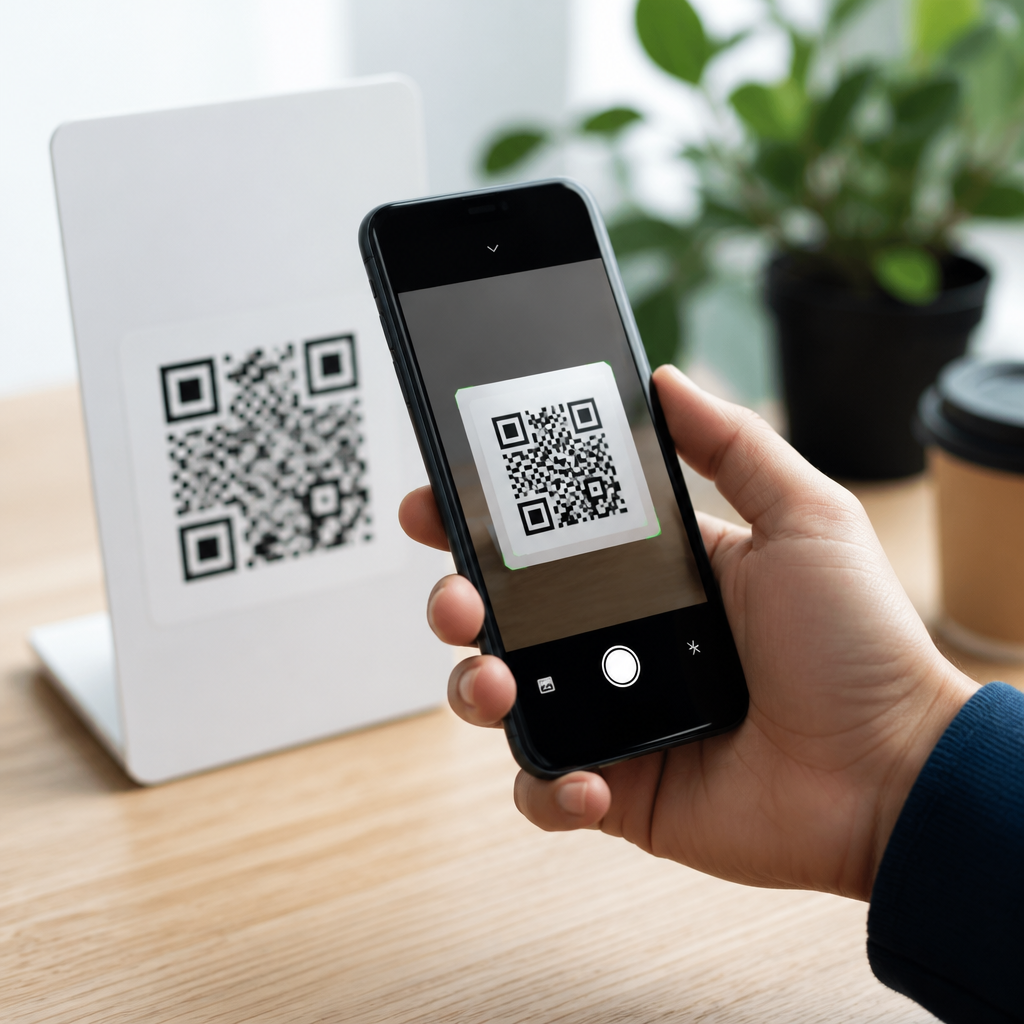
QR codes have become a routine part of daily mobile use, appearing on restaurant menus, payment terminals, event tickets, product packaging, Wi-Fi cards, and login screens. If you want to know how to enable QR code scanning on iPhone, the good news is that most iPhones already include the feature through the built-in Camera app and Control Center shortcuts. In practice, the real task is understanding where the setting lives, how scanning works, and what to do when an iPhone will not recognize a code.
A QR code, short for Quick Response code, is a two-dimensional barcode that stores information such as a website URL, contact card, app link, email address, payment instruction, or network credentials. Unlike a traditional barcode, a QR code can hold much more data and can be read quickly from different angles. Apple added native QR detection to the Camera app years ago, so users no longer need a third-party scanner for common tasks. On newer versions of iOS, the system can also detect links in photos, screenshots, and saved images.
This matters because mobile QR code scanning now sits at the intersection of convenience, security, and digital access. I have helped users troubleshoot iPhone camera permissions, disabled settings, and unreadable codes, and the same pattern appears repeatedly: people assume scanning is broken when a single setting, outdated iOS version, or poor lighting is the real cause. This hub article explains how to enable scanning, how to use every built-in method, how iPhone compares with other mobile devices, and how to solve the issues that stop QR recognition.
How to enable QR code scanning on iPhone
On most iPhones, QR scanning is enabled by default. To confirm it is on, open the Settings app, scroll to Camera, and make sure the switch labeled Scan QR Codes is enabled. Once that toggle is on, open the Camera app and point it at the code. Hold the phone steady until a notification banner appears near the top of the screen. Tap the banner to open the link or action attached to the code. That is the standard method and the one Apple expects most users to use.
If you prefer a dedicated control, add Code Scanner to Control Center. Go to Settings, then Control Center, and add Code Scanner from the list of controls. This tool opens a simplified scanner interface that is especially useful when you want to scan quickly without switching camera modes or accidentally taking a photo. In support settings for business fleets and family devices, I often recommend this shortcut because it reduces confusion and works well for users who are less comfortable navigating the Camera app.
There are a few prerequisites. Your iPhone needs a reasonably current version of iOS, camera access must not be blocked by Screen Time or device management restrictions, and the lens must be clean enough to focus. QR recognition is supported broadly across modern iPhones, including older models such as iPhone SE generations that run compatible iOS versions. If scanning does not work even with the setting enabled, the issue is usually environmental or permission-related rather than a hardware defect.
Ways to scan QR codes on an iPhone
The Camera app is the main option, but it is not the only one. The Code Scanner control in Control Center uses the same underlying detection but offers a stripped-down interface. The Photos app can also interact with QR content in saved images on newer iOS releases through Live Text and visual lookup behaviors. For example, if someone sends you a screenshot of a parking payment code, you may be able to open the image, press on the code, and follow the detected link without scanning it live through the camera.
Wallet, Safari, and some third-party apps can also hand off QR actions once the code is recognized. A transit pass code might open Wallet. A website code launches Safari. A setup code for accessories may trigger onboarding prompts. This system integration is one reason iPhone QR scanning feels seamless when configured correctly. The code is not just read; the operating system interprets the payload and routes it to the right destination.
| Method | Best Use Case | How to Access It | Common Limitation |
|---|---|---|---|
| Camera app | Everyday scanning | Open Camera and point at code | Banner may be missed if phone moves |
| Code Scanner | Fast dedicated scanning | Open from Control Center | Must be added manually on some devices |
| Photos app | Scanning saved screenshots or images | Open image and interact with detected code | Depends on iOS version and image clarity |
| Third-party apps | Specialized workflows such as inventory or payments | Install app-specific scanner | May request extra permissions or add ads |
How to scan QR codes on mobile devices beyond iPhone
Because this page is a hub for how to scan QR codes on mobile devices, it helps to place iPhone in context. On Android, the process varies by manufacturer. Google Pixel phones typically support QR scanning directly in the Camera app and through Google Lens. Samsung Galaxy devices often recognize codes in the Camera app, Bixby Vision, or quick settings tools depending on the model and One UI version. The principle is the same: open the camera, point it at the code, and follow the prompt. The difference is menu naming and feature consistency.
For users who switch platforms, iPhone is generally more uniform. Apple controls both hardware and software, so instructions stay stable across devices compared with the fragmented Android ecosystem. That said, Android can be more flexible in enterprise or retail environments where specialized scanner apps are needed for stock systems, field service, or warehouse workflows. Dedicated applications can log scans, validate codes against databases, and automate actions in ways built-in scanners do not.
If you manage content for both iPhone and Android audiences, the safest guidance is to teach users to start with the native camera, then check quick settings or app shortcuts, then install a trusted scanner only if the built-in method fails. That order reduces privacy risk and avoids unnecessary app downloads.
Common problems when iPhone QR scanning does not work
When an iPhone fails to scan a QR code, I troubleshoot in a fixed order. First, confirm Settings > Camera > Scan QR Codes is enabled. Second, test the Camera app on a plain printed code in good light. Third, clean the lens and move slightly closer or farther away until the code sharpens. Fourth, restart the iPhone and update iOS. Fifth, check restrictions under Screen Time or mobile device management if the phone belongs to a company or school.
Environmental issues are extremely common. A glossy menu under dim lighting, a code wrapped around a curved bottle, or a low-resolution screenshot displayed on another cracked phone screen can all stop recognition. QR scanners need clear contrast and adequate focus. A code that is too small, partially covered, stylized beyond standard finder patterns, or printed with weak color contrast may not read reliably. ISO/IEC 18004 defines QR code structure, and codes that deviate too far from the standard often fail on consumer devices.
Security also matters. Not every QR code should be opened automatically. Phishing campaigns use QR codes to hide malicious links, especially in parking scams, fake package notices, and account verification prompts. Before tapping the banner, read the domain carefully. A legitimate bank should resolve to its real domain, not a lookalike address. For payment codes, verify the merchant name and amount inside the destination app before confirming anything.
Best practices for reliable and safe QR code scanning
The fastest way to improve success is to hold the iPhone so the entire code fits inside the frame with a small margin around it. Do not zoom immediately; digital zoom can soften the image. Let autofocus settle for a second. If the code is on a screen, increase that screen’s brightness. If the code is printed, avoid shadows and glare. In retail and field testing, these simple adjustments solve most failed scans without any setting changes.
Use built-in tools whenever possible. Apple’s native scanner respects system privacy controls and avoids the ad tracking, pop-ups, and aggressive permissions common in low-quality scanner apps. If you need a third-party tool for batch scanning, document capture, or inventory management, choose a well-established developer and review App Store ratings, privacy labels, and data practices. Businesses should test scanning flows across older devices, since customers may not all be using the latest iPhone model.
For site owners, marketers, and support teams, the lesson is practical: present QR codes at a readable size, maintain strong contrast, and explain what the code does before asking people to scan it. A line such as “Scan to join Wi-Fi” or “Scan to view the menu” increases trust and completion rates. The more predictable the destination, the more likely users are to engage confidently.
Conclusion
Knowing how to enable QR code scanning on iPhone starts with one simple check in Settings, but effective mobile scanning goes beyond a single toggle. The built-in Camera app, the Code Scanner shortcut, and image-based detection in Photos give iPhone users several reliable ways to scan. When problems appear, they usually come from lighting, focus, screen restrictions, outdated software, or poor-quality codes rather than from a broken phone.
As the hub for how to scan QR codes on mobile devices, this guide also shows the broader picture: iPhone offers a consistent native experience, while Android methods vary by brand and software version. Across both platforms, the same fundamentals apply. Use the native camera first, keep devices updated, verify links before opening them, and make sure the code itself is clear and standards-compliant.
If you want fewer scanning failures and safer mobile interactions, start by enabling Scan QR Codes on your iPhone today, add Code Scanner to Control Center, and test the feature on a trusted code so you know it works before you need it in the real world.
Frequently Asked Questions
How do I enable QR code scanning on an iPhone?
On most iPhones, QR code scanning is built in and usually works automatically through the Camera app. To make sure the feature is enabled, open the Settings app, scroll down to Camera, and look for the option labeled Scan QR Codes. If that switch is turned on, your iPhone is ready to detect QR codes with the standard camera. Once enabled, open the Camera app and point it at a QR code for a moment. A notification banner should appear near the top of the screen, letting you tap through to the linked website, app, menu, payment page, or other content.
If you do not see the setting right away, make sure your iPhone is running a reasonably current version of iOS, since QR scanning support is part of the operating system rather than a separate app you install. In many cases, people think they need to “turn on” a special scanner, but the feature is already there. The main step is simply confirming that the Camera setting is enabled and then using the camera in normal photo mode. No extra software is required for standard QR codes.
Can I scan a QR code on iPhone without using the Camera app?
Yes. In addition to the built-in Camera app, iPhone also offers a dedicated Code Scanner shortcut that can be added to Control Center. To set it up, go to Settings > Control Center and add Code Scanner if it is not already included. After that, swipe down from the top-right corner of the screen on Face ID models, or swipe up from the bottom on older Home button models, and tap the scanner icon. This opens a streamlined QR scanning tool that is designed specifically for reading codes quickly.
This option is especially useful if you want faster access than launching the full Camera app, or if you prefer a dedicated scanner interface. It can also help in situations where you are using your camera frequently and want a more direct route to scanning. For many users, the Code Scanner in Control Center is one of the easiest ways to scan restaurant menus, event check-ins, mobile payments, and Wi-Fi QR codes with minimal steps.
Why is my iPhone not recognizing a QR code?
If your iPhone will not recognize a QR code, the most common issue is that the Scan QR Codes setting is turned off in Settings > Camera. Start there first. If the setting is already enabled, make sure you are pointing the camera steadily at the code and giving it a second to focus. The QR code should be fully visible on screen, well lit, and not too close or too far away. If the code is blurry, damaged, printed too small, or displayed on a screen with glare, the iPhone may have trouble reading it.
Other possible causes include a dirty camera lens, outdated iOS software, low lighting, or a code that leads to unsupported or expired content. Try cleaning the lens, increasing brightness, moving to better light, and updating iOS through Settings > General > Software Update. You can also test with a different QR code to see whether the issue is with the phone or the code itself. If scanning still fails, restarting the iPhone can clear minor software glitches. In most cases, the fix is simple: confirm the setting, improve focus and lighting, and test with a valid code.
Do all iPhones support QR code scanning?
Most modern iPhones support QR code scanning through the native Camera app, but support depends on both the device model and the version of iOS installed. Apple introduced built-in QR recognition several generations ago, so the vast majority of iPhones still in active use today can scan codes without needing a third-party app. If you are using a relatively recent iPhone and your software is up to date, there is a very good chance the feature is already available.
If you have an older device, the experience may vary. Some older iPhones may require iOS updates to gain the feature, while very old devices may rely on separate scanning apps if they cannot run compatible software. The easiest way to verify support is to open the Camera settings and check for the Scan QR Codes toggle. If that option appears, your iPhone supports the feature natively. For users with supported devices, built-in scanning is generally more secure and convenient than downloading an additional QR scanner from the App Store.
What happens after I scan a QR code on iPhone?
After your iPhone detects a QR code, it usually shows a notification banner or highlighted prompt that you can tap to open the linked content. What happens next depends on what the QR code is designed to do. It may open a website in Safari, launch a payment page, connect to a Wi-Fi network, display contact information, open a map location, start an App Store listing, or trigger a sign-in or event check-in page. In other words, scanning the code does not automatically complete an action by itself; it usually presents a tap-through step so you stay in control.
That extra confirmation is useful from both a usability and security perspective. Before tapping, it is smart to glance at the preview and make sure the destination appears legitimate, especially if the code is posted in a public place or attached to a payment request. QR codes are convenient, but they can also redirect to fraudulent pages if misused. As a best practice, only open codes from trusted sources and be cautious if the destination asks for sensitive information right away. When used properly, iPhone QR scanning is fast, simple, and highly practical for everyday tasks.