
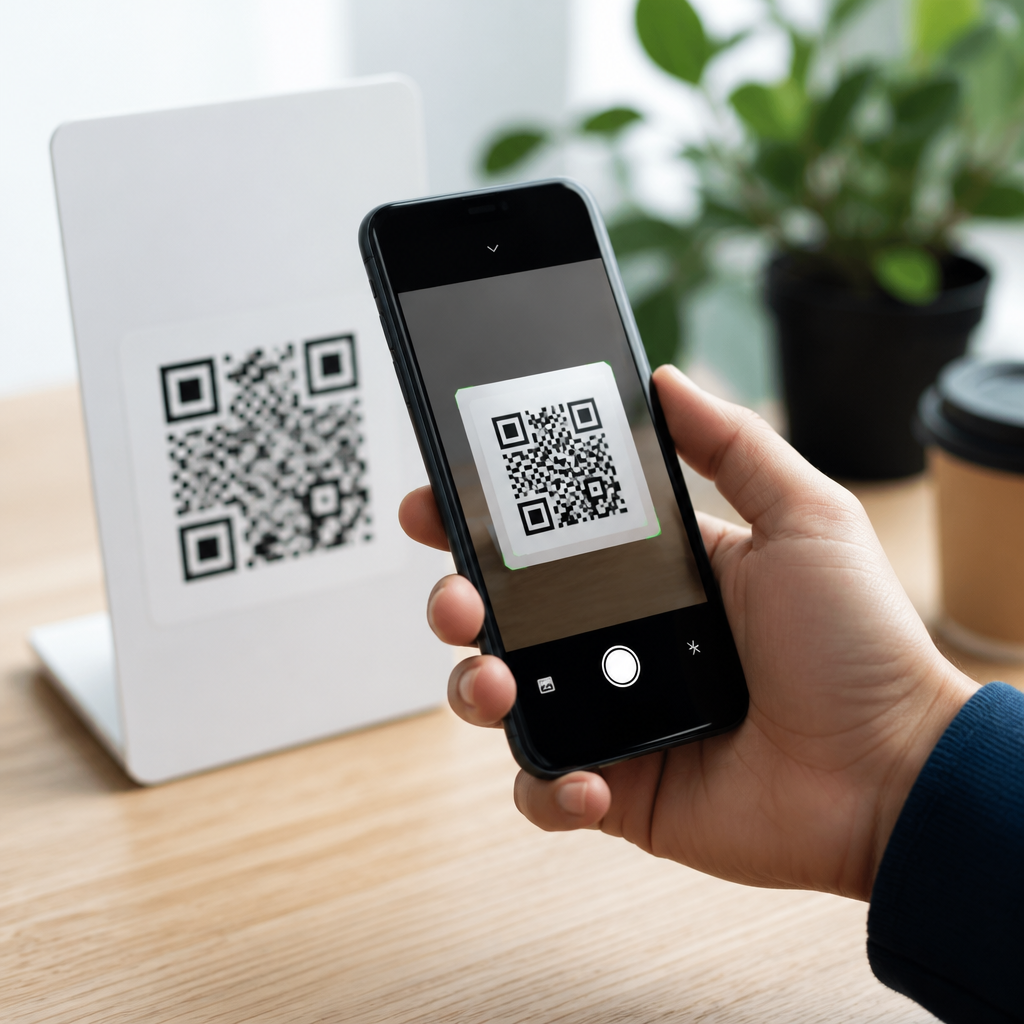
QR code scanning on Android is usually built in, but the exact method depends on your phone, Android version, camera app, and settings. A QR code, short for Quick Response code, stores text, links, Wi-Fi credentials, payment details, or app actions in a square pattern that a camera can read. For most users, the goal is simple: point the phone at the code and tap the prompt. In practice, I have seen three common barriers stop that from happening: the camera app does not recognize codes, Google services are turned off or missing, or the user is trying to scan from a picture already saved on the device.
This matters because QR codes now sit at the center of everyday mobile tasks. Restaurants use them for menus, offices use them for guest check-in, retailers use them for coupons, and home users rely on them to join Wi-Fi without typing passwords. Banks, messaging apps, and authenticator tools also use QR codes to pair devices and enroll accounts. Android supports all of these use cases, but not through one single universal interface. Samsung, Google Pixel, Motorola, OnePlus, Xiaomi, and other brands often place scanning controls in different menus, and some ship their own camera software with separate toggles for scene detection or QR recognition.
This guide explains how to enable QR code scanning on Android and, just as important, how to scan QR codes on mobile devices in every common situation. It covers the built-in camera method, Quick Settings shortcuts, Google Lens, scanning from saved images, and troubleshooting when Android will not detect a code. Treat this page as the hub for the broader topic: once you understand the core methods here, you can move easily into device-specific tutorials, app comparisons, security best practices, and advanced uses such as Wi-Fi sharing or login authentication.
Enable QR code scanning in the Android camera app
The fastest answer to how to enable QR code scanning on Android is this: open the default Camera app, go to Settings, and turn on the option labeled Scan QR codes, QR code scanner, Lens suggestions, or Scan documents and codes. On recent Pixel phones, the camera usually recognizes QR codes automatically. On many Samsung Galaxy devices, you open Camera, tap the gear icon, and enable Scan QR codes. On Xiaomi or Redmi phones, the setting may sit under Smart suggestions or AI camera features. Motorola often enables scanning by default, while OnePlus may route detection through Google Lens integration instead of a separate toggle.
After enabling the feature, test it correctly. Hold the phone 6 to 12 inches from the code, make sure the full square is visible, and avoid glare. A QR code does not need to fill the frame, but it does need sharp contrast and focus. If the camera detects it, a banner, pop-up, or small chip appears with the action, such as Open link, Join Wi-Fi, or View text. Tap only after checking that the destination looks legitimate. If your camera opens but never reacts, clean the lens, update the Camera app from Google Play or Galaxy Store, and confirm that the code itself is not damaged or too small.
Use Quick Settings or the dedicated QR scanner
Many Android phones include a separate scanner outside the camera app. Swipe down from the top of the screen to open Quick Settings and look for QR Scanner, Scan QR code, or Code scanner. If it is not visible, tap the edit pencil and add it to your active tiles. Google introduced a system-level code scanner on newer Android builds, and some manufacturers expose it more clearly than the camera app does. I often recommend this route for less technical users because it bypasses camera modes like Portrait, Pro, or Video that can interfere with recognition.
A dedicated scanner is also useful when permissions or lock screen behavior matter. Some phones allow the scanner from the lock screen, which is convenient for tickets, transit, or event entry. Others require the phone to be unlocked before opening a link, joining a network, or passing data to another app. If your organization manages phones with Mobile Device Management tools such as Microsoft Intune or VMware Workspace ONE, the scanner may be limited by policy. In those cases, ask the administrator whether camera access, browser launches, or app deep links are restricted.
Scan QR codes with Google Lens on Android
Google Lens is the most reliable fallback when the camera app does not detect codes. Lens is built into many Android devices through the Google app, the Camera app, or Google Photos. To use it live, open the Google app, tap the Lens icon, grant camera permission, and point at the code. Lens reads standard URL QR codes, Wi-Fi QR codes, contact cards, plain text, and many app-specific formats. Because Lens is maintained by Google and tied closely to Android services, it often works even when the phone maker’s camera software is inconsistent.
Lens also answers a common question in any guide about how to scan QR codes on mobile devices: how do you scan a code that appears on your own screen or in a saved screenshot? Open Google Photos, select the image, and tap Lens. The service analyzes the picture and extracts the code content without needing a second device. This is especially useful for two-factor authentication setup, online menus shared by message, or a Wi-Fi code sent in chat. If Lens is missing, install or update the Google app and Google Photos, then verify that Google Play services is enabled.
Best methods by device and situation
Android is not one product, so the best scanning method depends on the phone and the task. The table below summarizes the most practical choices I recommend after troubleshooting Android devices across several major brands and use cases.
| Situation | Best method | Why it works |
|---|---|---|
| Pixel or stock Android phone | Default Camera app | QR recognition is usually enabled automatically and integrated with system prompts. |
| Samsung Galaxy phone | Camera app with Scan QR codes enabled | Samsung hides the toggle in Camera settings, but detection is fast once turned on. |
| Code saved as screenshot or photo | Google Photos plus Lens | Reads on-screen or stored images without requiring another device. |
| Camera app will not detect anything | Quick Settings QR Scanner or Google Lens | Bypasses manufacturer camera quirks and mode conflicts. |
| Joining Wi-Fi from a QR code | System camera or system scanner | Android can parse SSID and password fields and offer direct network connection. |
| Managed work phone | Approved system scanner | Complies better with device policy and app restrictions than third-party scanners. |
Troubleshooting when Android will not scan a QR code
If QR code scanning is enabled on Android but nothing happens, start with the basics. Confirm that the phone has focus, enough light, and a stable hand position. Remove screen protectors or camera lens covers that add blur. Then check software: update Android, the Camera app, Google app, Google Photos, and Google Play services. Restart the phone after updates. Next, switch camera modes. Some apps do not scan in Macro, Night, Panorama, or Pro mode. Return to standard Photo mode and test again with a known good code from a trusted website or a printed Wi-Fi label.
If the problem continues, isolate whether it is a camera issue or a code issue. Try scanning a different QR code, then try Google Lens. If Lens succeeds, the hardware is fine and the manufacturer camera app is the likely cause. Clear the Camera app cache in Settings, then reopen it. On Samsung devices, resetting camera settings can restore QR detection. On phones without Google Mobile Services, such as certain regional models, you may need the manufacturer’s scanner because Lens depends on Google components. As a last resort, install a reputable scanner from Google Play, but avoid random apps with excessive permissions, full-screen ads, or no published privacy policy.
Security, privacy, and smart scanning habits
Not every QR code is safe. A QR code can send you to a phishing page, trigger a malicious app download, or prefill a message to a premium number. Android helps by showing a preview action before opening it, but the final decision is still yours. Check the domain carefully, especially if the code claims to be from a bank, delivery company, or payment service. Prefer codes that resolve to clear HTTPS addresses, and be cautious with shortened links that hide the destination. Public posters and tables can also be tampered with by placing a fake sticker over a legitimate code.
For privacy, remember that scanning can pass data to the browser, maps app, contacts app, or Wi-Fi settings, depending on the code type. That is normal, but you should know what is being shared. In workplaces, schools, and healthcare settings, use approved apps when scanning codes tied to internal systems, because audit requirements may apply. The practical rule is simple: use the built-in Android camera or Google Lens first, verify the prompt before tapping, and install third-party tools only when a specific workflow requires them. To enable QR code scanning on Android successfully, start with built-in settings, keep Google services updated, and use this hub as your next step for device-specific guides and safer everyday scanning.
Frequently Asked Questions
1. How do I enable QR code scanning on an Android phone?
On most Android phones, QR code scanning is already built into the default camera app, so there is often nothing extra to install. The first step is to open your Camera app and point it steadily at the QR code from a short distance away. If scanning is supported and enabled, you should see a pop-up link, banner, or shortcut appear on the screen. Tap that prompt to open the website, connect to Wi-Fi, view contact details, or complete whatever action the code contains.
If nothing happens, check your camera settings. Many Android devices include a specific option such as Scan QR codes, Google Lens suggestions, or Suggested actions. Open the Camera app, tap the settings icon, and look for a QR-related toggle. On Samsung Galaxy phones, for example, QR scanning is commonly found in Camera settings or can be accessed from the Quick Settings panel. On Google Pixel devices, Google Lens integration usually handles scanning automatically. Other brands such as OnePlus, Motorola, Xiaomi, and Oppo may place the setting in slightly different menus, but the process is similar.
If your camera app still does not recognize QR codes, you can usually enable scanning through Google Lens. Open the Google app, the standalone Google Lens app if available, or tap the Lens icon in the camera interface. Then point your phone at the code and wait for Lens to identify it. This is one of the most reliable fallback methods on Android, especially when the default camera app is limited or QR recognition is turned off by default.
2. Why is my Android camera not scanning QR codes?
There are several common reasons an Android phone does not scan QR codes, even when it seems like it should. The most frequent issue is that the default camera app either does not support QR recognition or has the feature disabled in settings. This is especially common on older Android versions, budget devices, or phones using heavily customized camera software. If your phone has a built-in scanner, it may need to be turned on manually before prompts begin to appear.
Another common problem is poor scanning conditions. QR codes need to be clear, in focus, and well lit. If the image is blurry, too far away, partially cut off, damaged, too reflective, or shown on a dim screen, the camera may fail to read it. Try holding the phone steady, moving slightly closer or farther away, cleaning the camera lens, and improving the lighting. Sometimes a simple angle change is enough to make the code readable.
Software limitations can also prevent scanning. If Google Lens is disabled, missing, outdated, or restricted by app permissions, your device may not process QR codes correctly. In other cases, the camera app itself may need an update. Go to the Google Play Store and check for updates to the Camera app, Google app, Google Lens, and Android system components. Restarting the phone can also help if the camera has temporarily stopped working as expected.
Finally, not every square code is active or trustworthy. Some printed codes are low quality, expired, or lead to unsupported actions. If one code does not work, test your phone with another QR code, such as a well-known website link. That can help you determine whether the problem is with your Android device or with the code itself.
3. Can I scan a QR code on Android without using the default Camera app?
Yes. If your default Camera app does not support QR code recognition or the feature is unreliable, there are several alternative ways to scan a QR code on Android. The most widely available option is Google Lens. Many Android phones already include Lens through the Google app, Photos app, Assistant, or camera interface. Open Google Lens, point it at the QR code, and it will usually detect the content within a second or two. This method works for links, text, Wi-Fi credentials, contact cards, and many other code types.
You can also use a dedicated QR scanner app, although this should be approached carefully. There are many third-party scanner apps in the Play Store, but not all of them are necessary or trustworthy. If you choose one, look for a well-reviewed app from a reputable developer, and avoid scanners that request excessive permissions unrelated to camera access. In many cases, a separate app is unnecessary because Google Lens already does the job with fewer privacy concerns.
Another useful method is scanning a QR code from an image or screenshot. If someone sends you a QR code in a message, email, or saved photo, open the image in Google Photos and tap the Lens icon. Android can often read the code directly from the image without needing a second device. This is particularly helpful when the QR code is on the same phone screen and cannot be scanned by the camera in real time.
4. Where is the QR code scanner setting on Samsung, Pixel, and other Android phones?
The location of the QR scanning setting depends on the phone brand, Android version, and camera app. On Samsung Galaxy phones, you can typically open the Camera app, tap the settings gear, and enable an option labeled Scan QR codes. Some Samsung models also let you scan directly through the Quick Settings menu by swiping down from the top of the screen and selecting a QR scanner tile if it is available. Samsung Internet may also detect certain QR-based links when using its built-in tools.
On Google Pixel phones, QR code scanning is usually handled automatically through the camera and Google Lens. In most cases, you simply open the Camera app and point it at the code. If you do not see a prompt, check whether Lens suggestions are enabled in camera settings, or use the Google Lens feature directly. Pixels tend to have one of the simplest built-in QR scanning experiences, but software updates can slightly change where the option appears.
On brands such as Motorola, OnePlus, Xiaomi, Oppo, Vivo, and others, the setting may appear under Camera settings, smart features, AI tools, or Lens integration. Some phones include a dedicated scanner in the control center or quick tools menu. If you cannot find it, use the search bar in the Settings app and search for terms like QR, Lens, scanner, or camera suggestions. If no relevant option appears, your phone may rely on Google Lens rather than a separate built-in toggle.
Because Android is not identical across manufacturers, there is no single universal path for every device. The easiest rule is this: first test the Camera app, then inspect Camera settings, then try Google Lens. That sequence solves the majority of QR code scanning issues on Android.
5. Is it safe to scan QR codes on Android, and what should I watch out for?
QR codes are convenient, but they should be treated with the same caution as links in emails or text messages. A QR code can open a legitimate website, join a Wi-Fi network, launch a payment screen, download an app, or trigger other actions. Because the code itself is not human-readable, you do not always know where it leads until your phone previews it. That is why it is important to pause before tapping and verify the destination whenever possible.
On Android, the safest practice is to use the built-in camera scanner or Google Lens because these tools usually show a preview of the link or action before opening it. Check the web address carefully, especially if the QR code appears on a public poster, parking meter, restaurant table, flyer, or unexpected message. Scammers sometimes place fake QR code stickers over real ones to redirect people to phishing websites, fake payment pages, or malicious downloads.
You should be especially cautious with QR codes that ask for payment, login credentials, banking details, or app installation. If the destination looks suspicious, misspelled, overly shortened, or unrelated to what you expected, do not continue. It is usually safer to visit the official website manually instead of trusting the code. Also keep your Android device updated so security protections, browser warnings, and app scanning tools remain current.
In short, scanning QR codes on Android is generally safe when you use trusted tools and pay attention to what opens next. The real risk usually comes not from the scanning itself, but from blindly following a malicious link or approving an unsafe action without reviewing it first.





