
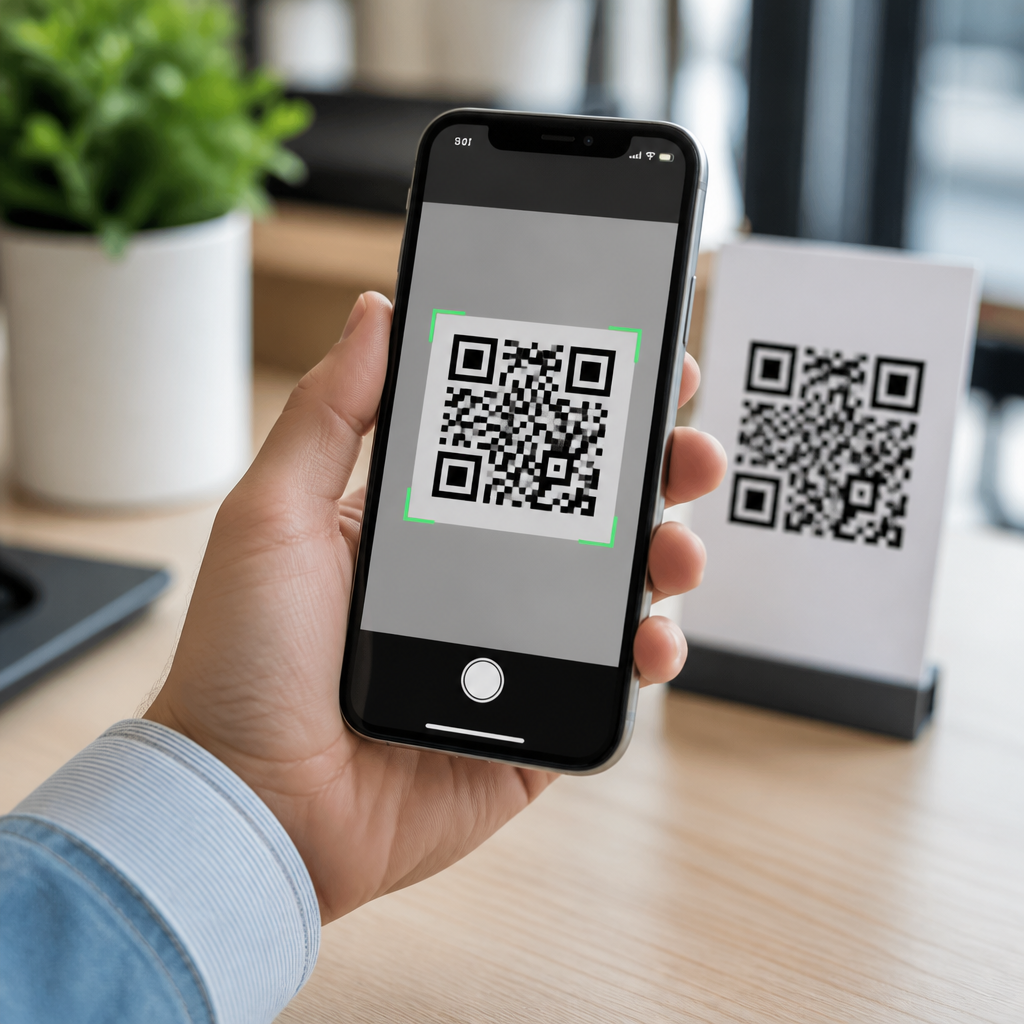
Scanning a QR code on a phone should take seconds, yet many people still fumble with camera settings, weak lighting, or confusing app prompts. The best ways to scan QR codes quickly on mobile come down to using the fastest built in tools on iPhone and Android, understanding when a dedicated scanner helps, and avoiding the security mistakes that slow people down after a bad scan. A QR code, short for Quick Response code, is a two dimensional barcode that stores information such as a website URL, Wi Fi credentials, contact details, payment instructions, ticket validation data, or app deep links. Modern smartphones read these codes through the camera app, image recognition layers, or wallet and browser integrations.
This matters because QR codes now sit at the center of everyday mobile behavior. Restaurants use them for menus, airlines for boarding passes, retailers for loyalty and payments, and support teams for device setup and authentication. In my own testing across current iPhones, Samsung Galaxy devices, Pixel phones, and budget Android handsets, the difference between a smooth scan and a frustrating one usually has less to do with the code itself than with the method chosen. The fastest path is rarely downloading a random scanner app. Instead, it is knowing which built in shortcut works on your device, how far to hold the phone, how to handle codes inside photos, and when to trust or reject a destination link.
As a hub for how to scan QR codes on mobile devices, this guide covers the core methods, the quickest settings, the common failure points, and the security rules worth following. If you want consistently fast mobile QR code scanning, start with the camera you already have, then layer in platform tools only when the situation calls for them.
Use the built in camera first on iPhone and Android
The quickest method on almost every modern phone is the native camera app. On iPhone, open Camera, point it at the code, and wait for the banner notification near the top of the screen. On Android, the process is similar, though the exact behavior depends on the manufacturer. Google Pixel phones detect codes directly in Camera and through Google Lens. Samsung Galaxy phones support scanning in the Camera app, often with Bixby Vision or a built in scan toggle depending on One UI version. Most current devices running Android 9 and later can read QR codes without extra software.
For speed, hold the phone six to ten inches from the code, keep the frame steady, and let the entire code stay visible with a small margin around it. Good contrast matters more than zoom. I have seen people pinch to zoom on distant posters, but digital zoom often softens edges and makes detection slower. Walking one step closer is faster and more reliable. If the code sits behind glossy plastic or on a curved surface, changing the angle slightly reduces glare and improves recognition immediately.
When the camera does not respond, check whether QR detection is disabled. On iPhone, the Scan QR Codes option lives in Camera settings. On some Android phones, scanning can be tied to Google Lens, the camera assistant, or an intelligent features menu. If detection still fails, clean the lens. A fingerprint smudge can be enough to stop a scan, especially in dim indoor light.
Know the fastest shortcuts for each mobile platform
If you scan codes often, platform shortcuts save time. On iPhone, Control Center can include a Code Scanner shortcut that opens a scanning interface directly, bypassing normal camera modes. It is especially useful when the phone was last left in video or portrait mode. On Android, Google Lens is often the fastest fallback because it can scan live through the camera and analyze screenshots or saved photos. On Samsung devices, opening Camera and tapping the Lens or scan icon is typically quicker than installing a separate utility.
The most efficient options are not identical across phones, so this comparison helps:
| Device or platform | Fastest built in method | Best use case | Common limitation |
|---|---|---|---|
| iPhone | Camera app or Control Center Code Scanner | Menus, tickets, login prompts, payment links | Notification can be missed in bright light |
| Google Pixel | Camera app or Google Lens | Live scanning and image based scanning | Older models may open Lens with an extra tap |
| Samsung Galaxy | Camera scan feature or Google Lens | Posters, packaging, product info, setup flows | Feature location varies by One UI version |
| Budget Android phones | Camera app if supported, otherwise Google app Lens | General web links and Wi Fi codes | Low light autofocus can be slow |
These shortcuts matter because friction compounds. If scanning a restaurant menu takes three extra taps, users feel it. If a support article asks customers to scan a setup code, every extra step raises abandonment. For day to day mobile use, the best scanning setup is the one that launches in a single gesture and presents the destination clearly before opening it.
Scan QR codes from photos, screenshots, and apps
Many people know how to scan a printed QR code but get stuck when the code is inside a screenshot, social post, email, or PDF on the same phone. This is where Google Lens and iPhone photo detection become essential. On iPhone, open the image in Photos and long press the QR code or use Live Text style visual detection when available. If the code contains a link, contact card, event, or Wi Fi join instruction, iOS usually surfaces the action directly. On Android, open the image in Google Photos or the Google app and tap Lens to analyze it.
This method is useful for authentication workflows such as WhatsApp Web pairing, account sign in on streaming apps, and event ticket recovery. It also helps when customer support sends a QR code image by email. In testing, image based scanning is often more reliable than trying to point one phone camera at another screen with low brightness. If you must scan from another display, increase that screen’s brightness, reduce blue light filters, and avoid moire patterns by shifting the angle slightly.
Some apps have native scanners as well. Banking apps may scan payment QR codes using EMVCo compatible flows. Wallet apps can read transit, loyalty, or pass related codes. Browser apps sometimes recognize codes from screenshots. The rule is simple: use the app’s own scanner when the code is tied to a specific function like payments or account linking; use the camera for general links and information.
Fix slow or failed scans with simple technique changes
When a QR code will not scan, the root cause is usually one of five issues: poor lighting, damaged print quality, reflective surfaces, insufficient focus, or unsupported code content. The fastest fix is improving lighting without introducing glare. Move nearer to a light source, tap the screen to focus, and keep the phone parallel to the code. If the code is tiny on product packaging, step back just enough for the camera to focus, then let the software crop it. Very close distances often blur the pattern.
Printed codes can fail when design choices violate practical scanning standards. Low contrast color combinations, decorative logos that obscure finder patterns, and stretched proportions all reduce readability. Well made codes follow ISO/IEC 18004 guidance for QR symbol structure and preserve quiet zones around the edges. If you manage marketing materials, test codes on multiple phones before publishing. A code that scans on a flagship phone may still fail on an entry level device with weaker autofocus.
Network conditions can also create the illusion of scan failure. The camera may read the code instantly, but the linked webpage stalls on a weak connection. In stores, parking garages, stadiums, and transit stations, this is common. If the banner appears but nothing loads, the scan worked; the network did not. Try again on cellular or a stronger Wi Fi signal, or ask whether the location provides an offline fallback.
Stay safe while scanning QR codes on mobile
Fast scanning should not mean blind tapping. QR phishing, often called quishing, uses codes to hide malicious destinations that bypass normal visual scrutiny. Before opening a link, read the preview and check the domain name carefully. A legitimate company uses its real domain, not a misspelled imitation or a suspicious URL shortener with no context. Be especially cautious with codes on public posters, parking meters, package inserts, and unexpected emails, since attackers sometimes place stickers over real codes.
Payment codes deserve extra care. Use trusted wallet or banking apps when possible, because they validate payment flows more clearly than a generic browser. Never enter passwords after scanning a random login code unless you confirm the site address. On managed devices, mobile security tools such as Microsoft Defender, Google Safe Browsing, and enterprise MDM protections can help block known malicious destinations, but they are not perfect. User judgment remains the first control.
The safest habit is to treat every QR code like a hyperlink from an unknown sender until proven otherwise. Preview, verify, then proceed. That approach barely adds a second, and it prevents the kind of compromise that turns a convenience feature into a support incident.
The best ways to scan QR codes quickly on mobile are straightforward: use the built in camera first, learn your phone’s fastest shortcut, rely on image scanning for screenshots and saved files, fix environment issues before blaming the code, and verify links before opening them. For most users, iPhone Camera, Android Camera, and Google Lens cover nearly every real world situation without needing a third party app. The result is faster access to menus, tickets, Wi Fi, payments, and setup tools with less friction and fewer errors.
As the hub for mobile QR code scanning and technology, this guide gives you the baseline methods that support every related topic in the category. Once you master these core techniques, deeper subjects such as scanning QR codes from photos, troubleshooting unreadable codes, choosing secure payment scanners, and understanding dynamic versus static QR code behavior become much easier. Start by testing the built in scanner on your phone today, add the quickest shortcut to your home workflow, and use that habit every time you scan.
Frequently Asked Questions
What is the fastest way to scan a QR code on an iPhone or Android phone?
The fastest way to scan a QR code on mobile is usually with your phone’s built-in camera. On iPhone, open the Camera app and point it at the code. If the code is clear and well lit, a banner should appear near the top of the screen within a second or two. Tap the banner to open the link or action. On Android, the process is similar on most devices: open the Camera app, point it at the QR code, and wait for the on-screen prompt. Many Android phones also support QR detection through Google Lens, either built directly into the camera or available from the Google app.
To make scanning even quicker, avoid overthinking the process. You usually do not need to press the shutter button. Hold the phone steady, keep the entire QR code inside the frame, and let autofocus do the work. If your screen does not respond right away, move slightly closer or farther away until the image sharpens. In everyday use, this built-in method is the quickest because it removes the extra step of downloading and opening a separate QR scanner app.
Another time-saving tip is to use quick access tools. Some phones let you launch the camera directly from the lock screen, which can save several seconds. If you scan codes often, this is one of the best habits to develop. For most users, the best way to scan QR codes quickly on mobile is not a special trick or advanced app. It is simply knowing that the camera already does the job and using it confidently.
Why is my phone not scanning a QR code right away?
If your phone is not scanning a QR code quickly, the cause is usually one of a few common issues: poor lighting, blurry focus, glare, damaged code quality, or camera settings that are not recognizing QR codes automatically. A QR code scanner works best when the code is sharp, evenly lit, and fully visible. If the room is dim or the code is printed on a glossy surface, your camera may struggle to lock onto the pattern. In that case, changing your angle or moving to better light can solve the problem immediately.
Distance matters too. Many people hold the phone either too close or too far away. If the camera cannot focus, the code will remain unreadable. Try centering the code on the screen and adjusting your distance slowly until the image becomes crisp. Also make sure your camera lens is clean. A smudged lens can delay autofocus and make scanning feel unreliable, even when the code itself is fine.
Software can also be part of the issue. On iPhone, QR scanning is typically enabled by default, but checking camera settings can help if prompts are not appearing. On Android, QR support may depend on the camera app version or Google Lens integration. Updating your phone’s software or camera app often improves recognition speed. If the built-in camera still fails, a dedicated QR scanner or Lens app may work better for difficult codes, especially older, faded, or low-contrast ones.
Do I need a separate QR code scanner app, or is the built-in camera enough?
For most people, the built-in camera is enough. Modern iPhones and Android phones are designed to recognize QR codes quickly without any extra app, and this is usually the simplest and safest option. It saves storage space, reduces clutter on your phone, and avoids the risk of installing unnecessary apps that may contain ads, trackers, or confusing permissions. If your goal is speed, using the default camera is often the best solution because it is already available and easy to access.
That said, there are times when a dedicated scanner app can be helpful. Some third-party tools offer extras such as scan history, batch scanning, flashlight shortcuts, automatic copy functions, or the ability to scan from saved images and screenshots. These features can be useful for people who work with QR codes often, such as in retail, logistics, events, or marketing. Google Lens is another strong option, especially on Android, because it can recognize QR codes from both live camera view and images already stored on the device.
If you do choose a separate scanner app, be selective. Stick with trusted developers, read recent reviews, and avoid apps asking for unrelated permissions. A QR scanner should not need broad access to contacts, microphone, or other personal data just to read a code. In short, the built-in camera is enough for fast everyday use, while a dedicated scanner makes sense only if you regularly need extra features that genuinely improve your workflow.
How can I scan a QR code more quickly in low light or from a screen?
Low light and screen glare are two of the biggest reasons QR scanning slows down on mobile. In dark environments, the camera has a harder time focusing and identifying the code pattern. The quickest fix is to move into better light or turn on your phone’s flashlight if the code is printed on paper or packaging. Keep in mind that direct flash can create glare on glossy surfaces, so sometimes indirect light or a slight angle adjustment works better than shining the light straight at the code.
If you are scanning a QR code from another screen, such as a laptop, tablet, TV, or self-checkout display, brightness and reflections matter a lot. Increase the brightness on the screen showing the QR code so the contrast is stronger. At the same time, tilt your phone slightly to reduce reflections that may interfere with recognition. Do not zoom in too aggressively unless your camera app handles zoom well, because digital zoom can make the image softer and harder to scan. It is usually better to move the phone physically closer while keeping the code fully visible.
For the fastest results, give the camera a stable target. Hold your phone still for a moment instead of waving it around, and make sure the full square code is inside the frame. If a code on a screen still will not scan, take a screenshot on that device if possible and open the image with a tool like Google Lens on the same device or another phone. This can be especially useful when display flicker, cracked screens, or odd viewing angles make live scanning difficult.
Are QR codes safe to scan, and how can I avoid security problems?
Most QR codes are harmless, but scanning one should never be completely automatic from a trust perspective. A QR code is simply a quick way to open stored information, often a website URL, payment page, login prompt, app link, contact file, or other action. The risk is that you cannot tell where it leads just by looking at the pattern. A malicious QR code can send you to a fake website, trigger a scam payment request, or encourage you to download something unsafe. That is why safe scanning habits are part of scanning quickly. A bad scan often wastes far more time than a careful one.
The best approach is to preview before tapping whenever your phone gives you that option. Check whether the destination looks legitimate and relevant to where you found the code. For example, a restaurant menu should lead to the restaurant’s real domain, not a suspicious or misspelled web address. Be especially cautious with QR codes placed on public posters, parking meters, payment terminals, or stickers layered on top of original signage, since scammers sometimes replace legitimate codes with fake ones.
You should also avoid entering passwords, payment details, or personal information immediately after scanning unless you are fully confident in the destination. Keep your phone updated, use built-in browser security warnings, and rely on reputable apps only. If something feels off, close the page and search for the official website manually instead. The safest and fastest long-term habit is simple: use built-in scanning tools, read the prompt before opening, and treat unexpected QR codes with the same caution you would give to a random link in a text message or email.





