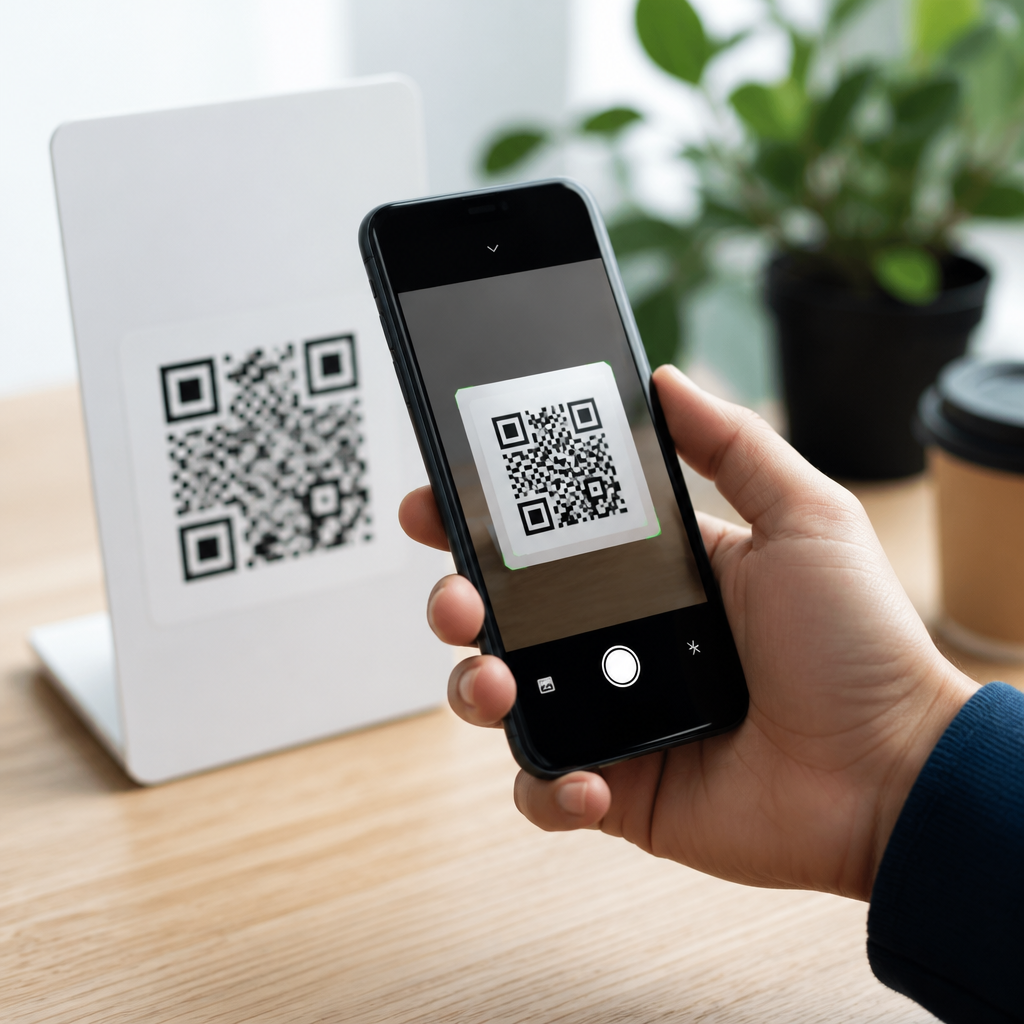
QR codes are now a standard bridge between printed surfaces and digital actions, and learning how to scan QR codes without an app is easier than most people expect. A QR code, short for Quick Response code, is a two-dimensional barcode that stores data such as a website URL, Wi-Fi credentials, payment details, contact information, or an app deep link. Most modern smartphones can read these codes directly through built-in camera software, which means many users no longer need a separate QR scanner. That matters because fewer apps means less storage use, fewer privacy risks, and a faster path from code to content.
In day-to-day mobile support work, I see the same questions repeatedly: Does my phone already have a QR scanner, what if the camera does not react, and is it safe to open every code? The answers depend on the device, operating system, and camera settings, but the basic process is consistent. Apple integrated native QR recognition into the Camera app beginning with iOS 11. Google made QR scanning common across Android through Google Lens, Pixel Camera, and manufacturer camera apps from Samsung, Motorola, OnePlus, Xiaomi, and others. On many devices, scanning is literally a matter of opening the camera and pointing it steadily at the code.
This topic matters beyond convenience. Restaurants use QR menus, airlines use QR boarding passes, offices use QR codes for guest Wi-Fi, and retailers use them for payments and product information. If you understand how to scan QR codes on mobile devices without installing extra software, you can move more efficiently and reduce exposure to low-quality third-party apps that request unnecessary permissions. This guide explains the built-in methods on iPhone and Android, common troubleshooting steps, security precautions, and when a dedicated app still makes sense.
How built-in QR code scanning works on modern phones
Built-in QR code scanning relies on computer vision inside the camera system. When the camera identifies the square finder patterns in three corners of a QR code, the software decodes the embedded data and presents an action banner, usually a link, contact prompt, payment option, or network join request. The key point is that scanning and opening are separate actions: your phone reads the code first, then asks whether you want to follow the result. That separation is useful because it gives you a moment to evaluate what the code is trying to do.
On iPhone, the fastest method is the native Camera app. Open Camera, aim at the QR code, and wait for the yellow or subtle notification banner to appear near the top or bottom of the screen depending on iOS version. Tap the banner to open Safari, join Wi-Fi, add a contact, or perform the coded action. There is also a Code Scanner shortcut in Control Center that isolates QR recognition and can work well in busy scenes. If scanning does not work, go to Settings, then Camera, and confirm that Scan QR Codes is enabled.
Android is less uniform because hardware makers customize the camera interface, but the practical options are straightforward. First, try the default Camera app and point it at the code. On Samsung Galaxy phones, QR scanning is commonly built into the camera and, on some versions, available through Quick Settings. On Google Pixel devices, Camera and Google Lens handle QR recognition well. On other Android phones, Lens may appear as a camera mode, a separate icon, or inside the Google app. If the camera does nothing, tapping the Lens icon usually solves it.
Native scanning is the best default because it is fast and usually secure enough for ordinary use. It also benefits from operating system updates and camera improvements, unlike abandoned scanner apps. For most users asking how to scan QR codes on mobile devices, the answer is simple: use the phone you already have, start with the camera, and only look for another method if the built-in tools fail.
Step-by-step instructions for iPhone and Android
If you want a direct answer to how to scan QR codes without an app, follow these steps. Clean the camera lens, unlock the phone, open the default Camera app, and hold the phone 6 to 12 inches from the code. Keep the code fully visible inside the frame and avoid tilting sharply. Good lighting helps, but harsh glare on glossy paper can prevent detection. Wait one to two seconds for the phone to focus and decode the image, then tap the on-screen notification.
For iPhone, if the standard Camera app does not detect the code, add Code Scanner to Control Center by going to Settings, Control Center, and including Code Scanner. Swipe to open Control Center, tap Code Scanner, and point it at the code. This tool is useful in retail and event settings because it prioritizes code recognition over general photography. Another built-in option is to scan a QR code from an image already saved in Photos by long-pressing the code when supported, or by using Live Text and visual lookup features on newer iPhones.
For Android, start with Camera. If there is no result, open Google Lens from the camera, the Google app, or sometimes Google Photos. Lens can read QR codes from printed materials and screenshots, which is helpful when a code appears on another screen or inside a saved image. Samsung users can also check camera settings for Scan QR codes. Because Android interfaces vary by brand and version, the exact label may differ, but the path is usually Camera settings, intelligent features, or useful features.
| Device type | Primary built-in method | Backup method | Common fix if it fails |
|---|---|---|---|
| iPhone with iOS 11 or later | Camera app | Control Center Code Scanner | Enable Scan QR Codes in Camera settings |
| Google Pixel | Camera app | Google Lens | Update Camera and Google apps |
| Samsung Galaxy | Camera app | Quick Settings or Bixby Vision/Lens | Turn on QR scanning in camera settings |
| Other Android phones | Camera app if supported | Google Lens in Google app or Photos | Install updates and check manufacturer camera options |
These built-in methods cover the vast majority of use cases. In practical testing across current iPhones, Pixels, and Samsung devices, the main cause of failure is not missing capability but disabled settings, poor focus, or insufficient contrast between the code and its background.
Troubleshooting when a QR code will not scan
When a QR code does not scan, the problem usually falls into one of five categories: camera settings, image quality, lighting, code quality, or software version. Start with the simplest checks. Wipe the lens, increase brightness in the room, and move the phone slightly closer or farther away until the code appears sharp. Many users hold the camera too close, causing blur. Others cast a shadow over the code, especially at restaurant tables and kiosks.
Next, verify settings. On iPhone, confirm the QR option is enabled in Camera settings. On Android, look for QR scanning, scene optimizer, Lens suggestions, or similar options. If the code is on a computer monitor, reduce screen glare and raise the on-screen code size. If the QR code is tiny on product packaging, zooming with the camera may help, but optical clarity matters more than digital zoom. In some cases, taking a photo first and then using Google Lens or Photos analysis works better than live scanning.
Code quality also matters. A damaged QR code, poor print job, extreme stylization, or low contrast can make decoding unreliable. The international standard behind QR code symbology, ISO/IEC 18004, allows error correction, but only within limits. If one corner finder pattern is obscured by a fold, sticker, or reflection, recognition may fail. I often tell teams printing promotional materials to test codes on both iPhone and Android before distribution because a design that looks attractive can still scan poorly.
If none of those steps work, update the operating system and core apps. Camera, Google, and Photos updates can improve recognition models. Restarting the phone can also clear camera permission glitches. Only after those checks should you consider a dedicated scanner app, and even then, choose one from a reputable developer with minimal permissions and a clear privacy policy.
Safety, privacy, and when an app is still useful
Scanning a QR code is easy; trusting the destination deserves more care. A QR code can hide a shortened link, a fake login page, or a malicious domain that imitates a brand name. Before tapping, read the preview carefully. Look for misspellings, extra characters, or domains that do not match the company you expect. Secure phones reduce risk, but they do not eliminate phishing. The safest habit is to scan first, inspect second, and open only if the result makes sense in context.
Privacy is another reason to prefer built-in tools. Third-party QR apps often request access to location, contacts, notifications, or ad tracking that is unnecessary for basic scanning. Native camera tools already have a legitimate reason to use the camera and typically expose fewer ads and data-sharing prompts. For businesses deploying QR codes, this matters because customers are more likely to trust and complete a scan when they can use their phone’s default camera instead of downloading extra software.
There are still situations where a dedicated app is useful. Warehouse teams may need scan history, batch processing, inventory integration, or support for multiple barcode formats such as Code 128, Data Matrix, and PDF417. Some payment workflows also rely on banking apps or digital wallets to interpret merchant-specific QR data. For ordinary consumers, though, a separate app is rarely required. In most cases, understanding how to scan QR codes without an app is the fastest, safest approach.
The main takeaway is straightforward: modern iPhones and Android phones are built to scan QR codes directly through the camera or Lens tools, and that built-in capability handles nearly every everyday need. Start with the native camera, use Control Center or Google Lens as a backup, and troubleshoot settings, focus, lighting, and print quality before downloading anything. Stay alert to suspicious links, because convenience should not override basic verification. If you manage mobile workflows, test your QR codes across devices and make sure the destination is mobile-friendly. Use these steps the next time you see a code, and you will reach the right content quickly without adding another app to your phone.
Frequently Asked Questions
Can I scan a QR code without downloading a separate app?
Yes, in most cases you can scan a QR code without installing any separate app at all. Most modern smartphones include built-in QR code recognition directly in the default camera app. On newer iPhone and Android devices, you usually just open the camera, point it steadily at the code, and wait for a notification, banner, or link to appear on the screen. Tapping that prompt will take you to the website, contact card, Wi-Fi login, payment page, or other action stored in the code.
This built-in feature is one of the main reasons QR codes have become so widely used. It removes friction for users because they do not need to search for a scanner, compare apps, or grant unnecessary permissions. In many situations, the phone can recognize the QR code automatically as long as there is adequate lighting, the image is clear, and the camera is close enough to focus. If nothing happens, check whether QR scanning is enabled in the camera settings, since some devices allow the feature to be turned off manually.
If your camera does not recognize QR codes natively, there may still be a built-in alternative. Some Android phones offer QR scanning through Google Lens, which may be available inside the camera app, the Google app, or the Photos app. This means that even without a dedicated QR scanner app, many users already have the tools they need preinstalled on their phones.
How do I scan a QR code using my iPhone or Android camera?
On an iPhone, the process is usually very straightforward. Open the Camera app and point it at the QR code so the full square is visible on the screen. Hold the phone steady for a moment, and your iPhone should display a small notification or banner near the top of the screen. Tap that notification to open the link or perform the action tied to the code. If it does not appear, go to Settings, look for Camera, and confirm that the option to scan QR codes is turned on.
On Android, the exact steps can vary slightly depending on the brand and software version, but the general process is similar. Open the default Camera app and aim it at the QR code. Many Android devices will automatically detect it and show a pop-up link or action prompt. On some phones, you may need to tap an on-screen Lens icon or use a mode labeled QR scan. If your default camera does not respond, try opening Google Lens through the Google app, your camera app, or the Photos app if the QR code is saved as an image.
For the best results on either platform, make sure the code is well lit, not blurry, and fully visible within the frame. Avoid moving the phone too quickly, and clean the camera lens if detection seems inconsistent. These small adjustments often solve scanning problems immediately and make the process much faster.
What should I do if my phone is not recognizing the QR code?
If your phone is not recognizing a QR code, the first thing to check is whether the camera can see the code clearly. Poor lighting, glare on glossy paper, low contrast, a damaged code, or a camera that is too close or too far away can all interfere with detection. Try moving the phone slowly, changing the angle, improving the lighting, and making sure the entire code is inside the camera frame. A quick wipe of the camera lens can also help if the image appears soft or smeared.
The next step is to check your device settings and software. On iPhones, make sure QR code scanning is enabled in the Camera settings. On Android, see whether your camera app supports QR scanning by default or whether you need to use Google Lens. It is also a good idea to install any pending system updates, since camera and recognition features often improve over time. If the code is displayed on another screen, increasing that screen’s brightness can also make it easier to scan.
If the QR code still does not work, the issue may be with the code itself rather than your phone. Some QR codes are printed too small, are partially blocked, or lead to expired or broken links. If possible, ask for another copy of the code or try accessing the destination through a visible web address instead. When scanning from a saved image or screenshot, you can often use built-in photo tools or Google Lens to detect the code without using the live camera.
Is it safe to scan QR codes without an app?
Yes, using your phone’s built-in camera or built-in tools like Google Lens is generally a safe and practical way to scan QR codes, and in many cases it can be safer than downloading a random third-party scanner app. Built-in tools are usually maintained by Apple, Google, or your device manufacturer, which reduces the risk of installing low-quality apps that may request excessive permissions, show intrusive ads, or collect unnecessary data.
That said, the biggest safety issue is usually not the scanning method but the destination of the QR code. A QR code can send you to a legitimate website, but it can also direct you to a phishing page, fake login screen, malicious download, or misleading payment request. Before tapping a QR prompt, take a close look at the preview if your phone shows one. Check whether the web address looks legitimate, whether it uses a secure domain you recognize, and whether the request makes sense in context.
As a best practice, avoid scanning QR codes from suspicious emails, random stickers placed over public signs, or sources you do not trust. Never enter passwords, payment details, or personal information on a website unless you are confident it is authentic. Built-in QR scanning is convenient and secure for everyday use, but basic caution is still important because a QR code is simply a shortcut to digital content, and that content can vary in quality and safety.
Can I scan a QR code from a photo or screenshot instead of with my camera?
Yes, many phones let you scan a QR code from a saved image, screenshot, or photo instead of using the live camera. This is especially useful when someone sends you a QR code in a message, email, social post, or document. On many Android phones, you can open the image in Google Photos or your gallery app and use Google Lens to analyze the picture. If a QR code is detected, Lens will usually show the link or action automatically.
On iPhones, the exact method can depend on your iOS version and built-in photo features, but newer devices often recognize text and visual content directly from images. In some cases, pressing and holding on the QR code within a photo can reveal the embedded link. If that does not work, you may be able to use Live Text or other image recognition features built into the Photos app. The goal is the same: your phone reads the code from the image without needing a separate QR scanner app.
This option is particularly helpful when you cannot point your camera at the code because it is already on your device’s screen. It also gives you more time to review the source carefully before opening anything. If the code is small or blurry in the image, zooming in or using a clearer screenshot may improve recognition. In practice, scanning from a photo is one more reason why most users can handle QR codes entirely with the tools already built into their smartphones.