
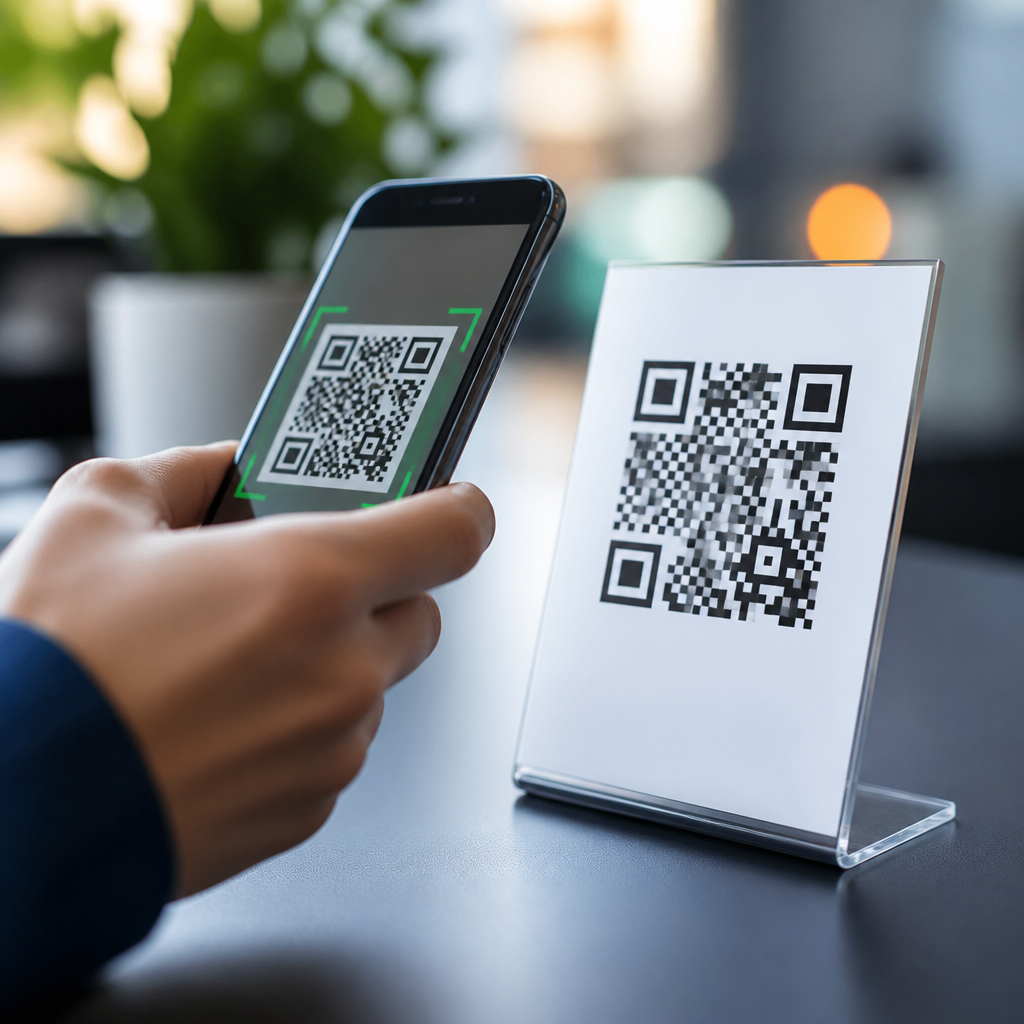
Blurry QR code scanning issues are one of the most common reasons a code fails to open a link, payment page, ticket, menu, or login prompt on a mobile device. In practical terms, a blurry scan happens when the phone camera cannot capture enough sharp contrast between the code’s dark modules and light background to decode the symbol reliably. I have seen this problem across retail counters, warehouse labels, restaurant tables, event check-in stations, and printed marketing materials, and the root cause is rarely just “a bad camera.” It usually involves a combination of focus limits, poor lighting, reflective surfaces, low print quality, damaged code structure, app decoding behavior, and user distance from the code. Understanding those variables matters because QR codes now support payments, authentication, asset tracking, and customer journeys where even a short scanning delay causes friction, abandonment, and support costs.
To troubleshoot blurry QR code scans effectively, start with the basics: confirm the code is physically clear, increase ambient light, clean the lens, move the phone farther back to let autofocus lock, and test with the native camera app before assuming the code itself is broken. A QR code stores data in a grid of square modules, plus finder patterns in three corners and timing patterns that help the decoder determine alignment. If blur softens module edges, the scanner cannot separate black from white accurately enough to reconstruct the payload. This is why tiny codes on glossy packaging fail more often than larger matte labels, and why screenshots can scan perfectly while printed versions do not. As a hub for troubleshooting QR code scans, this guide explains how to isolate the cause, what fixes work fastest, and when the issue points to printing, design, environment, device hardware, or scanning software.
Why blurry QR code scanning happens
Most blurry QR code failures come from optical limitations rather than software bugs. Smartphone cameras focus within a certain range, and many users hold the device too close because they assume closeness improves detail. In reality, being too close often pushes the code inside the lens’s minimum focus distance, causing the image to smear. Low light makes this worse because the camera lowers shutter speed and raises ISO, which introduces motion blur and noise. On older phones, fixed-focus front cameras and low-end rear sensors are especially prone to this. I have also found that protective camera lens covers, greasy fingerprints, and scratched lens glass can reduce contrast enough to break scans that should otherwise work.
Environmental conditions add another layer. Overhead glare on laminated signs can wash out parts of the code. Curved surfaces such as bottles or cups distort the square grid. Thermal printers in shipping and warehouse settings may produce feathered module edges if print heads are dirty or labels are low resolution. Compression artifacts can degrade digital QR codes embedded in screenshots, PDFs, or messaging apps. Even when error correction is enabled, recovery has limits. QR codes support four error correction levels, commonly identified as L, M, Q, and H, but higher correction does not excuse severe blur, missing quiet zones, or distorted geometry. If the decoder cannot confidently identify modules and alignment patterns, it will fail regardless of payload type.
Fast diagnosis: what to test first
The fastest way to troubleshoot a blurry QR code scan is to change one variable at a time and observe whether recognition improves. First, open the phone’s default camera app rather than a third-party scanner. Native camera apps on iPhone and modern Android devices typically use optimized autofocus, exposure control, and built-in barcode detection frameworks such as Apple VisionKit or Google ML Kit integrations. Second, wipe the lens with a microfiber cloth. Third, step back several inches and let the camera settle for a second before moving again. Fourth, tilt the phone or code slightly to reduce reflections. Fifth, add light from the side rather than directly above. If the code scans after one of those adjustments, the issue is optical or environmental, not a broken destination link.
Next, test the same QR code on another phone. If one device scans and another does not, compare camera quality, operating system version, and app permissions. If no phone can scan it, inspect the code itself. Look for a missing quiet zone, which is the blank margin around the symbol required for detection. A common print mistake is placing the code too close to text, borders, or artwork, making the scanner treat surrounding graphics as part of the symbol. Another common issue is insufficient size. A practical rule I use for print is a minimum of about 2 x 2 centimeters for simple short URLs at close range, increasing size for longer payloads or greater scanning distance. Tiny high-density codes are the first to fail when slight blur appears.
Device, camera, and app fixes that work
When the problem sits with the scanning device, the most effective fixes are straightforward. Clean the rear lens, remove thick lens protectors, update the operating system, and grant camera permission to the scanning app. If the app includes manual focus or enhanced scan mode, enable it. On Android, clearing the app cache can help if the scanner is freezing or failing to initialize image analysis. I have also resolved stubborn cases by switching from an embedded in-app scanner to the native camera because some apps use outdated decoding libraries or weak autofocus logic. Battery saver modes can degrade camera responsiveness too, particularly on older phones where performance throttling slows frame processing.
| Problem | Likely cause | Best fix |
|---|---|---|
| Code sharp on screen but not detected | Glare or missing quiet zone | Change angle, increase margin, reprint |
| Only scans when far away | Minimum focus distance exceeded | Step back and let autofocus lock |
| One phone scans, another fails | App or camera limitation | Use native camera, update software |
| Printed labels fail in batches | Low print resolution or dirty print head | Service printer, increase label quality |
| Outdoor scans fail at noon | Harsh reflections and contrast washout | Move to shade or use matte substrate |
If users report that a QR code appears blurry before they even attempt to scan, the camera preview itself may be the issue. Smudges are obvious, but not everyone checks for digital zoom. Some phones stay in a zoomed camera state from previous use, which magnifies blur and handshake. Reset to 1x magnification and use the rear camera, not the front camera. For accessibility cases, remember that hand tremors can make autofocus hunt continuously; resting elbows on a stable surface improves detection. In enterprise deployments, standardized devices help. A logistics team using Zebra or Honeywell scanners, for example, should validate decoding settings, working distance, and supported symbologies across the fleet instead of troubleshooting phone by phone.
Print quality, code design, and physical placement
Many blurry QR code scanning issues originate long before a customer raises a phone. Design and production choices determine whether the symbol will remain scannable under real conditions. The quiet zone should be at least four modules wide on all sides. Dark modules should sit on a light background with strong luminance contrast; light gray on white often looks stylish on a mockup but performs poorly in practice. Rounded, heavily stylized, or logo-obstructed codes can work, but every decorative change reduces tolerance for blur. I recommend testing branded designs with multiple devices under dim light before approving them for packaging or signage. ISO/IEC 18004 remains the core reference for QR code structure, and disciplined adherence to its requirements reduces avoidable scan failures.
Placement matters as much as design. Codes mounted behind glass, on curved containers, near seams, or at awkward heights force poor scanning angles. In restaurants, table tent cards often fail because glossy coating catches ceiling lights. In manufacturing, labels placed around cylindrical parts can stretch the grid visually, especially when the code is small. For posters and storefronts, match code size to scanning distance. A code intended to be scanned from six feet away must be substantially larger than one used at arm’s length. If the destination URL is long, use a dynamic QR code with a short redirect rather than encoding the full parameter-heavy address. Lower data density means larger effective modules, which are more resilient when blur, noise, or slight motion enters the image.
Testing methods for reliable troubleshooting
A disciplined testing process saves time and prevents guesswork. Start by scanning the code from the original medium, then compare it with a high-resolution digital source file on a bright screen. If the screen version scans but the printed version fails, the problem is print, placement, or surface finish. If neither scans, regenerate the QR code and verify the payload. Use at least two current phones, one iPhone and one Android, because their camera pipelines differ. Test under three lighting conditions: bright diffuse light, typical indoor light, and low light. Also test with the code flat and then angled. I typically record pass or fail, average time to detect, and whether users need multiple attempts. Those simple measures quickly reveal patterns.
For organizations that depend on QR code workflows, formal verification is worth the effort. Label and packaging teams often use verifiers from brands such as Cognex, Keyence, or Axicon to measure symbol quality, contrast, modulation, and damage. While consumer use does not always require industrial verification, the principle is useful: do not judge quality by eye alone. A code that looks fine in a design file may still be marginal once printed on textured stock or compressed inside a PDF. Build a pre-release checklist that covers minimum size, quiet zone, contrast, substrate, scan distance, and cross-device testing. If you manage a broader mobile QR code scanning and technology program, link this troubleshooting hub to pages on camera permissions, broken QR destinations, dynamic versus static codes, and print sizing standards, so users can move from symptom to solution quickly.
Fixing blurry QR code scanning issues comes down to isolating whether the failure is caused by the device, the environment, or the code itself. The most reliable first steps are simple: clean the lens, improve lighting, move back slightly, reduce glare, and test with the native camera app. If that does not work, inspect print quality, quiet zone, contrast, code size, and physical placement. In my experience, most stubborn scan failures trace back to tiny dense codes, glossy surfaces, poor focus distance, or low-quality printing rather than exotic software defects.
The practical benefit of troubleshooting QR code scans methodically is faster access, fewer support tickets, and better conversion wherever the code leads. Teams that test across devices, follow established symbol standards, and design for real-world conditions see materially better scan success rates. Use this hub as your starting point, then review the related guides in your mobile QR code scanning and technology library to solve specific issues, improve code design, and prevent blurry scan failures before they reach users.
Frequently Asked Questions
Why does a QR code look blurry to a phone camera even when it seems clear to the human eye?
A QR code can appear readable to a person but still fail for a smartphone camera because QR scanning depends on precise edge definition, contrast, and focus at a very small scale. Human vision is excellent at interpreting patterns and filling in missing detail, but a camera sensor needs crisp separation between the dark squares and the light background to decode the symbol correctly. If the code is slightly out of focus, printed with soft edges, viewed through glare, or reduced to a size that is too small for the camera’s distance, the phone may not capture enough usable detail. Motion blur also plays a major role. Even a small hand movement while the camera tries to focus can smear the module boundaries and make decoding inconsistent.
Another common issue is digital blur rather than optical blur. This happens when a QR code is saved as a low-resolution image, compressed inside a messaging app, stretched on a website, or enlarged from a tiny original file. The result is a code that looks acceptable on screen but has fuzzy edges and uneven pixel transitions. In real-world settings such as restaurant menus, event tickets, product packaging, and warehouse labels, the cause is often a combination of factors: poor lighting, reflective surfaces, low print quality, and camera autofocus limitations. Fixing the problem usually means improving sharpness, contrast, and viewing conditions rather than assuming the QR code content itself is broken.
What are the most common causes of blurry QR code scanning issues?
The most common causes fall into a few practical categories: print quality, display quality, environmental conditions, and device limitations. On printed materials, blurry scanning often comes from low-DPI printing, ink spread, textured paper, lamination glare, or a code that is simply too small for the expected scanning distance. If the code is placed on curved packaging, wrinkled stickers, or uneven labels, the geometry of the pattern can become harder for the camera to interpret. In warehouses and retail environments, labels may also fade, smudge, or collect dust, which reduces the clean contrast needed for reliable scans.
On digital screens, the problem is frequently caused by using a low-resolution QR image, enlarging a small file beyond its intended size, or displaying the code on a dim, cracked, or highly reflective screen. Screenshots and social media uploads can also reduce sharpness. Environmental factors matter just as much. Low light forces the camera to use slower shutter speeds, increasing motion blur. Bright overhead lighting or direct sunlight can create glare hotspots that wash out parts of the code. At check-in stations, table tents, posters, or payment displays, people often scan from awkward angles, which introduces perspective distortion and makes autofocus less reliable.
Device-specific issues can contribute too. Some older phones have weaker autofocus systems, lower-quality sensors, or scanning apps that struggle under poor lighting. Dirty camera lenses are a surprisingly frequent cause. Even a thin film of fingerprints can soften the image enough to prevent decoding. In most cases, blurry QR scanning is not caused by a single failure but by several small quality losses stacking together until the scanner no longer has enough clean visual information to read the symbol.
How can I fix a blurry QR code so it scans more reliably on mobile devices?
The best fix depends on whether the QR code is printed or digital, but the main goal is always the same: create strong, sharp contrast with clean edges and enough physical size for the scanning distance. Start by using a high-resolution source file, ideally vector format such as SVG, EPS, or PDF for print production. Vector files preserve sharp edges at any size and prevent the fuzzy scaling problems that often happen with PNG or JPEG files. If you are printing, use high-resolution output settings and avoid placing the code on textured, glossy, or heavily patterned backgrounds. Keep the code black on white or another very high-contrast combination, and leave adequate quiet zone space around it so the scanner can isolate the symbol properly.
For digital use, do not stretch a tiny QR image to fill a large area on a web page, mobile screen, kiosk, or presentation slide. Export it at the actual display size needed, and test it on multiple phones before publishing. If users report scan failures, increasing the displayed size often helps immediately. For physical placement, make sure the code is large enough for the expected scan distance. A code on a poster across a counter needs to be larger than one held in the hand on a ticket or receipt. If glare is an issue, change the surface finish or angle of placement. Matte materials typically scan more reliably than glossy ones under overhead lights.
From the user side, quick improvements include cleaning the camera lens, moving closer or farther away until focus locks, increasing ambient light, and holding the phone steady for a moment before expecting a result. If one app fails, trying the native camera app or another QR scanner can help because decoding software varies by device. In operational settings such as retail POS, event access, restaurant ordering, and login authentication, it is smart to build in a backup path as well, such as a short URL or numeric code, so a slightly blurry QR does not block the customer entirely.
What size, contrast, and design choices help prevent blurry QR code scan failures?
Prevention starts with design discipline. The safest choice is a simple black QR code on a plain white background with generous empty space around it. That high contrast gives mobile cameras the best chance of identifying module boundaries quickly and accurately. Avoid low-contrast color combinations such as gray on beige, pastel-on-white, or dark colors on glossy transparent surfaces. If branding is important, keep customization restrained. Decorative gradients, inverted color schemes, overly rounded modules, and large embedded logos can all reduce scan tolerance, especially when the image quality drops in real-world use.
Size is equally important. A QR code must be large enough relative to the expected scanning distance and the density of the data it contains. Codes with more encoded data become visually denser, which means each module is smaller and harder to resolve when printed at the same physical size. That is why a short URL usually scans more easily than a long string of parameters embedded directly in the code. As a practical rule, larger is usually safer, especially for signage, window displays, menu boards, shipping labels, and check-in posters. If people may scan while standing several feet away, increase the code size substantially and test from those real distances.
Design placement matters too. Do not crowd the code with borders, busy graphics, or text that interferes with the quiet zone. Keep it on a flat surface whenever possible, and avoid folds, seams, bottle necks, or corners where distortion can occur. If the code will be photographed under mixed lighting, prefer matte finishes and avoid transparent overlays. Before final production, test the exact asset on different phones, in bright and dim lighting, and from the realistic viewing angles users will encounter. That final validation step catches more scanning problems than any theoretical guideline alone.
How can businesses troubleshoot blurry QR code issues across locations like stores, restaurants, warehouses, and events?
The fastest way to troubleshoot at scale is to evaluate the full chain: the QR file itself, the production method, the placement environment, and the scanning device. Start by verifying that the original QR code is valid and exported at high quality. Then inspect whether the code has been resized, compressed, reprinted, or photographed and reused somewhere downstream. In multi-location operations, a common problem is inconsistent local production. One store may print crisp table cards while another uses a low-quality office printer, laminated sleeves, or reduced-size templates that soften the code. Standardizing approved artwork, minimum sizes, contrast rules, and print specifications can eliminate many recurring failures.
Next, assess the environment where scanning happens. At a restaurant table, glare from overhead lights may be the issue. At an event gate, motion and crowd flow can make small codes difficult to capture quickly. In a warehouse, labels may be damaged, dusty, or curved around packaging. In retail, countertop displays may sit behind reflective acrylic. Photographing the code from a typical user position often reveals whether focus distance, reflections, or placement angle are causing the blur. It is also useful to test with several phone models, including older devices, because if only the newest phones can scan reliably, the setup is not robust enough for general use.
For ongoing operations, create a simple checklist: clean surface, high contrast, correct size, flat placement, adequate lighting, no glare, enough quiet zone, and successful testing on multiple devices. If a problem location keeps failing, replace the code with a larger, simpler version that encodes a shorter URL. Where uptime matters, add a visible fallback such as “Tap here,” “Visit this short link,” or “Enter this code manually.” Businesses that treat QR codes as operational tools rather than decorative graphics usually see the best results. A sharp, well-tested code reduces friction, speeds transactions, and prevents the frustration that happens when users keep trying to scan something that looks fine but is technically too blurry to decode reliably.





