
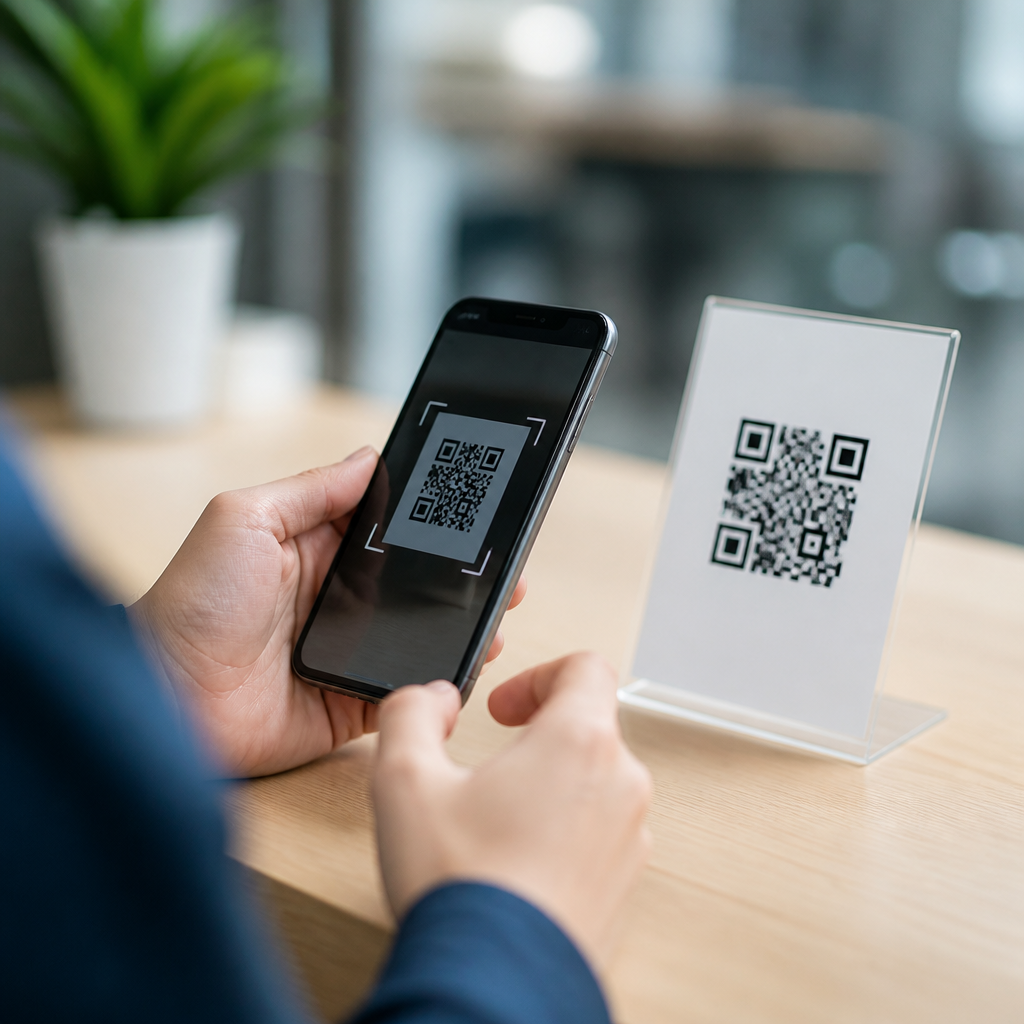
QR codes are supposed to be effortless: point your phone, tap the link, and move on. When that fails, the problem usually is not the code itself but a mismatch between camera settings, software support, lighting, focus, or the app handling the scan. In practical terms, “scan” means your phone’s camera or a built-in code reader detects the square pattern, decodes the embedded data, and offers an action such as opening a website, joining Wi-Fi, saving contact details, or launching a payment flow. Understanding why your phone won’t scan QR codes matters because the feature now sits inside everyday tasks, from restaurant menus and package tracking to two-factor authentication and digital tickets. I have troubleshot this issue across iPhone, Samsung Galaxy, Pixel, and budget Android devices, and the same root causes appear again and again. This guide explains the quick fixes first, then shows how to scan QR codes on mobile devices reliably, what settings to check, and when the problem points to hardware, software, or a damaged code rather than user error.
Start With the Fastest QR Code Fixes
If your phone will not scan a QR code, begin with the basics because they solve most cases in under two minutes. Open the default Camera app, not a social camera unless you know it supports native code reading. Hold the phone about 6 to 10 inches away, keep the entire code inside the frame, and pause for a second. Modern phones need a moment to lock focus and detect contrast. Clean the camera lens with a microfiber cloth, then increase ambient light or move out of glare. Glossy menus, reflective posters, and dim warehouse labels regularly confuse autofocus. If the code is on another phone, raise screen brightness on the source device. If the code is printed, flatten wrinkles and avoid shadows crossing the pattern. Restarting the Camera app also matters. On both iOS and Android, camera processes can hang after prolonged use, especially when multiple apps have requested camera access in the background.
Another quick fix is to test a known-good QR code, such as one generated by a reputable browser extension or payment provider. That separates a phone problem from a bad code. In field support, I often see “QR issue” tickets caused by low-resolution prints, cropped margins, or stylized designs that look attractive but violate scan tolerance. A functional code needs sharp edges and an adequate quiet zone, the blank border around the square modules. Without that border, many readers fail.
Check iPhone QR Code Settings and Behavior
On iPhone, QR scanning is usually built into the Camera app and enabled by default, but not always. Go to Settings, then Camera, and confirm “Scan QR Codes” is turned on. If scanning still fails, open Camera and use the rear lens in Photo mode. Do not zoom in immediately; digital zoom reduces detail and makes the pattern harder to decode. If your iPhone recognizes the code, a banner appears at the top. Tap it rather than trying to take a photo first.
There are two other iPhone paths worth knowing. First, Control Center may include Code Scanner, a lightweight reader that isolates code detection from normal photography. It is useful when the Camera app keeps focusing on faces or nearby objects instead of the code. Second, if the code is saved in a screenshot or photo, open it in Photos and use Live Text or the long-press interaction available in recent iOS versions. That helps when a website displays a login QR code on the same device and you need another way to read it.
If an iPhone still will not scan, update iOS. Apple has improved QR detection across releases, especially for smaller codes and mixed lighting. Also verify Screen Time or mobile device management restrictions are not limiting camera access on a work phone. In enterprise deployments, I have seen configuration profiles disable camera functions entirely, which makes QR troubleshooting look like a bug when it is actually policy.
Troubleshoot QR Scanning on Android Phones
Android QR code scanning varies more because manufacturers customize the camera stack. On Google Pixel, the default Camera app reliably scans codes and often exposes links automatically. On Samsung Galaxy devices, scan support may live in Camera settings, Bixby Vision, or the quick settings panel depending on One UI version. Open the Camera app, enter settings, and look for “Scan QR codes.” If that toggle is off, the camera sees the pattern but never offers an action.
Budget Android phones create the most confusion. Some ship with camera apps that can detect text and scenes but not QR codes. In that case, use Google Lens, available through the Google app, Photos, or the camera shortcut on many devices. Lens is a strong fallback because it handles low-contrast prints, URLs, contact cards, and product labels better than generic third-party scanners. If Lens works and the stock camera does not, the issue is capability rather than a broken phone.
Permissions also matter on Android. Confirm the camera app has camera permission and, if you are scanning from a saved image, that Photos or Lens has media access. If scanning used to work but suddenly stopped, clear the Camera app cache, reboot, and install system updates. Manufacturers often patch autofocus, image processing, and camera service stability through monthly updates. I have resolved repeat scan failures on midrange devices simply by updating Google Play system components and the camera app from the Play Store.
How to Scan QR Codes on Mobile Devices Reliably
The most dependable scanning method is simple and consistent. Use the rear camera, because it has better optics and autofocus than the front camera. Place the code in the center of the frame with all four corners visible. Keep your hand still for one second. If the code is small, step closer physically instead of pinching to zoom. Phones decode more accurately from a sharper native image than from cropped digital magnification.
When the code is on a computer monitor or another phone, reduce moire and glare by lowering the source screen brightness slightly and tilting your phone a few degrees. If the code is on packaging, avoid curved surfaces around bottles or cans; flatten the label area as much as possible. For posters or signs, move until the code is square to the camera rather than scanned at a steep angle. Perspective distortion is a frequent cause of failed reads, especially on older sensors.
| Problem | Likely Cause | Quick Fix |
|---|---|---|
| No scan prompt appears | QR detection disabled or unsupported camera app | Enable scan setting or use Google Lens/Code Scanner |
| Camera keeps blurring | Dirty lens, low light, or too close to subject | Clean lens, add light, move back slightly |
| Code scans on some phones only | Poor print quality or missing quiet zone | Reprint at higher resolution with proper border |
| Code on screen will not scan | Glare, low brightness, or screen refresh artifacts | Adjust angle, raise brightness, enlarge the code |
| Link opens but fails | Expired destination or malformed URL | Test the QR target manually in a browser |
When the QR Code Is the Real Problem
Not every scanning failure is your phone’s fault. A QR code can be technically valid yet practically unreadable. Common defects include low-resolution export, excessive logo size in the center, poor contrast such as light gray on white, cropped edges, and printing on textured material. According to ISO/IEC 18004, QR codes rely on module clarity and positioning patterns to orient the reader. Error correction helps, but it is not magic; if too much data area is obscured, decoding fails.
Dynamic QR codes introduce another failure mode: the image scans correctly, but the redirect destination is broken, expired, or blocked by network filters. Users interpret that as “my phone won’t scan,” when the camera actually succeeded and the issue sits with the target service. The fastest way to verify this is to photograph the code, open it in Google Lens or Photos, and inspect the decoded URL. If the URL is malformed or dead, the code owner must fix the destination.
Security is another reason to pause before tapping. QR phishing is real. Attackers place stickers over legitimate codes to direct users to credential-harvesting pages. A trustworthy scan flow previews the domain before opening it. If the prompt jumps straight into a browser without showing the URL, use a scanner that exposes the destination first. That is especially important for payment QR codes, Wi-Fi onboarding, and account login flows.
Advanced Fixes: Software Bugs, Hardware Limits, and Accessibility
If you have tried settings, lighting, distance, and alternate apps, look deeper. A failing autofocus module can break QR scanning before it noticeably affects everyday photography. Test by photographing small text in good light; if the image never becomes crisp at normal distance, the camera hardware may need service. Cracked lens covers and condensation inside the camera window also scatter light and reduce contrast enough to stop detection.
Software conflicts can be subtler. Battery optimization, privacy tools, and enterprise security apps sometimes interfere with camera intents or suppress background services used by scanning overlays. Safe Mode on Android can help isolate third-party interference. On iPhone, compare the default Camera app with Code Scanner and a major banking or payment app that supports QR reading; if one works and another does not, the issue is app-specific. Reinstalling the affected app usually helps when cached components or outdated SDK integrations are involved.
Accessibility deserves attention too. Users with tremor or low vision often struggle not because the phone cannot scan, but because the interaction window is too brief. Features such as voice control, magnification, and haptic confirmation can improve the process. In retail and healthcare settings, I recommend larger printed codes, matte finishes, and placement between chest and eye level. Good QR implementation reduces support requests more than any troubleshooting article.
The reason your phone won’t scan QR codes is usually one of five things: the camera app does not support QR reading, the setting is turned off, the lens or lighting prevents focus, the code itself is poorly made, or the destination behind the code is broken. The good news is that each cause has a fast test. Try the default Camera app, then Google Lens or iPhone Code Scanner, clean the lens, improve light, and test a known-good code. If that works, your phone is fine and the original code needs attention. If it does not, check permissions, updates, and camera behavior with normal photos to rule out hardware trouble.
As the hub for how to scan QR codes on mobile devices, this guide gives you the core method and the diagnostic path. From here, the most useful next steps are device-specific instructions for iPhone, Samsung, Pixel, and older Android models, plus deeper guides on scanning from screenshots, fixing broken QR destinations, and staying safe from malicious codes. Use these quick fixes the next time scanning fails, and you will usually solve the problem in minutes instead of guessing.
Frequently Asked Questions
Why won’t my phone scan a QR code even though the code looks fine?
In many cases, the issue is not the QR code itself but how your phone is trying to read it. A phone needs enough light, a clear focus, and software support to recognize the square pattern and decode the information inside it. If the camera is too close, too far away, blurry, smudged, or pointed at a glossy surface with glare, the code may not register at all. The same thing can happen if your phone’s camera app does not have QR detection enabled, if your operating system is outdated, or if you are using a third-party camera app that does not support built-in scanning. Start with the simplest fixes: clean the camera lens, increase brightness around the code, hold the phone steady, and move it slowly closer or farther away until the code comes into focus. If that does not work, check your camera settings for a feature such as “Scan QR Codes” or “Google Lens,” and make sure your phone’s software is fully updated.
How do I turn on QR code scanning on my phone?
Most modern phones support QR scanning directly through the default camera app, but the feature may need to be enabled. On many iPhones, you can go to Settings, then Camera, and make sure “Scan QR Codes” is turned on. Once enabled, opening the Camera app and pointing it at a code should trigger a banner or notification with the detected action. On Android, the process varies by brand, but many devices support QR scanning through the Camera app, Google Lens, or a built-in scanner found in quick settings. If your camera does not respond to a code, look for a Lens icon, a modes menu, or camera settings related to scanning. If your phone is older or the default camera app does not include QR support, installing a trusted QR scanning app can help, but it is best to use built-in tools when possible for privacy and security. After enabling the feature, test with a clear, standard QR code in good lighting to confirm everything is working properly.
Can lighting, focus, or distance really stop a QR code from scanning?
Yes, absolutely. QR scanning depends on your phone being able to clearly distinguish the code’s black-and-white pattern, including the positioning squares in the corners. Poor lighting can flatten contrast, shadows can hide portions of the code, and glare from laminated paper or screens can wash out the image. Focus matters just as much. If the code is blurry, tilted too sharply, or partially cut off by the camera frame, the scanner may never detect it. Distance also plays a major role. When you hold the phone too close, the camera may not focus properly; when you hold it too far away, the QR code may appear too small to decode. A quick fix is to place the code in even, bright light, avoid reflections, center it on the screen, and move your phone slowly until the image sharpens. It can also help to tap the screen to force focus on the code. If you are scanning from another screen, raising that screen’s brightness can improve recognition significantly.
Why does my phone detect the QR code but not open the link or action?
If your phone recognizes the QR code but does not complete the action, the problem may be with what the code contains or with the app meant to handle it. A QR code can trigger different actions, such as opening a webpage, connecting to Wi-Fi, adding a contact, starting a payment, or launching another app. If the code points to a website, a weak internet connection, browser restriction, or broken URL may prevent it from opening. If it is a Wi-Fi or payment code, your phone may need compatible software, proper permissions, or a specific app installed. In some cases, security features on your device may block automatic actions until you manually confirm them. The best approach is to read the prompt carefully and tap the notification rather than expecting it to launch on its own. If nothing happens after detection, try copying the link if available, opening it manually, switching to a different browser, or confirming that the required app is installed and updated. This is especially common with business, banking, event, and app-specific QR codes.
What are the fastest fixes to try when a QR code will not scan?
If you want quick results, work through a short checklist. First, clean your camera lens, since fingerprints and dust can soften the image enough to stop detection. Second, improve the lighting and reduce glare by changing your angle or moving to a brighter area. Third, hold the phone steady and adjust distance gradually instead of pushing the camera right up against the code. Fourth, make sure the entire QR code is visible on the screen and not cropped or folded. Fifth, check that QR scanning is enabled in the camera app or switch to Google Lens or your phone’s built-in scanner. Sixth, restart the camera app or the phone if scanning suddenly stopped after working before. Seventh, install pending operating system updates, because QR support often improves with software updates. Finally, if the code is on a screen, increase that screen’s brightness or take a screenshot and try scanning it with a photos app that supports QR recognition. In most everyday situations, one of these fixes solves the problem within minutes.





