
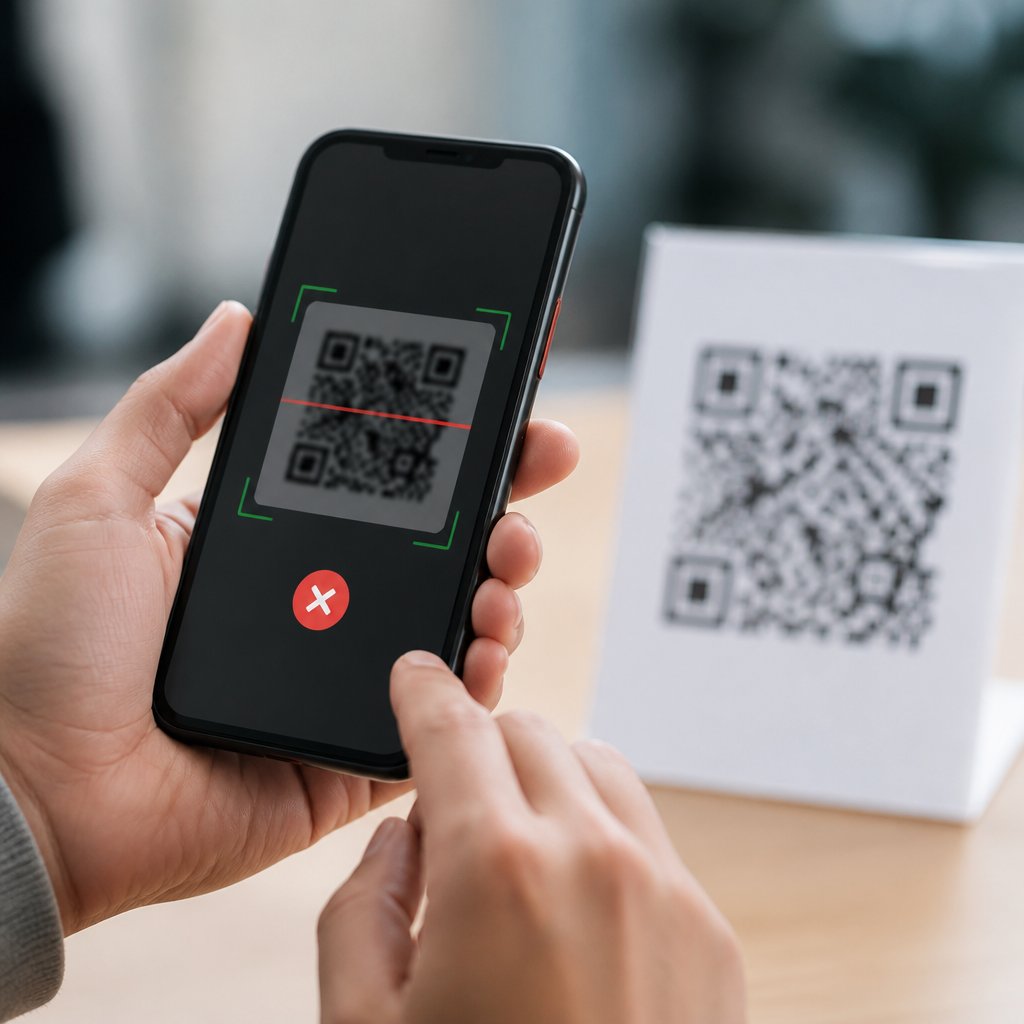
Common QR Code Scanning Mistakes on Mobile often look minor, but they are the main reason people think a code is broken when the real problem is scanning technique, camera settings, or app choice. A QR code, short for Quick Response code, is a two-dimensional barcode that stores data such as a website URL, Wi-Fi credential, payment address, contact card, app link, or ticket token. Modern phones can usually read QR codes through the native camera, yet successful mobile QR code scanning still depends on distance, lighting, focus, screen brightness, and software permissions. I have tested QR workflows across iPhone, Samsung Galaxy, Pixel, and rugged Android devices, and the same issues appear repeatedly in homes, retail checkouts, warehouses, and event entrances. This matters because QR codes now support payments, restaurant menus, multifactor authentication, logistics labels, marketing campaigns, and device pairing. When users fail to scan, conversion drops, support requests rise, and trust falls. Understanding how to scan QR codes on mobile devices correctly is the simplest way to avoid friction and make every code interaction faster, safer, and more reliable for everyday users and businesses.
Use the Right Scanner First
The first mistake is opening the wrong app. On most current iPhones and Android phones, the default camera app scans QR codes without any extra software. Apple added broad native support in iOS 11, and Google integrated QR recognition deeply into Camera and Google Lens. If the camera does not detect the code, users often install a random third-party scanner loaded with ads, tracking prompts, or poor recognition engines. In practice, the safest approach is to try the native camera first, then the phone’s built-in QR shortcut, and only then a trusted tool such as Google Lens if needed.
Another common issue is permissions. The camera may open, but QR detection fails because camera access is disabled for the app, or because enterprise device management has restricted scanning. On Android, this is usually fixed under Settings, Apps, Permissions. On iPhone, it is under Privacy and Security, Camera. I have also seen users miss scans because they are using social media cameras inside apps like Instagram or TikTok, which may not expose system-level QR detection. If you need dependable results, use the standard camera app or a known utility from the device maker.
Distance, Angle, and Focus Errors
People routinely hold the phone too close to the QR code. A camera needs enough distance to frame the full symbol, including the quiet zone, the empty margin around the code that scanners use to identify boundaries. If the code fills the screen edge to edge, detection becomes inconsistent. The opposite problem also occurs: standing too far away makes the modules, the small black squares, too tiny for the sensor to resolve. A good rule is to move the phone slowly until the code fills roughly one third to one half of the preview.
Angle matters too. QR readers handle some perspective distortion, but steep tilt reduces contrast and stretches the finder patterns in the corners. The fastest scan usually happens when the phone is parallel to the code surface. Focus is equally important. Many users tap the shutter button instead of waiting for autofocus and the recognition prompt. For small printed codes, tap the center of the code on screen to force focus. On older devices with weaker sensors, stepping into brighter light helps autofocus lock much faster.
Lighting and Screen Glare Problems
Poor lighting is one of the most overlooked causes of QR failures. A code printed on glossy packaging under overhead lights may reflect enough glare to hide key modules. A code displayed on another phone can fail if the screen brightness is too low or if fingerprints reduce contrast. I have seen event staff blame ticketing platforms when the actual issue was sunlight washing out attendee screens. In low light, phone cameras raise ISO, add noise, and soften edges, all of which can hurt decoding accuracy.
The practical fix is simple: increase ambient light, change the angle to avoid reflections, and raise the display brightness when scanning a code on a screen. If the camera app offers a flashlight toggle, use it for paper labels, but avoid it on laminated surfaces where direct flash creates hotspots. Dark mode can also interfere when an app inverts surrounding interface colors and reduces the visible contrast around an on-screen code. For kiosks and check-in counters, matte prints and maximum screen brightness produce the most reliable scans.
Printed Code Quality and On-Screen Display Issues
Not every failed scan is the user’s fault. Some QR codes are badly generated, resized incorrectly, or printed at unsuitable sizes. A QR code should maintain sharp square modules with no blur, stretching, or decorative interference over the data area. In marketing reviews, I frequently find codes placed on curved bottles, transparent stickers, or textured cardboard where distortion harms readability. A common design mistake is reversing colors, such as light gray modules on a white background. While some readers can decode inverted designs, black on white remains the most dependable standard.
Screen-based codes introduce different problems. A screenshot with compression artifacts, a cracked display, or an OLED screen set too dim can all reduce scan success. Animated codes for payments or ticketing can expire before a user aligns the camera. If a code opens intermittently, zooming the display slightly larger on the presenting device can help, but digital zoom on the scanning device usually makes things worse by amplifying noise. For critical uses like boarding passes and mobile payments, generate codes from trusted apps and test them on more than one phone model.
Security Mistakes When Scanning QR Codes
People often treat QR codes as harmless, but a scan can lead to phishing pages, fake login portals, malware downloads, or fraudulent payment requests. The safest habit is to preview the destination before opening it. Native camera apps usually show the URL or action first. Check the domain carefully, especially for typos, extra subdomains, or lookalike characters. I advise teams to train users that a QR code is simply a transport mechanism; it does not make a link trustworthy.
Below is a practical checklist I use when teaching secure mobile QR code scanning in workplaces and public-facing environments.
| Mistake | Risk | Better approach |
|---|---|---|
| Scanning a code from an unknown sticker | Phishing or payment redirection | Verify the source and inspect for tampering |
| Opening the link without reading it | Fake login page or malicious site | Preview the URL before tapping |
| Using an ad-heavy scanner app | Privacy loss or accidental installs | Use the native camera or Google Lens |
| Entering credentials after a scan | Account compromise | Navigate manually if the site seems unusual |
| Paying from an unverified code | Funds sent to the wrong recipient | Match merchant name and payment details first |
In regulated environments, secure scanning also means device policy. Mobile device management tools such as Microsoft Intune and VMware Workspace ONE can restrict unknown app installs, enforce browser protections, and reduce the chance that a careless scan becomes a larger incident.
Platform-Specific Tips for iPhone and Android
How to scan QR codes on mobile devices differs slightly by platform. On iPhone, open Camera and point it at the code until the yellow or white detection banner appears. If nothing happens, enable Scan QR Codes in Camera settings, then try again. Control Center also offers a Code Scanner shortcut that isolates scanning and can work more reliably for some users. On Android, open the default Camera app first. On Pixel devices, QR recognition is usually immediate. On Samsung phones, Bixby Vision, Camera Scan QR Code, or Google Lens may be involved depending on software version.
If the native method still fails, update the operating system and camera app. Older Android builds can be inconsistent across manufacturers because camera features are customized. Lens-smudged cameras are another real-world issue; cleaning the lens with a microfiber cloth solves more scan problems than many people expect. For accessibility, users with unsteady hands may scan faster by bracing elbows on a table or enabling on-screen guidance features where available. The best process is not complicated: use the native camera, center the full code, hold steady, and wait for the prompt instead of pressing capture.
Troubleshooting Steps That Actually Work
When a QR code will not scan, a structured troubleshooting sequence saves time. First, confirm the code itself is visible, complete, and not covered by a crease, crack, or glare. Second, clean the camera lens and increase available light. Third, move the phone closer and farther in small increments while keeping the code centered and level. Fourth, raise the brightness on the device displaying the code, or reprint the code at a larger size if it is on paper. Fifth, switch from a third-party scanner to the native camera or Google Lens. Sixth, verify permissions and software updates.
If the QR code still fails, test it with another phone. This quickly separates device-specific problems from code-quality problems. In operations teams, I recommend maintaining a simple acceptance checklist: minimum print size, high contrast, quiet zone preserved, tested on iPhone and Android, and linked destination validated. Those basic controls prevent most support tickets before they happen. For users, the key takeaway is that successful mobile scanning is usually a matter of method, not luck. Apply these fixes consistently, and QR interactions become fast, secure, and dependable. Review your current scanning habits, update weak steps, and test the next code with intention.
Frequently Asked Questions
Why does my phone say a QR code is not working when the problem is actually how I am scanning it?
In many cases, the QR code itself is perfectly valid, but the scan fails because of common mobile scanning mistakes. The biggest issues are usually distance, angle, lighting, and camera focus. If you hold your phone too close, the camera may not capture the full code. If you are too far away, the code may appear too small for the phone to interpret. A tilted viewing angle can also distort the square pattern, making detection harder. On top of that, glare from overhead lights, dim conditions, fingerprints on the camera lens, or motion blur from shaky hands can all interfere with recognition.
Another frequent cause is assuming the camera will instantly scan no matter what. Most phones need a brief moment to focus and detect the QR code boundaries before displaying a prompt. Moving the phone around too quickly often prevents that from happening. It also helps to make sure the entire QR code is visible on screen, including its border area, because partial framing can reduce scanning accuracy. Before blaming the code, try cleaning the lens, improving lighting, holding the phone steady, and positioning the code so it is centered and fully visible. These simple adjustments solve a large percentage of so-called broken QR code problems.
Do I need a special app to scan QR codes on mobile, or should I use my phone’s native camera?
For most modern smartphones, the native camera app is the best first choice. Both newer iPhone and Android devices commonly include built-in QR code detection, which is usually faster, safer, and more reliable than downloading a random third-party scanner. Native camera scanning is tightly integrated with the operating system, so it typically opens links, Wi-Fi prompts, payment screens, or app actions more smoothly. It also reduces the risk of using an app filled with ads, unnecessary permissions, or poor decoding performance.
That said, not every phone behaves the same way. Some devices require QR scanning to be enabled in camera settings, while others place QR detection inside a separate mode such as Lens, Bixby Vision, or a manufacturer-specific scanner tool. If the camera does not react to a clearly visible QR code, check whether the feature is turned on. A dedicated app may be useful only if your device is older, your camera software lacks built-in support, or you need advanced features such as scan history, batch scanning, or support for specialized code formats. In general, the mistake many users make is downloading extra apps before confirming what their phone can already do natively.
How do camera settings and phone condition affect QR code scanning accuracy?
Camera settings and overall device condition play a much bigger role than many people realize. If the camera lens is dirty, scratched, or smudged, the image may look acceptable to your eye but still be too soft for reliable QR recognition. Autofocus is another major factor. Some phones struggle to lock focus at very close distances, especially on smaller printed codes. In those situations, backing the phone up slightly often helps more than moving closer. Low resolution preview modes, aggressive battery-saving features, and camera permissions being disabled can also interfere with normal scanning behavior.
Environmental and device-level issues matter too. A dim screen if the QR code is displayed digitally, a cracked monitor, poor print contrast, or excessive zoom can all reduce readability. People also make the mistake of using digital zoom instead of simply repositioning the phone. Zoom can magnify blur and noise, making the code harder to decode. If scans keep failing, check that your camera app has permission to use the camera, make sure the lens is clean, disable heavy battery-saving restrictions if they affect camera performance, and avoid scanning in harsh glare or deep shadow. A stable hand, clear focus, and good lighting are often more important than the scanning app itself.
What are the most common positioning mistakes people make when scanning a QR code on a phone?
The most common positioning mistake is getting too close too quickly. People often assume that filling the screen with the QR code will help, but in reality the camera needs enough space to detect the full shape and focus properly. Another frequent error is cutting off one edge of the code or placing it too close to the edge of the camera frame. QR codes work best when they are fully visible, reasonably centered, and surrounded by enough contrast to stand out from the background.
Angle is another overlooked problem. If the code is scanned from the side, the square pattern becomes warped, which can reduce recognition speed or prevent detection completely. This is especially common when scanning codes on posters behind glass, table tents, product packaging, or laptop screens. Reflections create additional interference. The best approach is to hold the phone parallel to the surface, keep the code centered, and move slowly until the camera locks on. If the code is very small, step closer gradually rather than rushing in. If it is large, step back so the entire code fits comfortably in view. Good positioning is less about forcing the camera close and more about giving it a clean, balanced image to interpret.
What should I do if a QR code still will not scan after I have tried the usual fixes?
If you have already improved lighting, cleaned the lens, adjusted distance, and tried the native camera, the next step is to determine whether the issue is with the phone, the app, the display medium, or the QR code itself. Try scanning a different known-good QR code first. If your phone scans other codes without any trouble, the original code may be damaged, poorly printed, low contrast, outdated, or linked to content that no longer works. If your phone cannot scan any code, the problem is more likely tied to your device settings, camera performance, or scanning software.
You should also consider where the QR code is being shown. A code on a glossy poster may be blocked by glare. A code on a cracked screen or low-brightness display may not present enough clarity. Printed codes that are stretched, blurry, cropped, or designed with overly decorative branding sometimes fail even though they look visually appealing. In a business or support context, it is wise to verify that the QR code was generated correctly and still points to the intended destination. As a final step, update your phone software, restart the device, try another trusted scanning method such as Google Lens or the manufacturer’s built-in scanner, and test the code under better conditions. If all methods fail, there is a strong chance the QR code itself needs to be replaced or regenerated.





