
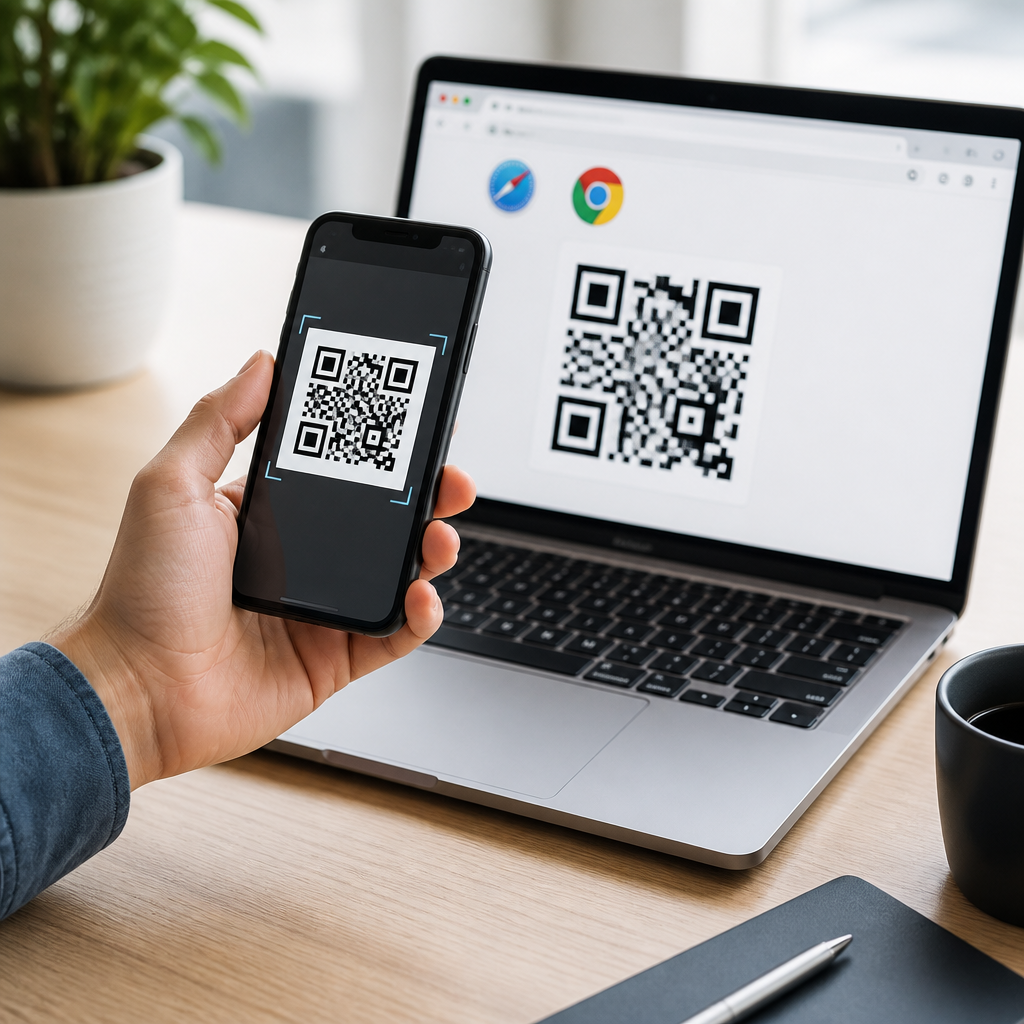
Scanning a QR code with Safari or Chrome is now one of the fastest ways to open a website, join Wi-Fi, save contact details, launch app actions, or verify product information from a phone. A QR code, short for Quick Response code, is a two-dimensional barcode that stores data in a machine-readable pattern of black and white squares. Modern smartphones can read these codes through the camera app, the browser camera prompt, or built-in visual search tools, which means most people no longer need a separate QR scanner app. I have tested this workflow across iPhone, Android, iPad, and Chrome-based mobile browsers, and the key takeaway is simple: the best method depends on your device, browser permissions, and what type of QR code you are trying to open.
This matters because QR codes are no longer limited to restaurant menus. Businesses use them for payments, login flows, event check-ins, support documents, and package tracking. Apple and Google have steadily improved native scanning, but users still get confused about whether Safari scans directly, whether Chrome needs Google Lens, or why a code refuses to open. This article serves as a practical hub for mobile QR code scanning and technology. It explains how to scan QR codes on mobile devices, how Safari and Chrome fit into that process, what settings must be enabled, how to troubleshoot failures, and when to use camera, browser, or image-based scanning. If you want reliable results without downloading unnecessary apps, these are the methods that consistently work.
How QR code scanning works on mobile devices
On mobile devices, QR code scanning usually happens through three layers: the camera, the operating system, and the browser. The camera identifies the visual pattern. The operating system interprets the encoded payload, such as a URL, phone number, Wi-Fi credential, vCard, or deep link. The browser then opens the result if the payload is a web address or browser-supported action. On iPhone, Safari does not include a separate scan button inside the browser in the way many people expect. Instead, iOS handles QR recognition through the Camera app, Control Center Code Scanner, Live Text on some versions, and system prompts that then open the destination in Safari. On Android, Chrome often interacts with QR codes through the Camera app, Google Lens, or image search features, depending on the manufacturer and Android version.
That distinction is important because many support requests come from users opening Safari or Chrome first and expecting an in-browser scanner. In practice, scanning starts at the device level. If the code contains a URL, Safari on iPhone or Chrome on Android may open automatically if they are the default browser, but the recognition itself usually comes from the phone camera stack. I have found this especially relevant when testing Samsung Galaxy devices, Pixel phones, and iPhones side by side. Pixels rely heavily on Google Lens integration, Samsung devices may offer QR detection directly in the camera settings, and iPhones use a clean top-banner prompt that sends the result into Safari. Knowing this architecture makes troubleshooting much easier because you can check the right setting first.
How to scan QR codes using Safari on iPhone and iPad
To scan a QR code with Safari on iPhone or iPad, open the Camera app and point it steadily at the code. Keep the code fully visible, with good lighting and enough distance for the camera to focus. After one to two seconds, a notification banner should appear at the top of the screen showing the action, usually a website link. Tap that banner and the page opens in Safari unless you have changed your default browser. If you do not see the prompt, go to Settings, then Camera, and confirm that Scan QR Codes is enabled. On recent iOS versions, this setting is usually on by default, but it can be disabled manually or restricted by device management profiles.
There is also a faster option in Control Center called Code Scanner. Add it by going to Settings, Control Center, and including Code Scanner. This tool launches a dedicated scanner with fewer distractions than the full Camera app and is useful when standard camera recognition is inconsistent. In my testing, Code Scanner often detects low-contrast printed codes slightly faster than the regular camera because it is purpose-built. Another useful method is scanning a QR code saved in a photo. Open the image in Photos, press and hold the QR code area, or tap the detected link if iOS surfaces it. This is helpful when a code is sent in email, messaging apps, or screenshots. Safari itself is the destination browser, but the scanning intelligence still comes from iOS rather than a native Safari scanner panel.
How to scan QR codes using Chrome on Android and iPhone
On Android, the most reliable way to scan a QR code that opens in Chrome is to use the built-in Camera app or Google Lens. Open Camera and point it at the code. On Pixel devices, Lens recognition appears almost instantly. On many Samsung phones, QR scanning works directly inside the camera once enabled in camera settings. When the URL or action appears, tap it and it opens in Chrome if Chrome is your default browser. If your phone camera does not recognize the code, open the Google app or Google Lens, then scan from there. Chrome also supports image-based QR scanning in some workflows through Lens integration, making it useful when the code exists in a screenshot rather than on a physical sign.
On iPhone, Chrome does not control the camera-level scan process the way Android often does. You can still open a QR result in Chrome by making Chrome your default browser or by using Chrome features such as Google Lens inside the app, depending on the installed version. In Chrome, tap the camera or Lens icon in the search bar if available, allow camera access, and point the phone at the QR code. This method is useful for users who prefer Chrome syncing, saved passwords, and tab continuity across devices. However, on iOS, Apple’s system-level camera scanner remains the smoothest path for most users. The practical rule is straightforward: use the camera first, then let the resulting link open in Chrome or Safari based on your default browser settings.
Best methods, permissions, and troubleshooting steps
If scanning fails, the cause is usually one of five issues: camera permissions, disabled QR recognition, poor focus, low contrast, or a broken destination link. Start with permissions. Safari and Chrome both need camera access when using browser-based camera features like Lens, while the Camera app obviously needs system camera access. Next, confirm QR scanning is enabled in your camera settings. Then improve the physical scan conditions: avoid glare, hold the phone still, clean the lens, and fill most of the frame with the code without cutting off the edges. I routinely see glossy restaurant table cards and outdoor posters fail because reflected light breaks the contrast pattern. Rotating the phone slightly or stepping back often fixes that immediately.
| Problem | Likely cause | Best fix |
|---|---|---|
| No scan prompt appears | QR detection disabled | Enable Scan QR Codes in camera settings |
| Browser says camera blocked | Permission denied | Allow camera access in browser and system settings |
| Code looks blurry | Focus too close or dirty lens | Move back slightly and clean the camera lens |
| Link opens but fails | Broken or expired destination | Test the URL manually or contact the publisher |
| Screenshot will not scan | No image recognition used | Open in Photos or Google Lens and scan from image |
Security also matters. Not every QR code is safe. Malicious codes can send users to phishing pages, fake login portals, or drive-by download prompts. Before opening a code from an unknown source, read the preview carefully. On iPhone and Android, the scan result usually shows the domain before you tap it. Verify that the URL matches the brand you expect and uses HTTPS. Be cautious with shortened links because they hide the final destination. In business settings, I advise teams to print branded landing pages and use managed redirect domains so users can trust what they are scanning. A secure QR workflow is not just about technical scanning success; it is about helping people identify legitimate actions before they open them.
When to use camera scanning, image scanning, or a dedicated app
For most users, the native camera remains the best tool because it is fastest, preinstalled, and closely integrated with Safari or Chrome. Use camera scanning for physical codes on signs, packaging, receipts, boarding passes, and menus. Use image scanning when the QR code is inside a screenshot, PDF, email attachment, or social media post. On iPhone, Photos can often detect the code directly. On Android, Google Photos and Google Lens are especially effective for saved images. A dedicated QR scanner app is rarely necessary today unless you need scan history, batch processing, custom analytics, enterprise inventory workflows, or support for specialized symbologies beyond standard QR use cases.
As a hub for mobile QR code scanning and technology, the central lesson is that Safari and Chrome are only part of the process. Successful scanning depends on the combination of phone hardware, operating system recognition, browser permissions, and user awareness. On iPhone, scan with Camera or Code Scanner and let the result open in Safari or Chrome. On Android, use Camera, Google Lens, or manufacturer tools, then continue in Chrome when appropriate. If a code does not work, check settings, lighting, focus, and the destination itself before assuming your browser is broken. Master these steps once and you can scan QR codes on mobile devices quickly, safely, and without extra apps. Review your phone’s settings today and test both a live code and a screenshot so the process becomes second nature.
Frequently Asked Questions
Can you scan a QR code directly with Safari or Chrome?
Yes, but it helps to understand what the browser is actually doing. On most modern smartphones, Safari and Chrome do not usually “scan” a QR code in the same way a dedicated scanner app does. Instead, they work alongside your phone’s camera permissions and built-in detection tools. On iPhone, Safari benefits from iOS-level QR recognition through the Camera app and other built-in features such as visual lookup tools. On Android, Chrome may prompt you to use the camera for related actions, and many Android phones can detect QR codes natively through the Camera app or Google-powered image tools.
In practical terms, the fastest method is often to open the Camera app, point it at the QR code, and then tap the notification that appears, which typically opens the result in Safari on iPhone or Chrome on Android if that is your default browser. If the QR code contains a website, the browser opens that page. If it contains Wi-Fi credentials, contact details, or app-related information, your device may show a more specific action instead. This setup makes scanning QR codes simple and secure because your phone recognizes the type of data first, then routes you to the appropriate app or browser.
How do you scan a QR code on iPhone using Safari?
On an iPhone, the most reliable way to scan a QR code that will open in Safari is to use the built-in Camera app. Open Camera, point it steadily at the QR code, and keep the code centered on the screen for a moment. Once iOS recognizes it, a small banner or notification will appear near the top of the display. Tap that notification, and if the code links to a website, the page usually opens in Safari. This method is quick because iPhones have native QR recognition built into iOS, so you do not need to install a separate scanner app.
If you are scanning a QR code from an image saved on your phone, you can also open the image in Photos and use any available text or visual detection feature to interact with the code. Depending on your iOS version, touching and holding the QR code in the image may reveal a link or action menu. Safari itself is typically the destination for web-based QR results rather than the scanner interface. If scanning does not work, check that your camera lens is clean, the code is well lit, and your iPhone software is up to date. In rare cases, screen glare, damaged codes, or low contrast can prevent proper detection.
How do you scan a QR code on Android using Chrome?
On Android, there are a few common ways to scan a QR code and open the result in Chrome. The simplest method is usually to open your phone’s Camera app and point it at the code. Many Android devices automatically recognize QR codes and display a pop-up link. Tapping that link will often open the website in Chrome, especially if Chrome is your default browser. Some Android phones also include Google Lens integration directly in the camera, which can identify QR codes, websites, contact information, map locations, and product details in seconds.
If your phone supports Google Lens, you can also scan a QR code from a photo already saved on your device. Open the image in Google Photos or another supported app, tap the Lens option, and then follow the detected result. Chrome may also request camera access in certain situations where a website or browser feature needs it, but most QR scanning still relies on Android’s system tools rather than a scanner built directly into the browser homepage. If nothing happens when you point your camera at the code, verify that camera permissions are enabled, update Chrome and your Android system software, and make sure the QR code is not blurry, too small, or partially blocked.
What kinds of information can a QR code open or save when scanned?
QR codes can do much more than open a website. One of the most common uses is linking directly to a web page, which makes them useful for menus, sign-in forms, event pages, product details, videos, and promotions. They can also store Wi-Fi credentials, allowing your phone to join a wireless network without typing the password manually. In addition, a QR code may contain contact information such as a name, phone number, email address, and company details, which your phone can offer to save directly into your contacts.
Some QR codes trigger app-related actions, such as opening a specific page inside an app, downloading an app, launching a payment flow, or verifying a login session. Others may open a map location, create a calendar event, compose a text message, or display product authentication details. Because modern smartphones can interpret these different data types automatically, the scanning process feels seamless. Instead of copying and pasting information by hand, you simply scan once and choose the action your device suggests. That convenience is one reason QR codes have become such a popular tool for both businesses and everyday phone users.
Is it safe to scan QR codes with Safari or Chrome?
Scanning QR codes is generally safe when you use your phone’s built-in camera tools and pay attention to where the code leads. The main risk is not the browser itself but the destination encoded in the QR code. A malicious QR code can send you to a fake website, prompt you to download unwanted software, or attempt to collect personal information through a phishing page. That is why it is important to read the preview notification carefully before tapping, especially if the code comes from an unknown source or appears in a suspicious location.
To stay safe, scan QR codes only from trusted businesses, official materials, secure packaging, or people you know. Look closely at the URL before opening it in Safari or Chrome, and avoid entering passwords or payment details on sites that look unusual or poorly designed. Be cautious if a code immediately pushes you toward downloading something or asks for sensitive information. Keeping your phone, browser, and security settings updated adds another layer of protection. In most cases, QR scanning is perfectly safe and extremely convenient, but a quick moment of caution can help you avoid fraudulent links and protect your data.





