
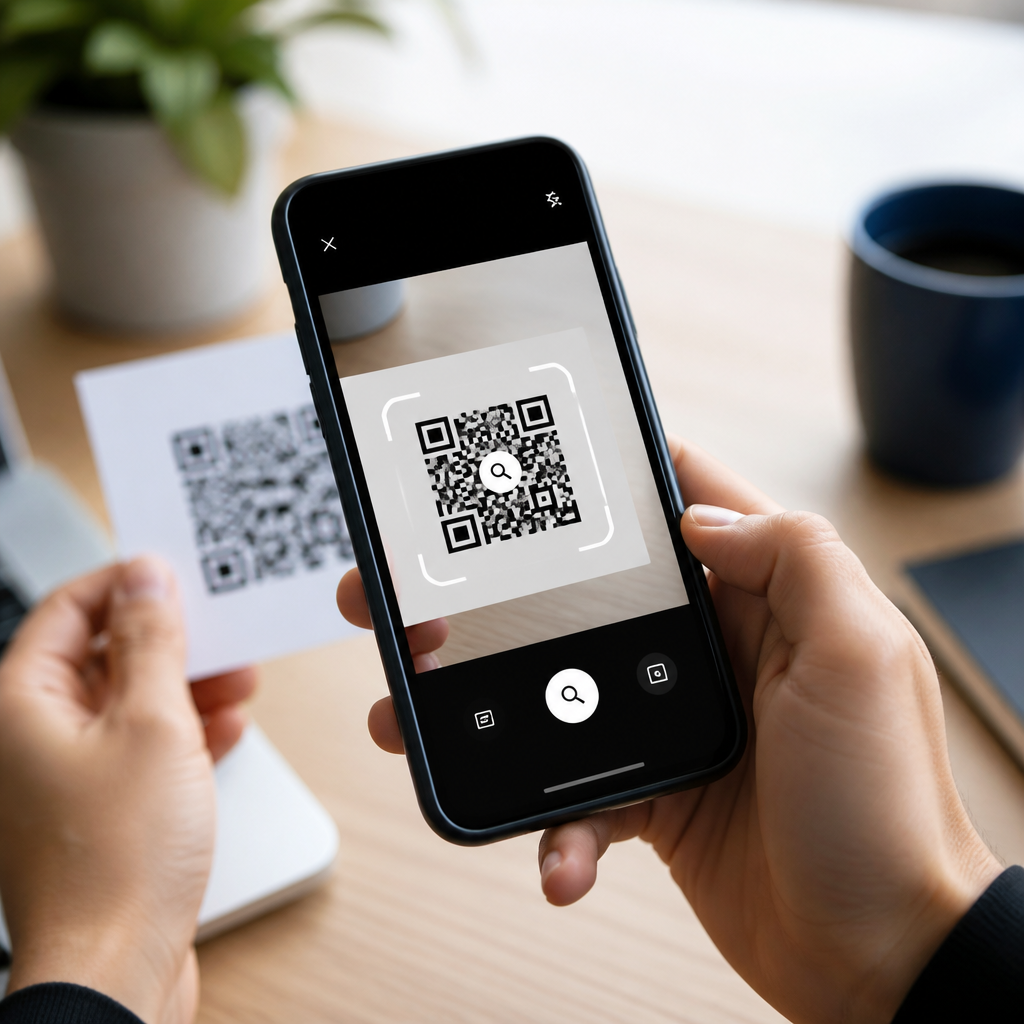
QR codes have become a default bridge between the physical world and mobile information, and Google Lens is now one of the fastest, most reliable ways to read them on a phone. A QR code, short for Quick Response code, is a two-dimensional barcode that stores data such as website links, Wi-Fi credentials, app download pages, payment prompts, contact cards, event tickets, and product identifiers. When people search how to scan QR codes using Google Lens, they usually want more than one simple instruction. They want to know which phones support Lens, where the scanner is located, how to open links safely, what to do if the code will not scan, and whether Lens is better than a built-in camera scanner. This guide answers those questions directly and serves as a hub for scanning QR codes on mobile devices, with Google Lens as the main method and related mobile workflows explained in practical terms.
In day-to-day use, I see QR code scanning split into two jobs: quick access and secure verification. A restaurant menu, parking meter, boarding pass, classroom handout, or product package all depend on a fast scan that works in seconds. At the same time, fake QR codes are now common in phishing campaigns, especially stickers placed over payment terminals or public posters. That makes the scanning method important. Google Lens matters because it is deeply integrated across Android devices, available on iPhone through the Google app, and designed to identify on-screen and real-world codes while previewing the destination before you tap. For anyone learning how to scan QR codes on mobile devices, understanding Google Lens gives you a dependable baseline that works across brands, camera apps, and use cases.
How Google Lens scans QR codes on mobile devices
Google Lens is an image recognition tool that reads visual information from a camera feed or saved image and turns it into actions. For QR code scanning, Lens detects the square finder patterns, decodes the embedded data, then surfaces the result as a tappable card. In practical terms, that means you point your phone camera at a code, keep it in focus, and Lens identifies whether the content is a URL, plain text, phone number, email address, map location, Wi-Fi setup string, or other supported payload. The biggest advantage is context. Lens does not just read the code; it classifies what the code contains and presents a matching action, such as Open website, Connect to Wi-Fi, Call number, or Copy text.
On most Android phones, there are several entry points. You may find Lens inside the Camera app, in the Google app, in Google Photos for scanning a QR code from a screenshot, or as a standalone shortcut through the search bar widget. Pixel phones typically integrate Lens directly into the camera viewfinder. Samsung Galaxy devices often support QR scanning in the stock camera while also allowing Lens through Google services. On iPhone, Google Lens is available inside the Google app and Google Photos. This cross-platform availability is why Lens is central to any complete explanation of how to scan QR codes on mobile devices. It reduces dependence on manufacturer-specific menus and gives users a consistent scanning experience.
Step-by-step: how to scan QR codes using Google Lens
The fastest method is to open Google Lens and point it at the QR code. On Android, open the Google app and tap the Lens icon in the search bar, or open your Camera app if Lens integration is enabled. On iPhone, open the Google app and tap the camera-shaped Lens icon. Hold the phone steady about six to twelve inches from the code, make sure the code is fully visible, and wait for Lens to detect it. In good lighting, the result usually appears in under a second. Tap the result card to open the destination, or tap and hold options such as copying text or sharing the link.
If the QR code is already on your phone screen, such as in a screenshot, email, social post, or digital ticket, use Google Photos or the Google app to scan the image itself. Open the saved image, tap the Lens icon, and let Lens analyze the picture. This is one of the most overlooked features, yet it solves a common problem: you cannot point the camera at a code displayed on the same device. I use this constantly for event confirmations and app login links. It is also useful for customer support teams who receive QR codes in chat or email and need to extract the embedded URL quickly without switching devices.
| Scenario | Best Google Lens method | What to expect |
|---|---|---|
| Printed poster, menu, package | Lens through Camera or Google app | Instant link or action card from live camera view |
| Screenshot or saved image | Lens in Google Photos | Reads the code directly from the image file |
| QR code on another phone screen | Lens through live camera | Works if brightness is adequate and glare is low |
| Wi-Fi setup code | Lens in Camera or Google app | Shows network details and connection prompt |
| Text-only QR code | Lens in any supported entry point | Lets you copy text instead of opening a site |
Where Google Lens fits within the broader mobile QR scanning workflow
Google Lens is the hub method, but mobile QR scanning is broader than one app. Most modern phones also include native camera scanning. Apple introduced QR recognition in the Camera app years ago, and Android makers such as Samsung, Motorola, OnePlus, Xiaomi, and Oppo provide camera-based scanners with varying labels and settings. The practical difference is that native camera scanning is often faster to launch, while Google Lens usually provides richer analysis and better support for scanning saved images. If your phone camera does not react to a code, Lens is the next tool to try because it bypasses some manufacturer limitations.
Understanding this ecosystem helps users troubleshoot intelligently. For example, if a QR code opens correctly in the Camera app but not in Lens, the issue may be permissions, outdated Google app components, or a temporary recognition problem rather than a damaged code. If neither tool can read the code, the likely causes are physical damage, poor print contrast, excessive distance, perspective distortion, or a low-resolution image. In operational settings like retail pickup counters, healthcare check-in desks, and warehouse inventory stations, I recommend testing the same QR code in both the native camera and Lens during setup. This catches formatting and readability issues before customers are affected.
Common problems when scanning QR codes and how to fix them
If Google Lens will not scan a QR code, start with the basics that affect detection accuracy. Increase light, clean the camera lens, remove glare, and fill more of the frame with the code. QR codes rely on sharp contrast and visible corner markers. A glossy menu under overhead lighting or a code displayed on a cracked screen can prevent reliable decoding. Move the phone closer until the code is crisp, then back slightly if the camera struggles to focus. If you are scanning from a laptop or another phone, increase the screen brightness and reduce reflections.
Software issues are the next layer. Make sure the Google app and Google Photos are updated through Google Play or the App Store. Confirm camera permissions are enabled. If the Lens icon is missing, update the Google app first, then restart the device. On Android, some battery optimization settings can interfere with camera behavior or background services; disabling aggressive optimization for the Google app can help on certain models. If a QR code still fails, take a screenshot or photo and run Lens on the saved image, because static analysis sometimes succeeds when live scanning does not. For damaged or stylized codes, use a dedicated barcode utility such as ZXing-based scanners for testing, but for everyday consumers, Lens remains the most accessible option.
Security, privacy, and safe scanning habits
Not every QR code should be trusted. Attackers use malicious QR codes to redirect users to fake payment pages, credential harvesting forms, and malware download sites. The safest habit is to read the preview before opening the result. Google Lens generally shows the destination action first, giving you a chance to inspect it. Check the domain carefully. A legitimate business might use examplebrand.com, while a fake code could send you to examp1ebrand-pay.com or a shortened link that hides the real target. In public places, look for tampered stickers placed over original codes, especially on parking meters, vending machines, and tabletop payment stands.
Privacy matters too. Scanning itself is low risk, but what you do after the scan determines exposure. Do not enter card details or account credentials on unfamiliar pages. Prefer official apps or bookmarked websites for payments and logins. For Wi-Fi QR codes, verify the network name before joining. In managed environments, such as schools or workplaces, QR destinations should ideally use HTTPS and belong to controlled domains. Google’s Safe Browsing protections help, but they are not a substitute for judgment. The advantage of using Google Lens for mobile QR code scanning is not that it makes every code safe; it gives you an extra moment to evaluate the result before acting.
Best practices for faster, more reliable scans across devices
The best mobile QR scanning experience comes from a few repeatable habits. Use the rear camera rather than the front camera, because autofocus and image quality are usually better. Keep the code flat in the frame and avoid extreme angles. If you create QR codes for customers, print them at a reasonable size, maintain strong contrast, and leave quiet space around the edges. Industry guidance commonly recommends a four-module margin, which improves readability across scanners. Test your codes on both Android and iPhone, in bright and dim conditions, and from paper and screens. A code that looks attractive in a design mockup can fail badly in the real world if it is too small or crowded by graphics.
As the hub for how to scan QR codes on mobile devices, the key takeaway is simple: Google Lens is the most versatile option because it works with live camera views, screenshots, and saved images across Android and iPhone. It helps users open links, join Wi-Fi networks, copy text, and verify destinations with minimal friction. Native camera scanners are useful, but Lens adds consistency and context that many people need. If you want fewer scanning failures and better security, start with Lens, check the destination before tapping, and test QR codes under real conditions. Use this guide as your baseline workflow, then apply the same scanning habits across every mobile device you manage or use.
Frequently Asked Questions
How do I scan a QR code using Google Lens on my phone?
To scan a QR code using Google Lens, open Google Lens directly from the Google app, the Google Search widget, the Google Camera app if your phone supports Lens integration, or the Photos app if the QR code is saved in an image. Once Google Lens is open, point your camera at the QR code and make sure the code is fully visible and in focus. Google Lens will usually recognize it within a second or two and display the action associated with it, such as opening a website, joining a Wi-Fi network, viewing a menu, downloading an app, or saving contact information. Tap the prompt on your screen to continue.
On Android phones, this process is often built in and extremely fast because Google Lens is deeply integrated with many system apps. On iPhones, you can still use Google Lens through the Google app or Google Photos. If the QR code does not scan right away, improve lighting, hold your phone steady, move slightly closer or farther away, and avoid glare on glossy surfaces. In most cases, Google Lens is one of the easiest ways to scan QR codes because it combines camera detection with smart recognition, so you do not need a separate QR code scanner app.
Can Google Lens scan QR codes from screenshots, photos, or images already saved on my device?
Yes, Google Lens can scan QR codes from screenshots, downloaded images, and photos already stored on your phone. This is especially useful when someone sends you a QR code in a message, email, social post, or document and you cannot scan it with the live camera because it is already on your screen. To do this, open Google Photos or the Google app, select the image that contains the QR code, and tap the Google Lens icon. Lens will analyze the image and detect any scannable code, then show the linked content or suggested action.
This feature makes Google Lens more versatile than a basic camera scanner because it works with both real-world QR codes and digital ones. For example, you can scan an event ticket from a screenshot, open a restaurant menu from a shared image, or connect to a Wi-Fi network using a QR code someone sent you. If Lens does not detect the code immediately, crop the image so the QR code is more prominent, make sure it is not blurry, and verify that the full code is visible. High contrast and image clarity matter, even when scanning from saved files.
Why is Google Lens not scanning my QR code, and how can I fix it?
If Google Lens is not scanning a QR code, the most common causes are poor lighting, blurry focus, glare, damaged printing, low image quality, or an incomplete code. Start by making sure the QR code is well lit and centered in the frame. Hold your phone steady for a moment so the camera can focus properly. If the code is printed on a shiny surface, tilt your phone slightly to reduce reflections. If you are scanning from a screen, increase screen brightness and clean your camera lens to improve recognition.
You should also check whether the QR code itself is valid. Some codes are too small, partially covered, stretched, or printed with low contrast, which can make scanning difficult for any app, including Google Lens. If you are scanning from a saved image, try using a sharper version or cropping tightly around the code. Make sure your Google app, Google Photos app, or device software is updated, since outdated apps can sometimes affect Lens performance. In rare cases, internet connectivity may also matter, especially if Lens needs to retrieve linked content after recognizing the code. If one method does not work, try opening Lens from another app, such as Google Photos instead of the live camera.
Is it safe to scan QR codes with Google Lens?
Google Lens itself is a safe and reliable tool for reading QR codes, but the safety of the experience also depends on where the QR code leads. A QR code can open a legitimate website, payment page, login screen, app listing, or contact card, but it can also direct you to a misleading or malicious destination if it was created for phishing or fraud. That is why it is important to review the preview information Google Lens shows before tapping. If the link looks suspicious, misspelled, unrelated to the business in front of you, or overly urgent, do not open it.
A good habit is to treat QR codes the same way you treat links in emails or text messages. Scan only codes from trusted businesses, official packaging, secure payment terminals, or known contacts. Be especially careful with QR codes placed on stickers, posters, or public signs, since scammers sometimes place fake codes over legitimate ones. Google Lens helps by showing you the detected action before you proceed, giving you a chance to verify the destination. For payment QR codes, confirm the merchant name and payment details before approving anything. In short, Google Lens is safe to use, but smart judgment is still essential when interacting with any QR-based link or prompt.
What kinds of information can Google Lens read from a QR code?
Google Lens can read many different types of QR code data, not just website URLs. Depending on how the code was created, Lens may detect website links, Wi-Fi login credentials, app download pages, digital menus, payment requests, event tickets, location links, product details, text snippets, email addresses, phone numbers, and contact cards. In many cases, it does more than simply decode the content. It also offers the most relevant next step, such as opening a browser, connecting to a network, adding a contact, calling a number, or showing map directions.
This is one reason Google Lens has become such a popular QR scanning tool. It is designed to understand context and make the information actionable right away. For example, if the QR code contains Wi-Fi information, Lens may prompt you to join the network. If it contains a vCard, it can help you save the contact. If it links to a restaurant menu or payment portal, it can open that page instantly. Because QR codes are now used across retail, travel, restaurants, healthcare, events, and everyday communication, Google Lens serves as a fast bridge between printed or displayed codes and useful mobile actions.





