
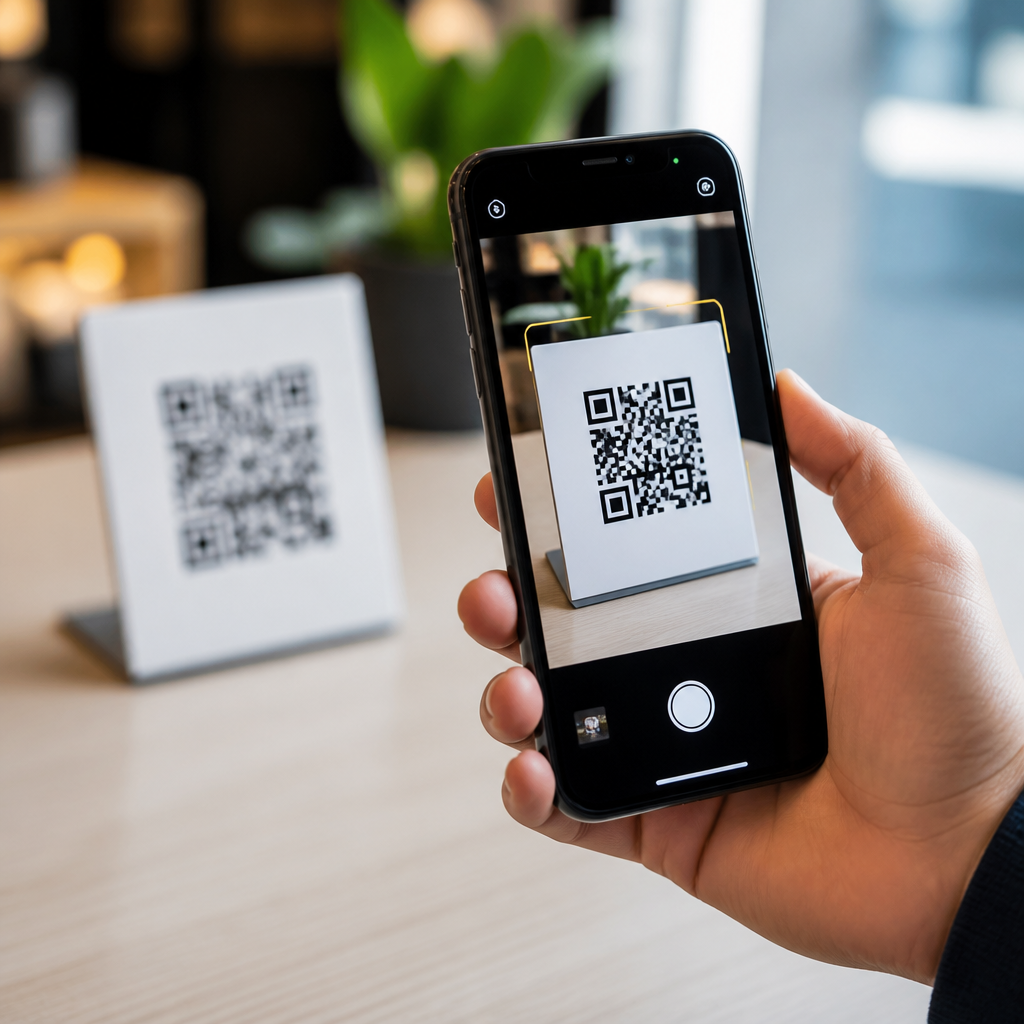
iPhone camera QR code scanning works because Apple built barcode detection directly into the Camera app and tied it to system-level frameworks that interpret visual patterns, verify the code format, and trigger the right action safely. A QR code, short for Quick Response code, is a two-dimensional matrix barcode that stores data in black-and-white modules arranged in a square grid. On an iPhone, scanning does not usually require a separate app; the camera preview analyzes the image in real time, recognizes a valid code, and presents a tappable banner or on-screen control. This matters because camera integration and operating system support determine speed, reliability, privacy, accessibility, and which code actions are allowed. In practice, the difference between a seamless scan and a frustrating one usually comes down to Apple’s camera stack, iOS permissions, focus behavior, low-light processing, and app-level handoff rules.
I have tested QR workflows across multiple iPhone generations, from older Touch ID devices to current Face ID models, and the user experience changes less with the code itself than with the surrounding software pipeline. Apple’s implementation is important for businesses, app developers, educators, retailers, and IT teams because it reduces friction: users can open Camera, point, and act. It also shapes security expectations. A code that opens Safari, joins Wi-Fi, launches Apple Pay, adds a contact card, or invokes App Clips depends on the operating system understanding the payload correctly. As the hub for camera integration and OS support, this guide explains where scanning happens, which iOS features enable it, how different iPhone cameras affect results, and what limitations still matter when QR codes are used in the real world.
How the iPhone Camera Detects and Reads QR Codes
At the core, iPhone QR scanning combines the imaging hardware, the Camera app preview pipeline, and Apple’s machine vision frameworks. The camera captures continuous frames, then iOS analyzes those frames for barcode symbologies, including QR. The system looks for finder patterns, alignment structures, and contrast boundaries that indicate a valid QR layout. Once the geometry is recognized, the decoder extracts the encoded payload and determines the action type, such as URL, text, phone number, email address, calendar event, or Wi-Fi configuration string.
Apple has long exposed barcode recognition to developers through AVFoundation metadata detection, and more advanced image analysis can also involve Vision framework capabilities. In everyday use, though, the Camera app handles the process invisibly. The user sees a live preview, not a scan button. When the code is readable, iOS overlays a notification or highlighted link. That interaction design matters because it reduces training time. People already know how to open the camera, and Apple keeps the scan step embedded in a familiar workflow rather than forcing a separate utility.
Successful detection depends on practical camera conditions. The code must occupy enough pixels in the frame, remain reasonably sharp, and have adequate lighting and contrast. iPhone autofocus and auto exposure help here. Newer devices with improved sensors, wider apertures, Photonic Engine style image processing, and better low-light performance can detect smaller or dimmer QR codes more consistently. Cracked lenses, smudges, protective covers that interfere with focus, and reflective surfaces can all reduce accuracy even when the code itself is correctly printed.
Which iOS Features Enable Native QR Code Scanning
Native QR scanning on iPhone is an operating system feature, not just a camera trick. Apple enabled direct QR recognition in the built-in Camera app beginning with iOS 11, which marked the shift from third-party dependence to default support. Since then, Apple has expanded the experience through Control Center Code Scanner, Wallet integrations, App Clips, Visual Look Up adjacent capabilities, and tighter linking between detected content and system apps. If scanning appears inconsistent, the cause is often a settings issue, software version mismatch, or app restriction rather than a faulty code.
The most important setting is the Camera option labeled “Scan QR Codes.” On supported iOS versions, disabling that toggle prevents automatic detection in the Camera app. Control Center can still provide a dedicated Code Scanner interface on many devices, which is useful in managed environments or when users want a cleaner scanning view. The dedicated scanner often opens web results inside an isolated in-app browser rather than moving immediately into the full Safari session, which can be helpful for fast validation and safer link review.
System support also determines action handling. A plain URL opens differently from a vCard, a Mailto link, or a Wi-Fi onboarding payload. Apple parses the content type and routes it to the matching app or system sheet. That routing is one reason native scanning feels polished. It is not only reading a pattern; it is translating encoded data into a context-aware next step, with permission prompts or user confirmation where appropriate.
Camera Integration Across iPhone Models
All supported iPhones can scan QR codes, but hardware differences still affect performance. Sensor quality, autofocus speed, macro behavior, lens field of view, image stabilization, and processing power all influence how quickly the code locks and how forgiving the scan feels. In field testing, older iPhones often need more distance adjustment and steadier framing, while newer models recover faster from motion blur and low-contrast print. That does not mean businesses must design different QR codes for different phones, but it does mean a marginal code will fail first on older hardware.
There is also a difference between front and rear cameras in practical use. Native QR scanning is optimized around the rear camera because it offers higher quality optics and better focus behavior. Most users scan with the main rear lens, and that is where Apple’s experience is strongest. On devices with multiple rear lenses, iOS typically chooses the active lens appropriate for the current camera mode. Extreme close-up use can create problems if the phone switches lenses or hunts for focus, especially on tiny product labels.
| Factor | Effect on QR Scanning | Real-World Example |
|---|---|---|
| Sensor resolution and processing | Improves recognition of small or distant codes | A poster scanned from several feet away works faster on newer Pro models |
| Autofocus speed | Reduces delay before the code becomes readable | A shipping label in a warehouse locks more quickly on a recent iPhone |
| Low-light performance | Maintains contrast in dim environments | A restaurant table tent remains scannable under warm indoor lighting |
| Lens cleanliness | Directly affects sharpness and decoder success | A fingerprint on the camera lens prevents a payment code from resolving |
For publishers of QR campaigns, the lesson is straightforward: design codes with generous size, quiet zone spacing, and strong contrast so they remain robust across the full range of iPhone hardware still in circulation.
What Happens After a QR Code Is Recognized
Recognition is only the first half of the workflow. After iPhone reads the payload, iOS classifies the data and decides how to present it. A website URL usually appears as a tappable banner at the top of the viewfinder or as an on-screen highlight near the code. A contact card can open a preview to add a new contact. A calendar format can create an event. A Wi-Fi QR code can prompt the device to join a network by using the standardized SSID, security type, and password string embedded in the symbol.
This post-detection behavior relies on Apple’s URL handling, app association rules, and security model. Universal Links may open an installed app instead of Safari if the domain is properly associated with that app. App Clips can launch a lightweight app experience when the QR code is configured for that purpose. Apple Pay and Wallet-related QR experiences may also invoke system UI rather than a browser. These actions are tightly controlled because QR codes are effectively triggers, and operating systems must balance convenience against abuse.
In enterprise deployments, mobile device management can influence what happens next. Managed devices may restrict camera use, block certain app openings, or steer network connections through policy. That is why troubleshooting must look beyond the printed code. If a QR works on an unmanaged personal phone but fails on a corporate iPhone, the problem may be configuration, not scan quality.
Security, Privacy, and Common Limitations
Native iPhone scanning is convenient, but it does not make QR codes inherently safe. The main risk is social engineering: a malicious code can direct users to a phishing site, a deceptive login page, or a misleading download prompt. Apple reduces risk by requiring a tap before opening most content and by presenting the detected destination clearly enough for a user to inspect. Still, shortened URLs and lookalike domains remain effective attack tools, so users should verify the destination before proceeding, especially for payments or password entry.
Privacy considerations also matter. The camera preview is processed locally for detection, and Apple’s built-in scan behavior does not require uploading every frame to a remote server just to identify a QR code. That local-first approach improves responsiveness and limits unnecessary data exposure. However, once a scanned link opens a website, normal web tracking, analytics scripts, and cookies can apply. The safe rule is simple: scanning is local, but the destination may not be private.
Limitations persist even in a mature platform. Damaged codes, low contrast designs, inverted color experiments, curved packaging, glossy materials, and dense micro QR implementations can still fail. Screen-based QR codes can also suffer from moiré patterns, low brightness, or refresh artifacts when one phone scans another display. In support work, I have seen many “iPhone won’t scan QR code” complaints caused by disabled settings, dirty lenses, poor print production, or overloaded landing pages that users mistake for scan failure.
Best Practices for Reliable iPhone QR Experiences
If you create QR codes meant for iPhone users, the best results come from conservative design and clear destination planning. Use dynamic QR platforms when campaigns may need redirects or analytics, but ensure the final landing page is fast, mobile-optimized, and served over HTTPS. Keep the code large enough for expected scan distance; a common practical rule is roughly one inch of code width for every ten inches of scanning distance, then add margin for busy environments. Maintain a proper quiet zone around the symbol and avoid decorative alterations that break finder pattern recognition.
Operationally, test on multiple iPhones and iOS versions before launch. Scan under daylight, office lighting, and low-light conditions. Test from printed material, signage, packaging, and screens. Confirm whether the code should open Safari, an app, Wi-Fi join flow, or App Clip, and verify that each path behaves as intended. If this page is your starting point for the wider mobile QR code scanning and technology topic, the next step is to audit your own codes against real iPhone conditions, because camera integration and OS support are only valuable when the final user experience is effortless.
Frequently Asked Questions
How does the iPhone camera recognize and scan a QR code?
iPhone QR code scanning works because Apple built code detection directly into the Camera app and connected it to system-level image analysis frameworks. When you open the camera and point it at a QR code, the live preview is continuously analyzed in real time. The software looks for the distinct square structure of a QR code, including its alignment markers, grid pattern, and black-and-white module layout. Once the phone identifies that the image matches a valid QR code format, it decodes the stored data and determines what kind of information the code contains, such as a website link, contact card, Wi-Fi setup, app clip, or calendar event.
After decoding, the iPhone does not usually open the result immediately on its own. Instead, it presents a notification banner or tappable link so the user can choose whether to proceed. This extra step is important because scanning is designed to be fast but still user-controlled. In practical terms, the process feels simple—just point the camera and wait a second—but behind the scenes the iPhone is doing pattern detection, format verification, and action matching almost instantly. That is why modern iPhones can scan QR codes without needing a separate scanner app in most situations.
Do you need a separate app to scan QR codes on an iPhone?
In most cases, no. Apple has included QR code scanning directly in the built-in Camera app for years, so most users can simply open the camera, point it at the code, and tap the result that appears. This native support is one of the main reasons iPhone QR scanning feels so seamless. Because the feature is integrated at the system level, it works more reliably than many older third-party scanner apps and does not force users to download extra software just to read a code.
That said, there are still a few related options on iPhone. Some people use the Code Scanner control available in Control Center, which opens a streamlined scanner interface optimized specifically for reading QR codes. Third-party apps may also offer added features like scan history, batch scanning, custom code generation, or special business integrations. But for standard everyday tasks—opening a menu, joining Wi-Fi, visiting a website, or scanning event information—the native Camera app is usually all you need.
What kinds of information can an iPhone QR code scan open or trigger?
A QR code can hold several different types of data, and the iPhone is designed to recognize many of the most common ones automatically. The most familiar example is a URL, which lets the phone show a banner that opens a webpage in Safari. But QR codes can also contain contact information, email addresses, phone numbers, text snippets, calendar events, App Clip links, payment-related data, map locations, and Wi-Fi network details. Once the code is decoded, iOS determines the content type and offers the most appropriate action.
For example, if the QR code contains Wi-Fi credentials, the iPhone may offer to join the network. If it includes a vCard, the device can suggest adding a contact. If it encodes a date and event structure, the phone may offer to create a calendar item. This is a big part of how iPhone camera QR code scanning works so smoothly: the phone is not just reading a pattern, it is interpreting the data format and pairing it with a relevant system action. That combination of recognition and contextual response is what makes QR scanning on iPhone feel smart rather than just mechanical.
Is iPhone QR code scanning safe to use?
In general, yes, iPhone QR code scanning is designed to be safer than blindly opening unknown content, because the system usually shows a prompt or preview before taking action. Apple’s approach helps reduce accidental taps and gives users a chance to inspect what the scan is trying to open. For example, if a QR code points to a website, you will typically see a banner with the destination link before Safari opens it. That small pause adds an important layer of user awareness and control.
However, safety still depends partly on user judgment. A QR code can lead to a legitimate website, but it can also point to a misleading or malicious one, just like a suspicious email link can. Users should be cautious with codes found in public places, stickers placed over official signs, or codes sent by unknown sources. It is best to check the domain name before tapping and avoid entering passwords or payment information on sites that look suspicious. The iPhone provides a secure scanning experience at the system level, but it cannot make unsafe destinations trustworthy on its own. In other words, the scan process is secure by design, but smart user behavior still matters.
Why is my iPhone not scanning a QR code properly?
If your iPhone is not scanning a QR code, the cause is usually something simple such as lighting, focus, positioning, or code quality. The camera needs to see the QR code clearly enough to identify the square markers and module pattern. If the image is blurry, too far away, partially blocked, too small, overly reflective, or in poor lighting, detection may fail. Holding the phone steady, moving slightly closer or farther away, and making sure the full code is visible within the frame often solves the problem quickly.
There can also be software or settings-related reasons. On some devices, camera scanning settings may need to be enabled, and outdated iOS versions can occasionally affect performance or compatibility. Damaged, low-contrast, or poorly generated QR codes may not decode correctly even if the camera sees them. If the standard Camera app struggles, trying the dedicated Code Scanner in Control Center can help. It is also worth cleaning the camera lens and testing with another QR code to determine whether the issue is with the phone or with the code itself. Most scanning problems come down to image clarity and code readability rather than a serious hardware fault.





