
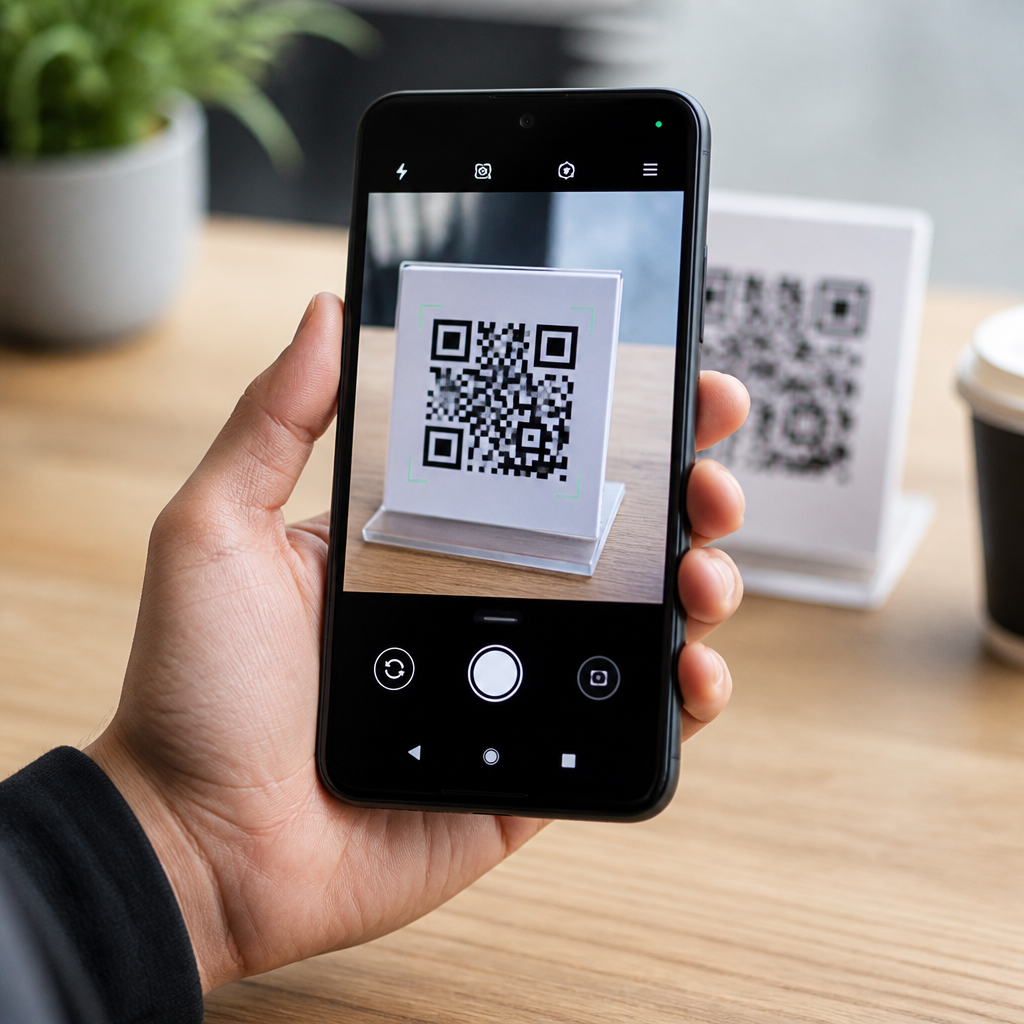
Android camera QR code scanning works by combining camera hardware, image processing, and operating system services that recognize a two-dimensional barcode in real time and turn it into an action, usually opening a link, joining Wi-Fi, or saving contact data. In Android, a QR code is not “read” by the lens itself; the camera captures frames, the camera stack analyzes those frames, and barcode detection software identifies the square finder patterns, corrects perspective, decodes the payload, and passes the result to the system interface or an app. That distinction matters because users often assume QR support depends only on the camera app, when in practice it depends on several layers: device sensors, autofocus performance, image signal processing, camera APIs, Google or manufacturer software, and the version of Android running on the phone.
From working with Android device setups, enterprise rollouts, and support cases, I have seen the same confusion repeat across brands. A Pixel can scan natively from the stock camera, many Samsung Galaxy devices do the same through Bixby Vision or built-in camera intelligence, while some lower-cost phones still rely on Google Lens or a third-party scanner. The phrase camera integration means the scanner is built directly into the camera experience, not added later through a separate app. OS support means Android and its system components provide barcode recognition hooks, permissions, and user interface behavior that make scanning reliable. This matters because QR codes now support payments, transit, menus, login flows, product authentication, and device onboarding. If native scanning is slow, inconsistent, or hidden behind multiple taps, completion rates drop immediately. Understanding how Android camera QR code scanning works helps users troubleshoot issues, helps businesses design better QR experiences, and helps publishers organize content around compatibility, privacy, and performance.
Core technology behind Android camera QR code scanning
At a technical level, Android camera QR code scanning begins with frame acquisition. The camera sensor captures an image stream, usually preview frames rather than full-resolution still photos. Those frames pass through the image signal processor, which handles exposure, white balance, sharpening, and noise reduction. Barcode detection works best when edges remain distinct, so aggressive smoothing can reduce reliability in dim light. Detection libraries then search for the three position markers that define a QR code. Once those markers are found, the software estimates orientation, compensates for skew, samples the grid, applies Reed-Solomon error correction, and decodes the embedded data.
On modern Android devices, this can happen locally in milliseconds. Google ML Kit, the legacy Mobile Vision APIs, and OEM barcode engines all support on-device recognition. Developers integrating scanning in their own apps usually use CameraX with an ImageAnalysis pipeline or Camera2 for lower-level control. CameraX has become the practical standard because it handles rotation, lifecycle awareness, and device compatibility better than direct Camera2 implementations. In testing, the difference between a polished native scanner and a weak one usually comes down to preview resolution, focus distance, detection frequency, and whether the app crops the center of the frame intelligently instead of analyzing every pixel.
QR payload handling is another key part of how scanning works. A decoded QR code can contain a URL, plain text, SMS action, telephone number, geo coordinate, vCard, calendar event, or Wi-Fi network credential in a standardized format. The Android interface then decides what prompt to show. A web URL may open Chrome Custom Tabs or the default browser. A Wi-Fi QR triggers a join-network prompt. A vCard can be passed to Contacts. Secure behavior depends on sanitizing the result before launching intents. Well-designed scanners show the decoded value first and let the user confirm, rather than immediately opening whatever was embedded.
Camera integration across Android versions and device makers
Native Android QR support has never been completely uniform, which is why device-specific guidance remains necessary. Google introduced deeper barcode recognition through Google Lens and later folded many scanning conveniences into Pixel Camera. Android 9 and Android 10 era devices often depended on Google Lens even when users believed scanning was “built in.” By Android 11 and later, many major manufacturers integrated QR recognition more directly into the camera preview, but the implementation still varied by OEM skin and regional software build.
Pixel phones generally provide the most consistent experience because Google controls the camera app, system intelligence, and Play Services updates. Samsung devices often expose QR scanning through the stock camera settings, quick panel shortcuts, or intelligent scene detection, depending on generation. Xiaomi, OnePlus, Oppo, Motorola, and Vivo may provide native camera scanning on some models while shifting others toward Lens integration. Android Go devices and very low-end handsets are the least predictable because camera software is often stripped back to preserve performance and storage.
| Android environment | Typical QR scanning method | What users should expect |
|---|---|---|
| Google Pixel | Built into stock camera and Lens | Fast detection, clear prompts, regular feature updates |
| Samsung Galaxy | Stock camera, Bixby Vision, or quick settings scanner | Strong native support, but menu placement varies by model |
| Other major OEM devices | Stock camera or Google Lens | Support depends on camera app version and region |
| Budget or Android Go phones | Lens app or third-party scanner | Less consistent autofocus and slower detection |
For support teams, the practical rule is simple: do not assume “Android” means one scanning workflow. Ask for the phone brand, model, Android version, camera app version, and whether Google Play Services is current. Those details often explain why one device scans instantly while another needs a separate app.
What determines scanning speed, accuracy, and reliability
Scanning quality depends on optics, focus, lighting, software tuning, and code design. Autofocus is the first bottleneck. If a camera cannot lock focus at close range, the barcode engine receives blurred edges and fails. Midrange and premium Android devices now use phase detection autofocus or laser-assisted focus on some models, which improves near-field scanning dramatically. Fixed-focus budget cameras can still scan, but users must move farther back and rely on digital crop, reducing speed.
Lighting matters just as much. Backlit restaurant menus, glossy packaging, and low-contrast prints create common failure cases. High dynamic range processing can help preserve code detail when the background is bright, but HDR sometimes introduces lag in the preview stream. In warehousing or field service deployments, I recommend testing QR labels under the actual lighting conditions rather than relying on office demos. A code that scans perfectly on a desk may fail under sodium vapor lamps or in rain-specked outdoor conditions.
Code size, error correction level, and print quality also affect Android camera QR code scanning. A tiny code on a distant poster forces the app to resolve fewer modules, increasing decode errors. Over-stylized branded QR designs may still work, but only if quiet zones remain intact and contrast stays high. ISO/IEC 18004 defines QR Code symbology requirements, and ignoring those basics is one of the fastest ways to create “camera problems” that are really content production problems. For web links, short URLs usually produce simpler, easier-to-scan codes than long parameter-heavy strings.
Privacy, security, and permission handling in Android
Android camera QR code scanning is convenient, but it also creates security decisions at the system and user level. Camera permission is the obvious starting point. A scanner app or embedded scanner feature needs camera access to analyze frames. Native camera scanning in the stock app usually does not feel like a separate permission event because the camera app already has that access. Third-party scanners, however, should justify permissions clearly and avoid requesting contacts, location, or storage unless those features are genuinely required.
The bigger risk is not the scan itself but what happens next. QR codes can launch phishing pages, trigger malicious downloads, or disguise URLs through redirects and lookalike domains. Good Android implementations reduce risk by previewing the destination and using safe browsing protections in Chrome or WebView environments. In managed enterprise deployments, mobile device management policies can restrict unapproved app launches or open links only in a hardened browser. That matters in sectors like healthcare and logistics, where staff scan labels all day and cannot inspect every URL manually.
Offline processing is another trust factor. Most modern barcode recognition can run entirely on-device, meaning image frames do not need to be uploaded to a server for basic decoding. Google Lens may add cloud-supported intelligence for some visual search features, but simple QR recognition is typically local. For users and developers alike, that distinction is important when evaluating privacy claims, compliance requirements, and scan performance in weak network conditions.
Best practices for users, developers, and businesses
If you want Android QR scanning to work reliably, align the camera layer, software layer, and code design layer. Users should keep the camera app and Play Services updated, clean the lens, enable native scan settings when available, and test with adequate light. Developers should prefer CameraX, analyze preview frames at a balanced resolution, debounce repeated detections, and display clear result confirmations before launching actions. Businesses should generate standards-compliant codes, preserve quiet zones, use high contrast, and place codes where users can frame them without glare.
This hub topic, Camera Integration & OS Support, connects directly to deeper subjects such as Google Lens behavior, CameraX barcode implementation, OEM-specific camera settings, permission troubleshooting, offline scanning, and QR security UX. Those subtopics matter because successful scanning is never just about the symbol on the page. It is the combined result of hardware capability, Android support, app design, and the quality of the encoded destination. When those layers are aligned, Android camera QR code scanning feels instant and invisible. Review your device support matrix, test your codes on real phones, and refine the workflow before users ever need to guess what to tap.
Frequently Asked Questions
How does Android camera QR code scanning actually work?
Android camera QR code scanning works through a chain of hardware and software steps rather than the camera lens “understanding” the code by itself. First, the camera sensor captures a live stream of image frames. Those frames are passed into Android’s camera stack, where autofocus, exposure control, sharpening, and noise reduction help produce a cleaner image. Barcode detection software then analyzes the frame to look for the distinctive square finder patterns used in QR codes. Once those patterns are found, the software determines the code’s orientation, corrects for tilt or perspective distortion, and separates the black-and-white module pattern into a structured grid that can be decoded.
After the grid is reconstructed, the decoder reads the encoded data, applies error correction, and converts the result into usable content such as a URL, Wi-Fi login details, plain text, event information, or contact data. Android then hands that content to the appropriate system feature or app. For example, a website may open in the browser, a Wi-Fi code may prompt the device to connect to a network, and a contact card may offer to save information into the address book. In modern Android devices, much of this process happens in real time, which is why users usually see a suggestion appear almost instantly when the code is in view.
Does the Android camera app scan the QR code by itself, or is other software involved?
Other software is always involved. The camera hardware captures the image, but recognition depends on image processing and barcode detection layers built into Android or the camera app. On many phones, the default camera app includes QR detection as a native feature, often powered by Android system services, device manufacturer software, or machine vision libraries such as Google’s barcode scanning tools. The app displays the camera preview, but behind that preview, software is constantly analyzing selected frames to check whether a QR code is present.
This distinction matters because QR scanning behavior can vary by device and Android version. One phone may scan directly in the stock camera app, while another may rely on Google Lens, a built-in scanner shortcut, or a third-party app. The underlying principle stays the same: the system captures image data, runs pattern recognition, decodes the barcode, and then presents the result as an actionable prompt. So while users experience it as a simple point-and-scan feature, the actual workflow depends on coordinated interaction between the camera sensor, operating system, recognition engine, and user interface.
Why do some QR codes scan instantly while others fail or take longer to recognize?
Scanning speed and accuracy depend heavily on image quality and code quality. A QR code scans quickly when it is sharply focused, well lit, large enough in the frame, and printed or displayed with strong contrast. The detection software needs to clearly see the finder patterns and the internal module layout, so anything that interferes with visibility can slow the process down. Common problems include glare on a glossy surface, motion blur from shaky hands, low light, very small printed codes, damaged corners, or extreme viewing angles. If the code is too distorted, the software may struggle to identify the geometry needed for decoding.
Device-specific factors also matter. Phones with better sensors, faster image processors, and more refined camera software generally detect QR codes more reliably. Android’s autofocus performance is especially important because a blurry frame may contain all the data in theory, but not in a form the decoder can use. In addition, some scanning systems are designed to prioritize battery efficiency and may analyze fewer frames per second, while others are tuned for speed. Even when recognition is delayed, modern QR codes include error correction, which allows the scanner to recover data from partially obscured or damaged codes. That is why some worn or cracked QR codes still work, while others fail if too much of the pattern is lost or the image conditions are poor.
What kinds of information can an Android phone get from a QR code?
A QR code can store many types of structured and unstructured data, and Android can often interpret that data into useful actions automatically. The most familiar example is a web link, which opens a browser prompt. However, QR codes can also contain Wi-Fi network credentials, contact cards in vCard format, calendar event details, phone numbers, SMS instructions, email addresses, geographic coordinates, app links, and plain text. When Android recognizes a supported data format, it does more than just display the raw content—it often turns that content into a suggested action the user can take with one tap.
For instance, if the QR code contains a Wi-Fi configuration, Android may offer to join the network without manually typing the password. If the code contains contact information, the phone can create a new contact entry. If it contains a map location, Android may open a mapping app. This is one reason QR codes are so useful: they act as a bridge between the physical world and digital actions. The scanner does not just decode symbols; it interprets the payload according to recognized standards and then connects the result to Android features and apps that can handle it safely and conveniently.
Is Android QR code scanning secure, and what should users watch out for?
Android QR code scanning is generally safe as a feature, but the content inside a QR code can still be risky. The scanner itself is simply reading data and presenting an action. The real security concern comes from what that data instructs the phone to do. A malicious QR code might point to a phishing website, trigger a download, encourage a user to connect to an untrusted network, or disguise a harmful link behind a short domain that looks legitimate at first glance. In other words, the scanning technology is neutral, but the destination or payload may not be.
Android reduces some risk by showing a preview or confirmation prompt before taking major actions, especially for links and network connections. Users should still review the destination carefully before tapping. It is smart to check the domain name, be cautious with QR codes placed in public areas, and avoid scanning codes from sources that seem suspicious or tampered with. Businesses and organizations can improve trust by using clearly branded materials and secure HTTPS links. From a technical standpoint, Android’s role is to detect and decode the barcode accurately; from a practical standpoint, safe use depends on the user recognizing that a QR code is just another way of delivering digital instructions and should be treated with the same caution as an email link or text message.





