
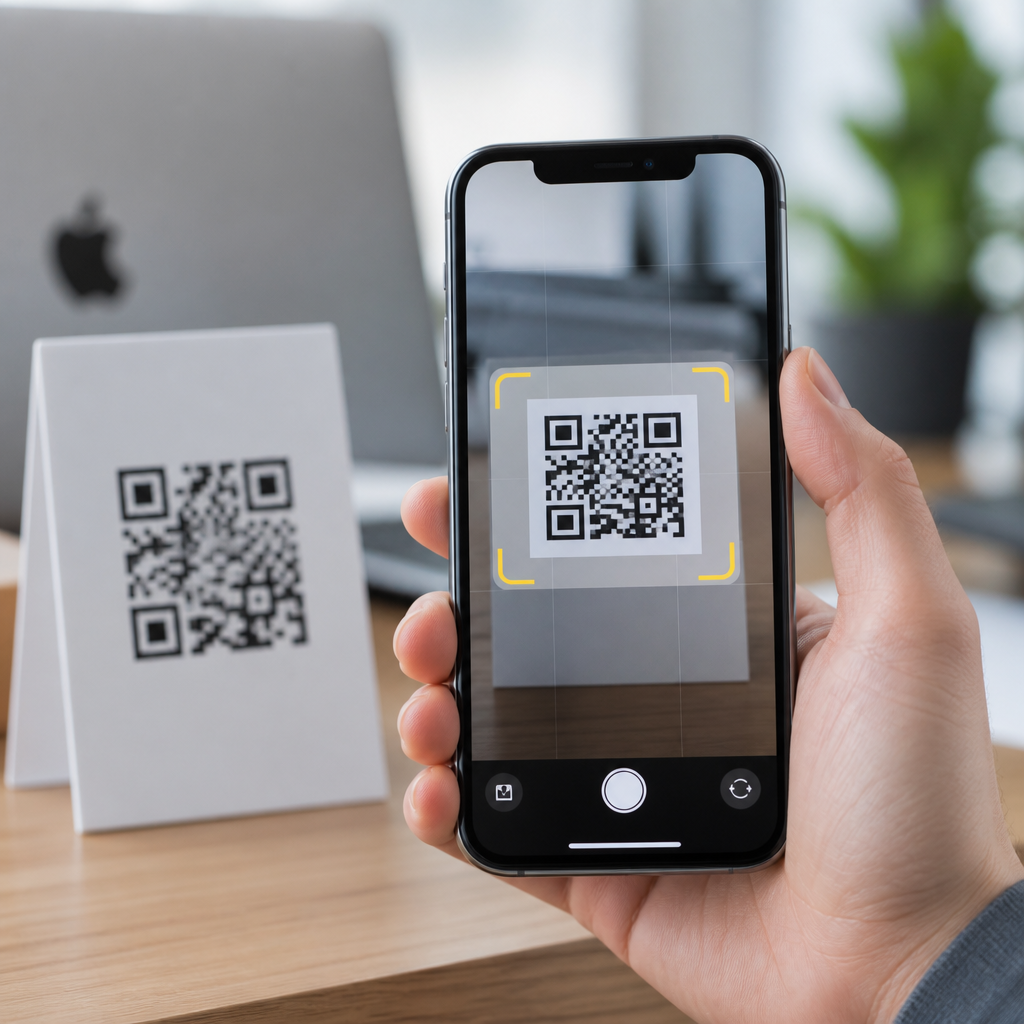
Apple’s decision to build QR scanning directly into iOS changed how millions of people interact with links, payments, tickets, and device setup flows. In practical terms, QR scanning on iPhone moved from a niche utility handled by third-party apps to a default camera behavior supported at the operating-system level. That shift matters because convenience drives adoption: when scanning is instant, trusted, and consistent across devices, people use it more often, and developers can design around it with confidence.
A QR code, or Quick Response code, is a two-dimensional barcode that stores structured data such as URLs, contact cards, Wi-Fi credentials, app links, and payment payloads. Camera integration means the device’s native Camera app can detect and interpret that code without requiring a separate scanner. OS support goes further. It includes the frameworks that identify a code in real time, the notification layer that presents a safe action, permissions that govern camera access, and continuity features that let QR-based workflows connect to apps like Wallet, Home, Safari, and Settings.
I have worked on mobile onboarding flows where QR performance determined whether setup took ten seconds or two frustrating minutes. On iOS, Apple’s integration reduced that friction dramatically. Instead of asking users to install a scanner, grant extra permissions, and guess which app to trust, teams could rely on a standard system behavior. That consistency improved conversion rates for Wi-Fi joining, event check-in, and app-to-web handoff because users recognized the camera prompt as an Apple interface rather than an unknown overlay.
Apple’s approach also matters from a platform strategy perspective. By controlling scanning at the operating-system level, it could balance speed with privacy, add guardrails against malicious redirects, and expose QR reading to developers through stable APIs. The result is a layered system: casual users point the camera and tap a banner, while advanced apps can build custom scanning interfaces using Apple frameworks. Understanding how Apple integrated QR scanning into iOS helps explain why iPhone scanning feels reliable, where its limits still exist, and how businesses should design QR experiences for Apple devices.
From app-based scanning to native camera detection
Before native support, iPhone users typically relied on standalone barcode apps. Those apps varied widely in speed, security, autofocus handling, and ad quality. Many requested unnecessary permissions or interrupted the experience with interstitials. Apple’s native move addressed a basic usability problem: QR scanning should behave like taking a photo, not like downloading a special-purpose utility. Broad native support arrived in iOS 11, when the Camera app began recognizing QR codes automatically and surfacing a notification banner with the associated action.
That release was significant because Apple did not merely add a scanner button. It embedded detection into the main camera preview, reducing taps to nearly zero. Users opened Camera, pointed at the code, and received a contextual prompt. In production environments, I saw this remove the most common support issue around QR campaigns: “What app do I use?” Once iOS made scanning a default capability, printed QR codes became much more viable for packaging, signage, classrooms, and retail because the instruction set collapsed to one sentence.
Apple later expanded access points beyond the Camera app. The Code Scanner control in Control Center offered a dedicated scanner optimized for QR detection, useful when users wanted a focused interface without switching camera modes. Support also appeared in apps such as Wallet and Home where QR codes function as setup tokens rather than generic links. This expansion shows Apple treated QR scanning as a system capability, not just a camera trick.
The technical architecture behind iOS QR recognition
Under the surface, Apple’s QR implementation relies on AVFoundation, the company’s long-standing media capture framework. Developers use AVCaptureSession to manage the camera feed and AVCaptureMetadataOutput to detect machine-readable codes, including QR, Aztec, PDF417, EAN, and Code 128. For native Camera, Apple uses these lower-level capabilities inside a highly optimized first-party pipeline that handles autofocus, exposure, frame analysis, and metadata interpretation in real time.
In plain terms, the system examines video frames as they stream from the sensor, looks for the geometric patterns that define a QR code, corrects for perspective, and decodes the payload. The finder patterns in three corners help the algorithm locate orientation quickly. Error correction, based on Reed-Solomon encoding, lets iOS read partially damaged or low-contrast codes if enough data remains intact. That is why a wrinkled boarding pass or slightly scratched product label often still scans.
Performance depends on more than decoding logic. Apple benefits from tight hardware-software integration: image signal processors, autofocus systems, and machine-vision optimizations are designed in concert with iOS. Newer iPhones generally scan faster in dim light because sensors and computational imaging improve edge definition before decoding. Developers building custom scanners can access the same framework family, but they do not automatically inherit every refinement of the first-party Camera app, which is one reason native scanning often feels faster and steadier.
| iOS component | What it does | Example QR use case |
|---|---|---|
| Camera app | Detects codes in live preview and shows action banner | Open a restaurant menu URL |
| Control Center Code Scanner | Provides dedicated scanning interface with quick launch | Scan event check-in code at a venue entrance |
| AVFoundation | Gives developers access to capture sessions and metadata detection | Build in-app equipment pairing flow |
| Wallet | Handles passes and related barcode experiences | Add ticket or loyalty pass after scanning |
| Home app | Reads HomeKit setup codes for accessories | Pair a smart plug or thermostat |
| Safari and system banners | Routes decoded links or actions to the right destination | Open secure landing page from product packaging |
User experience design, safety prompts, and system trust
Apple’s implementation succeeded because it respected user intent and system trust. A QR code can encode many actions, but iOS does not silently execute them from the camera preview. Instead, it presents a banner or highlighted link that the user taps. That extra confirmation step reduces accidental opens and helps prevent abuse from codes placed in public spaces. It also keeps the interaction legible: users see whether they are opening Safari, joining a network, launching an app clip, or pairing an accessory.
Apple also integrates QR scanning with established app destinations. A website opens in Safari. A HomeKit setup code routes to Home. A pass-related flow can lead into Wallet. This predictable routing matters because users trust familiar system surfaces more than embedded webviews or aggressive third-party prompts. In my own testing on retail displays, scan completion improved when the destination matched the user’s expectation immediately after the camera recognized the code.
There are still constraints. If camera permissions are disabled for a third-party app, that app cannot scan until access is granted. Poorly printed codes, excessive glare, tiny modules, or weak contrast will reduce recognition speed. Apple’s scanner is good, but it cannot overcome bad source material. For physical deployment, a minimum printed size, matte finish, short URL structure, and adequate quiet zone remain essential.
How Apple supported developers and ecosystem use cases
Native scanning changed more than consumer behavior; it changed implementation choices for product teams. Once iOS 11 made baseline scanning universal across supported devices, developers could design QR-first workflows with less onboarding friction. Common examples include device pairing, account sign-in on a larger screen, table ordering in restaurants, museum exhibit deep links, and Wi-Fi guest access. Because scanning no longer depended on a partner app, printed QR codes became a stable interaction layer.
Apple strengthened this ecosystem through APIs and adjacent platform features. App Clips, introduced later, let users scan a code and open a lightweight app experience without installing the full app. HomeKit relies heavily on QR-style setup labels. Enterprise and education deployments use codes for enrollment or resource access. Even when a flow ultimately lands on the web, teams can optimize for iOS by ensuring pages load quickly in Safari, support Apple Pay where relevant, and avoid unnecessary redirects that break the sense of immediacy.
For developers, the lesson is clear: build around the system whenever possible. Use AVFoundation for custom scanners only when you need specialized control, such as scanning multiple codes simultaneously, applying on-screen guides, or keeping the user inside a branded workflow. Otherwise, letting iPhone users scan with the native camera often produces better trust, fewer support tickets, and higher completion.
Best practices for Camera integration and OS-level QR compatibility
If this page serves as a hub for mobile QR code scanning and technology, the central recommendation is straightforward: design QR experiences that respect iOS defaults. Encode clean, human-auditable destinations. Prefer HTTPS. Keep landing pages mobile-first. Test on multiple iPhone generations and iOS versions because autofocus speed, screen brightness, and camera hardware vary. When linking to app content, provide a graceful web fallback in case the app is not installed.
Physical design matters as much as software. Use high contrast, preserve the quiet zone around the code, and avoid placing logos so aggressively that they damage redundancy margins. For posters or packaging viewed at arm’s length, size the code for the expected scanning distance; tiny codes are a common failure point. If the action is sensitive, such as payment or account linking, label the destination clearly beside the code so users know what should happen before they scan.
Apple integrated QR scanning into iOS by making the camera the front door, the operating system the traffic controller, and trusted apps the destination. That combination turned QR codes from a workaround into a mainstream interface on iPhone. For businesses and developers, the benefit is simple: faster access with less user friction. Build for native camera behavior, test the real-world print conditions, and use Apple’s frameworks only when a custom scanner genuinely adds value. If you are planning QR projects under the broader mobile scanning topic, start with iOS camera integration, because it sets the baseline for usability, trust, and deployment success across the entire channel.
Frequently Asked Questions
When did Apple integrate QR scanning directly into iOS, and why was that such a significant change?
Apple made QR scanning a native part of the iPhone experience when it added built-in support to the Camera app in iOS 11. Before that point, scanning a QR code on an iPhone often required downloading a separate app, which created friction and limited mainstream use. By moving QR recognition into the operating system and making it available through the default camera, Apple removed the extra steps that had kept QR codes from feeling natural to everyday users.
This was a major shift because platform-level integration changes behavior at scale. When a feature is built into the device people already use, adoption rises quickly. Instead of asking users to search the App Store, install a scanner, grant permissions, and learn a new interface, Apple made QR interaction almost effortless: open the camera, point it, and tap the prompt. That simplicity matters for everything from opening links and joining Wi-Fi networks to mobile payments, event tickets, restaurant menus, and device setup flows.
It was also significant because Apple brought trust and consistency to the experience. Users generally feel more comfortable using a built-in iOS feature than a third-party utility of unknown quality. Developers and businesses benefited too, because they could begin designing customer experiences around the assumption that iPhone owners already had a reliable scanner in hand. In practical terms, Apple’s decision turned QR scanning from a niche capability into a standard mobile interaction.
How does QR scanning work on iPhone once it is built into iOS?
On iPhone, QR scanning works through the native Camera app and other system-level tools that can recognize machine-readable codes in real time. When a user opens the camera and points it at a QR code, iOS analyzes the image, detects the code pattern, decodes the embedded data, and then presents a contextual notification or banner. That prompt usually appears near the top of the screen and lets the user open a website, join a network, launch an app-related action, add contact details, or complete another supported task.
What makes this especially effective is that the process is designed to feel seamless. The user does not need to press a dedicated scan button in normal use. As long as the code is visible and the camera can focus on it, iOS handles the recognition automatically. Apple also extended this functionality beyond the Camera app over time, including support through Control Center’s Code Scanner and deeper integration with system services. That gives users multiple consistent ways to scan depending on what they are doing.
From a usability standpoint, Apple’s implementation emphasizes speed, clarity, and safety. The system does not immediately execute the QR code’s contents without user awareness. Instead, it shows a prompt that the user can choose to tap, helping prevent accidental actions. This balance between convenience and confirmation is one reason built-in QR scanning became so widely accepted on iPhone. It feels fast, but it still keeps the user in control.
Why did built-in QR scanning increase QR code adoption for links, payments, tickets, and setup flows?
Built-in support increased adoption because it eliminated one of the biggest barriers to use: friction. In digital product design, even small obstacles can dramatically reduce engagement. Before native scanning, many people encountered a QR code and simply ignored it because using it required extra effort. Once Apple made scanning part of the standard iPhone camera experience, QR codes became instantly accessible to a massive user base. That changed them from a “maybe” interaction into a practical default.
For links and web access, this meant faster movement between physical and digital environments. A poster, product package, table card, or printed document could send users directly to a webpage without requiring them to type a long URL. For payments, it helped normalize scan-based transactions because users could trust the flow more easily when the first step happened through native iOS behavior. For tickets and event access, it made digital entry smoother and more familiar. For device setup and onboarding, it enabled Apple and third-party developers to create guided experiences that begin with a scan and continue immediately into configuration.
The broader impact was ecosystem confidence. Businesses became more willing to print QR codes on packaging, signs, receipts, and checkout interfaces because they knew iPhone users would not need special software. Developers could build onboarding, authentication, pairing, and activation flows around QR interactions with fewer concerns about compatibility. In short, Apple’s integration did not just make scanning easier for users; it made QR-based design more dependable for everyone building customer-facing experiences.
Did Apple’s native QR scanning improve security and user trust compared with third-party scanner apps?
Yes, in an important way. Apple’s native QR scanning improved trust by moving the feature into a familiar, tightly controlled system environment. Third-party scanner apps often varied widely in quality, privacy practices, interface design, and reliability. Some included unnecessary ads, confusing prompts, or excessive permissions, which could make users hesitant to scan codes at all. By contrast, a built-in iOS feature benefits from Apple’s established security model, consistent UI patterns, and broader user confidence in the operating system.
That does not mean QR codes themselves are automatically safe. A QR code can still point to a malicious website, deceptive login page, or unwanted download. However, Apple’s implementation reduces some risk by making actions more transparent. Instead of instantly opening unknown content without warning, iOS generally shows the destination as a prompt the user can review and choose to tap. That extra confirmation step helps users make better decisions and lowers the chance of accidental navigation.
There is also a trust advantage in standardization. When millions of users interact with QR codes through the same native interface, they become more familiar with what normal behavior looks like. That makes suspicious prompts easier to notice. For organizations deploying QR codes, this matters because users are more likely to engage when the process feels official and predictable. So while native scanning does not eliminate all QR-related threats, it does create a more controlled, transparent, and trusted experience than the fragmented third-party app landscape that came before it.
How did Apple’s QR scanning integration influence developers, businesses, and the overall mobile ecosystem?
Apple’s integration had a ripple effect far beyond the Camera app. Once QR scanning became a default iPhone capability, developers and businesses could design experiences with much greater confidence that users would be able to complete them immediately. That predictability is powerful. It allows product teams to simplify onboarding, connect offline materials to digital services, and create low-friction interactions without first educating users about how to scan a code.
For developers, this opened the door to more practical QR-driven workflows such as app login handoffs, device pairing, secure session transfers, product authentication, and account setup. For businesses, it expanded the usefulness of QR codes in retail, hospitality, transportation, events, education, and support environments. A restaurant could place a code on a table for menu access, an airline could streamline boarding and check-in touchpoints, and a hardware maker could use a code to simplify device activation or companion-app setup.
At the ecosystem level, Apple helped normalize the idea that the smartphone camera is not just for photos but also for interpreting the physical world. QR codes became a standard bridge between objects, spaces, printed materials, and digital services. That normalization encouraged more experimentation, more deployment, and more user familiarity. In effect, Apple’s decision strengthened QR codes as a mainstream interaction model on mobile, proving that when a feature is integrated at the operating-system level, convenience can reshape behavior across an entire platform.





