
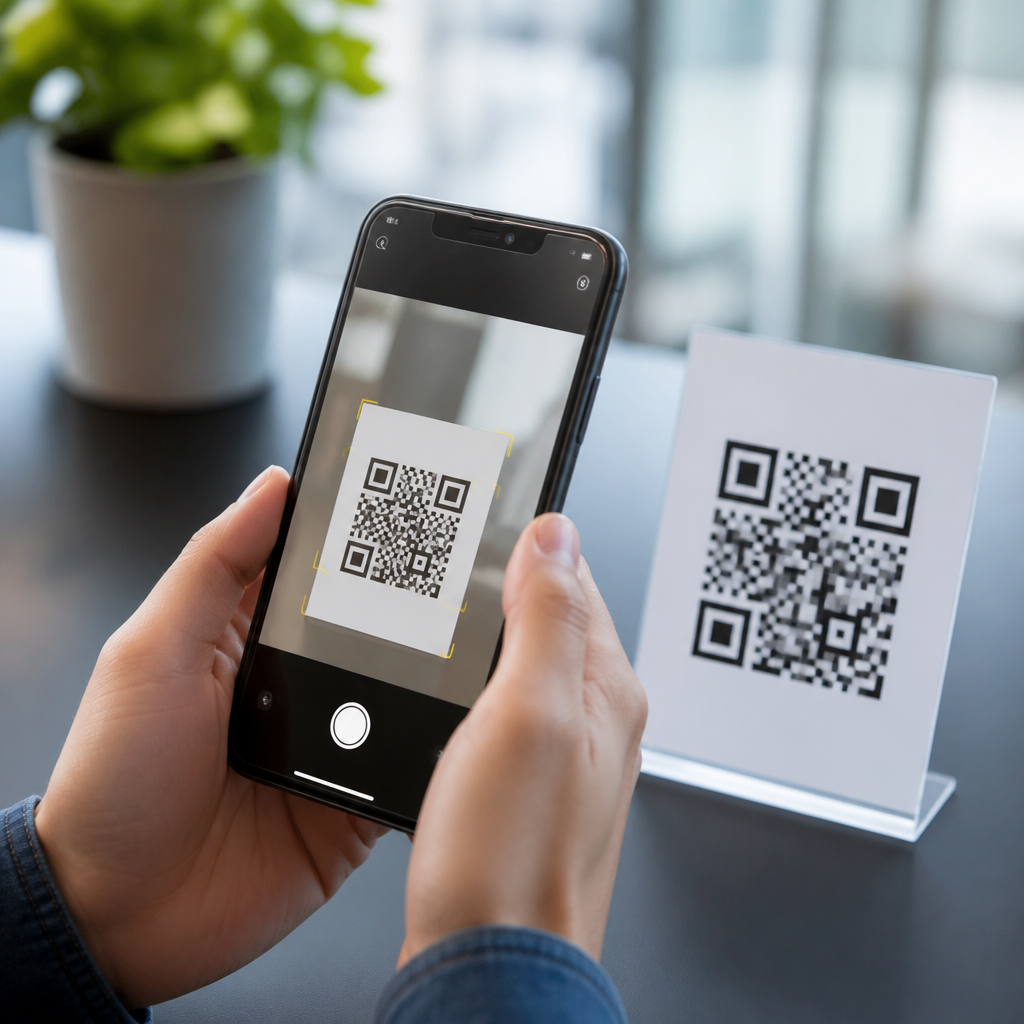
Built-in QR code scanning is now a standard smartphone feature, but the exact experience depends on your phone’s camera app, operating system version, and manufacturer settings. A QR code, short for Quick Response code, is a two-dimensional barcode that stores links, contact details, Wi-Fi credentials, payment information, and app actions. When people ask which phones have built-in QR code scanning, they usually mean one practical thing: can the phone’s default camera recognize a QR code instantly without downloading a separate app?
In my work testing phone setups for onboarding flows, retail displays, restaurant menus, and field service check-ins, I have seen how much friction a missing scanner creates. Users expect the camera to detect codes immediately. If it does not, they assume the code is broken, not their settings. That is why camera integration and operating system support matter. The hardware is rarely the limiting factor. The deciding factors are the camera app’s image recognition features, the mobile OS version, and whether the brand has enabled scanning by default.
For most current iPhones and Android phones, the answer is yes: built-in QR code scanning is available. However, there are important exceptions. Some older phones require a system update. Some Android brands place scanning inside a separate quick settings tile, Google Lens shortcut, or browser tool rather than the main camera view. Others include scanning in the stock camera app but let users disable it in settings. Understanding these differences helps buyers, IT teams, marketers, and support staff choose instructions that match the device in hand and reduce failed scans.
How built-in QR code scanning works on modern phones
Built-in QR code scanning means the phone can detect and interpret a QR code through software already included with the device. In practice, that usually happens inside the native camera app. The user opens the camera, points it at the code, waits a moment, and taps a banner or chip that appears on screen. Under the hood, the phone’s imaging pipeline identifies the square finder patterns, corrects perspective distortion, decodes the payload, and passes the result to the operating system for safe handling.
Modern phones do this quickly because image signal processors and machine vision routines are integrated into the camera stack. Apple bakes QR recognition into iOS camera behavior. Google supports scanning through Android system components, Google Lens, and camera implementations used by Pixel and many partner devices. Samsung, Xiaomi, OnePlus, Motorola, and other manufacturers often add their own camera-layer support as well. The result is broad support, but not perfect consistency. A device may technically support scanning while presenting it differently than another phone running the same Android version.
The biggest user-facing difference is whether scanning is passive or manual. Passive scanning means the camera recognizes the code automatically when it enters the frame. Manual scanning means the user must tap an on-screen scanner mode, open Lens, or choose a QR option from settings. Both count as built-in if no third-party app is required, but passive camera detection is the smoother experience and the one most users expect today.
Which iPhones have built-in QR code scanning
Apple has offered native QR code recognition in the Camera app since iOS 11, released in 2017. That means iPhones capable of running iOS 11 or later can scan QR codes directly with the default camera, provided the feature is enabled. In practical terms, the iPhone 5s and newer gained this ability when updated to iOS 11, though the best day-to-day performance is on newer devices with faster processors and improved autofocus. On current iPhones, scanning is reliable, fast, and consistent across models.
Apple also expanded access beyond the Camera app. Control Center can include a dedicated Code Scanner shortcut, which is useful when camera notifications are disabled or when a code appears on a cluttered background. Wallet, Safari, and system-level deep linking also help the phone handle scanned content intelligently. For example, a Wi-Fi QR code can trigger network join prompts, while event codes may offer calendar actions. Apple’s implementation is polished because the hardware, camera software, and operating system are tightly controlled.
If an iPhone does not scan a QR code, the cause is usually not model incompatibility. More often, the device is running an old iOS version, the Scan QR Codes setting is turned off, the camera cannot focus, or the code itself is low contrast or damaged. In support environments, I usually check Settings, update status, and lighting before assuming a phone limitation. On iPhone, true lack of built-in support is now mostly a legacy-device issue.
Which Android phones have built-in QR code scanning
Android support is broader in total device count but less uniform in execution. Google Pixel phones offer excellent built-in QR scanning through the default Camera app and Google Lens. Many Samsung Galaxy phones also scan directly in the camera app, and Samsung Internet includes its own scanner tools. Motorola, OnePlus, Nokia, Sony, Xiaomi, Oppo, Vivo, and other brands commonly include some form of native scanning, either in camera, quick settings, or Lens integration. Most flagship and midrange Android phones sold in recent years support QR scanning without extra downloads.
Android 9 and later made native support far more common, but operating system version alone does not guarantee behavior. Phone makers customize camera apps heavily. A Samsung Galaxy S series phone may recognize codes immediately in photo mode, while another Android device might require opening Lens from the camera toolbar. Budget devices are more variable because they may ship with lightweight camera apps or delayed updates. Enterprise-managed phones can be different again if administrators restrict camera permissions or disable certain Google services.
| Phone category | Typical built-in QR support | Where scanning appears | Common limitation |
|---|---|---|---|
| iPhone with iOS 11 or later | Yes | Camera app and Control Center | Feature may be disabled in settings |
| Google Pixel | Yes | Camera app and Google Lens | Older models need current app updates |
| Samsung Galaxy recent models | Yes | Camera app, quick panel, browser tools | Interface varies by One UI version |
| Recent Android midrange phones | Usually | Camera app or Lens shortcut | Brand-specific placement |
| Older Android phones | Sometimes | Often not in default camera | May require updates or a separate app |
When someone asks which Android phones have built-in QR code scanning, the practical answer is this: almost all recent mainstream Android phones do, but users may need to look in the camera app, Google Lens, or a quick settings scanner. For customer-facing instructions, device-specific screenshots reduce support tickets because “open your camera” is not universally sufficient on Android.
Camera integration, settings, and manufacturer differences
Camera integration is the deciding factor in whether scanning feels invisible or awkward. Apple keeps the scanner inside the standard photo experience. Google does largely the same on Pixel. Samsung has shifted features over time, but current Galaxy phones generally detect QR codes in the stock camera and also expose related tools elsewhere. Xiaomi and other brands sometimes surface scanning in a “More” tab, AI tools area, or system utility. These differences matter because users often abandon the task after one failed attempt.
Settings also influence success. Many phones let users toggle smart suggestions, scene recognition, or QR scanning. If the toggle is off, the camera may behave like it lacks support. Browser-level scanning can complicate matters too. Some users discover QR support in Chrome, Samsung Internet, or Google app search rather than the camera, which solves the problem but weakens consistency. For organizations publishing codes in stores, packaging, or signage, that inconsistency is why testing across devices remains necessary.
There are also limitations tied to code design and environment, not just phone model. Tiny codes, glossy surfaces, low contrast, poor lighting, and extreme viewing angles reduce recognition rates. Dense codes carrying long URLs or vCard data are harder to read at distance. In field tests, a well-printed black-on-white code at adequate size usually scans on nearly any recent phone, while a stylized inverted code may fail even on premium devices. Built-in support helps, but scan performance still depends on fundamentals.
How to check whether a phone supports native scanning
The fastest test is simple. Open the default camera app, point it at a standard QR code, hold steady for one or two seconds, and look for a banner, link chip, or action prompt. If nothing appears, check camera settings for QR scanning, smart features, or suggestions. On Android, also test Google Lens from the camera, Google app, or home screen widget. If Lens reads the code, the phone has built-in capability even if the main camera does not surface it automatically.
For businesses supporting large user groups, create troubleshooting steps by device family. For iPhone, verify iOS version, the Scan QR Codes toggle, focus, and lighting. For Samsung, confirm One UI version and whether camera scanning is enabled. For Pixel, ensure the camera app and Google components are updated through Google Play. For lower-cost Android devices, check whether the manufacturer replaced the default camera with a stripped-down version that lacks direct code detection. This approach solves most “my phone cannot scan” complaints quickly.
If the phone truly lacks support, a reputable scanner app can fill the gap, but that is increasingly rare on currently sold phones. The bigger issue today is discoverability, not capability. That distinction matters when documenting mobile QR code scanning and technology because readers often think in terms of phone models, while the real answer usually sits at the intersection of camera integration and OS support.
What this means for buyers, publishers, and support teams
If you are buying a phone today, built-in QR code scanning should be assumed on any current iPhone, Pixel, Samsung Galaxy, and most other mainstream Android models. The better purchasing question is how well integrated it is. Native camera detection is the gold standard because it reduces friction. If you publish QR codes, optimize for the broadest compatibility: use high contrast, adequate size, short URLs, and clear placement. If you support users, write instructions by operating system and brand, not by generic smartphone category.
The key takeaway is straightforward: most modern phones have built-in QR code scanning, but the user experience depends on camera integration, operating system version, and manufacturer design choices. iPhones are the most consistent. Android phones are widely capable but more variable in where scanning appears. If you manage campaigns, onboarding, payments, or printed materials, test your codes on at least one iPhone, one Pixel-class Android device, and one Samsung phone. That small step prevents avoidable failures and gives users the fast scan experience they already expect. Review your current device guides and update them to match how phones actually scan today.
Frequently Asked Questions
Which phones have built-in QR code scanning?
Most modern smartphones have built-in QR code scanning through the default camera app or a native utility. That includes current and recent iPhones, Samsung Galaxy phones, Google Pixel phones, and many Android devices from brands such as Motorola, OnePlus, Xiaomi, Oppo, Vivo, and Sony. In practical terms, if your phone was released in the last several years and runs a relatively current version of iOS or Android, there is a very good chance it can scan QR codes without needing a separate app. On iPhone, native QR recognition has been standard for years in the Camera app. On Android, support is also widely available, but the exact experience varies by manufacturer because some brands build the feature directly into the camera, while others surface it through Google Lens or a settings toggle inside the camera app. So the short answer is that built-in QR scanning is now standard on most smartphones, but the way you access it depends on the phone model, software version, and camera app settings.
How can I tell if my phone’s default camera can scan QR codes automatically?
The easiest way to check is to open the default Camera app, point it at a clear QR code, and hold the phone steady for a moment. If built-in scanning is enabled, you should see a banner, pop-up, link preview, or action prompt appear on the screen. On iPhone, this usually happens automatically when the QR code is in view. On Android phones, the prompt may appear right away, or you may need to tap a Lens icon, a scan icon, or enable a setting such as “Scan QR codes” in the camera menu. If nothing happens, it does not always mean the phone lacks support. Sometimes the feature is turned off, the camera app is outdated, or the phone uses Google Lens as the built-in scanning method instead of standard camera recognition. It is also worth checking whether the QR code is well lit, in focus, and large enough to be recognized, since poor lighting and blurry images can prevent detection even on fully compatible phones.
Do all iPhones and Android phones support built-in QR code scanning the same way?
No, and this is where many people get confused. While built-in QR scanning is common across both iPhone and Android, the user experience is not identical. iPhones generally offer a more consistent process because Apple controls both the hardware and software, so the Camera app behavior is similar across supported models. Android is broader and more fragmented. A Google Pixel may rely heavily on Google Lens integration, while a Samsung Galaxy phone may offer both camera-based QR detection and additional scanning tools in its browser or quick settings. Other Android manufacturers may hide the option in camera settings, require a software update, or implement scanning differently depending on the region or device tier. That means two Android phones running similar versions of the operating system can still handle QR scanning in different ways. The feature may be built in on both, but one may scan automatically from the camera viewfinder while another needs the user to tap an icon first.
What should I do if my phone is supposed to have built-in QR scanning but it is not working?
Start with the basics. Make sure you are using the phone’s default Camera app rather than a third-party camera app, since many built-in QR features only work in the manufacturer’s native camera software. Next, check the camera settings for any option related to QR codes, smart scan, Lens, scene detection, or suggestions, and turn it on if needed. Also confirm that your phone’s operating system and camera app are updated, because QR support has expanded through software updates on many devices. If the camera still does not recognize the code, try improving the lighting, cleaning the lens, and holding the phone a little farther back so the entire code fits clearly in frame. On Android, opening Google Lens directly can often solve the problem because many phones use Lens as their built-in scanning engine. If none of that works, your phone may still support QR scanning through a control center shortcut, a browser-integrated scanner, or a settings utility rather than the main camera interface. In older devices, native support may be limited or absent, in which case a trusted QR scanner app may still be necessary.
Is built-in QR code scanning safer than using a third-party QR scanner app?
In many cases, yes. Built-in QR scanning is usually the safer and more convenient option because it comes from the phone manufacturer or operating system provider, which reduces the need to download extra apps that may request unnecessary permissions or include ads, tracking, or security risks. A native camera app typically only needs camera access and presents the QR result directly, making the process simpler and more trustworthy. That said, built-in scanning does not remove all risk. A QR code can still lead to a malicious website, fraudulent payment page, fake login screen, or unsafe download. The safer approach is to use the built-in scanner and then review the destination before tapping. Check that the web address looks legitimate, avoid entering passwords on unfamiliar pages, and be cautious with QR codes posted in public places where stickers can be replaced or tampered with. So while built-in QR code scanning is generally the best default choice, safe use still depends on paying attention to where the code is trying to send you.





