
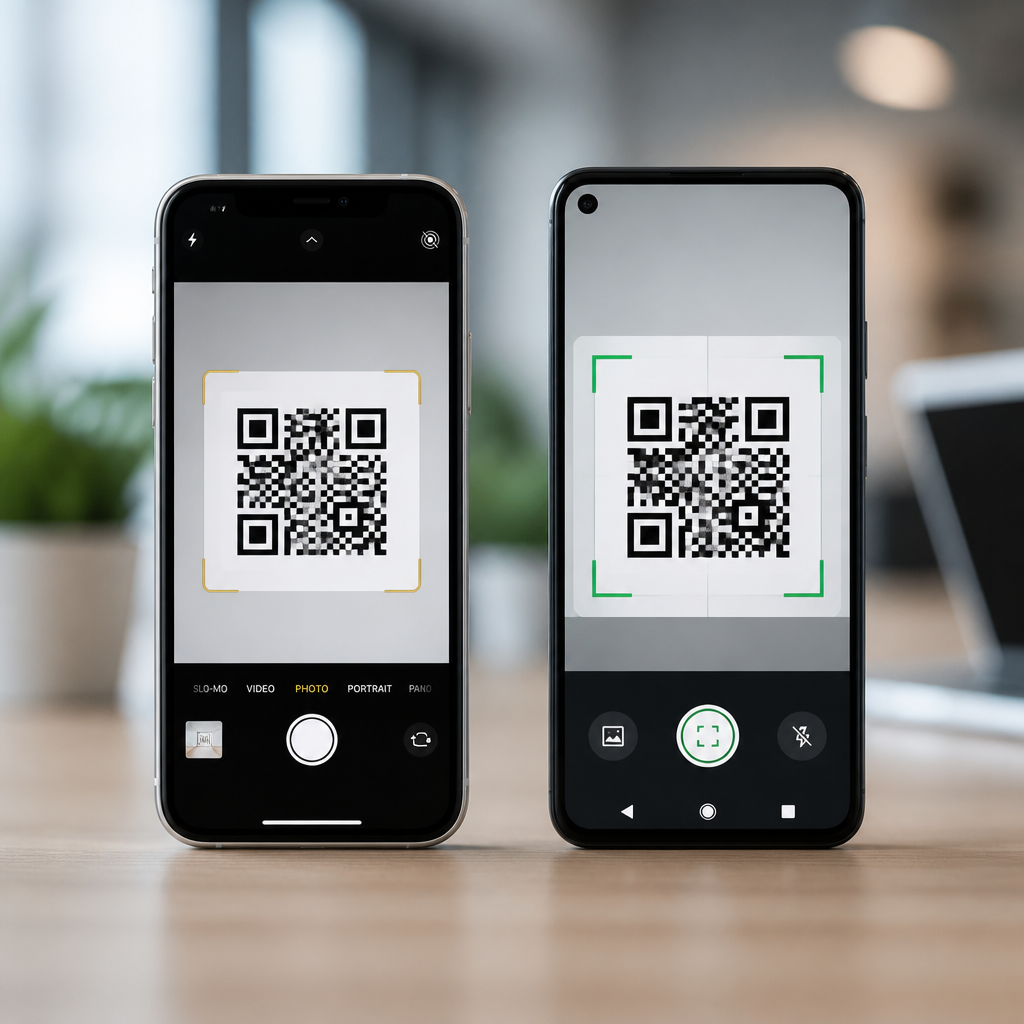
Differences between iOS and Android QR scanning start with one practical question: what happens when a user points a phone camera at a code? In my work testing QR campaigns across retail stores, event check-ins, and packaging lines, that simple action has produced very different results depending on the device, operating system version, default camera app, and privacy settings. For marketers, product teams, and IT administrators, understanding camera integration and OS support is essential because scan reliability directly affects conversion rates, customer support volume, and security outcomes.
A QR code is a two-dimensional barcode that stores structured data such as a URL, Wi-Fi credential, contact card, app deep link, payment request, or authentication token. QR scanning is the process by which a device camera detects the code, decodes the symbol, and hands the payload to the operating system or an app for action. Camera integration refers to how deeply QR recognition is built into the native camera experience. OS support means the scanning capabilities, permissions model, and actions the operating system provides before, during, and after a scan.
This topic matters because mobile scanning is now a default user behavior, yet iOS and Android do not deliver a uniform experience. Apple controls both hardware and software, so QR behavior is relatively consistent across supported iPhone models. Android is broader: Google defines platform capabilities, but manufacturers such as Samsung, Xiaomi, Motorola, and OnePlus can alter camera apps, menus, and preinstalled scanners. As a result, the same code can open instantly on one phone, require extra taps on another, or fail entirely if the camera app lacks integrated decoding.
For a hub article on mobile QR code scanning and technology, camera integration and OS support are the foundation. They shape scan speed, supported data types, user prompts, security warnings, accessibility, and enterprise deployment choices. If you build printed campaigns, mobile onboarding, payments, or field workflows, the differences below explain why testing on “one iPhone and one Android phone” is never enough.
Native camera scanning on iPhone versus Android
On iPhone, native QR recognition has been integrated into the Camera app since iOS 11. A user usually opens Camera, points it at the code, and receives a banner notification near the top of the screen. The flow is predictable because Apple ships the camera software and defines the interaction model. In current iOS releases, QR detection works from the rear camera and also through Control Center’s dedicated Code Scanner, which isolates scanning from photo capture and can improve reliability in cluttered scenes.
Android support is more fragmented. Google Lens, the Android Camera app on Pixel devices, and many manufacturer camera apps can decode QR codes natively, but the path varies. On some phones, scanning is always on inside the camera viewfinder. On others, the user must enable “Scan QR codes” in settings, tap a Lens icon, or open a separate scanner utility. Samsung’s Camera app, for example, has offered built-in QR support on modern Galaxy devices, while older or lower-cost Android models have sometimes relied on Bixby Vision, Google Lens, or third-party apps.
The practical difference is friction. In field testing, iPhones generally produce a more consistent first-scan success rate because fewer decisions are required from the user. Android can match or exceed that performance on well-configured devices, especially Pixels, but campaign designers must expect variation across OS versions, OEM skins, and camera applications.
Operating system versions and support boundaries
Version support matters as much as brand. Apple introduced native QR reading in iOS 11, and most mainstream iPhone users now run later versions where the feature is mature. Because Apple pushes OS updates directly, security patches and scanning improvements reach supported devices quickly. That centralized update model reduces compatibility uncertainty for businesses deploying QR-based instructions, login flows, or app clips.
Android’s baseline is less clean. The platform has supported QR workflows in several forms for years, but native behavior depends on Android version, Google Play Services, and the manufacturer’s camera implementation. A phone running Android 14 with a recent camera app may offer immediate in-camera detection, on-device suggestions, and Lens integration. A budget handset on an older Android release may still scan successfully, but only through a separate app. In enterprise fleets, I have seen two devices with the same Android version behave differently solely because one OEM removed features from the stock camera.
Support boundaries also affect specialized actions. Some payloads, such as Wi-Fi network joining or calendar event creation, may trigger polished native prompts on one platform and a plain text result on another. For cross-platform QR deployments, assume URL handling is universal, but test any richer payload type on target devices before rollout.
Detection behavior, user interface, and speed
iOS favors a banner-driven interaction. When the camera recognizes a code, the operating system presents a clear notification that identifies the action, such as opening a website, joining a Wi-Fi network, or adding a contact. That top-of-screen treatment reduces accidental launches because the user must tap the banner. Apple also applies recognizable visual feedback in Code Scanner and Control Center, making the process accessible even for users who do not regularly scan codes.
Android interfaces vary more widely. Pixel devices often surface an inline chip or Lens result with strong contextual labeling. Samsung may present a direct link prompt inside the camera interface. Other brands can be less explicit, especially when the camera app passes the image to a visual search tool first. This inconsistency changes scan speed. A device that auto-detects and labels a URL in under a second feels effortless; a device that needs manual focus, a Lens tap, and a confirmation screen feels slow even if the underlying decode engine is accurate.
| Factor | iOS | Android |
|---|---|---|
| Native camera support | Standard across supported iPhones | Depends on OEM camera app and settings |
| Update model | Apple-controlled, consistent rollout | Google and OEM controlled, fragmented rollout |
| Default scan prompt | Top banner or Code Scanner result | Inline chip, Lens result, or separate scanner |
| Setup friction | Usually none | May require enabling QR or using Lens |
| Testing complexity | Lower | Higher across brands and versions |
Supported payloads and action handling
Not all QR codes are equal, and the operating system decides what to do after decoding. Both iOS and Android handle plain URLs well, including HTTPS links, app store destinations, and many deep links. Differences appear with structured formats such as MECARD, vCard, SMS, email, telephone, geolocation, and Wi-Fi credentials. iPhone typically translates these into polished native actions, while Android behavior depends on the default app stack and the parser built into the camera or Lens layer.
Wi-Fi QR codes are a common example. On recent iPhones and modern Android devices, scanning a properly formatted Wi-Fi code can prompt the user to join a network directly. In practice, Android support has historically varied more because OEMs implement connection prompts differently. Payment and authentication codes also diverge. Some Android markets rely heavily on QR payments integrated with specific wallet apps, while iOS may route the same scan through Safari unless a compatible payment app claims the URI scheme.
This is why payload design should be conservative on a public-facing campaign. Use standards-based formats, avoid obscure encodings, and provide a fallback URL when possible. The more exotic the payload, the more likely platform-specific handling will confuse users.
Permissions, privacy, and security differences
Camera permission is the first gate on both platforms, but the surrounding privacy model differs. iOS presents a straightforward camera access prompt and generally limits background ambiguity. If an app scans through AVFoundation or the native scanner, the user understands that camera access is being used for code recognition. Apple also tends to separate scanning from auto-opening, requiring a deliberate tap before launching content.
Android permissions can be equally clear, yet the ecosystem introduces more variables. A third-party scanner app may request camera access plus storage, contacts, or network permissions that are not strictly necessary for decoding. Google Play Protect reduces risk, but IT teams should still prefer native camera scanning or trusted enterprise apps. From a security standpoint, both platforms can be exposed to malicious QR destinations, including phishing pages and fake login flows. The protection comes less from the code format and more from URL preview clarity, browser safe browsing controls, mobile device management policies, and user education.
For business deployments, the safest practice is to use short, readable domains, HTTPS, and landing pages that match brand expectations. If users see an unfamiliar redirect chain after scanning, trust drops immediately regardless of operating system.
Implications for businesses, developers, and support teams
The operating differences between iOS and Android affect implementation decisions at every stage. For printed marketing, high contrast, quiet zone spacing, and moderate data density matter because low-end Android cameras may struggle sooner in dim light. For app onboarding, iPhone users can usually rely on the default camera, while Android instructions should mention Camera, Lens, or the device’s built-in scanner explicitly. For help desks, support scripts need model-specific branches instead of generic advice.
Developers should also decide whether to depend on native scanning or build an in-app scanner using frameworks such as Apple’s AVFoundation, Google ML Kit, or ZXing. Native scanning reduces onboarding friction and benefits from OS-level improvements. In-app scanning gives control over guidance overlays, validation rules, analytics, and post-scan routing. The tradeoff is maintenance: you inherit camera permission handling, autofocus edge cases, and device compatibility testing.
If this page is your hub for camera integration and OS support, the core lesson is simple: iOS offers consistency; Android offers breadth with variability. Design QR experiences that tolerate both. Test on current iPhones, Pixel devices, Samsung Galaxy phones, and at least one budget Android model. Verify native camera behavior, Lens fallback, payload handling, and security messaging before launch.
Differences between iOS and Android QR scanning are not minor interface quirks; they determine whether a user reaches the right destination quickly and safely. iPhone provides a tightly integrated, predictable camera experience with centralized OS support. Android provides powerful scanning capabilities too, but the exact path depends on version, manufacturer, camera app, and settings. Those distinctions influence scan speed, payload compatibility, privacy expectations, and support complexity.
For anyone managing mobile QR code scanning and technology, camera integration and OS support should guide planning from the start. Use standard payloads, keep destinations trustworthy, write platform-aware instructions, and test across real devices instead of assuming parity. If you are building a QR-enabled campaign, product flow, or enterprise process, audit your current codes against both ecosystems and refine the experience before users find the weak points for you.
Frequently Asked Questions
How do iPhone and Android phones differ when scanning a QR code with the camera app?
The biggest difference usually comes down to how deeply QR recognition is built into the default camera experience. On most modern iPhones, QR scanning is tightly integrated into the native Camera app, so users can simply open the camera, point it at a code, and wait for a banner notification to appear. The process is generally consistent across supported iOS versions because Apple controls both the hardware and software environment. That consistency is one reason QR interactions on iPhone often feel predictable in testing.
On Android, the experience can vary much more. Some devices recognize QR codes directly in the default camera app, while others rely on Google Lens integration, a separate scan mode, or a manufacturer-specific feature. In real-world campaigns, that means one Android user may get an instant link prompt, while another may need to tap an on-screen icon, enable permissions, or use a different camera mode entirely. Android fragmentation across brands, OS versions, and camera software makes QR behavior less uniform. For marketers and IT teams, this matters because the “just point and scan” assumption is more reliable on iOS than across the full Android ecosystem.
Why does a QR code work instantly on one phone but not on another?
There are several common reasons, and most of them have nothing to do with the QR code itself being broken. First, operating system version matters. Newer iOS and Android releases tend to support QR recognition more seamlessly, while older devices may lack native detection or require a dedicated app. Second, the default camera app matters. On iPhone, the built-in Camera app is usually the standard path. On Android, however, manufacturers often customize the camera experience, and not every version handles QR scanning the same way.
Permissions and settings also play a major role. Some users may have camera access restricted, notifications disabled, or QR scanning features turned off. In managed enterprise environments, mobile device management policies can affect whether links open automatically or whether certain apps can respond to scanned content. Lighting, focus speed, code size, screen glare, print quality, and contrast can further affect scan success. A code that works perfectly on a flagship phone in ideal conditions may perform poorly on an older device in low light. That is why experienced teams test QR campaigns across multiple devices, software versions, and use cases instead of validating on a single phone and assuming universal behavior.
Do iOS and Android handle QR code security and privacy differently?
Yes, and the differences are important. iOS generally presents QR scan results in a controlled, system-level way, often through a banner or prompt that allows the user to decide whether to open the destination. Apple’s approach tends to feel streamlined and permission-aware, with fewer variations across devices. This consistency helps reduce user confusion, especially when the QR code leads to a website, app clip, contact card, Wi-Fi setup, or other structured action.
Android also supports secure QR interactions, but the privacy and security experience can differ depending on the device maker, Android version, browser defaults, and whether Google Lens is involved. Some devices may send the scan through a broader visual recognition layer, while others process it directly in the camera app. Users may see different prompts, preview cards, or browser handoffs. From a security standpoint, both platforms still depend heavily on user trust in the destination. A QR code can lead to a legitimate landing page or a malicious one. That means organizations should use clear branding, secure HTTPS destinations, and recognizable domain names. In practical deployment, the main platform difference is not that one is safe and the other is unsafe, but that the user journey and warning cues may look different enough to influence whether people feel confident proceeding.
What should businesses know when designing QR campaigns for both iPhone and Android users?
The most important rule is to design for the widest range of scanning conditions, not for the best-case scenario. That means using high-contrast codes, generous white space, appropriate print size, and placements that account for distance, motion, glare, and lighting. Since iPhone users often have a more uniform native scanning flow, teams sometimes underestimate how much more variable Android behavior can be. A code placed on product packaging, a store shelf tag, or an event badge may scan differently depending on autofocus quality, camera software, or whether the user expects a Lens-style interaction rather than a direct camera prompt.
Destination design matters just as much as scanability. Once scanned, the landing page should load quickly, display well on both iOS and Android browsers, and avoid unnecessary redirects that can create friction. If the QR code triggers app behavior, account login, coupon redemption, form completion, or check-in workflows, teams should test those flows separately on Safari and on common Android browser environments. It is also smart to provide a short fallback URL near the code for users whose devices do not scan smoothly. For enterprise and retail deployments, cross-platform testing should include different device ages, screen states, network conditions, and privacy settings. The teams that get the best results usually treat QR as a full user journey, not just a scannable square.
Are there differences in supported QR code actions between iOS and Android?
Both platforms support the most common QR outcomes, such as opening websites, launching maps, saving contact information, joining Wi-Fi networks, and initiating messages or calls, but they do not always present these actions in the same way. iOS tends to package these interactions into a cleaner, more standardized prompt system, so users often see a familiar banner or action card. That consistency can make QR-based experiences easier to predict, especially in consumer-facing campaigns where reducing hesitation is important.
Android supports many of the same QR payload types, but the exact response can depend on the phone manufacturer, installed apps, default handlers, and whether the device routes the scan through the camera app or Google Lens. For example, one Android device may immediately offer to join a Wi-Fi network, while another may open a preview step first. Similarly, deep links, app intents, and specialized enterprise workflows may behave differently depending on app associations and OS-level permissions. For product teams and administrators, the key takeaway is that “QR support” should never be treated as a single yes-or-no feature. It is better understood as a chain of capabilities: camera detection, content parsing, user prompting, app handoff, and final action completion. Each platform handles that chain a little differently, and those differences can affect conversion, support load, and overall usability.





