
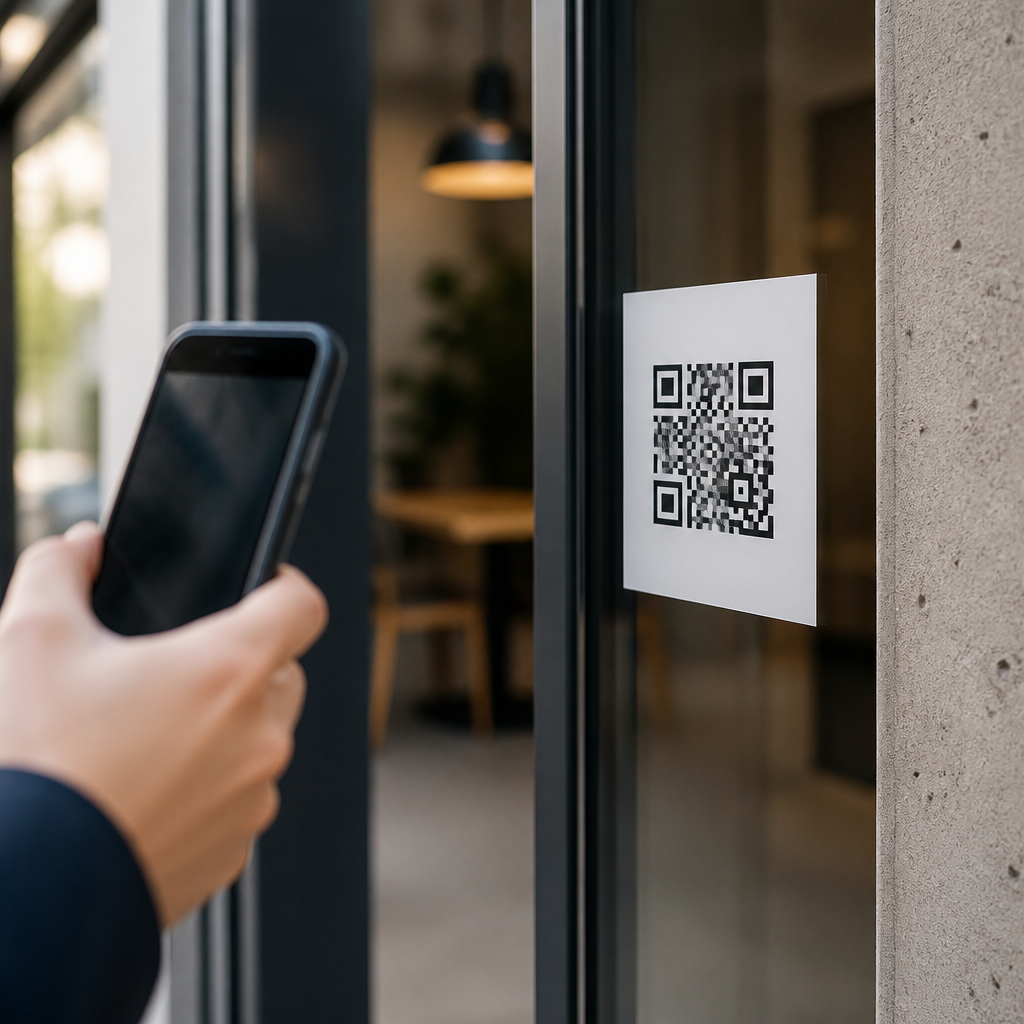
QR codes look simple, but placement mistakes routinely turn a useful shortcut into a failed scan, a lost conversion, or a frustrating customer interaction. In the mobile QR code scanning and technology space, troubleshooting QR code scans starts with a basic truth: most scan failures are not caused by the code itself, but by where and how that code appears in the real world. Placement includes the code’s physical location, viewing angle, print size, surrounding design, lighting conditions, surface material, and distance from the scanner. If any of those variables are wrong, even a technically valid QR code can perform badly.
I have audited QR campaigns on product packaging, retail signage, restaurant tables, warehouse labels, event badges, and vehicle wraps, and the same errors appear again and again. Teams often test a code on a desktop printer under ideal office lighting, then deploy it to curved bottles, reflective windows, or high-mounted posters where ordinary smartphone cameras struggle. Because modern scanning depends on autofocus, contrast detection, image stabilization, and error correction working together, placement decisions directly affect scan speed and reliability. This matters for marketing, operations, payments, authentication, and customer support. A QR code that cannot be scanned quickly fails its primary job.
This article serves as a hub for troubleshooting QR code scans by focusing on the most common placement mistakes, why they happen, and how to prevent them before launch. You will learn how size, height, curvature, glare, background clutter, and user flow influence scan success, and how to evaluate placement in realistic conditions. The goal is practical: help you place codes where people can actually scan them, on the first try, with the devices they already use.
Using QR Codes That Are Too Small for Real Viewing Distances
The most common QR code placement mistake is making the code too small for the expected scanning distance. A code that scans perfectly from six inches away may fail at three feet. In practice, the minimum physical size should be tied to the distance between the user and the code. A dependable rule used in print production is a 10:1 ratio: for every ten units of viewing distance, provide one unit of code width. A one-inch code may work at about ten inches, but not across a lobby or from a drive-thru lane.
This is why QR codes on billboards, transit shelters, and overhead signs often underperform. People cannot safely approach them, and smartphone cameras lose detail before the decoding software can lock onto the modules. Dense codes are even less forgiving because they contain more data in the same space. When I review placements, I usually recommend shortening the URL or using a dynamic QR platform so the code matrix stays simpler and the print size can be larger. If users must zoom, step closer, or rescan repeatedly, placement has already failed.
Placing Codes on Glare, Curves, and Distorted Surfaces
Surface choice matters as much as size. QR codes perform best on flat, matte surfaces with high contrast and minimal distortion. They perform poorly on glossy posters, laminated menus, shrink sleeves, metallic labels, car windows, and curved bottles because reflections and warping interfere with module recognition. Smartphone cameras may capture the code, but decoding engines can misread alignment patterns when glare obscures corners or when the square grid bends around a cylinder.
Common examples include QR codes printed on refrigerated drink bottles, framed storefront signs facing direct sunlight, and table tents under spotlights. In each case, users see the code but cannot complete the scan consistently. The fix is straightforward: move the code to a flatter panel, use a matte finish, increase quiet zone space, and test under the exact lighting where customers will encounter it. ISO/IEC 18004 defines the symbol structure, but compliant generation alone does not guarantee field performance if placement introduces optical distortion.
Ignoring Lighting, Contrast, and Background Interference
Many scan problems are really visibility problems. A QR code needs strong luminance contrast between dark modules and the light background, plus a clean quiet zone around the symbol. Designers often weaken performance by placing codes over photos, textured brand colors, transparent layers, or low-contrast palettes such as dark gray on black. The result may look polished in a mockup but scan unreliably on midrange phones or in dim environments.
Lighting amplifies these issues. A code near a bright window can backlight the surface and reduce apparent contrast. A code inside a restaurant may scan at noon and fail at dinner when ambient light drops. Outdoor installations face shadows, weather, and changing sun angles. During field tests, I use both flagship and budget Android devices plus recent iPhones because camera quality varies significantly. Good placement assumes ordinary conditions, not ideal ones.
| Mistake | Why Scans Fail | Better Placement Choice |
|---|---|---|
| Code too small | Camera cannot resolve modules at normal distance | Increase print size and simplify encoded data |
| Glossy or curved surface | Glare and distortion break alignment detection | Use matte, flat panels wherever possible |
| Busy background | Low contrast and poor quiet zone confuse scanners | Place on plain light background with clear margins |
| High or awkward location | Users cannot frame code steadily | Install at chest-to-eye level in natural approach paths |
Mounting Codes Too High, Too Low, or Outside Natural User Flow
Even a perfectly printed code can fail if people cannot comfortably aim at it. Placement should match normal body position and traffic flow. Codes installed above eye level on walls, at floor level on shelves, or behind counters force awkward camera angles that reduce focus and stability. In retail environments, the best-performing codes are usually positioned between chest and eye height, where users can pause briefly without blocking others.
Context matters. A payment QR at a checkout should face the customer squarely, not sit flat under a plexiglass shield. A museum code should appear beside the object description, not several feet away where visitors must guess what it relates to. A warehouse QR should be reachable from the worker’s scanning position without stretching or twisting. If users must step into traffic, crouch, or rotate their phones sharply, expect lower completion rates. Good placement follows user intent and minimizes physical friction.
Forgetting That Mobile Cameras Need Time, Space, and Stability
Smartphone scanning is fast, but it is not magic. Cameras need enough distance to focus, enough space to frame the full code, and enough stability to avoid blur. This is why QR codes placed on revolving doors, moving buses, escalator rails, or swinging hang tags often disappoint. The user has only a second or two to align the shot, and the subject may move before the decoder finishes.
Packaging creates a similar problem. A code placed near a box seam, bottle neck, or crimped pouch edge may be partially hidden when handled naturally. Some labels wrinkle after application, which breaks the clean geometry scanners expect. In troubleshooting sessions, I ask teams to watch ten first-time users attempt a scan without instruction. If several people adjust distance repeatedly, turn the object, or ask where to stand, the placement is wrong even if the code eventually works.
Overlooking Environmental Testing and Device Variability
One of the costliest mistakes is approving placement after only a single desktop test. Real-world QR troubleshooting requires environmental testing across devices, carriers, cases, and conditions. Apple’s Camera app, Google Lens, Samsung’s camera tools, and dedicated scanner apps all decode slightly differently. Older phones have weaker autofocus and lower low-light performance. Screen protectors, cracked lenses, and smudged cameras further reduce scan reliability.
Testing should cover morning and evening light, indoor and outdoor use, expected approach distance, and realistic user movement. For print, verify output after the final production process, not from a digital proof. Ink spread, lamination, embossing, and substrate texture can change edge sharpness. For signage, check line of sight from actual foot traffic lanes. Analytics from dynamic QR platforms can reveal weak placements indirectly through low scan-through rates, but field observation still identifies the root cause faster than dashboard data alone.
Missing the Supporting Signals That Help People Complete the Scan
Placement is not only physical. Users also need confidence that scanning is worth the effort and safe to do. A QR code without a label, instruction, or expected outcome gets ignored, especially in security-conscious environments. Simple adjacent text such as “Scan for menu,” “Scan to pay,” or “Scan for setup guide” improves completion because it reduces ambiguity. In troubleshooting, low scan volume is often misdiagnosed as a visibility issue when the real problem is lack of context.
Trust signals matter too. Place codes near recognizable branding, keep destination domains clean and relevant, and avoid forcing users to scan while walking or driving. If mobile data is weak in the location, provide fallback instructions or short URLs. The strongest QR placements combine scannability, context, and convenience. They respect the limitations of cameras and the habits of people.
The core lesson is simple: troubleshooting QR code scans begins long before anyone opens a camera app. Most failures come from preventable placement choices, including undersized codes, reflective or curved surfaces, poor contrast, awkward mounting height, motion-heavy environments, and weak user guidance. When placement matches viewing distance, lighting, surface conditions, and natural user behavior, scan rates improve quickly and support issues drop.
As the hub for this troubleshooting topic, this page establishes the main principles that connect every related issue in mobile QR code scanning and technology. Whether you are diagnosing a restaurant menu that fails under dim lighting, a packaging code distorted by shrink wrap, or a retail sign mounted too high to frame easily, the same evaluation method applies: test the real environment, use multiple phones, and remove friction one variable at a time.
If you are planning or repairing a QR deployment, start with a field audit today. Measure distance, inspect glare, verify contrast, and watch real users attempt the scan. Small placement corrections often deliver the fastest gains.
Frequently Asked Questions
What is the most common QR code placement mistake businesses make?
The most common mistake is placing a QR code where it is technically visible but not practically scannable. A code may look fine in a design proof, on a poster mockup, or on product packaging, yet fail in the real world because users cannot comfortably approach it, hold their phone steady, or capture it at the right angle. This happens often when codes are placed too high, too low, around corners, behind reflective materials, on curved surfaces, or in areas with poor lighting. In each case, the QR code itself may be perfectly generated, but its location creates friction that stops the scan from happening.
Another major issue is treating QR code placement as a visual design decision rather than a usability decision. Teams sometimes prioritize symmetry, branding, or available empty space over scan conditions. For example, placing a QR code near the fold of a brochure, close to the bottom edge of signage, or on glossy packaging can reduce scan success even if the code looks clean and professional. Effective placement starts with the user’s physical experience: Can they notice it quickly, get close enough, avoid glare, and hold their device at a natural angle? If the answer is no, the placement is likely working against performance.
A good rule is to evaluate placement in the same environment where real customers will scan. Test at actual viewing distances, under actual lighting, and from common approach angles. If users hesitate, reposition themselves awkwardly, or need multiple scan attempts, the placement is creating a barrier. In most cases, improving location and visibility does more for scan performance than redesigning the QR code itself.
How does print size affect QR code scanning success?
Print size has a direct impact on whether a phone camera can detect and decode a QR code quickly. When a code is printed too small for its expected scanning distance, users may have to move uncomfortably close, zoom in, or try several times before their device recognizes it. This is especially common on posters, menus, shelf tags, flyers, and outdoor signage, where the designer assumes users will stand close but real-world conditions keep them farther away. A code that is readable at arm’s length may fail entirely from a few feet away.
Size also interacts with data density. A QR code carrying a long URL, tracking parameters, or other embedded information becomes more visually complex, which means a small print version can lose clarity faster than a simpler code. If that smaller code is then printed on textured stock, low-quality material, or a slightly curved surface, the effective readability drops even more. In other words, “small but technically visible” is not the same as “easy to scan.” For user experience, easy scanning should always be the standard.
As a practical approach, size should be matched to expected viewing distance and environment. Codes used in close-range situations, such as product labels or tabletop displays, can be smaller than codes used on walls, windows, transit ads, or event signage. It is also wise to preserve a clear margin around the code and avoid shrinking it to make room for other design elements. If there is any doubt, print larger and test under realistic conditions. A slightly bigger QR code is almost always a better choice than one that saves space but costs scans.
Why do lighting, glare, and surface material cause so many QR scan failures?
Lighting problems are one of the biggest hidden causes of poor QR code performance. Phone cameras need enough contrast and clarity to distinguish the code’s pattern, and placement can either support that or undermine it. A QR code placed in dim areas, under inconsistent indoor lighting, or in shadows may be difficult for cameras to lock onto. On the other end of the spectrum, strong direct light can wash out details or create hot spots that obscure the code. This is why a code may scan perfectly in one location at noon and fail in the same location later in the day or under different weather conditions.
Glare is especially problematic on glossy, laminated, metallic, glass, or plastic surfaces. Even when the code is large enough and printed correctly, reflections can block part of the pattern from the camera’s view. Users then tilt their phones repeatedly, move side to side, or assume the QR code is broken. Placement on windows, shiny packaging, refrigerated displays, and polished signage often causes these issues. Curved surfaces add another complication by distorting the shape of the code or reflecting light unevenly across it.
The best solution is to think beyond the file and focus on the finished environment. Matte surfaces generally perform better than reflective ones. If a glossy or transparent material must be used, test from multiple angles and under typical lighting conditions, not just ideal studio lighting. Positioning the code where ambient light supports visibility without creating reflection can dramatically improve scan rates. In practice, a well-placed QR code on a simple matte background usually outperforms a visually impressive code placed on a reflective or poorly lit surface.
How much empty space should be around a QR code, and why does surrounding design matter?
A QR code needs clear space around it so scanners can identify its boundaries quickly and distinguish it from nearby text, graphics, borders, and background elements. This empty margin, often called the quiet zone, is essential for reliable decoding. When designers place a QR code too close to headlines, decorative patterns, icons, product photos, or colored blocks, the camera may struggle to isolate the code cleanly. The result is slower scans, inconsistent recognition, or total scan failure on some devices.
Surrounding design matters because real-world scanning happens fast and often under less-than-perfect conditions. Users are not studying the code; they are pointing a phone at it while walking, standing in line, browsing a shelf, or glancing at a sign. Busy layouts increase visual noise and make the code harder for both people and devices to process. This becomes an even larger problem when the code is customized with brand colors, logos, or non-standard styling. Customization can work, but only if contrast remains strong and the code still has enough clean separation from its environment.
From a placement standpoint, the safest approach is to give the QR code breathing room and keep nearby elements simple. Avoid placing it inside cluttered design zones or tight containers that visually compete for attention. Do not let borders, callouts, or background textures crowd the edges. A code that stands apart from surrounding content is faster to notice and easier to scan. In SEO and conversion terms, that matters because every extra second of hesitation increases the chance that the user abandons the interaction entirely.
Where should a QR code be placed to maximize scans and reduce user frustration?
The best placement is wherever people can comfortably see, approach, and scan the code in one natural motion. That usually means positioning it at an accessible height, on a flat or mostly flat surface, with good lighting, strong contrast, and enough open space around it. The ideal location depends on the format. On posters and signs, the code should be within easy phone-camera range rather than at the very top or bottom. On packaging, it should sit on a panel users can view without twisting the item awkwardly. On tables, menus, and point-of-sale materials, it should be placed where hands, shadows, or other objects are less likely to obstruct it.
Context also matters. A QR code in a crowded retail aisle needs different placement than one in a waiting room, at a trade show booth, or on a direct mail piece. Ask what the user is doing in that moment. Are they walking by quickly, standing still, carrying a bag, or scanning through glass? Are they likely to scan from several feet away or from just a few inches? Good placement decisions come from answering those questions before printing or publishing. The more natural the physical interaction feels, the better the scan performance tends to be.
To maximize results, pair smart placement with clear guidance. A short call to action near the code helps people understand why they should scan and what they will get. Then test in realistic conditions using different phones and camera apps. If users have to bend, reach, fight glare, or guess where to stand, the placement needs work. The goal is simple: the QR code should feel effortless to scan. When placement removes friction, scan rates improve, customer frustration drops, and the code becomes the shortcut it was meant to be.





