
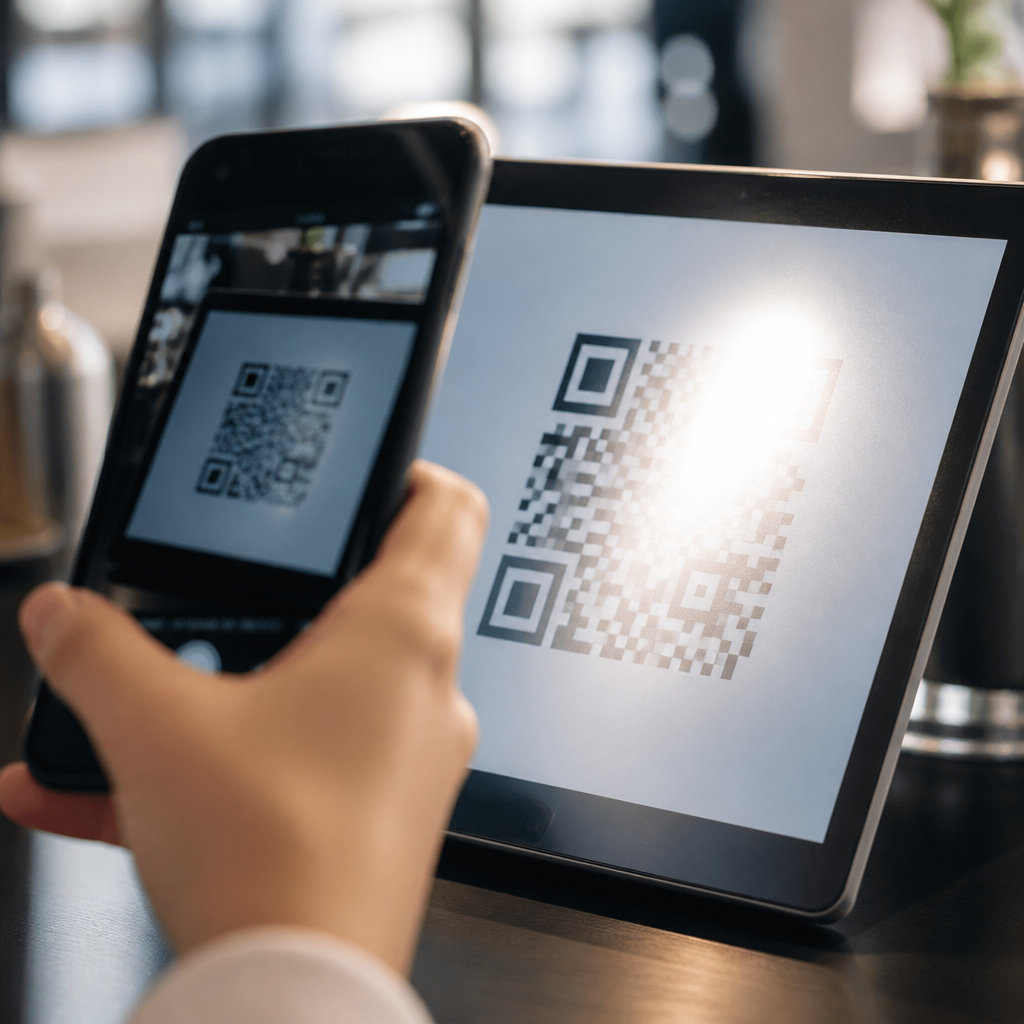
Screen glare affects QR code scanning by reducing contrast, obscuring finder patterns, and confusing the camera’s exposure system at the exact moment a phone tries to decode the symbol. In practical terms, glare is the bright reflection you see on a phone, tablet, kiosk, laptop, or glossy printed surface when ambient light bounces toward the camera lens. QR code scanning is the process of capturing the code image, locating its square markers, correcting perspective, and converting the pattern into data. When glare interferes with any of those steps, scans slow down, fail outright, or produce inconsistent results that frustrate users and reduce conversions.
I have seen this problem repeatedly in retail checkouts, restaurant table tents, warehouse receiving stations, trade show booths, and app onboarding flows. A code that looks perfectly fine to the human eye can become unreadable once a camera encounters a hot spot across the center modules or one of the three position markers. This matters because mobile QR code scanning depends on speed and certainty. Users do not troubleshoot for long; they move on. For marketers, operators, and product teams, glare is not a cosmetic issue. It is a measurable performance problem tied to completion rates, customer trust, and support volume.
As a hub for troubleshooting QR code scans, this article explains why screen glare causes failures, how to recognize it, what conditions make it worse, and which fixes consistently improve scan reliability. It also connects glare to the broader causes of poor mobile QR code scanning, including low contrast, wrong sizing, display brightness, camera focus, damaged codes, and environmental lighting. If you need one page that frames the entire troubleshooting category clearly, start here.
Why glare breaks QR code scanning
A QR code scanner does not read meaning first; it reads structure. The software looks for high-contrast boundaries, especially the three large finder squares in the corners, then samples the grid of dark and light modules. Glare disrupts that structure by creating specular highlights, areas where reflected light overwhelms the intended black-white pattern. The result is clipped detail. Black modules appear gray, white modules bloom brighter, and edge detection becomes unreliable. On glossy screens, this often happens under sunlight, overhead LED panels, or direct spotlights.
Modern phones try to compensate using autofocus, autoexposure, and image signal processing, but those systems can make glare worse. If a reflection occupies a bright area, the camera may lower exposure for the whole frame, pushing the rest of the code into shadow. If the reflection is small and intense, the camera may keep exposure stable but lose local detail where the hot spot lands. In both cases, decoding suffers. Frontline teams often describe this as “the code won’t scan unless I tilt the phone,” which is accurate: changing angle changes reflection geometry.
Glare also interacts with motion. A user who moves the device while searching for a reflection-free angle introduces blur. That blur softens module edges further, particularly on lower-end cameras or in dim indoor spaces. On older Android hardware and entry-level tablets, I have measured scan times doubling simply because a shiny screen under ceiling lights forced users to hunt for the right angle before the app could lock focus.
Where glare shows up most often
Glare problems are common on self-service kiosks, point-of-sale screens, digital menus, transit gates, event check-in tablets, and laptop displays used for desktop-to-mobile handoffs. In each case, the QR code is presented on a bright display covered by glass. That glass is reflective by design. A kiosk near a storefront window can become nearly unscannable at certain hours because sunlight shifts across the screen. Restaurant QR menus fail under pendant lights when the code is small and placed on a glossy acrylic stand. Conference badges printed with laminate have the same issue, even though they are not electronic screens.
Another frequent scenario is peer-to-peer scanning: one person shows a payment or login code on a phone, and another person scans it. Phone screens are small, reflective, and often covered with fingerprints. If brightness is set too low, the scanner struggles with contrast. If brightness is set too high under direct light, the camera may catch a glare band. Foldables and older OLED panels add another wrinkle because pulse-width modulation and moiré effects can interfere at certain shutter speeds, though glare remains the more common culprit.
For teams troubleshooting QR code scans broadly, glare should be considered alongside code density, module size, distance, and the quality of the scanning app. A dense version 10 code on a dim phone screen is less tolerant of reflections than a short URL encoded in a low version symbol with strong quiet zones.
How to diagnose glare versus other scanning problems
The fastest way to diagnose glare is to change only the angle between the scanner and the displayed code. If the same code scans immediately after a slight tilt, the code itself is probably valid and the failure was optical. If changing angle does not help, test brightness, distance, and focus next. I usually ask teams to run a simple sequence: raise screen brightness to at least 80 percent, clean both screens and camera lens, hold 6 to 12 inches away for phone-to-phone scans, and try again under different lighting.
A second diagnostic clue is partial readability. If one side of the code appears washed out in the camera preview, glare is likely masking finder patterns or timing patterns. If the entire image is soft, focus or motion blur is more likely. If the app recognizes a code box but cannot decode the payload, the symbol may be too dense, too stylized, or too compressed by a low-resolution display. Native camera apps on current iPhone and Pixel devices are good baseline tools because they handle standard QR decoding reliably. If a code fails there, the issue is usually environmental or design-related rather than app-specific.
| Symptom | Likely cause | Best first fix |
|---|---|---|
| Bright streak across code | Screen glare or overhead reflection | Tilt one device and reduce direct light |
| Code visible but not detected | Low contrast or small on-screen size | Increase brightness and enlarge code |
| Preview looks soft | Motion blur or focus issue | Hold steady, tap to focus, increase distance slightly |
| Detected box but no action | Dense payload or invalid encoding | Test with native camera and regenerate code |
| Works indoors, fails outdoors | Sunlight glare and exposure conflict | Move to shade or rotate screen away from sun |
Design and display choices that reduce scan failures
The most effective prevention strategy is to make the code easy to read before the camera ever sees it. Use a short destination URL or dynamic QR code so the symbol version stays low and module size stays generous. Preserve a clear quiet zone of at least four modules around the code. Keep dark modules truly dark and background areas light; branded color palettes often reduce contrast more than teams expect. ISO/IEC 18004 provides the technical framework for QR code structure, and while many creative treatments are technically valid, they reduce margin for environmental problems like glare.
On screens, increase code size more than you think you need. A code occupying a substantial portion of the display gives the scanner more pixels per module and more tolerance for reflections. Avoid placing the code near animated content, bright gradients, or white interface chrome that can influence autoexposure. Full-screen presentation modes work better than embedding a small code inside a busy app view. In payment and ticketing flows, I recommend maximum brightness with temporary dimming disabled, because low brightness often causes more failures than glare when users are indoors.
Physical environment matters too. Matte screen protectors can reduce reflections, although they slightly soften the image; in real deployments, the reduction in glare usually outweighs the loss in sharpness. For kiosks, antireflective glass, hoods, and adjusted screen tilt are proven fixes. In venues with strong overhead lighting, even a small mount angle change can remove the primary reflection path and improve scanning without any software change.
Practical troubleshooting steps for users, support teams, and operators
When users report that a QR code will not scan, support scripts should begin with the environment, not the assumption that the code is broken. Ask whether they are scanning from another phone, a kiosk, or printed material. Ask whether they are near a window, under direct light, or outdoors. Then give plain instructions: turn up brightness, clean the screen, clean the camera lens, step into shade, and tilt one device slightly rather than waving both around. These steps solve a surprising share of real-world scan failures.
Operators should also test across common device combinations. iPhone-to-iPhone scans are usually forgiving, but older Android devices with budget camera sensors may need larger on-screen codes and steadier framing. If your use case includes warehouse devices, Zebra and Honeywell scanners have different optics and decode behavior than consumer phones. In retail, I have found that changing a payment code from a small in-app widget to a dedicated full-screen state can cut failed scan attempts dramatically, especially at busy counters with reflective lighting.
Finally, track failures as an operational metric. Watch scan completion rate, time to scan, retry count, and abandonment by location or device type. Those signals reveal whether glare is a one-off complaint or a systemic issue tied to screen placement, code design, or lighting design. Troubleshooting QR code scans works best when teams combine user feedback with observable data instead of relying on anecdote alone.
How this hub connects the broader troubleshooting topic
Screen glare is one of the most common causes of QR scan failure, but it rarely acts alone. It amplifies weaknesses already present in the code, display, or environment. That is why this troubleshooting hub should lead readers into related topics such as QR code size requirements, contrast best practices, camera permission issues, low-light scanning, damaged printed codes, dynamic versus static code reliability, and how different mobile operating systems handle native scanning. Together, those subjects explain the full path from camera capture to successful decode.
The main takeaway is simple: if a QR code scans inconsistently, treat glare as a first-line suspect and design for optical clarity from the start. Larger codes, higher contrast, cleaner presentation, controlled lighting, and smarter screen placement produce faster scans and fewer frustrated users. Review your current QR experiences in real settings, not just on a designer’s monitor, and fix the points where reflection gets in the way.
Frequently Asked Questions
Why does screen glare make a QR code harder to scan?
Screen glare makes a QR code harder to scan because it interferes with the camera’s ability to clearly distinguish the code’s dark and light modules. A QR code only works when the scanner can detect strong contrast, locate the three main finder patterns, and read the grid accurately enough to decode the data. When glare appears on a phone, tablet, kiosk, laptop, or glossy printed surface, it creates bright reflected areas that can wash out parts of the symbol. Even if the code looks mostly visible to the human eye, the camera may see those reflective spots as overexposed patches with little or no useful detail.
In practical scanning conditions, glare often affects the exact stage where the device is trying to identify the code’s position and orientation. If a reflection covers one of the corner markers or disrupts the timing patterns, the scanner may fail before it even attempts decoding. In other cases, the camera’s automatic exposure system reacts to the bright reflection by darkening the rest of the image, which can make the unaffected parts of the QR code look too dim or muddy. The result is slower scanning, repeated scan attempts, or complete failure, especially on smaller codes or codes displayed at a distance.
Can a phone camera still scan a QR code if only part of it has glare?
Yes, a phone camera can sometimes scan a QR code even if only part of it has glare, but success depends on how much of the code is obscured and which areas are affected. QR codes include built-in error correction, which means they can tolerate some data loss and still decode correctly. That is why a code may still scan if a small reflective patch covers only a minor portion of the symbol. However, this tolerance has limits. If glare hides critical features such as one or more finder patterns, alignment patterns, or enough data modules in a concentrated area, the scanner may not be able to reconstruct the code reliably.
The location of the glare matters just as much as its size. A tiny reflection across a key marker can be more damaging than a larger reflection near the edge of the code. The camera also needs a stable, high-contrast image long enough for the software to detect edges and correct perspective. If the reflective area shifts as the user moves the phone, the scanner may repeatedly lose lock. That is why partially obstructed QR codes often seem inconsistent: they may scan instantly from one angle and fail completely from another. In real-world use, reducing the reflection usually produces far better results than relying on error correction alone.
What types of surfaces are most likely to cause QR code scanning problems because of glare?
Highly reflective surfaces are the most likely to cause QR code scanning problems because they direct ambient light back into the camera lens. Common examples include glossy phone screens, tablets, self-service kiosks, laptop displays, laminated menus, polished signage, acrylic stands, and coated packaging. These surfaces can look sharp indoors under controlled lighting, but scanning reliability often drops in bright rooms, near windows, under overhead spotlights, or outdoors in direct sunlight. In those environments, the reflected light can be strong enough to mask portions of the code or reduce the visible difference between black and white areas.
Digital displays present an additional challenge because they combine surface reflection with screen brightness, color rendering, and pixel structure. If the display is dim, smudged, or viewed off-axis, glare becomes even more disruptive. Printed materials can also be problematic when they use glossy stock, plastic coverings, or curved surfaces such as bottles and jars. Curvature can stretch reflections across the code and distort the image at the same time. In general, matte surfaces perform better because they scatter light rather than reflecting it in a concentrated way, helping the camera preserve contrast and recognize the QR code’s structural patterns more consistently.
How can users reduce glare when trying to scan a QR code?
Users can reduce glare by changing either the angle of the camera, the angle of the code, or the surrounding light. The simplest fix is to tilt the phone or the screen slightly so the bright reflection moves away from the QR code area. Small adjustments often make a major difference because glare is directional. If the code is on another device, lowering or rotating that device can help. If the code is printed, moving to a different position or shading the surface with your body or hand may improve visibility. The goal is to give the camera a clear, high-contrast view with minimal bright hotspots.
Other useful steps include increasing screen brightness when the QR code is displayed digitally, cleaning the screen or camera lens, and stepping closer so the code fills more of the frame without losing focus. If overhead lighting is causing the issue, scanning from a slightly different side can stop the reflection from hitting the lens directly. Outdoors, avoiding direct sun or creating temporary shade often helps. On devices with built-in QR scanning, allowing the camera a moment to settle exposure can also improve results. These adjustments are usually more effective than repeated scan attempts from the same position because they address the optical problem rather than forcing the software to work around it.
What can businesses do to make QR codes easier to scan in glare-prone environments?
Businesses can improve scan reliability by designing and placing QR codes with glare conditions in mind from the start. For printed materials, choosing matte finishes instead of glossy coatings is one of the most effective decisions. Codes should be large enough to scan comfortably at the expected viewing distance and printed with strong contrast, typically dark foreground elements on a light background. Adequate quiet space around the code is also essential so scanners can separate the symbol from nearby graphics. Placement matters as well: a well-designed QR code can still fail if it sits under direct spotlights, behind reflective plastic, or on a curved, shiny surface.
For digital displays, businesses should use screens with sufficient brightness, avoid placing codes where windows or ceiling lights create direct reflections, and test scanning from realistic user positions rather than ideal lab conditions. Kiosks, menu boards, check-in stations, and countertop displays should be evaluated under peak lighting conditions, including daytime glare and nighttime artificial lighting. It is also wise to avoid overly stylized QR codes that already reduce contrast or alter finder patterns, because glare leaves even less margin for decoding errors. In short, the most reliable approach is to pair clear code design with low-reflection materials, thoughtful lighting, and real-world testing across multiple phones and camera apps.





