
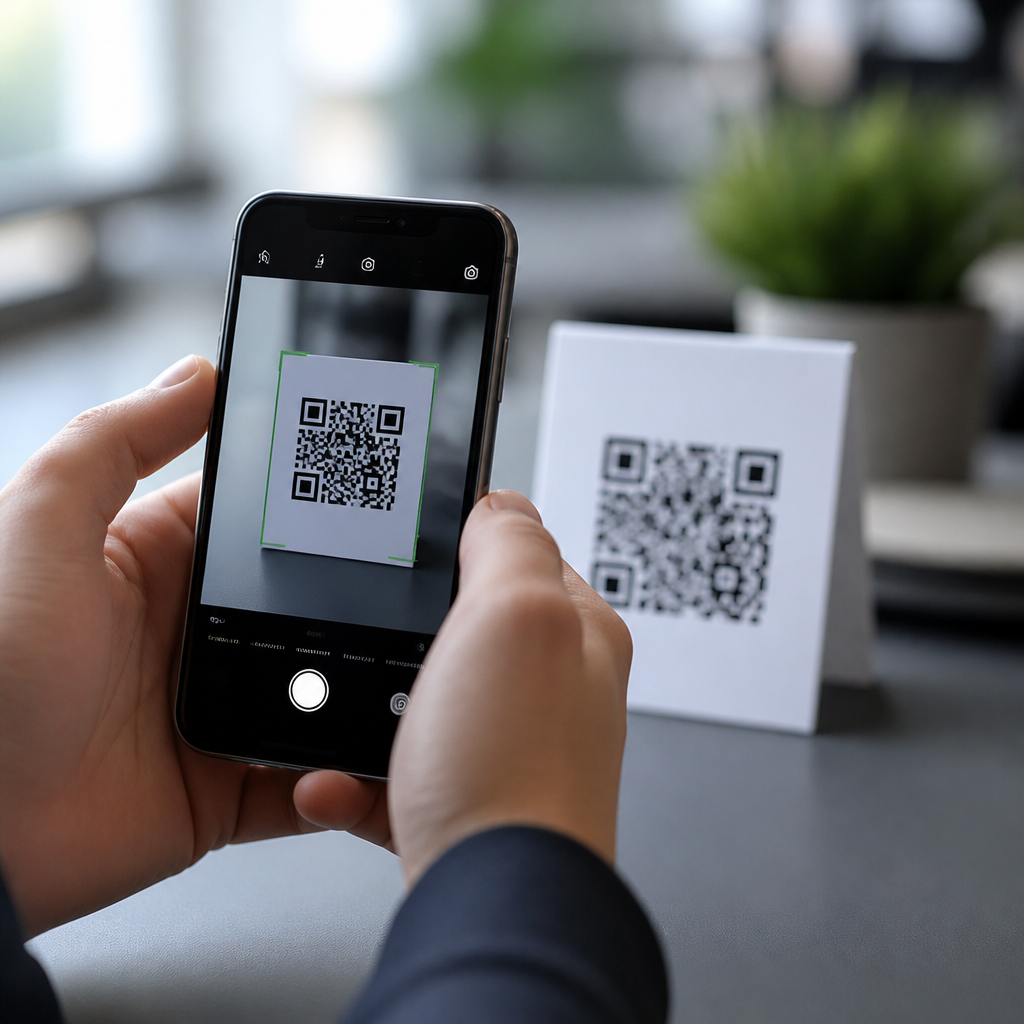
Camera settings directly affect QR code scanning speed, accuracy, and consistency across phones, tablets, and laptops. In practical testing with iPhone, Pixel, Samsung Galaxy, and rugged Android devices used in field operations, I have seen the same QR code scan instantly on one device and fail repeatedly on another because of autofocus behavior, lens selection, image processing, or operating system permissions. For businesses that rely on QR codes for payments, menus, tickets, authentication, product information, or inventory, understanding camera integration and OS support is not optional. It determines whether a customer completes an action in one second or gives up.
A QR code is a two-dimensional barcode designed to be read by an imaging sensor and decoded by software. The camera captures the symbol, the operating system or app identifies finder patterns, corrects distortion, and translates the encoded data into a URL, text string, payment payload, or app action. Camera integration refers to how the device camera hardware, image signal processor, firmware, and software stack work together during this process. OS support means the native scanning features, permissions model, APIs, security rules, and background behaviors in iOS, Android, and other platforms that decide whether scanning is smooth, available, and secure.
This matters because scanning is a chain, not a single feature. Exposure, focus distance, frame rate, digital zoom, macro switching, HDR, low-light processing, and lens distortion correction all influence the image before a decoder ever sees it. Then the operating system decides which camera feed an app can access, whether it can scan in the default camera, and how quickly it can hand off results to a browser or wallet. When teams optimize only code design and ignore camera settings, they miss the main reason scanning performance varies across devices and environments.
How camera hardware and default settings shape scan performance
The first factor in QR code scanning is the camera itself. Resolution matters, but not in the simplistic way many assume. A 48 MP sensor does not automatically scan better than a 12 MP sensor, because QR detection depends more on sharp edge contrast, focus stability, and processing latency than on raw pixel count. In fact, many phones use pixel binning to produce lower-resolution preview frames, and those preview frames are what the scanner reads in real time. A fast, clean 12 MP preview often outperforms a noisy high-resolution stream.
Autofocus is usually the most important camera setting. Phase-detection autofocus and laser autofocus lock faster than older contrast-detection systems, especially at close range. If the camera hunts focus, the QR code finder patterns blur, and decoding fails. This is common on budget Android phones and older tablets used for kiosk deployments. I have repeatedly fixed poor scan rates simply by disabling unnecessary digital zoom, increasing lighting, and moving the code into the camera’s natural focus range rather than forcing the user too close to the lens.
Exposure and dynamic range also matter. Overexposure washes out the contrast between black modules and white background, while underexposure introduces noise that confuses edge detection. Modern phones apply HDR and computational photography even in preview, which can help with backlit scenes but can also create motion lag. On devices with aggressive scene optimization, users sometimes get a clearer still image but a slower live preview, which hurts scanning. The best scan feed is typically bright, neutral, and stable rather than heavily processed.
Lens selection is another overlooked issue. Many phones now include ultra-wide, wide, telephoto, and macro options, and the operating system may auto-switch between them. That can break QR scanning because each lens has different minimum focus distance, distortion profile, and light sensitivity. Auto macro, in particular, may switch lenses when the device moves close to a code, causing a visible jump and delaying decode. For scanner apps, locking to the primary wide lens usually delivers the most predictable result.
OS-level camera integration on iPhone and Android
On iPhone, QR scanning is deeply integrated into the Camera app, Control Center Code Scanner, and AVFoundation APIs used by third-party apps. Apple has optimized the detection pipeline so that QR codes can be recognized directly in the live preview with little user friction. However, support still depends on iOS version, camera availability, and app permissions. Managed devices in enterprise environments may restrict camera access, and privacy settings can block third-party scanners while leaving the native camera functional.
Android support is broader but less uniform. Google offers native scanning through the Camera app on many devices, Google Lens integration, and ML Kit barcode scanning APIs for developers. Yet Android fragmentation remains real. Samsung, Motorola, Zebra, OnePlus, Xiaomi, and other manufacturers customize camera apps, permission prompts, and image processing. Some devices expose barcode detection natively in the stock camera, while others require Lens or a separate app. In retail and warehouse deployments, I have seen Android version and vendor camera implementation matter more than sensor quality.
Permissions behavior is a practical point many teams miss. On both iOS and Android, a denied camera permission can look like a broken QR feature to the user. Browser-based scanners add another layer: Safari, Chrome, and WebView environments all handle camera access slightly differently. HTTPS is generally required for web camera use, and enterprise mobile device management policies can restrict browser camera permissions altogether. A hub article on camera integration must emphasize this: scanning reliability is as much an OS policy issue as an optics issue.
| Factor | iPhone | Android | Scanning impact |
|---|---|---|---|
| Native camera QR support | Consistent in recent iOS versions | Varies by brand and camera app | Determines whether users can scan without installing an app |
| Lens switching behavior | Controlled but can shift with macro features | Highly variable across manufacturers | Can interrupt focus and delay decoding |
| Third-party API access | Stable through AVFoundation | Common through CameraX and ML Kit | Affects app-level performance and feature parity |
| Permission handling | Clear system prompts, strict privacy controls | More device-specific and policy-dependent | Can block scanning even when hardware is capable |
Settings that commonly break or improve QR code scanning
Several camera settings repeatedly influence results in real deployments. The first is focus mode. Continuous autofocus is usually best for live scanning because it keeps adjusting as the user moves. Tap-to-focus helps when the code is small or surrounded by detailed graphics. Fixed-focus front cameras are a poor choice for QR scanning except at long range on large codes. If a scanning workflow accidentally opens the front camera, performance drops sharply.
Zoom is next. Optical zoom can help at a distance, but digital zoom often reduces clarity and amplifies handshake. For most consumer scanning, the ideal practice is no zoom at all. Move the device physically until the code fills a reasonable portion of the frame without clipping the quiet zone. In app testing, scan success increased when we limited software zoom and added an on-screen distance guide rather than letting users pinch in excessively.
Flash and low-light enhancement can be helpful, but they have tradeoffs. LED flash improves contrast in dark environments, yet glossy packaging and laminated menus can reflect harsh light back into the lens. Night mode can brighten a scene, but it often lowers responsiveness because it relies on longer exposures and frame stacking. For QR codes, a faster shutter and moderate ISO usually outperform dramatic low-light processing. Scanning needs readable edges more than photographic beauty.
Image filters, beauty modes, and scene optimization should be disabled in scanning contexts. These features alter textures and local contrast in ways designed for faces or landscapes, not machine-readable symbols. The same warning applies to social camera shells that sit on top of the hardware feed. Native camera access or a dedicated scanner SDK usually performs better than scanning through an effect-heavy camera environment.
Stabilization affects scan speed too. Optical image stabilization can help in low light, but electronic stabilization may crop or smooth frames, sometimes causing slight lag in preview. On modern devices this is usually minor, yet on older Android hardware the extra processing can matter. The practical goal is a live view with crisp edges and minimal delay. If the preview lags the user’s motion, alignment becomes harder and first-scan success falls.
Developer, support, and operational considerations
For developers and technical teams, camera integration decisions start with the platform camera framework. On iOS, AVFoundation provides reliable control over capture sessions, autofocus, exposure, and metadata output. On Android, CameraX simplifies compatibility, while Camera2 offers deeper control for specialized cases. Barcode decoding can be handled by ML Kit, ZXing, Scandit, or enterprise scanning SDKs. The right choice depends on latency requirements, offline operation, code types, and device diversity.
Operationally, support teams should document tested devices, OS versions, browser support, and known camera behaviors. This is especially important for a hub under mobile QR code scanning technology, because related articles often branch into web scanning, kiosk setups, rugged devices, payment flows, and app-based authentication. A strong support matrix prevents vague advice. For example, “works on Android” is meaningless compared with “tested on Android 13 Samsung Camera, Android 14 Pixel Camera, Chrome 126 web scanner, and Zebra TC58 enterprise profile.”
Accessibility and security also belong in this conversation. Users with tremors, low vision, or glare sensitivity benefit from larger codes, better contrast, and longer scan timeouts. Security-conscious operating systems may display previews before launching encoded links or block dangerous schemes. That friction is beneficial. Fast scanning should never override safe URL handling, app intent validation, or clear permission prompts.
Camera settings that affect QR code scanning are not limited to photography controls. They include autofocus behavior, exposure tuning, lens switching, zoom, stabilization, permissions, browser access, and operating system support. The most reliable scanning experiences come from pairing well-designed QR codes with predictable camera behavior and tested native or web integration. If you manage mobile scanning, audit real devices, document OS-specific behavior, and optimize the camera path before blaming the code itself. That approach produces faster scans, fewer support tickets, and a better user journey across the entire mobile experience.
Frequently Asked Questions
Which camera settings have the biggest impact on QR code scanning performance?
The settings that usually make the biggest difference are autofocus behavior, lens selection, resolution and image processing, exposure, and camera permissions at the operating system level. Autofocus is often the first issue because QR code scanning depends on the camera locking onto the code’s sharp edges. If the device keeps hunting for focus, prefers a nearby subject, or is locked into a macro or portrait-style behavior, scan speed drops immediately. Lens selection also matters more than many people expect. On phones with multiple rear cameras, the system may switch between wide, ultra-wide, or macro lenses automatically, and that can change sharpness, working distance, distortion, and the size of the QR code in the frame.
Exposure and image processing are also major factors. If the camera overexposes a bright white label or underexposes a code in dim light, the contrast between the black modules and white background can degrade enough to prevent detection. Some devices apply aggressive noise reduction, HDR, smoothing, or sharpening, which can either help or hurt depending on lighting and print quality. In business environments, another critical factor is whether the scanning app actually has full camera permission and is using the native camera pipeline correctly. On iPhone, Pixel, Samsung Galaxy, and rugged Android units, it is common to see one device scan instantly while another struggles because the software is not using continuous autofocus well, is choosing the wrong lens, or is processing the preview feed differently. In practice, the best-performing setup is usually the default rear camera, continuous autofocus, stable lighting, and a scanning app that does not force unnecessary visual effects or lens switching.
Why does the same QR code scan instantly on one phone but fail on another?
This usually comes down to differences in camera hardware, software tuning, and operating system behavior rather than the QR code itself. Two devices can have similar megapixel counts and still perform very differently because scanning is less about maximum resolution and more about how the live camera preview is focused, exposed, and processed in real time. One phone may use fast phase-detection autofocus and lock onto the code immediately, while another may pulse focus back and forth or favor faces and nearby objects instead. On multi-camera devices, one model may choose the ideal lens automatically, while another may switch to an ultra-wide or macro lens that introduces distortion or changes the effective scanning distance.
Software differences are just as important. Apple and Google often tune their camera stacks differently from Samsung or specialized rugged Android manufacturers. A consumer flagship may benefit from strong computational imaging, while a field device may prioritize durability over refined camera behavior. The scanning app itself can also be the bottleneck. Some apps read from the camera preview efficiently and decode quickly; others wait for a cleaner frame, process too heavily, or have trouble in low light. Permissions, battery-saving modes, enterprise device management policies, and outdated operating system components can further interfere with camera access or background processing. In real-world business use, this is why testing across actual target devices matters so much. A QR workflow that works perfectly for an iPhone user in a bright café may behave very differently on a warehouse-issued rugged handset under harsh overhead lighting.
Does autofocus really matter for QR code scanning, and can users improve it?
Yes, autofocus matters enormously because QR decoding depends on clear edge definition. A QR code is essentially a dense pattern of small squares that must be captured with enough sharpness and contrast for the software to interpret alignment markers and data modules correctly. If the camera does not lock focus at the right distance, the code may look readable to the human eye but still be too soft for reliable machine decoding. This is especially noticeable with small printed codes, glossy surfaces, damaged labels, or low-light conditions where the camera slows down and focus confidence drops. Devices that use continuous autofocus well tend to scan quickly because they can adjust in real time as the user moves the phone closer or farther away.
Users can improve autofocus performance with a few practical adjustments. First, use the rear camera instead of the front camera whenever possible, since the rear camera usually has better optics and focusing ability. Second, hold the device steady and give it a moment to settle rather than pushing the phone extremely close to the code right away. Many scanning failures happen because users move in too close, forcing the lens inside its minimum focus distance. Third, tap the screen near the QR code on apps that support touch focus. That can help the device stop focusing on the background. Finally, avoid special camera modes that prioritize portrait blur, macro effects, or document enhancement unless they are known to work well for scanning. For organizations deploying QR-based payments, check-in, authentication, or field operations, standardizing app behavior and user instructions around focus distance and rear-camera use can meaningfully improve first-pass scan rates.
How do lighting, exposure, and HDR settings affect QR code readability?
Lighting and exposure have a direct effect on how clearly the camera can separate the dark and light areas of a QR code. The decoder needs strong visual contrast and reasonably clean edges. In bright environments, glare can wash out parts of a glossy label or laminated menu, making black modules appear gray and reducing contrast. In dim environments, the camera may raise ISO, lower shutter speed, and introduce motion blur or digital noise. Both situations can make a perfectly valid code fail to scan. Automatic exposure usually works well, but not always. Some phones expose for the whole scene rather than the code itself, so a bright window, reflective countertop, or dark background can cause the code area to be too bright or too dim.
HDR can be helpful in mixed lighting, but it can also create inconsistency depending on the device and app. On some phones, HDR improves detail in shadows and highlights, making difficult codes easier to read. On others, HDR processing can introduce delay or unusual contrast rendering in the live preview. The same applies to low-light enhancement and noise reduction. These features can clean up the image, but aggressive processing may also soften the crisp square boundaries a decoder relies on. The most reliable approach is simple, even lighting with minimal glare. If users are struggling, they should angle the camera slightly to avoid reflections, move to more uniform light, and keep the code flat in frame. For business deployments, code design and placement matter too: matte finishes, sufficient print size, strong black-on-white contrast, and avoiding highly reflective materials often improve scan reliability more than any software adjustment alone.
What camera and app configuration is best for businesses that depend on QR codes for payments, menus, tickets, or authentication?
For business-critical QR workflows, the best configuration is one that prioritizes consistency over visual effects. In most cases, that means using the native rear camera, continuous autofocus, standard 1x lens behavior, automatic exposure, and full camera permissions enabled at the operating system level. It is also wise to avoid unnecessary camera mode switching, beauty filters, document stylization, or aggressive post-processing in the scanning workflow. If the business uses a dedicated app, the app should be tested on the exact device models employees or customers use most often, including iPhone, Pixel, Samsung Galaxy, tablets, and any rugged Android hardware used in field operations. A setup that performs well in a controlled office environment may still fail at a point-of-sale counter, outdoor gate, delivery route, or warehouse floor.
Operationally, businesses should also think beyond camera settings alone. Standardize supported devices where possible, keep operating systems and scanning apps updated, confirm that enterprise management policies are not limiting camera access, and train staff on ideal scanning distance, lighting, and device positioning. If a workflow depends on rapid throughput, such as event ticketing or payment acceptance, test under real traffic conditions and with real code formats, including cracked screens, smudged lenses, and worn printed labels. It is also smart to provide fallback paths, such as manual code entry or barcode alternatives, because even a well-tuned camera system can fail in edge cases. The most successful QR deployments treat camera configuration, app design, print quality, and user behavior as one connected system. When those pieces are aligned, scanning becomes fast, predictable, and much more resilient across different device types.





