
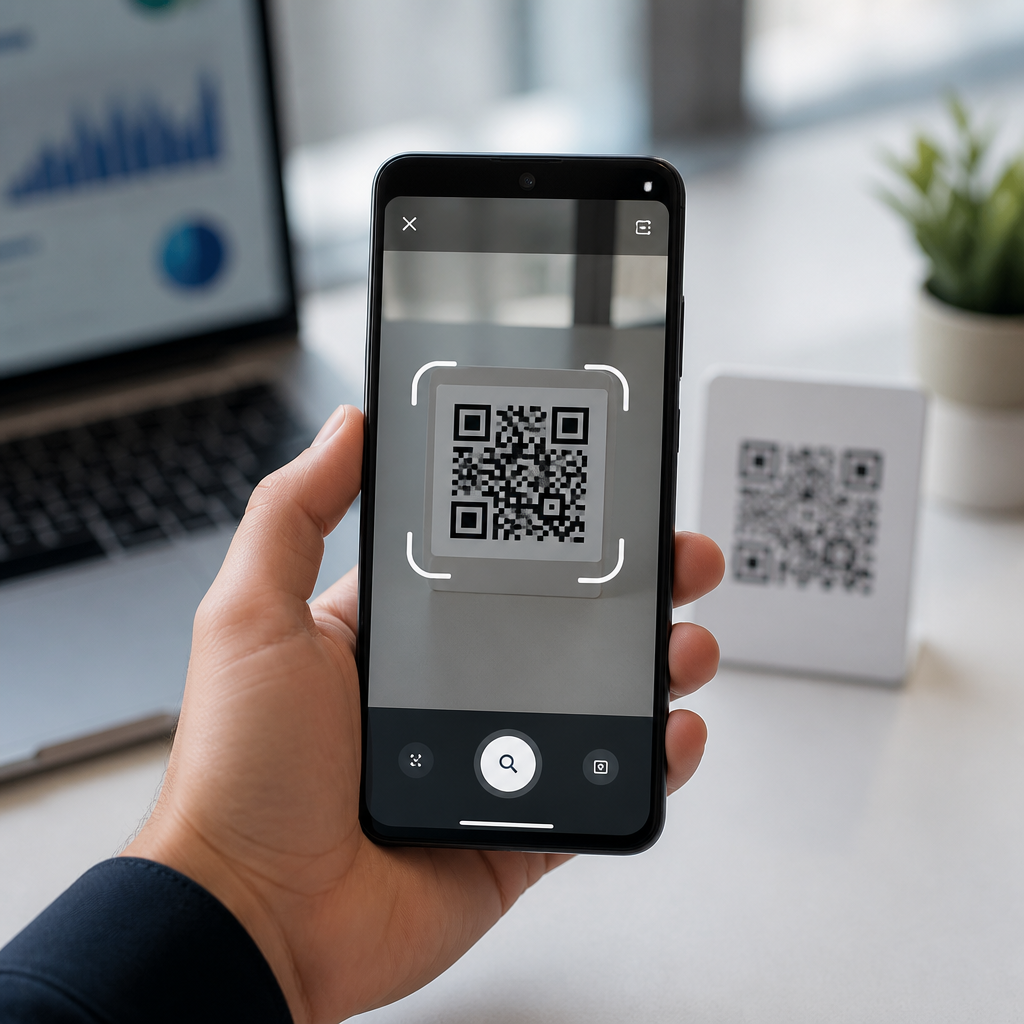
Google Lens has become one of the most practical tools for advanced QR scanning because it combines camera intelligence, operating system integration, and direct action handling in one workflow. In simple terms, a QR code is a two-dimensional barcode that stores data such as URLs, Wi-Fi credentials, contact cards, payment requests, app links, and authentication tokens. Advanced QR scanning goes beyond merely opening a link. It includes recognizing code types accurately, interpreting the destination safely, connecting with camera apps across Android devices, and understanding how operating system support affects speed, permissions, and available actions.
I have tested Google Lens across Pixel phones, Samsung Galaxy devices, Motorola handsets, and iPhones using the Google app, and the biggest lesson is that scanning performance depends as much on camera integration and OS behavior as it does on the code itself. A clean QR code can still fail if the app lacks camera permission, if the OEM camera routes scans to its own parser, or if low-light autofocus never locks. For users managing mobile workflows, customer support teams documenting device behavior, or marketers deploying dynamic QR campaigns, these details matter. This hub article explains how Google Lens handles advanced QR scanning, how Android and iOS support differs, and what setup steps produce reliable results across modern phones.
What Google Lens Actually Does When Scanning a QR Code
Google Lens is an image recognition layer that analyzes what the camera sees and turns recognized content into actions. When Lens detects a QR code, it identifies the encoded payload, classifies the content type, and presents context-sensitive options. A standard web URL may open in Chrome, while a Wi-Fi QR code can trigger a network join prompt on supported Android versions. A vCard may offer contact creation, and a plain text payload may surface copy options instead of forcing a browser launch. This distinction is important because advanced QR scanning is about interpreting intent correctly, not just reading black-and-white squares.
In practice, Lens works through several entry points. On Pixel devices, Lens is deeply tied into the system camera and Google services, so recognition is often nearly instantaneous. On many Samsung devices, the Camera app may expose Scan QR Code separately, while Lens remains available through Google Assistant, the Google app, or Google Photos. On iPhone, Lens usually runs inside the Google app or Chrome rather than the default Camera app. That means the same QR code can produce different user flows depending on device brand, app version, and operating system permissions. Understanding those routes is the foundation of consistent deployment and troubleshooting.
Camera Integration on Android: Pixel, Samsung, and Other OEM Variations
Android support for Google Lens is strongest when Google Mobile Services are fully present, but implementation still varies by manufacturer. On Pixel phones, the default camera experience is the benchmark. Lens functions natively in the camera preview, can interpret QR codes without an extra tap in many scenarios, and usually benefits from Google’s image processing stack, including autofocus tuning and low-light enhancement. Because Pixel devices also receive Android feature updates quickly, they often support the newest QR handling behaviors first.
Samsung phones add another layer. Many Galaxy devices include built-in QR detection in the Camera app independent of Google Lens. In support work, I often see users assume these systems are identical, but they are not. Samsung Camera may parse a URL and open Samsung Internet or a chooser, while Lens inside the Google app may offer richer context, such as shopping data, translation overlays, or safer preview cues. Xiaomi, OnePlus, Motorola, and other OEMs can mix native camera scanning, Google Lens hooks, and region-specific software behavior. If your goal is predictable scanning instructions for teams or customers, specify the exact app path, not just “use your camera.”
| Platform or Device Type | Typical QR Entry Point | Common Behavior | Important Limitation |
|---|---|---|---|
| Pixel phones | Default Camera with Lens integration | Fast detection, direct action suggestions | Depends on updated Google app and camera services |
| Samsung Galaxy | Samsung Camera or Google Lens | Native QR scan plus optional Lens features | Different apps may handle links differently |
| Other Android OEMs | OEM Camera, Google app, or Photos | Varies widely by firmware and region | Inconsistent UI and permissions behavior |
| iPhone | Google app, Chrome, or Photos | Reliable Lens scanning inside Google apps | No system-level Lens inside Apple Camera |
Operating System Support: Android Versions, iOS Limits, and Permissions
Operating system support determines whether Google Lens can access the camera smoothly, process QR codes in real time, and hand off results to the right app. On Android, support is generally best on Android 10 and newer, where camera permission controls, foreground app behavior, and sharing panels are more mature. Android 13 and 14 also improve nearby device and notification permissions, which can matter if the scanned QR code launches setup flows for Wi-Fi, accessories, or companion apps. Older Android versions may still scan successfully through the Google app, but background restrictions and outdated Google Play services can reduce reliability.
On iOS, Google Lens works well, but within Apple’s rules. The operating system does not let Lens become a native system scanner in the default Camera app the way Apple’s own QR reader can. Instead, users usually open the Google app, tap the Lens icon, and grant camera access. From there, scanning is accurate, but action handling depends on iOS app associations. For example, a URL can open in Chrome or Safari depending on user settings, and app deep links may behave differently than on Android. Regardless of platform, the first troubleshooting checks are simple: confirm camera permission, update the Google app, ensure internet access for some enriched results, and test whether the code opens in both live camera mode and Google Photos.
How to Use Google Lens for Advanced QR Scanning Safely and Efficiently
To use Google Lens effectively, start by choosing the right entry point. If you are on a Pixel, open the Camera app and point it steadily at the QR code from a moderate distance, usually six to twelve inches depending on code size. Wait for focus to lock before tapping the result chip. On Samsung or other Android devices, compare the OEM camera scanner with Lens in the Google app if the first result seems limited. On iPhone, launch the Google app, tap Lens, and align the code inside the frame. If a printed code is glossy or poorly lit, tilt the phone slightly to reduce glare. These small adjustments improve decode speed dramatically.
Advanced scanning also means verifying what you are about to open. Lens often previews a domain or action before launch; use that pause. I advise teams to train users to read the root domain, especially for payments, sign-ins, and software downloads. Malicious QR codes increasingly redirect through link shorteners or typo-squatted domains. For sensitive workflows, scan, inspect, then choose whether to open in a browser, copy the URL, or share it to a managed security tool. If a QR code contains Wi-Fi credentials, make sure the SSID matches the expected network before joining. For multifactor authentication codes, avoid screenshots unless your security policy permits local image storage.
Real-World Use Cases: Payments, Wi-Fi, Authentication, and Support Workflows
The most useful advanced QR scenarios are practical. In retail, Google Lens can scan payment QR codes, but compatibility depends on the receiving app and market. A code built for a banking super app in Southeast Asia may decode perfectly yet still require the correct local payment app to complete the transaction. In offices and events, Wi-Fi QR codes reduce support tickets by letting guests join networks without manual password entry. Here Lens excels on Android when the payload follows the standard WIFI:T:WPA;S:NetworkName;P:Password;; format. If the QR is malformed, Lens may still read text but not trigger one-tap connection.
Authentication is another high-value use case. I routinely test Time-based One-Time Password setup codes for services like GitHub, Microsoft, and Google accounts. Lens can recognize the otpauth URI embedded in the QR code, but successful enrollment often depends on whether the authenticator app is installed and registered to handle that scheme. Support teams also use Lens to scan asset tags, printed setup guides, router stickers, and packaging inserts. In these cases, Google Photos becomes a quiet advantage. Users can scan a photo after the fact, which is helpful when a technician captures images in the field and decodes them later under better conditions or with stronger connectivity.
Common Problems and the Best Fixes
Most Google Lens QR failures come from five causes: poor focus, low contrast, permissions, conflicting camera behavior, or unsupported action handling. Poor focus is common on cracked lens covers, dirty camera glass, or tiny QR labels placed on curved surfaces. Clean the lens, step back slightly, and let autofocus settle. Low contrast appears on dark packaging, colored codes with weak quiet zones, or screens with aggressive brightness reduction. Increase screen brightness or use a plain black-on-white code if you control generation. Permission issues are straightforward: in Android Settings or iOS Settings, verify camera access for the Google app and check that restricted modes or enterprise policies are not blocking it.
Conflicting camera behavior happens when an OEM camera intercepts QR scans differently from Lens. If a code opens the wrong browser, shows only text, or does nothing, try scanning in the Google app or Google Photos instead of the default camera. Unsupported action handling is subtler. Some proprietary deep links, regional wallet schemes, and custom enterprise URIs decode successfully but require a specific installed app. In that case, the scan is not failing; the handoff is. Document that distinction in your support process. For businesses publishing QR codes, test on at least one Pixel, one Samsung phone, and one iPhone before launch. Cross-device validation catches most real-world issues early.
Google Lens is one of the best tools for advanced QR scanning because it combines strong image recognition with practical action handling across mobile platforms. The key takeaway is that reliable scanning depends on three factors working together: camera integration, operating system support, and the structure of the QR payload itself. When those align, users can open links safely, join Wi-Fi networks quickly, enroll authentication apps, and complete support or commerce tasks with fewer errors. When they do not align, the problem is usually traceable to app path, permissions, or a missing handler rather than the code alone.
As the hub for camera integration and OS support within mobile QR code scanning technology, this guide gives you the framework to evaluate device behavior clearly. Use the correct scanning entry point for each platform, verify actions before opening sensitive content, and test across Pixel, Samsung, other Android phones, and iPhone whenever consistency matters. If you manage QR campaigns, customer instructions, or mobile support documentation, build your process around those differences instead of assuming every camera works the same way. Start by auditing your current QR flows on the main devices your audience uses, then refine instructions and code formats based on what you find.
Frequently Asked Questions
How do I use Google Lens to scan a QR code more effectively than a basic camera app?
Google Lens improves QR scanning by doing more than simply detecting a code and opening whatever is embedded inside it. To use it effectively, open Google Lens from the Google app, your Android camera if Lens is integrated, Google Photos, or a compatible iPhone app environment. Point your camera steadily at the QR code and allow Lens to recognize it. Once detected, Lens usually highlights the code and presents a context-aware action such as opening a website, joining a Wi-Fi network, saving contact information, launching an app link, or displaying text-based content for review.
What makes this more advanced than a standard scanner is the interpretation layer. Instead of just resolving the QR code into raw data, Google Lens often identifies what type of payload is inside and presents an action that matches the intent. For example, a plain camera scanner may only show a URL, while Google Lens may surface a recognizable domain, suggest whether it is a product page, and let you decide what to do next. For best results, scan in good lighting, keep the code centered, avoid glare, and wait a moment for Lens to process the content before tapping. If the code is printed small or placed on a curved surface, moving slightly closer or changing angles can improve recognition accuracy.
What types of QR codes can Google Lens recognize and interpret?
Google Lens is designed to work with a wide range of common QR code payloads, including website links, Wi-Fi credentials, vCards and contact cards, email actions, phone numbers, payment links, app deep links, location links, event details, and in some cases authentication-related tokens or service sign-in prompts. This is important because advanced QR scanning is not only about reading the black-and-white pattern. It is about understanding what the code is meant to trigger and presenting that information in a usable way.
For example, if a QR code contains Wi-Fi setup information, Lens may prompt you to join the network instead of merely showing a text string. If the code contains a phone number or contact card, Lens can offer to call, save, or create a contact. If it contains a web address, Lens may preview or label the destination so you can make a more informed decision before opening it. This ability to classify the code’s purpose is what makes Google Lens especially useful in real-world scenarios such as retail, logistics, event access, smart packaging, and secure sign-in flows. While support can vary depending on device, operating system version, and app integration, Lens is generally strong at handling the most widely used QR formats and action types.
Can Google Lens help me tell whether a QR code is safe before I open it?
Google Lens can help, but it should be viewed as an aid rather than a guarantee of safety. One of its strengths is that it often reveals the underlying destination or intent before you act. If a QR code points to a website, Lens may display the domain so you can inspect it first. That is useful because advanced QR scanning should always include a verification step. Before opening any code, look closely at the URL, watch for misspellings, strange subdomains, suspicious redirects, or domains that imitate trusted brands. If the code is requesting Wi-Fi access, payment approval, app installation, or sign-in credentials, take extra caution.
Google Lens is particularly helpful because it does not force an immediate action. It usually gives you a moment to review what was recognized, which is far better than blindly following an embedded link. Still, malicious QR codes can lead to phishing pages, fake login portals, malware distribution attempts, or fraudulent payment destinations. The safest approach is to combine Lens with good judgment: confirm the source of the code, avoid scanning random stickers placed over legitimate signage, verify business names and URLs, and do not enter sensitive information unless you are certain the destination is authentic. In short, Google Lens supports safer scanning by improving visibility and context, but user awareness remains essential.
Why is Google Lens useful for scanning QR codes from screenshots, printed materials, or images already on my phone?
One of the most practical advantages of Google Lens is that it is not limited to live camera scanning. You can also use it to analyze screenshots, saved photos, marketing graphics, PDFs converted to images, and printed documents that have been photographed earlier. This matters because many QR interactions now happen asynchronously. Someone might text you a QR code, include one in a presentation slide, send one in a social media post, or place one inside an instruction manual. With Google Lens, you can open the image in Google Photos or another Lens-enabled app and let it detect the code directly from the file.
This image-based scanning workflow is especially valuable for advanced use cases. It allows you to inspect a code more carefully, zoom in if needed, and avoid the awkwardness of trying to scan a QR code displayed on the same device screen with the live camera. It also helps in business and support environments where teams need to extract links, setup credentials, or encoded contact data from shared documents. Because Lens combines image recognition with action handling, it can often identify the QR code within a cluttered image and separate it from surrounding text or graphics. That makes it a flexible tool not just for quick scans, but for broader digital workflows where QR codes are embedded in visual content.
What should I do if Google Lens is not scanning a QR code correctly or the action seems wrong?
If Google Lens is struggling to scan a QR code, start with the basics: improve lighting, clean the camera lens, hold the phone steady, and make sure the code is fully visible without being cut off. QR recognition can fail when codes are blurry, damaged, too small, overly stylized, printed with low contrast, or wrapped around curved packaging. Try moving closer, then farther away, to help the camera focus. If you are scanning from a screen, increase brightness and reduce reflections. If you are scanning from an image, crop tighter around the QR code and try again through Google Photos or another Lens-enabled interface.
If the code scans but the action seems wrong, the issue may be with the QR code itself rather than Lens. Some QR codes are dynamically redirected, incorrectly generated, or intentionally encoded in a way that does not match user expectations. Review the detected content before tapping anything. If Lens identifies a URL that looks unfamiliar, copy it and inspect it more closely. If it is supposed to connect to Wi-Fi or import contact details but instead opens a webpage, the code may have been generated incorrectly. Updating the Google app, your camera app, and your device software can also improve recognition performance because QR handling and Lens integration are frequently refined. In professional or security-sensitive situations, it is wise to verify the QR destination through a second trusted source before proceeding.





