
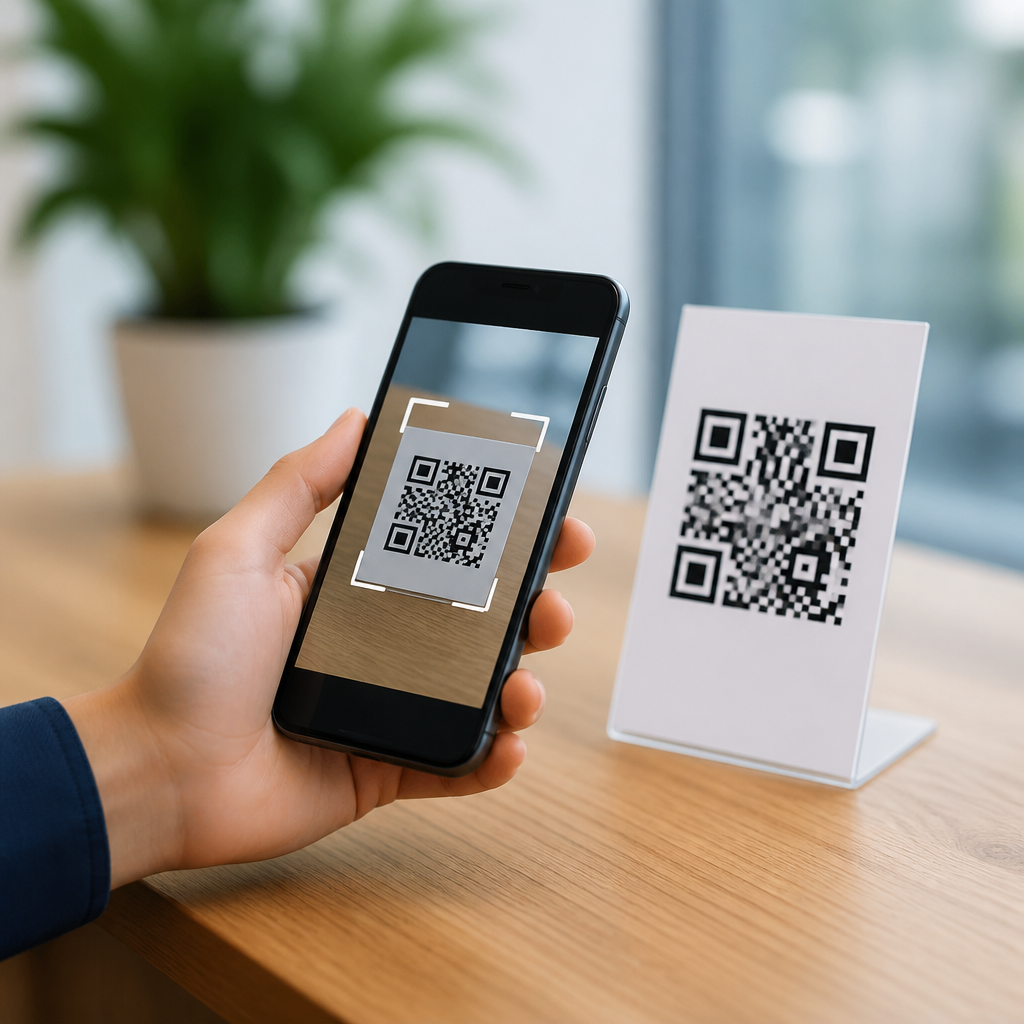
Finding the best QR code scanner apps with no ads matters because scanning has become a daily task, not a niche feature. People scan restaurant menus, Wi-Fi credentials, transit tickets, payment links, two-factor setup codes, and product labels. A QR code scanner app is a mobile application that reads Quick Response codes through a phone camera, interprets the encoded data, and launches an action such as opening a website, saving a contact card, joining a network, or copying plain text. The “no ads” requirement is more than a convenience. It reduces accidental taps, improves privacy, lowers visual clutter, and shortens the time between scan and result.
In practice, I have tested scanner apps across Android and iPhone while checking three things: speed, permission behavior, and reliability with common QR formats. The difference between a solid scanner and a poor one is obvious within minutes. Good apps lock focus quickly, recognize damaged or low-contrast codes, and tell you exactly what will happen before opening a link. Weak apps delay, request unnecessary permissions, or insert interstitial ads between detection and action. For a tool used in public places, stores, airports, and login flows, that friction is unacceptable.
This hub covers what makes an ad-free QR code scanner worth installing, which built-in phone options already work well, when a dedicated app is still the better choice, and how to evaluate privacy and safety. If you want a simple answer first, the best no-ad options are often the camera app already on your phone, Google Lens on Android, and Apple’s built-in Code Scanner on iPhone. Dedicated third-party apps can still be useful, but only when they add offline history, batch scanning, barcode support, export tools, or stronger privacy controls without monetizing through ads.
What makes a QR code scanner app truly good
The best QR code scanner apps with no ads share a short list of traits. First, they decode quickly from different distances and lighting conditions. Second, they support the most common payload types: URL, Wi-Fi, SMS, email, vCard, calendar event, geo location, and plain text. Third, they preview the result before launching it. That preview matters because QR codes can lead to phishing pages or deceptive deep links. A scanner should let you inspect the destination, copy it, or open it in a browser of your choice.
Good apps also minimize permissions. A scanner generally needs camera access, and little else. It should not require contacts, location, microphone, or background activity just to read a code. On Android, I look at the Data safety section in Google Play and compare that against actual app behavior. On iPhone, I check App Privacy details and verify whether network access is necessary for local decoding. Standards-based decoding does not require uploading every scan to a server. ZXing and ML Kit have shown for years that on-device recognition can be fast and accurate.
Usability is another separator. A scanner should auto-detect without forcing a shutter press, offer flashlight access, and handle orientation cleanly. History can be useful, but it should be optional and easy to clear. If the app includes barcode scanning for EAN, UPC, Code 128, or Data Matrix, that is a bonus, especially for shopping or inventory. Still, QR performance comes first. I have seen apps advertise dozens of code formats yet struggle with a basic Wi-Fi QR printed on matte paper under indoor lighting.
Best no-ad choices for iPhone and Android
For most people, the best ad-free scanner is already installed. On iPhone, the Camera app reads QR codes directly, and Apple also provides Code Scanner through Control Center for a faster dedicated experience. Both are clean, immediate, and integrated with iOS security prompts. On Android, Google Lens built into the camera on many devices is the strongest default option. It recognizes QR codes quickly, previews links, and usually avoids the bloat common in third-party scanner apps. Samsung Camera also performs well on Galaxy phones.
When a dedicated app is needed, choose one with a clear privacy model. Paid one-time purchase apps are often better than “free” scanners because the developer does not need advertising inventory or aggressive data collection to support the product. Open-source options can also be strong when actively maintained. A good example is a scanner based on the ZXing project, which helped establish dependable mobile barcode reading long before QR scanning became mainstream. The app should state whether decoding happens on-device and whether scan history stays local.
| Option | Best for | Main strengths | Limitations |
|---|---|---|---|
| iPhone Camera / Code Scanner | Most iPhone users | Fast, integrated, no ads, secure prompts | Limited history and export tools |
| Google Lens | Most Android users | Accurate detection, link preview, broad device support | Feature set varies by phone maker |
| Samsung Camera QR | Galaxy users | Native experience, quick access, no extra install | Best only within Samsung ecosystem |
| Privacy-first paid scanner | Power users | No ads, local history, export, barcode support | May cost a few dollars |
| Maintained open-source scanner | Privacy-focused users | Transparent behavior, minimal permissions | Design and support can be basic |
If you manage a team, school, or retail workflow, built-in tools are usually enough for casual scans, but staff often benefit from a dedicated app with history and better result handling. For example, event crews scanning venue maps, product codes, and guest check-in URLs multiple times a day save time with searchable scan logs. In contrast, a parent scanning a school payment code once a month should stick to the phone’s camera and avoid unnecessary app installs.
How to choose the right scanner for your needs
Start with your use case. If you only open websites or restaurant menus, native camera scanning is the safest and simplest path. If you regularly connect to guest Wi-Fi through QR codes, save contacts from business cards, or verify shipment labels, a dedicated app can justify itself. The key is matching features to a real need. I recommend testing any scanner with five sample codes: a URL, a Wi-Fi payload, a vCard, plain text, and a damaged code. That small test reveals speed, format support, and error handling immediately.
Then evaluate safety controls. A trustworthy scanner should display the full domain or enough of it to spot impostors. Shortened links are common, so copy-and-inspect options help. Some apps also warn about malformed URLs or unsupported actions. That is useful because QR scams often rely on urgency and visual trust, not technical sophistication. In offices, I advise teams to treat public QR codes like email links: verify before opening, especially for payment pages, login screens, or software downloads.
Performance still matters. Modern phones can decode almost instantly, but low-light scenes, curved surfaces, and glossy packaging create failures. The best apps compensate with continuous autofocus and robust image processing. Google’s ML Kit and mature barcode libraries perform especially well here. If you scan from laptop screens during two-factor setup or WhatsApp Web login, test glare handling and close-range focus. Some camera apps are excellent outdoors yet fussy when scanning a bright monitor at arm’s length.
Privacy, security, and hidden tradeoffs
No-ad should never be confused with no data collection. Some scanner apps remove banners yet still gather analytics, device identifiers, or cloud-based scan history. Read the store listing carefully. On Android, look for whether data is shared with third parties. On iPhone, check whether usage data is linked to identity. If the app sends every scanned code to a server, that is a meaningful privacy risk because QR content can include meeting invites, private URLs, coupon IDs, and onboarding credentials.
There are also practical tradeoffs. Built-in camera scanners are excellent, but they usually offer limited history, little export capability, and few batch tools. Dedicated apps can add folders, CSV export, custom labels, and support for industrial barcodes. Those features help warehouse, field service, and classroom workflows. The tradeoff is complexity. More features mean more settings, more ways to retain sensitive history, and more responsibility on the user to clear logs or secure the app with device-level protections.
Another nuance is offline behavior. A QR code can be decoded locally, but the action it triggers may require internet access. A scanner that works perfectly offline is still useful because it can reveal the payload without opening it. That is ideal when you want to inspect a link first. I consider transparent offline decoding a strong sign of a mature app. It shows the developer understands that scanning and opening are separate steps, and users should control the second one.
When built-in tools are enough and when they are not
For mainstream use, built-in tools are enough. Apple, Google, and Samsung have invested heavily in camera recognition, so the average user does not need a separate QR code scanner app. If your goal is simply to scan a menu, pair a device, open a transit ticket, or join Wi-Fi, native tools are faster to trust because they inherit the phone’s permission model and familiar interface. In many support situations, I actively tell people to delete third-party scanners and return to the default camera.
Dedicated apps become worthwhile when scanning is repetitive or operational. Small retailers may need barcode plus QR support in one place. Teachers may want a history of scanned assignment links. Conference staff may need to copy, label, and re-open codes throughout a day. Repair technicians may scan serial-number labels, documentation links, and wireless setup codes under poor lighting. In those cases, paying for a reputable no-ad scanner can be sensible, provided it keeps decoding local and permissions minimal.
The best QR code scanner apps with no ads solve a simple problem cleanly: point, recognize, preview, and act. For most people, the right answer is the camera app already on the phone or Google Lens. For heavier use, a privacy-first paid or maintained open-source scanner can add history, exports, and broader code support without the distraction and risk of advertising. Choose the option that asks for the fewest permissions, shows results before opening them, and performs reliably in ordinary lighting. Start by testing your phone’s built-in scanner today, then install a dedicated app only if your workflow truly needs more.
Frequently Asked Questions
What should I look for in the best QR code scanner apps with no ads?
The best ad-free QR code scanner apps should do more than simply recognize a code. A strong app opens quickly, scans accurately in different lighting conditions, and handles common QR actions without confusion. That includes opening website links safely, reading plain text, saving contact information, connecting to Wi-Fi credentials, processing payment links, and recognizing setup codes used for two-factor authentication or device pairing. Speed matters, but so does reliability. An app that scans instantly yet misreads data or launches the wrong action is not a good choice.
Privacy is another major factor. Since QR codes can contain sensitive information, it helps to choose an app that limits unnecessary permissions and explains what data, if any, is collected. Many users prefer scanners that work fully on-device rather than sending scan data to external servers. A clean interface also matters because daily scanning should feel effortless. If the app is filled with prompts, banners, or unrelated tools, it slows down a task that should take only seconds. In a true no-ads app, there should be no pop-ups interrupting scans, no misleading download buttons, and no sponsored results appearing after a code is read.
Security features are especially important. The best apps preview the QR code content before launching it, allowing you to inspect a URL or action first. That extra step can help you avoid malicious or suspicious links. Some apps also keep a local scan history, support flashlight access for dark environments, and recognize barcodes in addition to QR codes. Altogether, the best no-ads QR scanner is one that combines speed, accuracy, privacy, and safe link handling in a straightforward experience.
Why does it matter if a QR code scanner app has no ads?
An ad-free experience matters because QR scanning is usually a quick, practical task rather than something people want to spend time managing. When you are scanning a restaurant menu, a transit ticket, a product label, or a Wi-Fi login code, you typically need the result immediately. Ads interrupt that process. They can delay the scan, clutter the screen, or create confusion about which button actually completes the action. In some cases, users accidentally tap an ad instead of the correct link, which turns a simple scan into a frustrating detour.
There is also a trust issue. QR codes already require users to open unfamiliar content, often from posters, packaging, receipts, or shared screens. If the scanner app itself introduces banner ads, full-screen promotions, or misleading prompts, it becomes harder to tell what belongs to the scan result and what belongs to advertising. That can create a poor user experience and even raise security concerns. A clean interface helps users focus on the actual QR data and make better decisions before opening a link or joining a network.
For many people, no ads also suggests a more privacy-conscious design. While that is not automatically true in every case, ad-supported apps frequently rely on analytics, tracking, or data-sharing models to generate revenue. An app without ads may still collect data, but users often find it easier to evaluate and trust apps that are not visibly monetized through constant promotions. In short, ad-free QR code scanner apps matter because they are faster, clearer, less distracting, and often better aligned with the practical, security-sensitive nature of scanning.
Are no-ads QR code scanner apps safer than free scanners with ads?
Not always, but they are often easier to trust when combined with good privacy and security practices. The presence or absence of ads does not, by itself, determine whether a QR scanner is safe. A secure app should clearly show what a QR code contains before taking action, especially for URLs, payment requests, and Wi-Fi credentials. It should also avoid asking for permissions that do not relate to scanning, such as access to contacts, microphone, or location unless those features are genuinely needed and clearly explained.
That said, ad-free apps can reduce certain risks. Advertising frameworks sometimes introduce extra tracking, external network calls, and screen clutter that can make it harder to distinguish legitimate scan results from third-party content. With a no-ads scanner, there is typically less visual noise and less chance of tapping something unrelated to the code you scanned. This can be especially helpful when scanning time-sensitive items like boarding passes, event tickets, or login codes where accuracy matters.
The safest approach is to evaluate the app as a whole. Look for transparent privacy policies, strong user reviews that mention reliability, a reputation for regular updates, and features like link previews, local scan history, and on-device processing. It also helps to use your phone’s built-in scanner when it already offers safe QR recognition through the camera app. Ultimately, a no-ads QR scanner can be a strong sign of a cleaner experience, but real safety comes from thoughtful design, limited permissions, and secure handling of scanned content.
Can I use a no-ads QR code scanner app for more than opening website links?
Yes, and that is one of the main reasons a good QR code scanner app is useful in everyday life. Modern QR codes can contain many types of data, not just URLs. A scanner may read Wi-Fi network credentials and let you join a network without typing the password manually. It can detect a contact card and offer to save a person’s details to your phone. It may recognize calendar events, email addresses, phone numbers, payment links, map locations, plain text notes, and authentication setup codes used by online accounts or connected devices.
This broader functionality makes QR scanning much more practical than people often realize. In restaurants, you may scan a menu or digital ordering page. In transportation, you might scan a mobile ticket or route information. In retail, product packaging can lead to warranty registration, user manuals, ingredient details, or authenticity checks. In offices and schools, QR codes can provide meeting access, document links, attendance check-ins, or network onboarding. A capable scanner should interpret these formats correctly and present useful action options rather than treating everything as just a web link.
For that reason, when comparing no-ads QR scanner apps, it helps to choose one that supports multiple QR content types and clearly displays the decoded result before proceeding. A flexible app makes daily tasks faster and reduces mistakes. Instead of simply launching a browser every time, the best scanners understand context and help you take the right next step, whether that means copying text, adding a contact, connecting to Wi-Fi, or opening a secure payment flow.
Do I need a separate QR code scanner app if my phone already has one built in?
Maybe not. Many smartphones now include QR scanning directly in the camera app or quick settings, and for basic tasks that may be all you need. Built-in scanners are convenient because they are already integrated into the operating system, usually open quickly, and often benefit from the phone maker’s security protections. For users who mainly scan occasional website links, tickets, or menus, the native scanner may provide a simpler and more trustworthy experience than downloading a separate app.
However, a dedicated no-ads QR code scanner app can still be worthwhile if you scan frequently or need extra features. Some third-party apps offer better scan history, stronger content previews, barcode support, flashlight controls, batch scanning, export options, and more deliberate handling of Wi-Fi credentials, contacts, and plain text. Others are designed specifically around privacy, with on-device decoding and minimal permissions. If your built-in scanner feels limited, does not save past scans, or launches links too aggressively without showing details first, a separate app may be the better choice.
The decision comes down to how you use QR codes. If scanning is an occasional convenience, the built-in camera scanner may be enough. If scanning is part of your daily routine for work, payments, travel, setup codes, or product information, a dedicated ad-free app can deliver more control and a smoother experience. The key is to choose the option that balances convenience, privacy, and safety without adding unnecessary clutter to a task that should stay quick and reliable.





