
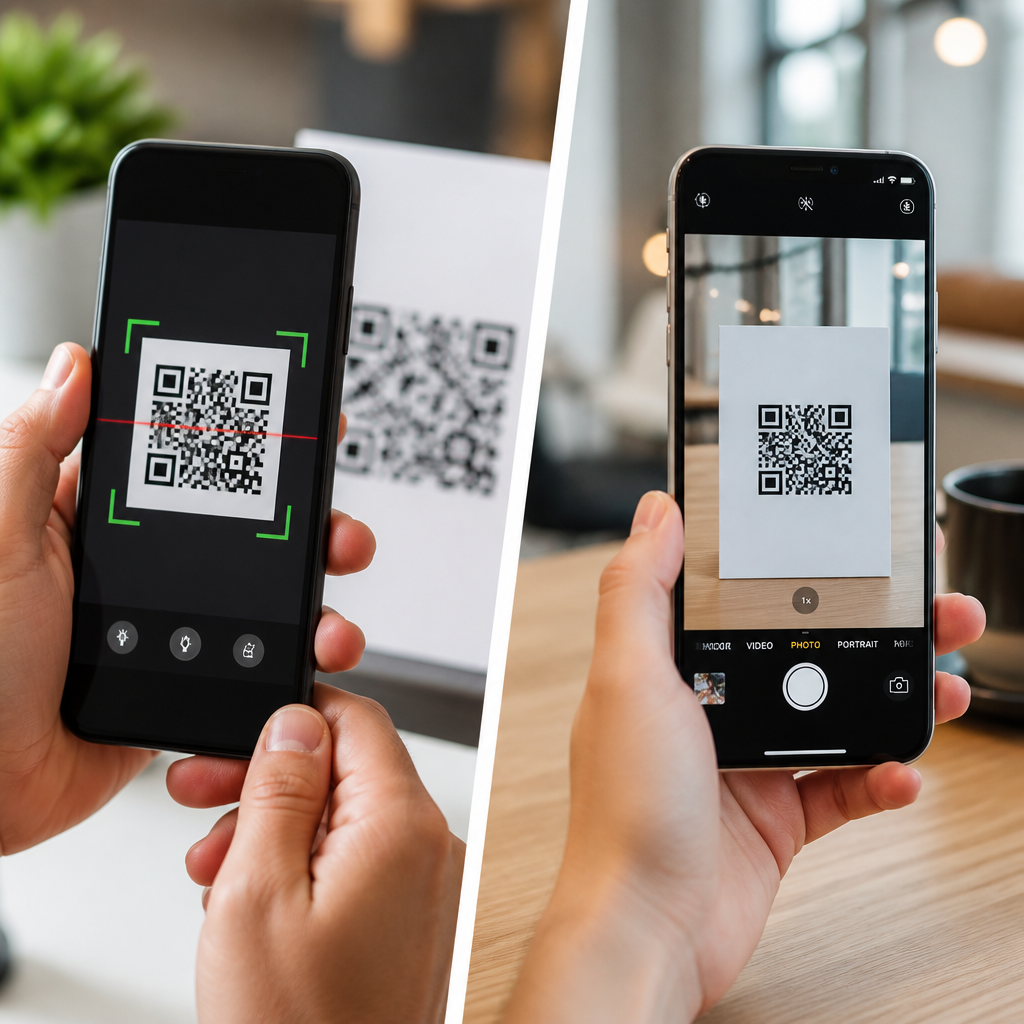
QR code scanner apps and built-in camera scanning tools solve the same basic problem, but they do not deliver the same experience, privacy profile, or feature set. A QR code is a two-dimensional barcode that stores information such as a website URL, contact card, Wi-Fi credential, payment request, ticket, or app deep link. On modern smartphones, most people encounter QR codes through the default camera app, which can recognize the code and surface a tappable action. Dedicated QR code scanner apps go further by adding scan history, security checks, bulk scanning, barcode support, and workflows for business or field use.
This distinction matters because scanning a code is no longer a novelty. Restaurants use QR menus, logistics teams track packages with barcodes and QR labels, marketers connect print to landing pages, and consumers activate devices, join networks, and make payments with a quick scan. I have tested both approaches across iPhone and Android deployments, and the pattern is consistent: built-in camera scanning is usually best for simple, low-risk tasks, while QR code scanner apps become valuable when accuracy, recordkeeping, or advanced controls matter. Choosing the right option improves speed, reduces user error, and can lower security risk when codes appear in public places.
For most users, the core question is straightforward: should you rely on the camera already on your phone, or install a separate QR code scanner app? The answer depends on your device, scanning frequency, and tolerance for ads, permissions, and data collection. Some third-party apps are excellent, especially those from established developers with transparent privacy policies. Others are bloated, ad-heavy, or designed mainly to harvest data. Built-in tools are simpler and safer by default, but they can be limited in poor lighting, with dense codes, or in workflows that need saved scans and extra verification.
What built-in camera QR scanning does well
Built-in camera scanning is the best starting point for most people because it is fast, preinstalled, and tightly integrated with the operating system. On iPhone, the Camera app and Code Scanner in Control Center recognize QR codes with no extra setup. On Android, Google Lens is often integrated into the camera, though the exact behavior varies by manufacturer. Samsung, Google Pixel, Motorola, and OnePlus devices generally provide reliable native scanning, while lower-cost phones sometimes hide scanning features behind separate modes or visual search interfaces.
The biggest advantage is convenience. You open the camera, point it at the code, and the phone identifies the target action. That might be opening a URL in Safari or Chrome, joining a Wi-Fi network, adding a contact, or launching a payment flow. Native tools also benefit from system-level privacy controls, regular operating system updates, and fewer incentives to monetize the scan itself. In practice, this means fewer intrusive ads, fewer unnecessary permissions, and a lower chance of ending up with a misleading app that imitates utility while doing very little well.
Native scanning also performs well for ordinary consumer tasks. If you scan a boarding pass, a product setup code, a restaurant menu, or a simple website link once or twice a week, the built-in option is usually enough. The user interface is familiar, and there is little training overhead for families, students, or employees using personal devices. For organizations that follow mobile device management policies, built-in scanning is often preferred because it reduces the number of installed apps and avoids app review and approval cycles.
Where QR code scanner apps outperform the camera
Dedicated QR code scanner apps become better when scanning is part of a repeated process rather than a one-off action. In retail stockrooms, event operations, warehousing, field service, and sales demos, people often need more than a simple tap to open a link. They may need a timestamped scan history, the ability to export results, support for UPC, EAN, Code 128, and Data Matrix formats, or a flashlight control that stays on while scanning multiple items. Many native camera tools do not handle these tasks gracefully.
I have seen this most clearly in operations teams. A built-in camera can scan a package label, but it usually does not log what was scanned, who scanned it, and when. A purpose-built scanner app can do that, then sync the result to Google Sheets, Airtable, a CRM, or a warehouse management system. Some apps also decode the raw contents before opening them, which helps users inspect a URL, phone number, or vCard safely. That extra visibility matters in environments where a bad scan creates downstream errors.
Another advantage is broader compatibility. While native tools excel at standard QR codes, third-party apps often support damaged labels, inverse-color codes, or difficult lighting conditions better because they provide manual controls, continuous autofocus behavior, image import, and custom decoders. Some apps let users scan from screenshots or saved photos, which is useful when codes are shared in messaging apps or PDFs. Business users also benefit from scan analytics, custom prefixes, and rule-based actions that built-in cameras simply were not designed to offer.
Security, privacy, and the hidden tradeoffs
The main security risk with any QR code is not the square pattern itself but where it leads. Attackers use malicious QR codes to send users to phishing pages, fake payment portals, app sideload links, or tracking-heavy marketing redirects. Security teams often call this quishing, shorthand for QR phishing. A built-in camera may show only the domain or a brief preview before opening. Better QR code scanner apps provide a fuller inspection step, reputation checks, or warnings for shortened URLs, mismatched domains, and suspicious schemes.
Privacy introduces a different tradeoff. Native camera tools usually collect less app-specific behavioral data because scanning is folded into the operating system. Third-party apps vary widely. Some request location, contacts, storage access, and device identifiers even when those permissions are not essential to scanning. Others fund themselves with aggressive ad networks that profile users. When evaluating QR code scanner apps, check the developer name, update frequency, privacy policy, and app store reviews for complaints about ads, subscriptions, or deceptive prompts. On Android especially, sideloaded scanners from unknown sources should be avoided.
There is also a reliability tradeoff. Built-in tools are maintained by Apple, Google, or the device maker and tend to improve steadily with system updates. Dedicated apps can stagnate if the developer stops maintaining the camera library or fails to adapt to new permission models. In real deployments, I recommend a conservative rule: if a team only needs occasional scanning, stay native; if they need persistent records, cross-format support, or controlled workflows, standardize on a vetted app from a credible publisher and document its permissions.
Feature comparison: when each option is the better fit
| Use case or feature | Built-in camera | QR code scanner app |
|---|---|---|
| Occasional website or menu scans | Best choice for speed and simplicity | Usually unnecessary |
| Scan history and export | Rarely available | Common and useful for work |
| Barcode formats beyond QR | Limited, device dependent | Often supports UPC, EAN, Code 128 |
| Security preview before opening | Basic preview | Can offer detailed inspection and warnings |
| Scanning from saved images | Sometimes available through Photos or Lens | Frequently supported |
| Enterprise workflow integration | Minimal | Strong advantage |
The practical takeaway is simple. Use the built-in camera for personal, low-volume scanning where speed matters most. Choose a QR code scanner app when you need auditability, compatibility with multiple code types, or safer inspection before opening unknown destinations. This split mirrors what many IT teams already do: default to native tools for general users and approve a dedicated scanner for employees with repeat scanning tasks.
How to choose the right QR code scanner app
If you decide a dedicated tool is necessary, selection should be based on specific criteria rather than app store rank alone. First, verify supported symbologies. Many listings say “barcode scanner” but handle only QR and ISBN competently. Second, test speed on real codes, including glossy packaging, small labels, and low-contrast prints. Third, review permissions. A scanner should not need contacts or precise location unless those features are clearly explained. Fourth, check whether the app shows the decoded content before launching it and whether it stores scan history locally or in the cloud.
Fifth, evaluate the business model. Free QR code scanner apps often rely on ads or upsells, and that can slow scanning or introduce accidental taps. Paid apps or scanners bundled into trusted productivity platforms are frequently better for heavy use because they remove friction. Sixth, confirm maintenance quality by looking at update dates and OS compatibility notes. A scanner that has not been updated in a year may still work, but it is a risk in managed environments. Finally, pilot the app with a small group and document success rates, false reads, and user complaints before wider rollout.
For most readers, the best answer is balanced rather than absolute. Built-in camera scanning is better for convenience, safety through simplicity, and everyday consumer use. QR code scanner apps are better for advanced features, structured workflows, and situations where you need more control over what happens after the scan. Start with the camera already on your phone, then add a dedicated app only when a clear requirement appears. That approach keeps your device lean, reduces privacy risk, and still gives you room to scale into professional scanning needs. If you manage mobile tools or scan codes regularly, review your current workflow today and decide whether native scanning is enough or a dedicated app would save time and reduce mistakes.
Frequently Asked Questions
1. What is the main difference between a QR code scanner app and a built-in camera scanner?
The main difference is convenience versus specialized functionality. A built-in camera scanner is designed to handle the most common QR code use case: you open your phone’s default camera, point it at a code, and tap the prompt that appears. For many people, that is enough. It is fast, requires no extra download, and is usually integrated directly into the operating system, which makes it the simplest option for everyday tasks like opening a website, joining a Wi-Fi network, or viewing a menu.
A dedicated QR code scanner app, by contrast, is built specifically around scanning and managing QR codes and often barcodes as well. That means it may offer features the default camera does not, such as scan history, batch scanning, flashlight shortcuts, saved results, in-app security checks, barcode support for retail products, code generation, or better performance in low light and awkward angles. Some apps also provide organizational tools for businesses or power users who scan codes frequently.
In practical terms, built-in camera tools are usually better for occasional scanning, while dedicated apps can be better for people who need advanced features or a more controlled workflow. The question is not whether both can scan a QR code—they can—but whether you need the added capabilities, interface, and management tools that a dedicated app provides.
2. Is it safer to use my phone’s built-in camera to scan QR codes?
In many cases, yes, the built-in camera is the safer default choice, especially if your phone is running a current version of iOS or Android and you use the official camera app from the device manufacturer. Because the scanning feature is part of the operating system or default camera software, it is generally subject to the phone maker’s security standards, permission model, and update process. It also usually requires fewer permissions than third-party apps, which helps reduce privacy and security risks.
That said, the built-in camera does not make QR codes inherently safe. A malicious QR code can still direct you to a phishing website, trigger a deceptive login page, or initiate an action you did not fully expect. The safety advantage of the built-in camera often comes from its limited scope, cleaner permission profile, and lower likelihood of collecting extra user data—not from any magical ability to detect every dangerous destination.
Dedicated QR scanner apps vary widely in quality. Some reputable apps include useful security features, such as previewing links before opening them, flagging suspicious domains, or letting you copy the data without immediately launching it. Others may request unnecessary permissions, show aggressive ads, collect analytics, or route activity through their own interfaces. If you choose a third-party app, it is important to review its developer reputation, privacy policy, permissions, and update history.
The safest approach overall is to treat every QR code with some caution. Before tapping, look at the destination if your phone or app shows it. Be especially careful with codes posted in public places, codes covering other labels, and codes that ask for payment, credentials, or app downloads. The built-in camera is often the best baseline for privacy-conscious users, but safe behavior still matters more than the scanner itself.
3. When does a dedicated QR code scanner app make more sense than the default camera?
A dedicated QR code scanner app makes more sense when scanning is something you do often, professionally, or in more demanding conditions. For example, retail workers, warehouse teams, event staff, field technicians, or frequent travelers may need faster repeat scanning, scan history, barcode compatibility, export options, and a more purpose-built interface. In those situations, the default camera can feel limited because it is optimized for general photography first and QR recognition second.
There are also feature-based reasons to choose a dedicated app. Some apps can scan both QR codes and traditional one-dimensional barcodes, making them useful for inventory, product lookup, and logistics tasks. Others store previous scans, categorize results, allow notes, generate new QR codes, or support continuous scanning without reopening the camera each time. These capabilities can save time and reduce friction if QR codes are part of your workflow rather than an occasional convenience.
Another reason is scanning reliability in edge cases. Depending on the app and device, a dedicated scanner may perform better with tiny codes, damaged labels, low-light environments, glossy surfaces, or unusual code placements. Some apps also provide manual controls, zoom, image import, or better visual guidance to help lock onto difficult codes more quickly.
That said, not everyone benefits from installing another app. If your needs are basic—opening links, adding contacts, joining Wi-Fi, or scanning a menu—the built-in camera is usually more than sufficient. A dedicated scanner is most worthwhile when you need features beyond simple recognition, not just because it exists as an alternative.
4. Do QR code scanner apps offer better features than built-in camera tools?
Often they do, but whether those features are better depends entirely on your use case. Built-in camera tools are intentionally minimal. Their job is to recognize a QR code and present the next action quickly. That simplicity is part of their appeal. However, dedicated apps frequently go much further by offering tools that casual users may never need but advanced users may find extremely valuable.
Common enhanced features include scan history, favorites, bulk or continuous scanning, barcode support, code generation, flashlight and zoom shortcuts, image-based scanning from screenshots or saved photos, and exportable logs. Some apps can interpret different QR payload types more clearly, such as contact cards, calendar events, payment requests, map locations, and Wi-Fi credentials. Others provide link previews, custom browser handling, or warning prompts before opening unknown destinations.
For business and operational use, these extra features can make a major difference. A scan history log can help with auditing and recordkeeping. Barcode support can unify multiple workflows into one app. Saved results can make repeated tasks faster. In some environments, even small usability improvements—such as auto-copying text, labeling scans, or scanning multiple items in sequence—translate into meaningful productivity gains.
Still, more features do not automatically mean a better experience. Some apps add clutter, ads, tracking, or unnecessary complexity. If the only thing you need is a fast and private way to open a website from a QR code, the built-in camera may actually be the better feature set because it does less and stays out of your way. The strongest answer is that dedicated apps usually offer more features, but “better” depends on whether those features are genuinely useful to you.
5. Which option is better for most people: a QR code scanner app or the built-in camera?
For most people, the built-in camera is the better choice. It is already installed, easy to access, familiar to use, and generally sufficient for the most common QR code tasks. If your typical scanning needs involve opening restaurant menus, accessing websites, joining Wi-Fi, checking tickets, or launching a payment page, the default camera app will usually handle the job quickly and with less hassle than downloading and managing another app.
It is also the better fit for users who care about minimizing app clutter and limiting data exposure. Sticking with the phone’s built-in tools reduces the need to grant permissions to third-party software, and it lowers the chance of ending up with an app that is overloaded with ads or questionable data practices. In that sense, the built-in camera offers a strong mix of convenience, simplicity, and reasonable privacy for mainstream use.
However, “better for most people” is not the same as “better for everyone.” If you scan codes frequently, need scan records, want support for both QR codes and retail barcodes, or prefer features like image import and security previews, a good dedicated app may provide a noticeably better experience. Power users, business users, and people with specialized workflows may quickly outgrow the limitations of the default camera.
The best rule of thumb is simple: start with the built-in camera. If it does everything you need, there is no strong reason to switch. If you repeatedly run into missing features or workflow limitations, then a carefully chosen dedicated QR code scanner app may be the better long-term solution.





