
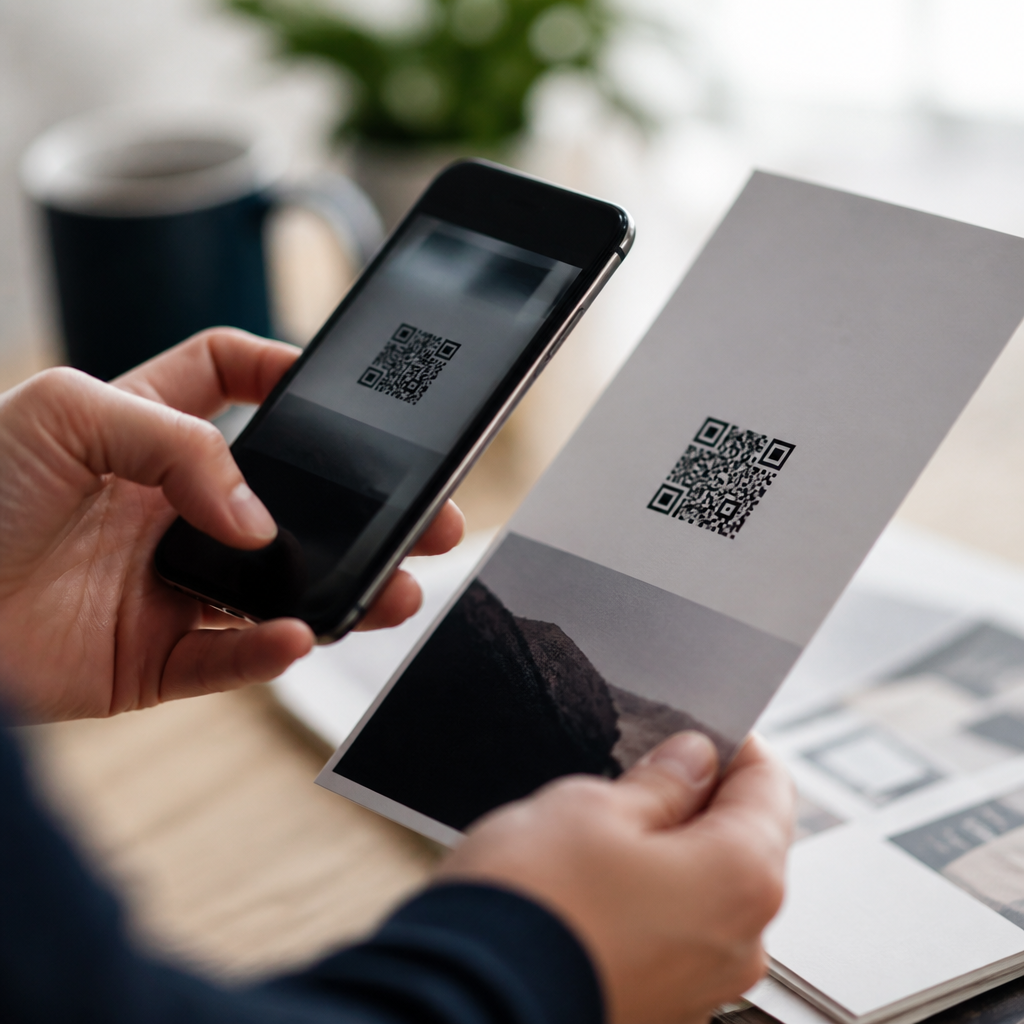
QR codes promise a fast bridge between print and mobile, yet many fail at the exact moment they are supposed to work. On printed materials, a failed scan is rarely random. It usually comes down to predictable design, production, placement, or environmental problems that can be prevented with proper planning and testing. In mobile marketing, operations, retail, events, and packaging, I have seen the same pattern repeatedly: the code itself is technically valid, but the printed execution makes it unreadable in real-world conditions.
A QR code is a two-dimensional matrix barcode that stores data such as a URL, contact record, Wi-Fi credential, payment request, or product identifier. Smartphone cameras read the dark and light modules, locate three position markers, correct some damage through error correction, and then open the encoded action. “Printed materials” includes flyers, brochures, menus, posters, labels, signage, direct mail, product packaging, trade show graphics, and receipts. Troubleshooting QR code scans means identifying why a phone camera cannot quickly detect, decode, or trust that symbol.
This topic matters because print has no retry button. If a code on a website fails, you can patch the page. If a batch of cartons, catalogs, or window clings goes out with a marginal QR code, the business pays twice: first for printing, then for lost conversions, support requests, and damaged credibility. Scan failure also hurts accessibility and analytics. A customer who gives up scanning often never reaches the landing page, never redeems the offer, and never appears in campaign reporting. Understanding why QR codes do not work on printed materials is therefore essential for anyone responsible for mobile QR code scanning, campaign execution, or print production quality.
Print design errors are the most common cause of scan failure
The biggest reason QR codes do not work on printed materials is bad design geometry. A QR code needs enough physical size for the camera to resolve its modules. If the code is too small, dense, or visually altered, the phone cannot separate the squares clearly. A simple rule I use is to size the printed code based on scan distance. For close handheld use, around 0.8 to 1.2 inches often works for short URLs, while posters viewed from several feet away require much larger codes. Encoding a long URL increases data density and forces smaller modules, making the same printed size much harder to scan.
Quiet zone failures are equally damaging. Every QR code needs a clear margin around it, typically at least four modules wide, with no text, borders, images, or decorative elements intruding. Designers often place the code inside a colored box, add a speech bubble outline, or crowd it with icons and legal text. That breaks detection before decoding even begins. Excessive logo insertion causes similar trouble. Error correction can tolerate some damage, but not limitless customization. Rounded modules, gradients, inverted colors, and stylized finder patterns may look branded on a proof yet fail under ordinary camera autofocus and exposure conditions.
Color choices matter more than many teams expect. High contrast is nonnegotiable. Dark code on a light matte background is the safest combination. Light gray on white, metallic inks, glossy black on dark blue, and brand colors with similar luminance all reduce scan reliability. In print reviews, I regularly reject reverse codes, low-contrast pastels, and overprinted designs because cameras read luminance contrast, not marketing intent. If a QR code must match brand guidelines, test the exact printed substrate under realistic light, not just the digital artwork on a calibrated monitor.
Production and material issues often ruin a technically correct QR code
A code can be perfectly generated and still fail after printing. Dot gain, ink spread, registration shift, low-resolution output, and poor finishing all change the shape of modules. Thermal printers are frequent offenders on labels and receipts. If the print head is worn or the darkness setting is too high, squares bleed together and destroy separation. On offset and flexographic jobs, small codes can fill in because the press cannot hold fine detail consistently across a long run. JPEG compression in artwork handoffs also softens edges. For production files, vector formats such as SVG, EPS, or press-ready PDF are safer than raster screenshots.
Material choice is another overlooked factor. Curved bottles, crinkled pouches, reflective foil, laminated menus, textured paper, and transparent labels all create optical distortion. A code that scans on a flat proof may fail once wrapped around a narrow container because the camera sees skewed geometry. Gloss coatings create glare hotspots that wash out finder patterns. Outdoor signage introduces fading, dirt, scratches, and weathering. In warehouses and manufacturing sites, abrasion and chemical exposure can partially destroy symbols. Error correction helps, but it cannot compensate for chronic physical damage or distortion across critical reference areas.
| Problem | What happens in print | Typical result | Best fix |
|---|---|---|---|
| Code too small | Modules become indistinct | Camera cannot resolve pattern | Increase size or shorten encoded data |
| No quiet zone | Text or graphics touch symbol | Detection fails before decode | Keep a clear margin of four modules |
| Low contrast | Foreground and background blend | Slow or inconsistent scans | Use dark on light with strong luminance contrast |
| Gloss or glare | Reflections hide modules | Code works only at awkward angles | Use matte stock or change placement |
| Curved surface | Geometry warps after application | Partial reads or no reads | Move code to flatter panel and enlarge it |
| Long URL | Data density increases | Small modules become unreadable | Use a short redirect URL or dynamic QR code |
Placement, environment, and user context determine real-world scan success
Where the printed QR code appears is just as important as how it is designed. Posters mounted too high, bus shelter ads behind glass, table tents under dim restaurant lighting, and shelf tags near reflective packaging all create scanning friction. People do not scan in laboratory conditions. They scan while walking, carrying bags, standing in line, or dealing with bright sunlight. If the code requires precise framing, the campaign loses users. A practical placement rule is simple: put the code where a person can comfortably approach, hold a phone steady, and see the destination prompt without blocking traffic or causing awkward body movement.
Environmental lighting has a major effect on mobile QR code scanning. Backlit displays, direct sun, flashing event lights, and shadows from store fixtures alter exposure and contrast. Midrange and older phones struggle more because of smaller sensors, weaker autofocus, and aggressive noise reduction in low light. Distance also matters. On large-format graphics, marketers often underestimate the size needed for reliable scanning from the point where a viewer naturally stands. If a poster is on the other side of a storefront window, the user may be scanning through reflections, glare, and motion, all at once.
Contextual trust can also stop scanning even when the code is readable. Users hesitate if the call to action is vague, if the destination domain looks unfamiliar, or if the code is placed near spam-like claims. I have seen higher scan rates simply by adding plain language such as “Scan to view menu,” “Scan for assembly guide,” or “Scan for secure payment at brand.com.” Printed materials should explain the value and reduce uncertainty. A working QR code that nobody trusts or understands is operationally as ineffective as a broken one.
Destination and mobile experience problems are part of troubleshooting
Many teams blame print when the actual failure happens after the scan. A QR code can resolve to a dead page, redirect chain, geo-blocked content, app wall, or mobile page too slow to load on cellular data. From the user’s perspective, the QR code did not work. This is why troubleshooting QR code scans must include the entire journey from camera detection to landing page completion. I always test with both iPhone and Android devices, multiple browser defaults, and weak network conditions because a destination that loads well on office Wi-Fi may stall in a parking lot or convention hall.
Dynamic QR codes are often the better choice for printed materials because they let teams update the destination without reprinting the symbol. They also support analytics, campaign routing, and shorter encoded URLs, which improve print reliability. However, they introduce dependency on the redirect platform. If the service has downtime, expires the code, or misconfigures SSL, scanning breaks at scale. Static codes avoid platform risk but lock the destination permanently. The right choice depends on campaign lifespan, governance, and technical ownership. For either type, use a short, reputable domain, maintain valid HTTPS, and avoid unnecessary redirects that add latency or trigger browser warnings.
Mobile destination design deserves the same rigor as the printed code. Pages should load quickly, fit small screens, and present the promised action immediately. If the code is on printed packaging in a store aisle, forcing a large video autoplay or a lengthy form is a mistake. If the code is on equipment, the destination should surface the manual, serial lookup, or troubleshooting steps first. Successful printed QR experiences match the user’s moment, device, and intent. That alignment is the difference between a scan that converts and one that gets abandoned.
How to troubleshoot printed QR codes systematically
The fastest way to diagnose why QR codes do not work on printed materials is to test in layers. First, verify the encoded content with a trusted generator and scanner app, then test the raw code on screen. Next, inspect the artwork: size, error correction level, quiet zone, contrast, and file format. Then review the production proof at actual size, not enlarged on a monitor. After that, test the final printed piece with multiple phones in the real environment where people will use it. This staged process separates data problems, design mistakes, print defects, and contextual barriers.
Use recognized tools and standards. GS1 Digital Link matters when QR codes are used on packaging for product identification and future retail workflows. For artwork quality control, prepress teams should check vector integrity, overprint settings, and minimum line fidelity. For scan testing, compare current iPhone and Samsung devices with at least one older budget Android phone, because edge-case compatibility often appears there first. Record scan time, angle tolerance, light conditions, and distance. If scanning takes more than a second or two in normal use, improve the code before production. Marginal codes fail at scale.
The core lesson is straightforward: printed QR code failure is usually preventable. Most problems come from avoidable choices such as tiny symbols, long URLs, weak contrast, glossy materials, warped placement, or poor mobile destinations. When teams treat the QR code as a functional interface instead of a decorative asset, scan rates improve and support issues decline. For any print campaign, packaging run, sign program, or label redesign, build a checklist, test the final object in context, and fix weak points before distribution. That discipline turns QR troubleshooting from guesswork into a reliable production process.
Frequently Asked Questions
Why do QR codes stop working once they are printed, even if the code itself is valid?
A QR code can be perfectly valid in its digital form and still fail after printing because scanning depends on far more than the encoded data alone. Once a code moves from screen to paper, real-world production variables begin to affect readability. Common issues include low contrast between the code and background, insufficient size, blurry edges from low-resolution artwork, distortion during scaling, and quiet zone violations, which happen when text, borders, images, or other design elements crowd too close to the code. Smartphone cameras and scanning apps need a clear, high-contrast pattern with enough breathing room around it to detect the structure accurately.
Printing conditions also matter. Ink spread on porous paper can soften module edges, glossy coatings can create glare, and textured materials can break up the pattern visually. In some cases, the code is placed on curved packaging, folded brochures, wrinkled labels, or uneven surfaces, all of which can interfere with the camera’s ability to capture the geometry correctly. The result is that the QR code is not “broken” in the technical sense, but it becomes difficult or impossible for real users to scan under normal conditions. That is why successful printed QR codes require planning across design, production, material selection, and testing, not just code generation.
What size should a QR code be on printed materials to make scanning reliable?
Size is one of the most important factors in print QR code performance, and codes often fail because they are simply too small for the intended scanning distance. A general rule is that the farther away a person is expected to scan, the larger the code needs to be. On items handled up close, such as business cards, product inserts, or table tents, a smaller code may work well if it is printed sharply and given strong contrast. On posters, signage, store displays, event graphics, or packaging seen from a distance, the code needs to be much larger so phone cameras can detect the modules clearly without excessive zooming or repositioning.
Size cannot be considered in isolation. A dense QR code that contains a long URL or too much data creates smaller internal modules, which means the printed version may need to be larger than expected just to preserve readability. If the code is reduced to fit a layout, those modules can become too tiny to reproduce cleanly on press. The practical solution is to keep the encoded content short, use a dynamic QR code when appropriate, print the code at a size suited to its real scanning distance, and test it on actual devices before mass production. In most cases, teams get better results by simplifying the code and enlarging it slightly rather than trying to force a small, data-heavy code into a tight design space.
How do color, contrast, and design choices affect whether a printed QR code scans?
QR codes work best when there is strong visual contrast between the dark foreground modules and the light background. The classic black-on-white format remains the most dependable because scanning software is optimized for clear, high-contrast patterns. Problems appear when brands try to stylize the code too aggressively with low-contrast color combinations, gradients, metallic inks, transparency effects, patterned backgrounds, or reversed light-on-dark treatments that are harder for many scanners to interpret. A code may look attractive in a mockup but become unreliable in real use, especially under inconsistent lighting.
Design modifications can also damage the structural integrity of the code. Rounded modules, embedded logos, decorative frames, shadows, and custom artwork can all be used carefully, but they reduce the margin for error. If the quiet zone around the code is interrupted or the finder patterns become less distinct, scan performance drops quickly. Print adds another layer of risk because colors shift, paper absorbs ink differently, and finishes alter visibility. A code that appears crisp on a calibrated monitor may print darker, softer, or more reflective than expected. The safest approach is to prioritize function first: high contrast, clean edges, a plain background, and sufficient empty space around the code. Branding can still be incorporated, but it should never compromise the scanner’s ability to recognize the pattern instantly.
Where should a QR code be placed on printed materials to avoid scan failures?
Placement has a major effect on usability, and many printed QR codes fail because they are positioned where scanning is awkward or physically difficult. On brochures, flyers, labels, packaging, and posters, the code should appear on a flat, visible area that users can easily frame with their phone camera. Problems arise when codes are placed near folds, seams, bottle curves, package edges, corners, or perforations. Even if the full code is technically visible, surface distortion can make it harder for the scanner to interpret the geometry correctly. Placement also matters in crowded layouts, where visual clutter may cause users to overlook the code or struggle to isolate it with their camera.
Environmental context is equally important. A code placed too high on a wall, too low on a shelf, behind reflective plastic, under dim lighting, or in a location with constant movement becomes less practical to scan. For example, a poster in a transit station may need a larger code and a comfortable viewing height, while a package code should avoid curved or crinkled areas that become distorted during handling. Good placement means thinking about how the user will actually interact with the printed piece: how far away they will be, what angle they will approach from, whether glare is likely, and whether there is enough space to pause and scan. The best QR code location is not just where it fits in the layout, but where scanning feels natural and frictionless.
What is the best way to test QR codes on printed materials before full production?
The best way to test a printed QR code is to evaluate the final printed version in realistic conditions, not just the digital artwork on a screen. Many teams make the mistake of verifying the code file once and assuming it will remain reliable through printing, finishing, distribution, and use. Effective testing means producing physical proofs on the actual substrate or a close equivalent, then scanning with multiple smartphones, camera qualities, screen sizes, and operating systems. Testing should include both native camera apps and common QR scanning behaviors, since different devices interpret codes with varying tolerance for low contrast, glare, angle, and distortion.
Testing should also reflect the real environment. Scan the code under bright light, indoor light, and less-than-ideal conditions. Test from the expected user distance, at the intended placement height, and on the actual material finish if possible. If the code will appear on packaging, test it after application to the package shape, not just as a flat proof. If it will be laminated, glossy, or placed behind plastic, test it that way. It is also wise to verify the destination experience after the scan: the landing page should load quickly, be mobile-friendly, and match the user’s expectations based on the printed call to action. A QR code that scans but leads to a broken, slow, or irrelevant mobile page still fails in practice. Thorough print testing catches issues early, reduces costly reprints, and dramatically improves real-world campaign performance.





