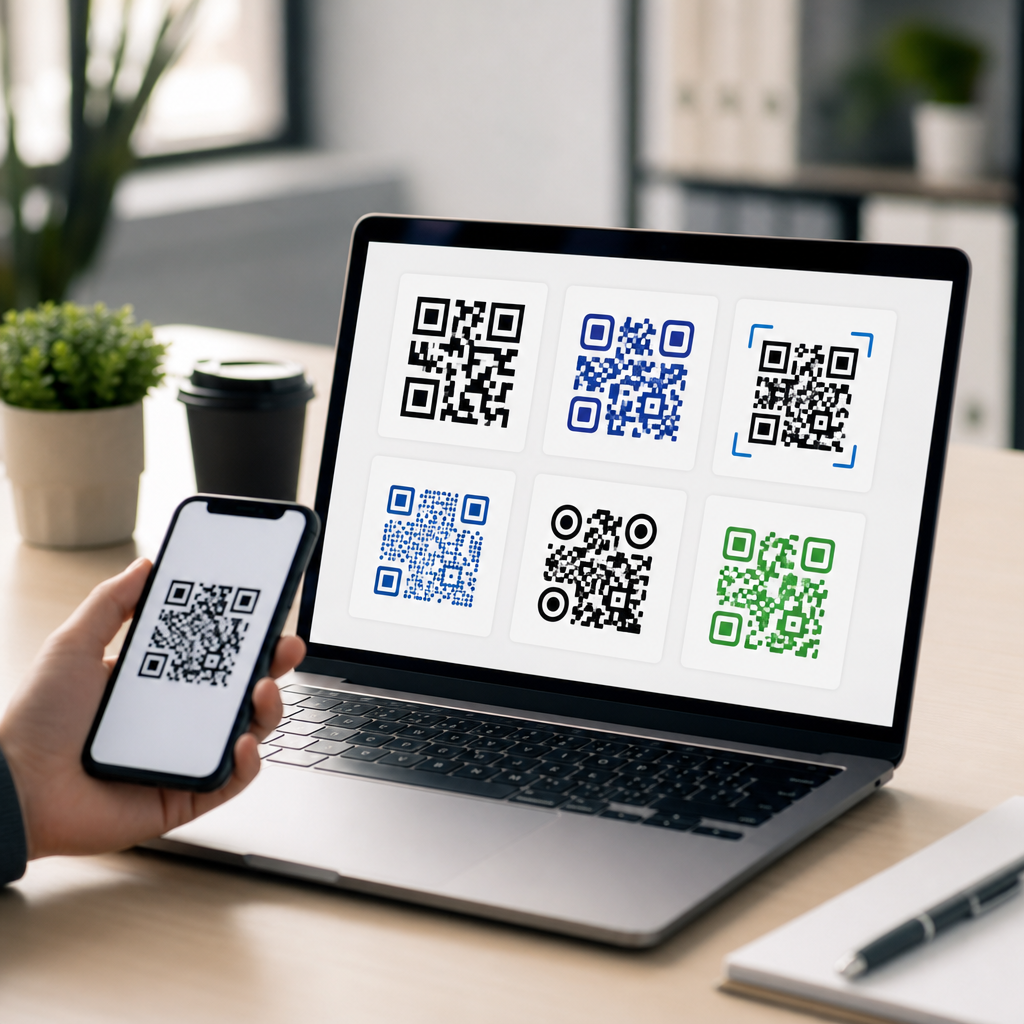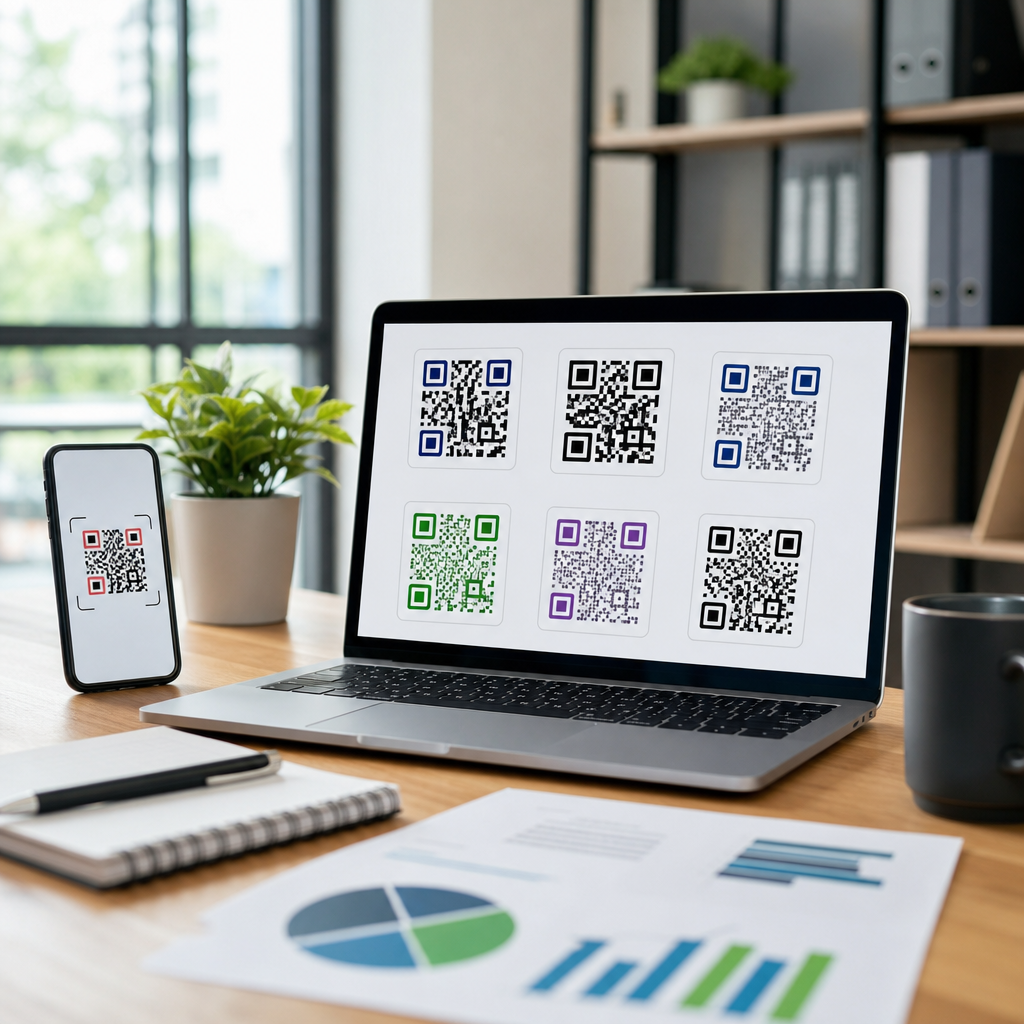
An EPS QR code is a QR code saved in Encapsulated PostScript format, a vector file type built for sharp scaling, reliable print production, and predictable output across professional design workflows. Unlike raster files such as PNG or JPG, an EPS stores shapes as mathematical paths instead of fixed pixels. That distinction matters because a QR code only works when scanners can clearly distinguish each module, quiet zone, and alignment pattern. In practice, I use EPS QR codes when a client needs artwork for packaging, signage, magazines, labels, trade show graphics, or any print asset that may be resized several times before final production. If the same code must appear on a business card, a poster, and a retail display, EPS usually prevents the softness and edge artifacts that can appear with low-resolution raster exports.
Understanding QR code formats and file types is essential because the wrong export can turn a technically valid code into one that scans poorly in the real world. A marketer might generate a QR code online, drag a small PNG into a brochure layout, and assume everything is fine. Then the printer enlarges it, the edges blur, the quiet zone gets cropped, and scan rates drop. File type choices affect not only image quality but color handling, transparency behavior, editability, prepress compatibility, and handoff between designers, printers, and web teams. For teams creating mobile QR codes, choosing the right format is not a cosmetic detail. It is part of conversion optimization, production quality control, and campaign reliability.
Before focusing on EPS specifically, it helps to define the main file categories in QR workflows. Vector formats, including EPS, SVG, AI, and PDF, can scale without losing clarity because they describe lines and fills mathematically. Raster formats, including PNG, JPG, and WebP, are made from pixels and depend on export resolution. For screen use, raster files are often sufficient and simpler. For print, vectors are usually safer. The hub topic of QR code formats and file types sits at the center of mobile QR code creation because every downstream decision, from design placement to landing page analytics, depends on whether the code remains scannable in the final medium.
What an EPS QR Code Is and How It Works
EPS stands for Encapsulated PostScript, a long-established graphics format used in professional publishing and print production. An EPS QR code contains the geometric structure of the code as vector paths. Those paths define the black modules, finder patterns, and other shapes with exact coordinates, which means a RIP, design application, or printer can render the code at many sizes without introducing pixelation. In day-to-day production, that makes EPS a dependable master asset. I often request EPS from generators when I know the code will move through Adobe Illustrator, InDesign, or a packaging prepress workflow.
The practical benefit is consistency. A QR code is a machine-readable symbol with strict spatial relationships. If edges become soft, if modules merge, or if contrast drops, cameras need more time to decode or may fail entirely. Because EPS preserves clean edges, it reduces the chance of distortion during scaling. It also gives designers more control over spot colors, knockouts, and placement inside complex print layouts. That said, EPS is not magic. A poorly designed code with inadequate quiet zone, excessive logo intrusion, weak contrast, or an overly dense data payload can still fail. File format protects fidelity; it does not correct bad QR code design.
EPS vs Other QR Code File Types
Choosing the best QR code file type depends on medium, workflow, and who will handle the asset. EPS is strongest in print-first environments, but it is one option within a broader set of formats that each solve different problems. When I build a format package for clients, I usually include at least one vector master and one web-ready raster export. That prevents teams from repurposing a tiny social image for a six-foot banner, which is one of the most common avoidable mistakes in QR deployment.
| Format | Type | Best use | Main advantage | Main limitation |
|---|---|---|---|---|
| EPS | Vector | Print, packaging, signage | Scales cleanly and works well in print workflows | Less convenient for websites and some modern apps |
| SVG | Vector | Web, responsive design, editable artwork | Sharp at any size and lightweight for digital use | Can be handled inconsistently in some legacy print workflows |
| Vector/container | Print proofs, asset sharing | Widely supported and easy to review | May include extra page settings or embedded elements | |
| PNG | Raster | Web pages, email, apps, slide decks | Lossless and easy to use almost anywhere | Quality depends on export resolution |
| JPG | Raster | Rarely ideal for QR codes | Small file size | Compression artifacts can reduce scan reliability |
If you need one direct answer, use EPS for professionally printed QR codes, SVG for many digital and flexible design cases, PNG for straightforward screen deployment, and avoid JPG unless there is no alternative. PDF is useful for handoff and proofing, but it should not replace a true editable master when production teams may need to adjust size, color, or placement.
When You Should Use an EPS QR Code
You should use an EPS QR code when the final output is printed, large-format, or likely to be resized after creation. Typical examples include product packaging, restaurant menus, direct mail, in-store displays, vehicle wraps, conference booths, instruction manuals, and real estate signage. In each of these environments, the code may start as a small element inside a design file, then be enlarged, recolored, or repositioned during approvals. EPS handles those changes gracefully. It is also a smart choice when brand teams need strict color consistency, such as using a spot black or a defined Pantone value in a print system.
EPS is especially valuable when multiple vendors touch the file. A marketing team may brief an agency, the agency may pass artwork to a printer, and the printer may impose the file into a larger production layout. In that chain, vector artwork gives everyone more flexibility with fewer quality losses. I have seen campaign assets rescued simply because the QR code existed as EPS instead of a small PNG pulled from a web dashboard. The print vendor could scale it correctly, preserve the quiet zone, and output a sharper result without asking for a full redesign.
Use EPS if you expect the code to appear on surfaces with varying dimensions or if you need archival durability. Print assets are often reused months later in new collateral, and vector masters age better than raster exports. If your organization maintains a brand asset library, keeping an EPS QR code alongside SVG and PNG versions is a practical standard.
When EPS Is Not the Best Choice
EPS is not always the right answer. For websites, landing pages, app interfaces, and most email campaigns, PNG or SVG is usually more practical. Browsers do not treat EPS as a native web image format, and many content management systems will not preview or serve it cleanly. If a sales team just needs to drop a QR code into a slide deck, a high-resolution PNG may be the fastest option. Likewise, if the code is used only in social media graphics with fixed dimensions, EPS adds little operational benefit.
There are also workflow considerations. Some modern teams have moved toward SVG and PDF while using EPS less frequently than in older prepress environments. Adobe applications still support EPS well, but some collaborative design tools and browser-based editors favor SVG. If editability in web development is important, SVG often wins. If secure, simple viewing and approval are the priority, PDF may be easier for non-design stakeholders. The key is not to force EPS into every situation but to match the format to the production context.
Best Practices for QR Code Formats in Mobile Campaigns
A successful mobile QR campaign starts with the destination and ends with format-specific quality checks. First, choose a dynamic QR code if you may need to update the destination URL later or track scans by source. Then create the code with adequate error correction, but do not overload it with heavy styling that compromises readability. Keep strong contrast, preserve the quiet zone, and test on multiple devices under realistic lighting. File type selection comes after those fundamentals, not before.
For print, keep a vector master in EPS, SVG, or PDF, and export production-ready versions only when size requirements are known. For digital, generate PNG at exact display dimensions or use SVG where supported. Name files clearly, such as campaign-name-print.eps and campaign-name-web-1200.png, so teams do not guess which asset is safe to use. Store scan-tested masters in a shared library. If your subtopic is QR code formats and file types, that library is the operational center: it links design standards, production specs, and campaign performance into one repeatable system.
Finally, test after placement, not just after generation. A QR code that scans perfectly in isolation can fail once embedded in a reflective package, printed on textured stock, or surrounded by visual clutter. Open the final proof, printed sample, or live page and scan it with both iPhone and Android devices. That simple step catches more issues than any format debate alone. Choose EPS when print quality and scaling matter, choose other formats where they fit better, and build your mobile QR workflow around the realities of the final user experience.
An EPS QR code is the right choice when you need a QR code that stays crisp, editable, and dependable throughout professional print production. It matters because QR code performance is tied directly to file quality, and file quality is shaped by format. EPS belongs in any serious discussion of QR code formats and file types because it solves the scaling, prepress, and reuse problems that raster images often create. At the same time, it is one part of a broader toolkit that includes SVG for flexible digital design, PNG for everyday screen use, and PDF for proofing and distribution.
The core takeaway is simple. Match the QR code file type to the final medium, keep a vector master whenever print is involved, and never assume a generated image is production-ready without testing. Teams that follow those rules see fewer scanning failures, smoother handoffs, and more durable campaign assets. If you are building out a mobile QR code system, audit your current file library, identify where EPS should replace low-resolution raster files, and standardize your format choices before the next campaign goes live.
Frequently Asked Questions
What is an EPS QR code, exactly?
An EPS QR code is a QR code exported as an Encapsulated PostScript file, which is a vector format commonly used in professional design and print production. Instead of storing the QR code as a grid of colored pixels, like a PNG or JPG would, an EPS file stores the code as mathematical paths and shapes. That means the edges stay crisp and clean no matter how large or small the artwork is scaled. For QR codes, that matters a great deal because scanners rely on clear module edges, proper spacing, and an intact quiet zone to read the symbol accurately.
In practical terms, an EPS QR code is especially useful when a code may be resized repeatedly during layout, sent through a commercial printing workflow, or placed into signage, packaging, brochures, labels, or other high-resolution print assets. Designers and print providers often prefer EPS because it behaves predictably in vector-based workflows and preserves sharp output better than raster alternatives. If the goal is dependable scan performance and production-ready artwork, EPS is often one of the safest file formats to choose.
When should you use an EPS QR code instead of a PNG or JPG?
You should use an EPS QR code when the code is intended for professional print, large-format output, or any project where resizing flexibility and edge clarity are important. A raster file like PNG can work well for digital use and for some fixed-size print applications, but once a raster image is enlarged beyond its intended resolution, the edges can soften or become visibly pixelated. JPG is even less ideal because its compression can introduce visual artifacts that may interfere with scan accuracy. EPS avoids those problems because the file is resolution-independent.
A good rule of thumb is this: if a client needs the QR code for packaging, product labels, posters, trade show displays, menus, direct mail, storefront graphics, or print files that may move between designers, agencies, and printers, EPS is the better choice. It is also smart to use EPS when you do not yet know the final print size, because the file can be scaled without degrading the code’s geometry. For web pages, email, social graphics, or other screen-first uses, PNG is usually sufficient. But for controlled, reliable print production, EPS is the format I would reach for first.
Why does vector format matter so much for QR code performance?
Vector format matters because QR codes are not judged by how attractive they look to the human eye alone; they must be interpreted correctly by scanning software. A scanner needs to distinguish the square modules, finder patterns, alignment patterns, timing patterns, and the quiet zone around the code with precision. If those shapes become fuzzy, distorted, compressed, or inconsistently rendered, scan reliability can drop. A vector EPS file keeps those elements sharply defined because the code is built from paths rather than pixels.
This becomes even more important in print environments where artwork may be resized, placed into complex layouts, converted between software applications, or output on different devices. Raster files can suffer from interpolation, compression, and edge softening, especially if someone enlarges them after export. EPS reduces that risk by preserving the geometry of the code. That does not mean vector alone guarantees a scannable QR code, since contrast, sizing, error correction, and quiet zone still matter, but it does give you a much stronger technical foundation for clean, dependable reproduction.
Are EPS QR codes better for print production and commercial design workflows?
Yes, in most professional print scenarios, EPS QR codes are a better fit because they integrate well into established design and prepress workflows. Print designers often work in Adobe Illustrator, InDesign, CorelDRAW, and similar applications that handle vector artwork efficiently. An EPS QR code can be dropped into layouts, resized as needed, aligned precisely, and output with sharp edges through press-ready PDFs and related production files. That predictability is one of the biggest reasons agencies and printers continue to rely on vector assets for machine-readable graphics.
Another advantage is consistency across deliverables. A client may need the same QR code on a business card, a product box, a window decal, and a large event banner. With EPS, the same source file can support all of those uses without requiring multiple raster exports at different resolutions. That simplifies asset management and reduces the chance that someone will accidentally use a low-quality version. For brands that care about print quality, workflow efficiency, and reliable scanning in the real world, EPS is often the most practical and professional format available.
What should you check before using an EPS QR code in a final design?
Before using an EPS QR code in a final design, first confirm that the underlying QR code itself is correctly generated and points to the right destination. Then verify that the code has a sufficient quiet zone around it, strong contrast between foreground and background, and a size appropriate for the viewing and scanning distance. Even a perfectly sharp EPS file can fail if it is printed too small, crowded by nearby design elements, or placed over a busy background. The file format helps preserve quality, but the overall implementation still determines whether the code scans reliably.
You should also test the code in realistic conditions before approving production. Scan it from multiple devices, at intended print sizes, and from any likely viewing distances if it will appear on signage or packaging. If the design includes color changes, logo integration, or stylistic customization, confirm those edits do not interfere with readability. In commercial printing, it is also wise to review proofs and make sure the code has not been altered by transparency effects, overprint settings, trapping, or export conversions. The best workflow is simple: use EPS for clean vector output, protect the code’s structure, and always test before anything goes to press.