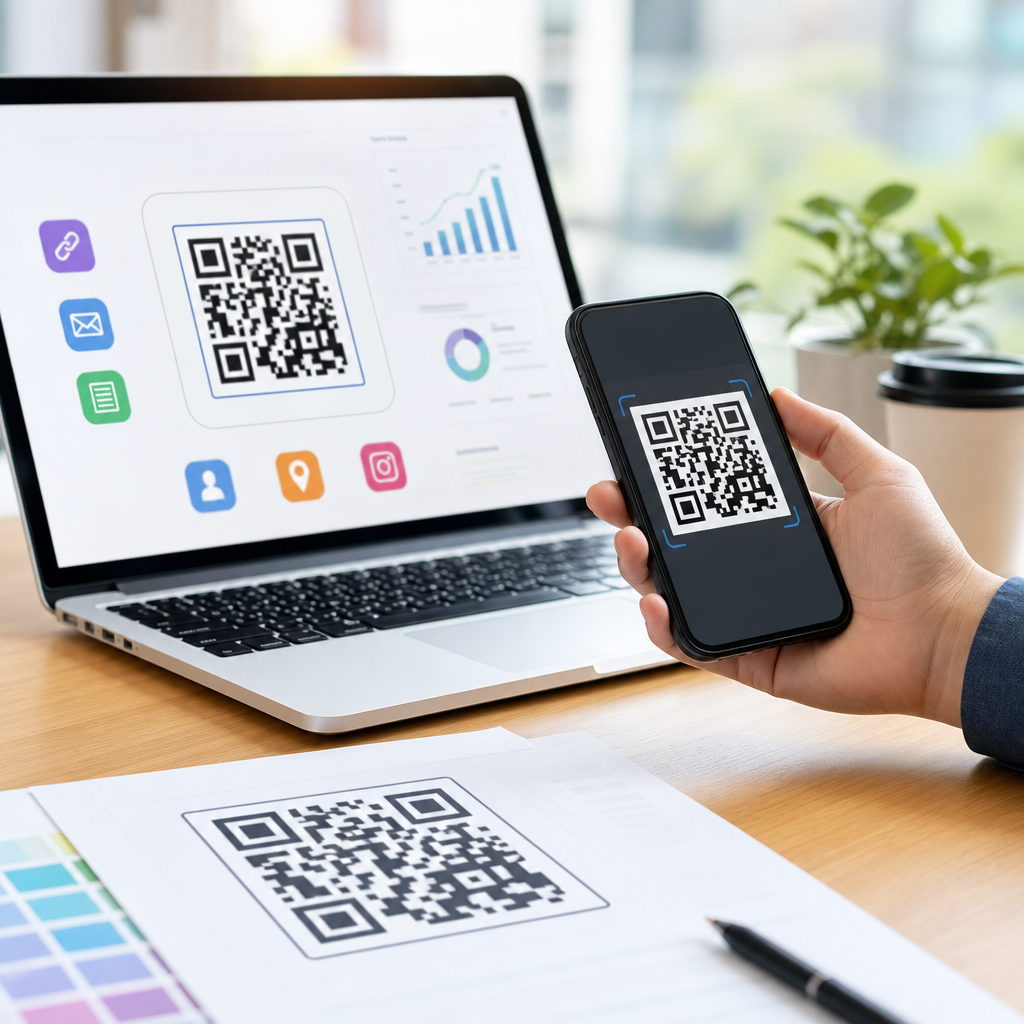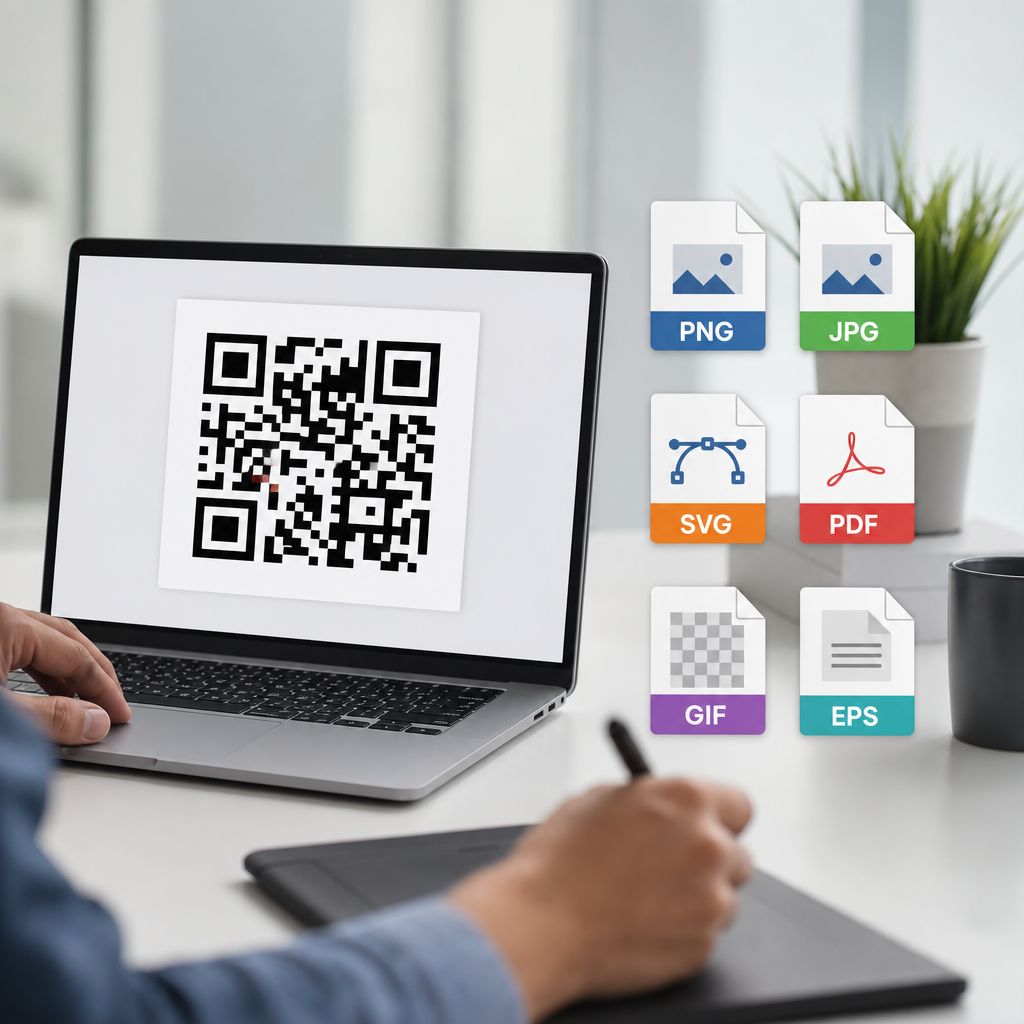
Exporting QR codes in the right format is the difference between a crisp, scannable asset and a blurry graphic that fails when it matters. In practical terms, QR code formats refer to the file types used when you download, share, print, or embed a code, such as PNG, SVG, PDF, EPS, and JPG. File type determines image quality, editability, transparency, print readiness, and how well the code performs on packaging, posters, menus, apps, or websites. For teams building campaigns under Creating Mobile QR Codes, this hub explains how to export QR codes in different formats, when each option is best, and what technical tradeoffs to expect. I have prepared QR assets for retail labels, restaurant tables, event signage, app onboarding screens, and direct mail, and the same pattern appears every time: choosing the wrong format creates avoidable production issues. A designer may need vector artwork for a large banner, while a marketer needs a lightweight PNG for email, and a printer may specifically request PDF or EPS. Understanding QR code formats and file types prevents rework, protects scan reliability, and keeps branding intact across digital and physical channels.
What QR code file formats mean and why export settings matter
A QR code is a matrix barcode made of modules, quiet space, finder patterns, and encoded data. When you export it, the underlying code does not change, but the container holding the image does. Raster formats such as PNG and JPG store the code as pixels. Vector formats such as SVG and EPS store it as mathematical paths, which means they can scale without losing sharpness. PDF can function as either a distribution wrapper or a print-friendly final asset, depending on how it is generated. This distinction matters because scanning depends on edge clarity, contrast, and sufficient quiet zone around the symbol. If a file is compressed too aggressively or resized carelessly, the code may become harder to read.
In day-to-day production, export settings matter as much as the format itself. Resolution, color mode, transparency, margin size, and error correction all affect the final result. For example, a 300 DPI PNG may print cleanly on a flyer, but if someone stretches a low-resolution 72 DPI download to fit a window poster, the modules soften and scanners take longer to lock on. Likewise, a beautifully branded QR code with a logo can still fail if the export trims the quiet zone or uses low contrast colors. Good export practice starts with intended use: screen, print, signage, packaging, or editable design source.
When to use PNG, JPG, SVG, PDF, and EPS
The most common question is simple: which QR code format should you export? The answer depends on where the code will live. PNG is usually the best default for digital use because it supports lossless compression, sharp edges, and transparent backgrounds. JPG is acceptable for casual web placement, but it uses lossy compression, which can introduce artifacts along module edges, so I avoid it for mission-critical scans. SVG is the best choice when a designer may resize, restyle, or place the code in responsive layouts, because it stays crisp at any size. PDF is often preferred for print handoff, especially when the printer wants a locked, standardized document. EPS remains common in legacy print workflows and with some sign shops or packaging vendors that still request it.
| Format | Best Use | Main Strength | Main Limitation |
|---|---|---|---|
| PNG | Web, apps, slides, email, social posts | Sharp lossless raster, supports transparency | Can pixelate when enlarged too much |
| JPG | Low-priority web graphics only | Small file size | Compression artifacts can reduce scan reliability |
| SVG | Responsive design, large displays, editable layouts | Infinite scaling and easy editing | Some simple tools mishandle embedded vectors |
| Print approval, press-ready delivery, document sharing | Widely accepted in print workflows | Quality depends on how the PDF was created | |
| EPS | Professional print, packaging, signage vendors | Reliable vector format for production | Less convenient for web and casual users |
If you need a practical rule, export SVG for editable master files, PNG for everyday digital publishing, and PDF or EPS for commercial print. That approach reduces mistakes because each team receives the format that fits its workflow. Many QR code generators, including QR Code Generator Pro, Beaconstac, Flowcode, QR TIGER, and Canva integrations, offer several of these formats directly. Adobe Illustrator, Figma, and InDesign also handle SVG, PDF, and EPS well when you need layout control.
How to export QR codes for digital use
Digital environments usually favor PNG or SVG. For websites, a PNG works well when the display size is fixed, such as a landing page hero, app download section, or restaurant ordering panel. Keep dimensions comfortably above display size so the image remains sharp on high-density screens; for example, if a code will appear at 240 by 240 pixels, exporting at 480 by 480 gives useful overhead for retina displays. If the code needs to adapt across breakpoints, SVG is better because it scales cleanly without generating multiple versions. On a product microsite I managed, switching the downloadable QR from JPG to SVG reduced complaints about fuzzy mobile rendering and gave the design team more flexibility in dark mode variants.
For social media and email, PNG is usually safest. Platforms often recompress uploads, and starting with a clean, high-contrast PNG gives the code the best chance of surviving that compression. Maintain a white or transparent background only if contrast remains strong against the surrounding design. Avoid placing the code over patterned images, gradients, or video thumbnails. If the code points to app content, test it in the exact environment where users will scan it, including Instagram stories, presentation screens, and in-app browsers. Export quality is not theoretical here; I have seen codes that scanned perfectly from a desktop browser fail inside compressed email builders because the original asset was too small.
How to export QR codes for print, packaging, and large-format signage
Print requires a stricter standard because physical distance, lighting, and material all affect scanning. For most flyers, brochures, inserts, and table tents, export a vector file such as SVG, EPS, or a properly generated PDF whenever possible. If your workflow only accepts raster artwork, use PNG at print resolution, typically 300 DPI at final size. Never rely on a small web image for press output. A QR code printed on coated packaging may still scan well at modest size, but corrugated boxes, matte finishes, curved bottles, or fabric signage demand more margin and stronger contrast. The farther away people stand, the larger the code must be. A common field guideline is roughly one inch of code size for every ten feet of scanning distance, though real conditions should always be tested.
Large-format signage benefits most from vector export. I have supplied SVG and EPS files for trade show backdrops, bus shelter posters, and storefront vinyl, because production teams routinely resize assets at the last minute. Vector files preserve the hard edges scanners need. PDF is also useful when the QR code sits inside a complete print layout with crop marks and bleed. Before release, print a proof at actual size and test on both iPhone and Android devices using the default camera apps. This catches issues with glare, substrate texture, low contrast branding, or overdesigned frames before thousands of pieces go out.
Best practices for quality, branding, and scan reliability
The best QR code export is not always the prettiest file; it is the file that scans quickly in realistic conditions. Start with adequate error correction, especially if you are adding a logo or custom eyes. Levels M or Q often balance resilience and density well, while H is useful for more aggressive styling but can create a busier symbol. Preserve the quiet zone, typically at least four modules wide, because scanners use that margin to distinguish the code from surrounding graphics. Keep contrast high: dark modules on a light background outperform subtle brand palettes. Black on white remains the most reliable choice. If brand colors are nonnegotiable, test them under indoor and outdoor light, on glossy and matte surfaces, and at small and large sizes.
Exporting a master vector plus production-specific derivatives is the safest workflow. Create one validated source file, then generate a PNG for web, a transparent PNG for presentations, an SVG for design teams, and a PDF or EPS for print vendors. Name files clearly with size, color variant, destination, and revision date. Track the landing URL or dynamic destination in your campaign documentation so teams do not accidentally print an outdated code. If you use dynamic QR platforms, confirm that analytics, redirects, and expiration settings are live before export. A clean file type cannot rescue a broken destination. As this QR Code Formats & File Types hub expands, link your teams to deeper guidance on vector QR codes, print-ready QR codes, transparent backgrounds, and dynamic versus static export choices.
Choosing how to export QR codes in different formats becomes straightforward once you match the file type to the job. PNG is the dependable option for most digital placements, SVG is the editable and scalable master for modern design workflows, PDF and EPS serve commercial print and vendor handoff, and JPG is usually the least desirable choice because compression can soften critical edges. The details matter: preserve quiet zones, keep contrast high, export at appropriate resolution, and test in the real environment where people will scan. Those habits protect both usability and brand presentation.
For anyone working in Creating Mobile QR Codes, this hub should be your starting point for QR Code Formats & File Types. It gives you the framework to choose the correct export, avoid common production failures, and hand off assets confidently to designers, developers, and printers. Use it as the central reference for your workflow, then build from here into specialized topics such as vector file setup, print specifications, transparent backgrounds, and large-format QR deployment. Review your current QR assets today, replace weak file types, and standardize exports before your next campaign launches.
Frequently Asked Questions
What is the best file format to export a QR code in?
The best format depends on where and how the QR code will be used. For most digital use cases, PNG is a strong default because it delivers sharp image quality, broad compatibility, and reliable performance across websites, presentations, emails, and social media assets. If you need a QR code that can scale to any size without losing clarity, SVG is usually the better option. SVG is a vector format, which means the code stays crisp whether it appears as a small icon in an app or as a large graphic on signage. For professional printing workflows, PDF and EPS are often preferred because they preserve quality and are easier to integrate into print design software. JPG can work for simple digital sharing, but it is generally the least ideal choice because compression can soften edges and reduce scan reliability. In practice, the right export format comes down to balancing quality, scalability, editability, and the platform where the QR code will live.
When should I use PNG instead of SVG for a QR code?
Use PNG when you want a dependable, ready-to-use image file that works almost everywhere with minimal effort. PNG is especially useful for websites, online menus, slide decks, email campaigns, internal documents, and social posts because most platforms accept it without issue. It also supports transparency, which is helpful if you want the QR code to sit cleanly on top of a colored or branded background. SVG is the better choice when flexibility and scaling matter more than convenience. Because SVG is vector-based, it can be resized infinitely without becoming blurry, making it ideal for logos, packaging, posters, trade show graphics, and other branded materials that may be repurposed across formats. Another advantage of SVG is editability; design teams can often adjust colors, layout, and surrounding elements more easily in vector design tools. If your team is moving quickly and needs a universally compatible asset, PNG is often the practical choice. If you are building a brand-controlled campaign and want a future-proof master file, SVG is usually the smarter export.
Are PDF and EPS better for printing QR codes?
Yes, in many professional print scenarios, PDF and EPS are better choices because they are built to preserve quality and integrate smoothly into production workflows. Print projects often demand precise sizing, high resolution, and compatibility with design software used by agencies, packaging teams, and commercial printers. Vector-friendly formats such as PDF and EPS help maintain the sharp edges that QR codes need for reliable scanning, even when printed at larger sizes or placed on packaging, flyers, posters, labels, or point-of-sale displays. These formats are also helpful when the QR code must be embedded into a larger print-ready layout without losing fidelity. PDF is especially common because it is easy to share, review, and hand off between teams while retaining design integrity. EPS remains useful in some legacy or specialized print environments. Even with the right format, print success still depends on good contrast, adequate quiet space around the code, and testing at actual production size. A great export format improves outcomes, but final print quality still depends on smart design and proofing.
Why can a QR code become blurry or hard to scan after export?
A QR code usually becomes blurry or difficult to scan when the wrong file format, resolution, or export settings are used for the intended application. Raster formats like JPG and low-resolution PNG files can lose sharpness when enlarged, and QR codes rely on clean, well-defined square modules to scan correctly. If those edges become fuzzy due to compression, resizing, screenshotting, or repeated file conversions, scan performance can drop quickly. Another common issue is placing a small exported QR code into a larger design and scaling it up, which stretches the pixels and reduces clarity. Poor contrast, busy backgrounds, insufficient margin around the code, and over-customization can also make scanning unreliable. To avoid these problems, export in a format that matches the job: SVG, PDF, or EPS for scalable print and branded production work, and adequately sized PNG for digital use. It is also important to test the final asset in the real environment where it will appear, whether that is a mobile screen, a restaurant table tent, product packaging, or a street poster. A QR code should never be judged only by how it looks on a designer’s screen; it should be validated by how consistently it scans in actual use.
How do I choose the right QR code export format for websites, packaging, posters, and apps?
The easiest way to choose the right format is to start with the destination and then work backward from the technical demands of that environment. For websites and app interfaces, PNG is often the simplest choice because it is widely supported, easy to upload, and renders consistently in most digital contexts. If the QR code may need to appear across multiple screen sizes or be adapted by designers later, SVG adds valuable flexibility. For packaging, posters, brochures, retail signage, and other printed materials, vector-based exports such as SVG, PDF, or EPS are typically the safest options because they preserve crisp edges and allow accurate scaling. If a marketing team expects the same code to appear across both digital and print channels, it is often smart to keep an SVG or PDF as the master asset and generate PNG versions for web-specific uses. Teams should also consider transparency needs, editing requirements, printer preferences, and brand consistency. Under fast-moving campaign conditions, having the correct export format on hand reduces production delays and helps ensure the QR code remains sharp, professional, and easy to scan wherever it appears. The goal is not just to download a code, but to export an asset that holds up reliably in every real-world placement.