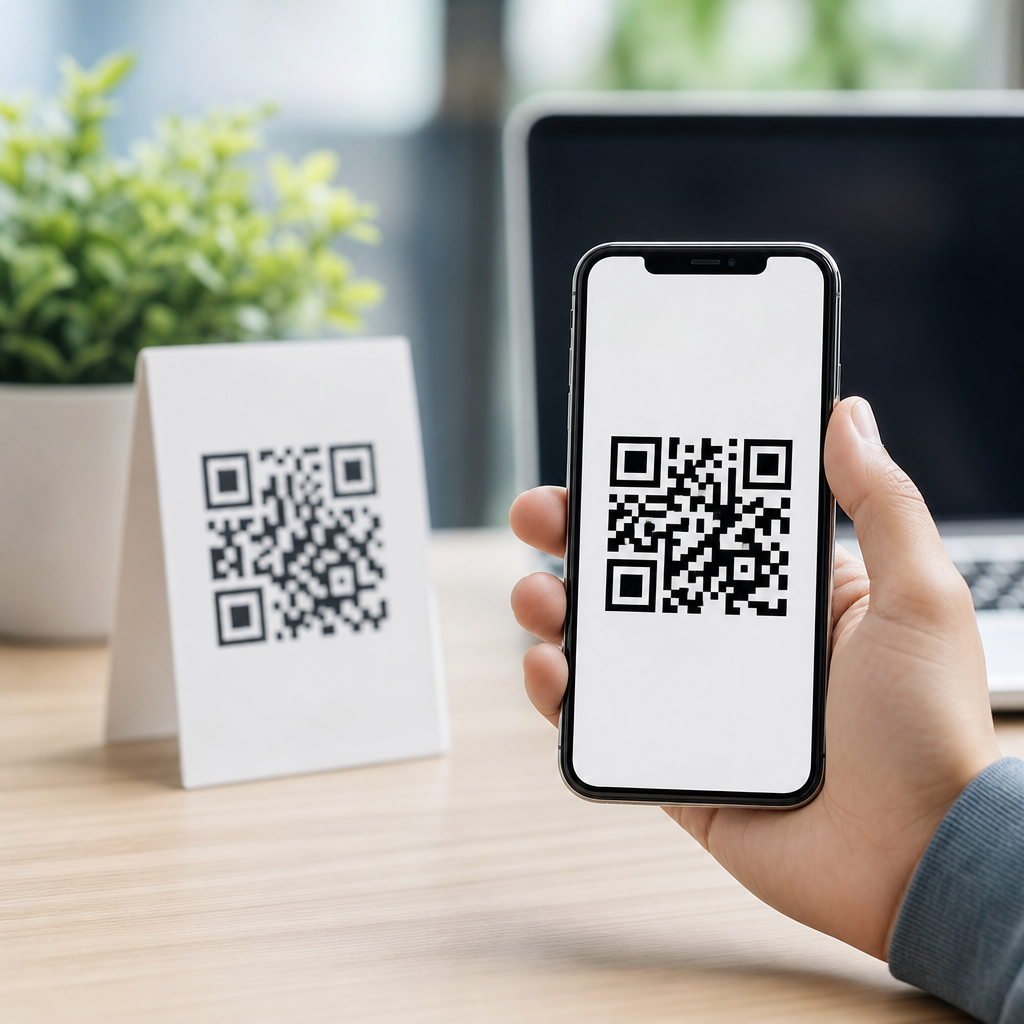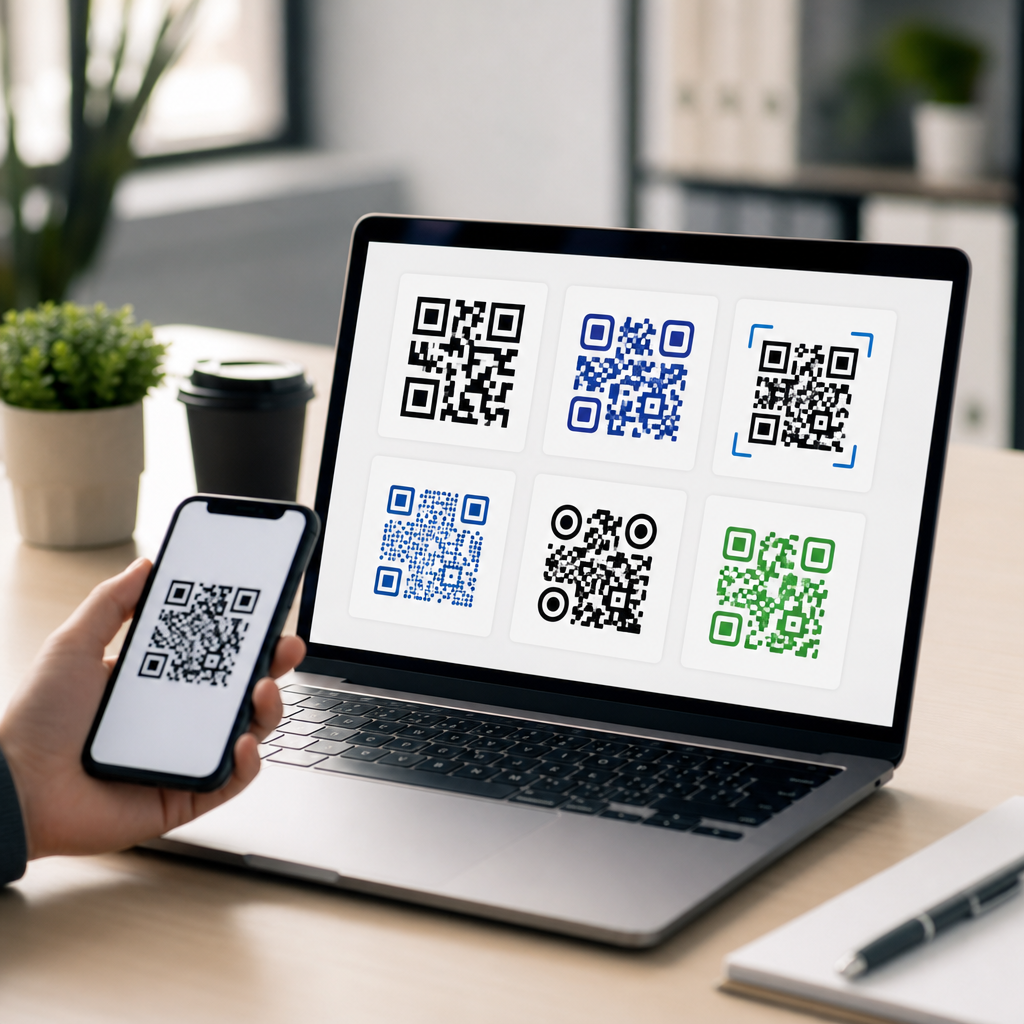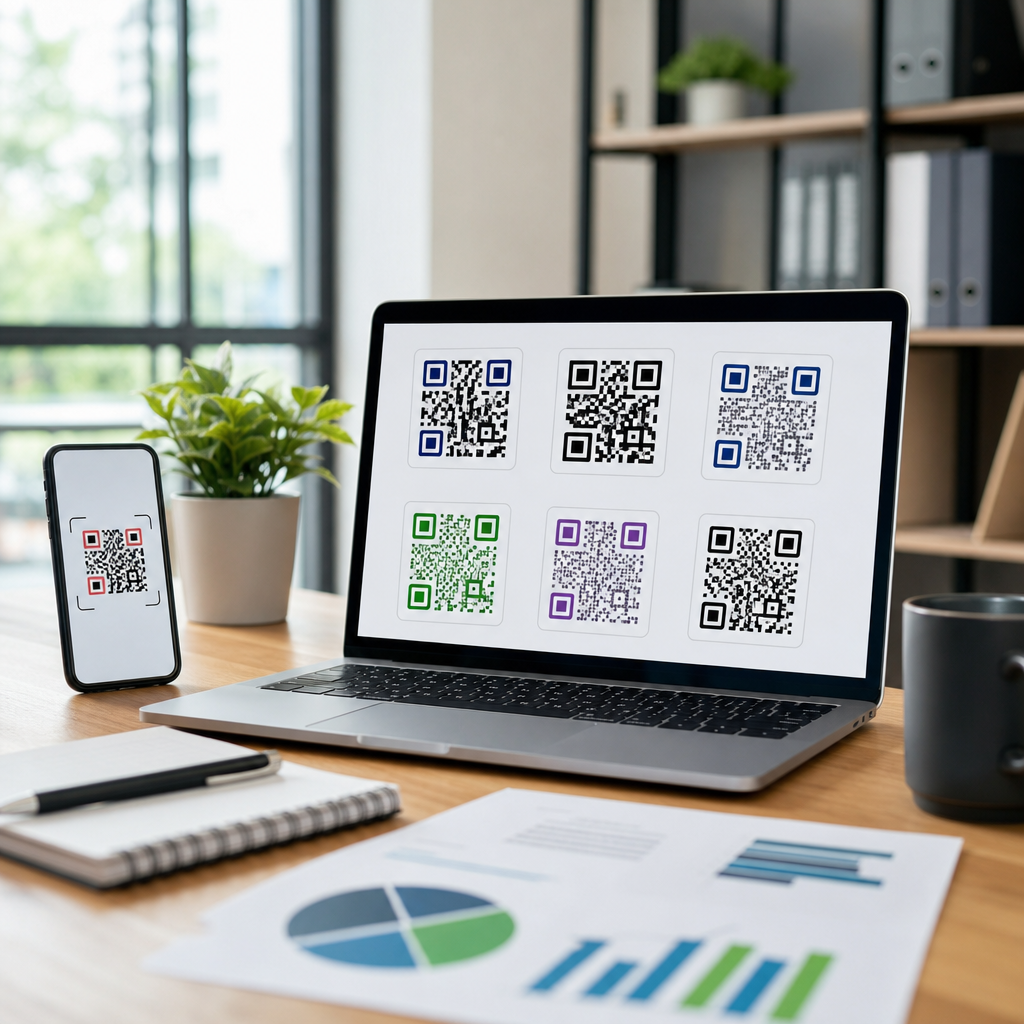
Choosing the best QR code resolution for high-quality printing starts with a simple truth: a code that scans perfectly on screen can fail on paper if its size, file type, and print settings are wrong. In print production, resolution describes how much visual information is available for output, usually measured in pixels for raster files and in infinitely scalable paths for vector files. For QR codes, that distinction matters more than it does for most graphics because scanners rely on crisp module edges, strong contrast, and an intact quiet zone to decode data quickly. I have prepared QR codes for business cards, restaurant signage, product packaging, and trade show displays, and the same issue comes up repeatedly: teams focus on design first, then discover too late that a low-resolution PNG or a badly compressed JPG makes the code unreliable. This guide explains the best QR code resolution for high-quality printing and serves as a complete hub for QR code formats and file types within the broader topic of creating mobile QR codes. You will learn which formats belong in which workflow, how large a QR code should be in print, what DPI really affects, and how to choose files that stay sharp from label printers to offset presses.
What resolution means for printed QR codes
The best QR code resolution for high-quality printing depends first on whether the file is vector or raster. Vector formats such as SVG, EPS, and PDF store paths rather than fixed pixels, so the code can scale without losing edge sharpness. Raster formats such as PNG, JPG, TIFF, and WebP store a fixed pixel grid, so quality depends on export dimensions and compression. For QR codes, vector is usually the best choice for commercial printing because each module remains mathematically precise at any size. When a printer asks for “high resolution,” what they usually need is either a vector master file or a raster file exported at sufficient pixel dimensions for the final print size.
DPI, or dots per inch, is often misunderstood. It does not improve a QR code by itself; it describes output density relative to the printed size. A 900 by 900 pixel QR code printed at 3 inches square outputs at 300 PPI, which is generally acceptable for many print jobs. The same file printed at 6 inches square drops to 150 PPI and may soften enough to reduce scan reliability, especially if the code is dense. In practice, I treat 300 PPI at final size as a baseline for raster QR codes, 600 PPI as safer for small labels or complex codes, and vector as the default whenever the workflow allows it.
Best QR code file formats for print and mobile workflows
Different QR code file formats solve different production problems. If your project will be printed professionally, SVG and PDF are usually the strongest choices because they scale cleanly, preserve hard edges, and move smoothly through Adobe Illustrator, InDesign, CorelDRAW, and many RIP systems. EPS remains common in legacy print environments, although SVG is easier for modern web and app teams. PNG is the most practical raster format because it supports lossless compression and transparency, making it suitable for office printing, marketing collateral, and many ecommerce packaging workflows. JPG is the weakest choice for QR codes because lossy compression can introduce artifacts around module edges. TIFF works well in controlled publishing environments but is heavier than necessary for most teams.
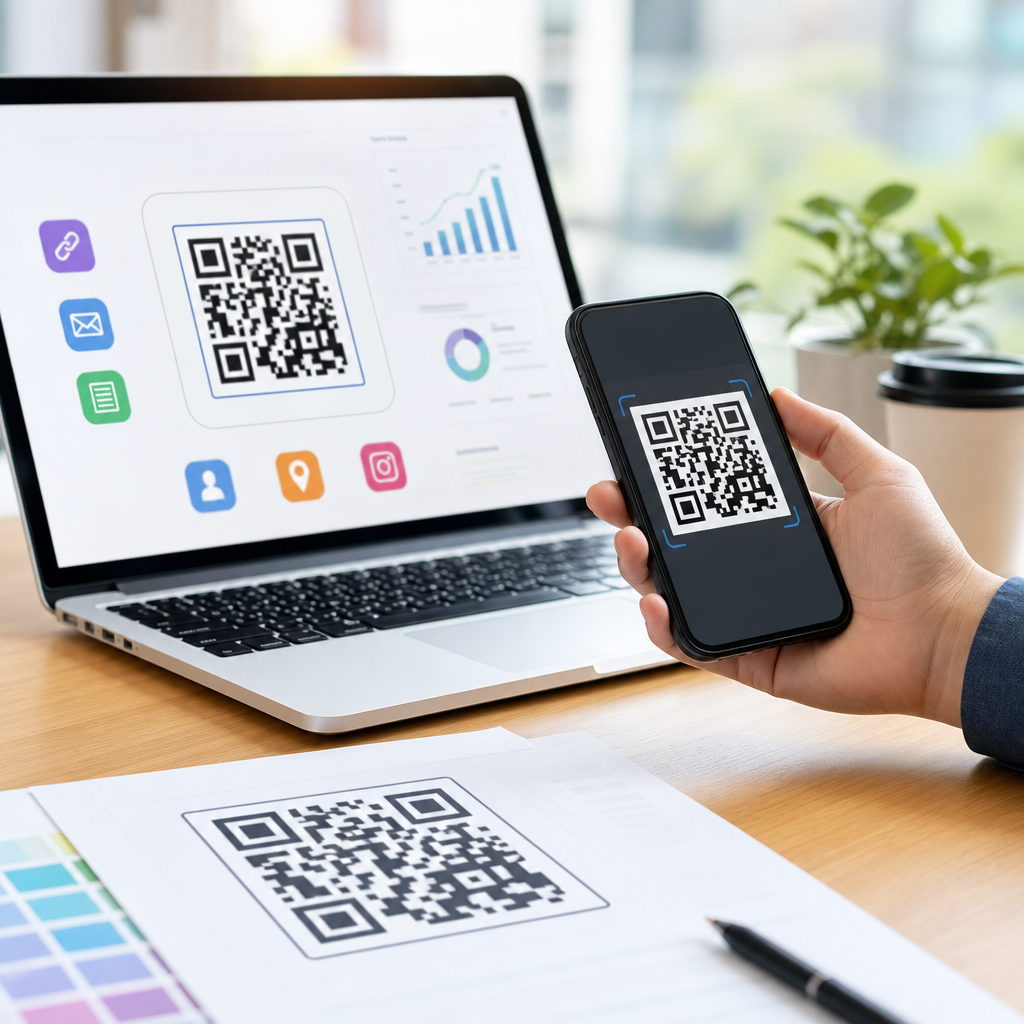
For mobile QR code creation, the format decision also affects downstream use. A campaign may start as a mobile destination, but the code itself might appear on posters, brochures, receipts, storefront decals, app onboarding screens, or product inserts. That is why this hub for QR code formats and file types should sit at the center of your creating mobile QR codes content structure. In a practical workflow, generate a vector master first, then export PNG sizes for digital placement. This approach keeps one authoritative source file while supporting channel-specific outputs without rebuilding the code.
Recommended file types by use case
The easiest way to choose the best QR code resolution for high-quality printing is to match file type to production method, viewing distance, and print size. A business card needs a technically different asset than a window decal or corrugated shipper. The table below summarizes the choices I recommend most often.
| Use case | Best file type | Recommended output | Why it works |
|---|---|---|---|
| Business cards | SVG or PDF | Vector preferred; if raster, 600 PPI at final size | Small print area requires crisp module edges |
| Flyers and brochures | SVG, PDF, or PNG | 300 PPI minimum at final size | Standard press and digital print workflows support these well |
| Packaging and labels | SVG, PDF, or EPS | Vector master plus printer proof | Maintains accuracy across dielines and variable sizes |
| Posters and signage | SVG or PDF | Vector scaled to final dimensions | Large-format output stays sharp without huge files |
| Office printers | PNG | At least 1000 pixels square for flexible sizing | Easy to place in documents and avoids compression damage |
| Web and app screens | SVG or PNG | Responsive SVG or 2x/3x PNG exports | Supports mobile displays while preserving contrast |
How large a printed QR code should be
Print size matters as much as resolution. A common rule is that the scanning distance should be roughly ten times the code’s printed width. A 1 inch QR code is comfortable at about 10 inches away, while a 4 inch code can work from several feet. For close-range mobile QR codes on packaging, menus, and cards, I usually keep the printed code at no less than 0.8 inches square, and preferably 1 inch or larger when space allows. Dense codes that store long URLs, vCards, or tracking parameters need more modules, which means each square becomes smaller and harder to reproduce. In those cases, increasing print size is more effective than merely increasing raster resolution.
Error correction also changes sizing requirements. QR codes support four standard levels: L, M, Q, and H. Higher error correction improves scan resilience when logos, scratches, glare, or print defects interfere, but it increases symbol density. For branded print pieces, many generators default to Q or H because they anticipate logo placement. That can be useful, but it is not free. If your use case is a plain black-and-white code on matte stock, M is often a better balance because it keeps the pattern simpler and easier to print cleanly.
Design and print factors that affect scan quality
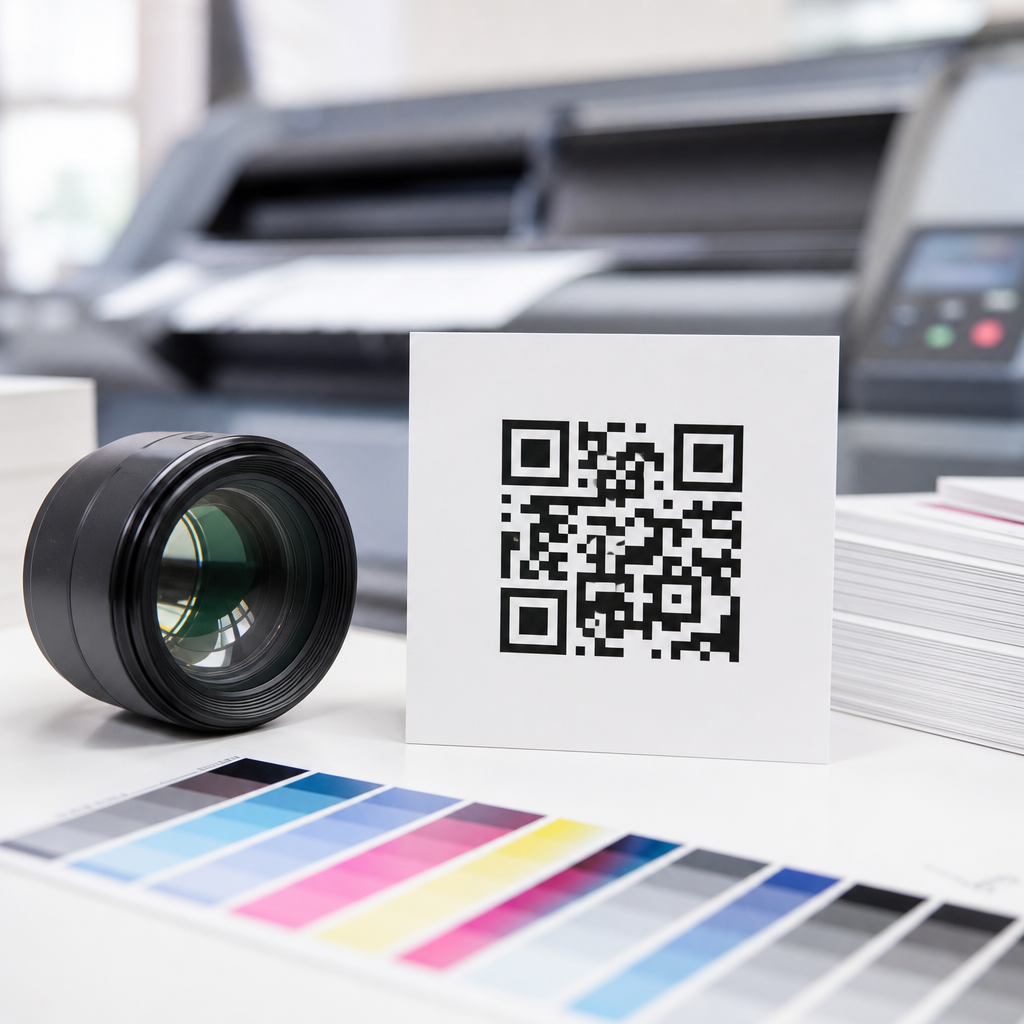
The best QR code resolution for high-quality printing can still fail if surrounding design choices ignore scanner behavior. Contrast must be strong, with dark modules on a light background. Black on white remains the safest combination. Reversing the code, applying gradients, or placing it over photography reduces reliability unless testing proves otherwise. The quiet zone, the blank margin around the symbol, should be at least four modules wide on all sides. Designers often crop this area to save space, and that is one of the fastest ways to create scan failures in print.
Material and finishing also matter. Gloss lamination can create glare that interferes with smartphone cameras. Uncoated stock can soften ink spread, especially on small codes. Flexographic and thermal printing may introduce dot gain or edge roughness, which is why vector art and proof testing are essential for packaging and labels. In offset printing, registration issues can affect colored QR codes if the symbol is built from multiple process inks. A single solid ink, usually 100 percent black, is more dependable than a rich black mix. For specialty applications, ISO/IEC 18004 defines the QR Code standard itself, while print verification practices often borrow discipline from barcode quality control even when formal grading is not required.
Practical workflow for creating print-ready QR codes
The most reliable workflow is straightforward. Generate the QR code from the final destination URL, preferably a short dynamic link if the campaign may change. Export an SVG or PDF as the master asset. If a vendor requires raster art, export a PNG at the exact or larger final dimensions needed for placement, targeting 300 to 600 PPI at print size. Place the code without stretching or applying effects. Preserve the quiet zone, keep contrast high, and request a physical proof when the code appears on packaging, labels, or expensive print runs.
Testing should happen in realistic conditions, not only at a designer’s desk. Scan with both iPhone and Android devices, under indoor and outdoor lighting, and from the expected user distance. Test older phones as well as current models because camera quality and autofocus differ significantly. I also recommend checking the destination experience after the scan. Many teams perfect the print file but forget that the landing page must load quickly, fit mobile screens, and match the printed call to action. A QR code is only successful when the entire mobile journey works.
The best QR code resolution for high-quality printing is usually a vector file, a sensible physical size, and a print process that preserves sharp edges and strong contrast. If vector is unavailable, use a lossless PNG exported at 300 PPI minimum at final size, with 600 PPI preferred for small or dense codes. Avoid JPG for print-critical QR codes, protect the quiet zone, and size the symbol for the real scanning distance rather than squeezing it into leftover layout space. As the hub for QR code formats and file types under creating mobile QR codes, this guide establishes the core rules that support every related article: choose the right format, design for decoding, and test in production conditions. Follow those steps, and your printed QR codes will scan faster, look cleaner, and perform better across cards, packaging, signage, and campaigns. Review your current QR assets, replace weak file types, and standardize on print-ready masters before your next job goes to press.
Frequently Asked Questions
What is the best QR code resolution for high-quality printing?
The best QR code resolution for printing depends on how the code will be produced, but the most reliable answer is this: use a vector file whenever possible. Vector formats such as SVG, EPS, or PDF are ideal because they are made from scalable paths rather than fixed pixels, which means the QR code can be enlarged for business cards, posters, packaging, or signage without losing edge sharpness. That crispness is essential because QR scanners read the contrast and structure of the small square modules, and any softening, pixelation, or distortion can reduce scan reliability.
If you must use a raster format such as PNG or TIFF, create the QR code at the exact print size or larger, with enough pixel density to hold clean module edges. In most print workflows, 300 DPI at final size is considered the baseline, but for QR codes, many professionals prefer going beyond that when practical, especially for small printed codes with dense data. A low-resolution QR code may still look acceptable to the eye, yet fail because scanners are less forgiving of blurred boundaries than human viewers are. In short, the highest-quality print result usually comes from a properly generated vector QR code, strong contrast, and a physical size appropriate for the intended scanning distance.
Is a vector QR code better than a PNG for print?
Yes, in most professional print situations, a vector QR code is better than a PNG. The reason is simple: vectors scale infinitely without becoming blurry. A QR code is not like a photo where slight softness may go unnoticed. It is a machine-readable symbol built from precise geometric shapes, and scanners perform best when those shapes are crisp and undistorted. When you enlarge a PNG beyond the size it was created for, the edges of the modules can become soft or jagged, which increases the chance of scanning errors after printing.
Vector files also give you more flexibility in production. If a designer needs to enlarge the QR code for a brochure, reduce it for a label, or place it into a larger artwork file, the code remains sharp. That makes vectors especially valuable in commercial printing, where files may be resized during layout, imposed for press, or reused across multiple formats. PNG files can still work well if they are exported at sufficient resolution and used at the intended final size, but they are less forgiving. If you want the safest and most future-proof choice for high-quality printing, vector is the preferred format almost every time.
How large should a QR code be in print to scan reliably?
There is no one universal size that works for every use case, because the right dimensions depend on scanning distance, amount of encoded data, error correction level, and print quality. That said, a common minimum for many printed applications is around 0.8 x 0.8 inches to 1 x 1 inch for close-range scanning, such as on business cards, flyers, product tags, or menus. As the code stores more data, it typically needs more modules, and smaller modules are harder to print cleanly and scan consistently. A denser code often needs to be printed larger to maintain readability.
A practical rule used in print marketing is that the scanning distance should be roughly ten times the width of the QR code. For example, a 1-inch QR code is generally suited to scanning from about 10 inches away, while a larger sign intended to be scanned from several feet away should use a much bigger code. It is also important to leave a quiet zone, which is the empty margin around the QR code. Without enough clear space around the symbol, scanners may have trouble identifying its boundaries. Even a technically high-resolution QR code can fail if it is printed too small, packed with too much data, or surrounded by distracting graphic elements.
What print settings and design choices affect QR code scan quality?
Several print and design factors influence whether a QR code scans well, and resolution is only one part of the equation. First, contrast matters greatly. A dark code on a light background remains the safest choice because scanners need clear separation between modules and background. Black on white is still the industry standard for maximum reliability. Second, avoid reversing the code unless it has been thoroughly tested. Light modules on a dark background can work in some cases, but they often introduce more risk than standard dark-on-light designs.
Print sharpness is equally important. Dot gain, ink spread, toner softness, textured stock, and low-quality presses can all affect the shape of the modules. A QR code printed on uncoated paper may behave differently from one printed on glossy packaging or corrugated material. Keep the code away from folds, curves, seams, varnishes, metallic inks, and busy backgrounds. Preserve the quiet zone on all sides, and avoid stretching the code non-proportionally during layout. If color is used, make sure the foreground remains substantially darker than the background. Finally, always test a printed proof under real-world conditions before approving a production run. A code that looks sharp on a monitor may behave differently once ink, substrate, finishing, and lighting are involved.
How can I make sure a printed QR code will scan before sending it to press?
The most effective way to ensure success is to treat the QR code like a production-critical element and test it at final size before full printing begins. Start by generating the code from a reliable QR code tool and export it as a vector file if possible. Keep the encoded content as short as practical, since more data usually creates a denser pattern that requires more precise printing. Place the code into the layout without distortion, maintain the quiet zone, and avoid decorative edits that alter the core module structure. If a logo or branding element is added to the center, verify that the code still performs well and does not rely too heavily on error correction to remain readable.
Next, print physical proofs on the actual or similar stock, using the same print method if possible. Test the code with multiple phones, both iOS and Android, and under different lighting conditions. Scan from the expected user distance and angle, not just from ideal close-up conditions at a desk. If the code appears small, dense, or slightly soft, enlarge it and test again rather than assuming it will be fine in production. It is also wise to confirm that the destination URL or content loads quickly and correctly, since scan success is not only about readability but also about user experience after the scan. In professional print environments, proofing and real-world testing are the best safeguards against costly failures.