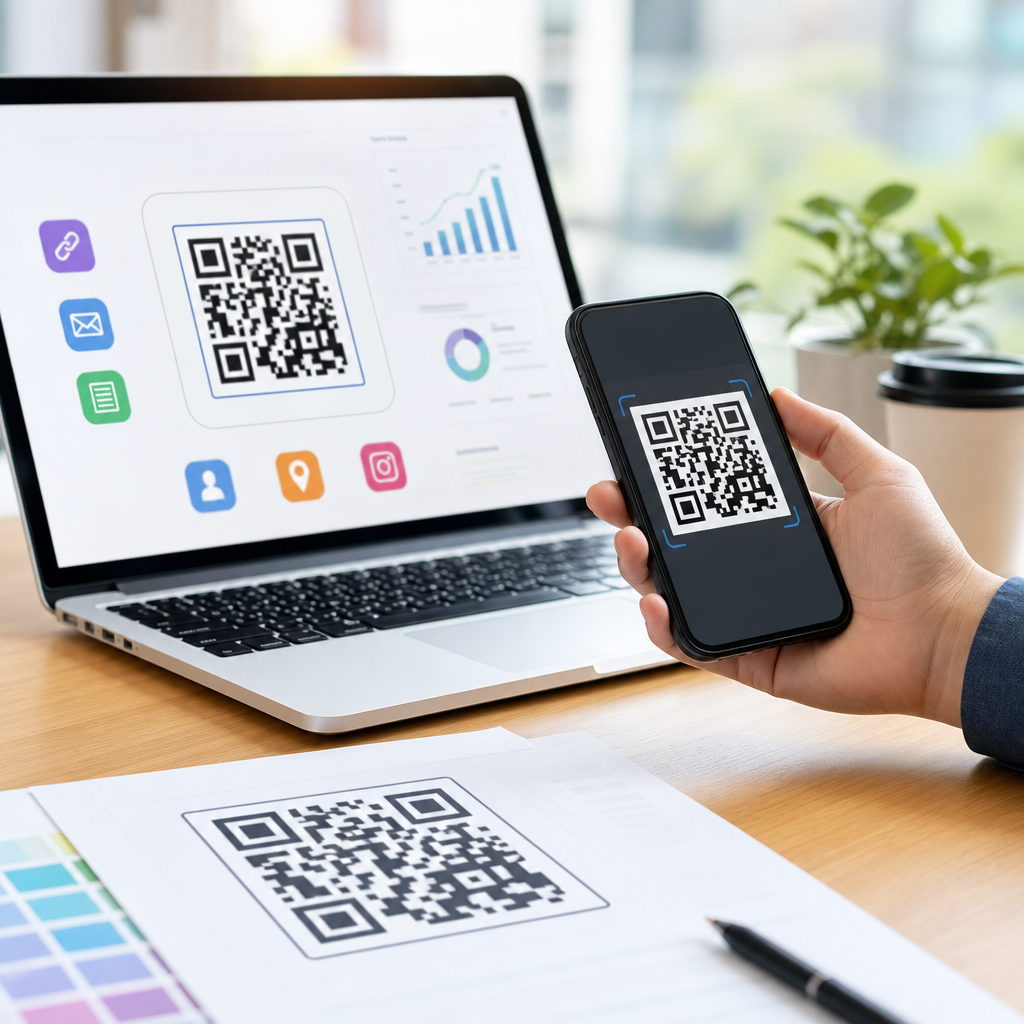
How to resize QR codes without losing quality starts with understanding what a QR code really is: a machine-readable matrix of modules, quiet space, error correction, and encoded data that must remain optically distinct after scaling. In practical terms, resizing a QR code is not like stretching a photo for social media. Every square must stay crisp, the surrounding margin must remain intact, and the final output must match the scanning distance, print method, and device camera that users will rely on. I have prepared QR codes for packaging, storefront posters, restaurant tables, trade-show banners, and app onboarding screens, and the failures are almost always predictable: low-resolution raster exports, missing quiet zones, aggressive compression, or artwork scaled by someone who treated the code as a decorative image.
This matters because QR performance is tied directly to image quality. A code that looks acceptable to the eye can still fail under glare, low light, motion blur, or a cracked phone camera lens. Resizing correctly protects scan reliability, preserves brand trust, and avoids costly reprints. It also helps teams choose the right file type from the start. In the QR code formats and file types discussion, the central distinction is between vector files such as SVG, EPS, and PDF, which scale mathematically without losing edge definition, and raster files such as PNG, JPG, and WebP, which rely on fixed pixels and can degrade when enlarged. Once you know that difference, most resizing decisions become straightforward.
Another key term is error correction. QR codes use Reed-Solomon error correction at four standard levels: L, M, Q, and H. Higher correction can recover more damage or obstruction, but it also packs modules more densely, making tiny prints harder to scan. Version size matters too. A version 1 code is 21 by 21 modules, while larger versions add more modules to hold more data. More data means smaller individual squares at the same physical size. That is why a short URL usually scales more gracefully than a long string of text. If you want a QR code that resizes well across print and screen, start with minimal data, appropriate error correction, and a file format that matches the output medium.
Choose the Right QR Code File Type Before You Resize
The safest answer to “what file type should I use for a QR code?” is vector first, raster second. SVG is the most flexible option for web, interface design, and modern print workflows because it stays sharp at any size and is easy to hand off between Figma, Illustrator, Inkscape, and many QR generators. EPS and PDF are also strong for professional print environments, especially when designers place codes into brochures, signage, or packaging files built in Adobe Illustrator or InDesign. Because vectors describe shapes instead of pixels, enlarging them does not create blur. The edges remain clean, which is exactly what scanners need.
Raster files still have a place. PNG is the preferred raster format for most QR codes because it is lossless and preserves hard edges. If a website builder, email platform, or point-of-sale system only accepts image uploads, a high-resolution PNG is usually the practical choice. JPG should generally be avoided for QR codes because lossy compression introduces artifacts around the module edges. Those artifacts may seem minor, but I have seen JPG-exported table tent codes fail after one extra upload cycle through a CMS that recompressed the image again. WebP can work if exported losslessly, but support and workflow consistency still make PNG the safer default for many teams.
For a sub-pillar hub on QR code formats and file types, the decision rule is simple: use SVG for maximum resize flexibility, PDF or EPS for print production, PNG for fixed-size digital placements, and avoid JPG unless there is no alternative. Also verify color mode. Most desktop printers expect CMYK in final artwork, while web placements use RGB. A black QR code on a white background remains the highest-contrast, lowest-risk option in both environments.
How Resizing Affects Scan Reliability
When people ask how to resize a QR code without losing quality, they usually mean both visual quality and functional quality. Functional quality depends on module size, contrast, quiet zone, and viewing conditions. The common print guideline is a minimum size around 2 by 2 centimeters for short URLs, but that is only a baseline. A more reliable field rule is scanning distance divided by 10. If users will scan from 1 meter away, make the code about 10 centimeters wide. For poster campaigns in transit stations, I often go larger because real conditions include movement, reflections, and inconsistent lighting.
The quiet zone is non-negotiable. This blank margin around the code should be at least four modules wide on all sides. During resizing, teams often crop too tightly or place the code on a busy background, which reduces detectability. Another common problem is non-uniform scaling. If someone drags one side of the artwork and distorts the square into a rectangle, scanning reliability drops sharply. QR codes must remain perfectly proportioned. Most design tools allow locked aspect ratio scaling; use it every time.
Density also matters. A QR code that encodes a long vCard, Wi-Fi payload, or paragraph of text has many more modules than a code that points to a short redirect URL. If both are printed at the same size, the denser code has smaller modules and less tolerance for blur. In practice, I recommend dynamic URLs or short links when a code may appear in multiple sizes across packaging, business cards, and signage. Less encoded data gives you more resizing headroom.
Best Practices for Print and Screen Outputs
Print and screen impose different constraints, so the resizing process should reflect the destination. For print, export vectors whenever the printer or designer can accept them. If you must deliver raster, 300 DPI at final print size is the minimum standard, and 600 DPI is safer for very small codes such as labels, badges, or product inserts. For screens, pixel dimensions matter more than DPI metadata. A website QR code displayed at 240 by 240 pixels can scan well if contrast is high and the image is not being upscaled by CSS from a smaller source file.
Testing should mirror actual use. For printed restaurant menus, test under warm indoor lighting and with older midrange phones, not only the latest flagship device. For retail shelf talkers, test through glossy lamination. For mobile app screens, test on low-brightness displays and across iOS and Android camera apps. I have found that “works on my phone” is one of the weakest approval standards in QR deployment. A better process includes at least three devices, one low-light test, one off-angle test, and one distance test.
| Use Case | Best File Type | Recommended Output | Main Risk |
|---|---|---|---|
| Website or landing page | SVG | Responsive display with fixed minimum size | CSS upscaling from a small source |
| Email or simple upload tool | PNG | High-resolution lossless image | Platform recompression |
| Business card | SVG or PDF | Vector placed in print layout | Too much encoded data at tiny size |
| Poster or window sign | SVG, EPS, or PDF | Large-format vector output | Insufficient size for scan distance |
| Product packaging | PDF or EPS | Prepress-approved artwork with quiet zone | Color contrast and print gain |
Tools, Workflows, and Common Resizing Mistakes
Reliable resizing comes from using the right tools and preserving the original source. Generate the QR code in a platform that exports SVG or PDF, then place that master file into design software such as Adobe Illustrator, InDesign, Figma, Affinity Designer, or Inkscape. For raster outputs, export final-size PNG derivatives from the vector master rather than enlarging an old PNG. If you only have a raster original, do not assume image upscaling tools will save it. Some AI enlargers can make edges look smoother to humans, but scanners prefer accurate geometry, not guessed detail.
The biggest mistakes are predictable. First, exporting as JPG. Second, scaling from a screenshot. Third, applying blur, shadow, embossing, gradients, or low-contrast brand colors that reduce edge clarity. Fourth, trimming the quiet zone to fit a layout. Fifth, placing the code over photographs or textured packaging. Sixth, using transparent backgrounds without checking the final surface color behind the code. Even advanced users overlook print gain, where ink spread slightly thickens dark areas on absorbent stock, effectively shrinking white spaces between modules. That is one reason proofs matter, especially for small printed QR codes.
This hub page should also guide readers toward deeper articles on SVG vs PNG for QR codes, print resolution requirements, QR code size charts, quiet zone rules, and when to use dynamic versus static QR codes. Together, those topics form the practical framework behind successful resizing. The main principle is consistent across all of them: preserve shape integrity, preserve contrast, and match the output format to the medium.
Resizing a QR code without losing quality is ultimately a file-format and testing decision, not a guessing game. Start with a vector master whenever possible, keep the code square, maintain the four-module quiet zone, and choose minimal data so the module grid stays open enough to scan at smaller sizes. Use SVG for flexible digital and design workflows, PDF or EPS for professional printing, and PNG for fixed-size placements that require raster files. Avoid JPG, avoid decorative effects that soften edges, and never approve a code without testing it in real conditions.
The benefit of doing this well is simple: your QR code scans quickly, looks professional, and survives reuse across channels without redesign. That saves time for marketers, reduces production errors for designers, and creates a smoother experience for users who just want the code to work on the first try. If you are building out creating mobile QR codes resources, use this page as the central reference for QR code formats and file types, then apply the same standards to every campaign, label, sign, and screen you publish.
Frequently Asked Questions
Can you resize a QR code without losing quality?
Yes, but the safe way to do it depends on the file type and how the code was created. A QR code is not a typical image where small blur or stretching goes unnoticed. It is a grid of precise square modules that scanners must distinguish clearly. If you resize a QR code carelessly, the edges of those modules can become soft, distorted, or uneven, which makes scanning slower or impossible. The quiet zone, which is the blank margin around the code, can also be reduced accidentally during resizing, and that alone can break readability.
The best approach is to start with a vector QR code whenever possible. Formats like SVG, EPS, or PDF can be scaled up or down without introducing blur because they are based on mathematical shapes instead of fixed pixels. If you only have a raster file such as PNG or JPG, resizing is more limited. You can usually reduce it safely if the modules remain sharp and the quiet zone is preserved, but enlarging a low-resolution raster image often creates interpolation artifacts that damage scan performance. In short, yes, QR codes can be resized without losing quality, but only if the module structure stays crisp, the margin remains intact, and the final size matches the real-world scanning environment.
What file format is best for resizing a QR code?
Vector formats are the best choice for resizing QR codes because they preserve sharp edges at any size. Since a QR code is made up of geometric squares, it is ideally suited to vector output. An SVG file is especially useful for websites, responsive layouts, and digital design workflows, while EPS and PDF are common choices for professional print production. With vector files, the QR code can be enlarged for posters, signage, packaging, or trade show displays without becoming blurry or pixelated.
Raster formats like PNG can still work well when used correctly, especially for web use or small print applications, but they need to be exported at the final intended dimensions and at sufficient resolution. PNG is generally better than JPG because JPG compression can introduce visual noise around the module edges. That compression may not always be obvious to the eye, but scanners can be less forgiving than people. If you know the QR code will need to be reused across multiple sizes, vector is the most flexible and reliable option. If you must work in raster, use a high-resolution PNG, avoid compression, and do not rely on aggressive upscaling to create larger versions later.
How small or large should a QR code be for reliable scanning?
The right size depends on the amount of encoded data, the error correction level, the print surface, the viewing distance, and the quality of the camera doing the scanning. There is no single universal size that works for every situation. A simple QR code containing a short URL can often be printed much smaller than a code containing a long string of text, tracking parameters, or other dense data. More data means more modules, and more modules mean each square becomes smaller at a given physical size. If those squares get too small, scanners struggle to separate them.
As a practical guideline, the QR code should be large enough that each module prints clearly and the entire symbol can be captured comfortably by the camera. For close-range use, such as product packaging, flyers, business cards, or table tents, the code must still be large enough to account for real-world conditions like shaky hands, glossy surfaces, low light, and imperfect focus. For distance scanning, such as posters, storefronts, or event signage, the code must scale proportionally with viewing distance. A common rule of thumb is that the scanning distance should be roughly ten times the width of the QR code, though testing is still essential. The smartest approach is to decide where the code will appear, how far away users will stand, what devices they are likely to use, and then test at actual size before publishing or printing in volume.
Why does a resized QR code stop scanning even if it still looks fine?
A QR code can look visually acceptable to a person and still fail for a scanner because scanning depends on optical precision, not just general appearance. When a QR code is resized with standard image tools, the software often applies anti-aliasing or interpolation. That creates soft edges, partial pixels, and uneven transitions between black and white modules. To the human eye, the result may look cleaner or smoother, but to a camera and decoding algorithm, it can reduce contrast and make module boundaries ambiguous.
Other common causes include trimming the quiet zone, changing the aspect ratio, introducing compression artifacts, lowering contrast, or placing the code on a busy background. Even a slight stretch can distort the square geometry enough to interfere with detection. Printing can add more problems if the ink spreads, the material is textured, or the code is reproduced too small for the printer’s capabilities. On screens, scaling through CSS or app layouts can create fractional rendering that blurs edges. This is why visual inspection is never enough. A resized QR code should always be tested on multiple devices, under realistic lighting, and from the intended scanning distance. If it fails, the issue is usually not that it “looks bad,” but that the optical structure scanners rely on has been compromised.
What are the best practices for resizing QR codes for print and digital use?
The most reliable workflow starts with generating the QR code correctly in the first place. Keep the encoded data as short as possible, use an appropriate error correction level, and export the code in vector format if there is any chance it will be reused at different sizes. Preserve the quiet zone on all sides, maintain a true square aspect ratio, and avoid decorative edits that alter module shapes or reduce contrast. If a branded design is required, it should be tested carefully to confirm it still scans consistently across real devices.
For print, size the QR code based on actual viewing distance, substrate, and printing method. A code on corrugated packaging, fabric, or low-quality paper may need to be larger than the same code printed on a smooth coated label. Use solid dark modules on a light background, avoid tiny output sizes for dense codes, and request proofs whenever possible. For digital use, do not stretch the QR code arbitrarily inside responsive layouts. Serve it at a clean rendered size, preferably from SVG, and make sure the surrounding whitespace is not clipped by containers or overlays. In both cases, the final and most important step is testing. Scan the code with different phones, under average lighting conditions, and in the exact context where users will encounter it. Good resizing is not just about preserving appearance; it is about preserving fast, dependable scan performance.