Creating a QR code for WiFi access is one of the fastest ways to help guests, customers, employees, or event attendees connect without typing a long network name and password. A WiFi QR code stores the exact login details for a wireless network so a phone can join it by scanning the code with a camera or QR scanner. In practice, this turns a frustrating, error-prone task into a two-second action. I have implemented these codes in offices, restaurants, trade show booths, and short-term rentals, and the pattern is always the same: fewer support questions, faster onboarding, and a better mobile experience. As a core part of creating mobile QR codes, WiFi codes matter because they connect people to the internet, which then enables app downloads, mobile payments, forms, menus, and follow-up digital journeys.
To create one correctly, you need more than a generator and a password. You need to understand the data format, security type, device behavior, print considerations, and testing process. A WiFi QR code usually includes the network name, the encryption method, and the password in a standardized string. Common security options include WPA/WPA2, WPA3 in some environments, and open networks with no password. Most phones interpret the code and prompt the user to join the network automatically, though behavior varies slightly by operating system and camera app. If you are building a broader mobile QR code strategy, this article serves as the hub: it explains how WiFi QR codes work, how to make them, where to place them, how to avoid setup mistakes, and how they fit alongside landing page, app download, payment, and contact-sharing codes.
What a WiFi QR Code Contains and Why Accuracy Matters
A WiFi QR code is not just an image with a password hidden inside. It encodes a specific text payload that devices recognize as wireless network credentials. The standard format typically looks like this: network name, encryption type, password, and whether the SSID is hidden. If any field is wrong, the scan may succeed but the connection will fail. In real deployments, the most common problems are simple: an extra space in the SSID, the wrong security protocol selected, or a password copied with the wrong capitalization. Wireless credentials are case-sensitive in many setups, so precision matters.
Accuracy matters even more in business environments because one printed mistake can affect hundreds of users. I have seen hotels reprint room cards because the guest network changed from WPA2 to WPA3 transition mode, and the old code no longer worked reliably on older devices. Restaurants often discover that their staff printed codes for the office network instead of the guest VLAN, creating an unnecessary security risk. The safe approach is to verify the exact SSID from the access point controller or router dashboard, confirm the encryption type, and test with both iPhone and Android before distribution. If the network is hidden, include that setting in the generator; otherwise, many devices will not join correctly.
How to Create a QR Code for WiFi Access Step by Step
The fastest workflow starts with gathering the right network details. You need the WiFi name exactly as broadcast, the current password, and the security type. Use a reputable QR code generator that supports WiFi payloads, not a generic text generator, because purpose-built tools format the string correctly. Enter the SSID, select WPA/WPA2 unless your generator specifically supports WPA3, add the password, and indicate whether the network is hidden. Then generate the code in a high-resolution format such as SVG or PNG for printing. If the code will appear on signage, download a vector file when possible because it scales cleanly without losing sharpness.
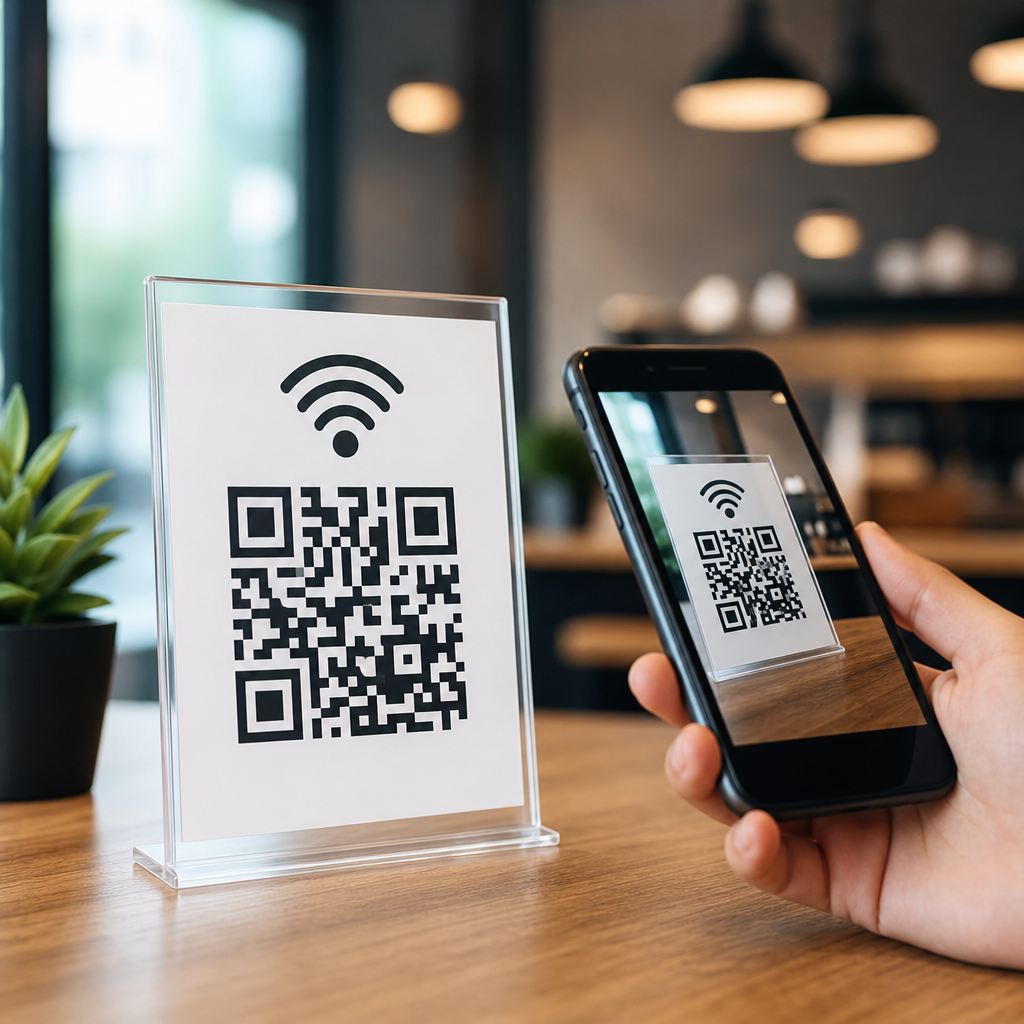
After generation, test from a cold start. Turn WiFi off and on, scan the code from two phones, and confirm the connection prompt appears immediately. Then test from realistic distances and lighting conditions. A code that works on a laptop screen at arm’s length may fail when printed too small near a reflective countertop. I recommend labeling the sign clearly with the network name under the code so users can confirm they are joining the right network. This also helps if a device cannot parse the code automatically. For teams managing several mobile QR code use cases, keep a documented inventory of each code, destination, owner, and last verification date so updates do not become guesswork.
Choosing the Right Generator, Format, and Print Setup
Not all QR code tools are equal. For a WiFi QR code, look for support for WiFi-specific fields, export options such as SVG, EPS, and high-resolution PNG, error correction controls, and clear privacy practices. Many marketers already use platforms like QR Code Generator, Beaconstac, Bitly, Canva, or Adobe Express for mobile campaigns. Those can work, but I prefer tools that allow precise export settings and no forced redirects for static WiFi credentials. A static code is usually the right choice because the login payload itself does not need a tracking layer. If you plan to rotate guest passwords often, create a process document so the printed assets can be updated quickly.
Design and production choices determine whether the code scans reliably. Maintain strong contrast, ideally black on white, and avoid decorative backgrounds that interfere with edge detection. Keep a quiet zone around the code, typically four modules wide, so camera software can isolate it. For print, I rarely go below 1.2 inches square for close-range use and prefer larger sizes for wall signs or lobby displays. Lamination can cause glare, so matte finishes often perform better. If you place the code in a frame, avoid glass with heavy reflections. These details sound minor, but they directly affect scan rate and user satisfaction.
| Decision Area | Best Practice | Why It Helps |
|---|---|---|
| File format | Use SVG for print, PNG for digital screens | Preserves sharp edges and scan reliability |
| Color | Dark code on light background | Improves camera contrast detection |
| Minimum size | At least 1.2 inches for close viewing | Reduces failed scans on older phones |
| Placement | Eye level with good lighting | Makes scanning quick and intuitive |
| Testing | Check on iPhone and Android | Catches device-specific parsing issues |
Security, Privacy, and Network Management Considerations
Convenience should never override network hygiene. A WiFi QR code should almost always point to a guest network, not your primary business LAN. Segment guest traffic using VLANs or the guest features built into managed systems from Ubiquiti UniFi, Cisco Meraki, Aruba Instant On, or TP-Link Omada. That separation protects internal devices, printers, and file shares. If you run a venue, combine the QR code with bandwidth limits, content filtering where appropriate, and client isolation to reduce risk. In office environments, never publish a QR code for the corporate network in public spaces. Staff can receive credentials through an internal portal or mobile device management workflow instead.
There is also a privacy tradeoff between frictionless access and data collection. A pure WiFi QR code simply shares credentials; it does not capture names, emails, or consent. If you need marketing attribution or guest registration, consider a captive portal after connection rather than embedding tracking into the QR itself. Be careful with password rotation. Regular changes improve security, but every printed sign becomes obsolete the moment credentials change. In practice, many hospitality teams solve this by using a stable guest SSID with segmented access and rotating only when there is a clear reason. Whatever policy you choose, document it and align the QR update process with network administration.
Where WiFi QR Codes Fit Within a Mobile QR Code Strategy
A WiFi QR code is often the first interaction in a larger mobile journey. Once a visitor is online, you can guide them to a mobile menu, digital brochure, app install page, feedback form, payment link, event schedule, or saved contact card. That is why this topic belongs at the center of creating mobile QR codes. In retail, I often pair WiFi access signs with a nearby landing page code that opens loyalty enrollment. In conferences, the WiFi code sits at registration while session QR codes drive agenda downloads and lead capture. In vacation rentals, the WiFi code is placed by the entrance, and a second code links to house instructions and checkout steps.
To make this hub useful, think in categories. Some mobile QR codes connect people to infrastructure, like WiFi and app downloads. Others deliver content, like PDF guides, menus, and videos. Others trigger actions, like payments, contact saving, reviews, and form submissions. The design, testing, and placement principles overlap across all of them: short distance readability, high contrast, clear labels, and a mobile-first destination. If you master WiFi QR codes, you learn the fundamentals that apply to every other mobile QR implementation. You also build the operational discipline needed to track ownership, verify links, and retire outdated assets before they create friction.
Common Problems and How to Troubleshoot Them Fast
When a WiFi QR code fails, the root cause is usually simple and fixable. Start by checking whether the code was generated with the correct SSID and password. Then verify the security setting. A code marked as WPA for a network configured differently may scan but not connect. Next, inspect the print quality. Blurry edges, low contrast, and overly small dimensions are frequent culprits. I also check the environment: reflective surfaces, poor lighting, and awkward placement can make a valid code seem broken. If the network is hidden, make sure that field was enabled during generation, because hidden SSIDs often require extra information.
Device compatibility is the next layer. Most current iPhones and Android phones support WiFi QR scanning in the native camera, but some older devices require a dedicated scanner app or manual confirmation. Corporate mobile security settings can block automatic joining, and captive portals can confuse users who assume the scan should complete everything. The fix is straightforward: add one line of instructional text under the code, such as “Scan to join Guest WiFi, then open your browser if a sign-in page appears.” Good troubleshooting is not only technical. It is also about expectation setting, clear labeling, and testing in the exact place where real users will scan.
A well-made WiFi QR code removes friction at the exact moment people need access, and that single improvement often shapes how they judge your business, event, or property. The essential steps are straightforward: confirm the exact SSID, password, and security type; use a reliable generator; export a sharp file; print with strong contrast and adequate size; and test on multiple devices in the real environment. Just as important, place the code on a segmented guest network and treat updates as part of normal network management, not an afterthought.
As the hub for creating mobile QR codes, WiFi access shows how practical QR design really works. It combines usability, security, visual production, and mobile behavior in one implementation that nearly everyone understands. Once you can create and deploy this type confidently, expanding into app downloads, mobile landing pages, payments, reviews, forms, and digital resources becomes much easier because the same principles apply. Start by auditing your current guest access experience, build one tested WiFi QR code, and then use that success to standardize the rest of your mobile QR program.
Frequently Asked Questions
What information do I need to create a WiFi QR code?
To create a WiFi QR code, you need the exact network name, also called the SSID, the correct password, and the security type used by the network. In most cases, the security type will be WPA/WPA2 or WPA3, though some older networks may use WEP and some public guest networks may be open with no password at all. These details matter because the QR code does not magically discover the network; it simply stores the login information in a format that compatible phones can read and use to connect automatically.
Accuracy is essential. The SSID must match the network name exactly, including spaces, capitalization, and special characters. The password also needs to be entered precisely. If you have a hidden network, that usually needs to be specified as well, because devices cannot always connect properly unless they know the network is not broadcasting its name publicly. Before printing or sharing the code, it is a good idea to test it on multiple devices to confirm that it joins the intended network without errors. A working WiFi QR code is simple for the end user, but it depends on getting these setup details right from the beginning.
How do you actually create a QR code for WiFi access?
The process is straightforward. You start by entering the WiFi network name, password, and security type into a QR code generator that supports WiFi credentials. The generator then converts that information into a scannable code. Once created, you can download the code as an image file and place it anywhere people need easy access, such as reception desks, hotel rooms, restaurant tables, conference signage, office walls, or event check-in counters.
In practice, the best workflow is to create the code, test it immediately on both iPhone and Android devices, and then prepare it for real-world use. Make sure the printed or displayed version is large enough to scan comfortably and has good contrast, typically dark code on a light background. Avoid stretching or distorting the image, since that can reduce scan reliability. If the code will be used in a business or public setting, adding a short label like “Scan to Join WiFi” and including the network name can make the experience even clearer. A WiFi QR code works best when the setup is technically accurate and the presentation is user-friendly.
Are WiFi QR codes secure to use?
Yes, WiFi QR codes are generally secure to use, but their safety depends on how you manage the underlying network. The code itself is simply a container for the network credentials. If someone scans it, they can access the WiFi using the details stored inside. That means a WiFi QR code should be treated like a convenient version of sharing your password. For guest access, that is usually perfectly fine, especially if you are using a separate guest network that is isolated from sensitive business systems, internal devices, or personal computers.
From a security standpoint, the best practice is to create a dedicated guest network rather than sharing your primary private WiFi. Use strong encryption such as WPA2 or WPA3, choose a strong password, and change guest credentials periodically if needed. In offices, rentals, restaurants, and event venues, I strongly recommend segmenting guest traffic from operational systems like POS terminals, printers, cameras, and file servers. If the password changes, the QR code must be updated too, unless you are using a dynamic QR code system that lets you redirect or revise the destination data. Used correctly, WiFi QR codes improve convenience without creating unnecessary risk, but they should always be part of a sensible network security setup.
Will all phones scan and connect to a WiFi QR code automatically?
Most modern smartphones can scan a WiFi QR code using the built-in camera app or a QR scanning feature and then prompt the user to join the network automatically. This works well on current iPhone and Android devices, which is one reason WiFi QR codes have become so practical in public and professional settings. Instead of manually typing a long password, users simply scan and tap to confirm. For busy environments like trade show booths, waiting rooms, cafes, and vacation rentals, that small improvement can remove a lot of friction.
That said, compatibility is not universal across every device and operating system version. Older phones may require a separate QR scanner app, and some devices may display the network information without joining automatically. Hidden networks, unusual security settings, or formatting errors in the QR code can also affect results. This is why testing matters so much. Before rolling out your code broadly, scan it with different devices and confirm the experience is smooth. In nearly all common use cases, a properly generated WiFi QR code works reliably, but verifying it in real conditions is the professional way to avoid support issues later.
Where should I display a WiFi QR code for the best results?
The ideal placement depends on where people first need internet access. In a business, that might be the front desk, meeting rooms, waiting areas, or break rooms. In a restaurant or cafe, table tents, menu inserts, counter signs, and wall displays near ordering points often work well. In short-term rentals, placing the code near the entrance, on a welcome book, or beside the TV is effective because guests tend to look for connection details as soon as they arrive. At events and trade shows, the code should be visible near registration, booths, lounge areas, and presentation spaces where attendees naturally pause and check their phones.
Good placement is about usability as much as visibility. The code should be easy to approach, well lit, and large enough to scan from a comfortable distance. If it is printed behind reflective plastic, placed too high on a wall, or buried in a cluttered design, people may struggle to use it. It also helps to include a short instruction such as “Open your camera and scan to join WiFi.” For branded environments, you can integrate the code into signs or printed materials without sacrificing readability. The most successful WiFi QR code setups are the ones that feel obvious, fast, and effortless the moment someone needs to connect.