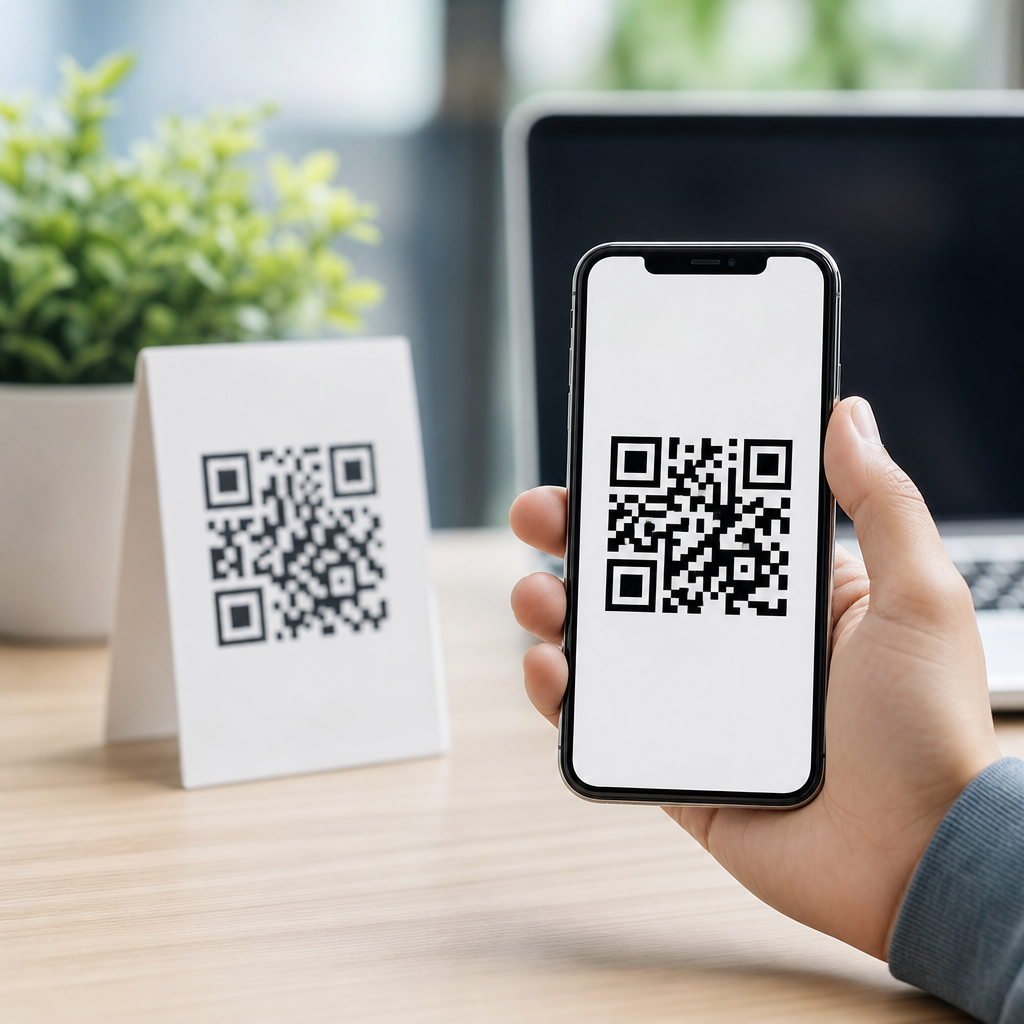
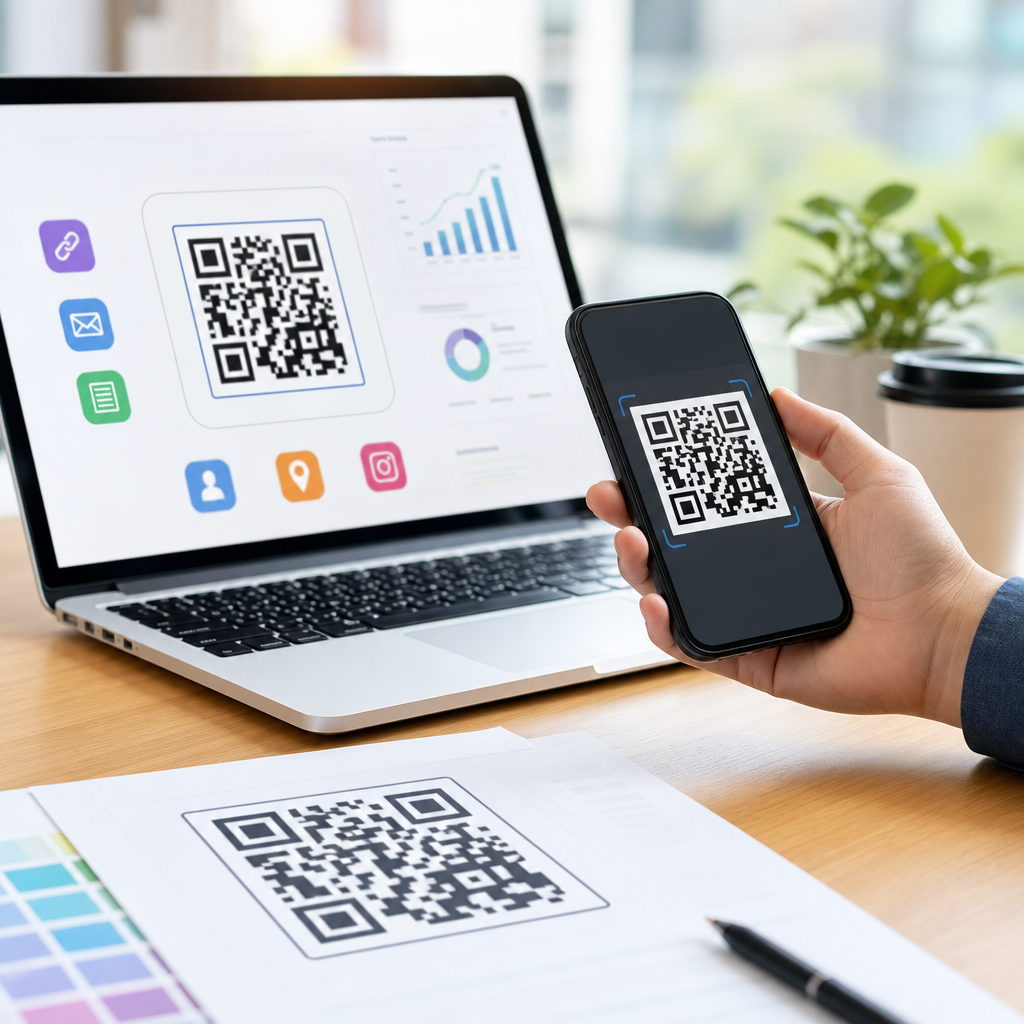
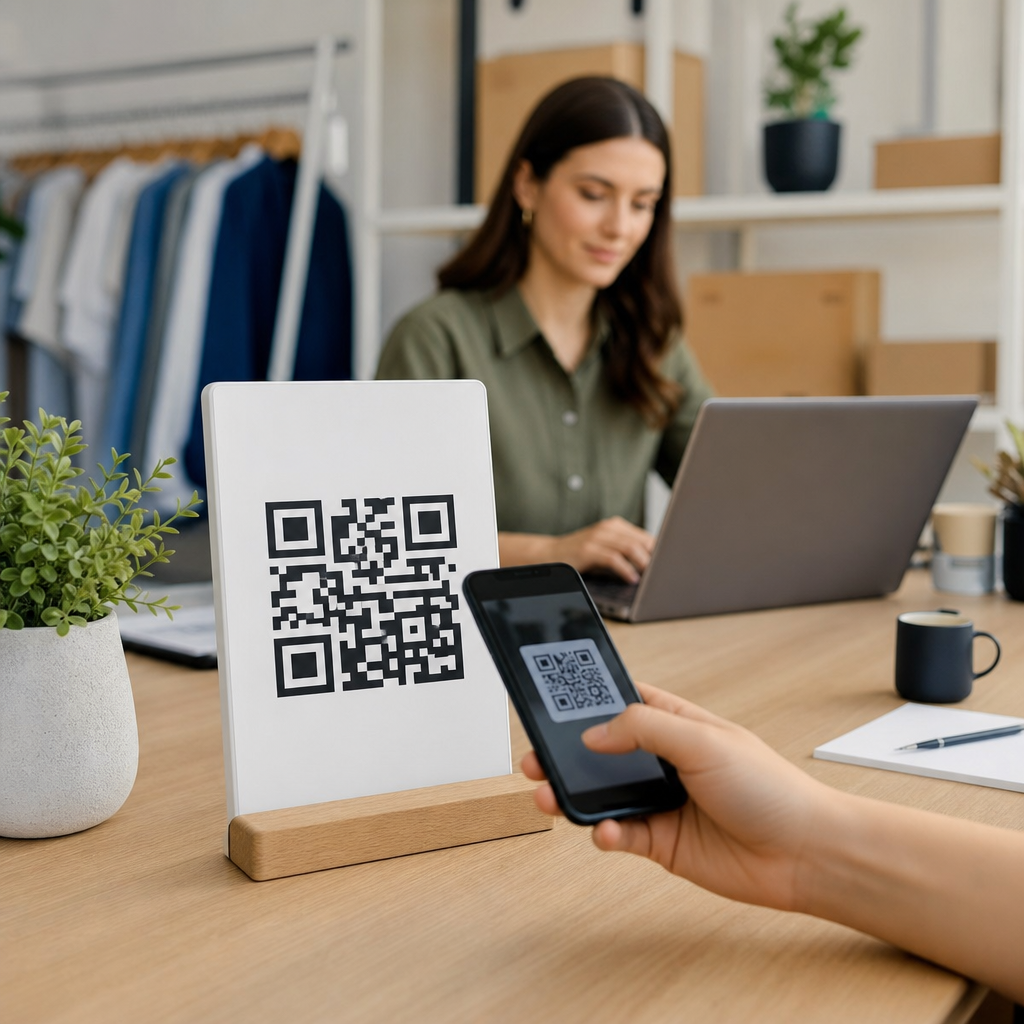
Creating a QR code for contact information with a vCard is one of the fastest ways to turn a phone camera into a saved contact, and it sits at the center of any practical guide to creating mobile QR codes. A vCard QR code stores structured contact details such as name, mobile number, email address, company, job title, website, street address, and sometimes social links in a format smartphones can recognize immediately. When scanned, the code opens a contact card that a user can save without typing. That small reduction in friction matters in sales meetings, trade shows, service calls, retail counters, print advertising, and email signatures, because every extra step lowers the chance that contact data will actually be saved.
I have built QR campaigns for business cards, event badges, restaurant tables, and field teams, and contact QR codes consistently outperform plain text details because they solve a specific mobile problem: people are usually interested in your information while standing, walking, or multitasking. A good mobile QR code therefore does more than encode data. It must scan quickly, display correctly across iPhone and Android devices, and support the real-world context where the code appears. This hub article explains how to create a mobile QR code with a focus on vCard contact sharing, while also showing where this format fits within the broader mobile QR code landscape.
To understand the topic clearly, separate three ideas. First, a QR code is the visual matrix barcode. Second, the payload is the information inside it, such as a URL, SMS prompt, app link, phone number, or vCard. Third, the scan experience is what happens after the camera reads the code. For contact information, the best payload is usually vCard because it packages multiple fields in a standardized structure used across Apple Contacts, Google Contacts, Microsoft Outlook, and many CRM import workflows. If your goal is to help someone save a person or business, a vCard QR code is usually better than a plain phone or email QR code.
What a mobile QR code is and why vCard is the best contact format
A mobile QR code is any QR code designed specifically for smartphone use, meaning the destination and interaction are optimized for a small screen, touch input, and fast decision-making. In practice, that includes contact cards, mobile landing pages, maps, app deep links, Wi-Fi access, calendar events, payment links, and messaging actions. Among these, vCard stands out for contact exchange because it reduces copy errors and lets users save a complete record in one step. A printed business card with a vCard QR code often generates more usable contact saves than a card that lists the same information in text alone.
The technical advantage is straightforward. A vCard uses labeled fields such as FN for full name, ORG for organization, TITLE for role, TEL for phone, EMAIL for email, and ADR for address. Because the information is structured, phones can interpret it as a contact rather than a block of text. That means the scan result can populate a save-contact screen automatically. This is a materially better experience than scanning a QR code that simply opens a webpage listing the same details, especially when connectivity is weak. Static vCard QR codes can even work offline because the contact data is embedded directly in the symbol.
That does not mean vCard is always the only answer. If your main objective is tracking engagement, updating details later, or routing users by device or geography, a dynamic QR code that points to a mobile landing page can be stronger. I often recommend a hybrid decision: use vCard when instant contact saving is the primary conversion, and use a dynamic mobile landing page when you need analytics, edits, campaign attribution, or multiple actions such as call, email, directions, and booking. The right choice depends on the job the code must perform, not on which format sounds more advanced.
How to create a QR code for contact information step by step
To create a vCard QR code, start by gathering the exact contact fields you want people to save. At minimum, include full name and one reliable contact method, usually a mobile number or email address. For business use, I also include company, title, website, and city or full address if location matters. Keep labels and formatting consistent. Use international phone format with country code, verify your email address, and shorten long job titles where possible. Garbage in produces poor scans and weak contact records.
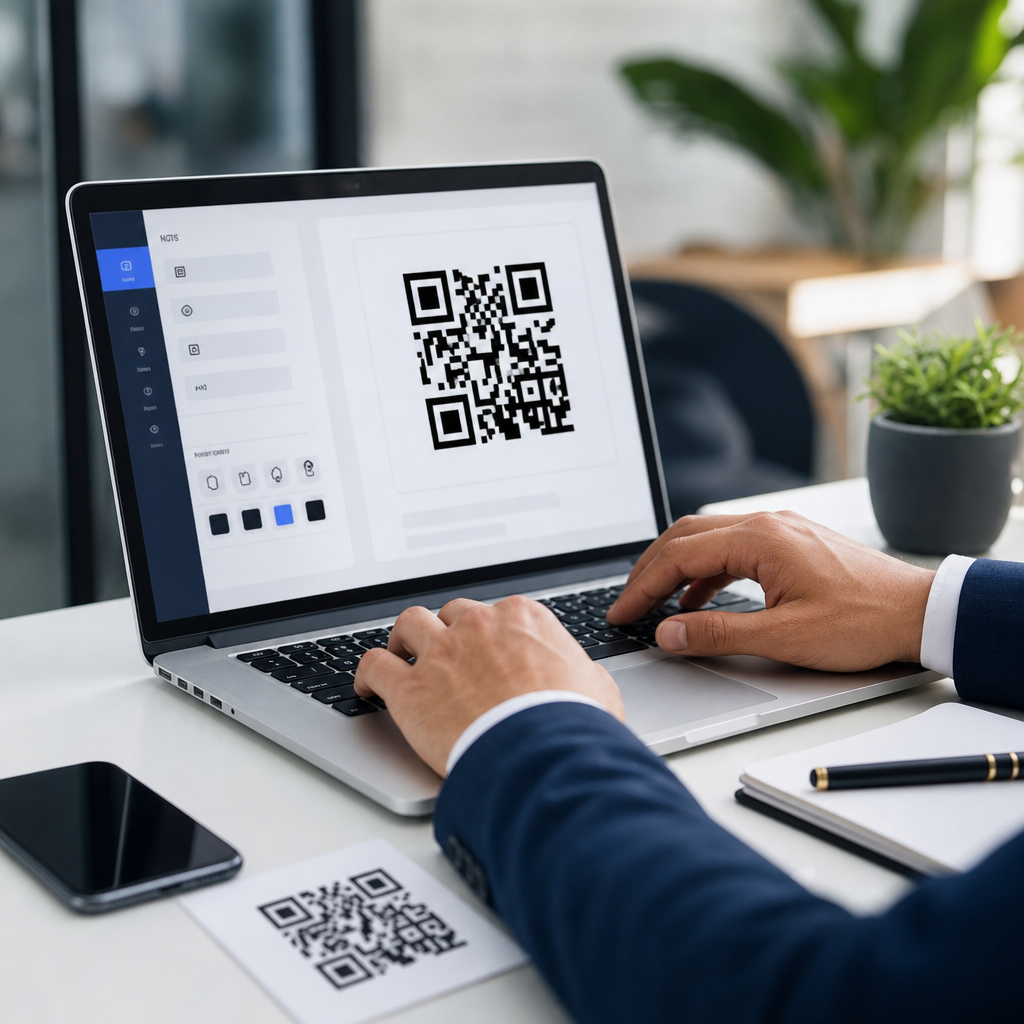
Next, choose a QR code generator that supports vCard fields directly. Established options include QR Code Generator, Scanova, QR Tiger, Beaconstac, Bitly Codes, and Canva integrations for simpler needs. If you use Adobe Express or design tools with embedded generators, confirm they support true vCard payloads rather than just linking to a profile page. Enter the data carefully, generate the code, and test it on both iPhone and Android using native camera apps. Then test secondary scanners such as Google Lens and common social camera scanners because users do not all scan the same way.
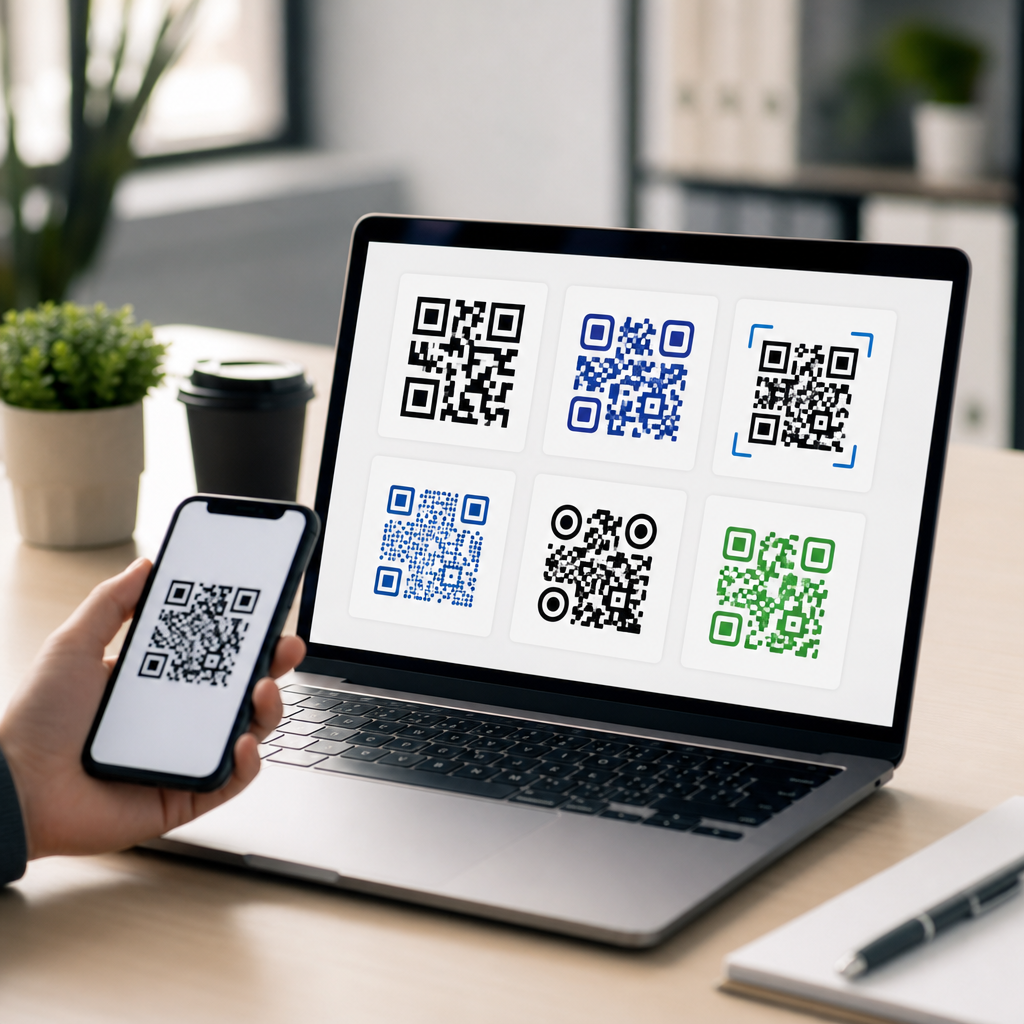
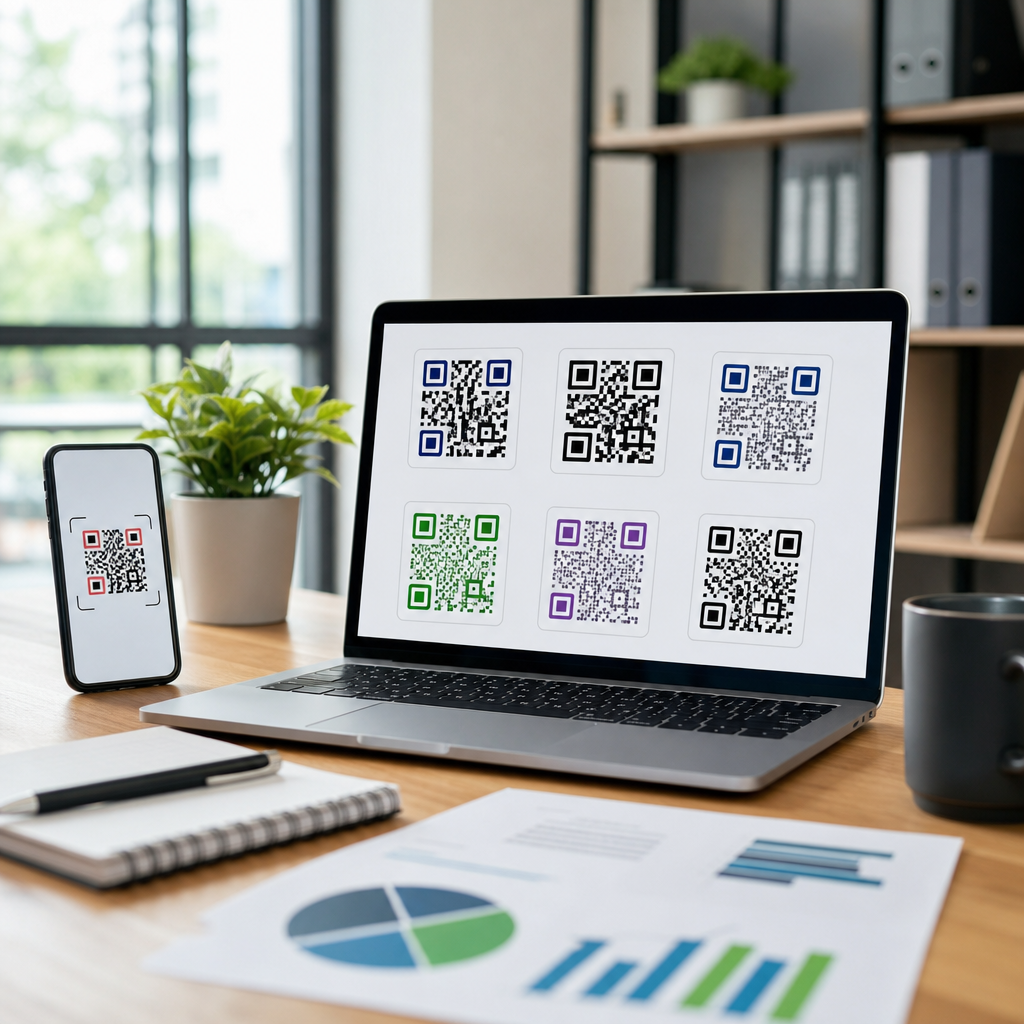
Design comes after functionality. Use a dark foreground on a light background for highest contrast. Keep a proper quiet zone around the code, ideally four modules wide, so scanners can isolate the symbol. Export print assets as SVG, EPS, or high-resolution PNG. Error correction can help if a logo partially covers the center, but do not push branding so far that scan reliability drops. In field testing, overly stylized codes fail most often under glare, low light, or angled scans. Reliable scanning is more valuable than decorative customization.
| Decision area | Best practice | Why it matters |
|---|---|---|
| Contact fields | Include name, mobile, email, company, title, website | Creates a complete save-ready record |
| Phone format | Use international format with country code | Improves dialing accuracy across regions |
| Color contrast | Dark code on light background | Raises scan success in varied lighting |
| File export | Use SVG for print, PNG for digital | Preserves sharp edges at any size |
| Testing | Scan on iPhone, Android, and Google Lens | Confirms cross-device compatibility |
Static versus dynamic QR codes for mobile contact sharing
A static QR code contains the vCard data inside the code itself. It is ideal when details are stable, privacy requirements are strict, and you want the scan to work even without internet access. This is why static vCard QR codes are common on employee badges, vehicle decals, conference lanyards, and printed business cards. The limitation is permanence. If the phone number changes, the code must be replaced everywhere it appears. There is no centralized edit layer and usually no scan analytics.
A dynamic QR code points to a hosted destination that can be updated later. In mobile QR strategy, dynamic codes are often better for campaigns, distributed print, sales teams with changing territories, and organizations that care about attribution. You can change the landing page, add CRM forms, measure scans by device, or route users to an Apple Wallet card, lead form, or downloadable vCard. However, the scan result depends on internet access and the platform hosting the redirect. For simple direct contact exchange, a dynamic code adds complexity that may not always be necessary.
When clients ask me which to choose, I reduce the decision to three questions. Will the contact details change? Do you need analytics? Is instant save-to-contacts the only goal? If details are fixed and convenience is the priority, static vCard wins. If details may change or the code is part of a measured campaign, use a dynamic experience that still makes contact saving easy. The most effective mobile QR codes are not defined by one universal format; they are defined by alignment between payload, placement, and user intent.
Where to place mobile QR codes and how to improve scan performance
Placement determines performance as much as the payload. On business cards, place the QR code where fingers do not cover it and keep it at least 0.8 inches square, though 1 inch or more is safer. On posters and storefronts, size should match scanning distance; a common rule is roughly 1 inch of code width for every 10 inches of scanning distance, then add margin for imperfect conditions. Avoid glossy lamination when possible because reflections interfere with camera focus and contrast detection.
For screens, keep the code away from busy backgrounds and do not animate it unnecessarily. If the destination requires a decision, add a plain-language callout such as “Scan to save contact” or “Scan to call, email, or book.” Users scan more confidently when the outcome is explicit. In retail and event settings, I have repeatedly seen scan rates rise after replacing generic captions like “Learn more” with action-specific instructions. Intent clarity matters because mobile users make split-second choices.
Also consider privacy and data sensitivity. A vCard can expose direct numbers and email addresses widely once printed. For public placements, some organizations prefer a mobile landing page that offers controlled options instead of embedding personal details directly. This is especially useful for rotating staff, shared support lines, or regulated industries. Test the entire experience under realistic conditions: bright sunlight, weak signal, older phones, cracked screens, and one-handed use. A QR code that works only in perfect office lighting is not production-ready.
Common mistakes, tools, and next steps in a mobile QR code strategy
The most common mistake is treating every mobile QR code as a URL. Contact sharing, payments, messaging, maps, and app installs each have different ideal payloads. Another frequent error is skipping testing after design changes. Rounded modules, inverse colors, dense logos, and tiny print dimensions can all lower scan reliability. I also see teams forget governance: who owns the destination, who updates details, and how expired codes are retired. A QR code is a published asset, not a one-time graphic.
Useful tools vary by maturity. Small teams can start with Canva, Adobe Express, or basic SaaS generators. Marketing teams often prefer platforms like Beaconstac, Scanova, QR Tiger, or Bitly for dynamic management and reporting. Design teams should keep vector masters in Figma, Illustrator, or InDesign. Measurement should connect scans to outcomes using UTM parameters, CRM forms, call tracking, or event platforms where appropriate. If you are building a full mobile QR program, create internal standards for size, contrast, approved destinations, privacy review, and periodic testing.
The main takeaway is simple: if you want people to save contact information quickly, create a vCard QR code and optimize the entire mobile scan experience around speed, clarity, and reliability. Use static codes for stable details and offline convenience. Use dynamic experiences when updates, routing, or analytics matter more. Most importantly, match the QR code type to the action you want the user to complete. As you expand your creating mobile QR codes strategy, treat this vCard workflow as the hub and build outward to phone, email, SMS, maps, app, and landing-page QR codes with the same discipline. Start by generating one tested contact QR code, scanning it on multiple devices, and refining from real user behavior.
Frequently Asked Questions
What is a vCard QR code, and how does it work for contact information?
A vCard QR code is a QR code that contains contact details in a standardized format that smartphones and many contact apps can read automatically. Instead of sending someone to a webpage, this type of QR code encodes structured fields such as a person’s full name, mobile number, email address, company, job title, website, street address, and sometimes additional details like social profile links or notes. When someone scans the code with a phone camera or QR scanner, the device recognizes that the content is contact data and opens a contact preview card. From there, the user can save the information directly to their address book in just a few taps.
This is what makes a vCard QR code so practical in real-world use. It removes the friction of manually typing contact information, reduces input errors, and creates a much faster handoff than a printed business card alone. In networking, sales, events, customer service, and even packaging or signage, a vCard QR code turns a simple scan into a saved contact. That convenience is the main reason it remains one of the most useful formats when creating mobile QR codes for business or personal use.
What contact details should I include in a vCard QR code?
The best vCard QR codes include the information a person actually needs to contact you quickly, without overloading the card with unnecessary fields. At a minimum, most people should add a full name, primary phone number, and email address. For professional use, it is also smart to include a company name, job title, and website. If your business depends on location-based visits or local service, adding a street address can also be helpful. The goal is to make the saved contact immediately useful the moment it lands in someone’s phone.
You can also include optional fields such as a secondary phone number, department, social links, or a short note, but it is usually best to keep the contact card focused and clean. Too much information can make the contact feel cluttered and may increase the data density of the QR code, which can affect print flexibility and scan performance. In most cases, prioritize the details that support the action you want the user to take next, whether that is calling, emailing, visiting your website, or finding your office. A streamlined vCard typically performs better than one packed with every possible field.
How do I create a QR code for contact information using a vCard?
Creating a vCard QR code usually follows a simple process. First, choose a QR code generator that supports the vCard format specifically, not just plain text or URL links. Then enter the contact details you want to store, such as name, phone number, email address, company, title, website, and address. Once the fields are completed, generate the QR code and test it on multiple phones before downloading the final file. Good testing matters because different devices may present contact data slightly differently, and you want to confirm that the scan opens a clean, accurate contact card.
After testing, export the QR code in a format that matches where it will be used. PNG is common for digital use, while SVG or other vector formats are often better for high-quality printing because they stay sharp at different sizes. If the QR code is going on business cards, flyers, product packaging, trade show displays, or email signatures, make sure it is large enough to scan comfortably and has enough contrast between the code and the background. It is also wise to leave quiet space around the code so camera apps can detect it easily. In short, the technical setup is straightforward, but careful formatting and testing are what make the final QR code reliable in everyday use.
Should I use a static or dynamic QR code for a vCard?
A static vCard QR code stores the contact details directly inside the code itself. That means it works without relying on a hosted landing page, and it can be scanned immediately by compatible devices. Static codes are often a strong choice when your contact information is unlikely to change, such as a personal portfolio, a long-term business identity, or printed materials that will stay in circulation for a while. They are simple, direct, and often ideal when you want the contact-saving experience to happen instantly.
A dynamic QR code, by contrast, usually points to a managed destination that can be updated later. This can be useful if you expect your phone number, email address, job title, company, or web links to change over time. Dynamic options may also offer scan analytics, easier campaign management, and more flexibility across marketing channels. However, they typically depend on an external service and may not behave exactly like a native embedded vCard unless the destination is designed for contact saving. If permanence and immediate native contact recognition are your priority, static vCard QR codes are often the better fit. If editability and tracking matter more, a dynamic solution may be worth considering.
What are the best practices for making a vCard QR code easy to scan and save?
The most important best practice is to keep the QR code readable in real conditions, not just on your screen during setup. Use strong contrast, typically a dark code on a light background, and avoid overly decorative color combinations that reduce clarity. Make sure the code is printed or displayed at a reasonable size for the expected scanning distance. For example, a code on a business card should still be large enough for a phone camera to capture without struggle, while a code on a poster or sign may need to be much larger. Also leave sufficient blank margin around the code, often called the quiet zone, so phone cameras can isolate it correctly.
Beyond scanability, the save experience should be clean and trustworthy. Double-check every contact field for accuracy, consistency, and formatting. Use a recognizable name, a current phone number, and a professional email address, and make sure your website and address are correct. Test the code with both iPhone and Android devices to confirm that it opens a contact card as expected. If you place the code in print, add a small call to action such as “Scan to save contact” so people know exactly what will happen. The best vCard QR codes combine technical reliability with a clear user experience, which is what turns a quick scan into a real business connection.