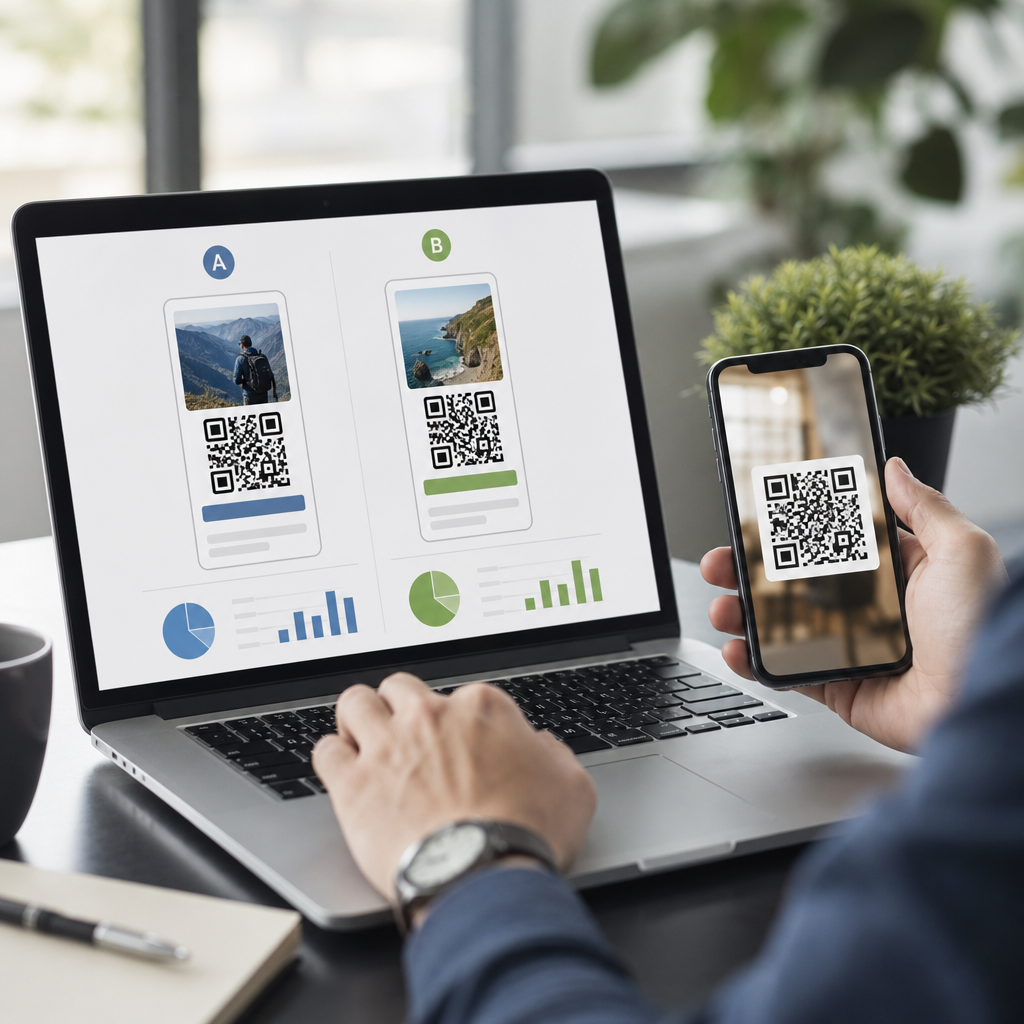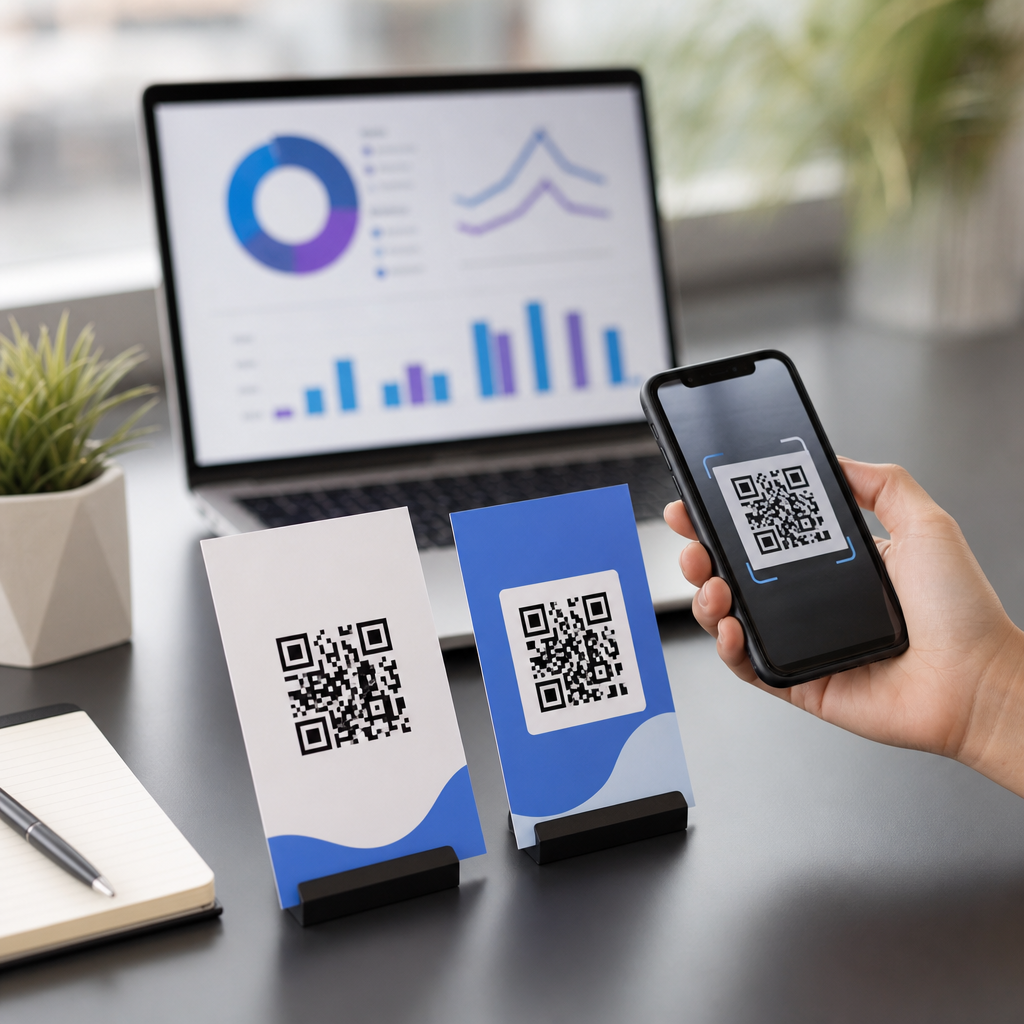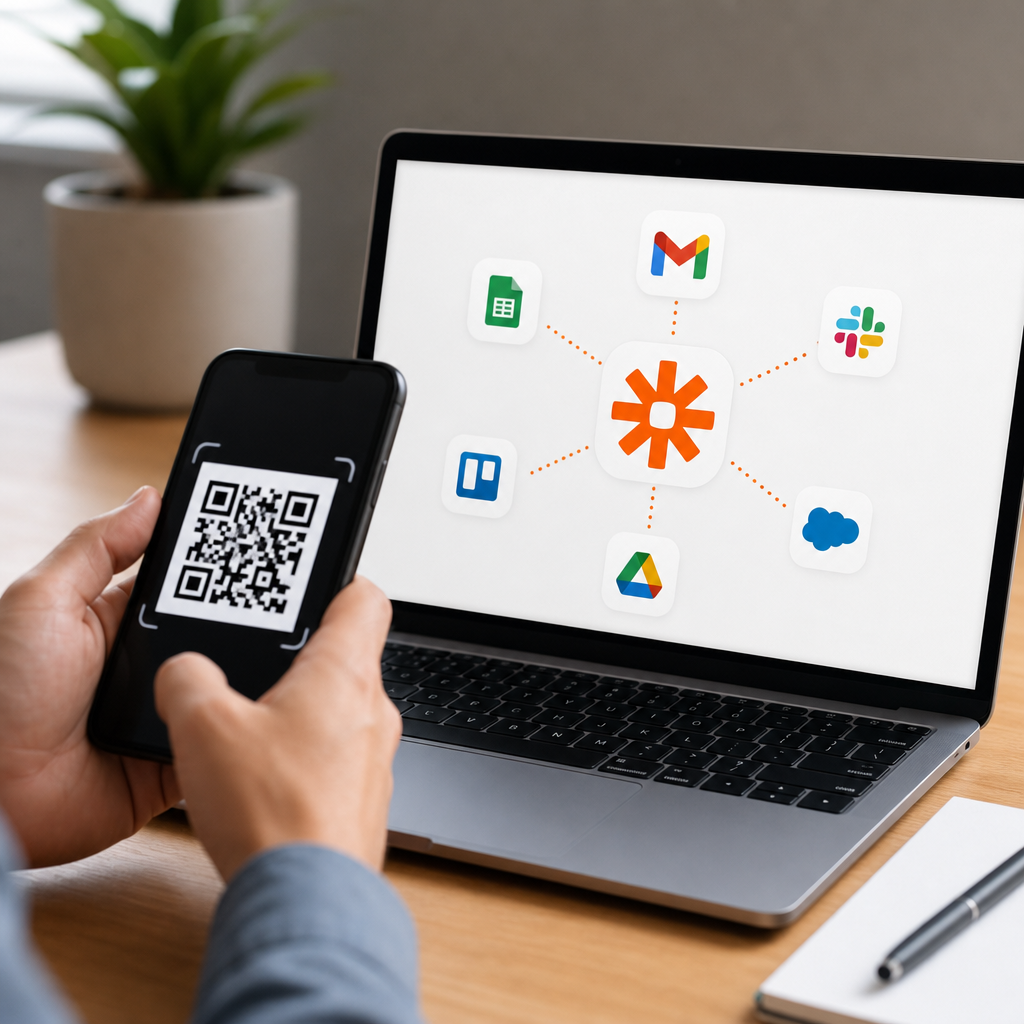
Connecting QR codes to Zapier workflows turns a static scan into an automated business process. Instead of sending every scanner to a generic landing page and stopping there, you can use the scan event, form submission, or landing-page action to trigger tasks in a CRM, email platform, spreadsheet, help desk, or payment system. In practice, that means a QR code on packaging can create a lead in HubSpot, a code on an event badge can enroll an attendee in Mailchimp, and a code on an invoice can log a payment request in Airtable and notify Slack.
At a basic level, a QR code is a machine-readable image that stores data, usually a URL. Zapier is an automation platform that connects apps through trigger-and-action workflows called Zaps. Because QR codes do not natively “talk” to Zapier by themselves, the connection usually happens through the destination behind the code: a web form, a landing page, a webhook, a scheduling app, or a payment link. Dynamic QR codes matter here because they let you change destinations without reprinting the code, add tracking parameters, and route scans by campaign, location, or device.
I have implemented these systems for event teams, B2B sales operations, and local service businesses, and the pattern is consistent: the QR code is the entry point, while Zapier handles the follow-through. This matters because response speed affects conversion. A lead who scans a code on a trade show banner and receives an immediate personalized email, CRM assignment, and internal alert is far more likely to convert than a lead who waits for manual follow-up. The same setup also improves data hygiene by standardizing capture fields, timestamps, source attribution, and consent records from the first interaction.
How the QR code-to-Zapier connection actually works
The most reliable architecture is simple. First, create a dynamic QR code that points to a controlled destination. Second, send the visitor to a landing page, form, chatbot, calendar page, or payment page that can trigger Zapier directly or through an intermediate tool. Third, let Zapier enrich the record, route it, and update downstream systems. In other words, the scan itself starts the journey, but the automation usually begins when the user submits data or lands on a URL instrumented for tracking.
There are three common connection methods. The first is form-based capture using tools such as Typeform, Jotform, Tally, Gravity Forms, or HubSpot Forms. A user scans, submits details, and Zapier creates or updates records. The second is webhook-based capture, often used when a landing page or QR platform can send a POST request to Zapier Webhooks. The third is app-native triggering, where the scanned page contains actions in Calendly, Stripe, Shopify, Eventbrite, or another app with a Zapier trigger. If you need analytics at the scan level, pair the code with UTM parameters and a dynamic QR platform such as Bitly, QR Code Generator Pro, Beaconstac, or Flowcode.
Use naming conventions from the start. Include campaign, asset, channel, geography, and audience in the QR code label and the landing-page URL parameters. For example, a code labeled TS24-BOOTH-A-DEMO can pass source=tradeshow, event=TS24, location=boothA, and intent=demo into hidden form fields. Those values then map cleanly into Salesforce, HubSpot, Pipedrive, or Zoho CRM. This is where many teams fail: they generate the code correctly but skip structured attribution, making later reporting unreliable.
Best workflow patterns for CRM, marketing, and operations
The highest-value use case is lead capture into a CRM. A visitor scans a QR code on signage, packaging, direct mail, or a sales one-pager; the landing page presents a concise form; Zapier checks whether the email already exists in the CRM; then it creates or updates the contact, appends campaign metadata, assigns an owner, and opens a task. In HubSpot, for example, you can trigger a workflow from form submission and still use Zapier for branching logic across non-native apps. In Salesforce, a Zap can create a Lead, add it to a Campaign, and notify the account executive in Slack within seconds.
Marketing automation is the next layer. Once a contact is captured, Zapier can subscribe them to Mailchimp, ActiveCampaign, Klaviyo, or Brevo, then start a relevant sequence. If the QR code came from product packaging, the first email might deliver setup instructions. If it came from an event booth, the sequence might send the promised slide deck, a case study, and a booking link. This immediate relevance is what raises response rates. I have seen simple scan-to-form-to-email workflows outperform generic homepage QR codes because they reduce friction and match message to context.
Operational workflows are equally useful. Restaurants use table QR codes to trigger feedback collection into Google Sheets and route low ratings to managers by SMS through Twilio. Property managers place QR codes on buildings so maintenance requests create tickets in Zendesk or Freshdesk. Healthcare and field service teams use asset-specific QR codes that open forms prefilled with location or equipment IDs; Zapier then creates records in Airtable or Smartsheet and alerts the right technician. The principle is the same across industries: capture context at scan time so the automation can act intelligently.
| Use case | QR destination | Zapier trigger | Typical actions |
|---|---|---|---|
| Trade show lead capture | Form landing page | New form entry | Create CRM lead, assign owner, send follow-up email, post to Slack |
| Product registration | Warranty form | Form submission | Create contact, update spreadsheet, start onboarding campaign |
| Service request | Ticket form with hidden asset ID | Webhook or form entry | Create help desk ticket, notify technician, log in Airtable |
| Payment reminder | Stripe payment link | Successful payment | Update CRM status, send receipt, notify finance channel |
| Event check-in follow-up | Check-in or content page | New attendee action | Add to campaign, send resources, create sales task |
Step-by-step setup that avoids common implementation mistakes
Start by defining the business event you actually need. Do not begin with the QR artwork. Ask whether success means a new lead, a booked meeting, a paid invoice, a support ticket, or a product registration. Then choose a destination built for that event. If qualification matters, use a form. If speed matters, use a calendar page. If payment matters, use Stripe or Shopify. The QR code should send users to the shortest path to value, not to a general webpage with too many choices.
Next, build the destination with tracking in mind. Add UTM parameters to the URL. Use hidden fields for campaign metadata. Keep mobile usability strict: short forms, large buttons, and fast load times. According to Google research on mobile behavior, delays of even a few seconds increase abandonment materially, which is especially important because QR scans happen almost entirely on phones. Then configure the Zap. In most cases, the first steps should be validation and deduplication: format phone numbers, normalize states or countries, and search the CRM before creating a net-new record.
After that, map fields carefully and branch where needed. Use Zapier Filters to separate high-intent scans from low-intent scans. Use Paths if different product lines, regions, or lead scores require different actions. Formatter by Zapier helps standardize dates, names, and text. Storage by Zapier can support lightweight state management, while Webhooks by Zapier extends you into systems that do not have native app connectors. Finally, test with real devices, not desktop assumptions. Scan from iPhone and Android, over Wi-Fi and cellular, and verify that every field arrives correctly in every connected app.
The mistakes I see most often are avoidable. Teams print static QR codes before validating the destination. They omit consent language even when the workflow adds the contact to marketing sequences. They create duplicate CRM records because they trigger on every form entry without lookup steps. They rely on one app’s analytics instead of reconciling scan data, submissions, and downstream conversions. And they forget failure handling. A mature setup includes Zapier error alerts, clear ownership for fixes, and a fallback destination if the primary page goes down.
Measurement, governance, and scaling this subtopic across your stack
If this article is your hub for integrating QR codes with CRM and tools, measurement is the thread that connects every spoke. Track four layers: scans, visits, submissions, and business outcomes. A QR platform may tell you scans by device, time, and geography. Analytics tools such as Google Analytics 4 show engaged sessions and conversions on the landing page. Zapier task history confirms whether the automation ran. Your CRM then reveals opportunity creation, revenue, renewal, or support resolution. Looking at only one layer gives a distorted picture.
Governance matters as you scale. Maintain a registry of QR codes, destinations, owners, status, and linked automations. Standardize naming and UTM taxonomies across campaigns. Document which workflows write to the CRM, which ones only append notes, and which systems are the source of truth. In regulated contexts, confirm that your forms, integrations, and storage align with privacy requirements and retention policies. Consent capture, unsubscribe handling, and least-privilege access are not optional details; they are part of a durable automation design.
The main benefit of connecting QR codes to Zapier workflows is simple: every scan can become a measurable, immediate, and useful action instead of a dead end. Dynamic QR codes give you flexibility, a well-designed destination captures intent, and Zapier turns that intent into follow-up across CRM, email, support, payments, and internal alerts. Start with one high-value journey, such as lead capture or service requests, instrument it fully, test it on real phones, and then expand to adjacent workflows across your advanced QR code strategy.
Frequently Asked Questions
How do QR codes actually connect to Zapier workflows?
QR codes do not usually connect to Zapier directly by themselves. A QR code typically contains a destination such as a URL, a form link, a landing page, a payment page, or an app deep link. The automation starts when the person who scans the code takes an action on that destination. For example, a user might submit a form, click a button, complete a purchase, book an appointment, or update a record. That action can then be used as the trigger for a Zap in Zapier.
In a practical setup, the QR code sends the scanner to a tracked landing page or form. Once the visitor submits their information, Zapier can capture the new form entry and automatically create a lead in HubSpot, add the contact to Mailchimp, write the data into Google Sheets, open a support ticket in Zendesk, or notify a sales team in Slack. If the QR code points to a payment or checkout page, the completed transaction can trigger downstream actions such as sending a receipt, updating inventory, or logging the payment in an accounting system.
The key idea is that the QR code is the starting point of the user journey, while Zapier handles the automation after a measurable event occurs. To make that work well, businesses often use dynamic QR codes, UTM tracking parameters, dedicated forms, and unique landing pages so they can identify exactly which code was scanned and what happened next.
What is the best way to track QR code scans inside a Zapier workflow?
The best approach is to treat the scan as part of a trackable conversion path rather than expecting every scan to appear as a native Zapier trigger. In most cases, you track the scan by directing the QR code to a unique URL, a landing page with analytics, or a form that records identifying details. That way, when the user completes the next action, Zapier can use the source information to understand which QR code drove the result.
A common method is to assign each QR code its own destination URL or append UTM parameters such as source, medium, campaign, and content. For example, a QR code printed on product packaging might lead to a support form with parameters that identify the product line and region. When the form is submitted, Zapier can pull those values and route the workflow accordingly. One scan could create a support request, while another could create a sales lead or enroll the person in a post-purchase email sequence.
If you need more precision, use hidden fields on forms, dynamic QR code platform analytics, or webhooks that pass metadata into Zapier. This helps you distinguish between codes used on invoices, event badges, in-store displays, direct mail, or packaging. The result is better attribution, cleaner reporting, and smarter automation decisions based on where the scan originated and what the user did after landing.
What kinds of business tasks can Zapier automate after someone scans a QR code?
Once a QR code leads to an action that Zapier can detect, the range of automations is extremely broad. Marketing teams often use QR-driven workflows to capture leads, tag subscribers, send welcome emails, and segment audiences in email platforms like Mailchimp or ActiveCampaign. Sales teams may route new contacts into a CRM such as HubSpot or Salesforce, assign owners based on territory, and trigger instant follow-up messages so no lead sits unattended.
Operations and support teams can also benefit. A QR code on product packaging might direct customers to a troubleshooting form, and Zapier can turn the submission into a help desk ticket, notify the right team, and attach device or product details automatically. A QR code on an event badge can register attendance, update a spreadsheet, enroll the attendee in a nurture sequence, and alert the event team in real time. A QR code on an invoice can lead to a payment page, and once payment is completed, Zapier can log the transaction, send a confirmation email, and update the customer record.
The strength of this setup is that it turns an offline touchpoint into a digital workflow. Printed materials, signage, labels, packaging, business cards, receipts, and mailers can all become entry points into automated systems. Instead of manually exporting form responses or copying customer details from one app to another, Zapier handles the repetitive work behind the scenes.
Do I need dynamic QR codes to use Zapier effectively?
No, but dynamic QR codes are often the better choice if you want flexibility, tracking, and easier workflow management. A static QR code points to a fixed destination that cannot be changed after printing. That can work perfectly well if you know the final destination will stay the same and all you need is a simple form or page that triggers a Zap. For basic use cases, a static code is often enough.
Dynamic QR codes become more valuable when you want to update the destination without reprinting materials, monitor scan performance, or run different campaigns from different placements. For example, if you print a QR code on packaging and later decide to send users to a new product registration form, a dynamic code lets you change the target while keeping the printed code active. This is especially useful for long-lived assets such as labels, signage, manuals, brochures, and invoices.
From a Zapier perspective, dynamic QR codes also make attribution easier. Many dynamic QR platforms provide scan analytics, device data, timestamps, and location insights. Combined with a form submission, webhook, or tracked landing page, that information can help you build more accurate automations. You can send leads from one campaign into one CRM pipeline, route another campaign into customer support, and compare performance across print channels without creating unnecessary complexity.
What should I watch out for when setting up QR code to Zapier automations?
The most common mistake is assuming that the scan alone is enough to power a complete workflow. In reality, you usually need a meaningful downstream event such as a form completion, button click, checkout completion, or webhook submission. Without that event, Zapier may have nothing reliable to trigger from. It is also important to avoid sending all QR traffic to a generic page with no clear next step. If you want automation, the landing experience should encourage a measurable action.
You should also pay close attention to data quality. Make sure forms collect the fields your workflow actually needs, such as email address, campaign source, product type, location, or customer ID. Use validation where possible, and map fields carefully inside Zapier so data lands in the right CRM properties, spreadsheet columns, or help desk fields. If multiple QR codes point into the same workflow, include hidden identifiers or URL parameters so you can tell them apart later.
Finally, test the entire journey from scan to completion before launching at scale. Scan the code on different devices, verify that the landing page loads quickly, submit test entries, and confirm that each Zap step fires as expected. Review permissions between connected apps, watch for duplicate record creation, and add filters or paths if different scan sources should trigger different outcomes. A well-tested setup is what turns QR codes from a simple access tool into a dependable automation channel that supports marketing, sales, support, and payments.