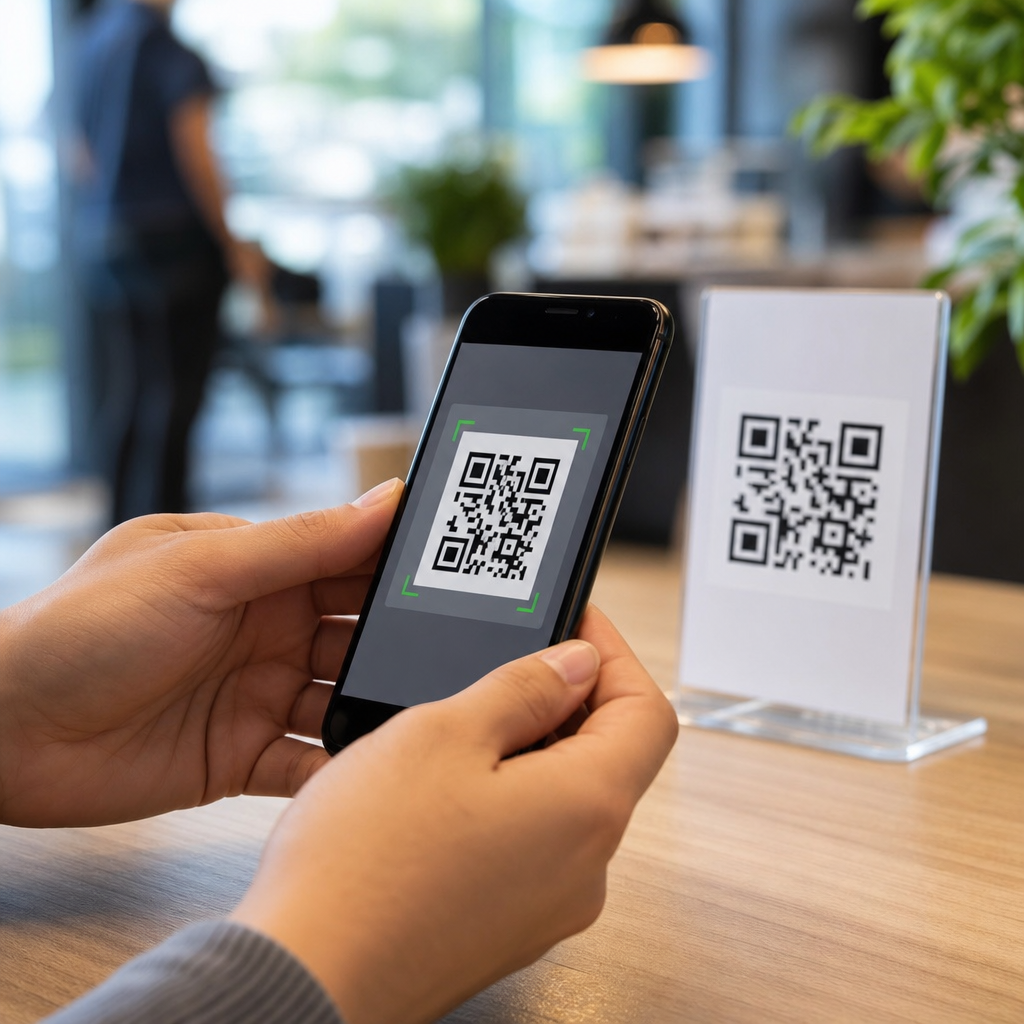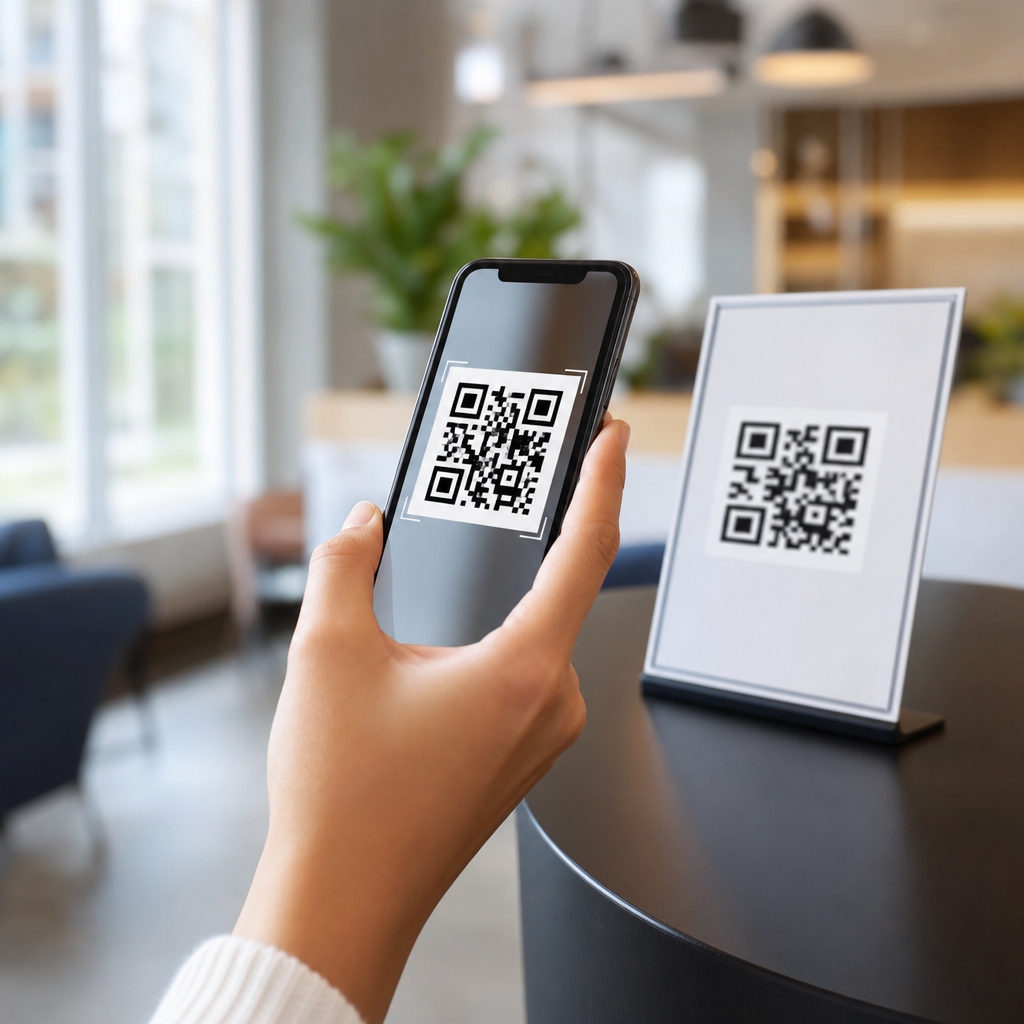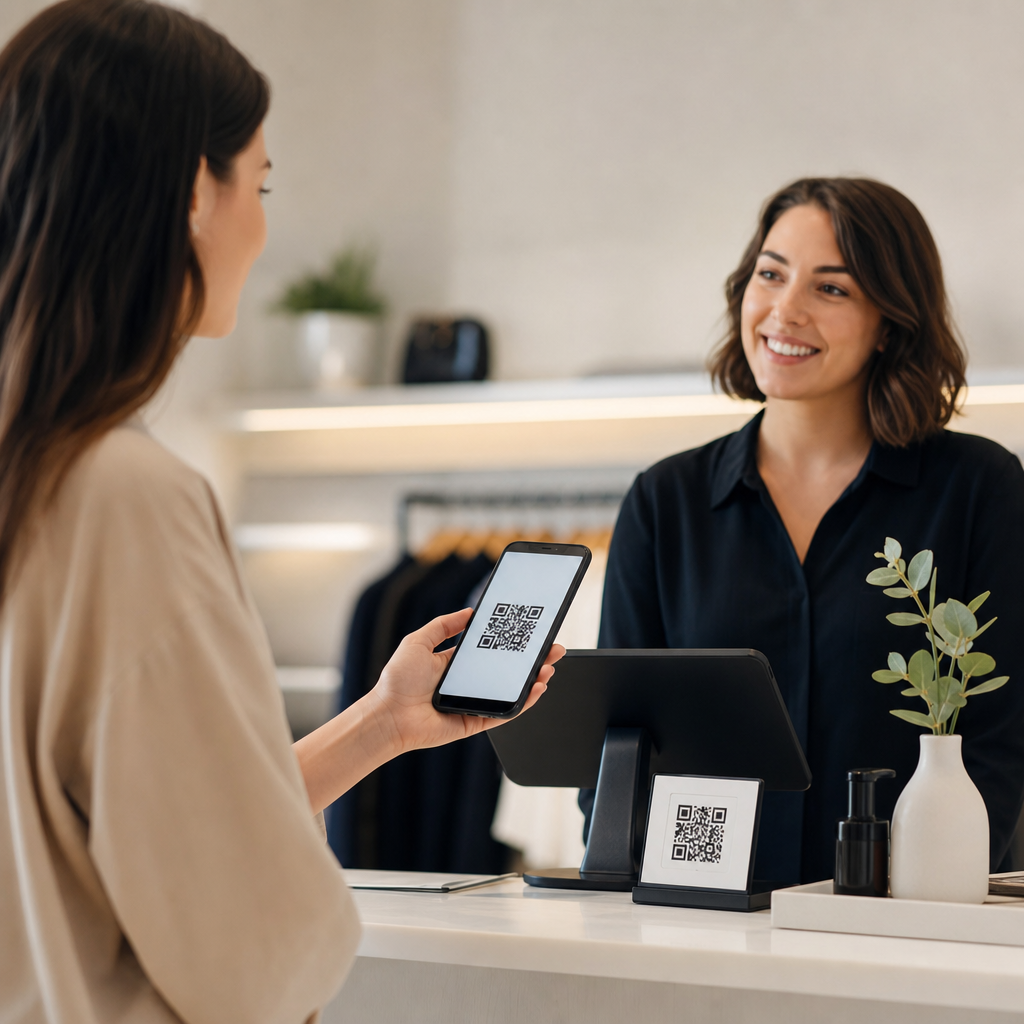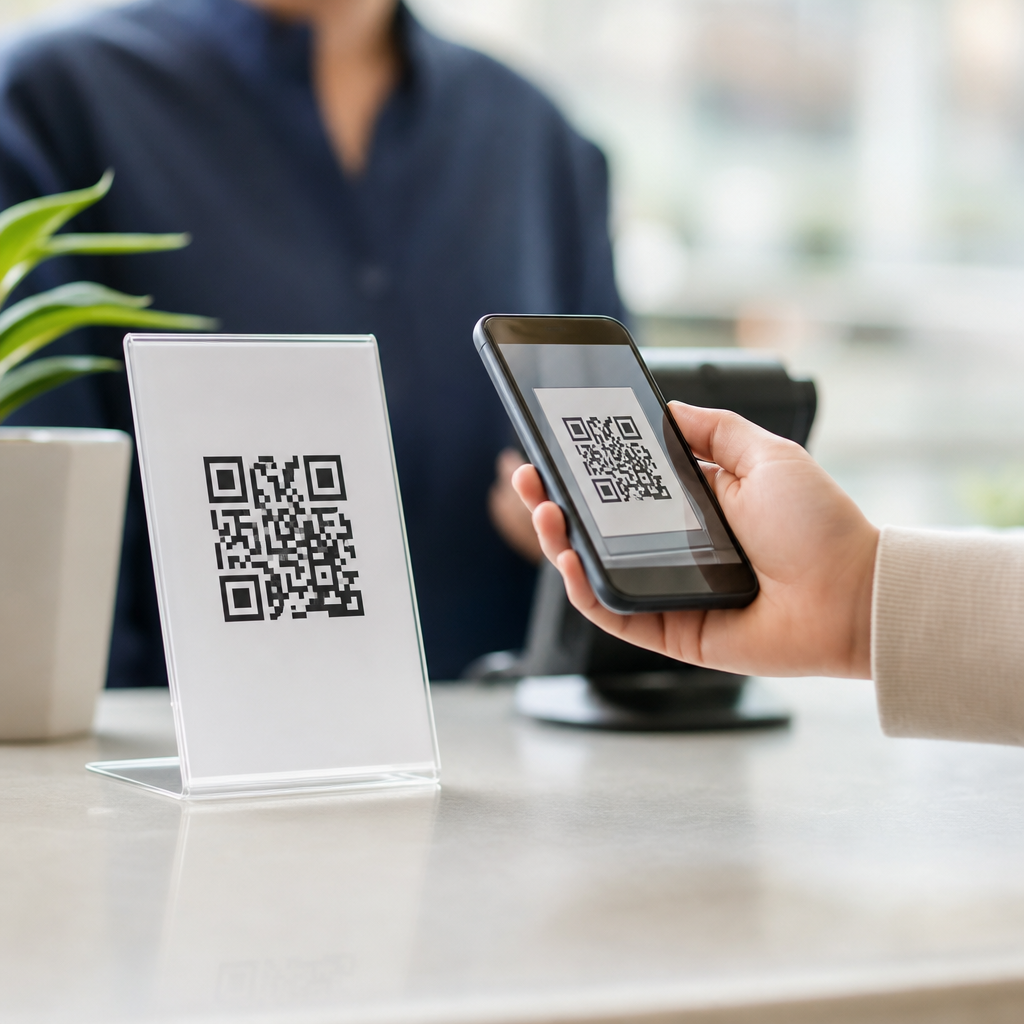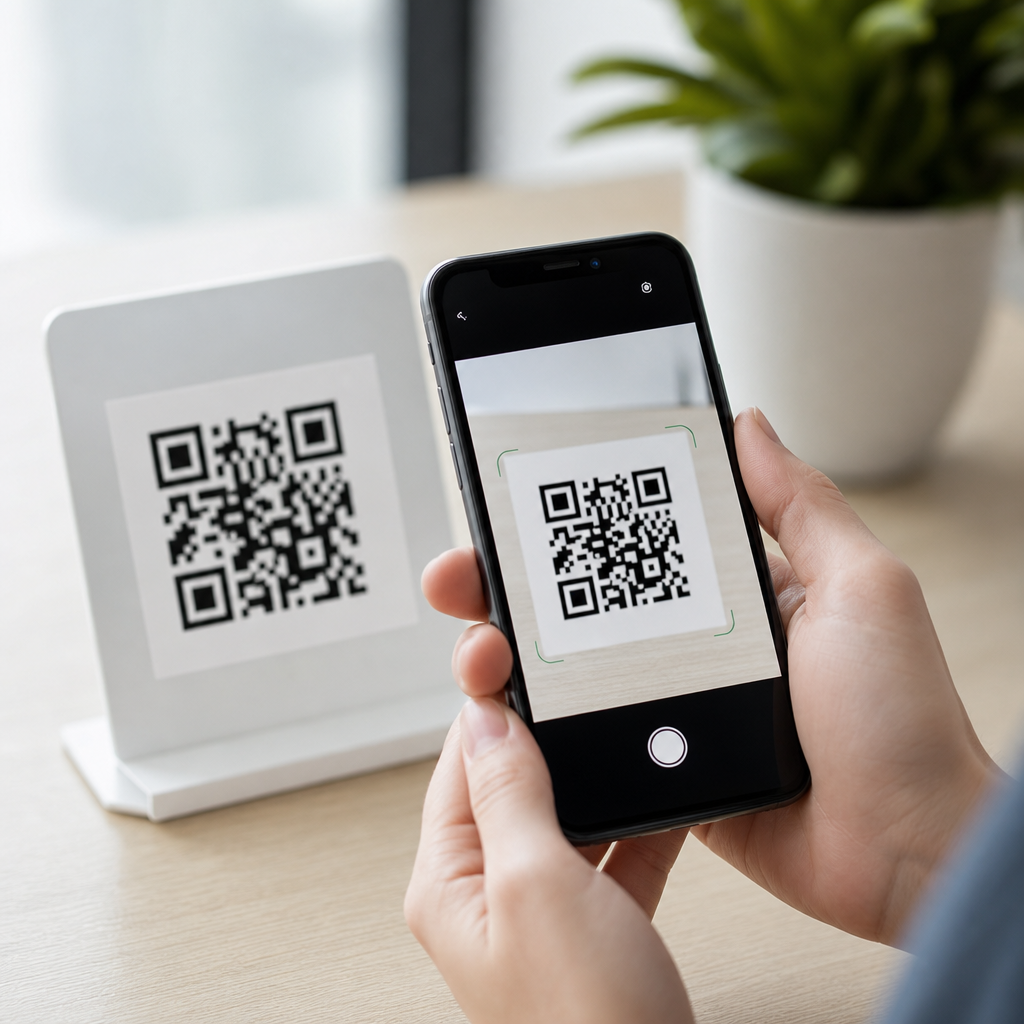
QR code scanning on iPhone and Android works by using a phone’s camera, image-processing software, and built-in decoding logic to detect the square code, correct distortion, and convert the pattern into usable data such as a website link, Wi-Fi login, payment request, contact card, or app action. For most users, the process feels instant: open the camera, point it at the code, and tap the prompt. Underneath that simple interaction is a mature mobile workflow built from computer vision, standardized data formats, and operating-system level security controls. Understanding how mobile QR codes work matters because these codes now sit at the center of retail checkout, restaurant menus, event ticketing, device pairing, and marketing attribution. As someone who has tested QR deployments across iPhone and Android for campaigns, support documentation, and in-store experiences, I have seen that scan success depends as much on code quality and phone settings as on the code content itself. This hub explains the full process, the differences between iPhone and Android, the common QR code types, and the practical factors that determine whether scanning is fast, accurate, and safe.
What a mobile phone reads when it scans a QR code
A QR code is a two-dimensional matrix barcode made of black and white modules arranged in a square grid. Unlike a traditional one-dimensional barcode that stores data across horizontal lines, a QR code stores information both horizontally and vertically, which allows it to hold much more data in a smaller area. Phones do not “understand” the image the way a person does. The camera captures a frame, then the scanning software searches for the three large finder patterns at the corners, identifies the alignment pattern when present, measures the grid, and samples the dark and light modules. After that, the decoder applies error correction, usually based on the Reed-Solomon method defined in ISO/IEC 18004, to recover the original data even if part of the symbol is scratched, tilted, or partially obscured.
The data inside the code can represent plain text, a URL, an SMS template, an email address, calendar data, a vCard, app deep-link information, or structured payment content. The phone then decides what action to offer. If the decoded result is a web address, the operating system usually shows a browser prompt. If it is a Wi-Fi payload, newer phones can offer to join the network automatically. This distinction matters because scanning is a two-step process: first decode the symbol, then interpret the payload. When users say a QR code “does not work,” the failure can happen at either stage.
How QR code scanning works on iPhone
On iPhone, QR code scanning is built into the Camera app and has been natively supported since iOS 11. In practical use, the camera continuously analyzes the live preview for machine-readable patterns. When it detects a QR code, iOS extracts the payload and displays a notification banner or on-screen prompt near the code. Tapping that prompt launches the appropriate action, such as opening Safari, adding a contact, or joining a wireless network. Apple also includes Code Scanner as a separate control that can be added to Control Center, which is useful in managed enterprise environments or when users want a scanner that focuses only on code detection rather than general photography.
In testing, iPhones are generally strong at low-latency detection because Apple tightly integrates the camera hardware, image signal processor, and software frameworks such as AVFoundation and VisionKit-related capabilities. That integration helps with autofocus, exposure balancing, and perspective correction. Newer iPhones also handle QR detection at steeper angles and from screens more reliably than older devices. If scanning fails on iPhone, the usual causes are disabled camera permissions, poor lighting, a code printed too small for the camera distance, or a payload blocked by network or security settings. iPhone does not usually require a separate app for standard QR codes, but some branded codes inside retail, banking, or authentication flows still open within dedicated apps for account-specific actions.
How QR code scanning works on Android
On Android, QR code scanning can be native, manufacturer-specific, or app-based depending on the device and Android version. Many current Android phones include QR recognition directly in the default Camera app. Google also supports scanning through Google Lens, which can be accessed from the camera, the Google app, or Photos. The underlying flow is the same as on iPhone: the camera captures the symbol, the software locates the code geometry, decodes the modules, applies error correction, and then presents an action based on the data type.
The main difference is ecosystem variation. A Samsung Galaxy phone, a Google Pixel, and a lower-cost Android handset may expose QR features differently in settings, prompts, and scan speed. Pixel devices often rely on Lens-powered recognition with strong contextual understanding, while some manufacturers add a simple QR toggle inside the camera settings. In support work, I have found that Android scan issues are more often tied to device fragmentation: outdated camera apps, disabled Lens integration, aggressive battery settings, or third-party scanner apps with inconsistent ad-heavy behavior. Even so, modern Android phones scan standard QR codes very well, and users typically do not need a dedicated app unless they need scan history, batch workflows, or enterprise-specific features.
The step-by-step scanning process inside a phone
Although iPhone and Android present scanning as a single gesture, the phone actually performs several operations in sequence. Each step affects reliability. Good code design improves every stage.
| Step | What the phone does | Why it matters |
|---|---|---|
| Image capture | Uses the camera preview to collect frames with autofocus and exposure control | Blurry or dark images reduce detection speed |
| Code detection | Finds the square shape and corner finder patterns | Busy backgrounds or low contrast can prevent recognition |
| Perspective correction | Straightens angled or warped codes into a readable grid | Important for scans from posters, packaging, and curved surfaces |
| Module sampling | Reads each black and white cell in the grid | Print quality and screen glare affect accuracy here |
| Error correction | Rebuilds missing or damaged data using QR redundancy | Allows many imperfect codes to still scan |
| Payload interpretation | Classifies the result as URL, text, Wi-Fi, payment, contact, or another format | Determines the prompt the user sees |
| User action | Shows a banner, button, or in-app action for confirmation | Provides a security checkpoint before opening content |
This sequence explains why some codes scan only after a user moves closer, tilts the phone, or improves the lighting. The decoder may be capable of reading the content, but the image entering the pipeline is not clean enough yet. It also explains why dense codes with long URLs can perform worse than shorter, cleaner payloads. More modules mean smaller squares, and smaller squares are harder to sample accurately at a distance.
What affects scan speed, accuracy, and user experience
The biggest factors are size, contrast, quiet zone, surface quality, and payload density. A QR code needs a clear margin around it, known as the quiet zone, so the scanner can distinguish the symbol from surrounding graphics. A common failure in packaging and flyers is placing text, borders, or background patterns too close to the code. Contrast is equally important. Black on white remains the most reliable combination, while light gray on pastel colors may look stylish but often fails in dim conditions. On digital screens, brightness and glare become major variables. OLED displays usually present codes sharply, but cracked protectors, reflections, and dark mode overlays can reduce readability.
Distance matters because the camera must resolve enough pixels per module. If a code is tiny on a business card or giant on a billboard viewed from far away, the same rule applies: the scanning device needs adequate module definition. Error-correction level also involves a tradeoff. Higher redundancy can preserve scanability when a logo covers part of the code, but it also increases complexity and may enlarge the symbol. In campaigns, I typically recommend testing every code on both iPhone and Android, under indoor and outdoor light, from expected user distances, before publishing. That field testing catches real-world issues that generator previews do not reveal.
Security, privacy, and safe scanning practices
QR codes are convenient, but they can point users to malicious destinations, phishing pages, or unexpected app behaviors. The code image itself is not dangerous in the abstract; the risk comes from the action triggered after decoding. Both iPhone and Android reduce this risk by showing a preview or prompt before opening most content. Users should read the destination domain carefully, especially when scanning codes on posters, parking meters, public charging stations, or printed stickers that could be placed over legitimate signage. Shortened links deserve extra caution because they hide the destination until opened.
Organizations can improve trust by using branded domains, HTTPS, and landing pages that clearly match the context of the scan. For example, a restaurant menu code should open a menu URL on the restaurant’s real domain, not a random redirect chain. Payment QR codes require even more care because fraud often relies on swapped stickers or lookalike merchant names. On the privacy side, scanning a code does not automatically expose all phone data, but the destination website can still collect analytics, device details, and referral information once opened. That is one reason clear disclosure and reputable hosting matter for any business using mobile QR codes at scale.
Best practices for creating QR codes that scan well on mobile
If the goal is reliable performance on both iPhone and Android, use short destination URLs, high contrast, sufficient quiet zone, and realistic print sizes. Static QR codes encode the final destination directly and are simple to deploy, while dynamic QR codes point to a short redirect URL that can be updated later and measured for analytics. Dynamic codes are often better for campaigns because they support destination changes, scan tracking, and A/B testing without reprinting materials. Tools such as QR Code Generator, Bitly, Beaconstac, and Flowcode are commonly used for these workflows, but the platform matters less than disciplined testing.
Make the code easy to notice and easy to trust. Pair it with a plain-language callout such as “Scan to view the menu” or “Scan to join Wi-Fi,” so users know what should happen. Keep logos modest and avoid decorative inversions unless they have been validated across devices. For printed materials, verify performance after export, not just in the design file, because compression, scaling, and ink spread can alter edges. For screen-based codes, check readability on older phones, because not every user has the newest camera sensor. If you manage a broader content cluster on mobile QR code basics, this hub should connect readers to related guides on static versus dynamic codes, QR code troubleshooting, QR code safety, and QR code size requirements.
QR code scanning on iPhone and Android is simple on the surface but highly structured underneath. A phone camera captures the code, software locates and corrects it, the decoder reconstructs the payload, and the operating system presents a safe next step. iPhone usually delivers a more uniform built-in experience, while Android offers excellent capability with more variation by device and camera app. In both ecosystems, successful scanning depends on fundamentals: clear contrast, proper margins, sensible payload length, and testing in real conditions. For businesses and publishers, understanding how mobile QR codes work leads directly to better conversion rates, fewer support issues, and safer user journeys. For users, it builds confidence about what happens after the scan and what warning signs to watch for. Use this hub as your starting point, then review your own codes on multiple phones, refine weak spots, and build every QR experience around clarity, speed, and trust.
Frequently Asked Questions
How does a smartphone actually read a QR code?
When you point an iPhone or Android phone at a QR code, the camera captures a live image and the phone’s software begins analyzing it frame by frame. The scanning system looks for the QR code’s signature structure, especially the three large square finder patterns in the corners, which help the device recognize that it is looking at a code rather than ordinary text or an image. Once the code is detected, the phone estimates its position, size, and angle, then corrects for perspective distortion so the pattern can be interpreted accurately even if the code is tilted or viewed from the side.
After the code is located, the decoder reads the tiny black-and-white modules that make up the QR pattern and converts them into binary data. Built-in error correction helps recover information even if part of the code is smudged, scratched, or partially blocked. Finally, the decoded data is translated into something useful, such as a web link, contact card, Wi-Fi network credential, payment payload, text string, or app-specific action. To the user, this entire workflow feels almost instant, but behind the scenes it combines camera hardware, computer vision, pattern recognition, and standardized QR decoding logic.
Do iPhone and Android scan QR codes the same way?
At a high level, yes. Both iPhone and Android devices rely on the same general process: the camera captures the image, the operating system or app detects the QR code, the decoder interprets the symbol, and the phone presents a prompt for the next action. The underlying QR code standard is the same across platforms, which is why a properly generated QR code can usually be scanned by either device without any issue.
Where the experience differs is in how each platform exposes scanning to the user. On iPhone, QR scanning is deeply integrated into the native Camera app, and many users simply point the camera at the code and tap the notification banner that appears. Android works similarly on most modern devices, but the exact behavior can vary slightly by manufacturer, camera app, and Android version. Some phones use built-in camera scanning, while others route the feature through Google Lens or a system-level scanner. In practice, both ecosystems are designed to make scanning fast and intuitive, but the interface details and prompt style may not look exactly the same from one phone to another.
Why does QR code scanning sometimes fail or take longer than expected?
QR code scanning can fail for several practical reasons, even though the technology itself is highly reliable. Poor lighting is one of the most common causes. If the camera cannot clearly distinguish the dark and light areas of the code, decoding becomes harder. Blurry focus, low camera quality, glare on glossy surfaces, extreme angles, tiny printed codes, and low contrast can also interfere with detection. Even though QR codes include error correction, severe damage or missing sections can push the symbol beyond what the decoder can repair.
Environmental and device-specific factors matter too. If the code is displayed on another screen with low brightness, moiré patterns or refresh effects may reduce readability. If the phone is moving, trying to focus too close, or using a camera app that is slow to lock onto the code, the prompt may appear with a delay. On some Android devices, scanning behavior can also depend on whether camera permissions, Lens support, or network-assisted features are enabled. In most cases, the fix is simple: improve lighting, hold the phone steady, move slightly farther back, clean the camera lens, and make sure the code is fully visible within the frame.
What kind of information can a QR code contain on iPhone and Android?
QR codes can store far more than just website URLs. One of their main advantages is that they can package structured data into a compact visual format that a phone can quickly turn into an action. A scanned code might open a webpage, launch a map location, join a Wi-Fi network, start a payment flow, add contact details to the address book, compose a text message, begin an email, or trigger an in-app experience. Businesses also use QR codes for menus, event check-ins, product authentication, support links, tickets, and mobile app deep links.
Both iPhone and Android interpret the decoded content and then decide how to present it. For example, a URL may show as a prompt to open the browser, while a Wi-Fi QR code may offer to join a network automatically. A vCard can be turned into a contact preview, and a payment code may open a banking or wallet app if one is installed. The important point is that the QR code itself is simply a data container. The phone’s software determines the final user experience by recognizing the data type and matching it to an appropriate system action or app.
Are QR codes safe to scan with an iPhone or Android phone?
QR codes are generally safe, but they should be treated with the same caution as links, attachments, and unknown websites. The code itself is not inherently dangerous; it is just an encoded pattern of data. The risk comes from what that data leads to. A malicious QR code might direct a user to a phishing site, trigger a deceptive login page, or encourage the download of an untrusted app. Because the destination is not always visible until after scanning, attackers sometimes use QR codes to hide suspicious links more effectively than plain text URLs.
Modern iPhone and Android devices reduce some of this risk by showing a preview or prompt before taking action, rather than automatically opening every scanned result without user input. That gives users a chance to inspect the destination. Best practices still matter: scan codes from trusted sources, be cautious with stickers placed over public QR codes, verify domain names before entering passwords or payment details, and avoid approving unexpected actions. In short, the scanning technology is secure in design, but safe use depends on basic digital awareness and careful attention to where the code is sending you.