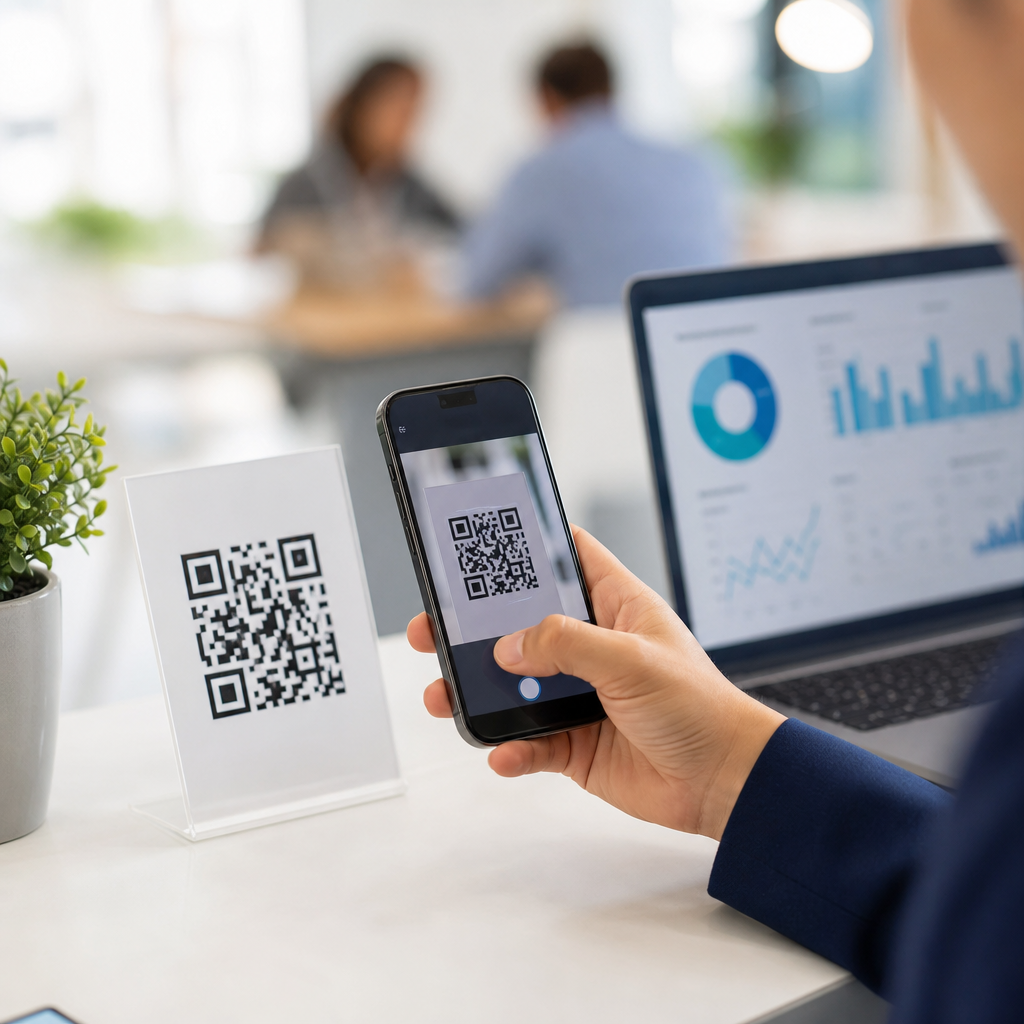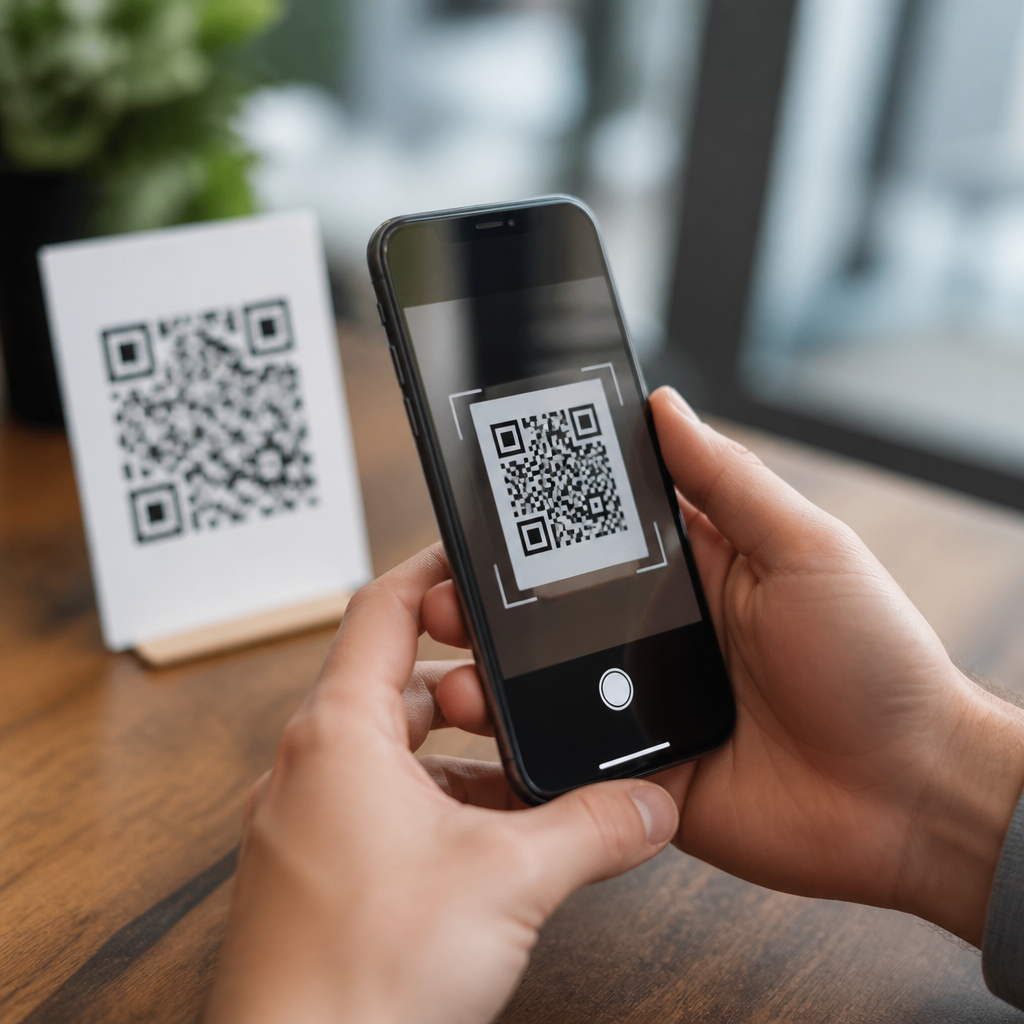
QR codes have become a routine part of everyday mobile use, but many people still ask a basic question: do you need an app to scan QR codes? In most cases, the answer is no. Modern smartphones usually include QR scanning directly in the camera app or operating system, making the process faster, safer, and easier than it was a few years ago. Understanding how mobile QR codes work matters because these square patterns now power payments, menus, product authentication, Wi-Fi sharing, ticketing, and sign-ins across iPhone and Android devices.
A QR code, short for Quick Response code, is a two-dimensional barcode that stores data in a machine-readable grid of black and white modules. Unlike traditional barcodes that hold information in one direction, QR codes store data both horizontally and vertically, allowing them to contain more characters and remain readable even when partially damaged. Mobile QR code scanning is the process by which a phone camera captures that pattern, software detects its geometry, decodes the data, and then offers an action such as opening a website, saving a contact, joining a network, or launching a payment flow.
I have worked with QR-based onboarding, retail packaging, and event check-in systems, and the main shift I have seen is this: scanning moved from being an app-dependent task to an operating-system feature. That change reduced friction dramatically. A customer no longer needs to search an app store, compare scanner permissions, or wonder whether a download is legitimate. For businesses and consumers alike, that means higher scan rates, fewer support requests, and lower security risk when the built-in camera handles the job.
How mobile QR codes work from camera to action
When you point a smartphone camera at a QR code, the device does more than take a picture. The camera feed is analyzed in real time by computer vision software that looks for three distinctive position markers, usually the large squares in three corners. Those markers help the phone detect orientation, scale, and perspective distortion. Once the code is located, the decoder maps the grid, reads the encoded data, applies error correction, and converts the result into usable content.
Most QR codes on phones contain a URL, but they can also encode plain text, phone numbers, SMS templates, vCards, calendar events, app deep links, email addresses, and Wi-Fi credentials. The QR standard uses encoding modes such as numeric, alphanumeric, byte, and Kanji, depending on the content. It also uses Reed-Solomon error correction, which is why a code can still scan after being scratched, slightly obscured, or printed on curved packaging. In practical use, this resilience is what makes mobile QR codes reliable on restaurant tables, warehouse labels, and boarding passes.
The final step is action handling. The operating system decides what to do with the decoded payload. A web address may open in Safari or Chrome. A Wi-Fi code can trigger a “join network” prompt. A payment code may open a wallet app. This handoff is why the scan experience feels seamless on current devices: detection, decoding, and action all happen inside software the phone already trusts.
Do you need a separate app on iPhone or Android?
On most current devices, you do not need a separate QR code scanner app. Apple has supported QR recognition in the Camera app since iOS 11, and Android support is widespread through Google Lens, native camera integrations, and manufacturer camera apps from Samsung, Xiaomi, OnePlus, and others. If the code is valid and the camera can focus clearly, a prompt usually appears automatically. Tapping that prompt completes the action.
There are exceptions. Older phones, heavily customized Android builds, locked-down enterprise devices, or budget handsets with limited camera software may still require a separate scanner. In some organizations, mobile device management policies disable camera-based scanning entirely, especially in regulated environments. And some advanced use cases, such as inventory systems using custom schemas or offline decoding in field operations, rely on dedicated apps because they must connect scans to internal workflows.
For everyday users, though, the built-in option is generally best. It is faster to access, maintained through normal system updates, and less likely to request unnecessary permissions. If your phone does not recognize a code in the camera app, try turning on QR scanning in camera settings, opening Google Lens, or updating the operating system before installing a third-party tool.
Built-in scanning versus third-party QR apps
Built-in scanners are ideal for common tasks, but separate apps still exist for users who need scan history, batch scanning, code generation, analytics, export options, or support for multiple barcode types beyond QR. The difference is less about basic capability and more about workflow depth. In projects I have managed, field teams used specialized apps because they needed timestamped scans synced to inventory records, while consumers simply needed a phone camera that opened a menu.
| Option | Best for | Main advantage | Main limitation |
|---|---|---|---|
| Built-in camera scanner | Everyday users | Fast, no install, lower permission risk | Limited history and controls |
| Google Lens | Android users and visual search | Strong recognition and context | May route through Google services |
| Dedicated QR app | Power users and business workflows | Logging, export, custom actions | Variable quality and privacy practices |
| Enterprise scanning app | Operations, warehousing, ticketing | System integration and governance | Setup complexity and licensing cost |
If you install an app, choose carefully. Good scanner apps explain data handling, avoid intrusive ads, and come from established developers. Poor ones often add friction rather than value. A scanner should not need access to your contacts, microphone, or background location just to read a printed code.
Security, privacy, and common scanning risks
QR codes are convenient, but they are not inherently safe. A QR code is simply a container for data, and a malicious code can send a user to a phishing site, trigger a deceptive login page, or begin a download attempt. The safest practice is to preview the destination before tapping. Both iPhone and Android often show the domain or action in advance, giving users a chance to pause and inspect.
In security reviews, the most common mobile QR threats I encounter are sticker swaps on parking meters, fake restaurant menu codes placed over originals, and phishing codes included in emails or printed mailers. The risk is not the code format itself; it is the destination and the user’s trust in the context. A code on sealed product packaging from a known brand is different from a random code on a street pole asking for payment.
Third-party scanner apps can also create privacy issues. Some monetize by injecting ads, redirecting links, or collecting scan metadata. That is another reason built-in scanning is usually preferable. It reduces the number of intermediaries between your camera and the final action. For businesses, the lesson is clear: use HTTPS destinations, branded landing pages, and concise instructions so users know what should happen when they scan.
Why QR codes sometimes fail to scan
When a QR code does not scan, the cause is usually physical quality, environmental conditions, or payload design. Low contrast is a frequent problem. Dark gray on black, glossy reflections, and busy backgrounds make detection harder. So do tiny print sizes, warped placement on bottles, excessive logo overlays, and screenshots cropped too tightly around the code. In testing, camera autofocus issues and low light are responsible for many consumer complaints.
Distance and angle matter too. The camera needs enough resolution across the code’s modules to decode them accurately. If the code is too far away, too close for focus, or viewed at a sharp angle, the phone may detect it but fail to read it. Cracked camera lenses and dirty lens covers also cause failures more often than people expect. On-screen codes can be affected by brightness, moiré patterns, or privacy screen protectors.
Good QR implementation follows simple rules: high contrast, quiet space around the code, adequate size for the scanning distance, and testing across multiple phones. Dynamic QR platforms such as Bitly, QR Code Generator Pro, and Scanova can help marketers manage destinations, but no platform can rescue a poorly printed symbol. The code image itself still has to be readable in real-world conditions.
How mobile QR codes fit into everyday tasks
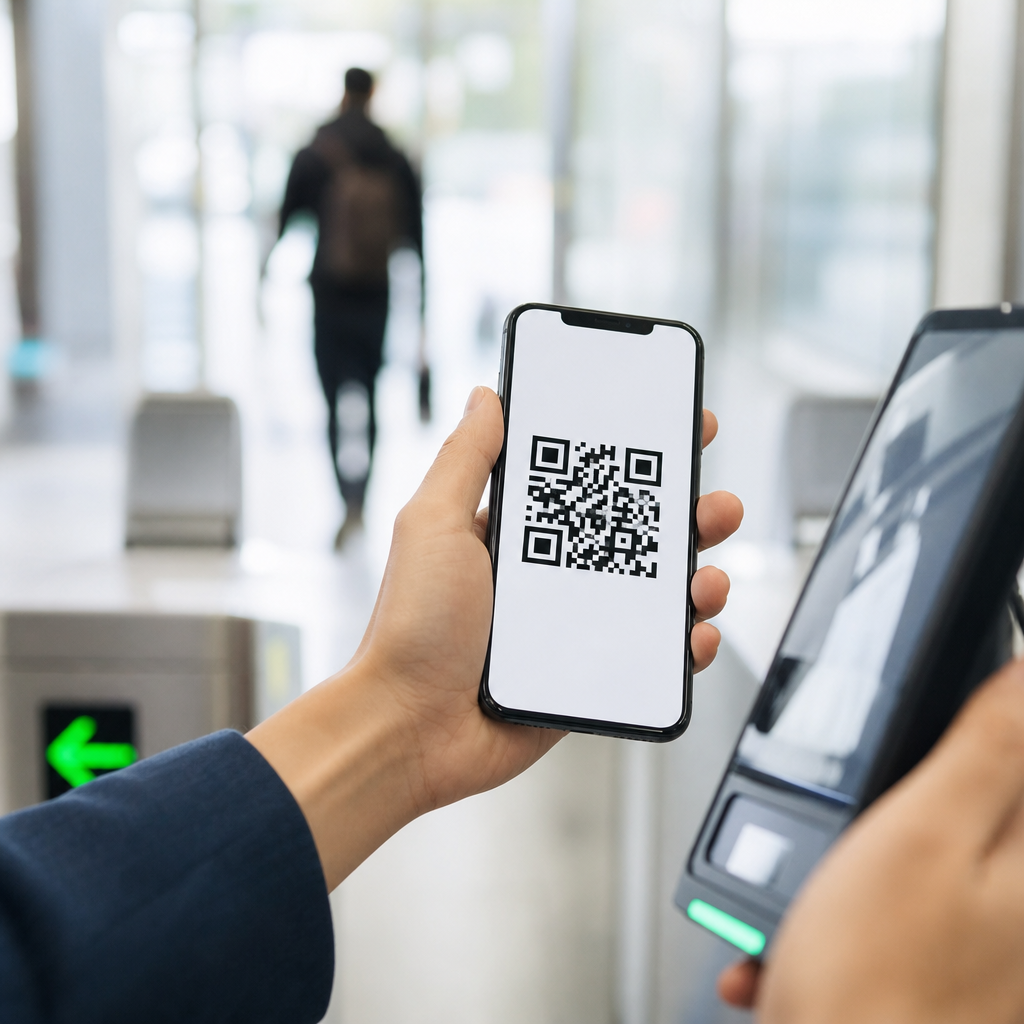
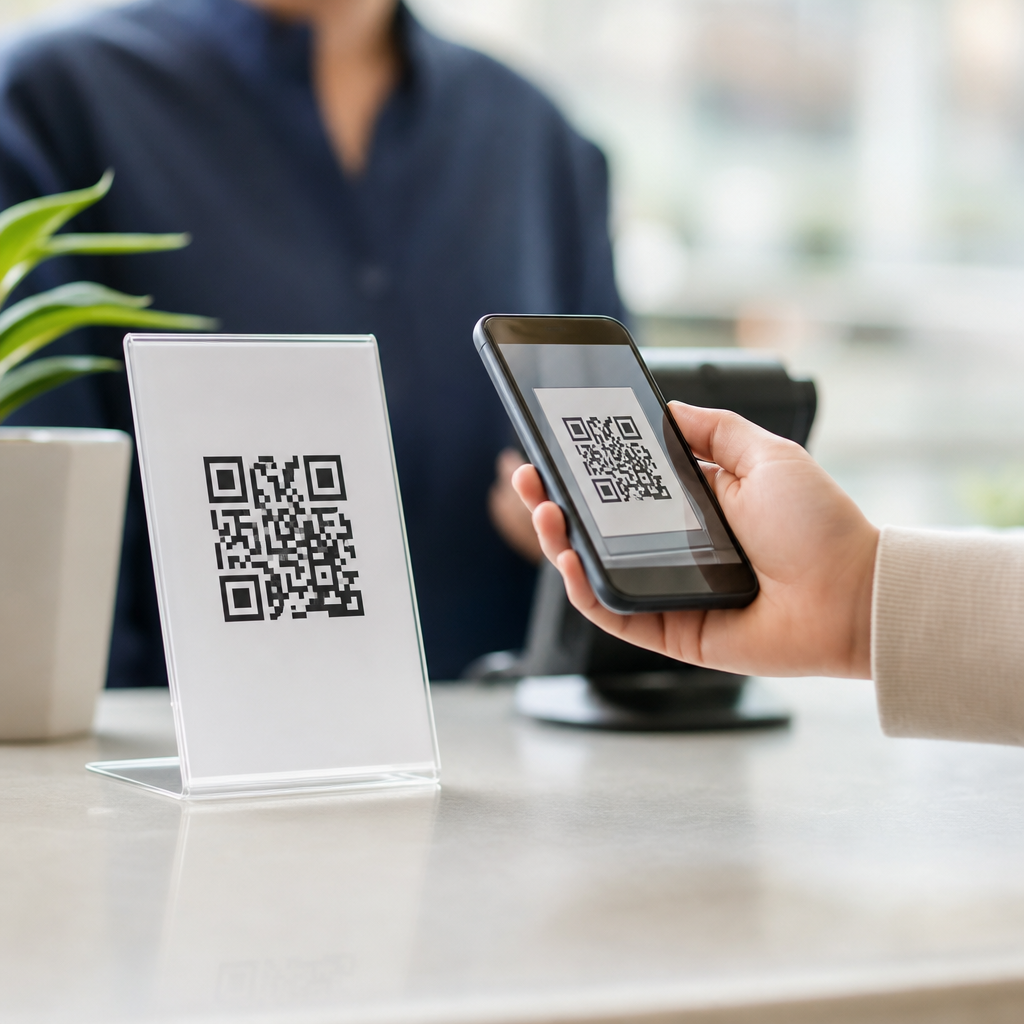
Mobile QR codes work because they remove manual typing at the exact moment a user wants speed. A shopper scans a product code to verify authenticity. A traveler scans a boarding pass at a gate. A guest joins Wi-Fi without entering a long password. A diner opens a menu instantly. A patient scans a check-in link from a clinic sign. Each case replaces a small but error-prone action with a camera gesture that phones now support natively.
For businesses, that creates measurable operational benefits. Restaurants cut reprint cycles for menus by using dynamic links. Events speed entrance by pairing QR tickets with validation apps. Retail brands connect packaging to setup guides, warranty registration, and first-party product education. Support teams use QR codes on equipment labels to route technicians directly to manuals and parts catalogs. The best implementations are not clever; they are predictable, fast, and clearly labeled.
The key takeaway is simple: most people do not need a separate app to scan QR codes anymore, because modern phones already do the job well. What matters more is knowing how scanning works, when specialized tools make sense, and how to recognize safe, functional codes. If you manage mobile experiences, test your codes on real devices, keep destinations trustworthy, and design for quick success on the first scan.
Frequently Asked Questions
Do you need a separate app to scan QR codes?
In most situations, no, you do not need a separate app to scan QR codes. Most modern smartphones include QR code scanning directly in the built-in camera app or through the operating system itself. On many iPhones and Android devices, you can simply open the camera, point it at the code, and wait for a notification or link to appear. This built-in approach is now the standard because QR codes are used so widely for payments, restaurant menus, Wi-Fi access, tickets, product information, and more.
That said, there are still a few exceptions. Older phones, outdated operating systems, or budget devices may not support native QR scanning as smoothly. In those cases, a dedicated QR scanner app may still be useful. Some apps also offer extra features like scan history, batch scanning, code creation, or advanced security checks. For the average user, though, the built-in tools on a current smartphone are usually faster, more convenient, and safer than downloading a third-party scanner.
How do you scan a QR code using your phone’s camera?
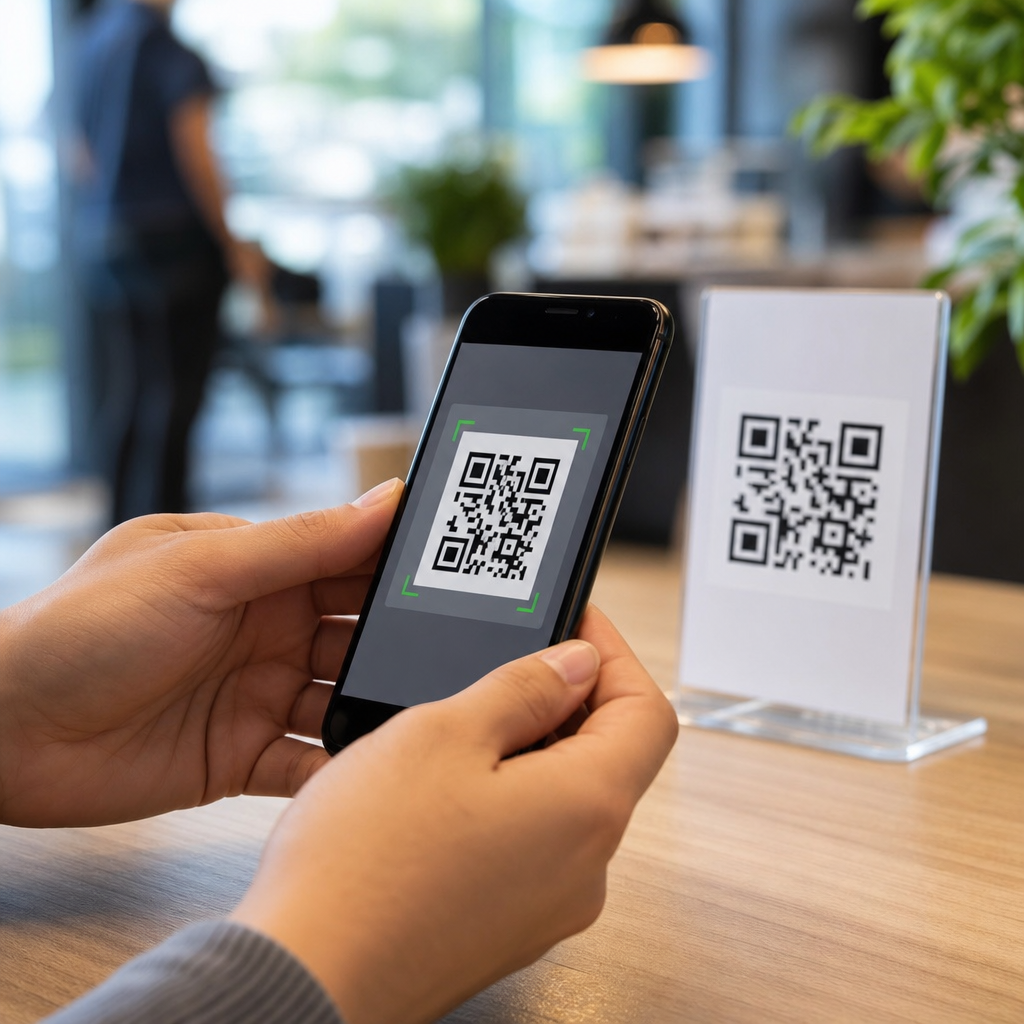
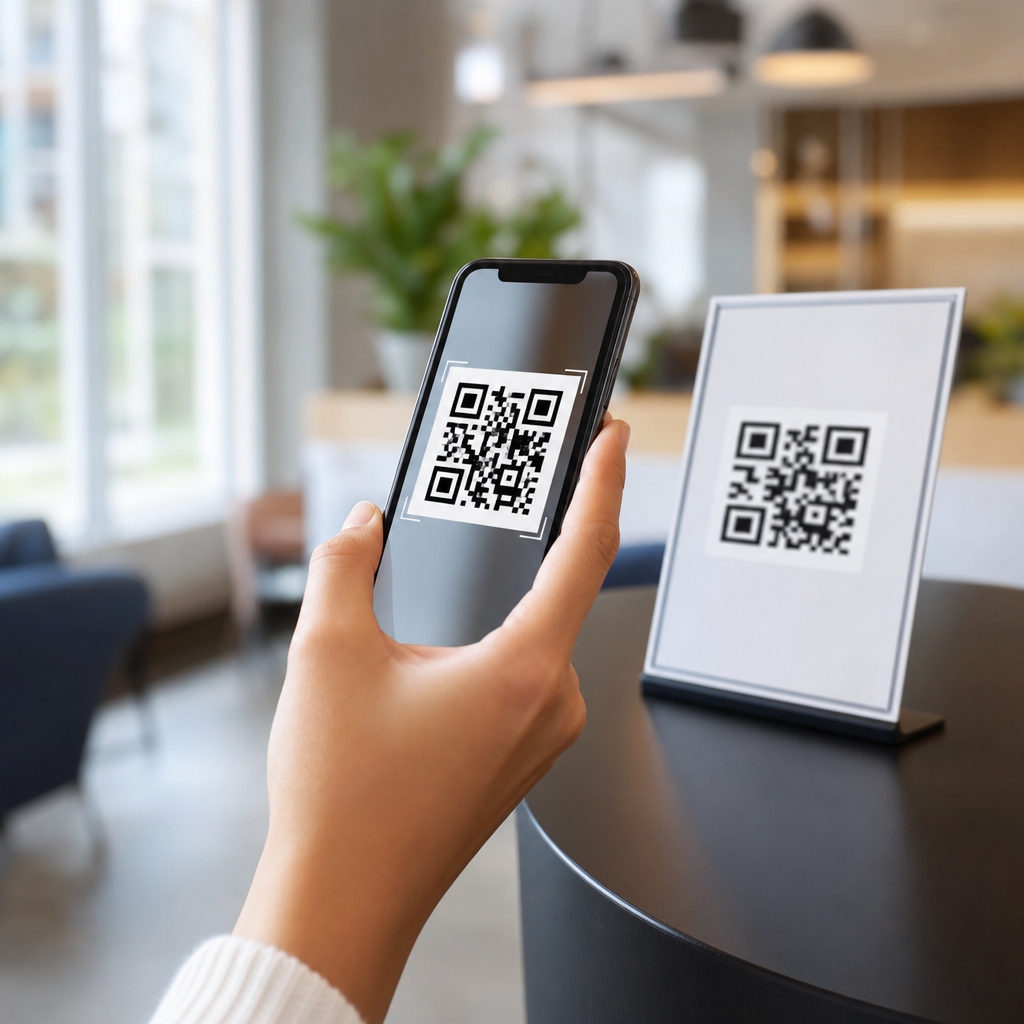
The process is usually very simple. Open your phone’s default camera app and point it steadily at the QR code so the entire code is visible on the screen. You do not usually need to take a photo. After a moment, your phone should recognize the code automatically and display a prompt, banner, or link that you can tap. Once you tap it, your phone may open a website, connect to Wi-Fi, show payment details, download an app page, or display another action based on what the code contains.
If nothing happens, there are a few common fixes. Make sure the lighting is good, hold the camera still, and move closer or farther away until the code comes into focus. Also check your camera settings, because some phones have a QR scanning option that can be turned on or off. If your camera still does not detect the code, your phone may support scanning through another built-in tool, such as a visual search feature or quick settings shortcut. In short, scanning a mobile QR code is usually a one-step process, but small adjustments can make a big difference if recognition is not immediate.
Why do some people still download QR code scanner apps?
Even though built-in scanning is now common, some people still choose dedicated QR code scanner apps for added functionality. For example, a separate app may store a history of scanned codes, let users organize results, create their own QR codes, or scan codes from saved images instead of only through the live camera. Businesses and power users may find those features helpful, especially when QR codes are part of regular workflows such as inventory checks, event ticketing, product authentication, or marketing campaigns.
However, convenience should be balanced with security. In the past, many third-party scanner apps were popular because phones did not have native support. Today, that need is much smaller, and downloading a random scanner app can introduce privacy risks, excessive permissions, or intrusive ads. If you do decide to use one, it is best to choose a trusted, well-reviewed app from a reputable developer. For most users, though, a dedicated app is optional rather than necessary.
Is it safer to use your phone’s built-in QR scanner instead of a third-party app?
Generally, yes. A built-in QR scanner is often the safer choice because it comes from your phone’s manufacturer or operating system provider, which reduces the need to install extra software from unknown sources. Native scanners also tend to integrate more cleanly with the device, show clearer prompts before opening links, and avoid unnecessary access to contacts, storage, or other sensitive data. Since QR codes can lead to websites, payments, downloads, and login pages, using the most trusted scanning method available is a smart default.
That said, no scanner can make every QR code safe by itself. A QR code is simply a shortcut to information, and malicious codes can still lead to phishing sites, fake payment pages, or suspicious downloads. Before tapping a result, check whether the link looks legitimate and whether the action makes sense in context. For example, be cautious if a QR code in a public place asks for personal details, payment information, or app installation without a clear reason. The built-in scanner improves safety, but careful user judgment is still essential.
What if your phone does not scan QR codes automatically?
If your phone does not scan QR codes automatically, it does not always mean the feature is missing. First, check whether your camera app has QR recognition enabled in its settings. Some devices require that option to be turned on manually. You can also look for alternate built-in tools, such as a scan feature in the quick settings menu, a visual lookup tool, or a browser-based scanner integrated into the operating system. In many cases, the capability is available but not obvious.
If the feature truly is not supported, the reason is often an older device model or outdated software version. Updating your operating system may solve the problem. If not, a reputable QR scanner app can serve as a backup. Just be selective and avoid installing unnecessary apps with poor reviews or broad permission requests. The key point is that while most modern phones make mobile QR code scanning easy without extra downloads, older devices may still need an app or software update to handle QR codes reliably.