
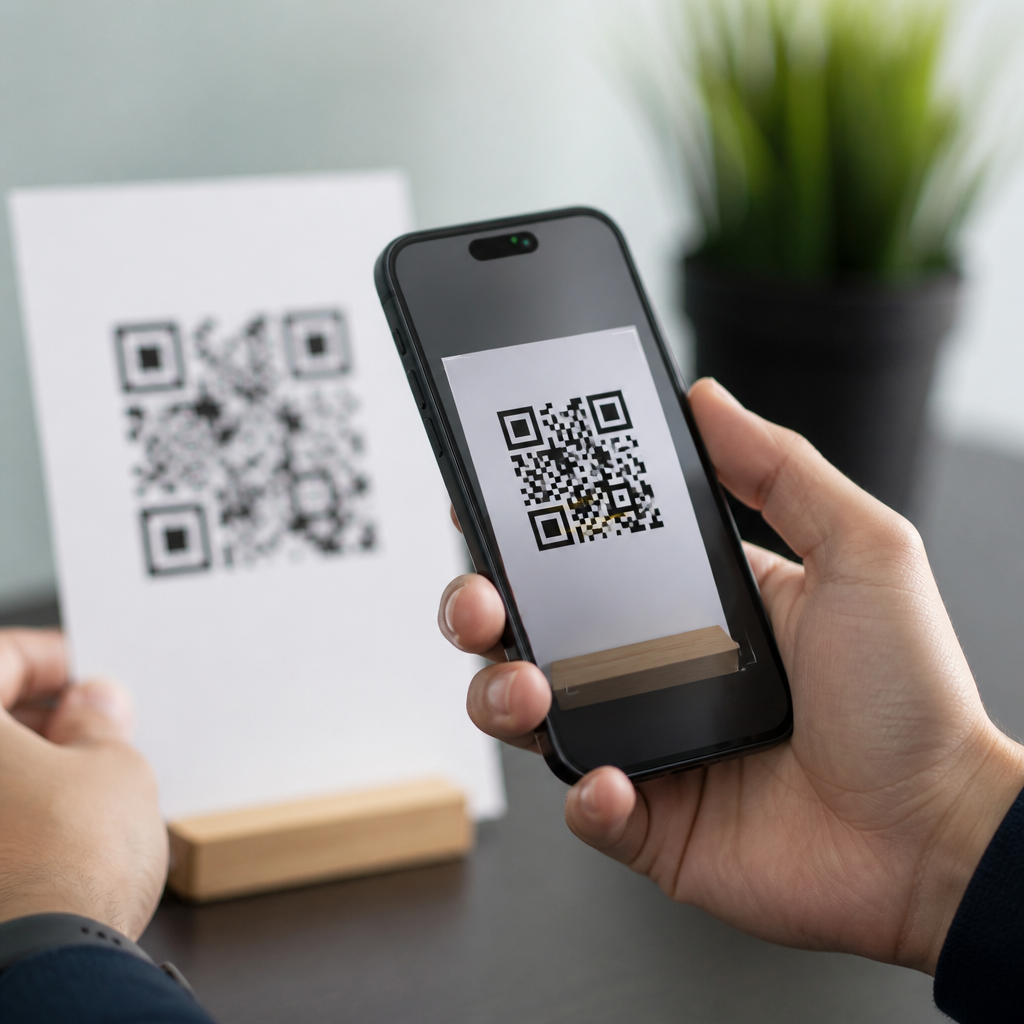
Fixing QR code scanning issues on iPhone starts with understanding how Apple’s camera, software, and app permissions work together to detect a code, decode its data, and trigger an action such as opening a website, joining Wi-Fi, or adding contact details. On modern iPhones, QR scanning is built into the Camera app and Control Center’s Code Scanner, so most failures are not caused by the code itself. In my experience troubleshooting scan problems for users, the cause is usually one of five things: camera obstruction, poor lighting, software settings, damaged QR images, or unsupported content. A QR code is a two-dimensional matrix barcode designed to store data in a grid of black and white squares. iPhone scanning issues matter because businesses use QR codes for menus, payments, tickets, product setup, authentication, and marketing. When scanning fails, users lose time, abandon tasks, or assume the code is unsafe. This guide explains how to diagnose iPhone QR code problems quickly, what settings to check first, and when the issue points to the code, the camera, or iOS itself.
Start with the fastest checks
If your iPhone will not scan a QR code, begin with the basic tests that solve most cases in under two minutes. Open the Camera app, point it at the full code, and hold the phone steady about six to ten inches away. You do not need to press the shutter. If scanning works, a notification banner appears near the top of the screen. If nothing happens, clean the lens with a microfiber cloth, remove any thick or reflective case edge blocking the camera, and increase ambient light. Auto-focus must clearly resolve the square modules of the code. Smudges, fingerprints, and glare can prevent that. I have also seen users try to scan while zoomed in; that often reduces sharpness and stability, so return to 1x. Next, test with another QR code from a trusted source, such as a restaurant menu or a product box. If one code scans and another does not, the problem is likely the printed or displayed code rather than the iPhone.
Check iPhone settings that control scanning
Apple includes a dedicated setting that can disable QR detection inside the Camera app. Go to Settings, then Camera, and confirm Scan QR Codes is enabled. If it is off, the camera will see the code but will not interpret it. Also open Control Center settings and add Code Scanner. This tool uses the same decoding capability but strips away other camera controls, which can help when the Camera app is distracted by photo modes or visual clutter. If the code should open an app clip, website, or deep link, make sure Screen Time restrictions are not blocking web content. On managed corporate phones, a mobile device management profile may limit camera use or browser behavior. That comes up frequently in healthcare, retail, and field service deployments. If the camera is not working in any app, check Settings, Privacy & Security, then Camera permissions for third-party scanners. Native Camera access does not rely on per-app permission in the same way, but scanner apps do, and denied access makes them appear broken.
Understand camera, focus, and display problems
QR scanning depends on contrast, framing, and focus more than people expect. A code printed too small, stretched, or placed on a curved bottle can become unreadable even when it looks fine to the eye. iPhone cameras use autofocus and exposure balancing; both can be confused by low contrast screens, glossy paper, or bright backlighting. If you are scanning a code on another phone, raise that screen’s brightness and reduce any blue light filter or night mode. OLED displays at low brightness can produce flicker artifacts that interfere with recognition. For printed codes behind plastic, change the viewing angle to cut reflections. If the code fills only a tiny part of the frame, move closer until it occupies a meaningful area without cropping the quiet zone, the blank margin around the symbol required for reliable decoding under ISO/IEC 18004 rules. Damaged finder patterns, the three large corner squares, often stop recognition immediately. Cracked screens, scratched camera lenses, and third-party camera protectors can also lower scan reliability. Testing with the front camera is not useful here; iPhone QR detection is intended for the rear camera because it offers better optics and autofocus.
Identify whether the QR code itself is the problem
Not every failed scan is an iPhone fault. Many QR codes are badly generated, poorly printed, or linked to content that no longer resolves. Dynamic QR platforms can return expired destinations, disabled campaigns, or geofenced links that seem broken even after the scan succeeds. Static codes can encode malformed URLs, unsupported text strings, or outdated app links. When I audit failed campaigns, common design errors include low contrast colors, logos that cover too much data area, missing margins, and excessive compression in social media graphics. A QR code should ideally be black on white or another high-contrast combination. Reversing colors may work, but it is less dependable across scanners. If a code is embedded in a PDF, screenshot, or poster, image scaling can blur module edges. Test the same code with multiple devices and at least one desktop decoder tool such as ZXing Decoder Online or an enterprise print workflow checker. If no device can read it, regenerate the code from the original content and reprint it at a larger size.
Use the right tool for the type of scan
The built-in Camera app is best for standard QR codes containing URLs, contact cards, calendar invites, and Wi-Fi credentials. Control Center’s Code Scanner is useful when users need a cleaner interface or when the banner notification in Camera is inconsistent. Third-party scanning apps can help with inventory labels, history logs, batch scanning, or damaged code recovery, but they also introduce variables such as ads, poor permission prompts, or weak decoding engines. For businesses, I recommend testing with Apple Camera first, then a reputable scanner app only if a workflow requires extras like scan history or CSV export. Safari should open most web links after a successful scan. If the scan resolves but the destination page will not load, the problem shifts from code recognition to network access, redirect chains, or a bad URL. That distinction matters because users often say “the QR won’t scan” when the camera actually decoded it correctly.
| Symptom | Likely cause | Best fix |
|---|---|---|
| No banner appears | Scan setting off, blur, glare, poor light | Enable Scan QR Codes, clean lens, improve lighting |
| Banner appears but link fails | Bad destination URL or network issue | Test Wi-Fi/cellular and verify the link source |
| Only one code fails | Damaged or badly designed QR code | Test on other devices and regenerate the code |
| Third-party app shows black screen | Camera permission denied | Allow camera access in Privacy settings |
| Scanning works up close only | Small code or weak contrast | Increase code size and improve print quality |
Fix software glitches, network blockers, and edge cases
If settings and physical conditions look correct, move to system troubleshooting. Restart the iPhone to clear temporary camera or memory faults. Update iOS because Apple refines camera behavior and security handling in minor releases; outdated builds can create odd scanning failures with app clips, passkeys, or universal links. Reset network settings if scanned links consistently fail to open despite working elsewhere. VPNs, DNS filters, enterprise secure web gateways, and content blockers can interrupt the handoff from Camera to Safari. I have seen public venue QR menus fail because captive Wi-Fi portals intercepted the landing page. Low Power Mode usually does not stop scanning, but severe thermal throttling can slow camera responsiveness. Accessibility features such as Zoom or Magnifier can also alter the user’s workflow enough to make scanning seem inconsistent, especially for older users. In rare cases, hardware is the issue: if the rear camera struggles to focus on text, receipts, or nearby objects in any app, book an Apple Support diagnostic. A camera module problem will affect much more than QR codes.
Build a reliable troubleshooting workflow
A dependable workflow prevents guesswork. First, confirm the iPhone model supports native QR scanning and is running a current iOS version. Second, test with Apple Camera, then Control Center Code Scanner. Third, verify the Scan QR Codes toggle, camera cleanliness, lighting, and framing distance. Fourth, compare the failing code with a known-good code. Fifth, isolate the outcome: no detection, successful detection with failed destination, or app-specific failure. Each result points to a different fix. For support teams managing retail signage, packaging, event check-in, or onboarding instructions, document these steps and keep sample known-good codes on hand for comparison. This article serves as the hub for troubleshooting QR code scans across iPhone use cases, from web links and payments to login flows and printed marketing. Use it to diagnose the issue quickly, then apply the right fix instead of retrying at random. If scans still fail after these checks, test another device and escalate with screenshots, the original code file, and iOS details.
Frequently Asked Questions
Why is my iPhone not scanning QR codes in the Camera app?
The most common reason an iPhone will not scan a QR code in the Camera app is that one of the basic requirements for detection is not being met. Apple’s built-in QR reader depends on a clear camera view, adequate lighting, proper focus, and the correct software settings. If the code is blurry, too small, partially cut off, damaged, or displayed in low light, the iPhone may see it as an ordinary image instead of a scannable code. In many cases, users move the phone too quickly or hold it too close, which prevents the camera from locking focus long enough to recognize the pattern.
Settings can also play a role. On most iPhones, QR code reading works automatically through the Camera app, but if the Scan QR Codes option has been turned off in Settings, detection may fail entirely. To check, go to Settings, then Camera, and confirm that Scan QR Codes is enabled. It is also worth making sure the iPhone is running a current version of iOS, since camera recognition problems can sometimes be tied to software bugs that are resolved in updates. If scanning still does not work, restarting the iPhone often clears temporary glitches affecting the camera service.
Another important factor is whether the issue is with the Camera app specifically or with all scanning methods. If the regular Camera app does not respond, try opening Code Scanner from Control Center. That tool is designed specifically for scanning and can sometimes work more reliably in situations where the standard camera interface is distracted by other visual elements in the frame. If both methods fail, test the camera itself by taking a normal photo. If photos appear blurry or the camera struggles to focus, the problem may be related to the lens, a dirty camera cover, or a hardware issue rather than QR detection alone.
How do I turn on QR code scanning on an iPhone?
On an iPhone, QR code scanning is usually built in and enabled by default, but it can be turned off in settings. To verify that it is active, open the Settings app, tap Camera, and look for the Scan QR Codes option. If that switch is off, the Camera app will not recognize QR codes even if the code is clearly visible. Turning it on restores the normal behavior where a notification banner appears when the code is detected.
It is also useful to enable quick access through Control Center. Go to Settings, then Control Center, and add Code Scanner if it is not already included. This gives you a dedicated scanning tool that opens directly into a QR-reading mode without requiring you to use the standard Camera app. For users who scan codes often for payments, Wi-Fi access, menus, logins, or tickets, this is one of the most practical ways to reduce frustration.
If the option to scan QR codes does not appear where expected, the iPhone may be restricted by Screen Time settings, a managed device profile, or an outdated version of iOS. Business-managed or school-managed iPhones sometimes limit camera functions. In that case, checking with the device administrator may be necessary. If the iPhone is personally owned, updating iOS and restarting the device are the best next steps. In most cases, once Scan QR Codes is enabled and the camera is functioning normally, scanning should work immediately without installing any third-party app.
What should I do if my iPhone camera sees the QR code but does not open the link or action?
If your iPhone recognizes the QR code but does not open the website, join the network, or trigger another action, the issue is often with the content embedded in the code rather than with the scanning process itself. A QR code can contain many types of data, including URLs, Wi-Fi credentials, contact information, app links, calendar events, or plain text. The camera may successfully decode the code but hesitate if the data is malformed, unsupported, or potentially unsafe. For example, a broken web address, an expired event link, or improperly formatted Wi-Fi information may prevent the expected action from completing.
Start by looking closely at the notification banner that appears after scanning. If it shows text that seems incomplete, misspelled, or suspicious, do not tap it blindly. Some QR codes are poorly generated, while others may be intentionally misleading. If the code should open a website but nothing happens, try tapping the banner once, then again if prompted. If Safari opens and immediately fails, the destination link itself may be the problem. This is especially common with printed materials, older marketing campaigns, and codes that rely on redirect services that are no longer active.
When the QR code is intended to perform another task, such as joining Wi-Fi or adding a contact, make sure the iPhone supports the format being used. Apple handles standard QR payloads well, but nonstandard or app-specific codes may require the app that created them. If you are troubleshooting a code you generated yourself, recreate it using a reliable QR code generator and verify the underlying content before printing or sharing it. In practical terms, successful detection does not always guarantee a successful action; it only confirms that the iPhone could read the code.
Can app permissions or software issues stop QR codes from scanning on iPhone?
Yes, app permissions and software behavior can absolutely interfere with QR scanning, especially when you are not using the built-in Camera app. Third-party apps that scan QR codes need camera access, and if that permission has been denied, the app may open but fail to detect anything. To check this, go to Settings, find the app in question, and make sure Camera access is allowed. If you are using Apple’s Camera app, permissions are usually less of a problem, but broader device restrictions can still affect camera use.
Software issues are another frequent cause. Temporary iOS glitches can prevent the camera from focusing correctly, delay the appearance of the scan banner, or make the interface seem unresponsive. This is especially likely if the phone has been running for a long time without a restart, if storage is nearly full, or if the device is using an older iOS version with unresolved camera bugs. Restarting the iPhone, closing any camera-related apps, and installing the latest iOS update are simple but effective troubleshooting steps that resolve many scanning complaints.
In more stubborn cases, screen overlays, accessibility settings, or camera conflicts from other apps can contribute to the problem. For example, if another app recently used the camera and did not release it properly, the scan feature may behave unpredictably. Testing with both the Camera app and the Code Scanner tool can help isolate whether the problem is system-wide or app-specific. If neither works after permission checks, updates, and a restart, resetting settings may help, though that should generally come after simpler fixes. The key point is that QR scanning depends on both hardware and software working together, so permission and system-level issues should never be overlooked.
How can I improve QR code scanning accuracy on my iPhone?
Improving QR code scanning accuracy on iPhone usually comes down to optimizing the environment and the way the code is presented to the camera. Start with lighting. QR codes scan best in bright, even light without glare or heavy shadow. If the code is printed on glossy paper, tilt the phone or the page slightly to reduce reflections. Clean the camera lens with a soft cloth, since fingerprints and dust can reduce sharpness more than many people realize. Then hold the phone steady and let it focus naturally rather than rushing the shot.
Distance matters as well. If you hold the iPhone too close, the code may fall outside the camera’s focal range. If you hold it too far away, the code may not occupy enough of the frame to be recognized quickly. A good rule is to keep the code centered and large enough to be clearly visible on the screen, while allowing a small margin around it. Avoid extreme angles and try to present the code flat to the camera. When scanning from another screen, increase that screen’s brightness and reduce any display cracks, smudges, or moiré effects that might distort the pattern.
It also helps to choose the right scanning tool. The regular Camera app is convenient, but Control Center’s Code Scanner can sometimes provide a smoother experience because it is built specifically for barcode and QR recognition. If a code still will not scan, test whether the problem follows the code or the phone by trying a different QR code. If other codes work, the original code may be damaged, low-resolution, poorly designed, or incorrectly encoded. In real-world troubleshooting, this distinction is important: many “iPhone scanning problems” are actually code quality issues that become obvious only after comparing results across multiple codes.





