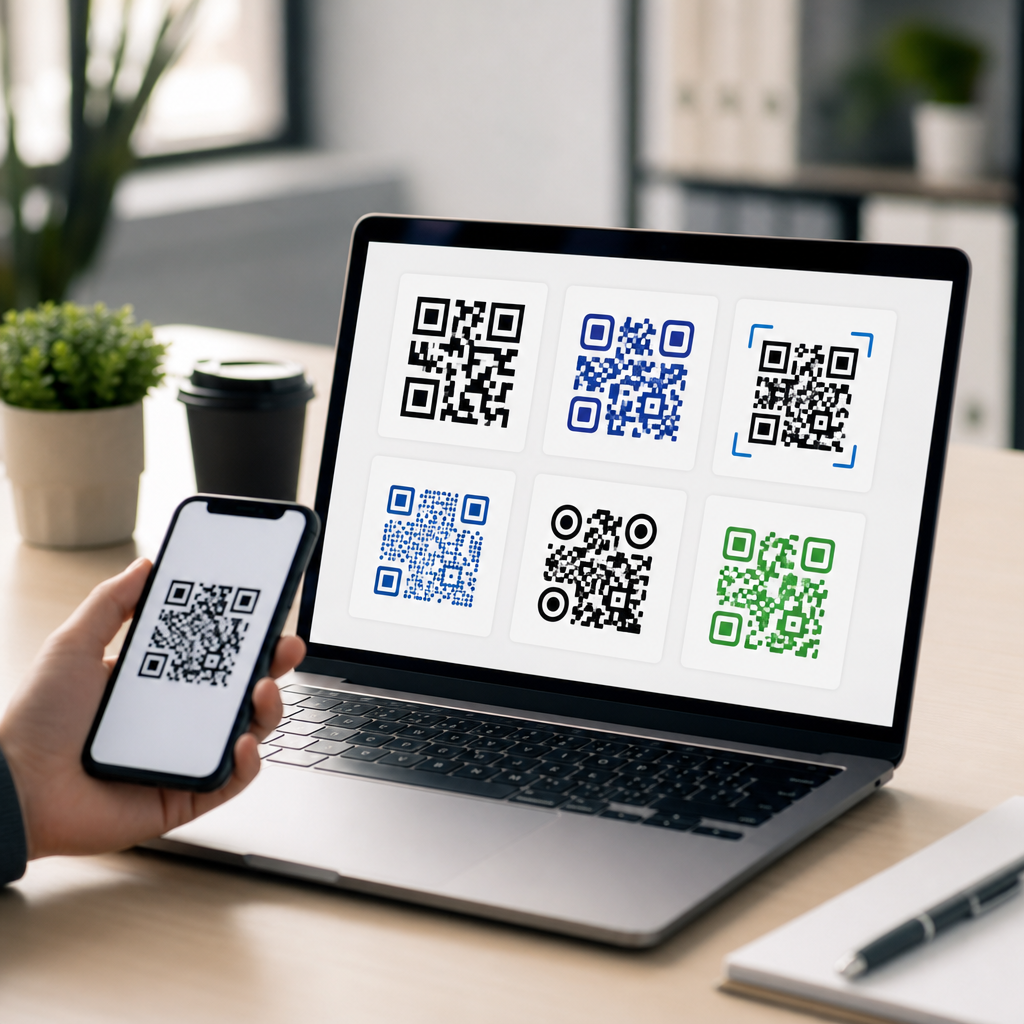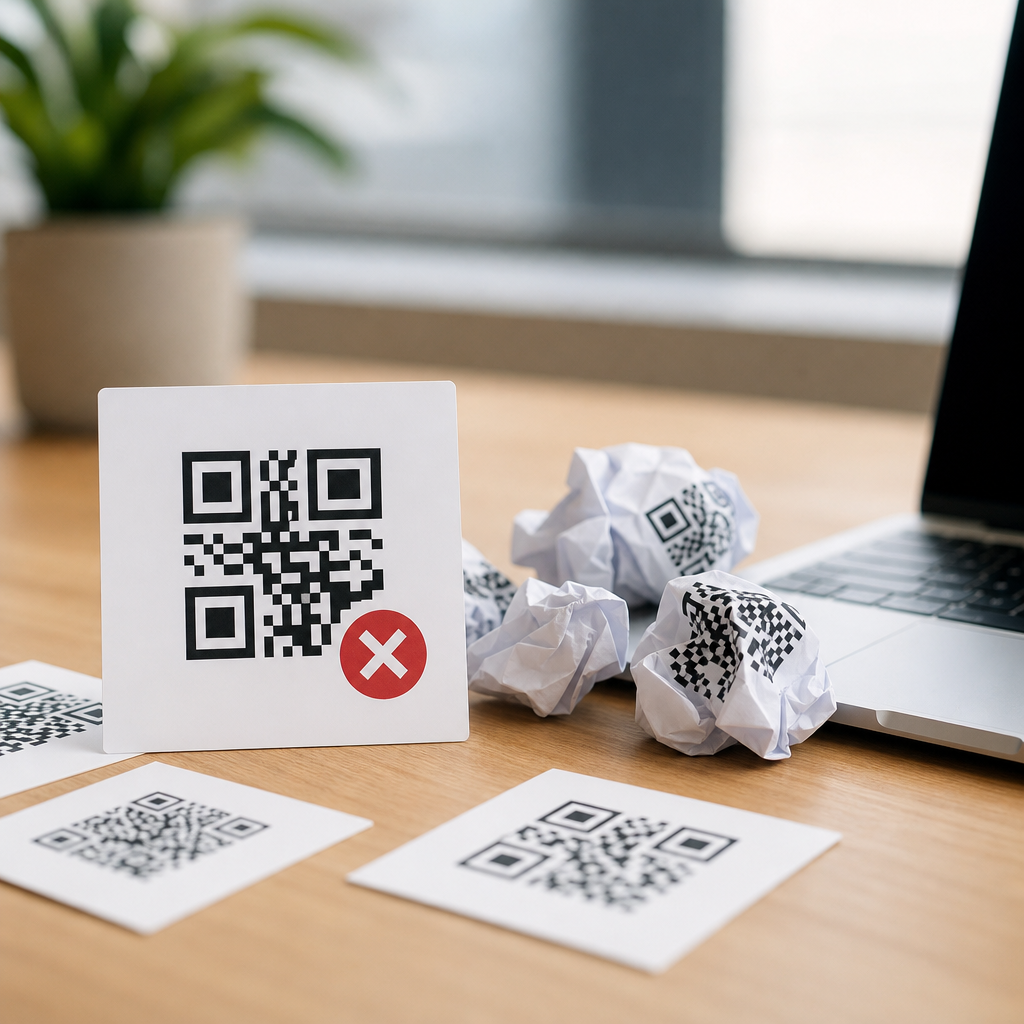
Choosing the wrong QR code file type is one of the fastest ways to turn a good mobile campaign into a blurry, unscannable mess. In mobile marketing, packaging, menus, tickets, and in-store signage, “QR Code Formats & File Types” refers to the image and print-production formats used to create, export, place, and reproduce a QR code. The most common options include raster files such as PNG and JPG, vector files such as SVG, EPS, and PDF, and production-ready outputs embedded in design applications. This matters because QR codes are machine-read symbols with strict contrast, shape, and sizing requirements. A format choice affects edge sharpness, error correction performance, file size, transparency handling, and print consistency. I have seen teams approve beautiful artwork that failed in the field because the code was exported as a compressed JPG, resized in a slide deck, or flattened against a low-contrast background. Those are preventable errors. A strong grasp of file formats lets marketers, designers, and printers preserve scan reliability from screen to press while still meeting brand and layout goals.
For anyone creating mobile QR codes, the central rule is simple: the code must remain crisp, high contrast, and proportionally accurate wherever it appears. That sounds obvious, but file handling often breaks those conditions. A raster image stores the QR code as pixels at a fixed resolution; enlarge it too far and the square modules soften. A vector file stores the geometry as mathematical paths; scale it up and edges stay clean. Print workflows add another layer, because color spaces, transparency flattening, overprint settings, and RIP interpretation can change appearance in subtle ways. Digital workflows introduce different problems, including lazy image compression in messaging apps, CMS resizing, and device dark mode effects around transparent assets. This hub article explains the most common file format mistakes with QR codes, when to use PNG, JPG, SVG, EPS, or PDF, how different outputs behave in web and print contexts, and how to avoid the production errors that cause scan failures.
Using JPG for QR Codes That Need Sharp Edges
The most common mistake is exporting a QR code as a JPG. JPG uses lossy compression designed for photographs, not hard-edged symbols. Compression artifacts introduce ringing and blur along module boundaries, especially around finder patterns and alignment areas that scanners use for detection. On a high-density phone display, a lightly compressed JPG may appear acceptable to the eye, but camera software reads transitions in luminance, not your design intent. Soft edges reduce decoding reliability, particularly under glare, motion, or low light.
In practice, JPG becomes risky when teams save assets repeatedly, upload them to social platforms, or place them in slide tools that recompress images. I have audited restaurant menu QR codes that looked passable on desktop proofs but failed on laminated table tents because the original code was exported as a small JPG and enlarged three times. For screen use, PNG is usually the safer raster choice because it preserves hard edges without lossy compression. For print, vector formats are the best default.
Scaling Raster Files Beyond Their Intended Size
Another frequent error is treating every QR code image as infinitely scalable. PNG files can work very well when exported at the final display size and adequate resolution, but they are still raster assets. If a designer drops a 300-by-300 pixel PNG into a poster layout and scales it to four inches wide for offset printing, the module edges become visibly soft. The scanner sees ambiguity where it needs precision.
As a working rule, use vector whenever the final size may change. If raster is unavoidable, export at the exact physical dimensions needed, with enough pixel density for the output method. For print, that usually means calculating module size against the final reproduction size rather than guessing by DPI alone. A code with tiny modules may technically be 300 DPI and still scan poorly if the physical module size is too small for the viewing distance and camera. Resolution is only part of the equation; actual printed dimensions matter more.
Choosing the Wrong Format for the Delivery Channel
Different channels call for different QR code file types, and using one “master format” everywhere creates problems. The table below summarizes the practical choices teams use most often.
| Format | Best use | Main advantage | Common mistake |
|---|---|---|---|
| PNG | Web pages, apps, email, social graphics | Lossless raster with clean edges and transparency support | Upscaling a small export for print |
| JPG | Rarely recommended for QR codes | Small file sizes for photos | Compression blur makes scanning less reliable |
| SVG | Responsive web, design systems, large-format graphics | Vector scaling with crisp module edges | Improper CSS styling or export issues in older workflows |
| EPS | Professional print and legacy prepress workflows | Widely accepted vector format for printers | Outdated handling of transparency and placed assets |
| Final print-ready files and document distribution | Reliable packaging of vector artwork in layouts | Flattening or rasterizing during export |
If the QR code will live on a product box, trade show banner, or window cling, start with vector and keep it vector through final output. If it will appear inside an app onboarding screen or an email footer, PNG is usually practical and stable. If your team relies on Canva, Figma, Illustrator, InDesign, or Adobe Express, confirm whether the exported asset remains vector in the final PDF. Many users assume “PDF” automatically means vector, but some export paths rasterize effects or entire pages.
Breaking Quiet Zone, Contrast, and Transparency Rules
Many failures blamed on file format are actually format-plus-design mistakes. A QR code needs a quiet zone, the clear margin around the symbol, typically at least four modules wide. Cropping too tightly during export or placing the code over a busy background destroys that margin. Transparent PNG and SVG files can be useful, but they become dangerous when someone drops them onto textured packaging, patterned paper, or photography. The code may still look stylish while losing the clean separation scanners need.
Contrast is equally important. Black on white remains the benchmark because it gives camera algorithms the strongest luminance difference. Dark blue on pale yellow can work; light gray on white usually will not. In print, rich black mixes and coated stock can add glare, while reversed white-on-dark codes remain less reliable than dark-on-light versions. I recommend testing every branded variation under actual lighting conditions, using multiple phone models, before approving production.
Letting Design Software Alter the Symbol
QR codes are not ordinary icons. Rounding corners, stretching the frame, applying drop shadows, or clipping the symbol inside a shape can damage readability. Some code generators allow logo insertion, custom eyes, or branded module styles, but every visual change consumes error-correction tolerance. Error correction is helpful, not magical. If you add a central logo, lower contrast, and decorative modules all at once, the scanner has less margin for motion blur or print gain.
File format plays a role here because vectors are easy to edit, and that encourages overdesign. I have inherited Illustrator files where well-meaning designers expanded strokes, merged paths, and accidentally changed module dimensions. The safer workflow is to generate the final encoded QR code from a reputable tool, lock proportions, and treat it as production artwork. If customization is necessary, test after each change, not only at the end. ISO/IEC 18004 defines the symbology; your brand treatment has to respect that structure.
Overlooking Print Production Variables
Print introduces technical issues that digital-only teams often miss. A crisp SVG can still fail after poor production handling. On flexographic packaging, ink spread can thicken modules and close small gaps. On thermal labels, low-quality ribbons may create uneven edges. On glossy acrylic signage, reflections can interfere with phone cameras even when the printed code is mathematically correct. Export format cannot fix those realities, but the wrong format can make them worse.
For commercial print, provide vector artwork whenever possible and specify the intended final size. Ask the printer whether the QR code will remain vector through RIP processing. Avoid trapping, overprint surprises, and unnecessary transparency effects near the symbol. If a QR code sits on a colored panel, define that panel cleanly rather than relying on semi-transparent overlays. Before mass production, request a press proof or production sample and scan it at realistic distances. A code on shelf packaging must work in a hand; a code on a billboard must work from farther away with a different module size strategy.
Ignoring Testing, Version Control, and Destination Management
The last major mistake is operational rather than graphical: teams export multiple versions, lose track of which file is current, and publish untested assets across channels. A hub-level workflow for QR Code Formats & File Types should include source control, naming conventions, and scan validation. Keep the original encoded data, note whether the code is static or dynamic, archive the master vector, and generate channel-specific derivatives from that source. Do not let sales, events, and social teams create ad hoc screenshots of a code from a PDF or website.
Testing should cover more than “does it scan on my phone.” Verify speed, destination accuracy, analytics tagging, and landing-page mobile performance. A flawless SVG is wasted if it points to a slow page, expired campaign URL, or desktop-only form. Dynamic QR platforms can simplify updates, but they also require governance so redirects, UTM parameters, and expiration settings remain accurate. Build a checklist, test under real conditions, and standardize approved file types for each channel.
Most QR code failures come back to a short list of preventable file format mistakes: using JPG, enlarging low-resolution raster files, exporting the wrong asset for the channel, breaking quiet zone and contrast requirements, editing the symbol too aggressively, and ignoring print realities. The fix is not complicated. Use vector formats such as SVG, EPS, or vector-preserved PDF for print and scalable layouts. Use PNG for digital placements that need a stable raster image. Protect the quiet zone, keep contrast strong, avoid decorative distortion, and test the final produced piece instead of only the design file.
As the hub page for QR Code Formats & File Types within Creating Mobile QR Codes, this topic sets the foundation for every related decision, from generator settings to packaging proofs. Good format choices preserve scan reliability, save reprint costs, and protect campaign performance. Review your current QR assets, identify where file handling could introduce blur or distortion, and standardize a format policy before the next launch.
Frequently Asked Questions
What is the most common file format mistake people make with QR codes?
The most common mistake is using a low-resolution raster file, especially a JPG, and assuming it will stay sharp in every use case. QR codes are made of precise square modules that scanners rely on to detect clean edges, contrast, and spacing. When a QR code is exported as a compressed or undersized raster image, those edges can soften, blur, or develop artifacts. That may not be obvious on a laptop screen, but it can become a serious problem once the code is enlarged for posters, packaging, window graphics, menus, or retail signage.
Another version of the same mistake is designing once and reusing the same file everywhere. A small PNG that works on a website may fail when sent to print at a larger size. Likewise, a file created for print may be placed incorrectly in a digital ad workflow and exported with compression settings that reduce scan reliability. The safest approach is to match the file type to the final application. For scalable, professional production, vector formats such as SVG, EPS, and print-ready PDF are usually the strongest choice because they preserve sharp geometry at any size. Raster formats like PNG can still be useful, but they need to be exported at the right dimensions and resolution for the intended output.
Why is JPG usually a poor choice for QR codes?
JPG is usually a poor choice because it uses lossy compression, which is designed for photographs, gradients, and complex imagery, not for high-contrast geometric shapes like QR codes. A QR code depends on crisp, exact boundaries between dark and light modules. JPG compression can introduce visual noise, soft edges, halos, and blockiness around those boundaries. Even small distortions can make scanning slower, less reliable, or impossible under real-world conditions such as glare, motion, low light, curved surfaces, or lower-end phone cameras.
There is also a workflow problem with JPG files: they tend to get resaved repeatedly. Each export, upload, or compression pass can further degrade image quality. That makes JPG especially risky in marketing environments where assets are shared between teams, uploaded to CMS platforms, added to design files, or repurposed by vendors. If a raster format is needed, PNG is generally better because it preserves hard edges more cleanly. If the QR code may be resized, sent to press, or embedded in professional layouts, vector formats are the better long-term option. In short, JPG is not automatically unusable, but it offers very little margin for error, which is exactly what you do not want with a scan-dependent asset.
When should I use a vector file like SVG, EPS, or PDF instead of PNG?
You should use a vector file whenever the QR code might be resized, professionally printed, placed into packaging artwork, used in signage, or shared with printers and production teams. Vector files describe shapes mathematically instead of storing them as fixed pixels, which means the QR code can scale up or down without losing sharpness. That is a major advantage for anything that may appear in multiple sizes, from a business card to a trade show display. SVG is often excellent for web and digital design workflows, while EPS and press-ready PDF are widely used in print production and commercial packaging.
Vector files also reduce the risk of quality loss during layout and export. Designers can place them into applications like Illustrator, InDesign, or other production tools without introducing pixelation from scaling. That helps preserve the integrity of the quiet zone, module alignment, and edge sharpness that scanners need. PNG still has a place, especially for websites, presentations, and digital documents where the display size is fixed and known in advance. But if there is any chance the code will be enlarged, printed, or handed off across teams, vector is usually the smarter and safer choice. It gives you flexibility, consistency, and a much better chance of preserving scan performance from concept to final output.
Can a QR code look fine on screen but still fail in print?
Yes, absolutely. This is one of the most frustrating and common QR code production mistakes. A code can appear perfectly acceptable on screen because screens often display images at reduced size, hide minor compression damage, and benefit from backlighting and close viewing distance. Once that same file is printed, however, every weakness becomes more visible. A small raster file scaled up in a print layout may become fuzzy. A JPG may show compression artifacts. A color choice that looked high-contrast on screen may print with less separation. Even the substrate matters: textured paper, glossy packaging, curved labels, and low-quality office printing can all reduce scan reliability.
Print workflows also introduce additional risks. A QR code may be exported from a design app with downsampling, flattened into a low-resolution PDF, or converted through a vendor process that changes sharpness and contrast. Sometimes the code itself is technically correct, but surrounding design elements crowd the quiet zone or place the code over a busy background. That is why preflight testing is essential. Always test the final production file, not just the original source asset. If possible, print a real-size proof on the intended material and scan it using multiple devices under realistic conditions. A QR code is only successful if it scans easily in the environment where customers will actually use it.
What file format and production best practices help prevent blurry or unscannable QR codes?
Start by choosing the right source format for the job. For print, packaging, large-format graphics, and any asset that may be resized, begin with a vector file such as SVG, EPS, or a properly prepared PDF. For digital use where the display dimensions are fixed, use a high-quality PNG exported at the correct size. Avoid JPG whenever possible. Beyond file format, preserve the QR code exactly as generated. Do not stretch it, crop into the quiet zone, round corners excessively, add effects that interfere with the modules, or place it on a cluttered or low-contrast background. Black on white remains the most reliable standard for fast scanning.
Production discipline matters just as much as format choice. Keep the code at a practical physical size for the scan distance, maintain adequate contrast, and ensure the quiet zone remains clear on all sides. In design software, scale proportionally and avoid transformations that distort the square structure. In export settings, watch for image compression, downsampling, or transparency flattening issues. If the code will appear in multiple channels, prepare separate assets for each rather than forcing one file to do everything. Most importantly, test the final deliverable in context: on the actual screen, in the actual print piece, on the actual material, and at the expected scanning distance. The combination of proper file format, careful production handling, and real-world testing is what prevents a good QR campaign from turning into a blurry, unscannable failure.