
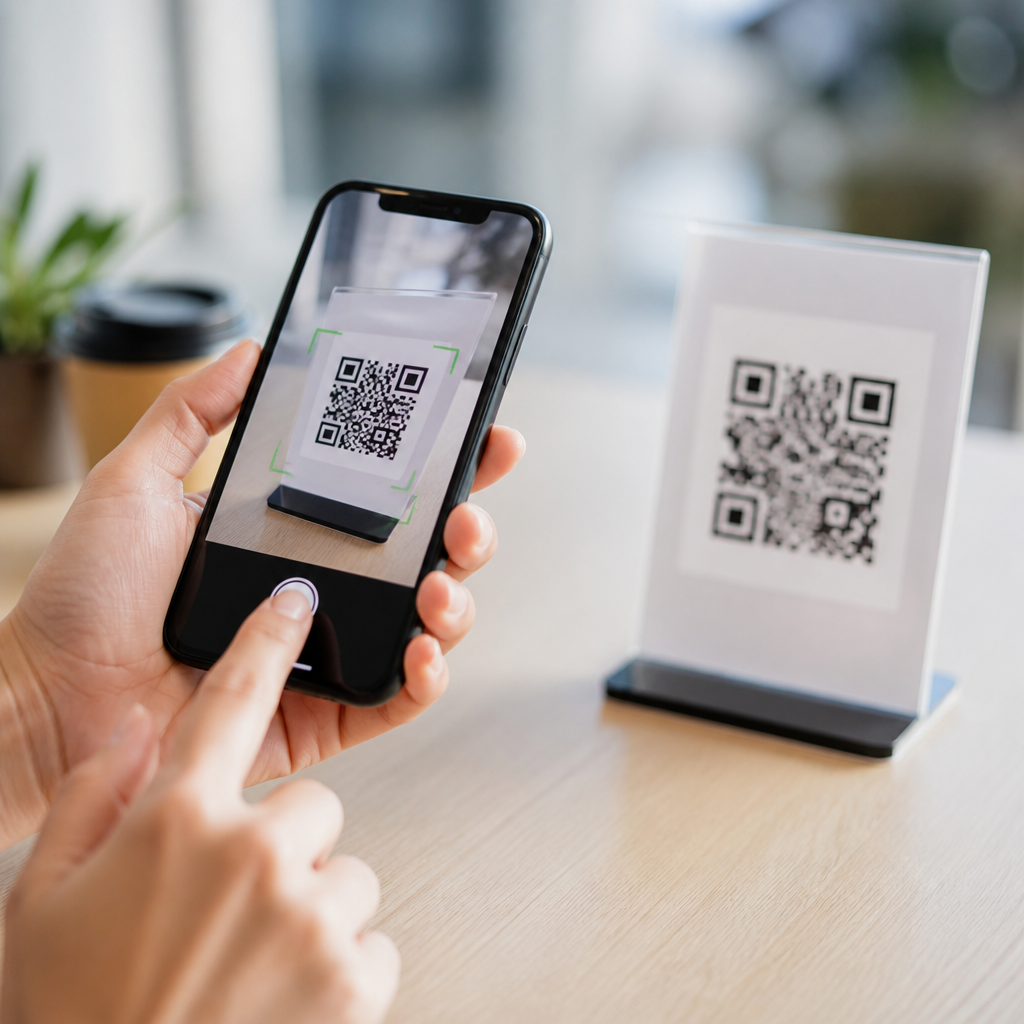
QR codes are designed to make a phone camera act like a shortcut, but when a scan fails, the problem is usually simple and fixable. In mobile support work, I have seen the same issues repeat across iPhone and Android devices: poor lighting, damaged codes, weak camera focus, app conflicts, and software settings that block recognition. Troubleshooting QR code scans means identifying whether the fault is with the code, the camera, the scanning app, the screen displaying the code, or the network action that follows the scan. This matters because QR codes now power payments, restaurant menus, event check-ins, product authentication, Wi-Fi onboarding, and two-factor login flows. A failed scan can delay checkout, break a customer journey, or create the false impression that the code itself is unsafe. The fastest way to solve most problems is to test methodically, starting with visibility and focus, then checking software permissions, then verifying the destination link or embedded payload.
A QR code, or Quick Response code, is a two-dimensional barcode made of square modules that encode data horizontally and vertically. Most consumer phones read them through the native camera app or a built-in scanner such as Google Lens. Dynamic QR codes redirect through a short URL and can be updated after printing, while static QR codes contain fixed data such as plain text, contact details, or a direct link. Error correction helps a code remain readable even if part of it is obscured, but that protection has limits. If too many modules are blocked by glare, low contrast, logos, folds, or print defects, the scanner cannot resolve the pattern. Understanding these basics helps because each symptom points to a likely cause. If the camera never detects the code, look at visibility and focus. If it detects but does not open, inspect permissions, app behavior, or the destination.
This hub article covers the most common QR code scanning problems and the quickest fixes, from camera cleaning to screen brightness adjustments to testing link behavior. It also explains when the issue is environmental, when it is a design mistake, and when it is a device-level limitation. Use it as a starting point for troubleshooting QR code scans on any modern smartphone, whether you are scanning a printed poster, a shipping label, a boarding pass, or a code displayed on another screen.
Start with the simplest physical fixes
The first stage of troubleshooting QR code scans is physical inspection. Clean the camera lens with a microfiber cloth, because fingerprints reduce contrast and confuse autofocus. Then improve lighting. Phone scanners work best with even, indirect light; harsh reflections from laminated menus, glossy packaging, and storefront windows often wash out the finder patterns in the corners. Change your angle instead of moving closer immediately. Many users push the camera too near the code, forcing blur. In practice, a distance of roughly 6 to 12 inches works for many standard-sized printed codes, while larger posters need more distance so the full code fits inside the frame. Hold the phone steady for one to two seconds and let autofocus lock before tapping anything.
Contrast also matters more than many people realize. A black code on a white background remains the most reliable format. Light gray on white, inverted white on black, metallic inks, and patterned backgrounds regularly fail in real use even if they looked attractive in a design proof. If a printed code is wrinkled, scratched, torn, or placed around a bottle seam, flatten it or find another copy. When the code is on a screen, raise the display brightness and reduce moire interference by slightly increasing distance. OLED screens with low brightness can make dark modules bleed together for older phone cameras. If the phone recognizes the code only after several tries, that is usually a sign of marginal contrast or focus rather than a broken scanner.
Check camera settings, permissions, and scanner apps
If the code is visible but your phone does nothing, the next step is device configuration. On iPhone, the Camera app can scan natively, but restrictions, outdated iOS versions, or disabled app permissions can interfere with the follow-up action. On Android, behavior varies by manufacturer. Google Pixel devices rely heavily on Google Lens integration, while Samsung includes its own camera intelligence features. Make sure the camera app has permission to use the camera, and if the scan should open a browser or another app, confirm those apps are not blocked by parental controls, work profiles, or mobile device management policies. In enterprise fleets, I have repeatedly seen QR login and enrollment issues traced back to managed browser restrictions rather than the code itself.
Third-party scanner apps can also create conflicts. Some add ad overlays, rewrite links through their own redirect systems, or handle only URLs and ignore Wi-Fi, vCard, or calendar payloads. If a code fails in one app, test with the native camera and then with Google Lens or Apple’s built-in detection. Restarting the phone clears temporary camera process faults surprisingly often. If the issue began after an operating system update, install any pending camera app patches; vendors routinely fix image-processing bugs after major releases. A simple rule helps here: if multiple apps cannot detect any code, suspect the camera, focus, or code quality. If one app fails while another succeeds, the problem is software-specific.
| Symptom | Most likely cause | Quick fix |
|---|---|---|
| Camera never recognizes the code | Blur, glare, low contrast, damaged print | Clean lens, improve lighting, change angle, increase distance |
| Code is detected but nothing opens | App permissions, browser restriction, bad redirect | Try native camera, check permissions, test destination URL manually |
| Code works on one phone but not another | Older camera hardware or software limitation | Use a different scanner app, update OS, enlarge code |
| Screen-displayed code fails repeatedly | Low brightness, pixel interference, cracked screen | Raise brightness, zoom slightly, display on another device |
| Payment or login scan stalls after detection | Weak network or server-side issue | Switch networks, retry later, verify service status |
Identify problems with the QR code itself
Not every failed scan is the user’s fault. Poor QR code generation is a common root cause. Codes become unreliable when designers shrink them below practical scanning size, crowd them with large logos, remove the required quiet zone, or export them as low-resolution raster images. The quiet zone is the blank margin around the code, and standards-based generators preserve it for a reason: scanners need separation between the code and nearby graphics. In commercial print, I prefer vector formats such as SVG, EPS, or PDF to prevent edge distortion. A 72 DPI PNG that looked acceptable in a mockup often becomes soft or jagged in production, especially after repeated resizing in design software.
Destination configuration matters too. A QR code may scan perfectly yet still appear broken because the underlying content fails. I see this often with dynamic codes that redirect to expired landing pages, deleted app deep links, or mistyped UTM-tagged URLs. Test the encoded destination directly in a browser. If the code contains a Wi-Fi payload, confirm the SSID, encryption type, and password syntax are correct. If it opens a payment request, verify merchant account settings and region compatibility. For event and inventory use cases, duplicate identifiers can trigger backend validation errors that users misread as scan failures. The lesson is simple: successful recognition is only half of troubleshooting QR code scans; the action after recognition must also be validated end to end.
Adapt your approach for printed codes, screens, and special use cases
The surface showing the QR code changes the troubleshooting method. Printed codes fail most often because of size, damage, and placement. A code on a curbside pickup sign may be readable from a car only if it was designed with larger modules and high contrast. A code on curved packaging may require rotating the item until the finder patterns are not warped by perspective. Warehouse labels introduce another issue: thermal printers with low darkness settings can produce faded edges that decode inconsistently. In that environment, reprinting with proper density often fixes the problem faster than replacing devices.
Screen-based codes introduce brightness, refresh, and privacy filters into the equation. Laptop displays with aggressive anti-glare coatings can reduce edge clarity. Banking apps may intentionally dim or animate payment QR codes to reduce screenshots, which can slow older camera systems. If a code is displayed inside a messaging app, image compression may have altered it. Open the original file or webpage instead of scanning a compressed screenshot. For login, authentication, and payment flows, timing matters as well. Some codes expire within 30 to 120 seconds. If the app says invalid or expired after detection, generate a fresh code before troubleshooting deeper. For accessibility, users with shaky hands benefit from using a scan button that captures a still frame instead of relying on live autofocus.
Know when the issue is network, security, or compatibility
Many people assume scanning ends when the camera recognizes the code, but in real deployments the next dependency is usually network access. Restaurant menu QR codes, app download links, digital manuals, and cloud-hosted forms all require a functioning connection. Captive Wi-Fi portals can block redirects, VPNs can interfere with regional routing, and DNS filtering can stop known short-link domains. If the scan banner appears but the page never loads, copy the URL into a browser and test on mobile data and Wi-Fi separately. That simple comparison quickly isolates network interference. On secured corporate phones, zero-trust policies and managed browsers may prevent app-to-app handoff, especially for onboarding and identity workflows.
Compatibility limits also remain important. Older phones may have weaker autofocus, smaller sensors, and less effective computational imaging, so they struggle with tiny modules or low-light scans. Some budget devices detect URLs well but handle Wi-Fi or vCard payloads poorly because of software parsing differences. There is also a security dimension. Users should not proceed automatically if a scanned link looks suspicious, uses a mismatched domain, or prompts unexpected downloads. Good troubleshooting includes verification, not just making the code open at any cost. When a legitimate code continues to fail across several devices, the best next step is to regenerate it with a standards-based tool, test it on both iOS and Android, and document the conditions where it succeeds.
Quick fixes for QR code scanning problems usually come down to a disciplined checklist: improve light, clean the lens, hold the phone farther back, raise screen brightness, try the native camera, verify permissions, and test the destination independently. Most failures are caused by visibility, focus, contrast, or bad redirects, not by mysterious phone defects. For teams publishing codes at scale, the larger lesson is prevention. Use high-contrast designs, preserve the quiet zone, export vector artwork, print at adequate size, and validate every link after deployment. For users, the benefit of knowing how to troubleshoot QR code scans is speed. You can tell within minutes whether the issue is the phone, the app, the network, or the code itself.
As the hub for troubleshooting QR code scans within mobile QR code scanning and technology, this guide gives you the baseline process that supports every related topic, from payment errors to login failures to unreadable printed labels. Apply the fixes in order, test across devices when possible, and replace guesswork with evidence. If you manage QR campaigns or support mobile users, build this checklist into your workflow and review every new code before it reaches the public.
Frequently Asked Questions
Why is my phone not scanning a QR code at all?
If your phone is not reacting to a QR code, start with the most common causes: lighting, focus, and distance. QR scanners rely on clear contrast between the dark and light sections of the code, so a dim room, glare from overhead lights, or shadows across the image can stop recognition completely. Move to brighter, even lighting and tilt the phone slightly to reduce reflections. Next, hold the camera steady and give it a second to focus. Many failed scans happen because the phone is either too close to the code or moving too much for the camera to lock in.
It is also worth checking whether your device is actually using the right tool to scan. Most modern iPhones and Android phones can scan QR codes directly from the default camera app, but some devices require QR scanning to be enabled in settings, while others work better with a dedicated scanner app. If nothing happens when you point the camera at the code, test with another known-working QR code to see whether the issue is with your phone or with the original image. In many cases, the problem is not a major malfunction at all, but a basic scanning condition that can be corrected in seconds.
How can I tell whether the problem is with the QR code or with my camera?
A good way to isolate the issue is to test both sides separately. First, try scanning a different QR code from a reliable source, such as one printed on product packaging or generated by a trusted website. If your phone scans other codes normally, then the original QR code is probably the problem. QR codes often fail because they are blurry, too small, cropped at the edges, scratched, poorly printed, or displayed on a cracked or low-brightness screen. Even a slight break in the pattern can prevent successful recognition.
If your phone struggles with every QR code, then the camera or scanning setup is more likely to blame. Clean the camera lens, since fingerprints and dust can soften the image enough to interfere with scanning. Check whether the camera focuses properly on normal text or objects; if it cannot, a focus issue may be affecting QR scans too. If the code is on another phone or monitor, increase that screen’s brightness and make sure there is no flicker, glare, or privacy filter getting in the way. Troubleshooting becomes much faster once you identify whether the failure follows the code or follows the device.
What should I do if the QR code is damaged, blurry, or displayed on a screen?
When a QR code is damaged or hard to read, your goal is to improve clarity and contrast as much as possible. If the code is printed, smooth out any folds, wipe off dirt, and make sure the entire code is visible, including the corners and margins around it. If part of the code is torn, smudged, or covered, scanning may fail even if most of it looks intact. Try viewing the code from straight on rather than at an angle, and step back slightly if the camera is struggling to frame the full image clearly.
If the code is being displayed on a screen, adjust the display before assuming the code is broken. Raise screen brightness, enlarge the QR code if possible, and reduce reflections by tilting the screen or moving to a less shiny environment. Some screens create moiré patterns, flicker, or low-contrast display issues that confuse phone cameras, especially when the code is small. Taking a screenshot and zooming in can help if the source is on your own device and you are using another phone to scan it. If the code still does not work after these adjustments, ask for the original link or a replacement code, because the source image itself may be faulty.
Can a scanning app, phone setting, or software issue block QR code recognition?
Yes, and this is one of the most overlooked causes. On some phones, QR code scanning must be enabled in the camera settings before the device will recognize codes automatically. If that setting is off, the camera may show the code clearly but never produce a prompt or link. Third-party scanner apps can also create confusion if they are outdated, overloaded with ads, lacking camera permissions, or simply less reliable than the built-in camera. In support situations, switching back to the default camera app often solves the problem immediately.
Software conflicts can also come from broader phone settings. If the app does not have permission to use the camera, scanning cannot work. If the phone’s operating system is out of date, QR handling may be inconsistent or buggy. Some security, accessibility, or parental control settings may also interfere with opening the result after the scan appears to succeed. A solid checklist is to confirm camera permissions, enable QR scanning in settings, close and reopen the app, restart the phone, and install any pending iPhone or Android updates. These steps resolve a surprising number of scan failures without requiring any advanced technical fix.
Why does the QR code scan, but the link or action does not open properly?
If the code scans but nothing useful happens afterward, the scanning stage may be working fine while the next step is failing. Many QR codes lead to websites, app pages, payment portals, Wi-Fi prompts, or login actions, and each of those depends on the phone being able to complete the request. A weak or unstable internet connection is a common reason the scan appears successful but the destination never loads. Try switching between Wi-Fi and mobile data, then scan again. If the result is a web link, check whether your browser opens normally with other sites.
It is also possible that the QR code points to an outdated, broken, or restricted destination. For example, the code may link to a page that has been removed, blocked by your network, or formatted incorrectly. Some phones will show a preview of the URL before opening it, which is useful for spotting obvious errors. If the link looks suspiciously long, misspelled, or unrelated to what you expected, do not open it. From a troubleshooting perspective, the best approach is to confirm network access, try a different browser or scanning app, and test the QR code on another device. If the same code fails everywhere, the issue is likely with the destination rather than with your phone.





