
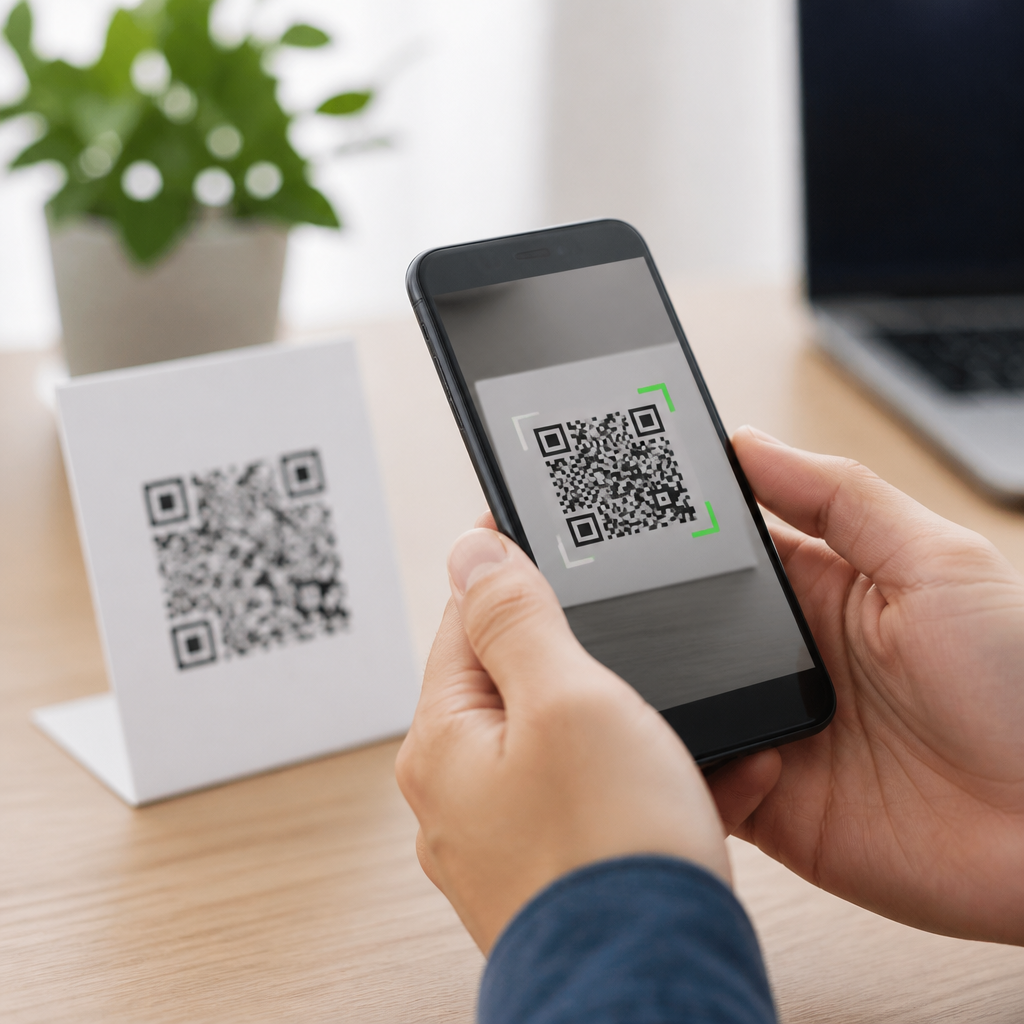
Fixing QR code scanning issues on Android starts with understanding how the scan process actually works. A phone camera captures the code, image-processing software finds the three positioning squares, corrects perspective, sharpens contrast, and decodes the black and white modules into data such as a URL, contact card, payment token, Wi-Fi credential, or app action. When any part of that chain fails, users see common problems: the camera never recognizes the code, it focuses slowly, the scan opens the wrong app, or nothing happens after detection. On Android, those failures can come from hardware limits, camera settings, low light, damaged codes, permission blocks, outdated software, or device-specific quirks in Samsung Camera, Google Lens, or third-party scanner apps.
This matters because QR codes now sit at the center of payments, restaurant menus, login flows, event check-ins, and device pairing. In my work supporting Android fleets and testing scan flows across Pixel, Galaxy, Motorola, and Xiaomi devices, the same pattern appears repeatedly: most scan failures are not random. They are caused by a short list of technical issues that can be isolated quickly with the right sequence. If your goal is reliable troubleshooting QR code scans on Android, the best approach is to separate the problem into four buckets: the phone, the camera app, the code itself, and the action triggered after the code is decoded. Once you know which bucket is failing, fixes become straightforward and repeatable.
Start with the fastest diagnostic checks
The first step in troubleshooting QR code scans is to confirm whether the Android device can detect any QR code at all. Open the default camera app and point it at a known-good code, such as a QR code generated by Google Chrome’s share feature or a payment code from a major banking app. Hold the phone 6 to 12 inches away, keep the code fully inside the frame, and pause for one to two seconds. If the phone detects that code but not the original one, the issue is likely the printed or displayed QR code. If it detects nothing, the fault is probably the camera app, permissions, focus system, or software layer.
Next, verify permissions. On Android 12 and later, camera access can be disabled globally or per app. Go to Settings, then Apps, then the camera or scanner app, then Permissions, and confirm Camera is allowed. Also check whether privacy indicators show the camera is active. If a third-party scanner app fails while the default camera works, the app may lack permission, may be outdated, or may rely on a decoding library that struggles with dense or stylized codes. Restarting the app clears temporary camera session errors, and rebooting the phone resolves many background conflicts, especially after system updates or when another app has not fully released the camera resource.
Clean the lens before doing anything more advanced. Fingerprints, pocket lint, and dried moisture reduce edge clarity, which directly affects decoder accuracy. Use a microfiber cloth, not a shirt sleeve. Then test lighting. QR decoders need clear contrast between light and dark modules; dim conditions, harsh glare, and reflective packaging all lower accuracy. Move to even ambient light or angle the phone slightly to reduce reflections. Avoid digital zoom unless the code is far away. Zoom can help on high-resolution sensors, but on budget phones it may introduce blur and noise, making recognition worse rather than better.
Camera focus, resolution, and app behavior
If the code remains unreadable, focus performance is the next likely cause. Autofocus works best when the phone is steady and the code fills a meaningful portion of the frame without touching the edges. Many Android phones switch between macro, wide, and main lenses automatically, and that lens switching can interrupt scanning at close range. I often fix this by backing the phone away slightly until focus locks, then moving in slowly. On some Samsung and Xiaomi devices, tapping the code on screen forces focus and exposure to settle faster than waiting for automatic detection.
Camera settings also matter more than many users expect. Filters, scene optimization, motion photos, and AI enhancements can occasionally interfere with real-time detection overlays. If the scan prompt flickers or disappears, disable extra processing temporarily. Keep image resolution at default; lowering resolution may reduce decoding reliability for small or dense codes. Conversely, if you are scanning a code on another screen, reduce that screen’s brightness slightly if it is blooming or causing moiré patterns. OLED displays with aggressive brightness and PWM flicker can sometimes make a code appear less stable to the camera sensor.
Different Android brands handle QR scanning differently. Pixel devices usually route through Google Lens, either inside Camera or Photos. Samsung offers built-in QR detection in Camera, plus Bixby Vision and Samsung Internet behaviors. Motorola, OnePlus, and others may depend on Google Lens or their own camera stack. That means a fix on one brand may not apply to another. If the default camera fails, test Google Lens directly. If Lens works but the camera app does not, update the camera app through the Play Store or the manufacturer store, then clear app cache. Clearing cache removes corrupted temporary data without deleting photos.
| Problem | Likely cause | Best fix |
|---|---|---|
| Camera sees code but never opens link | Browser or intent handling issue | Try Google Lens or another browser, then reset default apps |
| Code looks sharp but scan fails | Low contrast, damage, or stylized design | Test with stronger lighting and a known-good standard QR code |
| Camera hunts focus constantly | Too close, dirty lens, macro switching | Clean lens, back up slightly, tap to focus |
| Third-party scanner fails only on one device | Permissions or app compatibility issue | Update app, allow camera permission, clear cache |
| Code on monitor will not scan | Glare, moiré, or brightness bloom | Lower screen brightness and change viewing angle |
When the QR code itself is the problem
Many Android scanning issues are actually code-quality issues. A QR code needs a quiet zone, the empty margin around the symbol, typically four modules wide under ISO/IEC 18004 guidance. If a designer places text, borders, or artwork too close, decoders may not isolate the symbol correctly. The same goes for inverted colors, gradients, low contrast palettes, and logos that cover too much of the center. Error correction can recover some damage, but it is not magic. A highly branded code may scan on a flagship Pixel in daylight yet fail on an older Galaxy indoors.
Physical damage is another common cause. Creased posters, scratched labels, warped bottle surfaces, and glossy laminate all distort the module grid. If a printed code is under 2 x 2 centimeters and contains a long URL with tracking parameters, density increases and budget phone cameras struggle. In those cases, replacing the code with a shorter dynamic URL often solves the problem immediately. I have seen restaurant table tents fail because the generated URL included campaign tags, session strings, and deep-link arguments that made the symbol unnecessarily dense. Shortening the payload improved first-pass scans without changing the destination.
Screen-based QR codes can fail for their own reasons. Screenshots compressed by messaging apps may blur edges. Foldable phones can show slight image distortion near hinge areas. Cracked protectors over the displaying screen can create false lines. If you are helping a user troubleshoot, ask whether the code is printed, displayed on another phone, shown on a laptop, or embedded in social media. That context matters. A code that fails from an Instagram Story screenshot but works from the original website is not a camera failure; it is an image-quality and compression issue.
Software conflicts, updates, and post-scan errors
Sometimes the scan succeeds, but the user still reports a problem because the action after scanning breaks. That distinction is important. If the camera shows a banner or link preview, decoding worked. The issue then shifts to app associations, network access, browser security, or unsupported content. For example, a Wi-Fi QR code may decode correctly but fail to connect because the network uses enterprise authentication unsupported by the quick-join format. A payment QR may open the wrong wallet because the phone has multiple apps registered for the same intent. In those cases, resetting default apps or choosing the intended app manually resolves the issue.
System updates can also change behavior. Android security patches may tighten camera permissions, while manufacturer updates can replace or modify the camera package. If QR scanning stopped immediately after an update, check the Play Store and update Camera, Google Lens, Google Play Services, and Android System WebView. WebView matters because many in-app scan results open mini browser views. If those views crash, users may assume scanning failed when the real issue is rendering. Clearing WebView cache, updating Chrome, and testing the destination URL in a full browser are reliable ways to separate scan problems from web problems.
Security tools can interfere too. Mobile device management policies may block camera use, restrict browser launches from unknown apps, or disable direct Wi-Fi profile installation. Work profile separation on Android Enterprise devices is a frequent hidden cause in business settings. I have also seen VPNs and private DNS filters block post-scan redirects, especially when the QR code points to a shortener that hops through multiple domains. If the code decodes but never loads, test on mobile data, then on Wi-Fi, and inspect whether the destination opens after copying the URL manually into the browser.
Building a reliable Android QR troubleshooting process
The most effective way to fix recurring Android QR code scanning issues is to use a standard checklist every time. Test a known-good QR code first. Confirm camera permission and lens cleanliness. Improve lighting, avoid glare, and adjust distance until focus locks. Try the default camera, then Google Lens, then a reputable third-party app such as QR & Barcode Scanner by Gamma Play or a business-approved enterprise scanner if policy allows. Compare behavior across at least two devices when possible. If one phone scans and another does not, you are likely dealing with hardware capability, software version, or manufacturer-specific camera behavior rather than a bad code alone.
For teams that publish QR codes, prevention is better than repeated support tickets. Use dynamic short links, maintain high contrast, preserve the quiet zone, and test printed samples on both flagship and midrange Android phones before launch. Avoid placing codes on curved, reflective, or tiny surfaces. When codes trigger important actions such as payments or account login, include a fallback short URL nearby so users are not blocked if scanning fails. Keep scan destinations lightweight, mobile-friendly, and free of unnecessary redirects. Those simple production choices dramatically reduce troubleshooting QR code scans later and create a better experience for every Android user.
Fixing QR code scanning issues on Android is rarely about one mysterious bug. It is usually a practical combination of optics, code quality, app behavior, and the action that follows the scan. Start by deciding whether the phone can detect any known-good code. Then isolate focus, lighting, permissions, code design, and post-scan handling in that order. That method saves time because it removes guesswork. If you manage Android devices or publish QR campaigns, document the checklist, test across multiple brands, and build codes to conservative standards. The result is faster troubleshooting, fewer failed scans, and a QR experience users can trust. Review your current scan flow today and fix the weak point before it becomes a support problem.
Frequently Asked Questions
Why is my Android phone not recognizing a QR code at all?
If your Android phone does not recognize a QR code, the problem usually comes from a breakdown somewhere in the scanning chain rather than a single mysterious fault. A successful scan depends on the camera capturing a clear image, the software detecting the QR code’s three positioning squares, correcting the angle, increasing contrast between the dark and light modules, and then decoding the data. If any of those steps fail, the code may appear on screen without triggering a result.
Start with the basics: clean the camera lens, increase ambient lighting, and hold the phone steady. Dirt, fingerprints, glare, or dim light can make it harder for the software to identify the code’s structure. Next, make sure the QR code is fully visible in the frame and not cropped, bent, damaged, or printed too small. If the code is on a reflective surface such as a glossy poster, phone screen, or laminated menu, changing the viewing angle can reduce glare enough for the scanner to lock on.
Also check whether your camera app actually supports QR scanning. Many modern Android phones have built-in QR detection in the default camera, but some older devices or heavily customized Android versions still require Google Lens or a third-party scanner. If the camera opens normally but never reacts to the code, QR detection may be disabled in camera settings. Look for options such as “Scan QR codes,” “Google Lens suggestions,” or “Smart features.” If you are using a third-party app, update it and confirm it has camera permission enabled in Android settings.
Finally, consider whether the QR code itself is the issue. A poorly generated code, low-resolution screenshot, heavily stylized design, or code with insufficient contrast can defeat even a good scanner. Testing the same code on another device is a quick way to separate phone-side problems from code-quality problems.
How can I fix slow focusing or blurry QR code scanning on Android?
Slow focusing and blurry scans usually point to camera clarity issues rather than decoding problems. Before the phone can interpret the code, it must first capture enough sharp detail for the image-processing software to distinguish the small black and white modules. If the camera keeps hunting for focus, moves too much, or sees the code too close or too far away, scanning becomes unreliable.
The most effective fix is to adjust distance. Many users instinctively move the phone extremely close to the QR code, but that often pushes the subject inside the camera’s minimum focus range. Instead, pull the phone back slightly and let the code fill a reasonable part of the frame without dominating it edge to edge. Hold the phone steady for a second or two and tap the screen where the QR code appears to encourage the camera to focus there. On some Android devices, this manual tap-to-focus step makes a big difference.
Lens condition matters more than people expect. A small smudge can soften image detail enough to prevent reliable scanning, especially indoors. Wipe the lens with a clean microfiber cloth, avoid scanning in very low light, and try to position the code where the lighting is even rather than harsh. Strong backlighting, reflections, and moving shadows can all interfere with autofocus and contrast detection.
If the problem persists, look at software and hardware factors. Close other camera-using apps, restart the phone, and install pending Android and camera app updates. Some camera apps also include scene optimization, macro switching, or AI enhancements that can slow down instant scanning; disabling those features may help. If your camera is blurry in all situations, not just with QR codes, the issue may be broader than scanning and could involve a damaged lens cover, autofocus malfunction, or a failing camera module.
Why does my Android phone scan the QR code but fail to open the link or action?
When a phone scans a QR code but does not complete the next step, that usually means decoding worked but the resulting data could not be handled correctly. QR codes can contain many types of information, including website URLs, contact cards, Wi-Fi credentials, payment requests, app deep links, calendar events, and SMS or email actions. Your phone may successfully read the code yet still hesitate if the required app, permission, or network connection is missing.
For web links, first check your internet connection. If the QR code contains a URL, the browser must be able to open it. A weak mobile data signal, restricted Wi-Fi, VPN filtering, or captive portal can make it seem as though the QR code failed when the real problem is connectivity. Also inspect the link preview before opening it. If the URL looks malformed, outdated, or suspicious, the code itself may contain bad data.
For actions like Wi-Fi login, app launch, or payment initiation, make sure the relevant app or Android service is installed and updated. Some QR codes rely on specific payment wallets, ticketing apps, or enterprise tools. If those apps are missing, Android may decode the code but not know what to do next. Similarly, contact and calendar QR codes may need permission to save data, and some security settings can block automatic actions until you confirm them manually.
There is also a security angle. Modern Android devices and scanner apps often warn users about potentially unsafe links, shortened URLs, or unknown deep links. That warning is not a malfunction. It is a safeguard. If the phone reads the code but pauses before opening it, review the destination carefully. In short, the scan succeeded; the handoff to the browser, system app, or third-party app is where the interruption occurs.
Do I need a separate QR scanner app on Android, or is the built-in camera enough?
In many cases, the built-in Android camera is enough. Most recent Android phones include native QR scanning directly in the default camera app, and many also support Google Lens for more advanced recognition. For everyday tasks such as opening a website, joining Wi-Fi, or viewing a menu, the built-in option is usually faster, safer, and more convenient than installing another app.
That said, not all Android devices behave the same way. Some manufacturers hide QR support inside settings, some route scans through Google Lens, and some budget or older phones do not include reliable native scanning at all. If your camera app does not respond to QR codes, check settings first rather than assuming the feature is absent. Search for camera options related to QR scanning, Lens suggestions, smart scanning, or scene detection. If built-in support truly is missing, a reputable scanner app can fill the gap.
If you choose a third-party app, be selective. Many QR scanner apps ask for excessive permissions, show intrusive ads, or bundle questionable features that are unnecessary for simple scanning. A trustworthy app should require camera access, clearly preview the decoded result, and avoid requesting unrelated permissions such as contacts, microphone, or location unless a specific feature genuinely needs them. In many cases, Google Lens is a better alternative because it is widely supported, regularly updated, and integrated with Android on many devices.
The practical answer is this: use the built-in camera or Google Lens whenever possible, and only install a dedicated scanner if your phone lacks dependable QR support or you need specialized features such as scan history, batch scanning, inventory workflows, or enterprise integration.
What are the best ways to troubleshoot persistent QR code scanning issues on Android?
If QR scanning problems keep happening, a systematic troubleshooting approach works better than random trial and error. Start by isolating whether the issue is with the phone, the app, the camera, the environment, or the QR code itself. Try scanning multiple different QR codes, including one you know works, such as a code from a major website or a Wi-Fi sharing screen. If your phone fails on every code, the problem is likely on the device side. If it fails on only one code, that specific code may be too small, damaged, low contrast, distorted, or incorrectly generated.
Next, work through the device basics. Clean the lens, improve lighting, restart the phone, and update both Android and the camera or scanning app. Verify camera permission is enabled and that no other app is actively controlling the camera. If your default camera fails, test with Google Lens or another trusted scanner to see whether the issue is software-specific. This comparison is useful because it tells you whether the camera hardware can capture the code clearly even if one app struggles to decode it.
You should also review camera settings and screen conditions. Disable beauty filters, motion photo modes, heavy AI enhancements, or macro switching if they interfere with quick focus. Increase screen brightness if you are scanning a QR code displayed on another phone. If the code is printed, flatten the page if possible and avoid folds over the positioning squares. If the code is on a monitor, slight moiré patterns or refresh-related artifacts can interfere, so changing distance or brightness can help.
If none of that resolves the problem, test the camera more broadly. Take normal photos at different distances and check whether they are consistently sharp. A camera that struggles everywhere may indicate a hardware problem, especially if autofocus sounds unusual, images stay soft, or the lens cover is scratched. At that point, the issue is no longer just about QR codes. It is a camera performance problem that may require professional repair, warranty service, or manufacturer support.





