
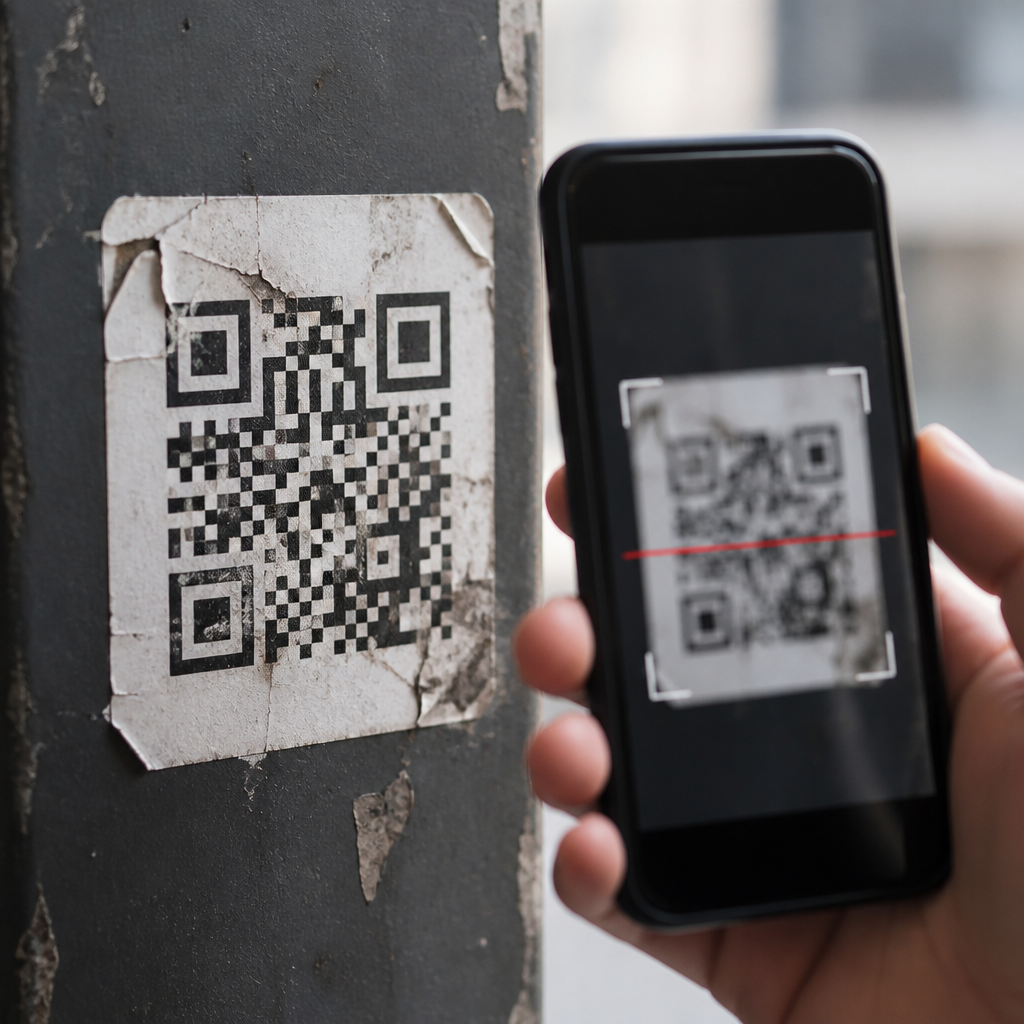
Damaged QR codes fail to scan because the scanner can no longer detect the pattern geometry, contrast, and encoded data structure that make a quick response symbol readable. In mobile QR code scanning, “damage” includes obvious physical tears, scratches, stains, fading, low-ink printing, warped labels, glare from glossy lamination, and even digital damage such as over-compression or poor resizing. I have seen all of these cause scan failures in production, from restaurant table tents to warehouse asset tags. The problem matters because a broken code interrupts payments, sign-ins, product lookups, support journeys, and marketing campaigns at the exact moment a user intends to act. That means lost conversions, frustrated customers, and avoidable support volume. Troubleshooting QR code scans starts with understanding how a code is built. A QR symbol contains finder patterns, alignment patterns, timing patterns, quiet zones, and data modules. A camera app or scan engine such as ZXing, Google ML Kit, Apple Vision, or Dynamsoft identifies those structures first, then corrects perspective, interprets error correction, and decodes the payload. If any of those stages fails, the code appears “unscannable.” This hub explains why damaged QR codes fail, what forms of damage matter most, how error correction helps, and what practical fixes improve scan reliability across print and screen use cases.
How QR scanners read a code and where damage breaks the process
Every successful scan begins with detection, not decoding. The scanner must first locate three large finder squares, confirm module spacing through timing patterns, and isolate the symbol from its background. In plain terms, the software asks: is this really a QR code, where are its edges, and how large is each square? Damage commonly breaks that first step. A coffee stain across one finder pattern, a torn corner, or a dark design element invading the quiet zone can stop recognition before the payload is even considered. On phones, the camera adds another variable: motion blur, autofocus hunting, noise in low light, and aggressive HDR processing can soften edges that the decoder relies on.
Once detected, the scan engine rectifies distortion and reads module values as black or white. Here, subtle damage matters. Fading ink lowers contrast. Wrinkled stickers bend rows out of alignment. Glossy surfaces create specular highlights that wash out modules. If a code was exported as a tiny JPEG and then scaled up for print, compression artifacts and anti-aliasing can corrupt module boundaries. I have tested labels that looked acceptable to the eye but failed because adjacent modules visually merged under a mobile camera. In troubleshooting QR code scans, it helps to separate failures into three buckets: detection failures, geometry failures, and data recovery failures. That distinction points directly to the fix.
Physical damage, print defects, and environmental causes
Physical damage is the most obvious reason damaged QR codes fail to scan, but the specific failure mode usually depends on location and severity. A scratch through the center may still scan if error correction can reconstruct the missing modules. Damage covering a finder pattern is more serious because the scanner may never identify the symbol. The same is true when labels are cut too tightly and lose the quiet zone, the blank margin around the code. ISO/IEC 18004 defines the QR Code symbology and its required structure; in practice, inadequate quiet zones are among the most common print mistakes I encounter.
Print defects also create false damage. Thermal printers with clogged elements leave white streaks. Inkjet bleed spreads dark modules into neighboring cells. Toner scatter on low-quality paper roughens edges. Outdoor placements add UV fading, moisture, dust, and abrasion from cleaning. On corrugated cardboard, the surface texture can break clean edges at smaller sizes. Curved surfaces such as bottles and cables introduce perspective distortion that many native camera apps handle inconsistently. Real-world examples are easy to find: shipping labels rubbed during transport, event badges folded at a lanyard slot, and payment placards laminated under reflective plastic. The code may be technically intact yet still fail under ordinary phone conditions because the environment masks critical features.
Error correction helps, but it does not make a damaged code indestructible
QR codes include Reed-Solomon error correction, which allows partial recovery when modules are missing or misread. Four levels are standard: L, M, Q, and H, roughly restoring about 7%, 15%, 25%, and 30% of symbol data respectively. That sounds generous, but error correction is not a license for poor design. Recovery depends on what is damaged, how the missing modules are distributed, and whether the scanner can detect the code in the first place. If the finder patterns or timing patterns are compromised, the decoder may never reach the stage where Reed-Solomon can help.
I often explain this with branded QR codes. Designers place a logo in the center, increase error correction to H, and assume the symbol is safe. Sometimes it works. Sometimes the logo overlaps alignment-sensitive regions, the dark brand color lacks sufficient contrast, or the shortened URL adds enough data density to shrink module size below reliable print thresholds. Error correction protects against some missing data, not against every detection problem. For troubleshooting QR code scans, the key question is not simply “What error correction level was used?” but “Did the design preserve structural patterns, contrast, quiet zone, and module integrity?” When scan performance matters, simplicity consistently outperforms decorative complexity.
Common failure patterns and the fastest fixes
The most efficient troubleshooting process starts by matching symptoms to probable causes. In field testing, these patterns come up repeatedly across menus, posters, packaging, kiosks, and warehouse labels.
| Symptom | Likely cause | Practical fix |
|---|---|---|
| No code detected at all | Missing quiet zone, blocked finder pattern, severe glare | Reprint with wider margin, clear obstructions, change finish or angle |
| Code detected but will not open | Payload error, broken URL, unsupported app action | Validate encoded content, test on iOS and Android, use standard links |
| Scans only at very close range | Modules too small, low print resolution | Increase symbol size, export as vector, print at higher DPI |
| Works on one phone but not another | Camera quality, decoder differences, low light sensitivity | Test across devices, improve contrast and lighting, simplify design |
| Intermittent scans outdoors | Fading, dirt, reflection, curved placement | Use matte material, durable ink, larger code, flatter mounting |
Beyond the table, two fast checks solve a surprising number of issues. First, inspect the code at full size and verify a clean quiet zone of at least four modules on all sides. Second, test the same payload in a freshly generated plain black-on-white code. If the plain version scans and the styled version does not, the problem is design or print execution, not the destination link. This is why robust troubleshooting QR code scans should always isolate the variable before changing multiple factors at once.
How to test, validate, and improve scan reliability
A reliable QR workflow includes preflight validation, controlled print testing, and real-device verification. Start with a trusted generator that outputs vector formats such as SVG, EPS, or PDF for print. Avoid taking screenshots of codes, dropping them into slides, and scaling them arbitrarily. Then validate the payload: confirm the URL resolves with HTTPS, redirects are minimal, and mobile landing pages load quickly. A code that decodes but leads to a timeout still feels broken to users. For enterprise labels, validate content lengths, character sets, and scanner compatibility with your target apps.
Next, test under realistic conditions. Use at least several phone models, including older midrange Android devices, not just current flagship iPhones. Check scans in daylight, low indoor light, and at expected user distances. For print, a common rule is to size the code so scanning distance is roughly ten times the symbol width, then increase size if the environment is dim or the surface is curved. Matte substrates generally outperform glossy ones. High contrast black on white remains the benchmark. If branding is necessary, keep logos small, preserve finder patterns untouched, and use high error correction only after verifying that module size remains adequate.
Finally, monitor after deployment. Dynamic QR platforms, analytics tools, and link checkers help reveal whether failures cluster by location, device type, or campaign asset. In my experience, recurring scan problems usually trace back to one of five root causes: undersized modules, poor contrast, quiet zone violations, reflective finishes, or damaged installation surfaces. Fix those first before assuming a camera software issue.
Prevention strategies for print, packaging, and on-screen codes
Prevention is cheaper than replacement, especially when codes are embedded in packaging, signage, or mass-produced collateral. For print, specify minimum size, resolution, substrate, finish, and placement in the production brief. Keep codes away from folds, seams, perforations, bottle shoulders, and edges likely to wear. Use vector artwork, not raster screenshots. On packaging, request press proofs and scan them on press stock, not just on a digital mockup. For industrial and inventory uses, consider alternatives such as Data Matrix when space is limited, but only if downstream scanners support it.
On screens, damage looks different. A QR code can fail because it is displayed too small, blurred by scaling, cropped by a video frame, or compressed in a social post. Screens also introduce moiré, refresh artifacts, and brightness limitations. The fix is straightforward: render the code at native resolution, maintain a clear margin, avoid busy animated backgrounds, and give users enough dwell time to scan. Whether in print or on screen, the rule is the same: preserve structure, preserve contrast, and preserve context. If you manage mobile QR code scanning at scale, build a test checklist and review every asset before release. That discipline prevents most damaged QR code failures and reduces troubleshooting later. Audit your existing codes, replace weak designs, and document scan standards for every future campaign.
Frequently Asked Questions
Why do damaged QR codes stop scanning even when most of the code still looks intact?
A QR code works because a scanner can quickly recognize a very specific visual structure: the three large finder squares, the alignment pattern, the spacing of the grid, the contrast between dark and light modules, and the encoded data laid out in a predictable format. When damage interrupts any of those elements, the phone or handheld scanner may no longer be able to identify the symbol correctly. Even if most of the code appears visible to the human eye, the missing or distorted areas can be enough to break the scanner’s ability to detect orientation, measure module size, or reconstruct the data stream.
This is why small-looking defects can cause big scan problems. A scratch across a finder pattern, a stain over several modules, a crease through the timing pattern, or fading that reduces black-to-white contrast can all make the code unreadable. In real-world mobile scanning, damage is not limited to physical destruction. Glossy reflections, low-ink printing, warped labels on curved packaging, pixelation from bad resizing, and image compression artifacts can all alter the geometry the scanner depends on. Once the pattern no longer matches what the decoding software expects, scan reliability drops sharply, even if the code still “looks okay” at a glance.
Can QR codes still work if part of them is damaged?
Yes, sometimes they can. QR codes include built-in error correction, which is one of the reasons they are so widely used in packaging, signage, restaurant menus, warehouse labels, and industrial environments. Error correction allows the decoder to recover some missing or corrupted data, depending on how much of the symbol has been damaged and where that damage occurs. If the affected area is limited and does not interfere too heavily with essential positioning features, the code may still scan successfully.
However, error correction is often misunderstood. It is not a guarantee that any partially damaged QR code will remain readable. The amount of recoverable damage depends on the chosen error correction level, the density of the code, the size of the printed modules, and whether the damage hits critical areas such as finder patterns or alignment features. A code printed very small, with a lot of data packed into it, has less real-world tolerance than a larger, cleaner code with stronger error correction and more whitespace around it. In production, this is why two damaged codes that look similar can behave very differently: one scans instantly, while the other fails every time.
What kinds of damage most commonly cause QR code scan failures?
The most common causes fall into three categories: physical damage, print quality problems, and digital image degradation. Physical damage includes tears, folds, scratches, dirt, grease, water stains, peeling labels, and abrasion from handling. These issues physically remove or obscure parts of the code, making it harder for the scanner to detect the grid and interpret the module pattern correctly. In retail, hospitality, logistics, and manufacturing settings, wear and contamination are among the most frequent reasons a previously working QR code stops scanning.
Print quality issues are just as important. Faded ink, poor thermal printing, low contrast between foreground and background, bleeding edges, warped surfaces, and reflective lamination can all interfere with scan performance. A glossy finish may produce glare that washes out parts of the symbol in the camera view. A curved bottle or crumpled label can distort the square geometry enough to confuse the decoder. Digital damage creates another layer of risk: screenshots that have been compressed, files resized incorrectly, blurry exports, low-resolution artwork, and social media uploads that soften edges can all reduce readability. In many real deployments, scan failure is caused not by one dramatic flaw, but by several small defects combining to push the code past the scanner’s tolerance.
How can you tell whether a QR code is failing because of damage, contrast, or formatting problems?
A good way to diagnose the problem is to start with visual inspection and then test the code under different scanning conditions. Look closely for interrupted finder patterns, smudged modules, low contrast, missing quiet zone space around the code, stretching, pixelation, or reflective glare. If the code scans from a digital original but not from the printed version, the issue is usually print quality, surface distortion, lighting, or physical damage. If it fails both on-screen and in print, the problem may be with the source image, bad resizing, over-compression, or an error in how the code was generated.
It also helps to test with multiple devices and angles. Some smartphone cameras and scanning apps are more forgiving than others, so a code that barely works on one device may fail on another. Try scanning in even lighting, reducing reflections, moving closer and farther away, and viewing the code straight-on instead of at an angle. If performance improves when glare is removed or when the code is flattened, that points to environmental or surface-related damage. If the image looks soft, jagged, or muddy when zoomed in, that usually suggests digital degradation. In practice, troubleshooting scan failure is about isolating whether the scanner is struggling with geometry, contrast, resolution, or actual data loss.
What is the best way to prevent QR code damage from causing scan failures?
The best prevention strategy is to design and produce QR codes for real-world conditions instead of ideal lab conditions. Start with a high-quality source file, adequate size, strong contrast, and a proper quiet zone around the symbol. Avoid making the code smaller than necessary, and do not cram excessive data into a tiny print area. Choose an appropriate error correction level, especially if the code will be used on packaging, outdoor signage, warehouse labels, table tents, or other surfaces exposed to wear, moisture, bending, or cleaning. A larger code with clean edges will usually outperform a smaller, denser one, even if both are technically valid.
Material and placement matter just as much as the code design itself. Print on durable substrates when possible, avoid glossy finishes that create glare, and keep codes away from folds, seams, corners, and heavily handled areas. If the surface is curved, test the actual placement before rollout. For digital use, preserve sharp edges by exporting at sufficient resolution and avoiding unnecessary compression or improper scaling. Most importantly, test the code in the same environment where people will actually scan it, using multiple phones and lighting conditions. That kind of field testing catches the practical causes of scan failure long before damaged QR codes start creating user frustration, lost conversions, or operational delays.





