
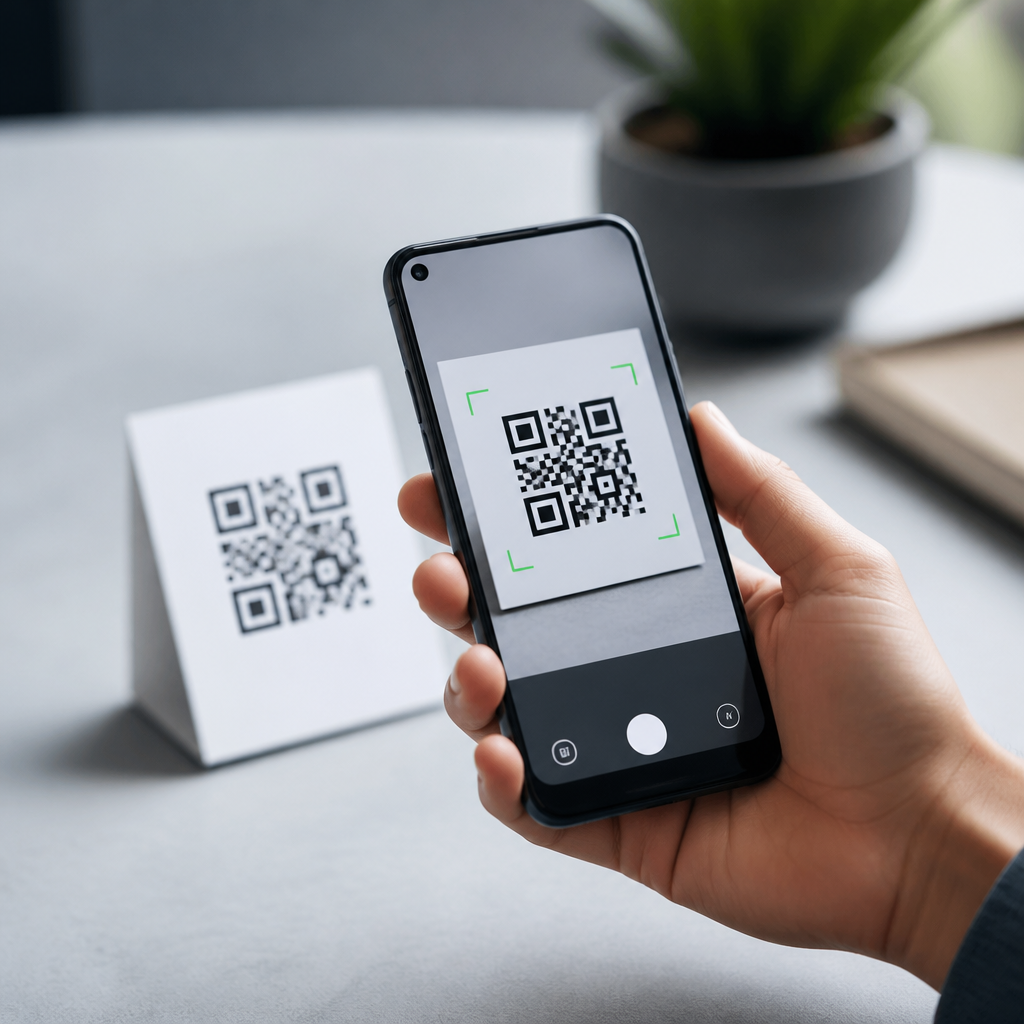
Android integrated QR code scanning by turning a once-fragmented task into a built-in camera and operating system capability that works for most users without a separate app. A QR code, or Quick Response code, is a two-dimensional matrix barcode that stores data such as website URLs, Wi-Fi credentials, contact cards, app deep links, payment requests, and event tickets. For years, Android users relied on manufacturer camera apps, Google Lens, or third-party scanners with uneven quality and inconsistent privacy practices. Today, camera integration and OS support are the foundation of the Android QR experience. When people ask whether Android can scan QR codes natively, the accurate answer is yes on most modern devices, but the exact path depends on Android version, Google services availability, and the camera software provided by the device maker.
This matters because QR scanning now sits inside everyday mobile flows: restaurant menus, package tracking, transit, authentication, eSIM setup, device pairing, and mobile payments. In my work testing Android phones across Pixel, Samsung Galaxy, Motorola, Nokia, and Xiaomi lines, the biggest shift has been the move from “install a scanner” to “open the camera.” That shift reduced friction, but it also introduced questions users still have: Is scanning part of Android itself or the camera app? Does it work offline? What security checks happen before a link opens? Which phones use Google Lens, and which use their own decoder? A strong understanding of Android camera integration and OS support helps businesses publish scannable codes correctly, helps users troubleshoot failed scans, and helps developers design links and intents that behave predictably across devices.
At a technical level, Android QR code scanning combines image capture, barcode detection, text decoding, and intent handling. The camera previews the scene, software detects finder patterns, error correction reconstructs damaged code regions, and the operating system decides what action to present, such as opening a URL or joining a Wi-Fi network. Native support is not one single feature delivered the same way everywhere. It is a stack: camera hardware, camera app logic, Google Play services components on many devices, and Android system behaviors for recognized data types.
From third-party scanners to native camera support
Early Android versions did not offer a universal built-in QR scanner. Users commonly installed ZXing-based apps because the open source Zebra Crossing project made barcode decoding widely available. Those apps solved a real problem, but quality varied. Some handled only URLs, some inserted ads between scan and action, and some requested unnecessary permissions. Manufacturers later began adding QR recognition to camera apps, especially as Apple normalized camera-based scanning on iPhone and consumer expectations changed.
Google accelerated the transition with Google Lens and ML Kit. Lens brought visual search and code recognition into Google’s ecosystem, while ML Kit provided on-device barcode scanning APIs developers could integrate into apps. On Pixel devices, Google Camera progressively made QR recognition feel native: point at a code, receive a chip or prompt, and act without launching a separate utility. Samsung, meanwhile, introduced Bixby Vision and later direct camera scanning options inside One UI. By Android 9 through Android 13, native or near-native scanning had become standard on mainstream phones, even though implementation details still differed.
The practical result is that “Android integrated QR code scanning” describes an evolution rather than a single release milestone. There was no moment when every Android phone instantly gained identical support. Instead, Google, OEMs, and app developers converged on the same user expectation: scanning should happen in the camera workflow, quickly and safely.
How camera integration works on modern Android phones
On a modern Android device, QR recognition usually starts in the default camera app. The app continuously analyzes preview frames rather than waiting for a full-resolution photo. This is important because real-time detection reduces latency and improves usability in dim light or at awkward angles. Most implementations highlight the detected code and surface a contextual action chip, notification, or pop-up sheet. If the data is a website, users see the URL before opening it. If it is Wi-Fi setup text using the standardized WIFI:T:WPA;S:network;P:password;; format, Android can offer to join the network directly.
Under the hood, vendors use different decoding engines. Some rely on Google Lens services; others ship their own libraries or use Google’s ML Kit Barcode Scanning API. ML Kit supports QR codes alongside formats such as EAN-13, UPC-A, Data Matrix, PDF417, and Aztec. In testing, native camera decoders generally prioritize QR because finder patterns are easy to identify and because QR codes dominate consumer use cases. Good implementations also debounce repeated detections so the phone does not repeatedly trigger the same prompt while the code remains in frame.
Integration quality depends heavily on autofocus behavior, exposure control, and preview resolution. Midrange devices with weaker low-light performance often struggle not because the decoder is poor, but because the camera cannot maintain a sharp preview at close range. That is why larger printed codes with high contrast still matter. A perfect software stack cannot fully compensate for glare, tiny modules, or logos that consume too much of the code’s data area.
Android version support and OEM differences
Users often ask which Android version added QR code scanning. The more accurate framing is which combination of Android version, camera app, and Google services supports it well. Android 8 and earlier often required separate apps unless the manufacturer bundled scanning. Android 9 and 10 saw broader camera-level support. Android 11 added a system-level QR code scanner shortcut in some builds through Quick Settings and device setup flows, especially on Pixel. Android 12 and later made the scanner easier to expose from the lock screen or Quick Settings depending on the OEM interface.
| Platform layer | Typical QR behavior | Common limitation |
|---|---|---|
| Android 8 and earlier | Often third-party app or OEM camera feature | No consistent native experience |
| Android 9 to 10 | Wider camera app recognition, Lens integration | Varies by manufacturer and region |
| Android 11 to 12 | Quick Settings scanner appears on many devices | May depend on Google services |
| Android 13 and newer | Mature camera scanning and stronger setup integration | Budget phones may still ship weak camera apps |
OEM differences remain significant. Pixel devices usually present the cleanest implementation because Google controls both the camera app and many service layers. Samsung devices often support scanning directly in the Camera app, but the toggle location can change between One UI versions. Xiaomi, Oppo, Vivo, and Realme sometimes route scans through browser layers, assistant features, or region-specific services. Android Open Source Project devices without Google Mobile Services can support scanning perfectly well, but the feature depends more heavily on the manufacturer’s own camera application and libraries.
For support content, the safest statement is this: most Android phones released in the last few years can scan QR codes with the default camera, but users should confirm the camera setting for “Scan QR codes,” “Google Lens suggestions,” or an equivalent option if nothing appears.
Security, privacy, and what Android does after detection
Scanning a QR code is not inherently risky; blindly opening its contents can be. Android’s better implementations reduce risk by previewing the destination before launch. A camera app should show the domain name or action type, not instantly open a page. On Pixel and Samsung phones I have tested, this intermediate prompt is usually present, which gives users a chance to reject suspicious links. That matters because malicious QR codes can redirect to phishing pages, fake package delivery portals, or APK download prompts.
Android also supports trusted actions for structured payloads. Wi-Fi QR codes can open a join-network prompt rather than exposing the password in plain text. Contact QR codes can open the contacts app for confirmation. App links may launch installed apps when Digital Asset Links validation is configured correctly, otherwise the browser handles the URL. This is where OS support matters: the scan result becomes an intent, and Android resolves that intent according to system rules, defaults, and verified links.
Privacy varies by implementation. On-device decoders process frames locally and do not need to send images to a server. Google Lens features may invoke cloud-enhanced behavior for some visual tasks, though basic barcode recognition is commonly available on-device. Organizations with strict privacy requirements, such as healthcare and field service teams, often prefer first-party apps built with on-device ML Kit scanning to keep camera frames local and to control post-scan handling.
Design and troubleshooting guidance for reliable scans
If you publish QR codes for Android users, camera integration only helps when the code itself is well designed. Use sufficient quiet zone space, high contrast, and a realistic physical size for scanning distance. A small code on a glossy poster under bright lights fails more often than teams expect. Error correction helps with minor damage and logo placement, but aggressive branding can make detection slower, especially on budget Android phones. In practice, short URLs improve reliability because denser codes require finer camera detail.
Troubleshooting should start with the basics: clean the lens, increase lighting, move the phone slightly farther away, and check whether QR scanning is enabled in camera settings. If the default camera fails, opening Google Lens or Google Photos can confirm whether the issue is the camera app or the code itself. For enterprise deployments, test across at least one Pixel, one Samsung A-series or S-series phone, and one lower-cost device. That spread exposes autofocus and software differences early.
Developers should also think beyond detection. The destination should be mobile-friendly, fast, and secure over HTTPS. If the code is meant to trigger an app, implement Android App Links correctly and provide a browser fallback. For Wi-Fi onboarding, validate the payload format. For payments, follow the relevant scheme specifications rather than improvising custom text. Android now handles scanning well; weak destination design is the more common point of failure.
Android integrated QR code scanning by combining camera recognition, operating system intent handling, and vendor-specific software into a flow that feels native for most users. The key takeaway is that support lives across layers: hardware quality affects detection, the camera app determines the prompt, and Android resolves the scanned data into the right action. That is why two phones running similar Android versions can still behave differently. For readers building content under mobile QR code scanning and technology, this camera integration and OS support hub provides the baseline for deeper articles on security, app development, dynamic codes, payments, and enterprise deployment.
If you remember one practical rule, make it this: assume modern Android can scan QR codes, but never assume every device handles every payload the same way. Test on multiple OEMs, present destinations clearly, and publish codes with scanning conditions in mind. When businesses and developers respect those constraints, Android’s built-in QR experience is fast, accessible, and dependable. Use this hub as your starting point, then map your next content and product decisions around the real behavior of Android cameras in the field.
Frequently Asked Questions
1. What does it mean that Android integrated QR code scanning?
When people say Android integrated QR code scanning, they mean the platform gradually moved QR recognition from a separate, often unreliable add-on into core Android experiences such as the camera and system-level tools. In practical terms, most modern Android users no longer need to download a dedicated QR scanner app just to open a website, join a Wi-Fi network, view a menu, or scan a ticket. Instead, the phone can recognize the code through the camera interface or through built-in services such as Google Lens, then immediately present the relevant action.
This was a major improvement because QR scanning on Android used to be fragmented. Some phone makers included scanner support in their camera apps, others did not, and many users had to rely on third-party apps that varied widely in speed, privacy, ad load, and accuracy. By making scanning a more native capability, Android reduced friction for users and created a more consistent experience across devices. It also helped normalize QR codes in everyday tasks, from mobile payments to authentication and contactless information sharing.
2. Why was QR code scanning on Android considered fragmented before integration improved?
Before broader integration, scanning a QR code on Android often depended on which device brand you owned, which Android version you were using, and whether you had installed an additional app. One manufacturer’s camera might detect QR codes instantly, while another’s camera ignored them completely. In many cases, users had to open Google Lens manually or download a third-party scanner from the Play Store. That inconsistency made a simple task feel unpredictable.
The problem was not just convenience. Third-party QR apps ranged from useful to poor-quality, and some were packed with ads, unnecessary permissions, or questionable data practices. Users who only wanted to scan a code once in a while could end up installing software that added clutter or introduced privacy concerns. Integration solved much of this by letting Android and its ecosystem handle QR recognition in a more trusted and streamlined way. As a result, scanning became faster, safer, and easier for everyday users who expected the camera on a smartphone to “just work.”
3. How do modern Android phones usually scan QR codes now?
On most current Android phones, the simplest method is to open the default camera app and point it at the QR code. If the camera app supports QR recognition, the phone will detect the code automatically and show a prompt, banner, or tappable link. Depending on the content, Android may offer to open a website, connect to Wi-Fi, save a contact, launch an app deep link, begin a payment flow, or display event or ticket information. This makes the process feel built in rather than dependent on a separate utility.
Google Lens also plays a major role in the Android scanning experience. On many devices, Lens is accessible directly from the camera, the Google app, or image-sharing tools. That means users can scan a live QR code in front of them or even detect one inside a screenshot or saved image. Together, the camera app and Lens helped Android turn QR scanning into a broadly available feature instead of a niche workaround. While exact behavior still varies somewhat by phone maker and software version, the average Android user today has far easier access to QR scanning than in earlier years.
4. What kinds of information can Android read from a QR code?
A QR code, short for Quick Response code, is a two-dimensional matrix barcode that can store many types of data, and Android can act on several of the most common formats. The most familiar use is opening a website URL, but QR codes can also contain Wi-Fi credentials, contact details in vCard format, app deep links, payment requests, text strings, email prompts, phone numbers, map locations, and digital ticket or event information. When Android recognizes the data type, it typically presents a relevant action so the user does not have to copy and paste anything manually.
That flexibility is one reason QR codes became so widely used. For example, scanning a Wi-Fi QR code can instantly populate the network name and password fields. A contact QR can open a save-to-contacts prompt. A payment code can trigger a compatible payment app or workflow. An event ticket can open a pass or display a code for venue entry. Android’s integrated approach matters here because the value of QR codes depends on immediate, context-aware handling. The more intelligently the system interprets the code, the more seamless the experience becomes.
5. Does integrated QR scanning on Android improve security and user trust?
Integrated QR scanning generally improves user trust because it reduces the need to install random scanner apps from unknown developers. Using the built-in camera or a well-established system component is usually more reassuring than granting permissions to a third-party app whose only job is reading codes. It also simplifies the process, which lowers the chance that users will choose low-quality software just to complete a quick task. In that sense, Android’s move toward built-in scanning was not only about convenience but also about creating a safer default experience.
That said, integrated scanning does not make every QR code safe. A QR code can still point to a phishing page, a misleading login screen, or a malicious download link. The scanner can identify and present the destination, but users still need to pay attention before tapping. Good habits include checking the previewed URL, being cautious with codes from unknown sources, and avoiding scans that trigger unexpected requests for personal information. So while Android’s integrated QR capabilities improve consistency, reduce app-related risk, and make scanning more trustworthy overall, safe behavior still matters whenever a code leads to the web or a transaction.





