
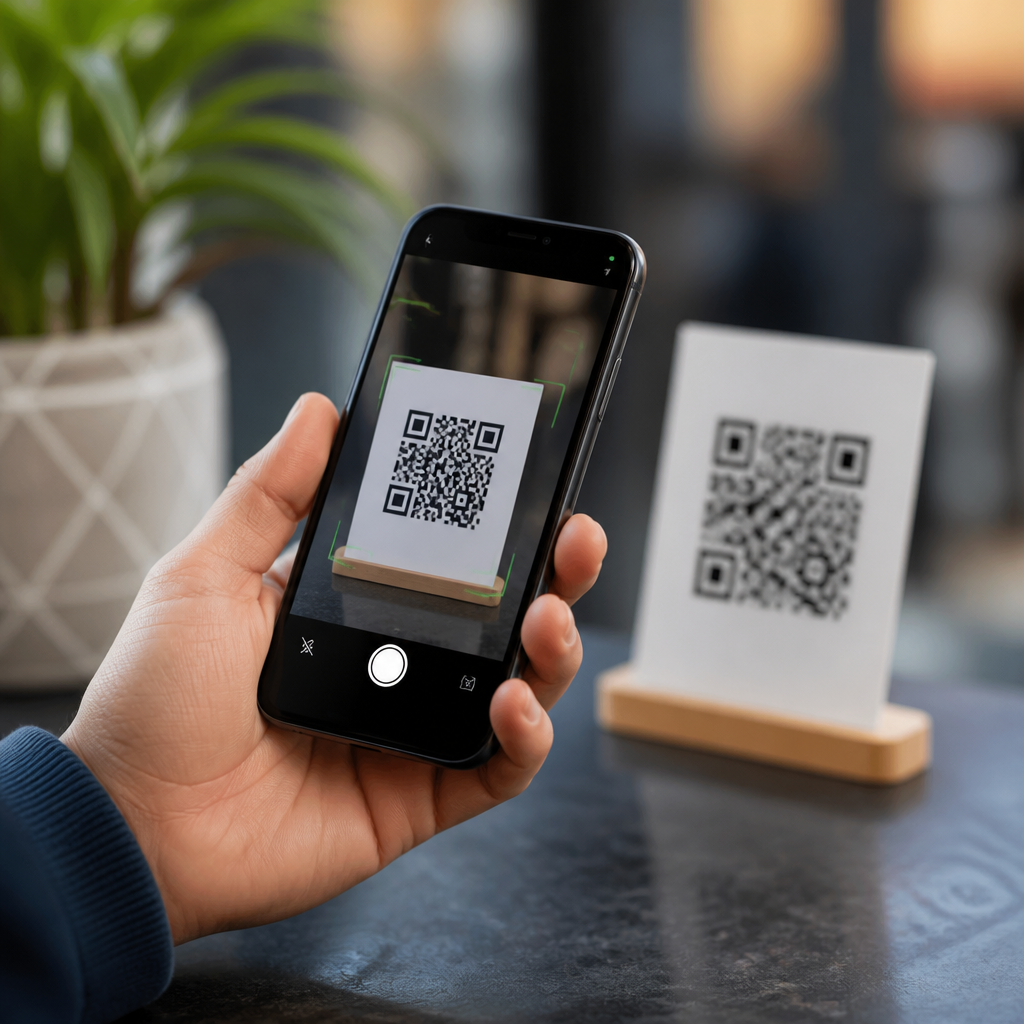
QR code scanner apps for Android have become everyday utilities, turning a phone camera into a fast bridge between printed information and digital actions. A QR code, or Quick Response code, stores text, links, contact details, payment data, Wi-Fi credentials, and app deep links in a square matrix that a camera can decode in seconds. For Android users, the best QR code scanner apps combine accurate detection, strong privacy controls, low-friction performance, and clear handling of risky links. This matters because QR codes now appear in restaurants, parcel lockers, product packaging, event tickets, two-factor authentication setups, and digital payments. I have tested scanner apps across stock Android, Samsung Galaxy devices, and lower-cost phones where autofocus and low-light performance vary widely, and the differences are real. Some apps feel instant and dependable; others drown a simple scan in ads, excessive permissions, or misleading “cleaner” features. Choosing well saves time, reduces security risk, and improves accessibility. This hub article explains what separates a trustworthy Android QR code scanner app from a poor one, which app categories fit different users, and how to evaluate scanning speed, privacy, offline capability, and compatibility before installing anything.
What makes a QR code scanner app the best on Android
The best QR code scanner apps for Android do five things consistently. First, they decode quickly from different distances and angles, including damaged or low-contrast codes. Second, they preview the result before opening it, giving users a chance to inspect a URL, phone number, or payment request. Third, they ask for minimal permissions, ideally camera-only, because a scanner does not need contacts, microphone access, or broad device storage in most cases. Fourth, they work reliably on a wide range of Android versions and camera hardware. Fifth, they avoid aggressive ad formats that interrupt the scan flow or trigger accidental taps.
In practice, strong scanning performance comes from mature decoding libraries such as ZXing or Google ML Kit. Apps built on these foundations often recognize not only standard QR codes but also Data Matrix, Aztec, EAN-13, UPC-A, Code 128, and PDF417. That matters when one app is expected to handle retail barcodes, boarding passes, and warehouse labels in addition to QR codes. For many users, the “best” app is not the one with the longest feature list; it is the one that opens instantly, scans on the first attempt, and safely interprets the result.
Best categories of Android QR code scanner apps
There is no single best QR code scanner app for every Android user, because scanning needs differ. Native camera scanning is best for speed and convenience. Dedicated privacy-first scanners are best for users who want minimal permissions and no data collection. Shopping and barcode apps are best when product lookup matters as much as code reading. Business workflows often need scan history, batch capture, CSV export, or integration with inventory systems. The right choice depends on context, not just ratings.
| App category | Best for | Main strengths | Typical tradeoffs |
|---|---|---|---|
| Built-in camera scanner | Everyday scans | Fast access, no extra install, tight OS integration | Fewer advanced controls, limited history |
| Dedicated scanner app | Frequent scanning | Better previews, format support, flashlight and zoom controls | Ads or in-app purchases in some apps |
| Privacy-focused scanner | Security-conscious users | Minimal permissions, local processing, clean interface | Often fewer convenience features |
| Retail barcode app | Shopping and product lookup | Price comparisons, product databases, broader barcode support | May collect analytics and commerce data |
| Business scanning tool | Inventory and operations | History, export, bulk workflows, admin controls | Higher cost, steeper setup |
On many Android phones, the default camera already scans QR codes well enough for restaurant menus, website links, and guest Wi-Fi access. Google Lens integration on Pixel phones is particularly smooth, while Samsung Camera on recent Galaxy models also recognizes QR codes directly. For users who scan several times a day, though, dedicated apps are usually better because they expose result history, vibration confirmation, image import, custom browser behavior, and stronger content previews.
Recommended app types and standout Android options
For most people, the first recommendation is to try the phone’s built-in camera scanner before installing anything. Pixel devices with Google Lens are excellent at link detection, text extraction, and mixed visual recognition. Samsung’s camera app also performs well and benefits from strong autofocus on midrange and flagship models. If that experience feels complete, adding another app may only introduce ads and redundant permissions.
If a dedicated app is needed, look for well-reviewed scanners that clearly state they process scans on-device and request only camera permission. QR & Barcode Scanner by Gamma Play has long been popular because it is lightweight, fast, and simple. SecScanQR is a stronger choice for privacy-minded users because it emphasizes security checks before opening content. Binary Eye is another respected option among users who want a clean, open-source-leaning feel and dependable offline scanning. For retail contexts, barcode apps linked to product databases can help with price checks, though they are a different tool from a pure QR scanner and usually share more data for analytics and catalog matching.
In business environments, I usually steer teams away from generic consumer scanners and toward workflow-specific tools. Inventory platforms often bundle scanning with asset IDs, stock counts, and export formats, reducing transcription mistakes. A warehouse team scanning Code 128 carton labels has different needs from a parent scanning a school permission form. Matching the app to the workflow avoids friction and improves adoption.
Security, privacy, and safe scanning practices
Security is the most overlooked part of choosing a QR code scanner app for Android. A QR code can hide a shortened URL, a fake login page, or a malicious download prompt just as easily as it can open a menu. The best apps do not immediately launch unknown content. They show the decoded result first and let the user decide whether to open, copy, or search it. That preview step is a meaningful safety control.
Permission discipline is equally important. A scanner app should usually need only camera access. If it asks for contacts, call logs, location, or file management without a clear reason, treat that as a warning sign. Privacy policies also matter. Reputable apps explain whether scan data is processed locally, stored in history, or transmitted for analytics. Local decoding is preferable for most users because it reduces unnecessary data exposure.
Users should also inspect URLs before opening them. Watch for misspelled domains, extra subdomains, or link shorteners that conceal the destination. On Android, using Safe Browsing-capable browsers adds another layer of protection. In workplace settings, mobile device management policies can restrict unsafe installs and standardize approved scanning tools. That is not overkill; it is basic mobile hygiene now that QR phishing, often called quishing, is a recognized attack method.
Features that matter in real-world use
Scanning quality depends on more than the decoder. Autofocus speed, macro capability, exposure handling, and flashlight access all affect success rates. On lower-cost Android phones, a dedicated app with tap-to-focus, pinch zoom, and image import can outperform the default camera because it gives the user more control. Scan history is useful when returning to a coupon, payment receipt, or login token, but it should be easy to clear. Batch scanning can save substantial time in stockrooms or event check-in lines.
Offline capability is another practical feature. Many QR results are plain text or URLs that can be decoded locally, which means the app should still read them without a network connection. That is important in warehouses, basements, transit stations, and travel scenarios with poor service. Export options matter for teams: CSV export, timestamped logs, and compatibility with Google Sheets or Microsoft Excel can turn a simple scanner into an operational tool.
Accessibility should not be ignored. Good scanner apps provide clear contrast, vibration or sound confirmation, large buttons, and stable landscape support. For older users or busy staff on the move, these details make scanning materially easier. A fast app with confusing prompts is not actually the best app.
How to choose the right QR code scanner app for your needs
Choose a built-in camera scanner if you only scan occasionally and want zero setup. Choose a dedicated QR code scanner app if you need history, stronger previews, or support for more code formats. Choose a privacy-focused app if you care most about local processing and minimal permissions. Choose a retail barcode app if product lookup is central. Choose a business scanning solution if scans feed inventory, compliance, or customer operations.
Before installing, check four things: recent update frequency, permission requests, review patterns, and result-preview behavior. Frequent updates suggest the app is maintained for current Android versions and security expectations. Review patterns reveal whether users are complaining about sudden ad increases, subscription traps, or broken autofocus after updates. Most importantly, verify that the app previews decoded content before opening it. That single behavior often separates safer tools from careless ones.
The best QR code scanner apps for Android are the ones that make scanning fast, accurate, and safe without demanding more access than necessary. Start with your phone’s camera, then move to a dedicated app only if you need extra control, history, broader barcode support, or business workflow features. Favor apps with minimal permissions, local decoding, clear previews, and a solid maintenance record. Avoid scanners overloaded with ads, unrelated utility claims, or vague privacy disclosures. As a hub for QR code scanner apps, this guide points to the core decision criteria that matter across every use case: performance, security, privacy, compatibility, and usability. Use those criteria before every install, and you will end up with an Android QR code scanner app that works reliably in daily life instead of getting in the way. Review your current scanner today and replace it if it fails even one of those tests.
Frequently Asked Questions
What should I look for in the best QR code scanner app for Android?
The best QR code scanner apps for Android do much more than simply read a code. A strong app should scan quickly in different lighting conditions, detect codes from a comfortable distance, and recognize several QR code types such as website links, Wi-Fi credentials, payment requests, contact cards, calendar events, and app deep links. Speed and accuracy matter because people often use QR codes on the go, whether they are opening a restaurant menu, joining a wireless network, or confirming a mobile payment.
Privacy and security are just as important as scanning performance. A trustworthy app should clearly show the destination of a QR code before opening it, especially if it leads to a website. This gives you a chance to spot suspicious domains, typo-based phishing links, or misleading redirects. Good QR scanner apps also avoid asking for unnecessary permissions. In most cases, camera access is enough. If an app asks for contacts, microphone, location, or storage access without a clear reason, that is worth questioning.
Another factor to consider is the overall user experience. The best apps keep the interface simple, launch quickly, and handle scans with minimal friction. Features like scan history, flashlight support, image-based scanning from screenshots or gallery photos, and the option to copy or share decoded content can be very useful. If you scan codes regularly for work or travel, these small conveniences make a noticeable difference. Ideally, the app should also be lightweight, updated regularly, and transparent about how it handles your data.
Are QR code scanner apps safe to use on Android?
QR code scanner apps can be very safe to use on Android, but their safety depends on both the app itself and the code being scanned. A QR code is just a container for information, so the real risk usually comes from what the code points to. For example, a malicious QR code can send you to a fake login page, trigger a dangerous download, open a scam payment link, or attempt to exploit trust by disguising a harmful destination as something familiar. That is why the safest scanner apps preview the content before acting on it.
To stay safe, choose a reputable app from a well-known developer or use a trusted built-in scanner if your Android phone already includes one. Read recent reviews, check the app’s update history, and pay attention to its permissions. A scanner that demands broad access without a clear purpose may not be worth installing. It also helps when the app warns about suspicious URLs, uses secure browser handoff, or lets you decide whether to open, copy, or ignore the scanned result.
Safe usage habits matter too. Avoid scanning random QR codes placed on public posters, parking meters, tables, or printed materials that look tampered with. Criminals sometimes place sticker overlays on top of legitimate codes to redirect users elsewhere. Before entering personal details, payment information, or account credentials after scanning, confirm that the website is genuine. In short, QR code scanner apps are safe when they come from trustworthy sources and when users treat scanned links with the same caution they would give to links in email or text messages.
Do Android phones need a separate QR code scanner app, or is the built-in camera enough?
Many Android phones no longer require a separate QR code scanner app because built-in camera apps or platform features can scan QR codes directly. On modern devices, opening the camera and pointing it at a code often triggers an on-screen prompt with the detected action. Some phones also integrate QR scanning into quick settings, smart assistants, or visual search tools. For casual use, this built-in functionality is often more than enough, especially if you only scan codes occasionally for menus, links, or Wi-Fi access.
That said, a dedicated QR code scanner app can still be a better choice for users who want more control and more features. Third-party apps may offer better low-light performance, faster lock-on speed, scan history, batch scanning, support for reading QR codes from saved images, and more detailed previews before opening links. Some also provide stronger security prompts, which can be useful if you are concerned about phishing or unsafe redirects. If you work in retail, logistics, events, inventory management, or field operations, a specialized app may fit your workflow better than the default camera.
The right choice depends on how often you scan and what level of functionality you need. If your phone’s camera recognizes codes quickly and shows clear previews, sticking with the built-in option is convenient and reduces app clutter. If you need extra privacy settings, more robust scan management, or support for both QR codes and standard barcodes, installing a dedicated scanner app can be worthwhile. In either case, the most important thing is that the scanner handles codes accurately and gives you enough information to act safely.
Can QR code scanner apps on Android read more than just website links?
Yes, the best QR code scanner apps for Android can read far more than basic website URLs. QR codes are flexible data containers, and they are commonly used to store contact details, SMS templates, email addresses, phone numbers, Wi-Fi network credentials, calendar events, geographic coordinates, payment information, and app-specific deep links. This is one reason QR scanning has become such a useful everyday feature: a single scan can trigger an action that would otherwise require manual typing and multiple steps.
For example, scanning a Wi-Fi QR code can let you join a network almost instantly without entering the password by hand. A vCard QR code can save a person’s contact details straight into your phone. Event QR codes can create calendar entries with date, time, and location already filled in. Payment QR codes can open supported payment apps with recipient information preloaded, helping reduce input errors. In business settings, QR codes may also link to product information, support portals, check-in systems, authentication pages, or internal tools.
This wider functionality is exactly why scanner quality matters. A good Android QR scanner should not only decode the content but also present it clearly and handle the next step intelligently. Rather than forcing one action, it should let you review, copy, save, share, or open the information based on context. That flexibility improves convenience while also supporting safer decision-making, especially when the code contains a link or transaction request rather than plain text.
How can I tell if a QR code scanner app respects my privacy on Android?
You can usually tell a lot about a QR code scanner app’s privacy standards by looking at its permissions, data disclosure practices, and behavior during actual use. A privacy-conscious QR scanner generally needs camera access and little else. If it also offers image-based scanning, storage or photo access may be reasonable, but every permission should have a clear purpose. Be cautious if the app requests access to contacts, precise location, call logs, or other unrelated data without a feature that genuinely depends on it.
The app’s store listing can also reveal important privacy signals. Check whether the developer explains what data is collected, whether that data is shared with third parties, and whether it is used for advertising, analytics, or profiling. A scanner app that uploads every scanned code to remote servers without a strong reason may not be ideal for privacy-sensitive users, especially if you scan business documents, private Wi-Fi details, or internal company links. The best apps are transparent, regularly maintained, and clear about whether scanning happens locally on the device.
In day-to-day use, privacy-respecting apps tend to feel restrained rather than intrusive. They do not flood the screen with deceptive ads, force account creation for simple scanning, or push unrelated recommendations after each scan. They also give users control over scan history, including the option to clear it. If privacy is a top priority, look for an app with a plain permission footprint, obvious link previews, limited tracking, and a reputation for putting utility ahead of aggressive monetization. That combination is often a strong sign that the app is designed with user trust in mind.





