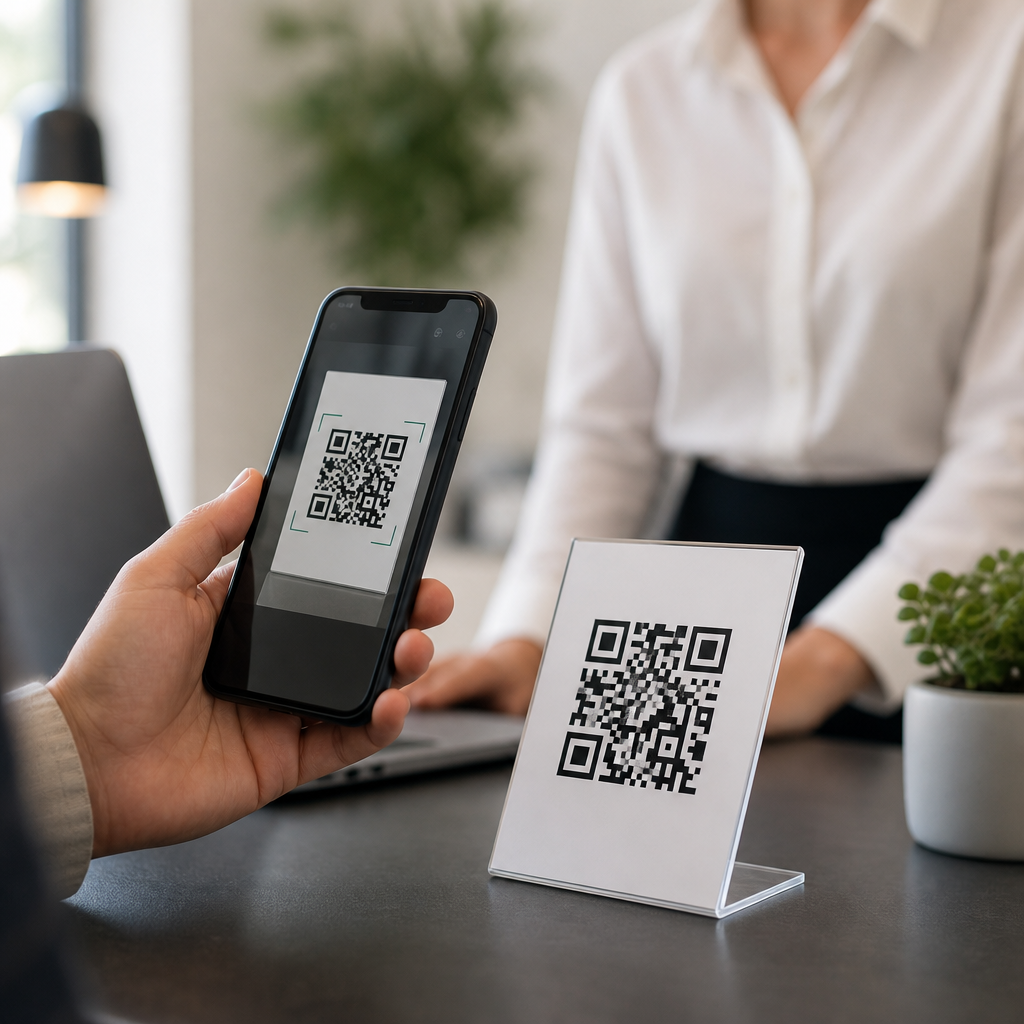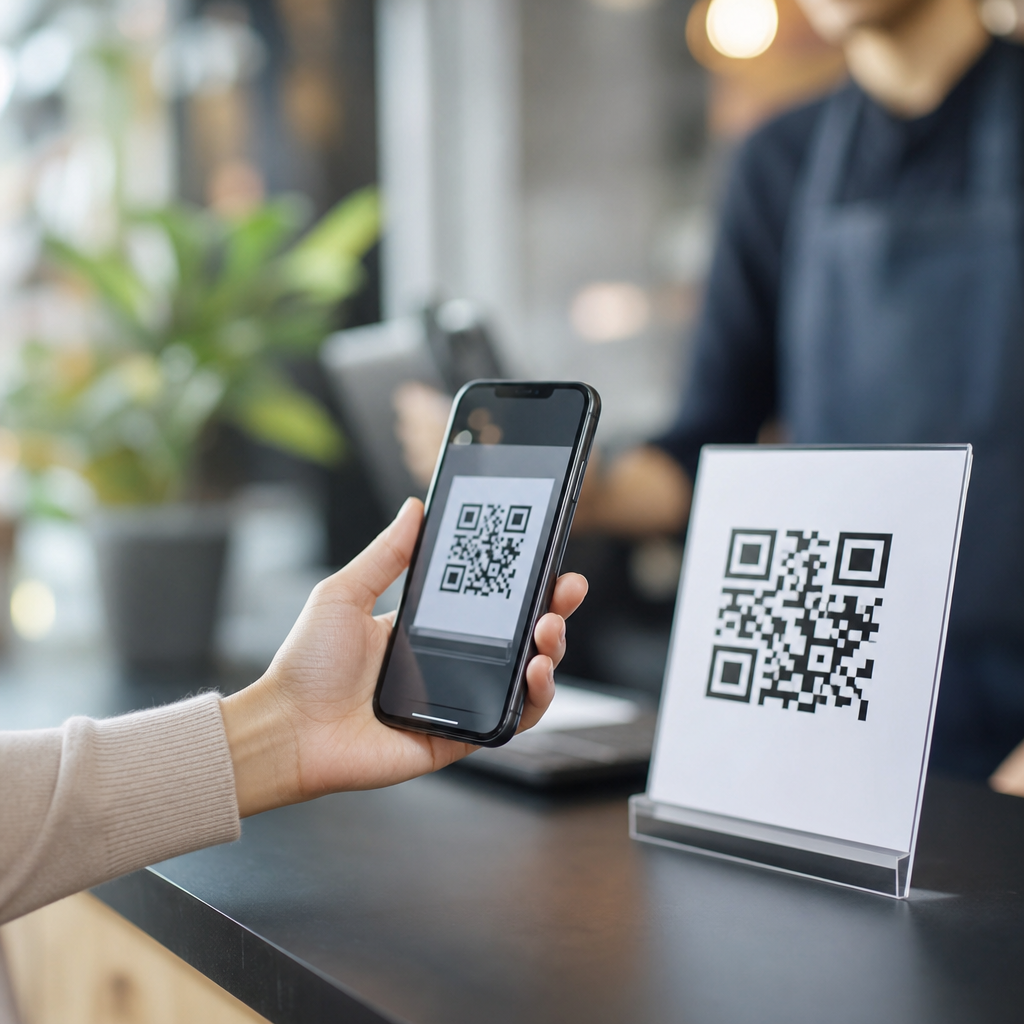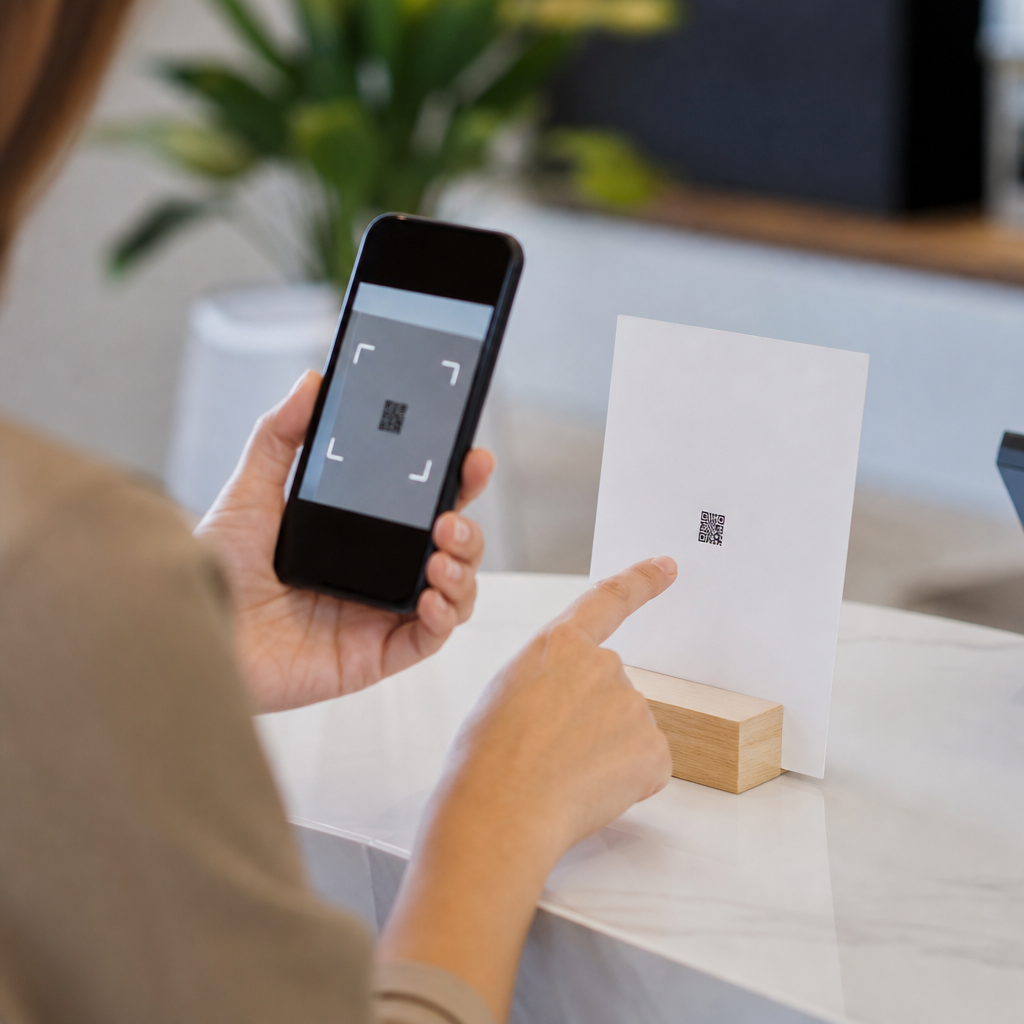
A QR code that looks sharp on screen can still fail in the real world because scan reliability depends on physical size, data density, contrast, print quality, and camera conditions working together. In technical troubleshooting, “too small” does not mean only the outer dimensions of the square; it also means each tiny module, the black and white cell inside the code, has become too small for a phone camera to separate cleanly. This issue matters because QR codes are often placed on packaging, menus, labels, posters, invoices, and equipment tags where a failed scan interrupts checkout, onboarding, support, or compliance workflows. I have tested QR codes on offset prints, thermal labels, acrylic signs, and mobile screens, and the same pattern appears every time: teams blame the scanner first, but the root cause is usually sizing decisions made before production. A useful rule is that scannability is determined by module size, quiet zone, viewing distance, and error correction, not by file format alone. If you are managing a broader troubleshooting library, this page serves as the technical hub for related questions such as blurry QR codes, low contrast, logo interference, print distortion, damaged labels, and why one phone scans while another fails. Understanding the size problem first makes every other QR code diagnostic faster and more accurate.
What “too small” actually means in QR code scanning
A QR code is a matrix of modules arranged in rows and columns. The more data you encode, the more modules the symbol needs, and the smaller each module becomes if the overall printed size stays fixed. Most scan failures blamed on size are really module-resolution failures. A simple URL may fit in a Version 2 or Version 3 code, while a long tracked URL with multiple parameters can push the symbol into a much denser version. If both are printed at 15 millimeters square, the dense code is far harder to scan because the camera has fewer pixels per module.
There is no universal minimum size that works in every environment, but industry guidance is consistent on the principles. A commonly used field rule is the 10-to-1 distance ratio: for every 10 units of scanning distance, provide 1 unit of QR code width. A code scanned from 20 centimeters away should therefore be about 2 centimeters wide, and that assumes decent lighting and moderate data density. Very small labels scanned at arm’s length often fail because the code was sized for a close-up inspection distance that never happens in practice.
The quiet zone also gets overlooked. ISO/IEC 18004 specifies a clear margin around the QR code, typically four modules wide on all sides. Designers crop this space to make the code fit a layout, but scanners use that border to detect the symbol boundary. When a small code also loses its quiet zone, the effective scan target becomes dramatically weaker.
Common technical causes behind a QR code that will not scan
The first cause is excessive data. Long URLs, UTM parameters, vCard details, Wi-Fi credentials, and serialized product data all increase symbol complexity. I routinely shorten encoded links before changing physical size because reducing data density can improve scan performance immediately. A dynamic short URL often scans better than a long static destination while preserving analytics and redirect flexibility.
The second cause is inadequate print or display resolution. On a thermal printer, small modules can bleed into each other. On low-cost office printers, toner spread softens corners and finder patterns. On digital screens, scaling a raster PNG can introduce interpolation artifacts, especially in messaging apps or presentation software. Vector formats such as SVG, EPS, and PDF preserve edge accuracy much better for production artwork.
The third cause is poor contrast. Black on white remains the safest combination because camera auto-exposure handles it well. Light gray on white, metallic inks, translucent materials, and glossy lamination reduce separation between dark and light modules. In troubleshooting, I have seen elegant brand palettes cut scan rates in half even when the code dimensions looked acceptable.
The fourth cause is environmental friction: dim lighting, reflections, curved surfaces, motion blur, dirty labels, and older smartphone cameras. A code wrapped around a bottle may be technically large enough yet fail because geometric distortion compresses modules near the edge.
Practical size guidelines for print, packaging, and screens
For close-range consumer scanning, 2 x 2 centimeters is usually the lowest comfortable starting point for simple URLs, not an automatic guarantee. For packaging, 2.5 to 3 centimeters often provides a safer margin once varnish, curvature, and shelf wear are considered. On posters or window signage scanned from farther away, the distance rule matters more than any fixed minimum. A code intended to be scanned from one meter should be roughly 10 centimeters wide.
Screen-based QR codes need their own logic. A code shown on a checkout tablet or self-service kiosk may scan well at smaller dimensions because brightness and contrast are controlled, but users still need time to frame the image. If the code occupies only a tiny corner of a busy display, scan speed drops. I recommend testing on both premium and midrange Android phones plus at least one older iPhone because autofocus behavior differs noticeably across devices.
| Use case | Typical scan distance | Recommended starting width | Notes |
|---|---|---|---|
| Product label | 10 to 20 cm | 2 to 3 cm | Increase size for dense data or curved packaging |
| Business card | 15 to 25 cm | 2 cm minimum | Protect the quiet zone from nearby text and logos |
| Restaurant table tent | 20 to 40 cm | 3 to 4 cm | Glossy coating can reduce reliability under overhead lights |
| Poster or storefront sign | 1 to 3 m | 10 to 30 cm | Use short URLs and high contrast for quick street scans |
How to diagnose whether size is the real problem
Start with a controlled comparison. Scan the same QR code from the production surface and from the original digital file on a high-resolution monitor. If the digital version works instantly but the printed version struggles, the issue is usually physical reproduction, size, or surface condition. Next, test with multiple devices and native camera apps before trying third-party scanners. Modern camera software varies in low-light handling, autofocus, and decoding tolerance.
Then inspect module clarity. Zoom in on a photo of the printed code. Are the square modules still discrete, or do they look rounded, smeared, or broken? Check the quiet zone with a ruler or design proof. I often find text, borders, dielines, or background graphics intruding into the required margin. Measure the code itself and estimate module size by dividing the width by the number of modules across. If a dense symbol produces modules under roughly 0.4 millimeters in print, caution is warranted, especially on non-premium substrates.
Finally, isolate data density by generating a new QR code that points to a shortened test URL and printing it at the same dimensions. If the simpler code scans and the original does not, the size may be adequate in theory, but inadequate for that specific amount of data. That distinction is important for technical troubleshooting because it changes the fix.
Best fixes when a QR code is too small to scan
The most effective fix is often to reduce encoded data first. Replace long destination strings with a short redirect, remove unnecessary parameters, and avoid embedding full contact records when a landing page can deliver the same information. This lowers the symbol version and creates larger modules without increasing physical size.
The second fix is to enlarge the code while preserving the quiet zone. If space is tight, reclaim room from decorative elements rather than trimming the border. A clean 25-millimeter code with proper margins will usually outperform a stylized 20-millimeter code squeezed into a badge or carton panel.
The third fix is to improve production quality. Use vector artwork, export at suitable resolution when raster is unavoidable, disable anti-aliasing in workflows that soften edges, and verify that printers are not over-inking small labels. On packaging, specify matte finishes where reflections are likely. On screens, avoid screenshots and compressed images that can blur module boundaries.
The fourth fix is to adjust error correction and branding choices carefully. Higher error correction helps when part of the code is damaged or obscured, but it also increases density. Teams sometimes add a central logo, raise error correction, and keep the same small footprint; the result looks polished but scans worse. If branding is required, compensate with a larger symbol and more conservative styling.
How this technical hub connects to other QR troubleshooting topics
Small size is the gateway issue because it overlaps with nearly every other technical failure mode. If a QR code is blurry, ask whether the modules were already near the minimum viable size before printing softened them further. If contrast is low, small modules lose separation faster than large ones. If a code works on one phone but not another, module size may be hovering at the edge of what weaker cameras can resolve. If a logo breaks scanning, a small dense code leaves less redundancy to absorb the obstruction.
That is why a strong FAQs and troubleshooting hub should route readers from this topic into focused guides on quiet zone violations, color and contrast requirements, vector versus raster export, packaging curvature, damaged labels, dynamic versus static QR codes, and scan testing protocols. In practice, I troubleshoot QR code issues with a simple order: verify destination and data length, confirm symbol size and margins, inspect print quality, evaluate contrast, then test real devices in real lighting. This sequence solves most failures quickly because it starts with the variables that most often break scanability.
If your QR code is too small to scan, the fix is rarely mysterious. Increase module size by enlarging the code or reducing the data, preserve the four-module quiet zone, use high contrast, and test on the actual surface and at the actual distance people will use. Those steps turn QR troubleshooting from guesswork into a repeatable process. Use this hub as your starting point, then review the related technical articles to diagnose the next constraint before you send another code to print.
Frequently Asked Questions
Why can a QR code look perfectly clear on screen but still be too small to scan in real life?
A QR code can appear sharp to the human eye and still fail because phone cameras do not read it the way people do. Scanning software has to detect the full square, identify the alignment patterns, separate every black and white module, and interpret the encoded data accurately. If the code is physically too small, each individual module may become too tiny for the camera sensor to distinguish cleanly, especially when the user is standing at a normal distance or moving slightly while trying to scan. In other words, “too small” often refers less to the outer square and more to the size of the tiny internal cells.
This becomes even more important when a QR code contains a lot of data. The more data stored, the more modules are packed into the same overall area. That means a code with a long URL, tracking parameters, or extra information can become much denser than a simple short link. Two QR codes printed at the same size may behave very differently if one has far more internal complexity. Add in glare, curved packaging, low contrast, soft print edges, or a lower-quality camera, and a code that seemed fine in a digital mockup can quickly become unreliable in the real world.
What size should a QR code be to scan reliably?
There is no single universal size that guarantees success in every situation, because scan reliability depends on viewing distance, data density, print quality, lighting, and the camera being used. That said, a practical rule is to size the QR code based on how far away people will scan it. A common guideline is that the code should measure about 1 unit of width for every 10 units of scan distance. For example, if someone will scan from 10 inches away, a 1-inch QR code may work well under good conditions. If the code will be scanned from several feet away, such as on signage, it must be much larger.
For printed materials handled up close, many professionals avoid going smaller than about 0.8 x 0.8 inches, and often prefer 1 x 1 inch or larger. On packaging, labels, menus, flyers, and business cards, larger is usually safer, especially if the code is data-heavy or printed on textured material. If the QR code will appear on outdoor posters, product boxes, or displays where the user may not be directly in front of it, increasing size significantly improves results. The safest approach is not to rely on minimums alone, but to test the actual printed code with multiple phones under realistic conditions before final production.
Does the amount of data inside a QR code affect whether it is too small to scan?
Yes, absolutely. Data volume has a direct effect on how dense a QR code becomes. A simple code that points to a short URL may have relatively few modules, while a code containing a long web address, UTM parameters, vCard information, Wi-Fi credentials, or other embedded content can require many more modules. If both codes are printed at the same physical size, the denser one will have smaller individual cells, which makes it harder for a phone camera to resolve them accurately.
This is why reducing data is often one of the best troubleshooting steps when a QR code seems too small. Using a short URL, a dynamic QR code, or a redirect link can dramatically simplify the pattern and improve readability without changing the printed dimensions. In many cases, people assume they need a bigger square when the real issue is that they are trying to fit too much information into it. If your design space is limited, simplifying the encoded content may be more effective than making only minor size increases.
What other factors besides size can make a QR code hard to scan?
Several real-world factors can make a QR code fail even if its dimensions seem reasonable. Contrast is one of the biggest. A standard dark code on a light background works best, while low-contrast color combinations, metallic surfaces, transparent overlays, or busy backgrounds can interfere with detection. Print quality also matters. If ink spreads, edges blur, or the code is reproduced at low resolution, the modules can lose definition. This is especially common on cardboard, fabric, textured labels, glossy packaging, and low-quality office printers.
Environmental and device conditions also play a major role. Poor lighting, reflections, curved surfaces, camera shake, dirty lenses, and older phone cameras can all reduce scan performance. So can design choices such as placing the code too close to other graphics, trimming away required quiet space around the code, or inverting colors without testing. Error correction helps a QR code tolerate some damage or obstruction, but it does not fix a code whose modules are too small or poorly reproduced. Reliable scanning comes from the entire system working together: size, spacing, contrast, material, printing method, and user camera conditions.
How can I fix a QR code that seems too small to scan on packaging or printed materials?
The most effective fix is usually to increase the physical size of the code, but that should be only one part of the solution. First, review the data being encoded. If possible, shorten the URL or switch to a dynamic QR code so the pattern becomes less dense. Next, make sure there is enough quiet zone, which is the empty margin around the code required for scanners to detect its boundaries. Then confirm that the code uses strong contrast, ideally dark on light, and that it is printed at high resolution on a surface that preserves clean module edges.
For packaging specifically, placement is critical. Avoid folds, seams, corners, curves, and glossy areas with heavy glare. Keep the code away from fine text, decorative patterns, and design elements that crowd the edges. If the package is small, it may be better to simplify the code rather than forcing a dense symbol into limited space. Most importantly, test early and test physically, not just on a monitor. Print prototypes at actual size, scan them with different phones, try them in normal lighting, and check performance from the expected user distance. In practice, successful QR troubleshooting is rarely about one magic measurement. It is about making sure the code’s module size, content density, print execution, and scanning conditions all support each other.