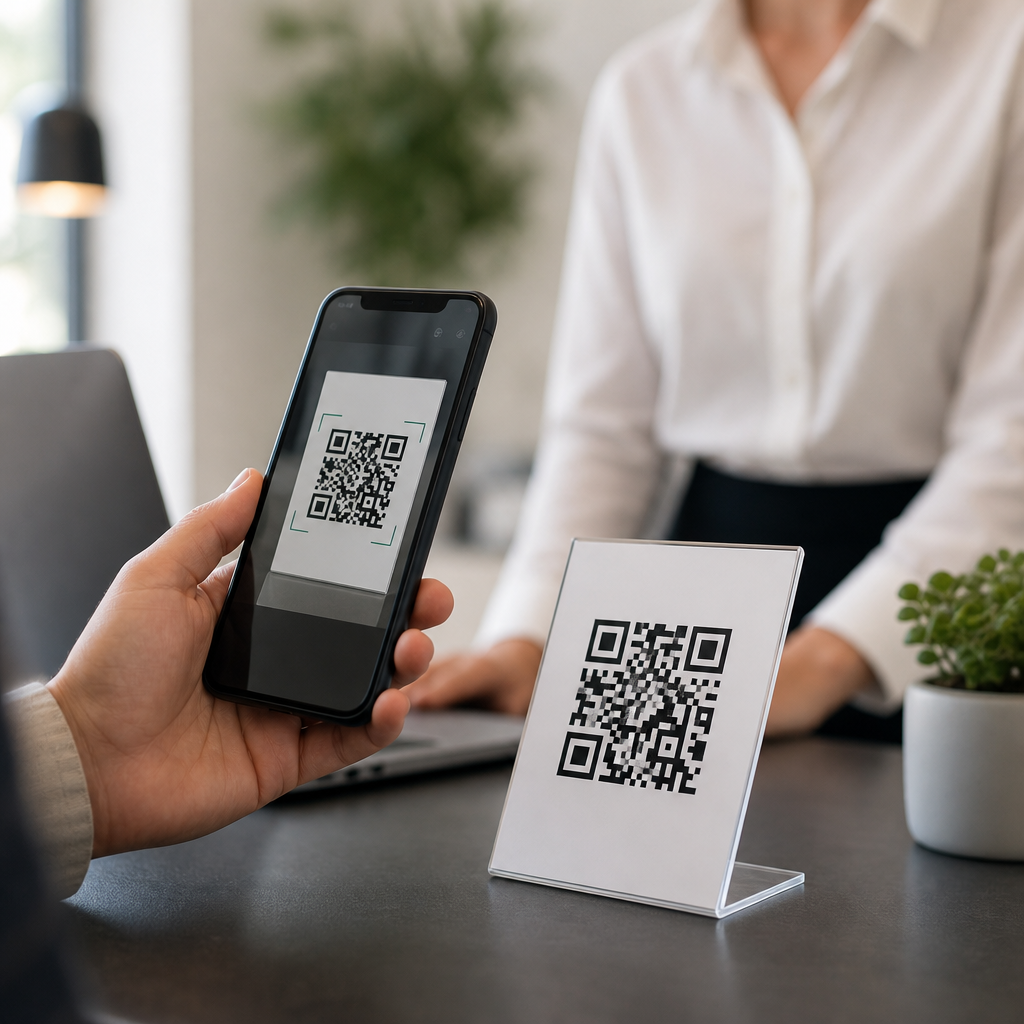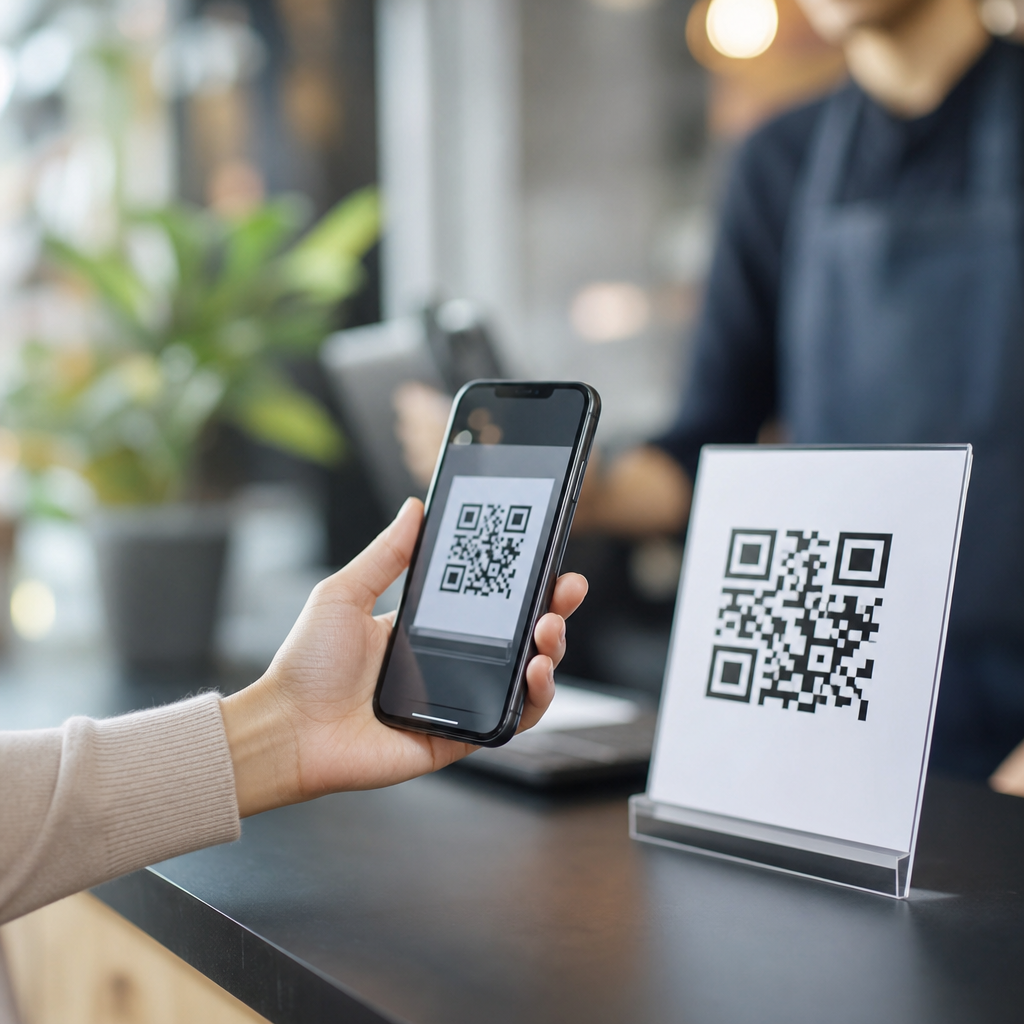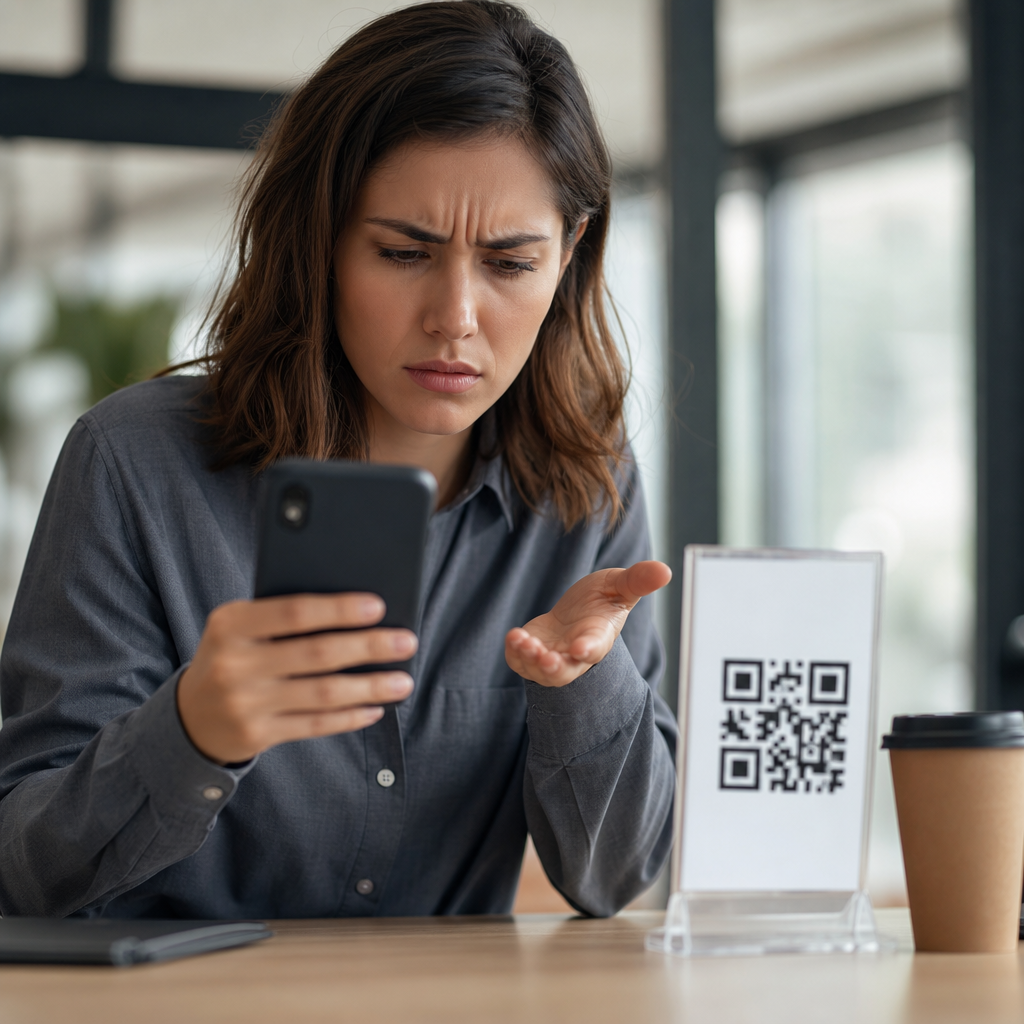
QR codes fail for predictable reasons, and most broken scans trace back to a small set of technical issues involving image quality, encoding, destination errors, device compatibility, or printing conditions. A QR code, short for Quick Response code, stores data in a two-dimensional matrix that a camera reads, interprets, and converts into an action such as opening a URL, joining Wi-Fi, starting a payment flow, or displaying text. When people ask, “Why is my QR code not working?” they usually mean one of three things: the camera cannot detect the symbol, the scanner detects it but cannot decode it, or it decodes the data but the final action fails.
That distinction matters because each failure point has a different fix. In my own troubleshooting work for marketing teams, restaurants, event organizers, and SaaS product managers, I have seen perfectly designed campaigns fail because a landing page was removed, a print vendor reduced code size below a usable threshold, or a branded code lost too much contrast. Technical FAQs around QR codes are not really about one problem; they are about the full chain from code generation to scan environment to content delivery. If you identify where the chain breaks, you can usually restore performance quickly.
This hub article explains the most common technical causes, how to diagnose them, and when to replace a code entirely. It also serves as a starting point for deeper troubleshooting across code format, scanners, printing, analytics, and destination setup. If you manage QR codes for packaging, menus, flyers, signage, support materials, or product onboarding, understanding these fundamentals will prevent expensive reprints and lost conversions.
Start by identifying where the failure happens
The fastest way to fix a nonworking QR code is to test the sequence in order: symbol detection, data decoding, and destination loading. First, ask whether multiple phones can even recognize the code outline. If they cannot, the issue is usually visual: size, blur, glare, low contrast, damaged quiet zone, or an overdesigned logo treatment. Second, if phones recognize the code but return gibberish or an error, the encoding may be corrupted, the export may be poor, or the wrong data type may have been selected. Third, if the scan opens a browser but the page fails, the QR code itself may be fine while the URL, redirect, DNS, SSL certificate, app deep link, or mobile experience is broken.
A simple test matrix saves time. Try at least one recent iPhone using the native Camera app, one recent Android device using Google Lens or the built-in camera, and one third-party scanner. Test both the original digital file and the printed version. If the digital file scans but the printed copy does not, look at print resolution, material, and placement. If neither version scans, review the source export and encoded content first.
Common technical causes of QR code scan failure
Most QR code problems fall into a few repeatable categories. The table below summarizes what typically goes wrong, how it appears to users, and what to check first before regenerating the asset.
| Problem | Typical symptom | Primary cause | First fix to test |
|---|---|---|---|
| Code too small | Camera never detects code | Insufficient module size for distance | Increase printed dimensions and retest |
| Low contrast | Detection is inconsistent | Light foreground on light background | Use dark modules on a light matte background |
| Blurry export | Code appears soft or pixelated | Raster image resized beyond native resolution | Export as SVG, EPS, or high-resolution PNG |
| Broken quiet zone | Some apps ignore the code | Text or graphics too close to edges | Restore a clear margin around the symbol |
| Over-customized design | Native cameras fail, some apps work | Logo, rounded modules, or inverted colors reduce readability | Simplify styling and raise error-correction margin carefully |
| Dead destination | Scan opens error page | 404, redirect loop, SSL issue, or expired campaign URL | Check final URL on mobile browsers directly |
In practice, size and contrast are the biggest offenders. A code on a business card may work at arm’s length, while the same code on a poster fails from several feet away because each square module becomes too small for the camera sensor. As a working rule, the farther away the scan, the larger the code must be. Print shops often remember overall dimensions but forget that dense codes containing long URLs have more modules, making each module smaller within the same physical space.
Design and print mistakes that break otherwise valid codes
A valid QR payload can still be unreadable if the symbol is produced badly. The most common print mistake is exporting a small PNG from a web tool and then enlarging it in design software. That introduces blur along module edges, especially after compression in platforms like Canva, PowerPoint, or some online print portals. Vector formats such as SVG or EPS are safer for print because they scale without softening edges.
Quiet zone errors are another frequent cause. Internationally used specifications for QR symbols require a clear margin around the code, typically four modules wide. Designers often place text, borders, icons, or patterned backgrounds too close to the symbol, which makes it harder for scanners to separate the code from surrounding content. I have also seen foil, gloss laminate, curved bottles, window glare, and wrinkled labels interfere with scanning even though the artwork looked sharp on screen.
Color choices matter more than many teams expect. Dark-on-light works because scanners rely on luminance contrast, not brand aesthetics. Reverse codes with white modules on a black background sometimes work in modern apps, but they are less dependable across devices. Metallic inks, transparent overlays, and busy photography behind the code lower recognition rates. If branding is important, keep customization modest and validate on several devices before mass production.
Destination and content issues after a successful scan
If a phone recognizes the QR code and opens something, the symbol itself is probably not the problem. The next layer is the destination. Static QR codes embed the final data directly, so if you encoded the wrong URL, phone number, or text string, the only fix is to replace the code everywhere it appears. Dynamic QR codes route through a short link managed by a platform, which lets you change the destination later, but adds another potential point of failure if the service misconfigures redirects or the subscription lapses.
Check the exact final URL on a mobile browser without using the QR code. Look for 404 pages, 403 permission blocks, redirect chains, expired domains, broken UTM parameters, invalid deep links, or SSL certificate warnings. A page that works on desktop but fails on mobile is also common, especially with PDF downloads, app-store redirects, geo-based routing, and authentication walls. For restaurant menus and event tickets, large PDFs can feel like a broken code simply because they load too slowly on cellular connections.
Analytics tools can help isolate this layer. Platforms such as Bitly, QR Code Generator, Beaconstac, Flowcode, and Uniqode usually report scan events separately from landing-page sessions. If scan counts remain healthy while conversions or page loads collapse, the issue sits downstream in hosting, routing, or page experience rather than in the QR image.
Device, app, and environment factors users overlook
Not every scan failure is caused by the code owner. Older phones may struggle with dense symbols, cracked camera lenses reduce sharpness, and some default camera apps handle QR detection better than others. Low light, motion blur, extreme viewing angles, and reflective surfaces all reduce decoding reliability. Public signage behind glass routinely underperforms because users are scanning at an angle while contending with reflections and autofocus hunting.
Encoding choices also affect compatibility. Wi-Fi QR codes, vCard contact cards, SMS actions, and app deep links depend on standardized formatting, and a small syntax mistake can break the intended action. Long URLs create denser patterns than short URLs, so shortening links through a reputable redirect service often improves scannability. However, extra redirects should be minimized because each hop increases the chance of timeout or security filtering.
Some enterprise environments block unknown short domains, and some social apps open links in restricted in-app browsers that behave differently from Safari or Chrome. That is why testing should include native camera apps, messaging apps, and social app browsers if your audience is likely to scan from those contexts.
How to troubleshoot, fix, and prevent future QR code problems
Use a disciplined checklist. Verify the payload first by scanning the original file and copying the decoded result. Confirm the destination loads on iOS and Android over both Wi-Fi and cellular. Inspect the artwork for contrast, quiet zone, and vector quality. Measure physical size against expected scanning distance. Review material, finish, curvature, and placement. Then test under real conditions: on the wall, on the package, in the store, in sunlight, and from the angle customers actually use.
For prevention, keep URLs short, export print assets as vector files, maintain strong contrast, avoid excessive logo coverage, and use dynamic codes when the destination may change. Archive the exact encoded content, final artwork, and print specifications so teams can reproduce a working version later. This hub should guide every technical FAQ you encounter because the answer is usually systematic, not mysterious.
A QR code that is not working is rarely random. It is usually failing at detection, decoding, or destination delivery, and each stage can be tested directly. The most reliable codes are simple, high-contrast, adequately sized, exported cleanly, and pointed to fast mobile-friendly content. The biggest operational lesson is to test the full journey before launch and after any content, hosting, or print change.
If you manage QR codes across campaigns or support documentation, use this page as your troubleshooting baseline and audit your existing codes now. A few minutes of structured testing can prevent failed scans, frustrated users, and wasted distribution.
Frequently Asked Questions
Why is my QR code not scanning at all?
If your QR code does not scan at all, the most common causes are poor image quality, low contrast, damage to the code, or a scanning environment that makes it hard for the camera to read the pattern. A QR code works by storing information in a grid of small black and white modules. If those modules are blurred, stretched, cropped, pixelated, covered, or printed too small, the scanner may not recognize the code as valid. Even something as simple as glare on a glossy surface, dim lighting, or a phone camera struggling to focus can prevent a successful scan.
Another frequent issue is the quiet zone, which is the blank margin around the QR code. That empty space is not optional. Scanners use it to detect where the code begins and ends. If text, graphics, borders, or background patterns are placed too close to the code, the scanner may fail before it even attempts to decode the content. This is especially common in marketing designs where the QR code is visually integrated into a busy layout.
To troubleshoot, start with the basics. Test the code on multiple phones and with more than one scanning app. View it on screen and in print if both versions exist. Check that the code is sharp, high-resolution, and not distorted. Make sure there is strong contrast, ideally a dark foreground on a light background. Confirm that the full code and its surrounding margin are visible. If it is printed, inspect it for smudges, folds, ink spread, or scaling problems. In many cases, a non-scanning QR code is not broken in a mysterious way; it is simply difficult for the camera to detect clearly and consistently.
Why does my QR code scan but go to the wrong place or show an error?
If the QR code scans but opens the wrong webpage, produces an error message, or triggers the wrong action, the problem is usually in the encoded data rather than the visual code itself. A QR code is only a container. It does not “know” what you intended; it only delivers exactly what was encoded. If the URL has a typo, includes the wrong protocol, points to a deleted page, contains broken tracking parameters, or was copied incorrectly during creation, the code may scan perfectly while still failing for the user.
This happens often with links that were changed after the code was generated. For example, if you encoded a direct link to a landing page and later that page was removed, renamed, redirected badly, or blocked, the QR code will continue sending users to that outdated destination. The same applies to payment links, app deep links, Wi-Fi credentials, vCard information, calendar events, and SMS templates. The scan works, but the content behind it is wrong, incomplete, or no longer valid.
The best way to diagnose this is to inspect the encoded result directly. Scan the code yourself and look carefully at the full destination. If it is a URL, check for spelling errors, missing slashes, extra spaces, incorrect capitalization in case-sensitive paths, and formatting issues. Open the destination on different devices and networks. If you are using a dynamic QR code platform, verify that the destination configured in the dashboard matches what you expect and that the service is active. A QR code that scans but leads nowhere is usually a content or destination management problem, not a scanning problem.
Can image resizing, compression, or design customization break a QR code?
Yes, absolutely. QR codes are more durable than many people assume, but they are not immune to poor resizing, aggressive compression, or heavy visual customization. A QR code depends on precise square modules arranged in a strict pattern. When the image is stretched non-proportionally, exported at too low a resolution, compressed into artifacts, or edited in a way that changes module edges, scanners may no longer read it reliably. This is especially common when a code is downloaded as a small raster image and then enlarged for posters, packaging, or signage. Enlarging a low-resolution PNG or JPEG does not add detail; it only magnifies blur and distortion.
Customization can also introduce scanning problems. Adding logos, changing colors, rounding module shapes, using gradients, or placing the code on a patterned background can all work if done carefully, but they reduce tolerance for error. If the contrast becomes too weak, the finder patterns are altered too much, or the logo covers more area than the built-in error correction can handle, the code may fail on some devices even if it still works on others. A code that appears stylish in a mockup may be inconsistent in real-world scanning conditions.
To avoid these issues, use vector formats like SVG, EPS, or PDF whenever possible for print and large-format use. Maintain the code’s proportions exactly. Preserve a clear quiet zone around it. Keep the foreground dark and the background light. If you add a logo or custom branding, test extensively across iPhone and Android devices, in bright and low light, and at multiple distances. Good QR code design balances branding with machine readability. If a design choice makes the code harder to scan, the design is no longer helping the user.
Why does my QR code work on some phones but not others?
When a QR code works on some phones but not others, that usually points to differences in camera quality, autofocus performance, operating system behavior, built-in scanner capabilities, or the way certain apps interpret encoded data. Not every device reads QR codes equally well. Newer phones generally have better image sensors, faster focusing, and stronger native support for QR actions. Older devices may struggle with small codes, reflective surfaces, low contrast, or dense codes that contain a lot of data.
Compatibility issues are also more likely when the QR code triggers something beyond a basic web link. URLs are usually the most universally supported. But Wi-Fi setup codes, app deep links, payment flows, contact cards, and special URI schemes can behave differently depending on the phone model, browser, camera app, and installed applications. In some cases, the code itself is valid, but the user’s device does not know how to handle the action properly. For example, a payment or app-specific code may require a compatible app that is not installed, or a deep link may fail if mobile routing is configured incorrectly.
The solution is to test with realistic user conditions. Try multiple devices, multiple camera apps, and both native and third-party scanners. If the article or campaign is aimed at the general public, prefer simple destinations such as standard HTTPS URLs. If you must encode specialized actions, provide a fallback page or alternative instructions. Also keep the code physically large enough and visually clean enough that lower-end cameras can still capture it. Cross-device inconsistency does not always mean the QR code is defective; often it means the implementation is too narrow for the variety of devices people actually use.
How do printing conditions and placement affect whether a QR code works?
Printing conditions and physical placement have a major impact on QR code performance. A code that scans perfectly on a computer monitor can fail once it is printed on packaging, menus, posters, labels, or product inserts. The most common print-related problems are small size, poor ink quality, blurred edges, low contrast, glossy glare, curved surfaces, folds, and placement where users cannot easily frame the code with a camera. A QR code is not just digital content; it is a physical object that has to survive real-world viewing conditions.
Size matters more than many people realize. If a code is too small for the expected scanning distance, users will struggle to focus on it. Likewise, if it is placed too high, too low, behind glass, near reflective materials, or on a moving surface, the camera may never get a clean read. Printing on textured cardboard, metallic materials, transparent labels, or dark backgrounds can also reduce definition and contrast. Even slight ink bleed can make the small modules merge together, especially in dense QR codes with a lot of encoded data.
Best practice is to match the code’s printed size to the likely scanning distance, use crisp high-resolution or vector artwork, and print with strong contrast on a matte, non-reflective surface whenever possible. Keep the code flat, unobstructed, and separated from other visual elements. Before full production, print a real sample and test it under actual use conditions: different lighting, different phones, and different angles. Many QR code failures are discovered only after printing because what works in a digital preview does not always work in the physical environment where people are expected to scan.