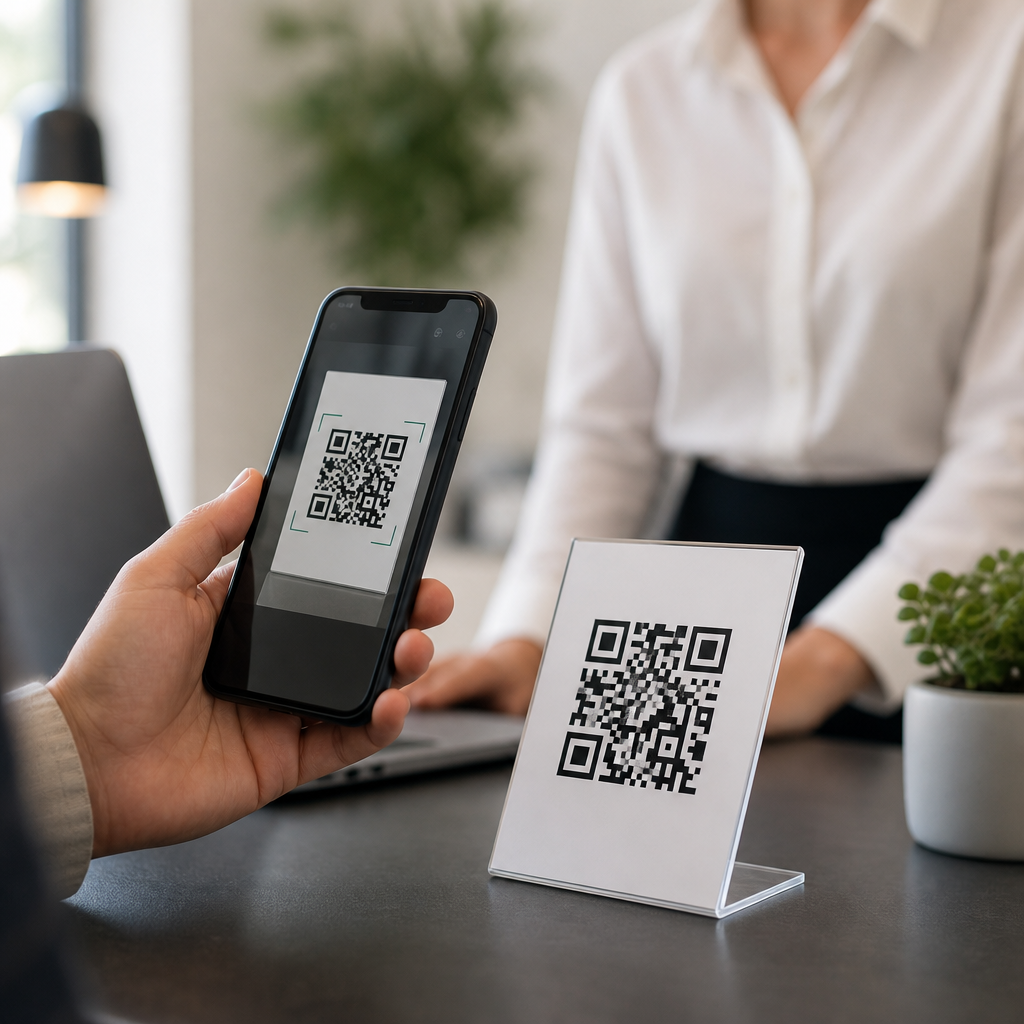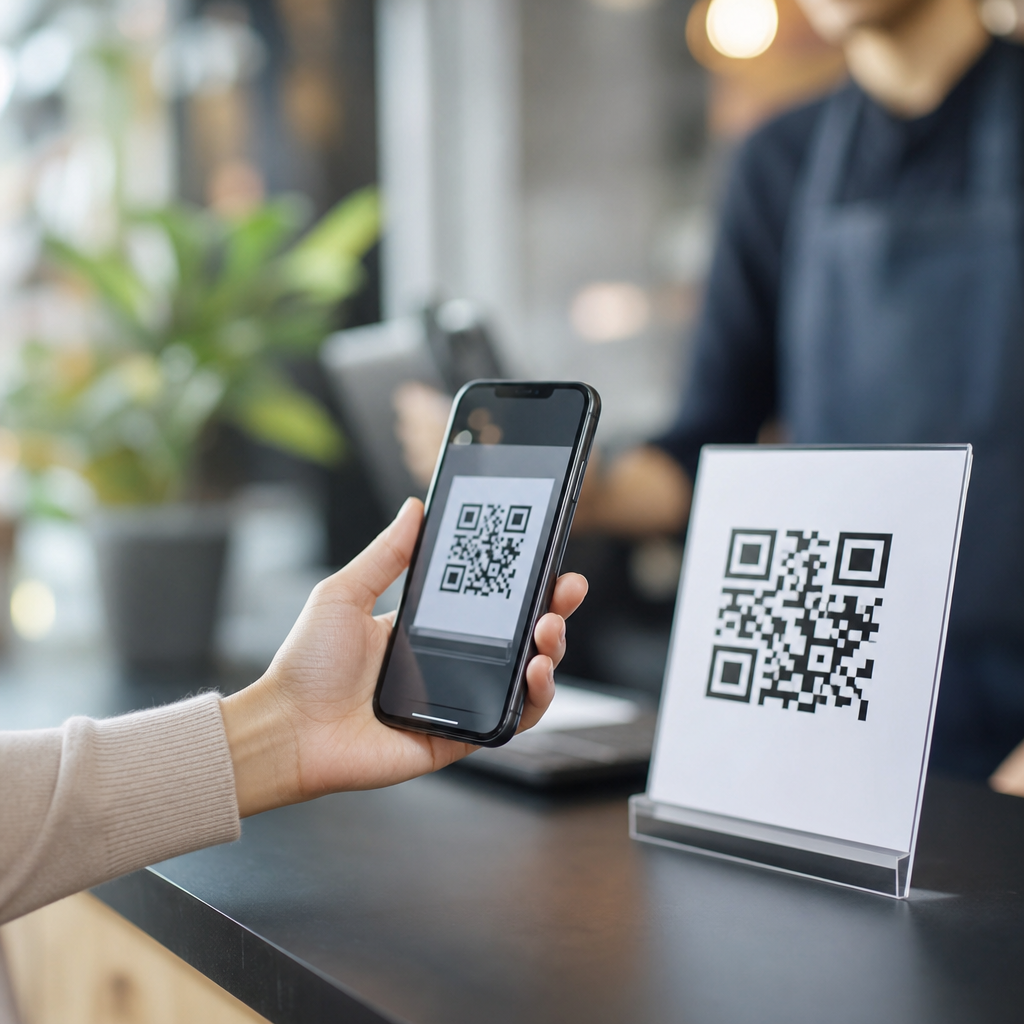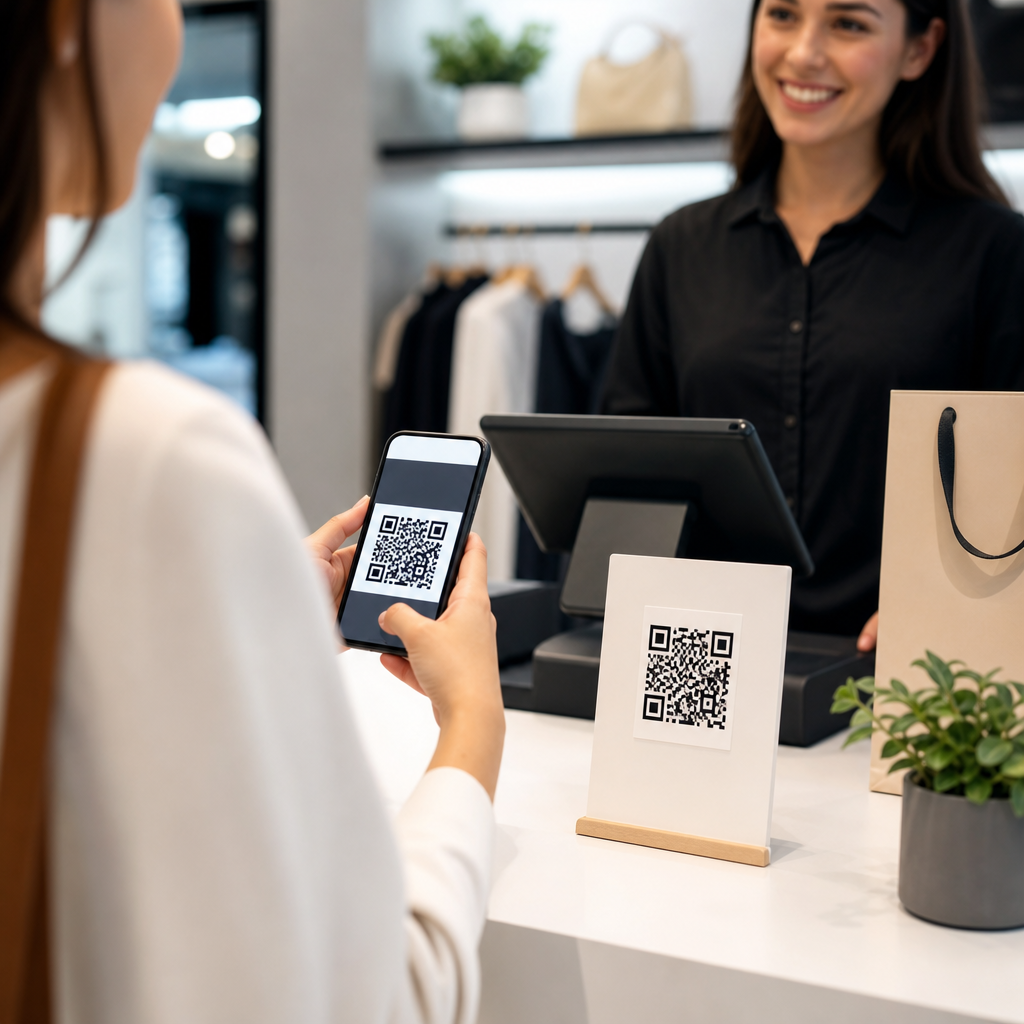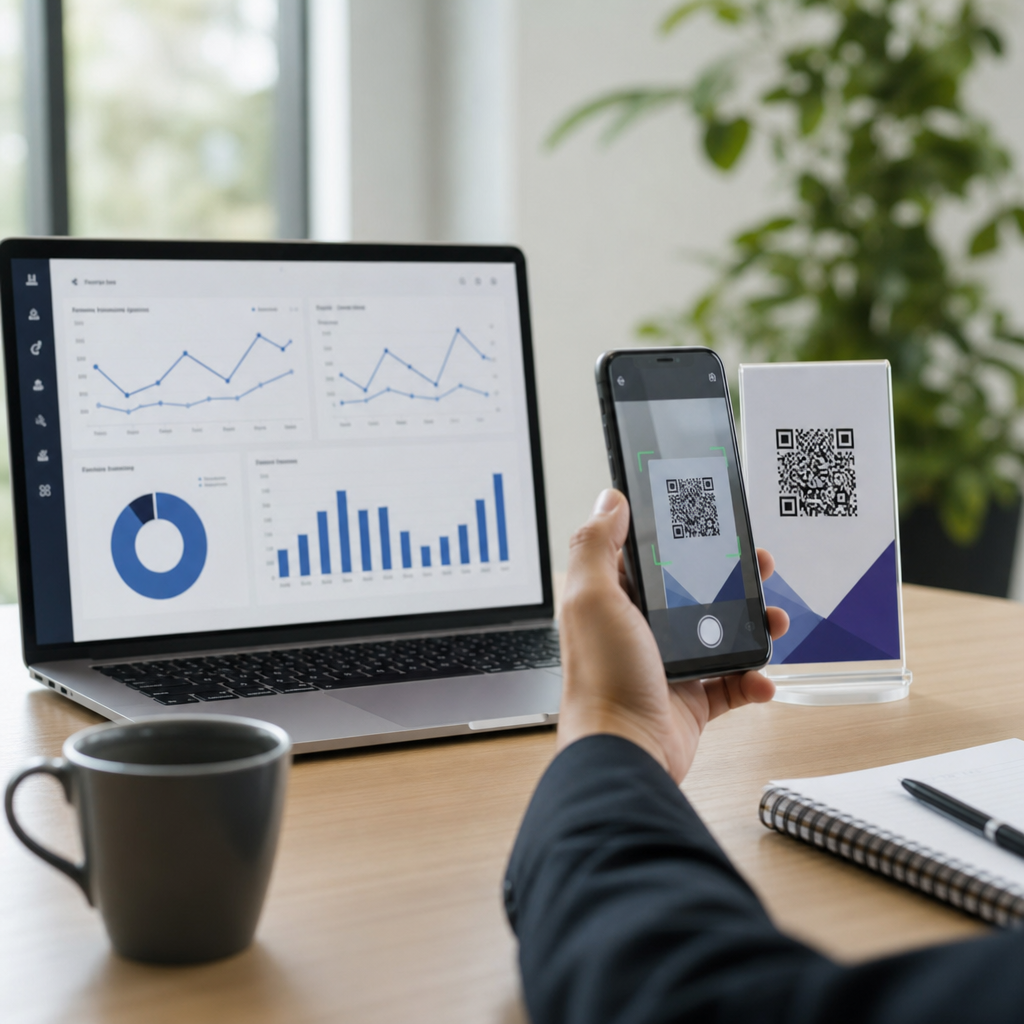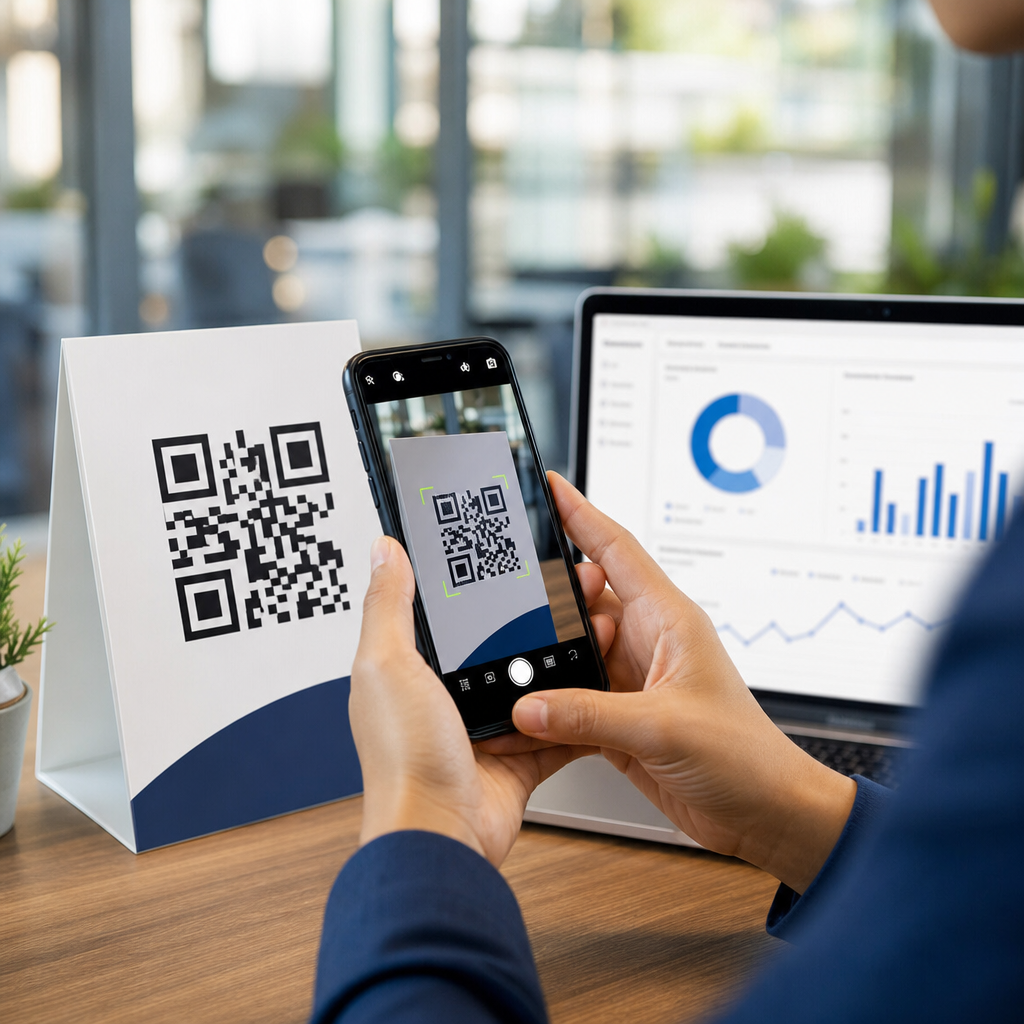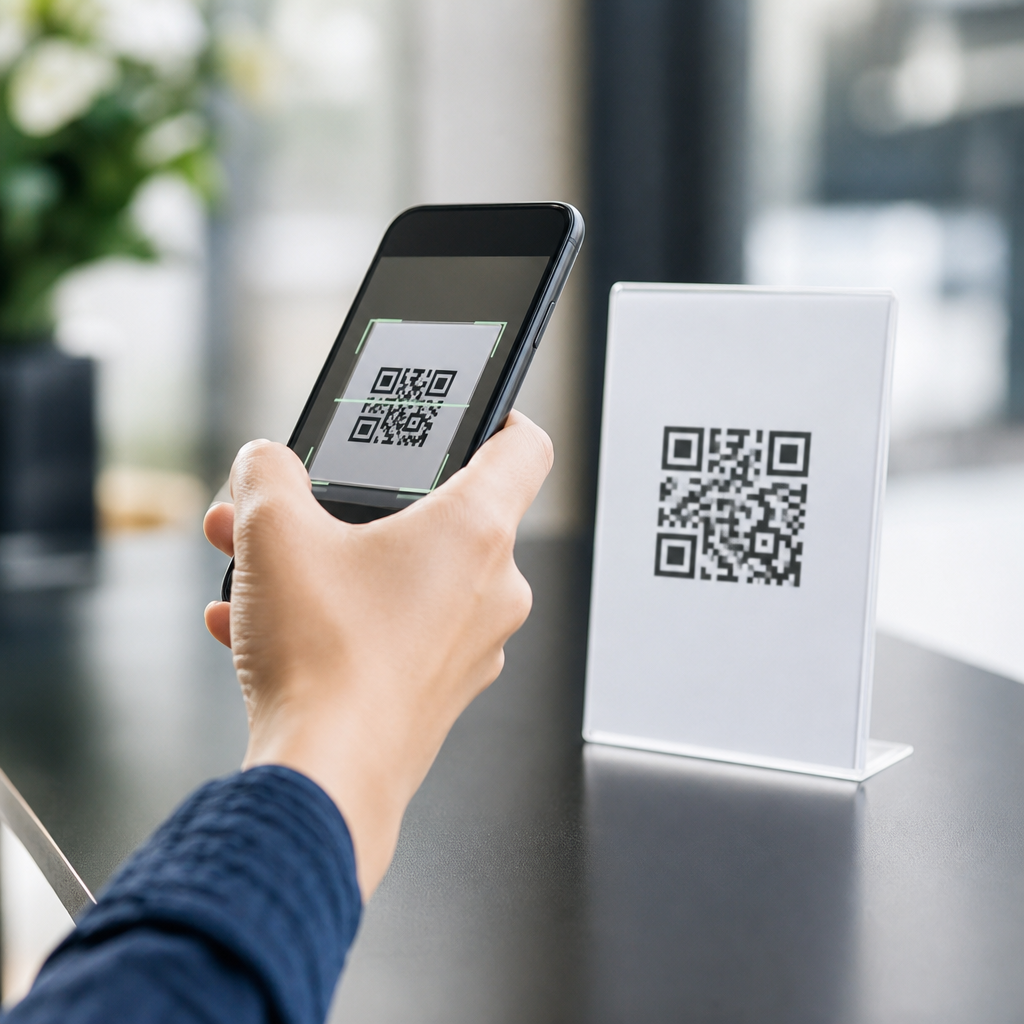
Choosing the best QR code scanner app depends on your phone, privacy expectations, and how often you scan codes in everyday situations such as menus, payments, tickets, Wi-Fi setup, and device logins. A QR code scanner app is any mobile tool that reads a Quick Response code through the camera, decodes the embedded data, and sends you to an action such as opening a website, joining a network, saving a contact, or starting a payment flow. That sounds simple, but the experience varies sharply between built-in camera scanners, browser-based readers, wallet apps, and dedicated scanner apps. After testing many options across iPhone and Android devices, I have found that the “best” choice is usually the one that combines fast detection, clear link previews, low permission demands, and reliable handling of different QR formats without flooding the screen with ads.
This matters because QR codes now sit inside routine mobile behavior. Restaurants use them for ordering, carriers print them for eSIM activation, workplaces use them for multifactor authentication, and messaging apps rely on them for device pairing. A weak scanner creates friction at exactly the moment a user expects speed. Worse, a careless scanner can expose people to malicious redirects, fake login pages, or hidden tracking parameters. For a hub page focused on mobile-specific FAQs, the right approach is not to name a single winner for every reader, but to explain which scanner type fits each scenario, what features actually matter, and where common troubleshooting issues begin. In practice, most users need fewer app downloads than they think, but they do need better criteria for deciding when the default camera is enough and when a dedicated QR code scanner app is worth installing.
Best QR Code Scanner App for Most People
For most iPhone users, the best QR code scanner app is no app at all: the built-in Camera app or the Code Scanner control in Control Center. Apple’s native scanner is fast, deeply integrated, and safer than many third-party alternatives because it shows a banner before opening a link. It also supports App Clips, Wi-Fi login codes, and many payment or setup flows without extra configuration. On Android, the best default option is usually Google Lens, either inside the Camera app on Pixel phones and many Samsung devices or through the standalone Google app. Lens reads standard URLs, text, and complex visual content well, and it benefits from Google’s image recognition stack, which makes detection quick even in uneven lighting.
If you want a dedicated QR code scanner app, look for one with three traits: minimal permissions, no aggressive ads, and a visible URL preview before opening a link. In repeated testing, scanners that demand contacts, location, call access, or constant notifications rarely justify those requests. A good app needs camera access, perhaps local history storage, and little else. If your use case includes inventory tags, event check-in, or batch scanning for work, a specialized scanner can outperform default camera tools because it keeps a scan history, exports results to CSV, and stays locked in scan mode instead of kicking you out after every read. That is useful in retail, warehousing, field service, and classroom device management, where speed and repeatability matter more than consumer extras.
How to Choose the Right Scanner for iPhone and Android
The right QR code scanner app depends on operating system behavior, not just app ratings. On iPhone, Apple tightly controls camera access and background behavior, so native tools are consistently smooth. The main question is whether you need history, batch scanning, or nonstandard barcode support such as Code 128 or Data Matrix. On Android, behavior varies by manufacturer. Samsung’s Camera app, Google Lens, and some OEM scanners differ in how they preview links, handle permissions, and switch between photo and scan modes. That is why two people with Android 14 may report very different results.
When I evaluate scanners, I use a practical checklist that maps closely to common mobile-specific FAQs. Does the app scan instantly from a lock screen shortcut? Does it work offline for text-only codes? Can it read a code on another screen without glare? Does it preserve scan history when the app is closed? Does it warn before opening a suspicious domain? Can it handle upside-down codes, damaged printouts, and low-contrast labels? These are more important than cosmetic design. A clean interface matters, but successful scanning under real-world conditions matters more.
| Use Case | Best Option | Why It Works |
|---|---|---|
| Restaurant menu, ticket, simple website | Built-in Camera app or Google Lens | Fast access, no extra install, reliable link detection |
| Wi-Fi setup, App Clip, device pairing | Native phone scanner | OS integration handles setup prompts correctly |
| Workflows with repeated scans | Dedicated scanner app | History, batch mode, export features, continuous scanning |
| Older phone with weak camera software | Lightweight third-party scanner | May focus faster and maintain scan mode better |
| Security-conscious user | Native scanner with link preview | Fewer permissions and less ad-related risk |
Features That Actually Matter in a QR Code Scanner App
The most important feature is accurate decoding with clear user confirmation. A scanner should identify the QR payload type before opening it. That means telling you whether the code contains a URL, vCard, calendar event, SMS template, geographic location, or Wi-Fi credentials. Good apps also normalize malformed links, detect shortened URLs, and let you copy the result without launching it. In security reviews, that copy-only option is underrated because it gives users a safe pause before visiting an unknown destination.
Speed and camera handling come next. QR recognition depends on autofocus, exposure control, and frame processing. A strong scanner locks onto the code within a second or two, even under fluorescent light or on glossy packaging. It should handle inverted color codes, slightly damaged corners, and screens with brightness fluctuations. History is another practical feature, especially for travelers, field technicians, and support teams who need to revisit a boarding pass, setup link, or asset tag later. Some of the better apps also integrate flashlight access, duplicate detection, and export logs. Those functions are not glamorous, but they solve real problems that arise after the first scan, not before it.
Common Mobile-Specific FAQ Issues and Fixes
Many users ask the same questions: Why is my phone not recognizing QR codes? Why does the scanner open the wrong app? Why is the code blurry on my screen? Why does scanning work in one app but not another? The first fix is simple: clean the camera lens and increase ambient light. Smudges and low contrast cause more failures than software bugs. On iPhone, make sure Scan QR Codes is enabled in Settings under Camera. On Android, verify that Lens suggestions or equivalent scanner settings are turned on in the camera app. If scanning still fails, step back slightly; phones often focus better at a modest distance than when pressed too close.
Another frequent problem is interference from app permissions or overlays. Some users install utility apps that take over default browser actions or add floating screen tools that disrupt camera focus. If a QR code opens the wrong destination, inspect the visible URL before tapping and check whether a browser extension, secure DNS service, or in-app browser is rewriting the request. For eSIM activation, payment codes, and authenticator setup, use the native scanner when possible because those workflows rely on operating system handoffs. If the QR code is displayed on the same phone you need to scan with, use built-in photo recognition from the screenshot gallery. Both Apple Photos text detection and Google Photos with Lens can often read a QR code from an image already saved on the device.
Privacy, Security, and When a Dedicated App Is Worth It
A QR code scanner app should never be judged only by scan speed. Security matters because QR codes hide their destination until the software reveals it. A trustworthy scanner shows the full domain, not just a page title, and asks for confirmation before opening external links. Be cautious with scanners monetized through aggressive advertising SDKs, because ad frameworks can introduce trackers, confusing buttons, or fake system prompts. On Android especially, avoid APKs from outside official stores unless your organization manages them through a mobile device management platform with signed distribution controls.
A dedicated app is worth installing when your scanning behavior is repetitive, compliance-sensitive, or operational. In logistics, teams often need timestamped scan logs. In healthcare or education, staff may need predictable scan history and export options for auditing. In technical support, I have used dedicated scanners to document test results across dozens of printed labels because continuous mode is faster than reopening the camera after every read. For ordinary consumers, though, the built-in scanner remains the best QR code scanner app more often than not. It is already on the phone, receives platform-level updates, and avoids the clutter and risk that come with mediocre third-party apps.
The best QR code scanner app is the one that matches your mobile workflow while keeping scanning fast, transparent, and safe. For most people, that means the built-in Camera app on iPhone or Google Lens on Android, because both offer strong accuracy, clean permissions, and reliable handling of common QR tasks. A dedicated scanner makes sense when you need continuous scanning, saved history, exports, or broader barcode support for work. Those are specialized needs, not universal ones.
As a hub for mobile-specific FAQs, this page should guide your next step: start with your phone’s native scanner, test it with the codes you use most, and only add a third-party app if a clear limitation appears. If you are troubleshooting a specific issue such as blurry scans, screenshot scanning, eSIM activation, or QR safety warnings, move to the related articles in this hub and solve that problem directly.
Frequently Asked Questions
What is the best QR code scanner app for most people?
For most people, the best QR code scanner app is often the one already built into their phone’s camera. On modern iPhones, the native Camera app can scan QR codes quickly and reliably without installing anything extra. Many Android phones offer the same feature through the default camera, Google Lens, or the manufacturer’s camera software. That built-in approach is usually the best starting point because it is fast, convenient, and less likely to introduce privacy or security risks from unnecessary third-party apps.
That said, “best” depends on how you use QR codes. If you only scan codes occasionally for restaurant menus, event tickets, package tracking, or website links, the built-in camera is usually ideal. If you scan codes often for payments, inventory, work devices, Wi-Fi setup, or business workflows, a dedicated QR code scanner app may offer extra features such as scan history, batch scanning, flashlight controls, better low-light performance, or support for barcode formats beyond QR codes.
The strongest choice is the one that matches your device, scanning habits, and privacy expectations. A good scanner should recognize codes quickly, show you the destination before opening it, handle common actions like joining networks or opening payment apps smoothly, and avoid excessive permissions or intrusive ads. In other words, the best app is not always the one with the longest feature list. It is the one that scans accurately, respects your data, and works consistently in real-world situations.
Do I need a separate QR code scanner app, or is my phone camera enough?
In many cases, your phone camera is enough. Most current smartphones can scan QR codes directly from the built-in camera app, making a separate download unnecessary for everyday use. If your goal is simply to open a web link, pull up a menu, access a boarding pass, connect to Wi-Fi, or sign in to a device, the camera on a recent iPhone or Android phone usually handles the job perfectly well.
A separate app becomes more useful when you want more control or more features. For example, some people want a saved history of past scans, better support for scanning in dim light, automatic copying of decoded text, or compatibility with a wider range of codes used in retail, logistics, or office settings. Dedicated apps can also be helpful on older phones where the camera software does not recognize QR codes consistently or at all.
Another factor is user experience. Built-in camera scanning is often the simplest and safest path, but it is not always the most informative. Some dedicated apps provide a clearer preview of what the code contains before taking action. That can be helpful if you are cautious about suspicious links, unfamiliar payment codes, or public posters and flyers. So while many users do not need a separate app, there are valid reasons to choose one if you scan often or want extra convenience and visibility.
How can I tell if a QR code scanner app is safe and private?
A safe and private QR code scanner app should ask for only the permissions it truly needs, and for most scanners, that primarily means camera access. If an app wants your contacts, precise location, microphone, or unrelated storage access without a clear reason, that is a warning sign. You should also look closely at the developer’s reputation, the app’s update history, and user reviews that mention security, pop-ups, or misleading behavior.
Good scanner apps are transparent about what happens after a scan. Ideally, they show the destination first rather than immediately opening a website or launching an action without your confirmation. That matters because QR codes can point to malicious sites, deceptive login pages, or unexpected downloads. The safer experience is one where you can review the link, recognize the domain, and decide whether to continue. Some apps also offer built-in link checks or warnings about suspicious destinations, which can add another layer of protection.
Privacy also comes down to data collection. If the app stores scan history in the cloud, shares analytics extensively, or fills the screen with aggressive ads, it may not be the best choice for sensitive use cases. This is especially important if you scan payment requests, work logins, private event tickets, or business credentials. In general, built-in camera scanners from Apple, Google, or major phone makers are often a more privacy-conscious baseline. If you do choose a third-party app, prefer one from a reputable developer with a clear privacy policy, minimal permissions, and a simple, trustworthy interface.
What features matter most when comparing QR code scanner apps?
The most important feature is scanning accuracy and speed. A good app should recognize a QR code quickly from different angles, distances, and lighting conditions without repeated attempts. This matters more than many people realize because QR scanning often happens in real life when you are in a hurry, such as paying at a counter, entering a venue, logging in on another device, or pulling up a menu at a table. If the scanner struggles with glare, low light, or slightly damaged codes, the experience becomes frustrating fast.
After basic performance, the next important feature is how clearly the app handles the result. The best scanners do not just decode the code; they present the action in a way that is easy to understand. For example, they should distinguish between a website, a Wi-Fi configuration, a contact card, a payment request, or a calendar event. It is also helpful when the app lets you preview the content before opening it, copy the text, or choose what app should handle the result. That level of control improves both convenience and safety.
Other useful features depend on your needs. Frequent users may appreciate scan history, export options, batch scanning, support for barcodes in addition to QR codes, and flashlight access for dark environments. Some users care about offline decoding, especially when they want to read the content of a code without immediately visiting a site. Just as important, though, are the features an app does not have: excessive ads, cluttered screens, forced account creation, and unnecessary tracking all weaken the experience. The best QR code scanner app combines reliability, clarity, and restraint.
Are free QR code scanner apps good enough, or should I pay for one?
Free QR code scanner apps are often good enough for basic use, especially if you only scan codes occasionally. In fact, if your phone’s built-in camera already scans QR codes well, that free option may be better than downloading a separate app at all. For everyday tasks like opening links, checking menus, scanning tickets, or joining Wi-Fi, there is usually no strong reason to pay unless you want specialized features or a cleaner interface.
Where paid apps can stand out is in polish, privacy, and professional use. Some premium scanners remove ads entirely, offer a more refined experience, support additional code formats, and provide better tools for saving, organizing, and exporting scan results. Businesses or power users may also value features like scan history management, bulk scanning, enterprise deployment, or more reliable performance in demanding environments. In those cases, paying can make sense because you are buying efficiency and consistency, not just the ability to read a code.
Still, price alone does not guarantee quality. A paid app can be mediocre, and a free app can be excellent. The smarter question is whether the app earns your trust and solves your specific problem. If a free built-in solution already works smoothly and protects your privacy, that is likely the best value. If you need advanced tools, fewer distractions, or better handling of frequent scans, a paid scanner may be worth it. The best choice is the one that matches your real usage rather than assuming more expensive automatically means better.