Scanning a QR code from your camera roll means using a saved image or screenshot instead of pointing your camera at a live code, and it solves a common mobile problem: people often receive QR codes in messages, emails, social apps, or screenshots they cannot scan with the same phone camera that captured them. A QR code, short for Quick Response code, stores machine-readable data such as a website URL, Wi-Fi credential, payment request, contact card, event ticket, or app deep link. On modern phones, the easiest path is usually built into the operating system: iPhone can detect codes in Photos with Live Text features, while many Android phones rely on Google Photos, Lens, or manufacturer camera integrations. I have had to walk clients through this repeatedly during app launches, event check-ins, restaurant menu rollouts, and customer support escalations, and the pattern is always the same: the code is valid, but users do not know where their phone hides the scan-from-image option. Understanding the exact steps matters because the process changes by device brand, software version, and app permissions. It also matters because troubleshooting is rarely about the QR code itself; more often, the issue is image quality, unsupported content, disabled visual search features, or a misunderstanding about whether the phone can scan locally stored images at all.
As a hub for mobile-specific FAQs, this guide answers the core question directly, then connects the surrounding issues users hit most often: how to scan on iPhone, how to scan on Android, why a code in a screenshot may not work, what apps are safe to use, what privacy limits apply, and when you should use a dedicated QR scanner instead of a built-in tool. If you need the short answer, open the image in your photo app, tap and hold the QR code or use the scan icon provided by your phone, then follow the detected link or action. The deeper answer is that successful scanning depends on three things: readable image data, software that can interpret the image, and a valid destination encoded inside the code. The sections below break each of those pieces into practical steps you can apply immediately on any mainstream mobile device.
How to scan a QR code from your camera roll on iPhone
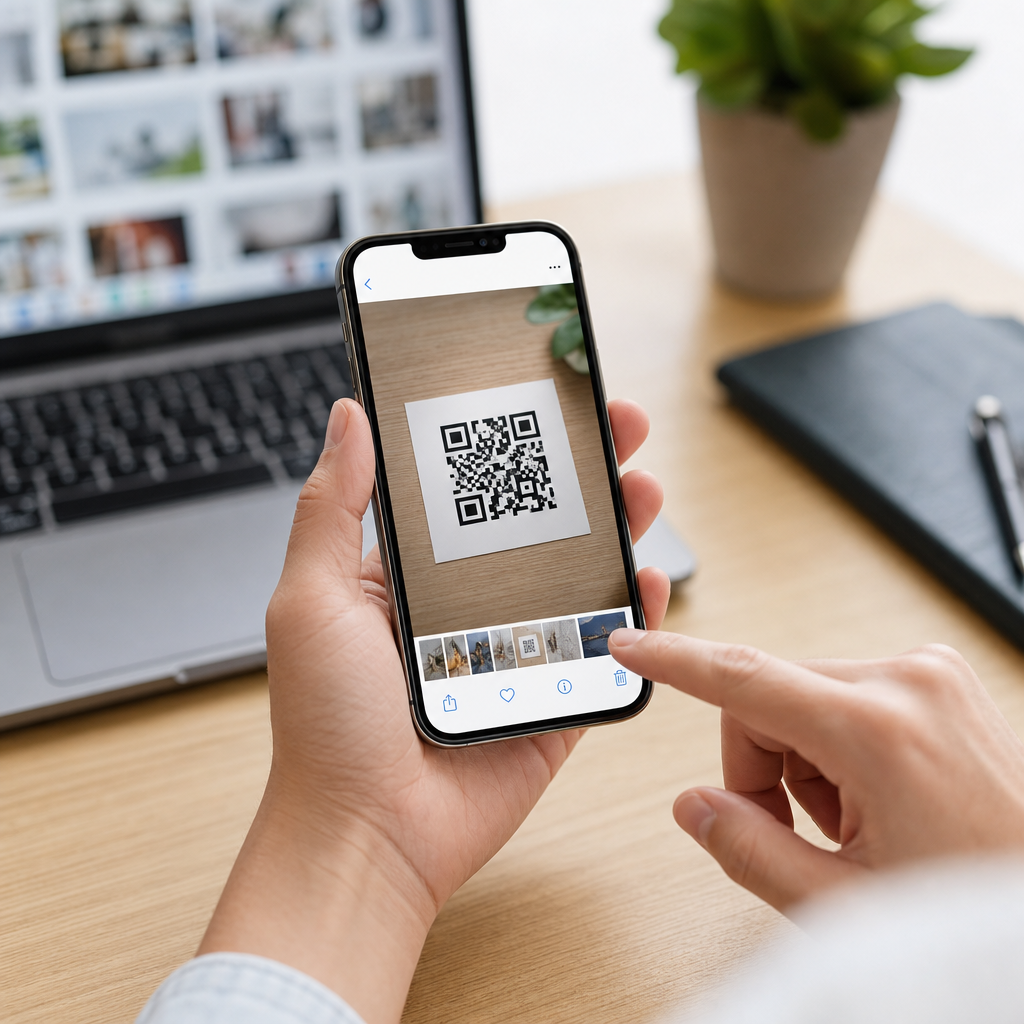
On iPhone, the most reliable method is the Photos app. Open Photos, select the image containing the QR code, and look for a small interactive indicator that appears when iOS recognizes text or visual data. On recent versions of iOS, you can often press and hold directly on the QR code. If the code is readable, iPhone displays the embedded action, usually “Open Link” for a website. Tap it to continue. If nothing appears, zoom in slightly, make sure the full code is visible with good contrast, and try again. In support testing, I see the highest success rate on clear screenshots saved in PNG or high-quality JPEG formats.
If the direct press-and-hold method does not work, use Live Text or visual lookup behavior inside Photos. Apple has expanded image analysis across iOS 15 and later, but feature placement varies. Users with older devices or older iOS versions may not have the same options. If you are troubleshooting for someone else, verify both their model and iOS version before assuming the feature exists. Also note that QR recognition can fail when the image is heavily cropped, blurred by motion, or stylized with inverted colors.
A common iPhone question is whether the Camera app itself can scan a code already saved to the phone. It cannot scan from the camera roll directly because it is designed for live capture. The workaround is always to use Photos or a third-party app that imports images. If a QR code came through Safari, Mail, or Messages, you may also be able to long-press the image before saving it, because iOS sometimes recognizes the code in-app. That is useful for payment pages, boarding passes, and account verification links where users want to avoid extra steps.
How to scan a QR code from your camera roll on Android
Android is less uniform because Samsung, Google Pixel, Motorola, Xiaomi, and other manufacturers add different interfaces. The most universal method is Google Photos with Google Lens. Open Google Photos, select the image, then tap the Lens icon. Lens analyzes the image and surfaces the QR result as a link, text payload, Wi-Fi setup prompt, or other action. On Pixel devices, this is usually seamless because Lens is deeply integrated. On Samsung phones, Gallery may also expose a “Scan QR code” or Bixby Vision style option depending on One UI version.
If you use the Files app, Chrome, or a messaging app, Android may also offer “Search image with Lens” from a share sheet or overflow menu. In field support, this is often the fastest rescue path when users cannot find the QR scanner in their main photo gallery. Some phones additionally support scanning screenshots from the recent apps view using system intelligence features, though availability is inconsistent. When helping users across brands, I recommend asking one question first: do you have Google Photos or Google Lens installed? If yes, you usually have a working path in under thirty seconds.
Android users should also know that not every default Gallery app includes QR recognition. That does not mean the phone cannot scan from the camera roll; it only means the manufacturer omitted the feature from that app. Installing Google Lens from Google Play is generally the simplest solution. It is maintained by Google, widely trusted, and effective not just for QR codes but also for barcodes, text extraction, translation, and object recognition.
Why saved QR codes fail to scan and how to fix them
When a QR code in your camera roll will not scan, the most common cause is poor image quality. QR decoding depends on finder patterns, alignment, quiet zones, and contrast. If any of those are damaged by compression, cropping, glare, or overlays, the scanner may fail. Screenshots from social apps can be especially problematic because some platforms recompress images aggressively. I have also seen codes fail after users annotate screenshots with arrows, circles, or stickers that cover the corner markers.
| Problem | What it looks like | Best fix |
|---|---|---|
| Low resolution | Blurry blocks when zoomed | Get the original image or retake the screenshot |
| Cropped edges | White border around the code is missing | Use an uncropped version with full margins |
| Screen glare or moiré | Code photographed from another display | Save the file directly instead of photographing it |
| Overlay graphics | Text, stickers, or icons cover the code | Use a clean image without annotations |
| Unsupported payload | Scanner sees code but no action appears | Try a different app such as Google Lens |
Another failure point is the payload itself. A QR code can encode plain text, a malformed URL, an expired login token, or a Wi-Fi profile your phone cannot apply automatically. In those cases, the scanner may technically work, but the result seems broken to the user. The fix is to inspect what the code contains. Good scanner apps show the raw content before opening it. That matters for safety too, because shortened links and unfamiliar domains deserve scrutiny.
Best apps, privacy considerations, and related mobile troubleshooting
Built-in tools should be your first choice because they reduce friction and are usually enough for standard web links. For iPhone, start with Photos. For Android, start with Google Photos or Google Lens. If you need a dedicated app, choose one with a clear publisher, recent updates, and minimal permissions. A QR scanner does not need access to your contacts, microphone, or persistent location just to decode an image. On managed business devices, Microsoft Lens may also be available, though it is oriented more toward documents than consumer QR use.
Privacy matters because scanning a code can trigger a web request, app deep link, payment flow, or account sign-in. I advise users to preview the destination before opening it whenever possible. HTTPS links, recognizable domains, and expected contexts are good signs. Random domains, typo-squatted brand names, and prompts to install unknown apps are warning signs. This is particularly important with QR phishing, sometimes called quishing, where attackers hide malicious destinations behind a code that looks harmless in an email or poster.
As the hub for mobile-specific FAQs, this topic also connects to adjacent troubleshooting questions users search constantly: why the camera app is not scanning live codes, how to scan a QR code on WhatsApp Web, how to scan Wi-Fi QR codes, how to open app store codes, why event tickets fail at the gate, and how to scan a code from another app without saving it first. The answer pattern stays consistent. First, confirm the phone can read image-based codes through Photos, Lens, or Gallery. Second, confirm the image is clear and complete. Third, verify the content inside the code is valid and safe.
If you only remember one workflow, make it this: open the saved image, use the built-in image analysis tool, and preview the result before tapping. On iPhone, that usually means Photos and a long-press. On Android, that usually means Google Photos and Lens. When those fail, the problem is usually not mysterious. It is almost always a bad image, missing feature support, or a destination that no longer works. Use this page as your starting point for mobile QR help, then move to the related troubleshooting articles in your FAQ library for device-specific fixes, app-specific steps, and security checks that keep scanning fast and safe.
Frequently Asked Questions
Can I scan a QR code directly from my camera roll without using another device?
Yes, in many cases you can scan a QR code directly from your camera roll, photo gallery, or screenshots folder without needing a second phone or a printed copy. This is especially useful when someone sends you a QR code in a text message, email, chat app, or social media post and you need to open it on the same device where the image is saved. Instead of pointing your camera at a live code, modern smartphones can often detect QR data inside an existing image.
On many phones, the easiest method is to open the saved image and look for a built-in detection option. On iPhone, the Photos app may recognize the code automatically when you tap or press on the QR code in the image, and Live Text features can sometimes identify links or embedded actions. On Android, Google Photos, Google Lens, or some manufacturer gallery apps can scan the image and reveal the QR code’s contents. Depending on the type of QR code, the detected action could open a website, join a Wi-Fi network, add a contact, launch a payment app, display an event ticket, or trigger another deep link.
If your phone does not automatically recognize the image, you can usually use a QR scanning app or a built-in visual search tool that lets you select a photo from your camera roll. The key idea is that the QR code does not need to be physically in front of the camera as long as the app or operating system supports reading machine-readable data from stored images.
How do I scan a QR code from a screenshot on iPhone or Android?
The exact steps vary by device, but the process is usually straightforward on both iPhone and Android. If you took a screenshot of a QR code, first open the image in your Photos, Gallery, or Google Photos app. Then check whether your phone offers an automatic QR recognition prompt, a scan icon, a Lens option, or a long-press action over the code itself.
On iPhone, start by opening the screenshot in the Photos app. If your iPhone recognizes the QR code, you may see a small link, banner, or context menu when you tap and hold on the code area. In newer iOS versions, image recognition features may also present a tappable result directly from the photo. If nothing appears, you can try using a third-party QR reader app that supports importing images from your camera roll.
On Android, a common method is to open the screenshot in Google Photos and tap the Google Lens icon. Lens will analyze the image and identify the QR code contents if the code is clear enough to read. Some Android gallery apps from Samsung, Xiaomi, OnePlus, and other brands may include their own scan or recognition tools as well. Once recognized, you can usually tap the result to open the link or perform the relevant action. If the code leads somewhere sensitive, such as a payment page or login portal, it is wise to review the destination before proceeding.
Why won’t my phone read a QR code from my camera roll?
There are several common reasons a QR code may not scan from a saved image. The most frequent issue is image quality. If the QR code is blurry, cropped, too small, over-compressed, poorly lit, or partially covered by text or stickers, your phone may not be able to decode it. Screenshots taken from low-resolution sources or images that were forwarded multiple times through messaging apps can also lose enough detail to make scanning unreliable.
Another possibility is that your phone’s default Photos or Gallery app simply does not support QR reading from stored images, even if the live camera app can scan QR codes. Some devices handle live scanning well but require a separate tool, such as Google Lens or a dedicated QR scanner, for images already saved in the camera roll. Software version matters too. Newer versions of iOS and Android often include better built-in recognition features than older releases.
It is also possible that the QR code itself is invalid or outdated. Some codes point to expired tickets, disabled links, deactivated payment requests, or temporary sign-in sessions. If the image looks fine but nothing happens, try zooming in slightly, re-saving the image, using a different app, or asking the sender for a clearer copy. As a best practice, avoid entering sensitive information unless you can confirm the QR code’s destination is legitimate and secure.
Is it safe to scan a QR code from a saved photo or screenshot?
Scanning a QR code from a saved image is generally safe in itself, but what matters most is where the code leads. A QR code is simply a machine-readable way to store information such as a website URL, Wi-Fi credential, contact card, payment request, event check-in, or app deep link. Because the contents are not always visible until scanned, malicious actors can use QR codes to hide phishing pages, fake login screens, scam payment requests, or suspicious downloads.
That means you should treat a QR code from your camera roll with the same caution you would use for a link in an email or text message. Before tapping through, check whether your phone shows a preview of the destination. Look closely at the web address, brand name, and action being requested. If a QR code asks you to sign in, install an app, pay money, or connect to a network, make sure the request makes sense and comes from a trusted source.
It is also smart to keep your phone updated and rely on reputable built-in tools or trusted scanning apps rather than unknown utilities. If the image came from an unsolicited message, random social post, or suspicious attachment, be extra careful. In short, scanning from a screenshot or camera roll is convenient and common, but the same digital safety rules still apply: verify the source, inspect the result, and avoid interacting with anything that looks questionable.
What kinds of information can a QR code open when I scan it from my gallery?
A QR code can contain many different kinds of data, and your phone will usually respond based on the code’s contents. The most common type is a website URL, which opens a browser page when scanned. However, QR codes are not limited to web links. They can also store Wi-Fi login details, contact cards, calendar events, app store links, payment requests, product information, digital menus, sign-in prompts, support chat links, and location data for maps.
In practical terms, that means scanning a QR code from your camera roll might let you join a wireless network without typing the password, save a person’s phone number and email to your contacts, open a ticket for travel or an event, launch a mobile payment flow, or jump directly into an app using a deep link. Businesses often use QR codes for promotions, customer service, registration forms, and checkout experiences, while individuals may use them for sharing profiles, portfolios, or home network access.
The action you see after scanning depends on both the QR code format and your device’s supported features. If the QR code contains plain text instead of an interactive action, your phone may simply display the text for you to copy. If it contains a specialized action, such as Wi-Fi setup or payments, your phone may show a dedicated prompt. That flexibility is exactly why scanning QR codes from saved images has become so useful on modern smartphones, especially when the original code arrives in a message, social app, or screenshot rather than in the real world.