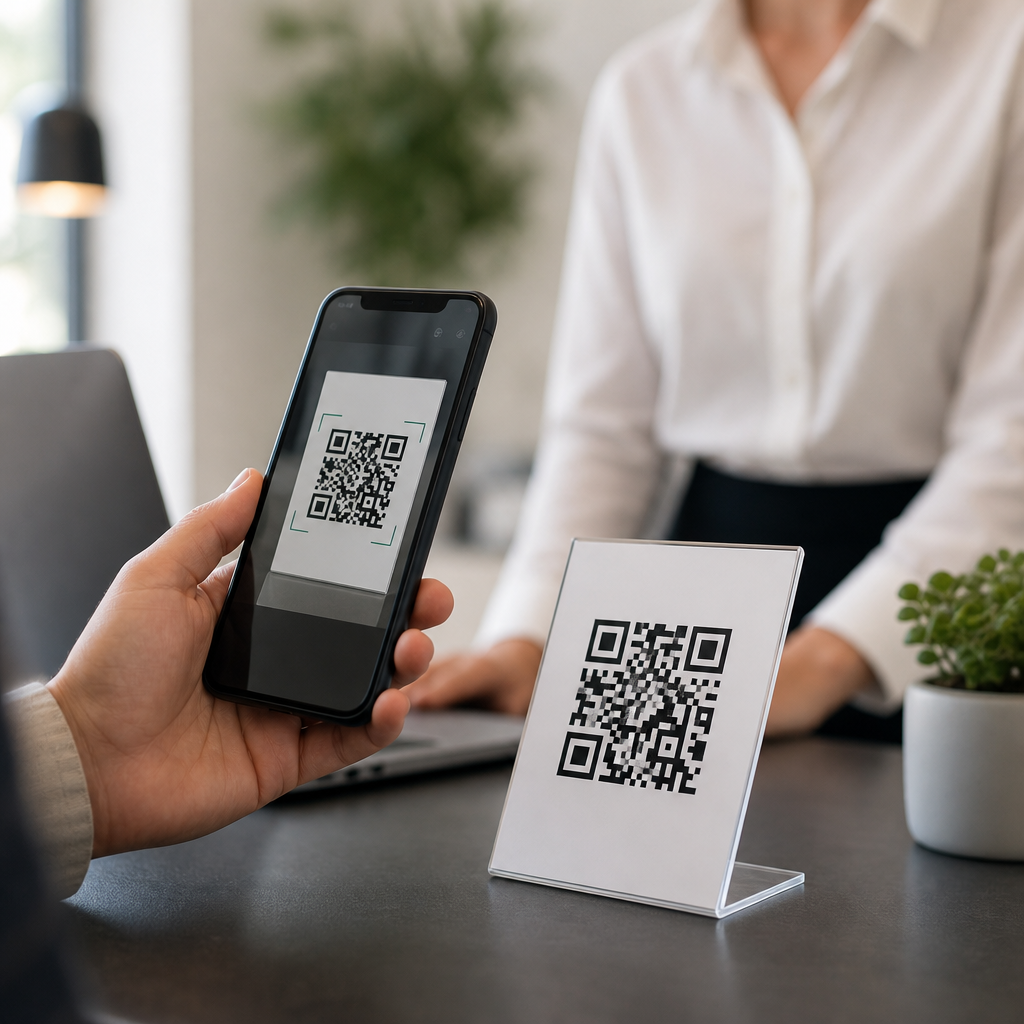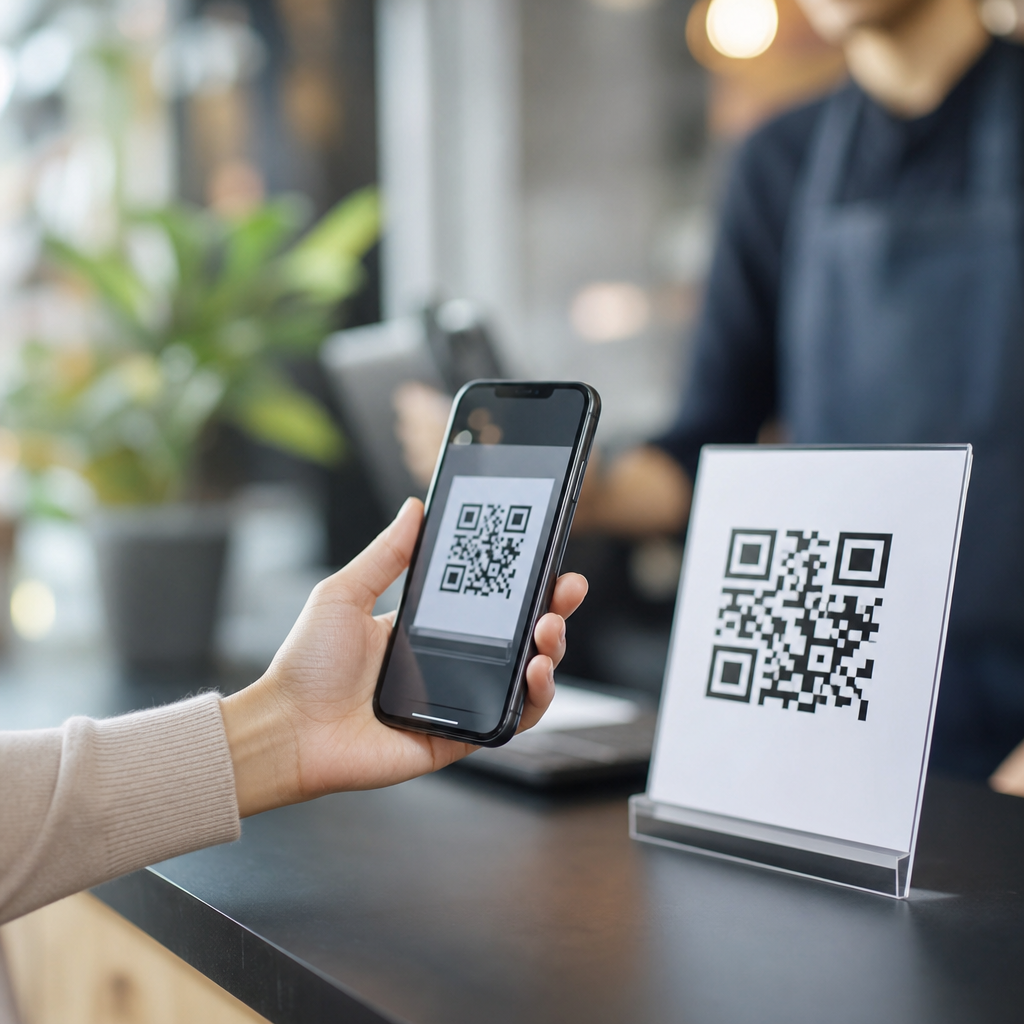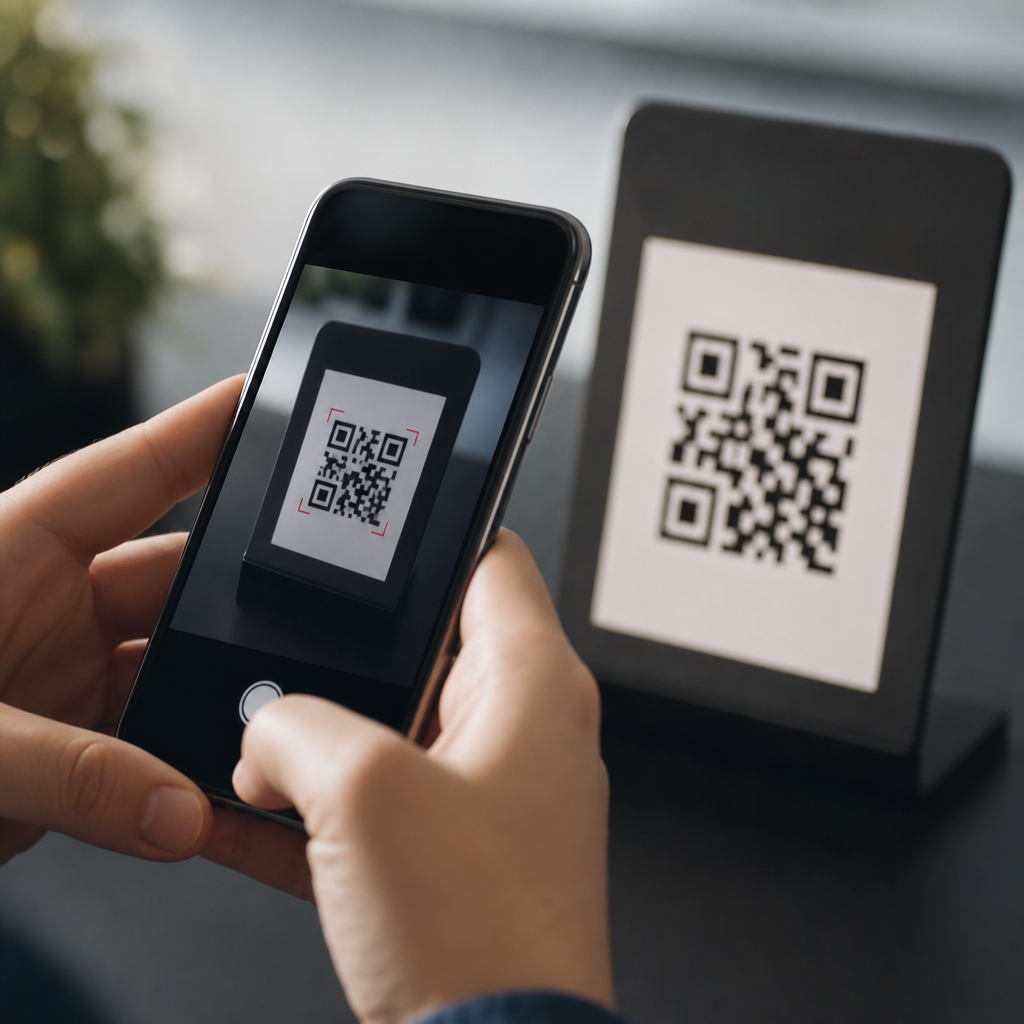
When a phone camera fails to detect a QR code, the problem is usually not the code itself but a mix of software settings, camera limitations, lighting, focus behavior, and app-level restrictions. In mobile support work, I have seen this issue across iPhone, Samsung Galaxy, Pixel, and budget Android devices, and the pattern is consistent: most QR scanning failures come from disabled camera permissions, outdated operating systems, dirty lenses, low contrast on the printed code, or using a camera app that does not include built-in QR recognition. Because this page sits within a broader FAQs & Troubleshooting Hub, it serves as a mobile-specific starting point for diagnosing QR code problems quickly, then identifying when a deeper article on permissions, camera hardware, app bugs, or accessibility settings is the next step.
A QR code, short for Quick Response code, is a two-dimensional barcode designed to store more data than a traditional linear barcode. Most smartphones can scan one directly through the default camera, then hand off the result as a website link, Wi-Fi credential, contact card, payment request, app deep link, or authentication token. Detection means the camera not only sees the square pattern but also recognizes and decodes it. That distinction matters. A phone may display the QR code clearly on screen while still failing to interpret it because the image lacks sharpness, the code is partly obscured, the app blocks scan prompts, or the operating system does not surface the decoded result properly.
This topic matters because QR codes now sit in everyday workflows: restaurant menus, package tracking, event tickets, banking logins, WhatsApp Web pairing, MFA setup, eSIM activation, and product verification. A scanning failure can block purchases, delay sign-ins, or make users think a phone camera is broken when the fix is simple. The goal of this hub article is to answer the core question directly, explain the common causes in plain language, and help readers narrow the problem fast. It also acts as a routing page for the wider Mobile-Specific FAQs cluster, where related issues such as app permissions, browser handoff failures, and front-versus-rear camera limitations deserve their own focused troubleshooting guides.
Start with the simplest causes: focus, distance, lighting, and lens clarity
If your camera is not detecting QR codes, first assume the issue is physical rather than software. Smartphone QR detection depends on edge contrast and pattern clarity. In practice, the rear camera works best because it has better autofocus and higher resolution than the front camera. Hold the phone 6 to 12 inches away, center the entire code in frame, and pause for a second instead of tapping repeatedly. Many users move too close, causing the image to blur. Others stand too far back, so the finder pattern squares in the corners become too small to decode. On iPhones and flagship Android phones, autofocus usually locks quickly, but on older or low-cost devices it may hunt in dim rooms or on glossy packaging.
Lighting is another major factor. QR recognition performs best with even, bright light and low glare. A code behind plastic wrap, on a laminated menu, or displayed on another phone at high brightness can create reflections that wash out the black modules. I often fix scan failures simply by tilting the code slightly, reducing the source screen brightness, or moving near a window. A smudged lens also matters more than people expect. Finger oil softens edges and lowers contrast, which can stop recognition entirely. Wipe the lens with a microfiber cloth, not a shirt sleeve, then try again. If the code is damaged, tiny, overly stylized, or printed in light gray instead of solid black, even a good camera may struggle.
Check whether the phone actually supports built-in QR scanning
Not every camera app scans QR codes by default. Apple added native QR code recognition to the iPhone Camera app years ago, but users can still disable related behavior in settings, and managed devices may restrict it. On Android, support varies by manufacturer, Android version, and camera app. Google Pixel phones typically scan through Google Camera and Google Lens integration. Samsung devices often include QR detection in the stock Camera app, but some models hide it under settings or quick toggles. Budget phones may ship with simplified camera software that lacks native decoding, even when the hardware is capable.
The fastest test is to open the default camera, point it at a standard QR code, and wait for a banner, toast, or link preview. If nothing appears, try Google Lens on Android or the Code Scanner control on iPhone. Lens is especially useful because it can decode from the live camera and from saved photos, which helps separate a camera problem from a software recognition issue. If Lens or a dedicated scanner app reads the code successfully while the default camera does not, the core issue is usually camera app capability, a disabled detection setting, or a vendor-specific software bug rather than damaged hardware.
Review settings, permissions, and operating system behavior
Settings cause a large share of mobile QR issues. On iPhone, the Camera app needs to be allowed and the scan behavior must not be blocked by Screen Time restrictions, corporate mobile device management, or disabled camera access. On Android, camera permission problems usually affect third-party scanner apps more than the stock camera, but privacy dashboards, work profiles, and security tools can interfere. If your phone recently updated, app permissions may have been reset, especially after restoring from backup or migrating devices. I have also seen battery optimization stop scanner apps from opening the browser handoff smoothly after decoding a code.
Operating system version matters because QR handling is not only visual recognition; it also involves how the system treats the result. A phone might detect a code but fail to open the target because the browser is disabled, the associated app is missing, or a security setting blocks unknown links. For example, a Wi-Fi QR may parse correctly but never trigger the join prompt on heavily customized Android builds. An authentication QR for Microsoft Authenticator or Google Authenticator may require the app to be installed before the scan appears useful. Keeping iOS, Android, Google Play services, and the camera app updated reduces these edge-case failures substantially.
Common mobile-specific scenarios and what they usually mean
Different QR use cases fail in different ways, so the symptom often points to the root cause. If the camera never shows any prompt at all, suspect focus, glare, disabled QR recognition, or unsupported camera software. If a prompt appears but disappears instantly, the phone may be moving too much, the code may redirect rapidly, or a conflicting app overlay may be interfering. If the prompt opens a blank page, the issue is likely network connectivity, DNS filtering, captive Wi-Fi, or a malformed URL inside the code. If a payment code works on one banking app but not another, the problem may be format compatibility, such as EMVCo versus a local wallet standard.
| Symptom | Likely cause | Practical fix |
|---|---|---|
| No QR prompt appears | Blur, poor light, unsupported camera app, disabled setting | Clean lens, improve light, hold steady, test with Lens or Code Scanner |
| Prompt appears but will not open | Browser/app handoff failure, blocked link, outdated OS | Update system, check default browser, disable app overlays |
| Only some QR codes scan | Damaged print, custom design, incompatible format | Try another device, request a plain black-and-white code |
| Scans from paper but not from screens | Moiré, screen glare, low refresh interaction | Reduce brightness, zoom slightly, change viewing angle |
| Third-party scanner works, camera does not | Stock camera limitation or disabled feature | Enable QR setting or use the alternate scanner consistently |
One especially common scenario is trying to scan a QR code shown on your own phone. A live camera cannot scan what is already on the same screen, so you need to use a screenshot and analyze it with Photos, Google Lens, or the image picker inside a scanner app. Another frequent case involves social apps with in-app browsers. The camera detects the code, but the destination opens inside Instagram, Facebook, or TikTok and breaks the expected flow. When that happens, choose “open in browser” or copy the link into Safari or Chrome. These are small details, but they explain why a camera may seem unreliable when the actual issue sits one step after detection.
When the problem is the QR code, not the phone
People often blame the camera, yet the QR code itself is sometimes invalid. Real-world codes fail because they are stretched in design software, printed at the wrong size, cropped by packaging, or generated with excessive branding in the center that exceeds error correction limits. ISO/IEC 18004 governs QR code structure, and while the format includes error correction, that does not make every decorative code scannable. High error correction can recover part of a damaged code, but it also increases density, which makes tiny prints harder for weaker cameras to resolve. In retail troubleshooting, I regularly see labels where the quiet zone—the blank margin around the code—is missing, and many camera apps refuse to decode them.
Screen-rendered QR codes can also be problematic. Low-resolution displays, cracked screens, privacy filters, and dark mode inversions can distort the pattern. Some apps animate codes for security or refresh them every few seconds, which can confuse slower autofocus systems. If multiple phones fail to scan the same code, treat the code as suspect. Ask for a replacement image, a direct link, or a printed version. If only one phone fails while others succeed, compare camera quality, software version, and whether the successful phones are using native camera scanning or a different app stack.
How to troubleshoot systematically and when to escalate
The fastest method is to isolate variables one at a time. First test a known-good QR code, such as a simple HTTPS URL generated by a reputable tool like QR Code Generator, Bitly, or Canva’s basic export, without heavy design changes. Next test in bright light with the rear camera after cleaning the lens. Then try a second scanning method: built-in camera, Google Lens, iPhone Code Scanner, and a trusted third-party scanner. If saved-image scanning works but live camera scanning does not, suspect autofocus or camera app behavior. If live scanning works but opening the result fails, shift your attention to the browser, network, or the destination service.
Escalate when repeatable evidence points beyond basic troubleshooting. If the rear camera cannot focus on text, barcodes, or distant objects either, the issue may be hardware damage, optical image stabilization failure, or a camera module fault that needs service. If QR scanning stopped immediately after an OS update, look for vendor forums, Apple Support notes, Google Issue Tracker entries, or Samsung Members reports before resetting the phone. A factory reset is rarely the first best step; it is time-consuming and often unnecessary. For most users, the practical path is simple: confirm camera support, optimize the scan conditions, verify permissions and updates, test another scanning app, and then decide whether the problem follows the phone or the code. If you are still stuck, move to the related troubleshooting guides in this Mobile-Specific FAQs hub and work through the next article that matches your exact symptom.
Frequently Asked Questions
Why is my camera not recognizing a QR code even though the code looks fine?
In most cases, the QR code is not actually the problem. A phone camera can fail to recognize a code because the scanning feature is disabled, the camera does not have permission to access scanning functions inside an app, the lens is dirty, or the phone is struggling to focus at the distance you are using. This is especially common on iPhone, Samsung Galaxy, Pixel, and lower-cost Android phones where camera behavior and software settings vary more than people expect. If the code appears sharp to your eyes but the camera does nothing, start by checking whether QR scanning is enabled in the camera settings, whether the app you are using has camera permission turned on, and whether your device software is up to date. Then clean the lens, increase lighting, and move the phone slightly farther away so the code fits comfortably in the frame. Cameras often fail when users hold the phone too close, use poor lighting, or try to scan a low-contrast or glossy printed code that reflects light back into the lens.
How do I know if the issue is my phone settings instead of the QR code itself?
A good way to tell is to test multiple QR codes in different conditions. If your phone cannot detect any QR code, the issue is usually on the device side rather than the code side. Common setting-related causes include disabled camera access, QR scanning turned off in the default camera app, digital wellbeing or parental control restrictions, app permissions being denied, battery saver limiting background features, or an outdated operating system affecting camera behavior. On iPhones, you should confirm that code scanning is enabled in camera settings and that Screen Time restrictions are not interfering. On Android devices such as Samsung Galaxy or Pixel phones, check app permissions, camera settings, and whether the manufacturer’s camera app supports built-in QR detection. Some budget Android devices do not have strong native scanning support, so the default camera may open normally but still fail to interpret a code. If another phone scans the same QR code instantly, that strongly suggests your settings, software, or camera hardware are the source of the issue.
Can lighting, focus, or camera quality stop a phone from scanning QR codes?
Yes, and these factors are among the most overlooked causes. QR scanning depends on the camera being able to clearly distinguish the code’s square pattern, contrast, and edges. If lighting is too dim, too harsh, or causing glare, the camera may see the code but fail to process it. Focus matters just as much. Many people instinctively move the phone very close to the code, but that often causes blur, especially on older phones or entry-level Android models with weaker autofocus systems. Camera quality also plays a role. A high-resolution sensor is not enough by itself; the phone needs stable focus, decent image processing, and software support for code recognition. If your phone struggles, try placing the QR code under bright, even lighting, avoid reflections from glossy paper or screens, clean the lens thoroughly, and hold the phone farther back until the code appears crisp. On some devices, tapping the screen to force focus helps. If the phone still cannot detect the code, try using a dedicated QR scanner app, since some third-party apps perform better than the stock camera on limited hardware.
Why does my camera work normally for photos but not for QR code scanning?
Taking a normal photo and detecting a QR code are not exactly the same task. A camera can capture images perfectly well while still failing at real-time code recognition because QR scanning requires additional software processing, permissions, and feature support beyond basic photography. For example, your phone may be able to focus and save pictures, but the built-in camera app may not have QR scanning enabled, the operating system may be outdated, or the app you are using may not be allowed to interpret visual data. This happens often when people use social apps, payment apps, or browsers that ask for camera access but do not handle QR scanning as reliably as the default camera. It also happens on certain Android phones where the stock camera app does not include robust QR detection at all. If photos work but scanning does not, switch to the default camera app first, verify that QR scanning is turned on, update the phone software, and test with a simple high-contrast code in good light. That usually reveals whether the issue is software-related rather than a problem with the camera hardware itself.
What are the best fixes to try when a phone will not detect QR codes?
The most effective approach is to work through the common causes in order. First, clean the camera lens and make sure the QR code is well lit, flat, and free from glare. Next, hold the phone at a moderate distance instead of too close, and keep your hand steady long enough for autofocus to lock. Then check the software side: confirm that camera permissions are enabled, verify that QR scanning is turned on in the camera settings, and update your operating system and camera app if updates are available. If you are using a third-party app, switch to the phone’s default camera to rule out app-level restrictions. On iPhone, Samsung Galaxy, Pixel, and many Android devices, restarting the phone can also reset temporary camera glitches. If the printed code is faded, low contrast, damaged, or displayed on a dim screen, increasing brightness or testing another copy of the code can help. Finally, if your phone still struggles, install a reputable dedicated QR scanner app, because some devices—especially older or budget Android models—simply perform better with specialized scanning software than with the native camera alone.