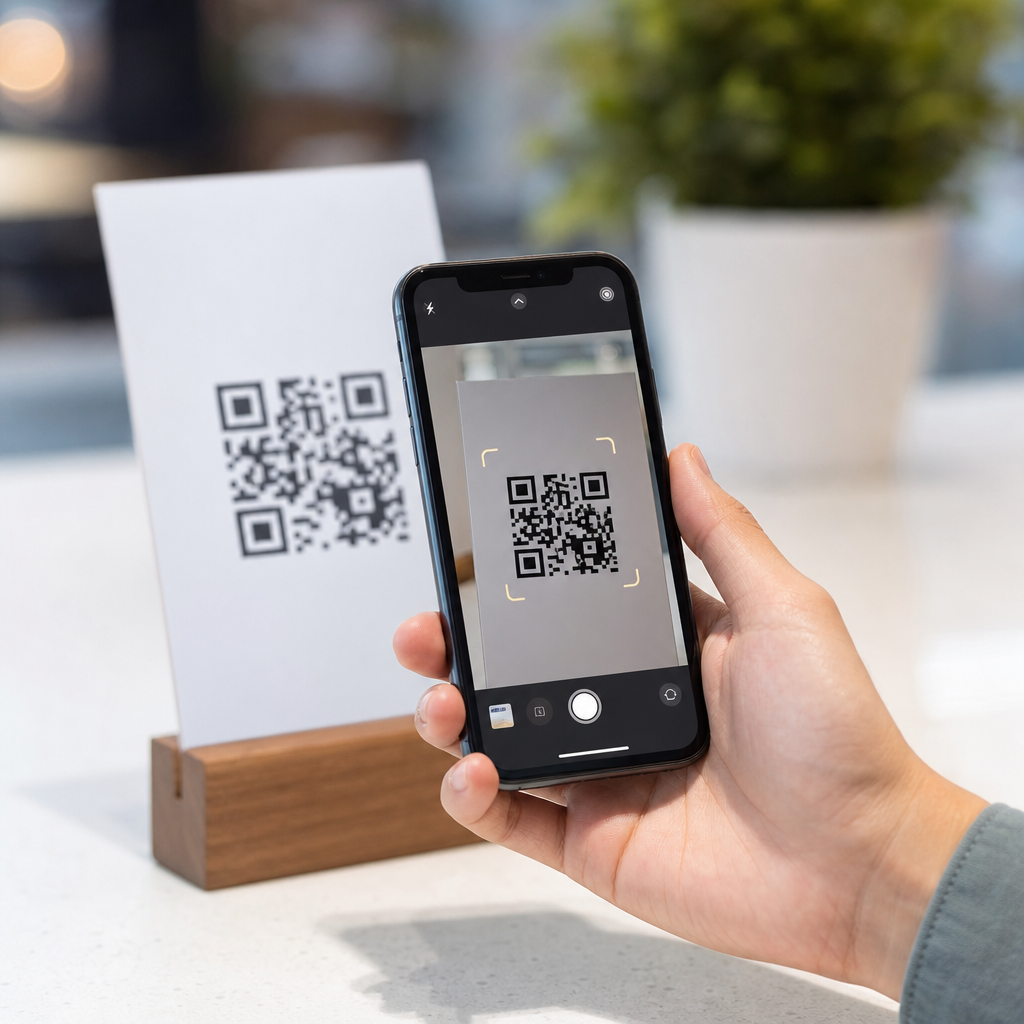
QR code scanning on a phone is usually built in, but the exact way to enable it depends on your device, camera app, software version, and privacy settings. A QR code, or Quick Response code, is a square barcode that stores a link, Wi-Fi credential, contact card, payment request, or app action. On modern smartphones, scanning works through the camera, a built-in code reader, or a visual search tool such as Google Lens. This matters because people now use QR codes for restaurant menus, event tickets, two-factor authentication, product setup, and mobile payments, so when scanning fails, everyday tasks stop immediately.
I have helped users troubleshoot this issue across iPhone, Samsung Galaxy, Google Pixel, Motorola, and budget Android devices, and the same pattern appears repeatedly: the phone can scan QR codes, but the feature is hidden, disabled, blocked by permissions, or replaced by a manufacturer-specific tool. As the central guide within a mobile-specific troubleshooting hub, this article explains how to enable QR code scanning on your phone, how to tell whether your device supports native scanning, what settings commonly interfere, and when you need a third-party app. It also points you toward related troubleshooting paths, including camera permission fixes, software updates, browser behavior, and payment or Wi-Fi connection issues.
The fastest answer is simple. On an iPhone, open Settings, go to Camera, and turn on Scan QR Codes. On most Android phones, open the Camera app and point it at the code; if nothing appears, look for Settings inside the camera and enable Scan QR codes, Google Lens suggestions, or Smart features. If your phone still does not respond, update the system, confirm camera permission access, increase lighting, clean the lens, and test with a standard URL-based QR code before assuming the camera is defective.
How to enable QR code scanning on iPhone
Apple added native QR recognition to the Camera app in iOS 11, so any iPhone running iOS 11 or later can usually scan without extra software. To enable it, open Settings, tap Camera, and switch on Scan QR Codes. Then open the Camera app, point it steadily at the code, and wait for the banner notification at the top of the screen. Tap the banner to open the link or complete the action. If the toggle is missing, the phone is likely running an outdated version of iOS, restricted by Screen Time or mobile device management, or using a customized configuration common in school or work environments.
Control Center can also help. On supported iPhones, you can add Code Scanner by going to Settings, then Control Center, then adding Code Scanner. This launches a dedicated scanner that is often more reliable than the standard camera because it focuses only on code recognition. In support cases, I recommend this path when users say the camera keeps focusing on the background instead of the code. If the code opens Safari but the page fails, the scanning function worked; the problem is now browser connectivity, content blocking, or an expired destination link, which should be handled in your browser or network troubleshooting flow.
How to enable QR code scanning on Android phones
Android is less uniform because Google, Samsung, OnePlus, Xiaomi, Motorola, and other brands customize the camera app. On a Google Pixel, open Camera and point it at the QR code. If needed, open camera settings and enable Google Lens suggestions. On Samsung Galaxy phones, scanning may work through the Camera app, the Quick Settings QR scanner, or Bixby Vision, depending on model and One UI version. On Motorola and many stock-leaning Android devices, Google Lens integration does the work. The core rule is this: if the camera sees the code but no pop-up appears, check the camera settings first, then test Lens.
Google Lens deserves special mention because it has become the fallback scanner on Android. You can access it from the Camera app, the Google app, the Google search bar widget, or Google Photos. That means a saved screenshot of a QR code can also be scanned from your gallery, which is useful for two-factor authentication setup pages or digital event confirmations. In practical support work, this solves a common question: “How do I scan a QR code that is already on my phone screen?” You generally cannot scan a code with the same camera that is displaying it, so using Photos or Lens on the image is the correct workaround.
| Phone type | Where to enable scanning | What to try if it fails |
|---|---|---|
| iPhone | Settings > Camera > Scan QR Codes | Use Control Center Code Scanner, update iOS, check restrictions |
| Google Pixel | Camera app or Google Lens suggestions | Update Camera and Google app, test Lens directly |
| Samsung Galaxy | Camera settings, Quick Settings QR Scanner, or Bixby Vision | Enable scene optimizer or scan QR option, update One UI |
| Motorola and similar Android | Camera app with Lens integration | Open Lens from Google app, verify camera permissions |
| Older Android phones | May require a dedicated QR app | Install a reputable scanner, avoid apps with excessive permissions |
Why QR code scanning is not working even when it seems enabled
If QR code scanning is enabled but still not working, the failure usually falls into five categories: poor image capture, unsupported camera software, blocked permissions, invalid code design, or destination-level problems. Start with image capture. The camera needs enough light, a clean lens, and a code that fills a reasonable part of the frame without being cropped. Matte printed codes are easier to read than glossy ones because glare interferes with contrast detection. Cracked camera glass, common on older phones, can also distort the image just enough to stop recognition while leaving ordinary photos apparently fine.
Next, check software behavior. Some Android camera apps disable code recognition in Pro mode, 108-megapixel mode, or certain aspect ratios. Battery saver can also limit background analysis on low-end devices. Permissions matter too. While the camera permission is obvious, some branded scanner features also rely on network access to preview a link safely before opening it. Then there is the code itself. Stylized QR codes with inverted colors, low contrast, missing quiet zones, or logos that cover too much of the center often fail. According to ISO/IEC 18004 principles, error correction helps, but it does not rescue a badly designed or physically damaged code every time.
When you need a QR code scanner app and how to choose one safely
Most people do not need a separate app anymore, but some older Android phones and heavily customized devices still do. If you must install one, choose a scanner from a recognized publisher, review the permission list carefully, and avoid apps that ask for contacts, microphone, or location without a clear reason. Google Play Protect and Apple’s App Review process reduce risk, but they are not perfect substitutes for scrutiny. In my own testing, the safest options are usually major-brand camera tools or Google Lens rather than stand-alone scanners loaded with ads and aggressive tracking SDKs.
There is also a security reason to stay selective. QR codes can route users to phishing pages, fake package delivery forms, malicious app prompts, or fraudulent payment screens. A trustworthy scanner should preview the full URL before opening it. Users should verify the domain, especially for banking, cryptocurrency, password reset, and workplace login codes. If the code claims to join Wi-Fi automatically, inspect the network name first. As part of this mobile troubleshooting hub, that security check belongs alongside technical fixes because many “scanner problems” are actually the phone correctly warning about unsafe or malformed content.
Related mobile-specific troubleshooting paths to check next
A hub article should not stop at the immediate fix, because QR scanning touches several other phone systems. If the camera app crashes, move to your camera troubleshooting guide: force close the app, clear cache on Android, restart the device, and install pending updates. If the code opens but nothing loads, continue to browser troubleshooting: disable content blockers temporarily, test on Wi-Fi versus mobile data, and confirm the link is not expired. If the code is for payments, check wallet setup, NFC confusion, merchant app requirements, and region availability, since QR payments vary widely by bank and country.
Wi-Fi QR codes create another branch. A code may scan correctly but fail to join the network because the password stored in the code is outdated, the router uses unsupported security settings, or the SSID is hidden. Two-factor authentication codes are different again; those are often setup QR codes for authenticator apps, not general links, so they must be opened inside Google Authenticator, Microsoft Authenticator, Authy, or a comparable app. The most efficient troubleshooting mindset is to separate recognition from action. First confirm the phone can read the code. Then diagnose the service the code is supposed to trigger.
Enabling QR code scanning on your phone is usually straightforward: turn on the built-in option in Camera settings on iPhone, use the default Camera or Google Lens on Android, and update your software if the feature is missing. When scanning still fails, the cause is rarely mysterious. It is typically lighting, focus, permissions, camera mode, an older device, or a poorly generated code. Once you distinguish between reading the code and opening what it contains, troubleshooting becomes much faster and far less frustrating.
As the hub page for mobile-specific FAQs in this troubleshooting section, this guide gives you the core path first and the next steps second. Start with your phone type, confirm the scanner is enabled, test with a plain QR code that points to a normal website, and then branch into camera, browser, Wi-Fi, payment, or authenticator fixes as needed. If you are building your own help center, link this article to those deeper guides so users can move directly to the exact failure point. For now, open your camera settings, enable scanning, and run a quick test code to confirm everything works.
Frequently Asked Questions
How do I enable QR code scanning on my iPhone?
On most iPhones, QR code scanning is built directly into the Camera app, so there is usually nothing extra to install. To make sure it is enabled, open the Settings app, scroll down to Camera, and confirm that Scan QR Codes is turned on. Once that setting is enabled, open the Camera app and point it at the QR code. Hold the phone steady for a moment until a banner or link appears at the top or bottom of the screen, then tap it to open the code’s content.
If scanning does not work right away, check a few common issues. Make sure your iPhone is running a reasonably current version of iOS, because QR support is built into newer versions of the system. Also confirm that the camera lens is clean, the code is well lit, and the code is fully visible in the frame. Some QR codes trigger website links, while others may open Wi-Fi join prompts, contacts, payment apps, or App Store pages. If you do not see a prompt in the Camera app, you can also try using the Code Scanner from Control Center. To add it, go to Settings > Control Center and add Code Scanner. This tool can be useful if you want a more direct scanning experience than the regular camera view.
How do I turn on QR code scanning on an Android phone?
Android phones often support QR code scanning out of the box, but the exact method depends on the brand, Android version, and camera app. On many newer Android devices, you can simply open the Camera app and point it at a QR code. If the phone recognizes the code, a notification, link, or action button will appear on screen. If that does not happen, look in the Camera app settings for an option related to Scan QR codes, Google Lens suggestions, or Smart features, and turn it on.
Some Android phones use Google Lens as the primary QR scanning tool. In that case, open the Camera app and tap the Lens icon, or open the standalone Google app or Google Lens app and scan from there. Samsung Galaxy phones may include QR scanning in the Camera app settings or in the Quick Settings panel through a built-in scanner. Pixel phones typically recognize QR codes directly in the camera viewfinder. If your phone still will not scan, make sure the Camera app has permission to use the camera, update the app through the Play Store if available, and install system updates. Because Android interfaces vary, the key is to check both camera settings and any built-in visual search tools on your device.
Why is my phone not detecting QR codes even though scanning should be built in?
If your phone should support QR scanning but is not detecting codes, there are several likely causes. The most common is that the feature is disabled in the Camera settings, especially on iPhones or customized Android camera apps. Another frequent issue is that the camera is not focusing properly because the QR code is too close, too far away, partially cut off, damaged, or in poor lighting. A dirty camera lens can also prevent accurate detection. In many cases, simply moving the phone back slightly, improving the lighting, and holding the device steady solves the problem.
Software and permission settings can also interfere. If your phone is outdated, the built-in camera may not support QR scanning as expected, or a bug may be affecting the feature. Check for operating system updates and camera app updates. On Android, some brands require Google Lens or another scanner to be enabled separately. On either platform, privacy settings or parental controls may limit camera access or web opening behavior. It is also worth remembering that not every square code is readable; a damaged, low-resolution, or poorly printed QR code may fail on any device. If the standard camera does not detect it, try a built-in alternative such as Control Center Code Scanner on iPhone or Google Lens on Android before assuming your phone lacks support.
Do I need a separate QR code scanner app to scan codes on my phone?
In most cases, no. Modern smartphones generally include QR code scanning through the Camera app, a built-in code reader, or a visual search feature such as Google Lens. For iPhone users, the Camera app and Code Scanner are usually enough. For Android users, the default camera app or Google Lens handles QR codes on many devices. Because of that, a separate third-party scanner app is often unnecessary for everyday use, whether you are opening a website, joining a Wi-Fi network, viewing a restaurant menu, accessing an event ticket, or launching an app action.
That said, there are situations where an additional app might help. Older phones, outdated software, or manufacturer-specific camera apps may not support QR recognition well. Some dedicated scanner apps also offer extras such as scan history, batch scanning, code creation, or enhanced support for unusual barcode types. However, if you do choose an app, be selective. Some QR scanner apps request excessive permissions or include intrusive ads. As a best practice, try your phone’s built-in tools first, keep your software updated, and only install a third-party app if your device truly lacks reliable native support.
Is it safe to scan QR codes with my phone, and what should I watch out for?
Scanning a QR code is usually safe, but the risk comes from where the code leads, not from the act of scanning itself. A QR code can open a website, start a Wi-Fi connection, download an app, trigger a payment request, or display contact information. Because the code hides the destination in a visual pattern, you should always review the preview or prompt before tapping. Most phones will show a banner, link, or action label first, giving you a chance to confirm whether the destination looks legitimate.
Be especially cautious with QR codes posted in public places, on stickers placed over other codes, or in messages from unknown senders. Scammers sometimes use malicious QR codes to send people to fake login pages, phishing sites, fraudulent payment screens, or harmful downloads. Before proceeding, look closely at the web address, make sure it matches the business or service you expect, and avoid entering passwords or payment details unless you are certain the page is authentic. If a code prompts you to join a Wi-Fi network or install software, pause and verify the source. Built-in phone scanners are generally the safest option because they integrate with your device’s privacy and security controls, but your best protection is still careful review before you tap.