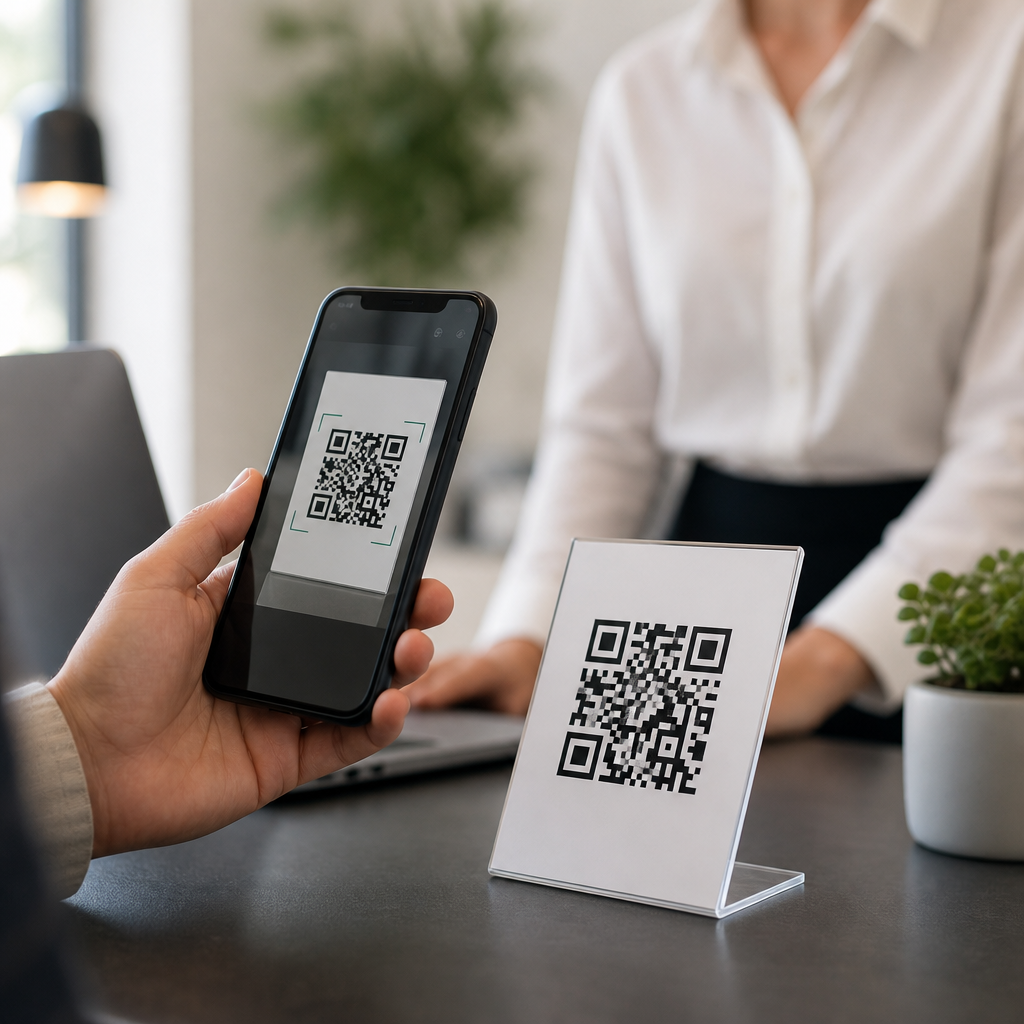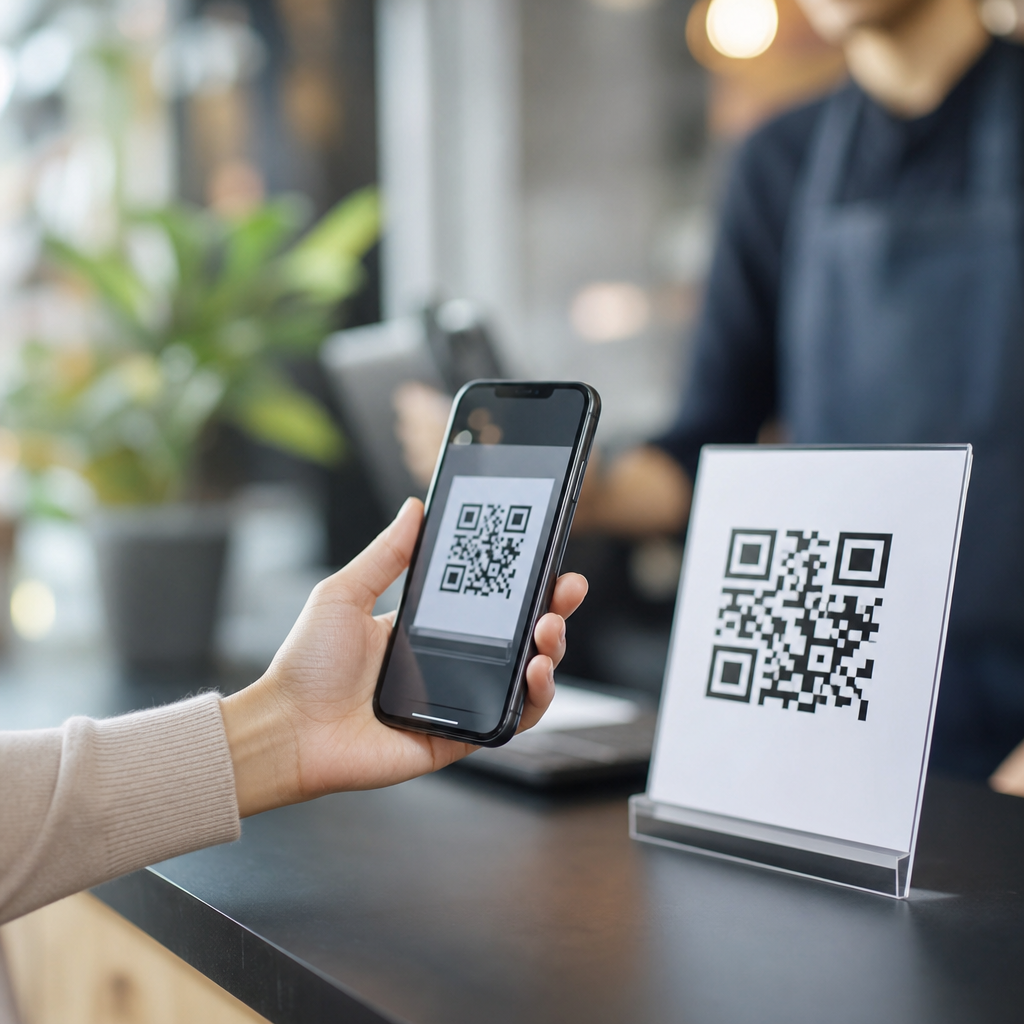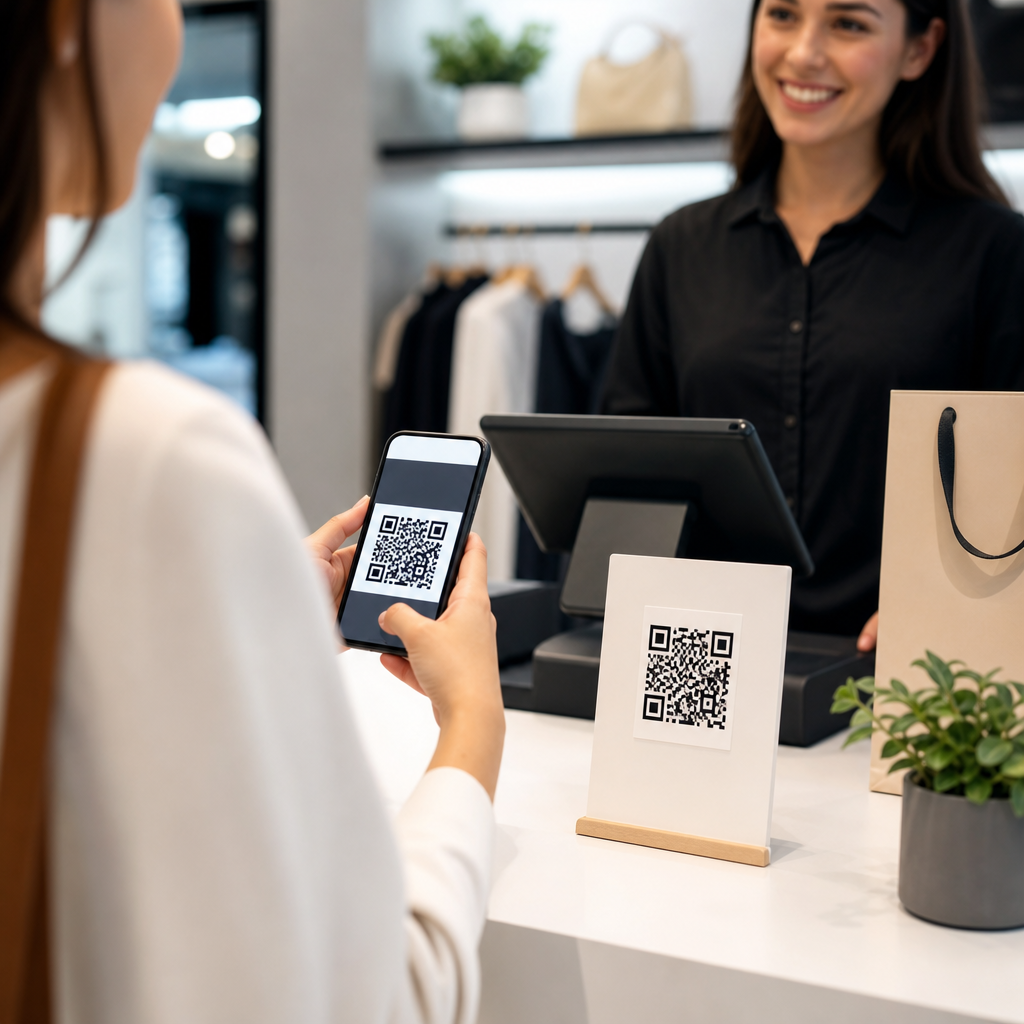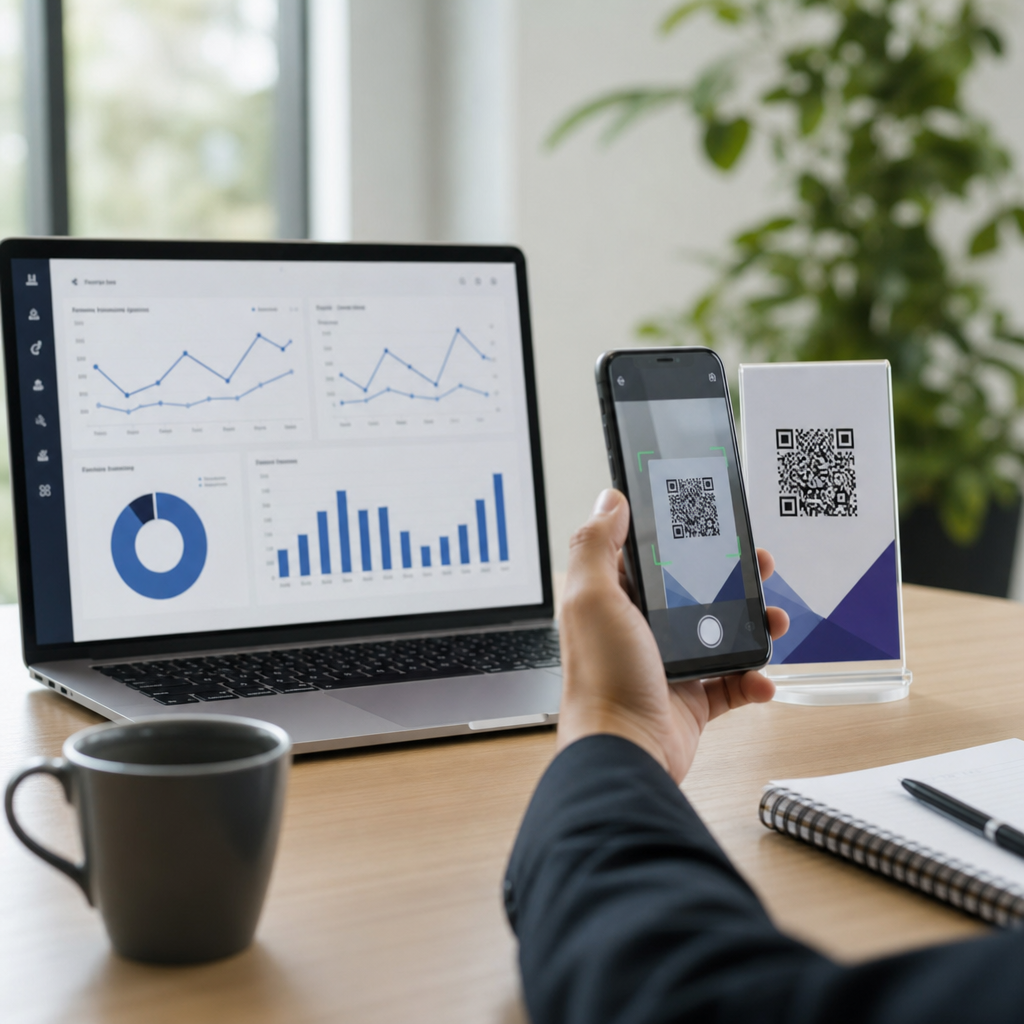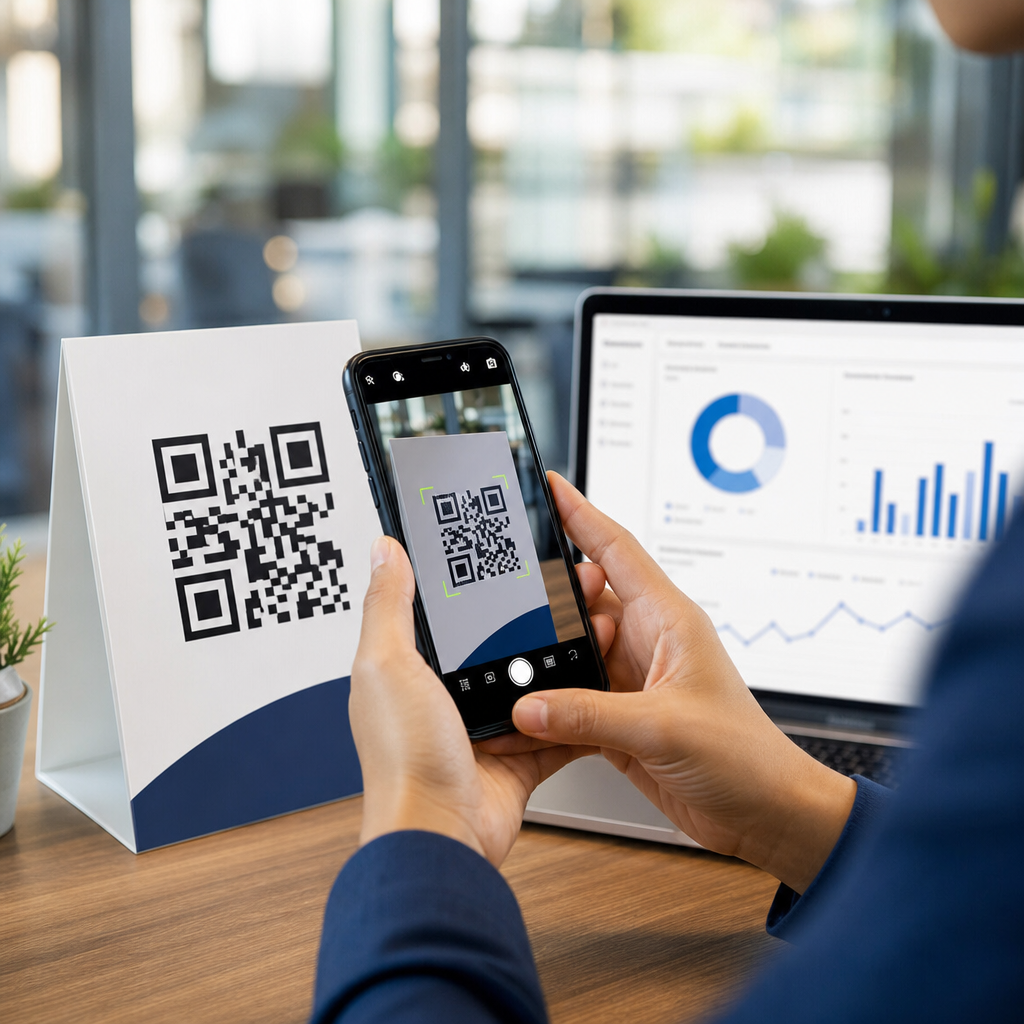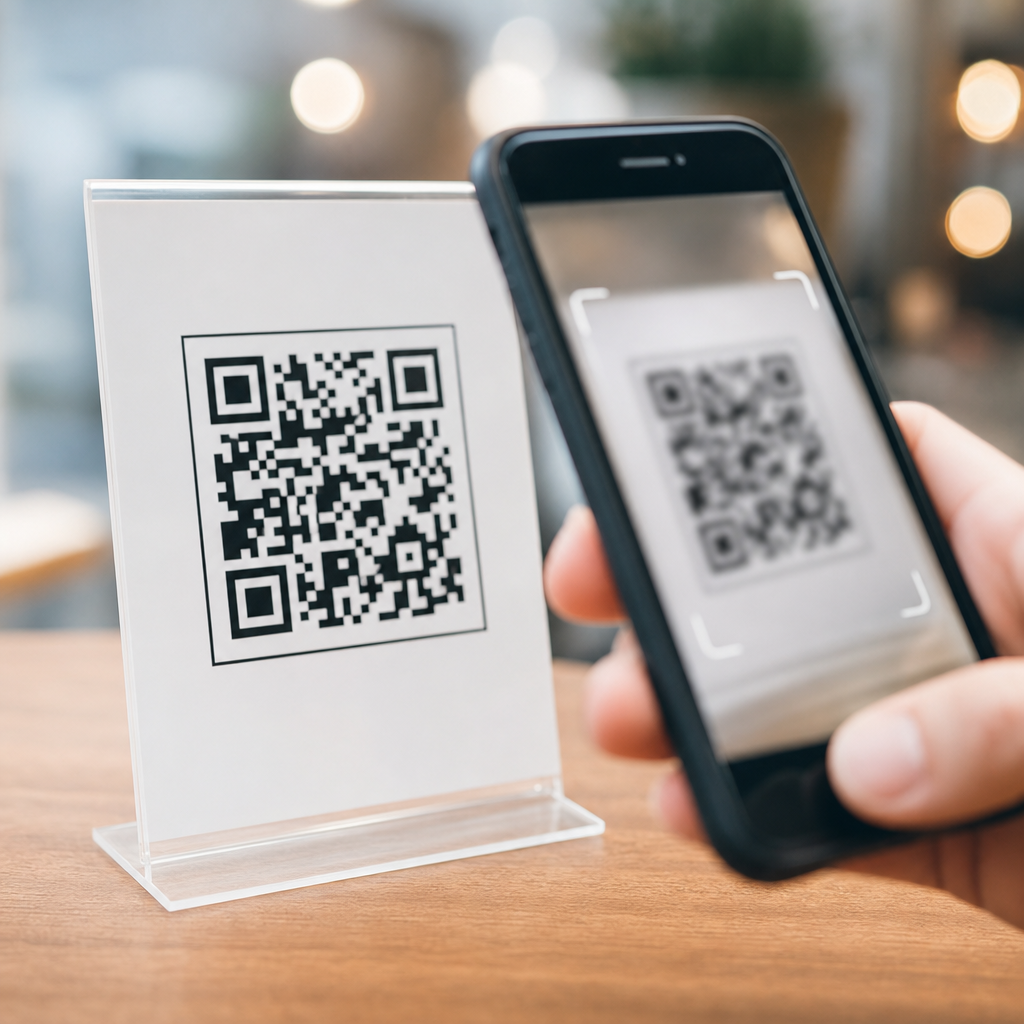
Blurry QR codes are usually caused by a mismatch between code design, print or screen quality, camera focus behavior, and mobile scanning conditions, which is why the same code may scan instantly on one phone and fail repeatedly on another. In a mobile-specific troubleshooting context, “blurry” does not always mean the code itself looks fuzzy to your eyes; it can also mean the phone camera cannot resolve the square modules sharply enough for decoding software to separate dark and light areas. I have seen this most often when businesses resize a code too aggressively, export it as a low-resolution image, place it on glossy packaging, or test it only on one flagship device before publishing. Because mobile scanning now drives payments, menus, app downloads, authentication, and support flows, a blurry QR code is not a small cosmetic issue. It directly affects conversion rate, customer trust, and task completion. This guide explains why QR codes look blurry when scanning, how phone cameras interpret them, what common mobile-specific failures look like, and what to fix first. It also serves as a hub for broader mobile troubleshooting questions, so readers can use it as a starting point for print, screen, iPhone, Android, and in-app scanner problems.
What “blurry” means in QR code scanning on mobile
When users ask, “Why is my QR code blurry when scanning?” they usually mean one of four things: the printed code is physically soft or pixelated, the on-screen code looks jagged or compressed, the phone camera refuses to focus at a usable distance, or the scanning app sees the code but cannot decode it reliably. A QR code works because a decoder identifies precise module boundaries, finder patterns in three corners, alignment patterns on larger versions, and enough contrast to reconstruct data with Reed-Solomon error correction. If those boundaries smear together, decoding confidence drops fast. On mobile, the camera preview can also introduce temporary blur from autofocus hunting, motion blur, aggressive noise reduction in low light, or macro-lens switching on some devices. That is why a code may be technically valid but practically unscannable. In testing campaigns, I treat “blurry” as a symptom, not a diagnosis, because the correct fix depends on whether the bottleneck is the source image, the physical environment, or the handset camera pipeline.
Most common causes of blurry QR codes on phones
The most common cause is insufficient resolution. QR codes should be generated from vector formats such as SVG, EPS, or PDF whenever possible, because vectors scale without losing edge definition. A PNG exported at 200 pixels and then stretched across a poster will blur module edges and create interpolation artifacts. The second cause is undersized print. A practical baseline is a scanning distance ratio of about 10:1, meaning a 2-centimeter code is comfortable from roughly 20 centimeters away, though camera quality and lighting change the real limit. Third is low contrast. Dark gray on black, pastel on white, metallic inks, and transparent overlays often look stylish but reduce decoder certainty. Fourth is excessive customization. Rounded modules, center logos, decorative frames, and inverted color schemes can work, but only if quiet zone, contrast, and error-correction limits are respected. Fifth is environmental blur: glare, dim rooms, moving hands, curved surfaces, and glossy lamination all soften the camera’s view. Finally, some apps compress images inside social platforms or messaging tools, degrading codes shared as screenshots.
How iPhone and Android cameras create mobile-specific scanning issues
Mobile devices do not scan QR codes in exactly the same way. iPhones typically use the native Camera app with system-level detection, while Android behavior varies by manufacturer, camera app, and Google Lens integration. On newer phones, computational photography can help by sharpening edges and improving low-light capture, but it can also create problems. I have repeatedly seen ultra-wide auto-switching on certain phones confuse close-range scans, making the code appear soft until the user steps back. Budget Android devices may have fixed-focus front cameras or weaker autofocus motors, so users trying to scan with the wrong lens struggle even with a perfect code. Screen refresh and PWM dimming can also affect scanning from one phone to another, especially when a bright code is displayed on a cracked or low-quality screen protector. If a QR code scans on one device and not another, that does not automatically prove the code is fine. It often means the code sits near the edge of acceptable tolerances, and stronger cameras hide the underlying design flaw.
Screen-displayed versus printed QR codes
QR codes shown on screens fail differently from printed ones. A printed code suffers from ink bleed, low DPI, textured stock, poor trimming, and reflections from laminate. A screen-displayed code suffers from screenshot compression, moiré patterns, subpixel rendering, cracked glass, dirty displays, and brightness that is too low for the scanning device. OLED displays can make deep blacks look excellent, but if the code is displayed tiny within an app interface, the camera still cannot resolve the modules. Screenshots passed through WhatsApp, Instagram, or SMS may be downscaled enough to blur the code even though the original file was clean. Printed codes on curved bottles or wrinkled labels distort geometry and push decoders harder than flat surfaces. For mobile troubleshooting, always ask two first questions: is the QR code being scanned from paper or from another screen, and has the image been resized, screenshotted, or compressed anywhere in the distribution path. Those answers usually narrow the problem quickly.
Quick diagnosis checklist for blurry QR code scans
A fast diagnosis starts by testing the same code across multiple phones, lighting conditions, and distances. If every phone fails, the source asset is usually flawed. If only one phone fails, look at autofocus, lens selection, dirty camera glass, and camera permissions. If the code scans from the original file but not from the printed version, print production caused the blur. If it scans from a direct browser view but not from a screenshot in chat, compression is the issue. Use this checklist when troubleshooting:
| Symptom | Likely Cause | Best Fix |
|---|---|---|
| Looks pixelated up close | Low-resolution raster export | Regenerate as SVG or high-DPI PNG |
| Scans on flagship phones only | Code near tolerance limit | Increase size, contrast, and quiet zone |
| Fails under store lighting | Glare or low-light blur | Change finish, angle, or illumination |
| Fails from screenshots | App compression or scaling | Share original file or direct link |
| Works far away, fails up close | Macro focus or lens switching issue | Step back slightly and refocus |
Design rules that prevent blur before publishing
The best fix is prevention. Generate the code from a reliable platform, keep the quiet zone at least four modules wide, use high contrast with a light background, and avoid overdesigning. Error correction levels L, M, Q, and H add resilience, but higher correction also increases code density, which can make small codes harder to scan. That tradeoff matters. A short URL in a dynamic QR code often performs better than embedding long raw data because it reduces complexity. For print, I recommend vector output and proofing at final size on the actual substrate, not just on a desktop laser printer. For screens, display the code large enough to occupy meaningful space and avoid placing it inside image carousels or low-resolution in-app popups. Standards guidance from ISO/IEC 18004 is useful here, and verification tools from ZXing-based scanners, Google Lens, and dedicated print QA workflows can reveal marginal codes before launch. If a branded code includes a logo, test old Android devices, not just recent iPhones, because weaker cameras expose problems first.
Mobile-specific FAQ coverage across this troubleshooting hub
This page anchors the broader mobile-specific troubleshooting hub, because blurry scanning often overlaps with adjacent questions users ask after the first failure. Common follow-up topics include why a QR code works on Wi-Fi but not mobile data, why the camera app does not detect codes automatically, why Android and iPhone produce different results, why a code opens the wrong app, why payment or login QR codes time out, and why social media apps blur uploaded codes. Each issue should be documented separately, but they connect through the same diagnostic flow: confirm the code is valid, confirm the image is sharp enough, confirm the phone can focus, then confirm the destination loads correctly. In support teams I have managed, this layered approach cuts unnecessary escalations because it separates image quality problems from network, app, or permission problems. As this hub expands, related articles should branch from this page into camera settings, print quality, screen-sharing, app-specific scanners, and accessibility considerations for users with older or damaged devices.
Conclusion
If your QR code is blurry when scanning, the root cause is usually one of three things: the code asset lost sharpness during export or sharing, the physical presentation reduced contrast or added distortion, or the phone camera could not focus cleanly under real mobile conditions. The fix is rarely guesswork. Check the original file type, final display size, contrast, quiet zone, lighting, and device-specific camera behavior in that order. Test across multiple phones, including average Android hardware, because that reveals borderline designs faster than premium devices do. For teams building a reliable mobile experience, this article should be the starting point in the FAQs and troubleshooting hub, since it links directly to related questions about screen display, print production, camera detection, and app behavior. A sharp, correctly sized QR code removes friction, improves completion rates, and protects user confidence at the exact moment they are ready to act. Audit your current codes now, retest them in real-world mobile conditions, and use this hub as the foundation for every QR troubleshooting article that follows.
Frequently Asked Questions
Why does my QR code look fine to me but still appear blurry to a phone scanner?
A QR code can look perfectly clear to your eyes and still be “blurry” to a phone camera. In scanning terms, blurry often means the camera and decoding software cannot separate the tiny square modules cleanly enough to identify the pattern. Human vision is very good at recognizing high-contrast shapes even when edges are slightly soft, but a mobile scanner needs those dark and light squares to be sharply defined at the pixel level. If the code is too small, printed with low resolution, displayed on a dim or reflective screen, or viewed from the wrong distance, the phone may not capture enough detail for reliable decoding.
This is why the same QR code may scan instantly on one device and fail on another. Different phones have different camera sensors, autofocus systems, image processing, and scanning apps. One phone may sharpen the image aggressively and lock focus quickly, while another may struggle in the same lighting conditions. So even if the code itself is technically correct, the phone may interpret it as blurry because it cannot resolve the module edges clearly enough during the scan.
What are the most common reasons a QR code becomes blurry when scanning on a phone?
The most common causes are poor print or display quality, incorrect sizing, camera focus issues, and unfavorable scanning conditions. If a QR code is printed too small, stretched out of proportion, compressed in a low-quality file format, or reproduced on a surface that bleeds ink, the clean square structure can degrade. On screens, brightness that is too low, glare, pixelation, screen protectors, and moiré effects can all make the code harder for the camera to interpret. Even a valid QR code can fail if the contrast between the dark and light areas is too weak.
Phone-side factors are just as important. Autofocus may lock onto the background instead of the code, especially if the QR code is close to the camera or placed on a glossy surface. Low light can force the camera to use slower shutter speeds or image smoothing, which softens detail. Motion from the hand, smudges on the lens, and extreme camera angles also reduce sharpness. In practical terms, “blurry” is often the result of several small problems happening at once rather than one obvious defect in the QR code itself.
How can I tell whether the problem is with the QR code itself or with my phone camera?
A good first step is to test the same QR code in multiple situations. Try scanning it with a different phone, a different QR scanning app, and if possible, from both a printed version and a digital display. If one or more devices scan it easily, the QR code is likely valid and the issue is related to the original phone’s camera behavior, focus speed, lens cleanliness, or lighting conditions. If the code consistently fails across several devices, the code design or output quality is more likely the underlying problem.
You can also inspect the code for common design issues. Check whether it has enough contrast, a proper quiet zone around the edges, and no distortion from stretching or excessive styling. If the code includes a logo, gradient, rounded modules, or decorative colors, simplify it and retest. On the phone side, clean the camera lens, increase ambient light, hold the phone steady, and adjust the distance slowly so the camera can lock focus. This kind of controlled testing helps separate a code-quality issue from a camera-resolution or scanning-environment issue.
What can I do to fix a blurry QR code and make it easier to scan?
Start by improving the QR code output itself. Use a high-resolution source file, preferably vector format for print, and avoid screenshots, overly compressed images, or resized files that soften edges. Make sure the code is large enough for the intended scanning distance and keep the proportions perfectly square. Use strong contrast, typically dark modules on a light background, and preserve the required quiet zone around the code. If the design includes branding elements, test a plain black-and-white version first to rule out styling problems.
Then improve the scanning conditions. Clean the phone lens, increase lighting, reduce glare, and hold the device parallel to the QR code instead of at an angle. Move the phone slightly closer or farther away to help autofocus find the sharpest point. If the code is on a screen, raise the screen brightness and avoid reflections. If it is printed, make sure the print is not smudged, glossy, or too small. In many cases, a blurry scan issue is solved not by changing the code data, but by improving edge sharpness, contrast, size, and the phone’s ability to focus on the code cleanly.
Why does the same QR code scan on one phone but fail repeatedly on another?
Not all phones process QR codes the same way. Camera hardware varies widely in sensor quality, lens sharpness, autofocus performance, minimum focus distance, and low-light behavior. Newer phones often have better image processing and more reliable autofocus, while older or budget devices may struggle to resolve the fine module pattern, especially if the QR code is small or displayed under poor lighting. Some phones also apply noise reduction or smoothing that unintentionally softens the crisp edges a scanner needs.
Software differences matter too. Built-in camera apps, operating system scanners, and third-party scanning apps may use different decoding engines and focus logic. One app may identify the code quickly from a slightly soft image, while another may require a cleaner, higher-contrast capture. That is why a code that feels inconsistent is not necessarily broken. In real-world mobile troubleshooting, the issue is often the interaction between the QR code’s design and output quality, the phone camera’s focusing behavior, and the environment in which the user is trying to scan.