Can you scan QR codes without internet? In most cases, yes: a phone camera or QR scanner can read the code pattern offline, decode the embedded text, and show the result without using mobile data or Wi-Fi. What happens next depends on the type of QR code. If the code contains plain text, contact details, calendar data, a Wi-Fi password, or an offline app action, you can usually complete the scan with no connection at all. If it contains a web link, the scan still works offline, but opening the destination page requires internet access.
This distinction matters because many mobile users assume QR scanning and internet access are the same thing. They are not. Scanning is the act of using your device camera and software to detect and decode the black-and-white matrix. Internet access is only needed when the decoded result points to an online resource or cloud service. I have tested this repeatedly on iPhone, Samsung Galaxy, and Pixel devices in airplane mode, and the pattern is consistent: the camera recognizes the code locally, then the phone decides whether the next action needs a network.
As a hub page for mobile-specific FAQs, this guide explains how offline QR scanning works, which QR code types function without internet, why some scans fail, and what to check on iPhone and Android. It also points you toward the right troubleshooting path for camera permissions, app behavior, damaged codes, and QR-linked content that will not open. If you want a direct answer before diving deeper, here it is: you can scan QR codes without internet, but you cannot access online content from that code until your phone reconnects.
How QR code scanning works on a phone
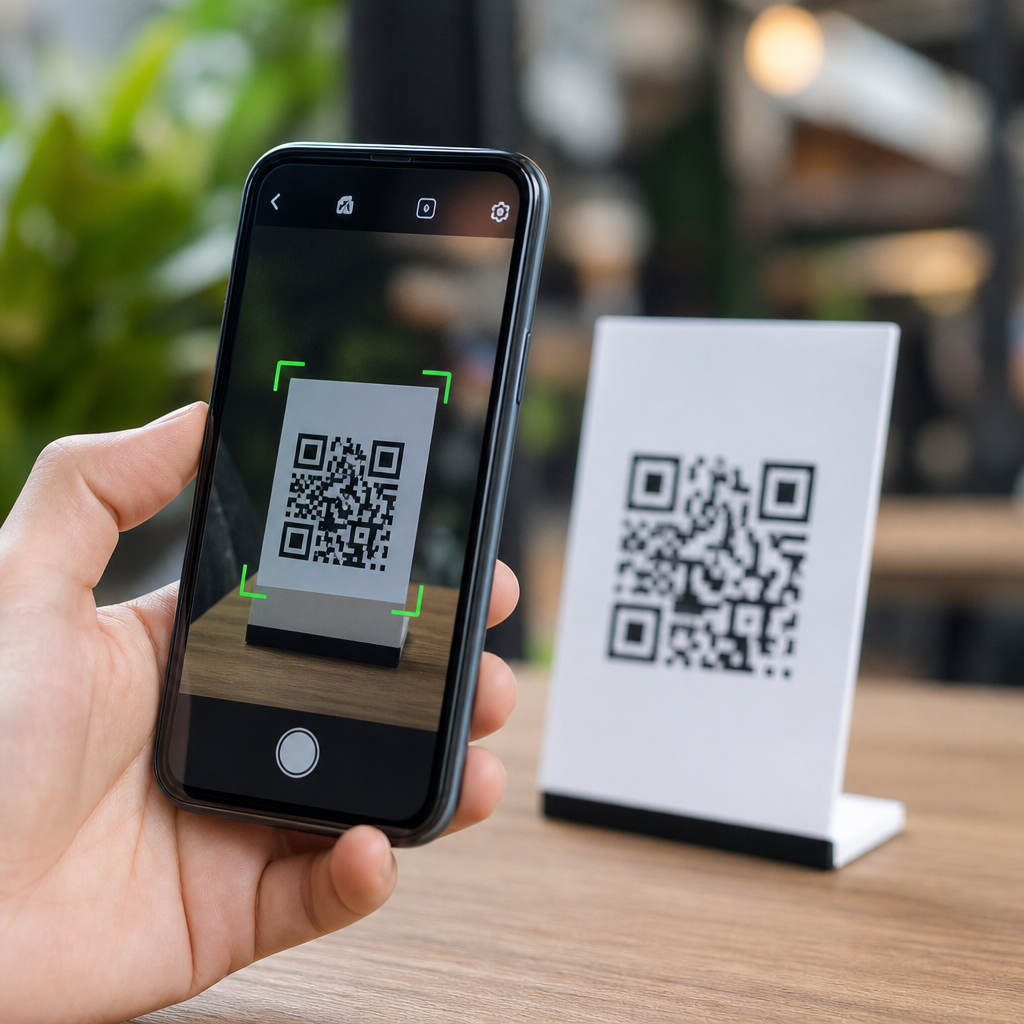
A QR code is a two-dimensional barcode made of modules arranged in a square grid. When your phone camera sees that grid, onboard image processing identifies finder patterns, corrects perspective, and decodes the stored data. This decoding step happens on the device. Modern iPhones do it in the Camera app through built-in detection. Many Android phones do the same through the default camera, Google Lens integration, or the manufacturer camera app. None of that requires internet because the decoding algorithm is local software, not a remote lookup.
The confusion starts because many QR codes are used for websites, payments, menus, app downloads, and sign-ins. In those cases, the code itself often stores a URL or token, not the full content. Your phone can read that URL offline, but it cannot fetch the webpage, verify the login, or load the restaurant menu without a connection. In other words, the scan succeeds, while the destination fails. That difference is essential when troubleshooting mobile QR code issues, especially in airports, underground stations, retail stores with weak signal, or buildings with guest Wi-Fi restrictions.
There are also static and dynamic QR codes. A static QR code stores the final data directly, such as a phone number or fixed URL. A dynamic QR code usually stores a short redirect link managed by a service. Both can be scanned offline because both are just data in the image. However, dynamic codes are more dependent on connectivity afterward, since the redirect service must be reached before the final destination resolves.
Which QR code types work without internet
The easiest way to answer the question is to separate scanning from using the result. Some QR code payloads are fully usable offline, while others only reveal information that becomes useful once connected. If you regularly troubleshoot mobile QR problems, this classification saves time because it tells you whether the fault is with the scanner, the device connection, or the code destination.
| QR code content | Scans offline? | Usable offline? | Typical mobile behavior |
|---|---|---|---|
| Plain text | Yes | Yes | Displays message directly on screen |
| Phone number or SMS draft | Yes | Partly | Opens dialer or messages app; sending needs signal |
| Contact card (vCard) | Yes | Yes | Lets you save contact locally |
| Calendar event | Yes | Yes | Creates event in calendar app |
| Wi-Fi credentials | Yes | Yes | Prompts phone to join a local network |
| Website URL | Yes | No | Shows link, but page loads only when online |
| App store link | Yes | No | Opens store destination when internet returns |
| Payment link | Yes | No | Usually requires network and server validation |
Real-world examples make this clearer. A museum might use QR codes for exhibit labels that contain plain text in multiple languages; those can be read entirely offline. A business card QR code can add a contact without any network. A home router sticker with a Wi-Fi QR code can be scanned offline because the phone only needs the encoded SSID and password to join the local network. By contrast, a parking meter code that opens a payment portal still scans offline, but the transaction cannot proceed until the phone reaches the payment server.
iPhone and Android behavior in airplane mode
On iPhone, the Camera app has supported QR detection for years, and it works in airplane mode as long as the camera is enabled and the code is visible. The phone reads the code and shows a banner with the action. If the payload is text, contacts, or Wi-Fi credentials, you can often continue offline. If it is a web link, tapping the banner opens Safari, which then waits for a connection. If the iPhone does not detect the code, common causes are low light, damaged print quality, older iOS versions, disabled camera access, or a code placed too close to the lens for autofocus to lock.
On Android, the exact experience depends on the device maker. Google Pixel devices typically use the Camera app or Google Lens and decode offline. Samsung Galaxy phones usually scan through the Camera app, Bixby Vision, or Lens integration. Budget Android phones may rely on a third-party scanner app, and app quality varies widely. I have seen some free scanner apps insist on internet not because scanning needs it, but because the app loads ads, telemetry, or cloud safety checks before showing the result. If you need reliable offline performance, the native camera app is usually the best first test.
Airplane mode is a useful diagnostic method. If a code scans in airplane mode and displays a readable result, your scanner is functioning. If the next step fails, the issue is likely connectivity or the linked service. If the code does not scan at all in airplane mode, test with a known-good text QR code. That helps determine whether the problem is the camera, the scanning software, or the original code image.
Common reasons a QR code will not work offline
When users say a QR code “does not work,” they often mean one of four different failures: the camera never recognizes the code, the scanner recognizes it but does nothing, the action opens and stalls, or the final content is unavailable. Each failure points to a different fix. Recognition failures usually come from glare, blur, small print size, low contrast, curved surfaces, or a damaged quiet zone around the code. A scanner that recognizes but does nothing may be blocked by app permissions, enterprise device restrictions, or a bug in the camera app.
Stalling after the scan usually means the QR code points to an online destination. That includes restaurant menus hosted on a website, event check-in pages, app download links, and dynamic redirects. Another issue is expired or misconfigured dynamic codes. I have audited QR campaigns where the printed code was perfect, but the redirect domain had lapsed or the target URL had been removed. Offline scanning still showed a link, yet users blamed the camera because the destination failed later. That is why separating decode from destination is the most useful troubleshooting habit.
Security is another factor. Some phones and apps warn before opening unknown links, especially shortened URLs. That is good practice. QR codes can conceal phishing pages, fake login forms, or malicious download prompts. Offline scanning does not remove that risk; it only means the decoding happened on the device. Users should still inspect the displayed domain before opening a link, especially for banking, payments, password resets, or package-delivery messages.
Best practices for mobile QR troubleshooting
For a fast diagnosis, start with three checks: confirm the phone can scan any QR code, confirm the code payload type, and confirm whether the intended action requires internet. Then move to practical fixes. Increase screen brightness if scanning from another device. Step back slightly so autofocus can sharpen the whole code. Clean the camera lens. Try the built-in camera instead of a third-party scanner. Save a screenshot of the QR code and scan it through Google Lens or the Photos app if live detection struggles. On iPhone, you can long-press a QR code inside a photo; on many Android phones, Lens can read from screenshots.
If the code should work offline, verify the payload format. Wi-Fi QR codes must use the expected schema for SSID, encryption type, and password. vCard and calendar data need correct field structure. Poorly generated codes may decode partially or trigger no action at all. If you create QR codes for customers or staff, test on both iPhone and Android before printing. Use adequate contrast, keep a clear margin, and avoid resizing a raster image until edges blur. SVG or other vector export is safer for signage and packaging.
The key takeaway is simple: scanning a QR code without internet is normal, because decoding happens on the phone. Whether the result works offline depends on the data inside the code. Text, contacts, calendar events, and Wi-Fi credentials often work immediately. Websites, payments, downloads, and cloud-based check-ins do not. Once you understand that split, mobile QR troubleshooting becomes much easier and faster.
For readers using this FAQs and troubleshooting hub, the practical benefit is knowing where to focus next. If the phone cannot recognize any code, investigate camera settings, permissions, lighting, and app choice. If the code scans but the page will not open, troubleshoot connectivity, redirects, or the destination service. If you manage QR deployments, test static and dynamic codes on multiple phones in airplane mode and online mode before launch. Use this framework on your next scan, and you will identify the real problem in minutes instead of guessing.
Frequently Asked Questions
Can you scan a QR code without internet access?
Yes, in most cases you can scan a QR code without internet access. The actual scanning process happens on your device, not online. When you point your phone’s camera or a QR scanner app at the code, the software reads the black-and-white pattern, decodes the information stored inside it, and displays the result. None of that requires mobile data or Wi-Fi by default.
What matters is the type of information stored in the QR code. If the code contains plain text, a phone number, contact details, calendar information, a Wi-Fi network setup, or another offline action, you can usually scan it and use the result immediately without any connection. If the QR code contains a website URL, the scanner can still read and show the link offline, but you will need internet access if you want to open the webpage itself. So the short answer is yes: scanning works offline, but using the content may or may not depend on what the code is meant to do.
What types of QR codes work completely offline?
Several common types of QR codes work fully offline because they store data directly inside the code itself rather than pointing to an online resource. Examples include plain text QR codes, which simply display written information; vCard or contact QR codes, which let you save a name, phone number, or email address to your contacts; calendar event QR codes, which can create a reminder or appointment on your device; and Wi-Fi QR codes, which can help your phone connect to a local wireless network without manually typing the password.
Some QR codes can also trigger device-level actions that do not require internet, depending on your phone and app permissions. For example, a QR code might open a draft SMS message, fill in an email address, dial a phone number, or launch a supported app function. In all of these cases, the code itself is readable offline because the meaningful data is embedded directly in the QR code image. As long as the action does not rely on fetching something from the web, the entire experience can stay offline from start to finish.
If a QR code contains a website link, does the scan still work offline?
Yes, the scan still works offline even if the QR code contains a website link. Your device can read the QR code and extract the URL without needing any internet connection. In practical terms, that means the scanner will identify the web address and usually show it on screen, copy it, or prepare to open it in your browser. The decoding step is local and does not depend on the internet.
However, opening the linked website is a separate step. To actually load the page, your phone needs mobile data or Wi-Fi. Without a connection, the browser may show an error, fail to load, or wait until you are back online. This distinction is important: the QR code itself can be scanned offline, but the content behind the link cannot be accessed until the device has internet access. In some cases, you can still save or note the URL while offline and open it later once you reconnect.
Do built-in phone cameras need internet to read QR codes?
No, built-in phone cameras generally do not need internet to read QR codes. On most modern iPhones and Android devices, QR recognition is handled by software built into the operating system or camera app. That software analyzes the image captured by the camera, detects the QR code pattern, and decodes its contents locally on the device. This is why scanning often works even when your phone is in airplane mode.
That said, results can vary slightly depending on your device model, operating system version, and camera app. Some older phones may require a separate QR scanner app, and a few third-party apps may include cloud-based features, ads, or security checks that benefit from internet access. But the core ability to recognize and decode a standard QR code is usually available offline. If your phone does not seem to scan QR codes without internet, the issue is more likely related to the app you are using or the type of action the code is trying to perform, rather than the scanning process itself.
Why might a QR code seem not to work when you are offline?
A QR code can seem like it is not working offline for a few different reasons, even though the scan itself is successful. The most common reason is that the code points to online content, such as a website, video, app download page, cloud document, payment portal, or social media profile. In that situation, your phone can read the code perfectly well, but it cannot complete the next step because there is no internet connection to retrieve the destination content.
Other issues can also create confusion. Some QR codes are dynamic, meaning they route through a short link or redirect service before taking you to the final destination. These still scan offline, but the redirect cannot resolve without internet. In other cases, a scanner app may be poorly designed, require permissions, or depend on online services for previews or safety checks. Physical problems can matter too: blurry printing, low light, damaged codes, or glare on a screen can prevent accurate detection. If you want to confirm whether the problem is the connection or the code itself, try scanning offline and see whether your phone displays the raw result. If it shows text, a contact card, or a URL, then the scan worked; the limitation is simply what happens after the scan.